Password protected Excel documents serve an important purpose in securing sensitive business data, but what happens when you forget the password or inherit a locked spreadsheet from a former colleague? Understanding how to unlock a password protected excel document becomes essential for maintaining productivity and accessing critical information. Whether you're dealing with a protected worksheet, workbook structure, or file-level encryption, there are legitimate methods available to regain access to your data. This comprehensive guide explores the most effective techniques to unlock Excel documents while maintaining data integrity and respecting security protocols.
Understanding Excel Password Protection Types
Before learning how to unlock a password protected excel document, you must understand the different protection levels Excel offers. Microsoft Excel implements three distinct types of password protection, each serving unique purposes.
Worksheet protection prevents users from modifying specific worksheet elements while allowing viewing access. This lightweight protection locks cells, formulas, and formatting options. Workbook structure protection secures the overall organization by preventing sheet deletion, renaming, or reordering. File-level encryption represents the strongest protection, requiring a password before anyone can open the document.

The security strength varies dramatically between these methods. Worksheet and workbook structure passwords use relatively weak encryption algorithms that can be bypassed through specific techniques. File-level encryption, particularly in Excel 2013 and later versions, employs robust AES-256 encryption that proves significantly more challenging to crack.
Identifying Your Protection Scenario
Determining which protection type you're facing guides your approach to unlock the document. When you open an Excel file and can view data but cannot edit cells, you're dealing with worksheet protection. If Excel prompts for a password immediately upon opening, that indicates file-level encryption.
Users can verify worksheet protection by navigating to the Review tab and checking if the Unprotect Sheet option appears. For workbook structure protection, attempt to right-click a sheet tab-if options like Delete, Rename, or Move are grayed out, the workbook structure is protected. Understanding these protection levels helps you select the appropriate unlocking method.
Method 1: Using the Built-In Unprotect Feature
For situations where you have the password but need to remove protection, Excel provides straightforward built-in features. This represents the simplest approach to how to unlock a password protected excel document when you possess legitimate access credentials.
Removing Worksheet Protection
Navigate to the Review tab in the Excel ribbon and locate the Protect section. Click the Unprotect Sheet button, which replaces the Protect Sheet option when a worksheet has protection enabled.
- Open your password-protected Excel worksheet
- Click the Review tab in the ribbon
- Select Unprotect Sheet from the Protect group
- Enter the password when prompted
- Click OK to remove protection
The worksheet immediately becomes fully editable. All previously locked cells, formulas, and formatting options become accessible for modification. This method works seamlessly across all Excel versions from 2007 through 2026.
Removing Workbook Structure Protection
Workbook structure protection requires a similar but distinct process. Access the Review tab and locate the Protect Workbook button.
- Click Review > Protect Workbook
- Enter the structure password when prompted
- Confirm by clicking OK
- Verify that sheet tabs are now editable
Tech News Today’s comprehensive guide provides additional details on various protection removal scenarios for users with legitimate passwords.
Method 2: VBA Code for Worksheet Protection Removal
When you've forgotten the worksheet protection password, Visual Basic for Applications (VBA) provides a powerful workaround. This technique exploits the weaker encryption used in worksheet protection, making it an effective method for how to unlock a password protected excel document at the worksheet level.
Step-by-Step VBA Implementation
Press Alt + F11 to open the Visual Basic Editor. This development environment allows you to execute code that bypasses worksheet protection.
Sub PasswordBreaker()
    Dim i As Integer, j As Integer, k As Integer
    Dim l As Integer, m As Integer, n As Integer
    Dim o As Integer
    Dim myString As String

    For i = 65 To 66: For j = 65 To 66: For k = 65 To 66
    For l = 65 To 66: For m = 65 To 66: For n = 65 To 66
    For o = 65 To 66
        myString = Chr(i) & Chr(j) & Chr(k) & _
            Chr(l) & Chr(m) & Chr(n) & Chr(o)
        ActiveSheet.Unprotect myString
        If ActiveSheet.ProtectContents = False Then
            MsgBox "Password is " & myString
            Exit Sub
        End If
    Next: Next: Next: Next: Next: Next: Next
End Sub
This VBA macro systematically tests password combinations until finding one that successfully unlocks the worksheet. While the actual original password may differ, Excel accepts any password that produces the correct hash value.
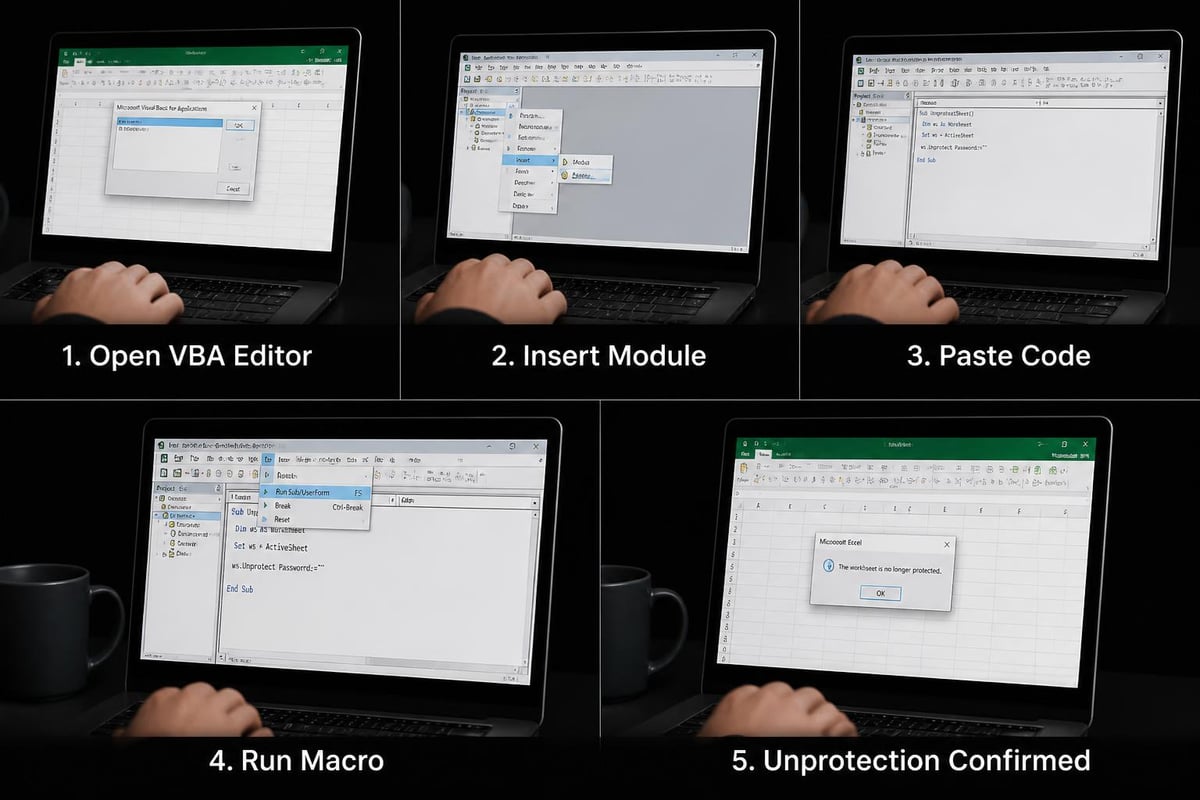
Insert this code into a new module by clicking Insert > Module in the VBA Editor. Run the macro by pressing F5 or clicking the Run button. The process typically completes within seconds for most worksheets. Learning to enable macros ensures you can execute this technique when needed.
Important VBA Considerations
This method only works for worksheet protection, not file-level encryption. The technique exploits collision vulnerabilities in Excel's older protection hashing algorithm. Modern versions still support this for backward compatibility, making it effective even in Excel 2026.
Users should only apply this technique to documents they own or have explicit authorization to access. While legal for your own forgotten passwords, unauthorized access to protected documents may violate corporate policies or legal regulations.
Method 3: ZIP File Method for XLSX Documents
Excel files saved in the .xlsx format are actually compressed ZIP archives containing XML files. This structure enables a clever workaround for how to unlock a password protected excel document when dealing with worksheet protection.
Executing the ZIP Method
Begin by creating a backup copy of your original file to prevent data loss. Change the file extension from .xlsx to .zip, which allows you to extract the archive contents.
| Step | Action | Details |
|---|---|---|
| 1 | Create backup | Copy the protected .xlsx file to a safe location |
| 2 | Rename extension | Change .xlsx to .zip (enable file extensions in Windows if hidden) |
| 3 | Extract archive | Use Windows Explorer or extraction software to unzip contents |
| 4 | Navigate to worksheet | Open xl > worksheets folder and locate the protected sheet XML file |
| 5 | Edit XML | Open the sheet XML file in Notepad and find the sheetProtection tag |
| 6 | Remove protection | Delete the entire sheetProtection element and save the file |
| 7 | Recompress | Zip the modified contents back into an archive |
| 8 | Rename to .xlsx | Change the .zip extension back to .xlsx |
The sheetProtection tag contains attributes like password, sheet, objects, and scenarios. Removing this entire XML element eliminates all worksheet protection. How-To Geek’s detailed walkthrough offers additional context for users new to this technique.
ZIP Method Advantages and Limitations
This approach works without requiring macros or third-party software, making it accessible on locked-down corporate systems. The method preserves all data, formulas, and formatting intact since you're only removing the protection metadata.
However, this technique requires comfort with file systems and XML editing. One misplaced character in the XML can corrupt the entire workbook. Always maintain backups before attempting this method. The ZIP approach only works with .xlsx files, not legacy .xls formats.
Method 4: Google Sheets Conversion Technique
Google Sheets offers an unexpected solution for how to unlock a password protected excel document when dealing with worksheet protection. This cloud-based workaround leverages Google's import functionality.
Upload your password-protected Excel file to Google Drive and open it with Google Sheets. The conversion process strips worksheet-level protection while preserving your data and most formatting. Once opened in Google Sheets, download the file back to Excel format using File > Download > Microsoft Excel.
This method works remarkably well for simple worksheets with basic formatting. Complex workbooks with advanced features like pivot tables, conditional formatting, or custom VBA functions may lose functionality during conversion. Laptop Mag’s practical guide explores this and other alternative approaches.
- Advantages: No software installation required, cloud-based accessibility, preserves core data
- Disadvantages: Requires internet connection, may lose advanced Excel features, formula compatibility issues
- Best for: Simple spreadsheets with basic data and calculations
The Google Sheets method represents a quick solution for straightforward documents but may not suit complex corporate workbooks requiring precise formula fidelity.
Method 5: Professional Password Recovery Software
When facing file-level encryption rather than worksheet protection, professional password recovery software becomes necessary. These specialized applications employ various techniques to unlock password protected Excel files, particularly older formats with weaker encryption.
Software Categories and Capabilities
Password recovery tools fall into three main categories based on their approach. Dictionary attack software tests common passwords and variations against the encrypted file. Brute force applications systematically try every possible character combination within specified parameters. Rainbow table tools use pre-computed hash databases to match and recover passwords quickly.
| Software Type | Speed | Success Rate | Best Use Case |
|---|---|---|---|
| Dictionary Attack | Fast | Medium | Common or simple passwords |
| Brute Force | Slow | High (short passwords) | Known password length/character set |
| Rainbow Tables | Very Fast | Medium | Pre-computed hash availability |
| Hybrid Methods | Variable | Highest | Combining multiple approaches |
Modern Excel versions (2013-2026) implement AES-256 encryption with 100,000 iteration key derivation, making brute force attacks extremely time-consuming. A complex 10-character password could take years to crack with current computing power. Cocosenor’s comprehensive overview examines various software solutions and their effectiveness.
Selecting Recovery Software
Reputable password recovery tools include Passper for Excel, Excel Password Recovery, and iSumsoft Excel Password Refixer. Evaluate software based on encryption version support, recovery speed, success rates, and cost.
Free tools typically offer limited functionality or support only older Excel formats. Commercial solutions provide stronger recovery algorithms but may cost $30-$100. Enterprise solutions with GPU acceleration can significantly reduce recovery time for moderately complex passwords.
Always download recovery software from official vendor websites to avoid malware. Read user reviews and verify the software's compatibility with your Excel version before purchasing.
Legal and Ethical Considerations
Understanding how to unlock a password protected excel document carries significant legal and ethical responsibilities. These techniques should only be applied to documents you own or have explicit authorization to access.
Legitimate Use Cases
Acceptable scenarios include recovering access to your own forgotten passwords, accessing documents from departed employees when authorized by management, and working with inherited spreadsheets where the original creator is unavailable. IT departments often maintain password recovery capabilities for legitimate business continuity purposes.
Corporate environments should establish clear policies regarding password protection and recovery procedures. The Analytics Doctor’s data validation protocols emphasize proper documentation and access management for business-critical spreadsheets.
Situations to Avoid
Never attempt to unlock password protected documents belonging to other individuals without permission. Bypassing security on confidential files, competitive intelligence, or proprietary information may violate computer fraud laws and employment agreements.
Some jurisdictions classify unauthorized password circumvention as illegal access under computer crime statutes. Organizations should consult legal counsel before implementing password recovery procedures for employee-created documents.
Best Practices for Password Management
Preventing the need to unlock password protected Excel documents starts with proper password management. Organizations and individuals should implement systematic approaches to credential storage and documentation.
Password Documentation Strategies
Create a secure password repository using enterprise password managers like LastPass, 1Password, or Keeper Security. These encrypted vaults protect credentials while ensuring authorized users can access necessary passwords. For highly sensitive files, consider split-knowledge approaches where two trusted individuals each hold part of the password.
Document password policies alongside spreadsheet design standards to ensure consistency across your organization. Include password creation guidelines, storage requirements, and recovery procedures in your data governance framework.
- Maintain a secure password database with controlled access
- Document passwords for business-critical spreadsheets in encrypted storage
- Implement role-based access rather than individual password protection when possible
- Regular password audits to ensure documentation remains current
- Succession planning for departing employees' password-protected files
Alternative Protection Methods
Consider whether password protection represents the most appropriate security measure for your needs. Excel offers alternative approaches like workbook sharing with user permissions, SharePoint integration with Active Directory authentication, and OneDrive access controls that provide security without password management challenges.
Building audit-ready spreadsheet systems often eliminates the need for extensive password protection by implementing proper access controls at the file system or platform level.
Prevention Strategies and Alternatives
Rather than frequently needing to know how to unlock a password protected excel document, implement proactive strategies that balance security with accessibility. Modern collaboration platforms offer sophisticated access controls that surpass basic password protection.
Implementing Cloud-Based Solutions
Microsoft 365 and SharePoint Online provide granular permission systems that eliminate password dependency. Assign view-only, edit, or full-control permissions to specific users or groups. These permissions integrate with organizational Active Directory, automatically updating access when employees join, change roles, or depart.
Version history features in cloud platforms create automatic backups, reducing the risk of data loss from forgotten passwords. Users can restore previous versions without requiring password recovery. Creating professional dashboards in cloud-connected Excel files allows controlled sharing with stakeholders while maintaining data security.
Training and Documentation
Establish comprehensive training programs that educate users on proper password practices and alternative security measures. Include password management modules in onboarding processes and annual compliance training. Practical corporate Excel training should cover security best practices alongside technical skills.
Create standard operating procedures for common scenarios like employee departures, system migrations, and document archiving. These documented processes ensure password-protected files don't become inaccessible orphaned data.
Troubleshooting Common Unlock Issues
Even when applying proven methods for how to unlock a password protected excel document, you may encounter obstacles. Understanding common issues and their solutions ensures successful password recovery.

File Corruption and Recovery
Corrupted Excel files may resist standard unlocking techniques. Symptoms include error messages during password entry, incomplete file loading, or crashes when attempting to access protection settings. The Analytics Doctor’s recovery protocols provide systematic approaches to salvage corrupted password-protected workbooks.
Attempt opening the file in Excel's Safe Mode by holding Ctrl while launching the application. Safe Mode disables add-ins and custom settings that might interfere with file access. If the file opens in Safe Mode, save a copy and retry your unlocking method on the fresh copy.
Version Compatibility Challenges
Different Excel versions implement varying protection algorithms. A VBA script designed for Excel 2010 may fail on Excel 2026 documents if Microsoft updated the protection mechanism. Ithy’s comprehensive guide explores version-specific considerations for various unlocking techniques.
Test multiple methods when one approach fails. The ZIP file technique works consistently across XLSX formats regardless of the Excel version that created the file. VBA methods may require adjustment for newer Excel releases but generally maintain backward compatibility.
Macro Security Settings
Organizations often implement macro security policies that prevent VBA-based unlocking methods. If macros won't run, check Trust Center settings under File > Options > Trust Center > Trust Center Settings > Macro Settings.
Enable macros for the specific workbook by saving it to a Trusted Location or digitally signing the VBA project. Corporate environments may require IT administrator intervention to adjust these security policies. Document your business justification when requesting macro access for legitimate password recovery purposes.
Advanced Techniques for IT Professionals
IT professionals and power users may require additional advanced methods for how to unlock a password protected excel document in enterprise environments. These techniques demand technical expertise but offer solutions for challenging scenarios.
PowerShell Automation Scripts
PowerShell provides robust automation capabilities for batch processing multiple password-protected files. Scripts can systematically attempt known organizational password patterns across file repositories, identifying locked documents and applying recovery techniques.
System administrators can develop PowerShell workflows that integrate with Active Directory user data, attempting recovery using employee-specific password patterns based on corporate policies. This automated approach proves valuable when processing departing employees' document repositories.
Network-Level Password Recovery
Enterprise password recovery solutions employ distributed computing across multiple workstations or dedicated GPU clusters. These systems dramatically reduce recovery time for moderately complex passwords by parallelizing brute force attacks.
GPU-accelerated password cracking harnesses thousands of processing cores to test millions of password combinations per second. What might take months on a single CPU completes in hours or days with proper hardware acceleration. Organizations handling sensitive password recovery should invest in dedicated infrastructure rather than relying on desktop applications.
The Bricks comprehensive guide covers additional advanced recovery scenarios for IT professionals managing enterprise spreadsheet environments.
Successfully unlocking password-protected Excel documents requires understanding the protection type, selecting appropriate methods, and following ethical guidelines. Whether using built-in features, VBA scripts, or advanced recovery software, the right approach depends on your specific situation and technical capabilities. When spreadsheet challenges extend beyond password recovery to complex formula troubleshooting, workflow automation, or comprehensive Excel training, The Analytics Doctor provides expert diagnosis and practical solutions that transform your data problems into streamlined, audit-ready systems.