
Unlock the full potential of Excel by harnessing the power of macros. Imagine transforming hours of repetitive work into a single click, allowing you to focus on more strategic tasks. As automation becomes essential in modern workflows, learning how to macro enabled in Excel is a crucial skill for professionals aiming to maximize productivity in 2026.
This comprehensive guide will show you how to enable macros safely and efficiently, ensuring you leverage automation with confidence. You will discover what macros are, why they matter, and the exact steps needed to activate them in Excel’s latest version.
We’ll also explore best practices for macro security, troubleshooting common issues, and advanced management techniques. By following this guide, you’ll elevate your efficiency, reduce manual errors, and work smarter with Excel’s automation tools.
Are you ready to master macros and revolutionize your Excel experience? Let’s get started.
Understanding Macros in Excel
Unlocking the power of automation in Excel starts with understanding macros. If you want to learn how to macro enabled in excel, it is essential to grasp what macros are, their benefits, security considerations, and compatibility updates in Excel 2026.

What Are Macros?
Macros in Excel are sequences of instructions that automate repetitive tasks, allowing users to perform complex actions with a single command. If you want to know how to macro enabled in excel, start by recognizing that macros can automate processes like data entry, formatting, and generating reports.
For example, consider automating monthly sales reports. Instead of manually copying data and applying formulas, a macro can handle this entire workflow in seconds. Macros have evolved significantly since their introduction, moving from simple task recorders to powerful tools based on the Visual Basic for Applications (VBA) language.
Excel supports several macro file types:
.xlsm(macro-enabled workbook).xlsb(binary workbook with macros).xltm(macro-enabled template)
| Manual Workflow | Macro-Enabled Workflow |
|---|---|
| Step-by-step input | One-click automation |
| Prone to errors | Consistent results |
| Time-consuming | Time-saving |
Understanding these basics is the first step in mastering how to macro enabled in excel.
Benefits of Using Macros
Learning how to macro enabled in excel brings significant advantages. Macros boost productivity, reduce human error, and ensure consistency in repetitive tasks. For instance, automating invoice creation allows teams to generate accurate documents quickly, saving hours each week.
Business process automation studies show that teams using macros can save up to 30% of their time on routine tasks. Macros also enhance data analysis by handling complex calculations or formatting instantly. You can even customize macros to suit unique workflow needs, making them invaluable for modern professionals.
For more insights on how macros streamline work and drive efficiency, explore Excel Macros: Streamline Tasks and Simplify Work.
When you decide how to macro enabled in excel, you unlock the potential for smarter, faster work.
Macro Security Basics
Security is crucial when considering how to macro enabled in excel. Macros can carry risks, such as viruses or malicious code. Microsoft has implemented robust security measures, including macro blocking, trusted locations, and support for digital signatures.
A real-world example is a macro virus incident, where opening an untrusted file caused data breaches. To stay secure:
- Only enable macros from trusted sources
- Use trusted folders for macro-enabled files
- Check for digital signatures on macros
- Regularly update Excel and antivirus software
Macro security settings in Excel allow you to control which macros can run. Industry best practices recommend verifying all macro sources and using digital signatures for authentication. These steps are essential when learning how to macro enabled in excel safely.
Macro Compatibility in Excel 2026
Understanding compatibility is also vital for anyone researching how to macro enabled in excel. Excel 2026 introduces new features, such as improved macro security and enhanced cloud support, while maintaining compatibility with older macro-enabled files.
Macros now work seamlessly across desktop, web, and mobile platforms. For example, you can run a macro-enabled report on your laptop and review it on your tablet. Enterprise data shows an increasing trend in macro usage, especially with the move to hybrid and cloud work environments.
| Feature | Excel 2026 | Previous Versions |
|---|---|---|
| Cloud macro support | Yes | Limited |
| Cross-platform execution | Yes | No |
| Enhanced security | Improved | Basic |
Some limitations remain, such as restricted macro functionality in the web version. Still, knowing how to macro enabled in excel ensures you can take full advantage of the latest features.
Step-by-Step Guide: How to Enable Macros in Excel 2026
Unlocking the power of automation in Excel begins with understanding how to macro enabled in excel. This step-by-step guide will walk you through each stage, ensuring you can enable macros confidently, securely, and efficiently in Excel 2026. Whether you are optimizing daily workflows or collaborating with your team, follow these instructions to get started.
Accessing Macro Settings
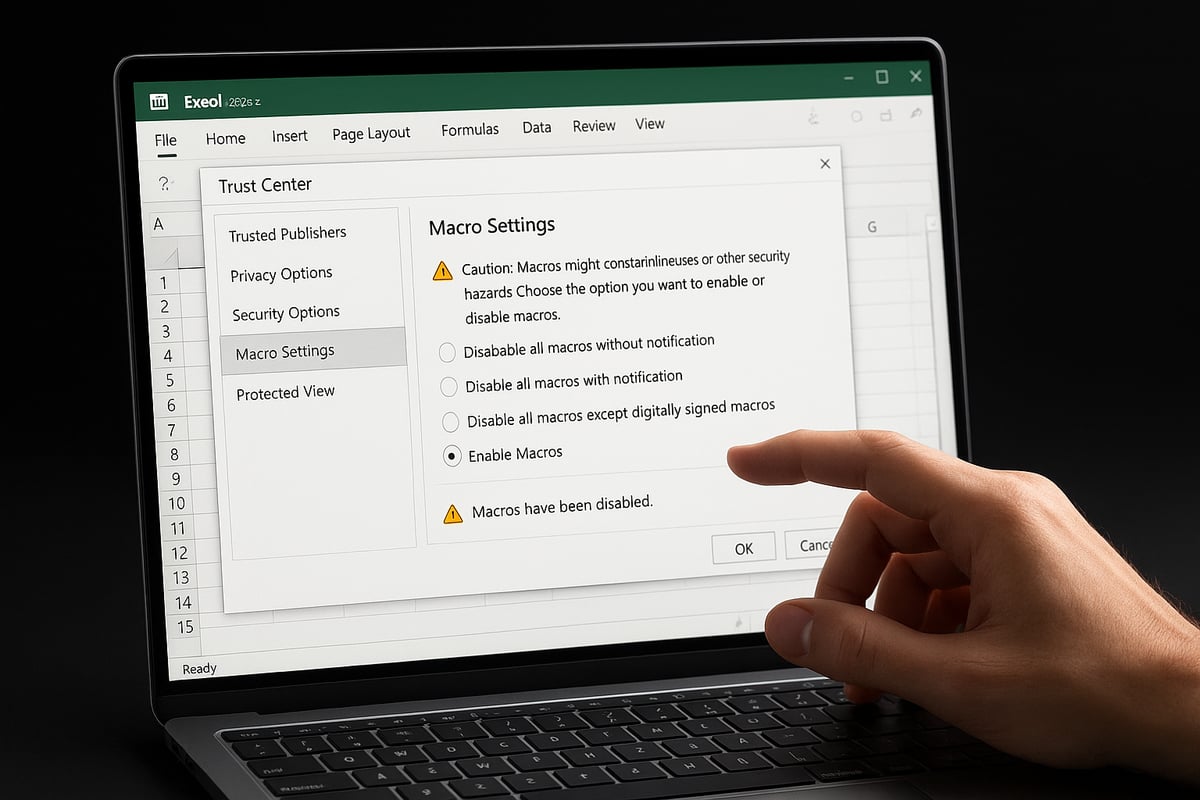
To begin, you need to access the macro settings in Excel 2026. Start by opening Excel and clicking on the “File” tab in the upper left corner. From there, select “Options” at the bottom of the sidebar. In the Excel Options dialog, choose “Trust Center,” then click “Trust Center Settings.”
Within the Trust Center, you will find the “Macro Settings” section. Here, you can control how to macro enabled in excel. On Windows, these steps are consistent with previous versions, but the layout is more streamlined in Excel 2026. On Mac, navigate to Excel > Preferences > Security, then locate macro options. For the web version, macro support is available in limited scenarios, mostly when files are opened from trusted cloud locations.
By default, Excel 2026 disables macros for security. If you need more visual guidance, refer to this How to turn on macros in Excel tutorial for additional help.
Choosing the Right Macro Security Level
Once you have reached the Macro Settings menu, you will notice several security options. Understanding these helps you decide how to macro enabled in excel while keeping your data safe. The main choices are:
- Disable all macros without notification
- Disable all macros with notification
- Disable all except digitally signed macros
- Enable all macros (not recommended)
For business environments, “Disable all macros with notification” is usually preferred. This setting alerts you when a macro is present and allows you to enable it case by case. Personal users may choose more relaxed options, but should be aware of the risks.
Managing trusted publishers and locations is also important. You can add folders to the “Trusted Locations” list, ensuring macro-enabled files stored there run without prompts. Remember, enabling all macros can expose your system to threats, so use this setting only in secure, controlled environments.
Enabling Macros for a Specific Workbook
When opening a macro-enabled workbook, such as a file with the .xlsm or .xlsb extension, Excel 2026 displays a security warning bar below the ribbon. This bar prompts you to either enable or disable macros for this document.
To proceed, click “Enable Content” if you trust the source. This action is how to macro enabled in excel for a specific file. For downloaded financial models or dashboards, always verify the sender before enabling macros. If you later decide a file should not run macros, you can revoke permissions by going to File > Info > Protect Workbook and adjusting the trust settings.
Common issues include the warning bar not appearing or macros not running. In these cases, double-check your macro settings or try re-saving the file in a trusted location.
Enabling Macros Globally
Sometimes, you may want all macro-enabled files to run without individual prompts. In the Macro Settings menu, select “Enable all macros.” This approach is how to macro enabled in excel globally, but it is best reserved for closed, secure network folders or enterprise environments.
When using this setting, ensure you monitor and audit macro activity. IT administrators can configure group policies to restrict macro execution to files from trusted locations only. For most users, workbook-specific enabling remains the safest choice.
Best practices include maintaining logs of macro activity and regularly reviewing which folders are marked as trusted. This helps balance productivity with security.
Saving and Sharing Macro-Enabled Files
After creating or editing a macro, save your workbook as either .xlsm or .xlsb. When you click “Save As,” select the appropriate file type. Excel will prompt you if you attempt to save macros in a standard .xlsx file, as this format does not support macros.
When sharing macro-enabled files via email or cloud platforms, recipients may also encounter security warnings. This is a standard part of how to macro enabled in excel across teams. To ensure compatibility, inform colleagues to use Excel 2026 or a version that supports macros.
Tips for safe sharing:
- Use company-approved cloud services
- Avoid sending sensitive macros to unknown contacts
- Include documentation about the macro’s purpose
If collaborating with users on older Excel versions, test the file for compatibility before distribution.
Troubleshooting Macro Enabling Issues
If macros are not running as expected, the first step is to review your macro security settings. A common error is the “Macros have been disabled” message, which signals that Excel’s security level is blocking macro execution.
Check that your Trust Center settings match how to macro enabled in excel. If the problem persists, the file may be corrupted. Try opening a backup or use Excel’s built-in repair feature. For complex issues, consult Microsoft’s support resources or community forums.
Other troubleshooting tips include:
- Updating Excel to the latest version
- Ensuring antivirus software is compatible with macro-enabled files
- Verifying that macros are not blocked by IT policies
If you need to recover a corrupted macro-enabled workbook, follow a structured recovery protocol to protect your data and maintain workflow continuity.
Macro Security and Best Practices in 2026
Understanding how to macro enabled in excel is only part of the equation. To truly benefit from automation, you must also establish robust security practices. The evolving threat landscape in 2026 demands vigilance, especially as macros remain a favorite target for attackers. Let’s break down the essential security considerations and best practices for macro management.

Understanding Macro Risks
Macros can be exploited to deliver viruses, ransomware, or other malicious code. Attackers often embed harmful scripts in macro-enabled files, hoping unsuspecting users will enable them. For example, a well-known incident involved a finance team receiving a seemingly routine spreadsheet that, once opened, triggered a data breach.
Microsoft continually updates Excel to tackle these evolving threats, but user awareness is critical. According to industry reports, macro-related breaches account for a significant portion of spreadsheet-based attacks. Understanding how to macro enabled in excel safely means knowing the risks and staying alert for suspicious files or unexpected prompts.
Using Trusted Locations and Digital Signatures
One of the safest ways to manage macros is by using trusted locations and digital signatures. Setting up trusted folders ensures that only files stored in designated paths can run macros without warnings. Digital signatures authenticate the macro’s origin and confirm it hasn’t been altered.
For example, companies often require macros to be signed with a corporate certificate before use. This step helps organizations comply with IT policies and reduces the risk of tampering. When considering how to macro enabled in excel, always check for valid signatures and use trusted paths for sensitive documents.
Managing Macro Permissions in Teams and Organizations
Organizations need centralized control over macro permissions to prevent unauthorized access and reduce risk. Group policy settings allow IT teams to enforce macro management rules across all devices. This might include restricting macro execution to signed files or blocking macros from internet sources.
For instance, a large enterprise may restrict macro use to a select group of finance professionals while logging all macro activity for audit purposes. Training staff on how to macro enabled in excel, combined with monitoring and clear policies, helps maintain a secure environment across collaborative teams.
Best Practices for Safe Macro Use
To minimize risks, always verify the source of any macro-enabled file before opening. Keep antivirus software and Excel updated, and avoid enabling macros from unknown senders. Establish a macro usage policy for your team, outlining safe practices and clear reporting channels for suspicious files.
For example, in financial departments, only approved macro templates should be used for reporting. Educating staff on how to macro enabled in excel safely is essential. For an in-depth look at macro security and workflow automation, check out Automating Data Analysis Tasks in Excel with Macros.
Keeping Up with Macro Security Updates
Microsoft regularly releases updates and security patches to address macro vulnerabilities. Enabling automatic updates ensures you always have the latest protections. For instance, a recent patch addressed a vulnerability that allowed unsigned macros to bypass certain security controls.
Stay informed about macro security news by joining professional forums or subscribing to Microsoft’s update bulletins. Make it part of your routine to review security settings after each update. Following how to macro enabled in excel guidelines and staying current with updates is crucial for long-term protection.
Advanced Macro Management and Automation
Unlocking the full power of Excel macros requires advanced management and automation techniques. By mastering these skills, you can streamline complex processes, reduce errors, and elevate your workflow. Below, we explore essential strategies for recording, assigning, organizing, automating, and optimizing macros—each step is crucial for those seeking to truly understand how to macro enabled in excel.

Recording and Editing Macros
Recording macros is the foundation of automation in Excel. The Macro Recorder captures your actions step by step, translating them into VBA code. This is a great starting point for users learning how to macro enabled in excel. To record, navigate to the “View” tab, select “Macros,” then “Record Macro.” Name your macro, assign a shortcut if desired, and perform the tasks you want automated.
Once recorded, you can refine your macro by opening the Visual Basic for Applications (VBA) editor. Here, you can adjust code, add logic, or fix errors. Editing macros allows for powerful customization, turning basic automation into tailored solutions.
Debugging is a critical part of editing. Use breakpoints and the Immediate Window in VBA to find and resolve issues quickly. Even small changes can dramatically improve macro performance.
Assigning Macros to Buttons and Shortcuts
Maximize accessibility by assigning macros to buttons or keyboard shortcuts. This approach is essential when teaching teams how to macro enabled in excel for repeated actions. To add a macro button, use the “Developer” tab, insert a button onto your worksheet, and link it to your macro.
Keyboard shortcuts can be set during macro recording or later in the macro options. Customizing the Excel Ribbon with macro commands streamlines frequent tasks and improves workflow efficiency.
Consider accessibility for all users. Ensure macro buttons are clearly labeled and easy to reach. By making macros user-friendly, teams can adopt automation practices more readily and consistently.
Organizing and Managing Macro Libraries
Centralizing your macros simplifies management and sharing. The Personal Macro Workbook is an ideal place to store frequently used macros, making them available in any workbook. This is a key aspect of how to macro enabled in excel for enterprise environments.
For teams, create a shared macro repository with proper version control and documentation. Use clear naming conventions and comment your code for easier maintenance. When scaling up, consider leveraging Excel VBA programming services to develop robust, audit-ready macro solutions.
Effective organization leads to fewer errors and better collaboration. Always back up macro libraries and update them as your needs evolve.
Automating Workflows with Macros
Macros can automate entire workflows, from data entry to reporting. By integrating macros with features like PivotTables, charts, or Power Query, you enhance Excel’s automation capabilities. Understanding how to macro enabled in excel allows you to link processes and remove bottlenecks.
For scheduled automation, use Windows Task Scheduler to run macro-enabled workbooks at set times. Integrate with Power Automate for cloud-based triggers and seamless data movement.
Real-world examples include automated monthly reporting or dashboard updates. For those seeking hands-on experience, Hands-on corporate Excel training offers practical guidance to boost team efficiency with macros.
Troubleshooting and Optimizing Macros
Even experienced users encounter macro issues. Common problems include slow execution, runtime errors, or unexpected behavior. The first step in how to macro enabled in excel troubleshooting is to check your security settings and ensure macros are enabled for the relevant files.
Use the VBA debugging tools—such as breakpoints, step-through execution, and the Immediate Window—to isolate errors. Optimize code by avoiding unnecessary loops, using efficient ranges, and managing memory effectively.
Keep macros up to date with the latest Excel features. Join Excel user communities for advice and access to troubleshooting resources. Regularly review and refine your macros for peak performance.
Excel Macro Training and Support by The Analytics Doctor
Unlocking the potential of Excel macros requires more than just knowing how to macro enabled in excel. The Analytics Doctor specializes in guiding professionals and businesses through every stage of macro adoption, from safe setup to advanced automation.

Whether you are new to automation or seeking to solve persistent macro issues, personalized training ensures you can enable and manage macros with confidence. The Analytics Doctor’s approach is hands-on, focusing on practical skills, security awareness, and real-world problem solving.
Services offered include:
- Custom macro development tailored to your workflow
- Spreadsheet optimization for faster, error-free results
- Macro security best practices and policy creation
- Troubleshooting for macro-enabled files
Clients often ask how to macro enabled in excel without risking data or productivity. The Analytics Doctor not only offers direct support but also provides access to free guides, templates, and ongoing resources. For example, if a business faces a corrupted macro-enabled workbook, the Recover corrupted workbooks protocol ensures a systematic recovery process.
Many organizations have benefited from expert-led macro automation, such as automating monthly reporting while maintaining strict security standards. This support empowers teams to work smarter, reduce manual effort, and minimize downtime.
If you need consulting, custom solutions, or advanced training on macro-enabled Excel workbooks, reach out to The Analytics Doctor. A tailored approach can help you leverage Excel automation to its fullest, ensuring your macros are both powerful and secure.


