
Unlock the power of data-driven decision making with the latest Excel correlation tools, designed for 2026 and beyond. As organizations increasingly rely on data, the ability to quickly assess relationships between variables in Excel is more valuable than ever.
This guide will show you exactly how to compute correlation coefficient in Excel, breaking down a once complex process into simple, actionable steps. Whether you are a student, business analyst, or researcher, mastering this skill can open doors to more accurate insights and better decision making.
We will start by exploring the fundamentals of correlation, then walk through Excel’s built-in methods, practical applications, troubleshooting tips, and the newest advanced features for 2026. Ready to transform your approach to data analysis? Let’s get started.
Understanding Correlation Coefficient: The Basics
Grasping the correlation coefficient is the first step toward mastering how to compute correlation coefficient in excel. This statistical measure reveals the strength and direction of a relationship between two variables, turning raw numbers into actionable insights.

What is a Correlation Coefficient?
A correlation coefficient quantifies the relationship between two sets of data, ranging from -1 to +1. If you are learning how to compute correlation coefficient in excel, understanding this value is critical. A coefficient near +1 indicates a strong positive relationship, meaning as one variable increases, so does the other. A value close to -1 signals a strong negative relationship, where one variable rises as the other falls. Zero means no linear relationship exists.
There are several types of correlation. Positive correlation is observed when both variables move in the same direction, such as revenue and advertising spend. Negative correlation appears when variables move in opposite directions, like temperature and heating costs. Zero correlation means no discernible pattern, such as shoe size and intelligence.
Two primary correlation coefficients are used in statistics: Pearson and Spearman. Pearson measures linear relationships and is most common in Excel, while Spearman assesses monotonic relationships and is less sensitive to outliers.
| Correlation Type | Measures | Sensitivity to Outliers | Use Case Example |
|---|---|---|---|
| Pearson | Linear | High | Exam scores vs study hours |
| Spearman | Monotonic | Low | Ranks in competitions |
Understanding correlation is vital for business and research. It helps leaders identify patterns, predict trends, and make informed decisions. However, remember that correlation does not imply causation. For instance, an increase in ice cream sales and sunburn cases may correlate, but one does not cause the other. Statistical significance should also be considered to determine if the observed relationship is meaningful or a result of chance.
Why Use Excel for Correlation Analysis?
Excel stands out as a practical tool for anyone eager to learn how to compute correlation coefficient in excel. Its accessibility and user-friendly interface make statistical analysis available to a wide audience, from students to data professionals.
Excel includes built-in functions for correlation analysis, such as CORREL and PEARSON, which streamline calculations without the need for advanced programming. Compared to specialized software like SPSS, R, or Python, Excel provides a gentler learning curve and is already integrated into most business environments.
One of Excel's major strengths is its visualization capability. You can easily create scatter plots, add trendlines, and instantly see the relationship between variables. This visual feedback is crucial when presenting findings to stakeholders or making quick business decisions.
For example, a small business owner can analyze customer purchase trends by organizing sales and marketing data in Excel, then use built-in functions to reveal actionable correlations. If you want a broader perspective on what Excel offers for data analysis, the Data analysis in Excel overview highlights these features in more depth.
Ultimately, using Excel for correlation analysis means you can quickly identify relationships, interpret results, and share insights with minimal technical barriers. This empowers individuals and organizations to make data-driven decisions confidently.
Preparing Your Data for Correlation in Excel
Preparing your data is a crucial step if you want accurate results when learning how to compute correlation coefficient in excel. Clean, well-structured data ensures your analysis is reliable, meaningful, and easy to interpret. Let’s explore the essential steps for getting your dataset ready.
Data Requirements and Best Practices
When considering how to compute correlation coefficient in excel, start by ensuring your dataset meets basic statistical requirements. You need at least a handful of paired data points—ideally more than 20—for reliable results. The data must be numerical and consistently formatted throughout the columns or rows you plan to analyze.
Missing or incomplete data can distort your findings. Handle blanks by either removing those rows or using Excel’s error-handling tools. Outliers, such as extreme values, should be carefully reviewed. Sometimes, these reflect real phenomena, but in other cases, they are data entry errors that can skew the correlation.
Best practices include:
- Standardizing number formats (e.g., all as decimals or percentages)
- Removing duplicates
- Documenting any assumptions or changes made during cleaning
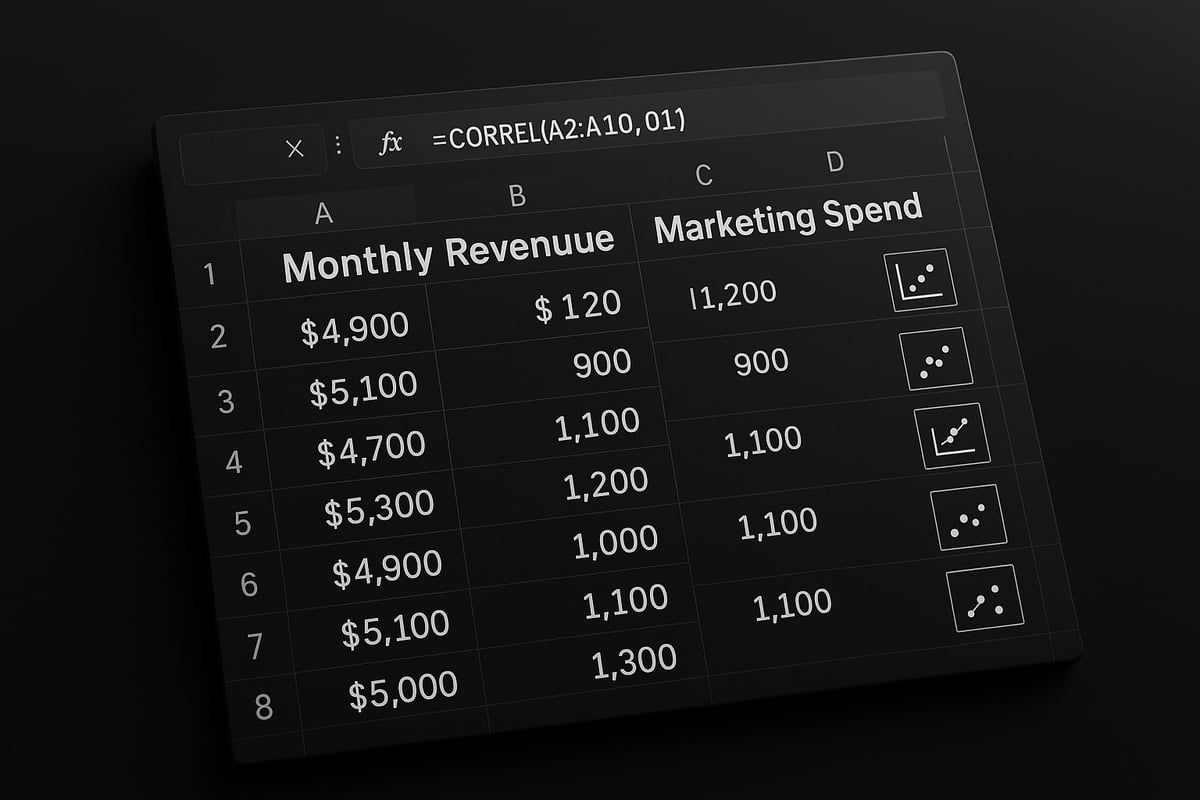
For example, a sales dataset with monthly revenue and advertising spend should have matching, complete entries for each month. Taking time to clean and prepare your data is the foundation of meaningful correlation analysis.
Structuring Data in Excel
Proper structure is essential for how to compute correlation coefficient in excel efficiently. Data should be organized in columns, with each variable labeled clearly at the top. Use descriptive naming conventions, such as "Revenue" and "Marketing Spend," to avoid confusion later.
Tips for organizing your data:
- Place each variable in its own column
- Keep data in adjacent columns for easy range selection
- Use Excel Tables (
Insert > Table) to enable dynamic referencing and automatic expansion
Here’s a quick example:
| Month | Revenue | Marketing Spend |
|---|---|---|
| January | 5000 | 1200 |
| February | 5200 | 1300 |
| March | 5100 | 1250 |
Excel Tables allow you to reference columns by name, making formulas more transparent and reducing errors. This setup is especially useful if your dataset will grow over time or if you plan to automate parts of your analysis.
Data Validation and Pre-Analysis Checks
Before running any formulas, validate your data to ensure accuracy in how to compute correlation coefficient in excel. Begin by checking for obvious errors, such as text in columns meant for numbers or inconsistent entries.
Use Excel’s built-in Data Validation tools to restrict input types and set rules for acceptable values. These features help prevent errors and maintain dataset integrity. For a comprehensive checklist and step-by-step guidance, refer to Excel data validation rules.
Additionally, generate quick summaries—mean, median, standard deviation—to understand your data’s spread. Visual inspection is invaluable: plot a quick scatter chart to spot trends, clusters, or anomalies that could affect your results.
By thoroughly checking and validating your data, you reduce the risk of misleading conclusions and ensure your correlation analysis in Excel is both accurate and actionable.
Step-by-Step: How to Compute Correlation Coefficient in Excel
Unlocking the full potential of your data starts with knowing exactly how to compute correlation coefficient in Excel. Excel’s built-in functions and tools make this process clear, fast, and accurate for users at every level.
Method 1: Using the CORREL Function
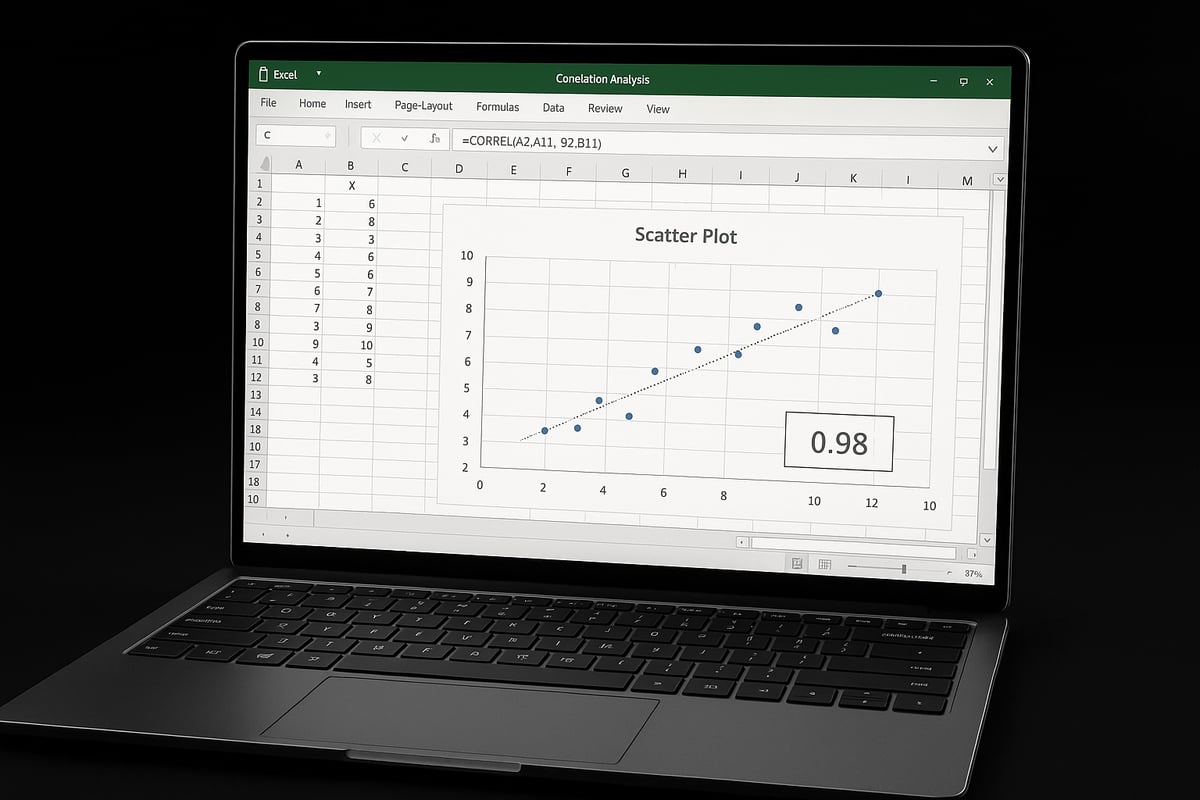
The CORREL function is Excel’s most direct way to calculate the relationship between two variables. If you’re wondering how to compute correlation coefficient in Excel, this is often the simplest method.
Syntax:=CORREL(array1, array2)
Here’s how to use it:
- Place your two sets of numerical data in adjacent columns.
- Click an empty cell for your result.
- Enter the CORREL formula, selecting the two ranges.
- Press Enter to view the coefficient.
Example:
Suppose column A contains study hours and column B contains exam scores. Use:
=CORREL(A2:A21, B2:B21)
A result close to 1 means a strong positive correlation, while a value near -1 means a strong negative one.
Common errors, like mismatched range lengths or non-numeric data, can be quickly resolved. If you need more details on function parameters or troubleshooting, the CORREL function – Microsoft Support page is a helpful resource.
With this approach, you can easily learn how to compute correlation coefficient in Excel for any two variables.
Method 2: Data Analysis Toolpak
For those who want to analyze multiple variables at once, the Data Analysis Toolpak is a powerful add-in. It streamlines how to compute correlation coefficient in Excel, especially when dealing with large datasets.
To enable the Toolpak:
- Go to File > Options > Add-ins.
- Select Analysis Toolpak and click Go, then check the box to activate.
Once enabled:
- Click the Data tab and find Data Analysis.
- Choose Correlation from the list.
- Set your input range, check “Labels in first row” if applicable, and select an output location.
- Click OK to generate a correlation matrix.
Example:
Analyze monthly revenue, marketing spend, and customer visits all at once. The Toolpak provides a table showing the correlation coefficient for each pair.
Export and format your results as needed. If you’re learning how to compute correlation coefficient in Excel across several variables, this is an efficient solution.
Method 3: Using the PEARSON Function
The PEARSON function is another built-in Excel option for calculating linear relationships. It is similar to CORREL but specifically uses the Pearson product-moment formula.
Syntax:=PEARSON(array1, array2)
Use PEARSON when you want precise control or need to compare results with statistical software. For example, financial analysts often use it to measure the correlation between two asset returns.
=PEARSON(C2:C31, D2:D31)
If you’re exploring how to compute correlation coefficient in Excel for datasets that require strict adherence to statistical definitions, PEARSON is a solid choice.
Visualizing Correlation in Excel
Visualization transforms raw numbers into actionable insights. After you learn how to compute correlation coefficient in Excel, use visual tools to interpret results more effectively.
To create a scatter plot:
- Select your two data columns.
- Go to the Insert tab and choose Scatter Plot.
- Add a trendline by right-clicking a data point and selecting "Add Trendline."
- Check "Display Equation on chart" and "Display R-squared value on chart" for deeper analysis.
Including the correlation coefficient on your chart helps you and others quickly gauge the relationship’s strength.
Example:
Visualize the link between advertising budget and sales growth, making trends or anomalies instantly clear. Visualization is a crucial part of how to compute correlation coefficient in Excel for business decisions.
Best Practices for Accurate Calculation
To get reliable results, always double-check your steps when learning how to compute correlation coefficient in Excel.
- Ensure data ranges are matched and formatted correctly.
- Document formulas for transparency.
- Use Excel tables for larger datasets to keep references dynamic.
Maintain a clear workflow and audit your process regularly. This discipline ensures your correlation analysis leads to accurate and actionable outcomes.
Interpreting and Applying Correlation Results
Unlocking the potential of your data starts with understanding what your correlation results actually mean. Once you know how to compute correlation coefficient in excel, the next step is to interpret the numbers and apply those insights to real-world scenarios.
Understanding the Output
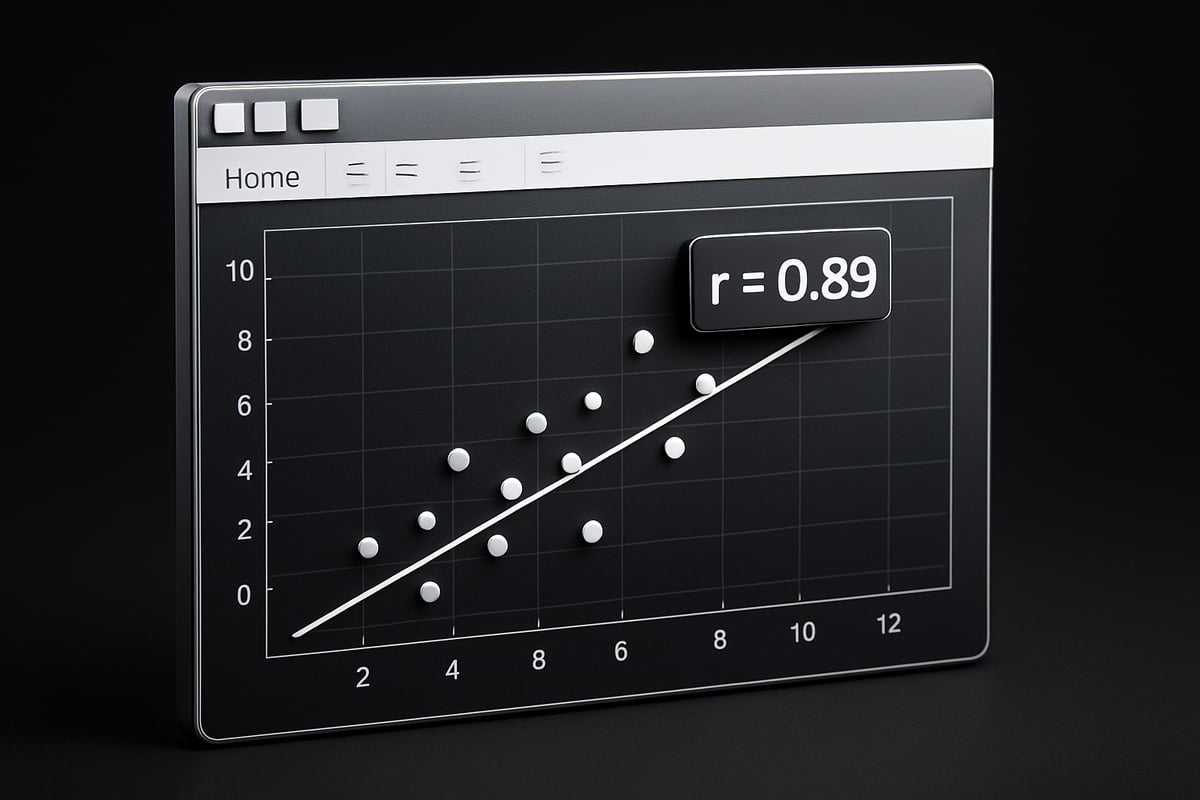
When you learn how to compute correlation coefficient in excel, you receive a value between -1 and +1. This number reveals the strength and direction of the relationship between your variables. A coefficient close to +1 signals a strong positive correlation, meaning as one variable increases, so does the other. A value near -1 indicates a strong negative correlation, where one variable rises as the other falls. A result close to zero suggests little or no linear relationship.
For example, a correlation coefficient of 0.85 between marketing spend and sales conversion suggests a robust positive relationship. In contrast, a value around 0.10 would imply almost no connection. However, statistical significance matters. Not every calculated correlation is meaningful. To ensure your results are reliable, check if the correlation is statistically significant, especially with small datasets.
P-values and confidence intervals, though not always directly available in Excel’s basic functions, can help determine if a correlation is likely due to chance. For a deeper dive into interpreting these results, you can consult Using Excel to Calculate Correlation – Statistics By Jim, which offers practical examples and guidance.
Practical Applications in Business and Research
Knowing how to compute correlation coefficient in excel empowers you to make data-driven decisions. In business, correlation analysis can reveal patterns, such as the link between training hours and employee performance. HR teams use this to identify which investments lead to productivity gains.
Forecasting trends becomes easier when you spot strong relationships. For instance, a retailer might discover that temperature and ice cream sales move together, allowing for smarter inventory planning. However, beware of spurious correlations. Sometimes, variables appear related due to coincidence or external factors.
Always question whether the correlation makes logical sense. If you find a high correlation between unrelated metrics, such as shoe size and sales revenue, reconsider your data sources and business logic. Proper application requires a solid grasp of context and a willingness to validate findings before acting.
Limitations and Cautions
While learning how to compute correlation coefficient in excel is valuable, it is crucial to recognize the method's limitations. Correlation does not imply causation. Just because two variables move together does not mean one causes the other.
Outliers can distort results, making weak relationships appear stronger or vice versa. Non-linear relationships may go undetected, as the correlation coefficient only measures linear associations. Data quality and sample size are also critical. Small or inconsistent datasets can produce misleading correlations.
If your analysis reveals questionable results, consider using more advanced statistical techniques, such as regression analysis or non-parametric tests. Always document your process and revisit your data for accuracy. Treat correlation as a guiding tool, not an absolute answer, in your decision-making process.
Troubleshooting Common Issues in Excel Correlation Analysis
Even with clear instructions on how to compute correlation coefficient in excel, users can still encounter roadblocks. Troubleshooting is essential for ensuring your analysis is accurate and your insights are reliable. Understanding where common mistakes occur can help you resolve them quickly and avoid future frustration.

Common Errors and How to Fix Them
When learning how to compute correlation coefficient in excel, several errors can disrupt your workflow. Here are the most frequent issues and ways to resolve them:
- #VALUE! error: Occurs if your data contains text or non-numeric values. Ensure all cells in your selected ranges are numbers.
- #DIV/0! error: This usually means there are too few data points or the standard deviation is zero. Double-check that your dataset has enough variability and no columns with identical values.
- Incorrect data range selection: Accidentally including headers or mismatched ranges can cause inaccurate results. Always select just the numerical data, not labels.
- Mixed data types: If your range mixes numbers and text, Excel cannot compute the correlation. Clean your data to keep only numeric entries.
- Blank cells and missing data: Blanks can throw off calculations. Either remove rows with missing values or use Excel’s error handling.
Example Fix:
Suppose your formula =CORREL(A2:A12, B2:B12) returns #VALUE!. Check that every cell in both columns contains a number. Use this quick formula to highlight non-numeric cells:
=ISNUMBER(A2)
Troubleshooting Table:
| Error Type | Cause | Solution |
|---|---|---|
| #VALUE! | Text in range | Remove or convert to numbers |
| #DIV/0! | Zero standard deviation | Use more varied data |
| Range mismatch | Unequal range lengths | Select equal-length ranges |
| Blank cells | Missing data | Remove or fill missing values |
Addressing these problems helps you get the most from how to compute correlation coefficient in excel.
Ensuring Reliable Results
After fixing immediate errors, focus on reliability. Start with Excel’s auditing tools, such as Trace Precedents and Evaluate Formula, to follow your calculations and confirm accuracy.
Regularly document your steps, so colleagues can reproduce your results. Keep a log of which ranges and formulas you use. This practice is especially helpful for large teams or recurring analyses.
For extra peace of mind, consider a preflight check before finalizing your work. Tools and workflows specifically designed for Excel troubleshooting and error reduction can help you catch overlooked issues and streamline your process.
If you still struggle with how to compute correlation coefficient in excel, do not hesitate to seek expert assistance. Sometimes, a second set of eyes can spot issues you might have missed. By following these steps, you will ensure your correlation analysis remains robust and dependable.
Advanced Tips and Trends for Correlation Analysis in Excel (2026 Edition)
Unlocking new possibilities in data analysis is easier than ever with Excel 2026. As you master how to compute correlation coefficient in excel, staying ahead means leveraging the latest features, automation techniques, and integration tools. This section explores advanced tips and trends that will help you maximize efficiency and accuracy in your correlation analysis.
New Features in Excel 2026 for Correlation Analysis
Excel 2026 introduces several enhancements specifically designed to streamline how to compute correlation coefficient in excel. Users now benefit from improved data analysis add-ins, making it easier to access advanced statistical tools directly within the interface. AI-powered insights automatically detect potential correlations, offer suggestions for deeper analysis, and even flag outliers or data inconsistencies.
Key upgrades include:
- Enhanced Data Analysis Toolpak with real-time correlation matrices.
- AI-driven recommendations for visualizing and interpreting results.
- Intuitive error detection to prevent common calculation mistakes.
For example, when you input your data, Excel’s AI can instantly suggest the appropriate correlation method, generate scatter plots, and explain result significance. These features help both beginners and experts avoid pitfalls while ensuring high-quality analysis. If you want step-by-step guidance on how to compute correlation coefficient in excel using traditional and new methods, refer to this Calculate Correlation in Excel – GeeksforGeeks resource for comprehensive instructions.
Automating Correlation Analysis with Macros and VBA
Automation is a game-changer for anyone learning how to compute correlation coefficient in excel, especially when dealing with large or repetitive datasets. Excel 2026 allows users to create macros that automate the entire correlation workflow, from data cleaning to results export.
Steps for automation:
- Record a macro to select your data range, apply the CORREL function, and output results.
- Use VBA scripts for more complex tasks, such as batch-processing multiple variable pairs or generating custom reports.
- Schedule macros to run at set intervals, ensuring your correlation analysis is always up to date.
For advanced users, VBA opens the door to custom automation. Imagine running a single script that analyzes all your sales channels and returns a summary table of their correlations. This efficiency is vital for organizations that require regular updates or those managing multiple projects. Automated processes not only save time but also reduce the risk of manual errors while computing correlation coefficients.
Integrating Excel with Other Data Tools
Modern analytics often require more than just Excel. Understanding how to compute correlation coefficient in excel becomes even more powerful when you integrate it with tools like Power BI, SQL databases, or programming languages such as Python and R.
Benefits of integration:
- Import large datasets directly from cloud or on-premises sources.
- Combine Excel’s visualization strengths with Python’s advanced statistical packages.
- Export correlation results to Power BI dashboards for real-time business intelligence.
For instance, a data analyst can use Excel to prepare and clean data, then export it to Python for advanced correlation models, before visualizing outcomes back in Excel or Power BI. This seamless workflow ensures that how to compute correlation coefficient in excel is not just a standalone task, but part of a broader data strategy. Integrating these tools enhances collaboration, speeds up decision-making, and delivers richer insights.
Staying Updated and Continuing Learning
The field of data analytics evolves rapidly, and so do the features in Excel. To remain proficient in how to compute correlation coefficient in excel, it is essential to keep learning and engaging with new resources.
Recommended ways to stay updated:
- Explore Microsoft Learn for official tutorials and updates.
- Join community forums and Excel user groups to exchange tips and solutions.
- Take online courses or read blogs focused on advanced Excel analytics.
If you are interested in comparing correlation analysis with other techniques, this How to calculate moving average in Excel guide offers practical insights. Continuous learning ensures you are equipped to handle new Excel features, troubleshoot issues, and apply the best practices in your work.


