
Unlocking the full potential of Excel starts with automation. By learning how to turn on macros in Excel, you can streamline repetitive tasks and tap into advanced features that boost your productivity.
This guide walks you through each step to enable macros in Excel 2025. You will discover what macros are, why they matter, and how to activate them safely.
Along the way, you will learn best practices for macro security, troubleshooting common issues, and making the most of automation in your workflow. Ready to take your Excel skills to the next level? Let’s get started.
Understanding Macros in Excel
Unlocking the full capabilities of Excel often starts with understanding macros. Whether you are new to automation or an experienced user, knowing how to turn on macros in excel opens the door to streamlined work and powerful custom solutions.
What Are Macros and How Do They Work?
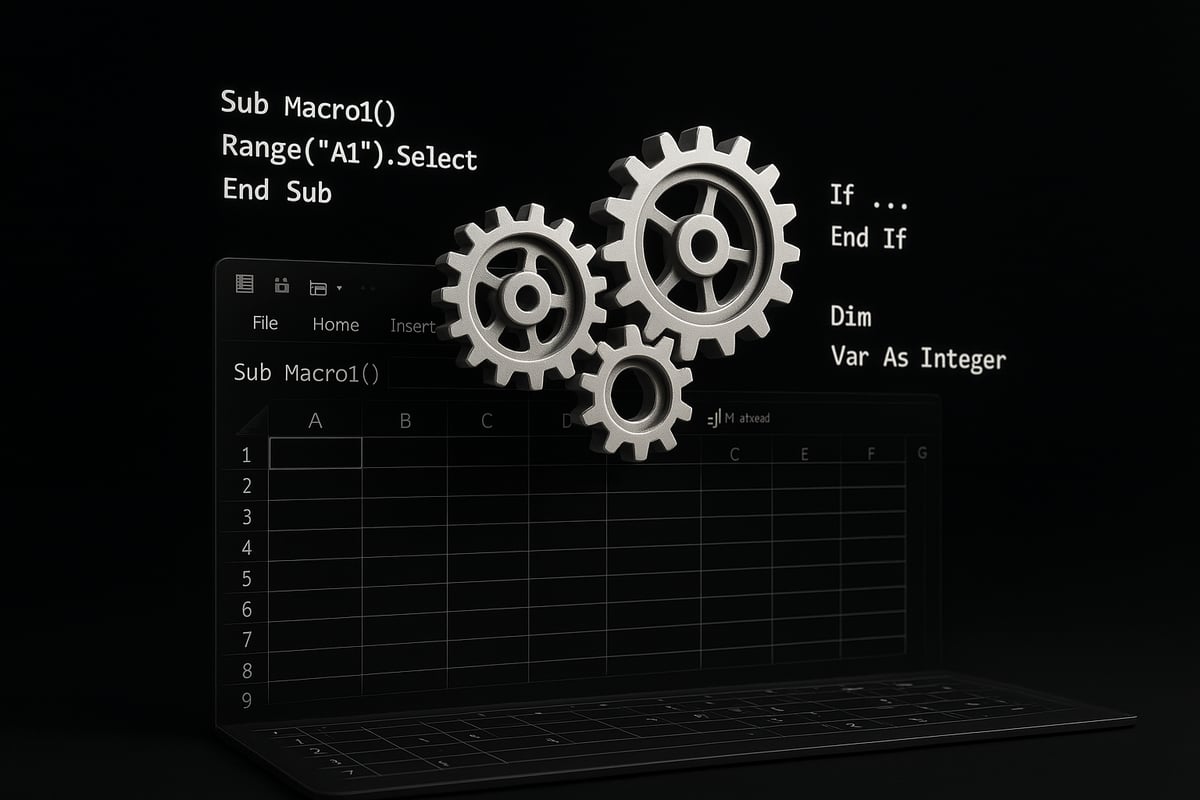
Macros in Excel are sequences of instructions that automate repetitive tasks. They can be recorded using Excel’s built-in macro recorder or written directly in VBA (Visual Basic for Applications).
When you know how to turn on macros in excel, you can automate processes like data entry, formatting, or generating complex reports. For example, a recorded macro might reformat an entire spreadsheet in seconds, while a VBA macro could pull data from multiple sources.
There are two main types of macros:
| Macro Type | Method | Use Case Example |
|---|---|---|
| Recorded Macro | Macro Recorder | Repetitive formatting |
| VBA Macro | Custom Coding | Automated data import |
Compared to manual work, macros save time and reduce errors. For more on business process automation, see Business automation with Excel.
Benefits and Risks of Using Macros
The main advantage of learning how to turn on macros in excel is efficiency. Macros can save hours by eliminating repetitive steps and minimizing human error. Many businesses rely on macros to standardize reporting or automate financial processes.
However, macros also introduce risks. Malicious macros can contain harmful code, posing security threats. This is why Microsoft and experts recommend enabling macros only from trusted sources. Real-world cases show that companies have improved productivity by up to 30% with macro automation, but incidents involving macro viruses highlight the need for caution.
Always weigh the time saved against potential security vulnerabilities before enabling macros in your workflow.
Macro Support in Excel 2025: What’s New?
Excel 2025 continues to support macros, with several enhancements for security and usability. The macro settings interface has been updated for clarity, making it easier to see and control which macros are active.
When considering how to turn on macros in excel, note that Excel 2025 now provides stronger warnings when opening macro-enabled files from the internet. Compatibility with older macro files, like .xlsm and .xlsb, remains, but Microsoft emphasizes caution with legacy formats.
Enhanced features include improved prompts, additional controls for trusted locations, and better integration with enterprise security policies. Microsoft’s official documentation outlines these changes to keep users informed and protected.
When Should You Use Macros?
Macros are best used when you face tasks that are repetitive, time-consuming, or error-prone. If you routinely consolidate data, generate similar reports, or apply the same formatting rules, learning how to turn on macros in excel can transform your workflow.
However, avoid macros for simple, one-off tasks or when sensitive data is involved and security is a concern. Effective macro applications include monthly financial summaries, automated chart generation, and data validation routines.
To identify automation opportunities, look for patterns in your daily work where a macro could handle steps automatically, freeing up your time for higher-value analysis.
Preparing to Enable Macros: Safety and Settings
Before you learn how to turn on macros in excel, it is essential to understand the security settings and safe practices that protect your data. Excel macros are powerful, but improper handling can lead to risks. This section covers the key safety steps and settings to help you enable macros securely and confidently.
Understanding Macro Security Levels
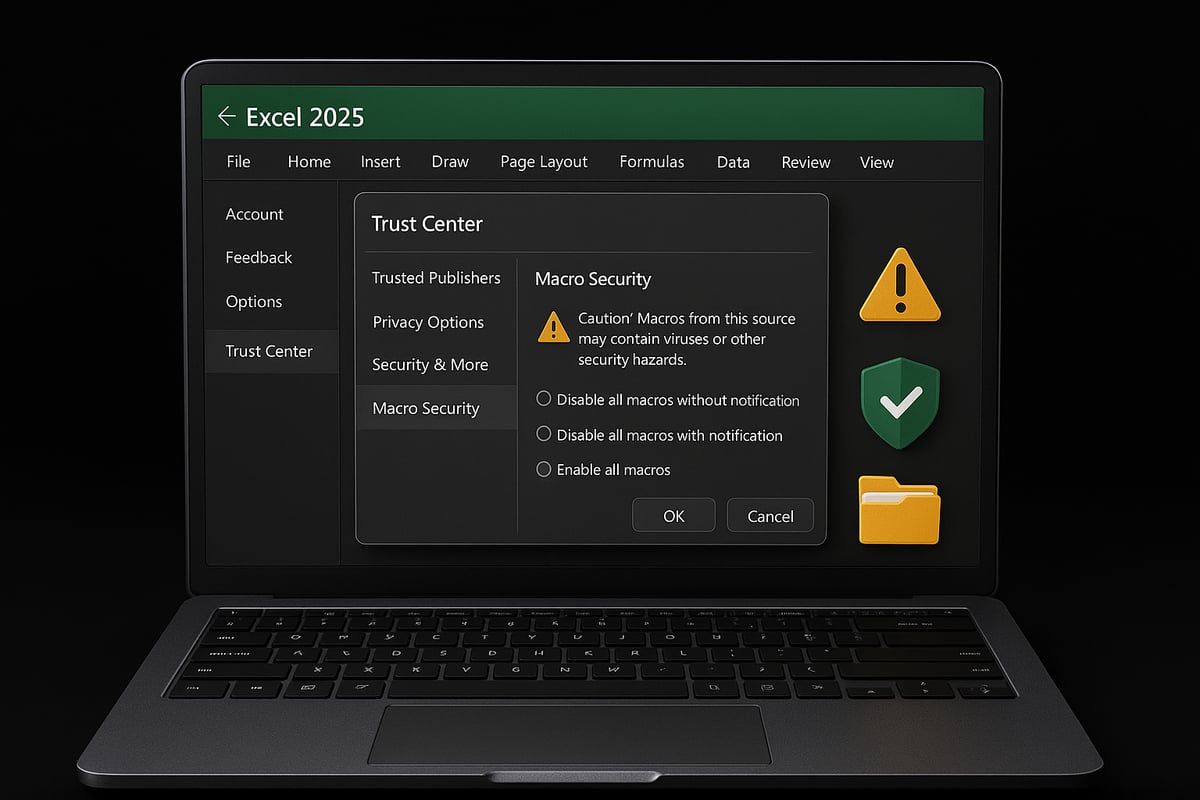
Excel provides several macro security levels to help you control which macros run and when. When you explore how to turn on macros in excel, you will find options like "Disable all macros," "Enable all macros," or "Disable all except digitally signed macros." By default, Excel 2025 disables all macros and prompts users before enabling them.
These security levels are designed to protect your system from malicious code that can be hidden in macro-enabled files. You might encounter prompts or warnings if a macro originates from an untrusted source. According to Microsoft’s macro security update, macros downloaded from the internet are now blocked by default for added protection.
Understanding these settings is crucial before you decide how to turn on macros in excel for your specific needs.
Protecting Your Data: Safe Macro Practices
When considering how to turn on macros in excel, always prioritize data safety. Only enable macros from sources you trust. Before running any macro, verify its origin and check for a digital signature if available.
Follow these safe macro practices:
- Scan macro-enabled files with antivirus software.
- Never enable macros in files received from unknown emails.
- Review the macro code if possible, especially in business environments.
Reports show that most macro-related incidents occur due to social engineering or unsafe file handling. By following these steps, you reduce the risk of macro-based malware and can use how to turn on macros in excel with confidence.
Backing Up Your Workbook Before Enabling Macros
Backing up your files is a vital part of how to turn on macros in excel safely. A backup ensures you can restore your data if a macro causes unintended changes or corrupts your workbook.
How to create a backup in Excel:
- Open your file.
- Select "File" then "Save As."
- Choose a new name or location to create a copy.
For added protection, save backups regularly and store them in a secure location. Many users have avoided major data loss simply by having a recent backup. Making backups a habit is a simple yet powerful way to support your journey as you discover how to turn on macros in excel.
Reviewing Macro-Enabled File Types
Understanding file types is key when learning how to turn on macros in excel. Macro-enabled files use extensions like .xlsm and .xlsb, while standard files are .xlsx. You can identify these by checking the file extension on Windows or Mac.
Be cautious when opening macro-enabled files from untrusted sources. Unknown files may contain harmful code. Microsoft recommends opening only those files you recognize and trust. By staying vigilant about file types, you protect yourself while exploring how to turn on macros in excel for automation and productivity.
Step-by-Step Guide: How to Turn On Macros in Excel 2025
Unlocking macro automation in Excel 2025 is straightforward if you follow the right process. This step-by-step guide will help you safely configure and verify your settings, ensuring you get the most out of your Excel experience.
Opening Excel and Accessing Macro Settings
To begin learning how to turn on macros in excel, launch Excel 2025 as you normally would. On Windows, click the Start menu, type "Excel," and open the application. On Mac, use Spotlight or your Applications folder.
Once Excel is open, head to the File tab in the top left corner. Choose "Options" from the sidebar. In the Excel Options window, select "Trust Center" from the left menu. Finding these settings is the first step toward activating macros.
If you are unsure about any step, look for visual cues like gear icons or the word "Trust Center" in the settings panel. This process is your entry point for enabling macro functionality.
Navigating the Trust Center and Macro Settings
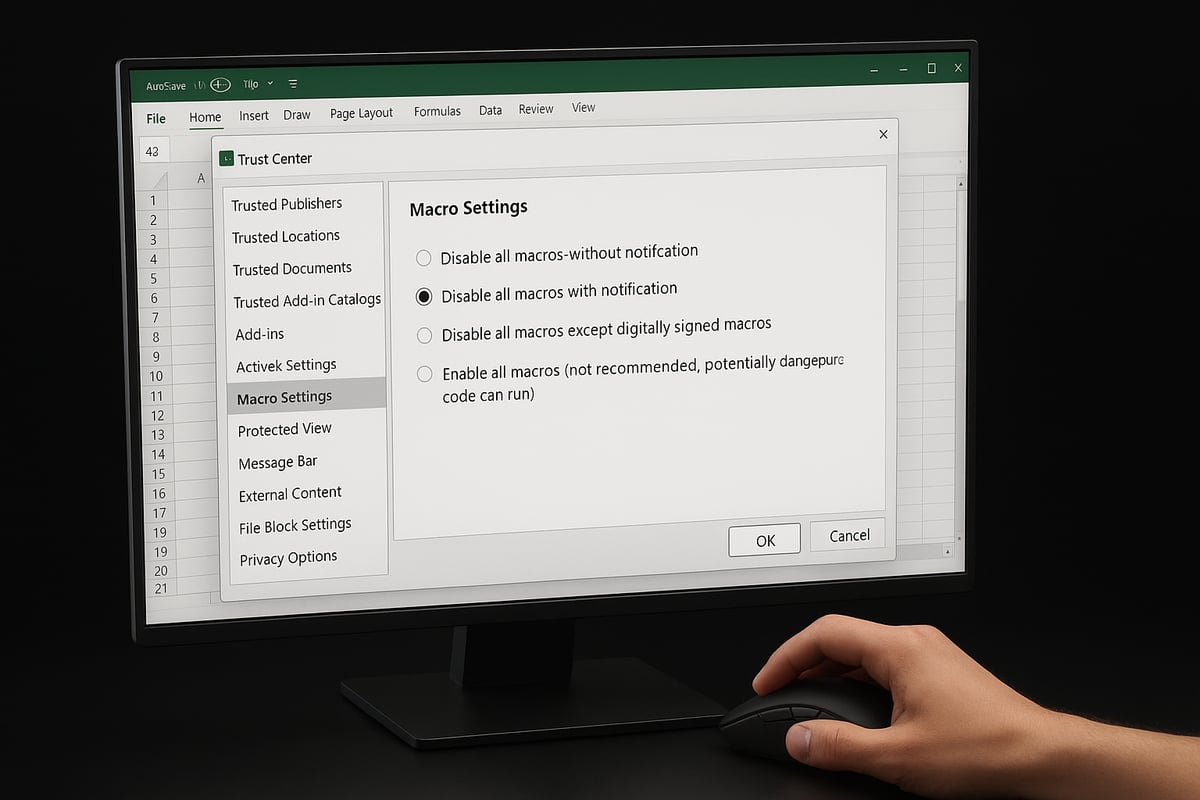
The Trust Center is Excel's security hub. It controls how Excel handles potentially risky content, including macros. To access macro settings, click "Trust Center Settings" within the Trust Center panel.
Here, you will see several macro options:
- Disable all macros without notification
- Disable all macros with notification
- Disable all except digitally signed macros
- Enable all macros (not recommended)
Choose the setting that fits your needs. For most users learning how to turn on macros in excel, "Disable all macros with notification" is safest. This prompts you before enabling any macro, balancing usability and security.
Review each option carefully. Only select "Enable all macros" if you are working in a highly trusted environment.
Enabling Macros for a Single Workbook
When you open a macro-enabled file, such as .xlsm or .xlsb, Excel may show a Security Warning below the ribbon. This warning alerts you to potentially unsafe content.
If you trust the file, click "Enable Content." This allows macros to run for that session only. This method is ideal if you want to know how to turn on macros in excel for just one report or template, without changing global settings.
For example, if a colleague sends you a macro-driven report, you can enable macros just for that file. If you close and reopen Excel, the macro will be disabled until you enable it again.
Enabling Macros for All Workbooks
To enable macros across all Excel files, revisit the Trust Center's Macro Settings. Select "Enable all macros (not recommended)" to turn on macros universally.
This setting means every macro-enabled file you open will run its macros automatically. When considering how to turn on macros in excel for all workbooks, be aware this can expose your system to security threats.
Only use this option in a secure, controlled environment, such as a company network with strict IT controls. For most users, selective enabling is safer.
Adding Trusted Locations for Macros
Trusted Locations let you define folders where Excel will always allow macros to run. In the Trust Center, select "Trusted Locations," then click "Add new location." Browse to the folder you want and confirm.
If you regularly receive macro-enabled files from a secure network drive, adding it as a Trusted Location streamlines workflow. This method is a strategic way for those asking how to turn on macros in excel without compromising security.
You can manage or remove trusted locations at any time. This flexibility helps balance convenience and protection.
Adjusting Macro Settings for Advanced Users
Advanced users may need more granular control. In Macro Settings, you can choose "Disable all except digitally signed macros." This only allows macros with a verified signature to run.
For further security, consider restricting access to the VBA project object model. Uncheck "Trust access to the VBA project object model" unless automation requires it. When exploring how to turn on macros in excel for enterprise-level automation, these options offer extra safety.
Example: In a finance department, only digitally signed macros from IT should be allowed to run, reducing risk.
Enabling Macros on Mac vs. Windows: Key Differences
Excel 2025 supports macros on both Mac and Windows, but there are key differences. On Mac, open Excel, go to the Excel menu, select "Preferences," then "Security & Privacy."
Here, you will find macro settings similar to Windows, but some advanced options may be missing. For those learning how to turn on macros in excel on Mac, note that certain VBA features or add-ins may not be available due to platform limitations.
Refer to Microsoft's official guidance for the latest compatibility notes. Always test critical macros on both platforms.
| Feature | Windows | Mac |
|---|---|---|
| Full Macro Support | Yes | Partial |
| VBA Project Model Control | Yes | Limited |
| Trusted Locations | Yes | Yes |
| Macro Notifications | Yes | Yes |
Troubleshooting: Macros Not Working After Enabling
Sometimes, macros still fail to run even after you follow instructions on how to turn on macros in excel. Common reasons include:
- The file is not in a trusted location.
- The macro is blocked due to its origin (e.g., downloaded from the internet).
- The file is corrupted or has missing code.
To resolve issues, right-click the file in Windows Explorer, select "Properties," and click "Unblock" if needed. Review the macro code for errors. For more solutions, visit the Excel troubleshooting guide.
If problems persist, check with your IT department. Some settings may be managed at the organizational level.
Verifying Macro Functionality
After enabling macros, confirm they are running as expected. The simplest way is to run a test macro. For example, create a macro that displays a message box:
Sub TestMacro()
    MsgBox "Macros are working!"
End Sub
If the message appears, your settings are correct. For those checking how to turn on macros in excel, look for visual indicators like enabled buttons or custom menus.
Maintain and periodically review your macros for optimal performance. Regular testing helps catch any issues early.
Troubleshooting Common Macro Issues in Excel 2025
Troubleshooting macro issues is a crucial step for anyone wanting to understand how to turn on macros in excel and make the most of automation. Excel 2025 introduces new security features and interface changes, which can cause unexpected problems. If macros do not work as expected, identifying the root cause is essential for smooth workflow.
Macro Security Warnings and Error Messages
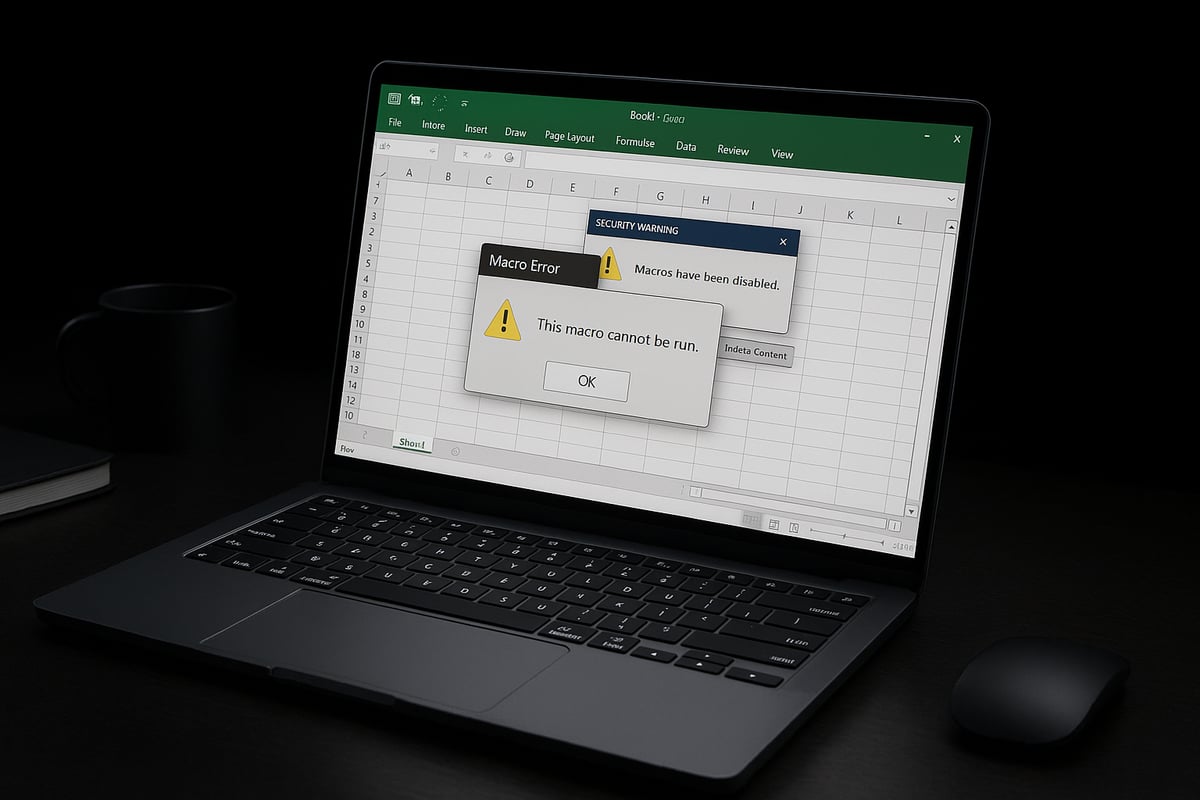
Users often encounter security warnings when learning how to turn on macros in excel. Typical messages include "Macros have been disabled" or "Cannot run the macro." These alerts are designed to protect your system from harmful code.
To resolve them:
- Carefully read the warning to understand the risk.
- Check if the file is from a trusted source.
- Use the Trust Center settings to adjust macro permissions.
Starting in recent updates, Excel disables legacy Excel 4.0 macros by default for added safety. For more details, see Excel 4.0 macros disabled by default. Always consult official Microsoft documentation for error specifics.
Compatibility Problems with Older Macros
Another common issue when exploring how to turn on macros in excel is compatibility with macros created in earlier Excel versions. Older VBA code or features may not run correctly in Excel 2025 due to changes in the macro engine or deprecated functions.
To address this:
- Open the macro in the Visual Basic Editor and check for syntax errors.
- Update deprecated commands to their modern equivalents.
- Use Excel's built-in compatibility checker.
If you are migrating from Excel 2013 or 2016, test your macros in a controlled environment before full deployment. This approach prevents workflow disruptions and data loss.
Dealing with Disabled or Blocked Macros
Sometimes, macros remain disabled even after following guides on how to turn on macros in excel. This can happen due to IT policies, the file's origin, or Windows security settings. Files downloaded from the internet may be blocked by default.
To unblock:
- Right-click the file in Windows Explorer, select Properties, and check "Unblock."
- Coordinate with your IT department if macros are disabled organization-wide.
- Adjust macro settings in the Trust Center if you have admin rights.
Always verify the source of macro-enabled files before enabling content to protect your system from potential threats.
Repairing Corrupted Macro-Enabled Files
Corrupted .xlsm or .xlsb files can prevent macros from running, even if you know how to turn on macros in excel. Symptoms include error messages when opening the file or missing macro functionality.
To repair:
- Use Excel's "Open and Repair" tool from the File menu.
- Restore from a recent backup if repair fails.
- Avoid file corruption by saving copies regularly and using reliable storage.
If corruption is frequent, check add-ins or third-party software for conflicts. Proactive maintenance helps ensure your macro-enabled workbooks remain functional and secure.
Best Practices for Macro Security and Management
Understanding how to turn on macros in excel is only the first step. To make the most of macro automation, you must also manage security and organization proactively. Adopting best practices ensures your data remains safe, your workflows efficient, and your macros reliable as Excel evolves.

Keeping Macros Safe: Updating and Auditing
Regular updates and audits are essential when learning how to turn on macros in excel safely. Outdated macros can contain vulnerabilities, increasing the risk of exploitation. Always review your VBA code for unnecessary permissions or legacy functions, and remove any unused scripts.
Use digital signatures to verify trusted macros, especially in environments where security is critical. Annual reviews, such as those conducted in finance departments, help ensure only approved macros are active. Staying aware of threats is crucial, especially with the macro-based malware resurgence in 2025, which highlights the importance of vigilant macro management.
Managing Macro Permissions in Organizations
In corporate settings, knowing how to turn on macros in excel must be balanced with robust permissions management. Set organization-wide macro policies to control who can enable or edit macros, reducing the risk of accidental or malicious changes.
Educate your staff on macro risks and safe usage. IT administrators should apply group policies in Excel to enforce security levels and restrict macro execution to trusted sources. Clear guidelines and regular training sessions help maintain compliance and minimize security incidents.
Tips for Efficient Macro Organization
Organizing your macros efficiently is just as important as understanding how to turn on macros in excel. Use clear naming conventions for macros and modules to make scripts easily identifiable. Document each macro’s purpose and usage instructions within the VBA editor or a shared resource.
Consider creating a centralized macro library for your team. Standardized templates and well-documented code enhance collaboration and reduce duplication. This approach streamlines onboarding and ensures everyone can benefit from established automation.
Staying Updated with Excel Macro Features
Excel’s macro capabilities evolve frequently, so staying informed is vital. After you learn how to turn on macros in excel, keep an eye on official Microsoft announcements and participate in user communities. This will help you adapt to new security features and best practices.
For example, Excel’s April 2025 updates introduced enhanced macro security controls. Regularly reviewing update logs ensures you benefit from the latest protection and functionality improvements. Staying proactive keeps your macro environment secure and productive.


