Microsoft Excel has evolved far beyond simple rows and columns. With the integration of generative AI capabilities through Microsoft Copilot, users can now transform how they work with spreadsheets, automate complex tasks, and extract insights that previously required hours of manual work. Understanding how to use generative AI in Excel has become essential for professionals who want to maximize productivity and make smarter data-driven decisions. This comprehensive guide explores the practical applications, features, and strategies that will help you leverage AI to solve real spreadsheet challenges.
Understanding Generative AI Features in Excel
Microsoft has introduced several AI features in Excel that fundamentally change how users interact with their data. The primary tool, Microsoft Copilot, brings natural language processing directly into your spreadsheet environment.
Key capabilities include:
- Formula generation from plain English descriptions
- Data analysis and pattern recognition
- Chart and visualization creation
- Column formatting and conditional logic
- Error detection and formula debugging
When you begin learning how to use generative AI in Excel, you'll discover that Copilot works as an intelligent assistant embedded directly in your workflow. Rather than searching through help documentation or struggling with complex syntax, you can describe what you need in everyday language.
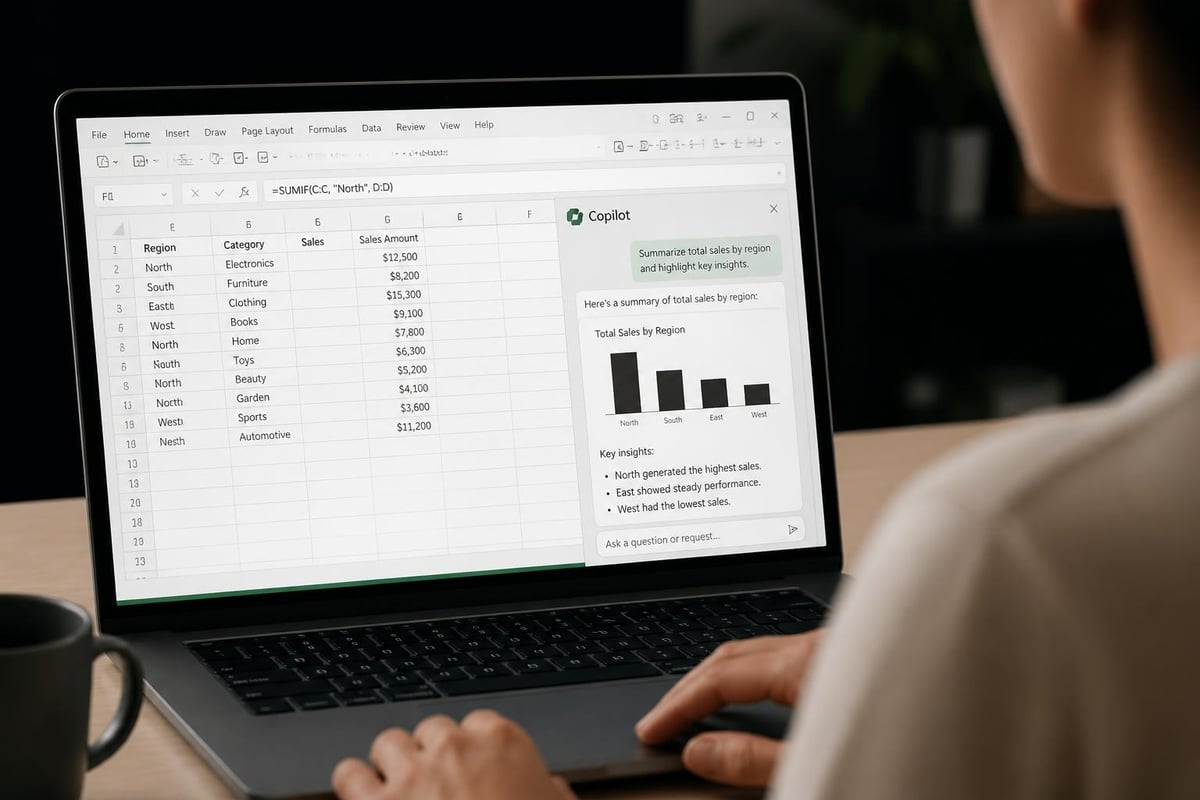
The AI understands context from your spreadsheet structure, existing formulas, and data patterns. This contextual awareness allows it to provide relevant suggestions tailored to your specific workbook. For businesses dealing with broken formulas or confusing data structures, Excel training combined with AI tools creates a powerful solution.
Getting Started with Microsoft Copilot
Before diving into advanced applications, you need access to Copilot functionality. This requires a Microsoft 365 subscription with Copilot licensing. Once enabled, the Copilot pane appears in your Excel ribbon.
- Open Excel and navigate to the Home tab
- Click the Copilot button to activate the AI panel
- Ensure your data is formatted as an Excel table
- Start with simple requests to understand the interface
- Review suggestions before applying them to your workbook
The interface allows direct interaction through a chat-style prompt box. You can ask questions, request formula help, or describe analytical tasks you need completed. The AI responds with specific recommendations, often including preview options before implementation.
Practical Applications for Formula Creation
One of the most valuable aspects of learning how to use generative AI in Excel centers on formula assistance. Many Excel users struggle with nested functions, complex logic, or unfamiliar formula syntax.
Building Complex Formulas with Natural Language
Instead of manually constructing a formula, you can describe the desired outcome. For example, telling Copilot "create a formula that calculates the average sales for products sold in the last quarter where the region is West" generates the appropriate combination of AVERAGE, IF, and date functions.
| Traditional Approach | AI-Assisted Approach |
|---|---|
| Research AVERAGEIFS syntax | Describe desired calculation |
| Test date range logic | AI generates complete formula |
| Debug errors manually | AI suggests corrections |
| 20-30 minutes | 2-3 minutes |
The Windows Central article on Agent Mode highlights how AI can specifically identify and repair broken formulas, making it invaluable for troubleshooting existing workbooks.
Common formula types that benefit from AI assistance include:
- Conditional calculations with multiple criteria
- Lookup functions across multiple tables
- Date and time calculations
- Text manipulation and parsing
- Statistical analysis formulas
When working with these formulas, you can also ask Copilot to explain what a formula does. This educational component helps users understand the logic rather than just copying solutions blindly.
Data Analysis and Insight Generation
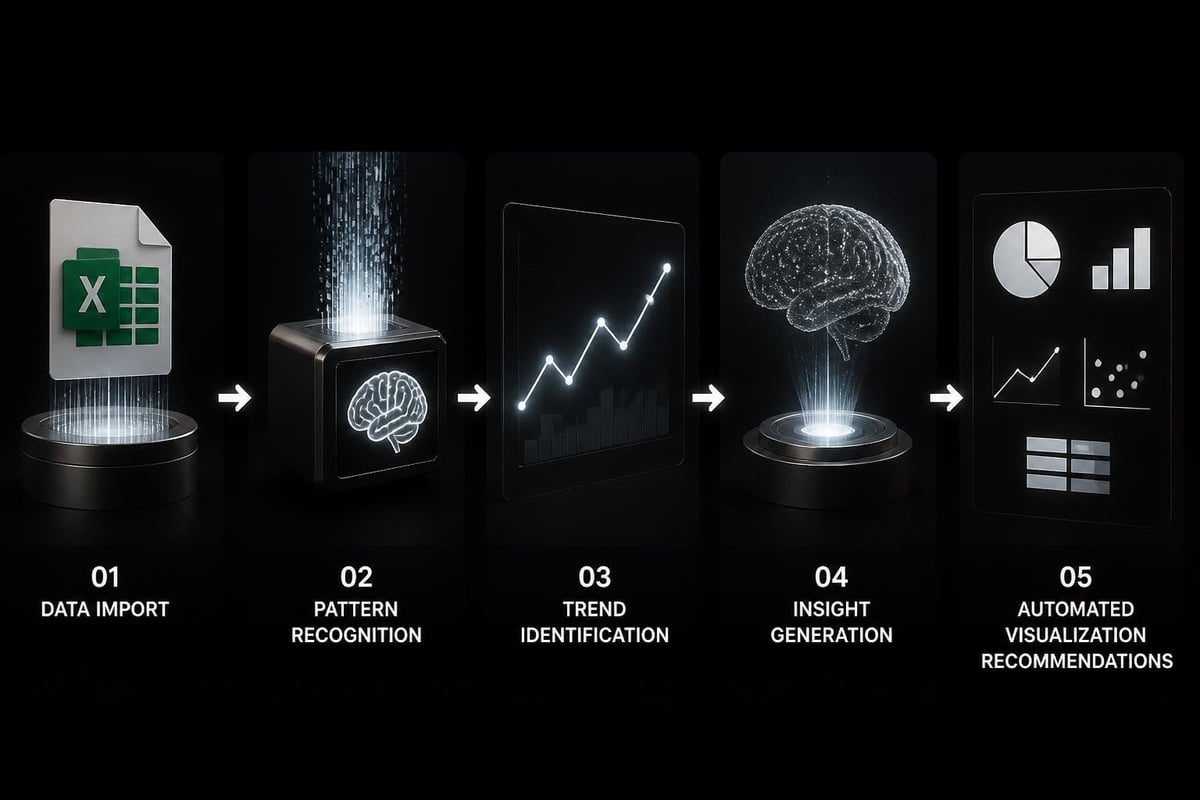
Beyond formula creation, knowing how to use generative AI in Excel transforms data analysis workflows. Copilot can generate insights from your data automatically, identifying trends, outliers, and patterns that might otherwise go unnoticed.
Automated Pattern Recognition
When you load a dataset and activate Copilot, it analyzes your information structure and offers observations. These might include:
- Seasonal trends in sales data
- Correlation between variables
- Outlier identification
- Missing data patterns
- Distribution characteristics
The AI doesn't require you to specify what to look for initially. It performs exploratory analysis and presents findings in plain language, complete with visualization suggestions. This proves especially valuable when inheriting unfamiliar spreadsheets or working with large datasets.
For professionals seeking Excel consulting support, combining AI capabilities with expert guidance accelerates both problem-solving and skill development.
Creating Visualizations Through AI Prompts
Chart creation becomes remarkably simpler when using AI assistance. Rather than selecting data ranges and choosing chart types manually, you can request specific visualizations through natural language.
Example prompts:
- "Show monthly revenue trends as a line chart"
- "Create a comparison chart of product categories by profit margin"
- "Visualize the distribution of customer ages"
- "Build a dashboard showing key performance indicators"
The AI selects appropriate chart types based on your data characteristics and analytical intent. It handles axis formatting, color schemes, and layout automatically while still allowing manual refinement.
Working with the Copilot Function in Cells
Recent developments in how to use generative AI in Excel include the introduction of the =COPILOT function, which brings AI directly into individual cells. As discussed in TechRadar’s coverage, this function enables dynamic AI-powered calculations and data manipulation.
The syntax allows you to write natural language queries as formula arguments:
=COPILOT("summarize the key points from this product description", A2)
This function type handles tasks like:
- Text summarization and extraction
- Sentiment analysis
- Data classification
- Pattern matching
- Content generation
However, Microsoft has issued important guidance about accuracy limitations. The PC Gamer article notes that generative AI functions shouldn't be used for tasks requiring absolute precision or reproducibility. Understanding these boundaries helps you apply AI appropriately.
Best Practices for AI Function Usage
When incorporating generative AI functions into your spreadsheets, follow these guidelines:
- Verify outputs for critical calculations – Always review AI-generated results, especially for financial or compliance-related data
- Document AI usage – Note which cells contain AI functions for future reference
- Maintain backup calculations – Keep traditional formulas alongside AI functions during transition periods
- Test with sample data – Validate AI behavior with known datasets before production use
- Update regularly – AI models improve over time; periodically review older implementations
For users still building foundational skills, exploring best AI tools for Excel automation provides context for where generative AI fits within the broader automation landscape.
Choosing and Switching AI Models
Microsoft provides flexibility in how to use generative AI in Excel through multiple model options. Selecting your model affects response quality, speed, and capability for different task types.
| Model Type | Best For | Speed | Complexity |
|---|---|---|---|
| Standard | General queries | Fast | Moderate |
| Advanced | Complex analysis | Slower | High |
| Specialized | Domain tasks | Varies | Very High |
You can switch models mid-session based on task requirements. Simple formatting or basic formula assistance works well with standard models, while sophisticated data analysis benefits from advanced options.
Optimizing Model Selection for Your Tasks
Consider these factors when choosing which model to use:
- Dataset size – Larger datasets may require more powerful models
- Complexity of logic – Multi-step reasoning needs advanced capabilities
- Response time requirements – Quick formatting changes work well with standard models
- Accuracy sensitivity – Critical calculations deserve the most robust model
The Copilot tips from Microsoft emphasize managing autosave and understanding how to undo AI-suggested changes effectively. This control ensures you maintain spreadsheet integrity while experimenting with AI features.
Data Preparation and Table Formatting
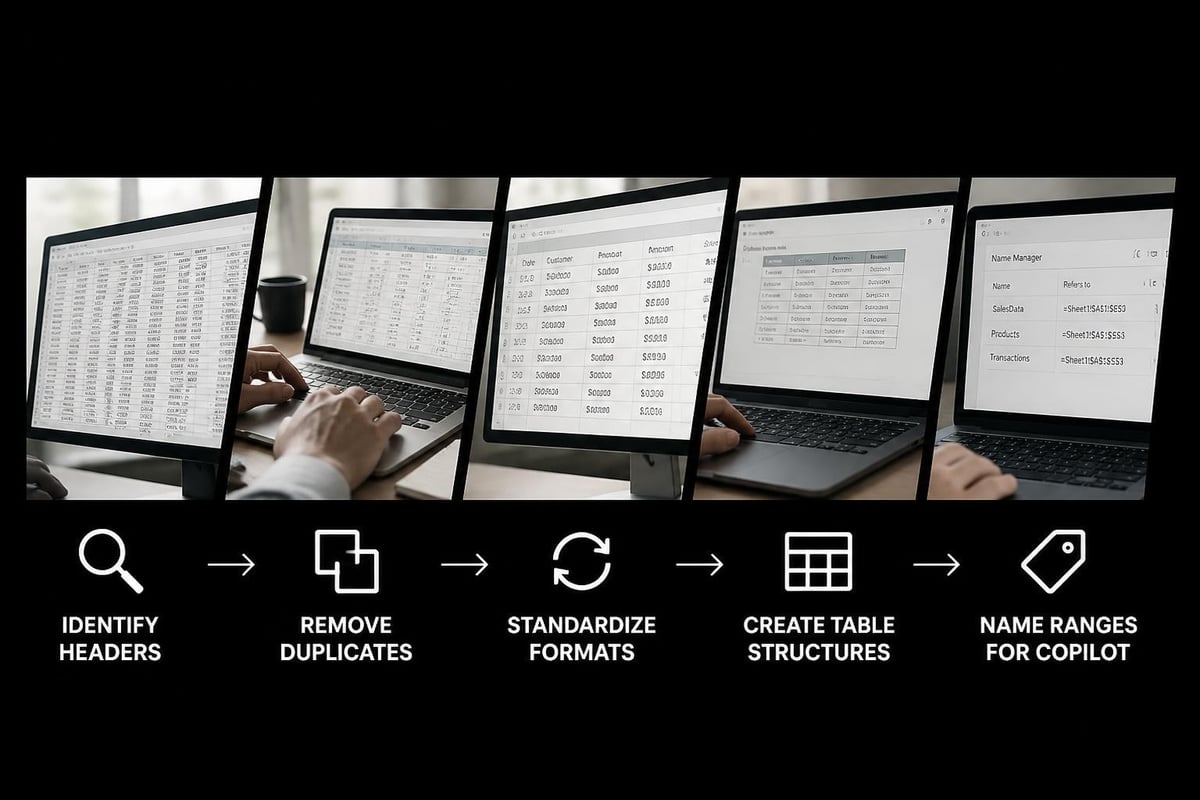
Effective use of generative AI in Excel depends heavily on proper data structure. AI works most effectively when your information is organized as formal Excel tables with clear headers and consistent formatting.
Converting Ranges to Tables
Before engaging Copilot for analysis, convert your data ranges:
- Select your data range including headers
- Press Ctrl+T or click Insert > Table
- Confirm header row selection
- Name your table descriptively
- Verify data types are correctly assigned
Benefits of table formatting for AI:
- Automatic range expansion as data grows
- Structured references in formulas
- Improved AI context understanding
- Better column recognition
- Enhanced filtering and sorting
Clean, well-structured data allows the AI to make more accurate suggestions. When working with messy or imported data, consider preliminary cleanup before applying AI features. Professional Excel help services can assist with data organization when dealing with particularly complex spreadsheets.
Advanced Scenarios and Automation Workflows
As you become proficient in how to use generative AI in Excel, you'll discover opportunities for sophisticated automation. Combining AI capabilities with traditional Excel features creates powerful workflows.
Multi-Step Analysis Chains
You can build sequences where AI performs preliminary analysis, creates supporting calculations, and generates visualizations automatically. For example:
- Import raw sales data
- Ask Copilot to identify top-performing products
- Request calculation of growth rates
- Generate comparative visualizations
- Create summary insights for presentation
This workflow replaces hours of manual analysis with minutes of AI-assisted work. The key lies in breaking complex tasks into clear, sequential prompts.
Integrating AI with Power Query and Pivot Tables
Generative AI complements Excel's existing analytical tools rather than replacing them. Consider this integrated approach:
- Use Power Query for data transformation and cleaning
- Apply AI for exploratory analysis and insight discovery
- Build Pivot Tables for detailed breakdowns
- Leverage AI to explain patterns in pivot results
- Create automated reports combining all elements
For those interested in formal learning pathways, the Coursera course on data analysis with Copilot provides structured instruction on these integrated workflows.
Troubleshooting and Error Resolution
Understanding how to use generative AI in Excel includes knowing how to address issues when AI suggestions don't meet expectations. Common challenges and solutions include:
Refining Prompts for Better Results
If initial AI responses aren't helpful, try these refinement strategies:
- Be more specific – Instead of "analyze sales," try "compare Q2 sales by region to last year"
- Provide context – Mention column names, data ranges, or business logic
- Break down complex requests – Split multi-part questions into sequential prompts
- Include examples – Show a sample of desired output format
- Iterate gradually – Build on successful responses rather than starting over
| Issue | Likely Cause | Solution |
|---|---|---|
| Irrelevant suggestions | Vague prompt | Add specific details |
| Incorrect formula | Misunderstood logic | Clarify conditions step-by-step |
| No response | Data not in table | Convert range to table |
| Generic insights | Unstructured data | Clean and organize first |
When AI-generated formulas produce errors, use Copilot's debugging capabilities. You can paste the error message into the chat and ask for explanation and correction. This interactive troubleshooting accelerates learning while solving immediate problems.
Managing AI Limitations and Expectations
Generative AI in Excel represents powerful assistance but not infallible automation. Recognize these limitations:
- AI may misinterpret ambiguous requests
- Complex domain-specific logic requires clear explanation
- Results need human verification for critical applications
- Some specialized functions remain outside AI capability
- Performance varies with data quality and structure
Maintaining realistic expectations helps you leverage AI strengths while compensating for weaknesses through traditional Excel skills and professional support when needed.
Security and Data Privacy Considerations
When learning how to use generative AI in Excel, understanding data handling becomes crucial, especially for sensitive business information.
How AI Processes Your Data
Microsoft Copilot processes spreadsheet content to generate responses, raising important questions about data privacy:
- Processing location – Data transmits to cloud-based AI services
- Storage duration – Prompts and responses may be retained temporarily
- Model training – Commercial versions typically don't use your data for training
- Compliance requirements – Verify alignment with industry regulations
Recommended practices:
- Review your organization's AI usage policies
- Avoid using AI with personally identifiable information
- Consider data anonymization for sensitive analyses
- Maintain local copies of critical workbooks
- Document AI usage in audit trails
For regulated industries or highly confidential data, consult IT security teams before implementing AI features. Some organizations may require specific configuration or restricted usage.
Measuring Productivity Gains and ROI
Adopting AI capabilities should deliver measurable benefits. Track these metrics to evaluate how effectively you're using generative AI in Excel:
Quantifiable Improvements
- Time savings – Compare task completion time before and after AI adoption
- Error reduction – Monitor formula accuracy and debugging time
- Analysis depth – Measure insights discovered versus traditional methods
- Report generation speed – Track dashboard and report creation time
- Learning curve – Assess skill development velocity for new Excel users
Create a simple tracking spreadsheet that logs major tasks, time invested, and whether AI assistance was used. Over time, patterns emerge showing where AI provides maximum value for your specific workflows.
Many professionals find that initial AI adoption requires learning investment, but productivity gains compound as familiarity increases. The combination of structured Excel training with hands-on AI experimentation accelerates this curve.
Future Developments and Staying Current
The landscape of how to use generative AI in Excel continues evolving rapidly. Microsoft regularly releases new capabilities, enhanced models, and expanded functionality.
Staying Updated on New Features
- Subscribe to Microsoft 365 update channels
- Follow Excel community forums and blogs
- Experiment with preview features when available
- Attend webinars and training sessions
- Review Microsoft's official documentation quarterly
The integration of AI into spreadsheet work represents a fundamental shift in how professionals interact with data. By building skills now, you position yourself to leverage future capabilities as they emerge.
Emerging trends to watch include:
- Enhanced natural language understanding
- Deeper integration with other Microsoft 365 tools
- Specialized models for industry-specific tasks
- Improved accuracy and reproducibility
- Expanded automation capabilities
As these developments unfold, the core principles of clear communication with AI, proper data structure, and critical verification of outputs will remain essential. Mastering these fundamentals ensures you can adapt to new features quickly.
Mastering how to use generative AI in Excel transforms spreadsheet work from time-consuming manual tasks into efficient, insight-driven processes. Whether you're building complex formulas, analyzing patterns, or creating visualizations, AI capabilities accelerate your productivity while maintaining the flexibility Excel users rely on. When you need expert guidance navigating AI features, troubleshooting challenging workbooks, or developing custom solutions, The Analytics Doctor provides personalized training and support tailored to your specific needs. From broken formulas to complete spreadsheet transformations, you'll get practical solutions that combine traditional Excel expertise with cutting-edge AI capabilities.