Excel automation has entered a new era with artificial intelligence transforming how professionals handle spreadsheet tasks. Whether you're wrestling with complex formulas, managing thousands of rows of data, or spending hours on repetitive tasks, finding the best AI tool for Excel automation can revolutionize your workflow. This comprehensive guide examines the leading solutions available in 2026, helping you choose the right tool to maximize productivity and minimize manual effort.
Understanding Modern Excel Automation with AI
The landscape of spreadsheet management has fundamentally changed. Traditional automation methods like macros and VBA scripts still have their place, but AI-powered tools now offer intelligent solutions that adapt to your specific needs without requiring programming expertise.
Modern AI tools for Excel can:
- Understand natural language commands and translate them into complex formulas
- Identify patterns in your data and suggest appropriate analyses
- Automatically clean and format inconsistent data sets
- Generate predictions and forecasts based on historical trends
- Debug broken formulas and suggest corrections
The AI-driven COPILOT function in Excel represents a significant shift in how users interact with spreadsheets. Rather than memorizing complex syntax, you can simply describe what you want to accomplish.

Microsoft 365 Copilot: The Integrated Solution
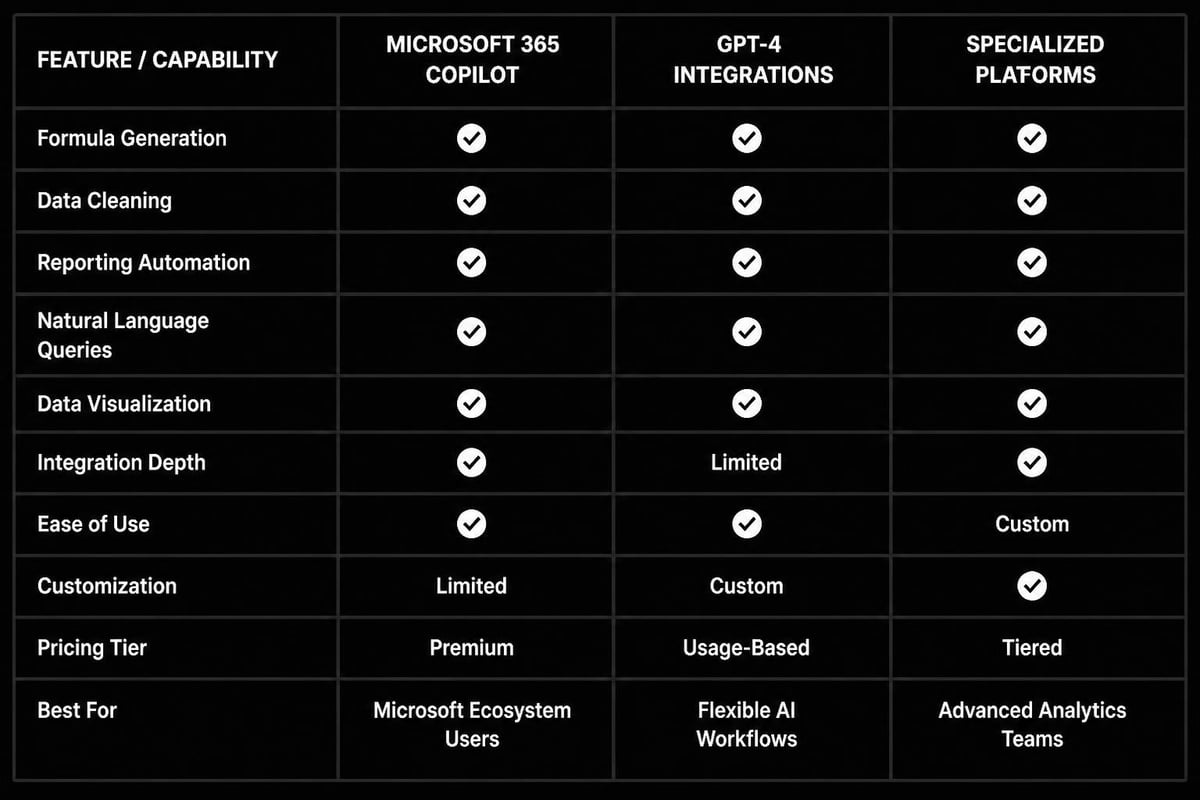
Microsoft 365 Copilot stands out as a comprehensive answer when searching for the best AI tool for Excel automation. Built directly into Excel, it eliminates the need for third-party integrations while providing enterprise-grade security.
Key Features:
- Formula Generation: Describe your calculation needs in plain English, and Copilot writes the formula
- Data Analysis: Ask questions about your data and receive instant insights with visualizations
- Column Suggestions: Automatically generate new columns based on existing data patterns
- Python Integration: Execute advanced analytics without leaving Excel
Microsoft has been fuelling up Excel with AI tools specifically for finance workers, demonstrating practical applications in automated financial modeling and real-time data integration. This targeted development shows Microsoft's commitment to solving real-world business challenges.
| Feature | Microsoft 365 Copilot | Traditional Methods |
|---|---|---|
| Formula Creation | Natural language input | Manual coding |
| Learning Curve | Minimal | Steep |
| Error Detection | Automatic with suggestions | Manual troubleshooting |
| Data Cleaning | AI-powered automation | Manual find-replace |
| Integration | Native to Excel | Requires setup |
The pricing structure requires a Microsoft 365 subscription plus the Copilot add-on, making it suitable for businesses already invested in the Microsoft ecosystem.
Alternative AI Tools for Excel Power Users
While Microsoft's solution dominates the integrated space, several standalone tools deserve consideration when evaluating the best AI tool for Excel automation for specific use cases.
GPT-4 Integration Tools
Third-party tools that connect Excel to GPT-4 and other large language models offer powerful customization options. These solutions work as add-ins or companion applications that enhance Excel's native capabilities.
Advantages of GPT-4-based tools:
- More flexible prompt engineering for complex tasks
- Ability to create custom automation workflows
- Better handling of unstructured data
- Advanced natural language processing for data categorization
Users who need to check duplicate values in Excel can benefit from AI tools that not only identify duplicates but also suggest intelligent consolidation strategies based on the data context.
Specialized Automation Platforms
Several platforms focus specifically on spreadsheet automation, offering visual workflow builders combined with AI capabilities.
Zapier with AI Features
Zapier's AI-enhanced automation connects Excel to thousands of applications, enabling:
- Automatic data synchronization across platforms
- Intelligent routing of information based on content
- Scheduled reports with AI-generated summaries
- Smart alerts when data patterns change
Make (formerly Integromat)
Make provides visual automation scenarios with AI modules that can:
- Process natural language triggers
- Apply machine learning models to spreadsheet data
- Generate dynamic formulas based on changing conditions
- Create adaptive workflows that learn from usage patterns
Agent Mode and Advanced Formula Repair
One of the most impressive developments in 2026 is Excel’s new Agent Mode that can fix broken formulas. This feature represents a significant leap forward in making the best AI tool for Excel automation truly accessible to non-technical users.
How Agent Mode Works
Agent Mode functions as an intelligent assistant that understands the intent behind your formulas, not just the syntax. When you encounter a #REF! error or circular reference, the AI agent:
- Analyzes the broken formula in context
- Reviews the surrounding data structure
- Identifies the root cause of the error
- Suggests specific corrections with explanations
- Implements fixes with your approval
This capability proves invaluable for teams that inherit complex workbooks or work with legacy spreadsheets where the original logic has been lost. Rather than spending hours debugging, users can leverage AI to restore functionality quickly.
Common formula issues Agent Mode resolves:
- Broken cell references after row/column deletions
- Incorrect nested function syntax
- Range errors in array formulas
- Volatile function performance issues
- Cross-sheet reference problems
For professionals who regularly work with advanced features like macros in Excel, AI-powered debugging extends to VBA code as well, identifying logic errors and suggesting optimizations.
Practical Applications Across Business Functions
The best AI tool for Excel automation varies depending on your specific business needs. Different departments benefit from tailored automation strategies.
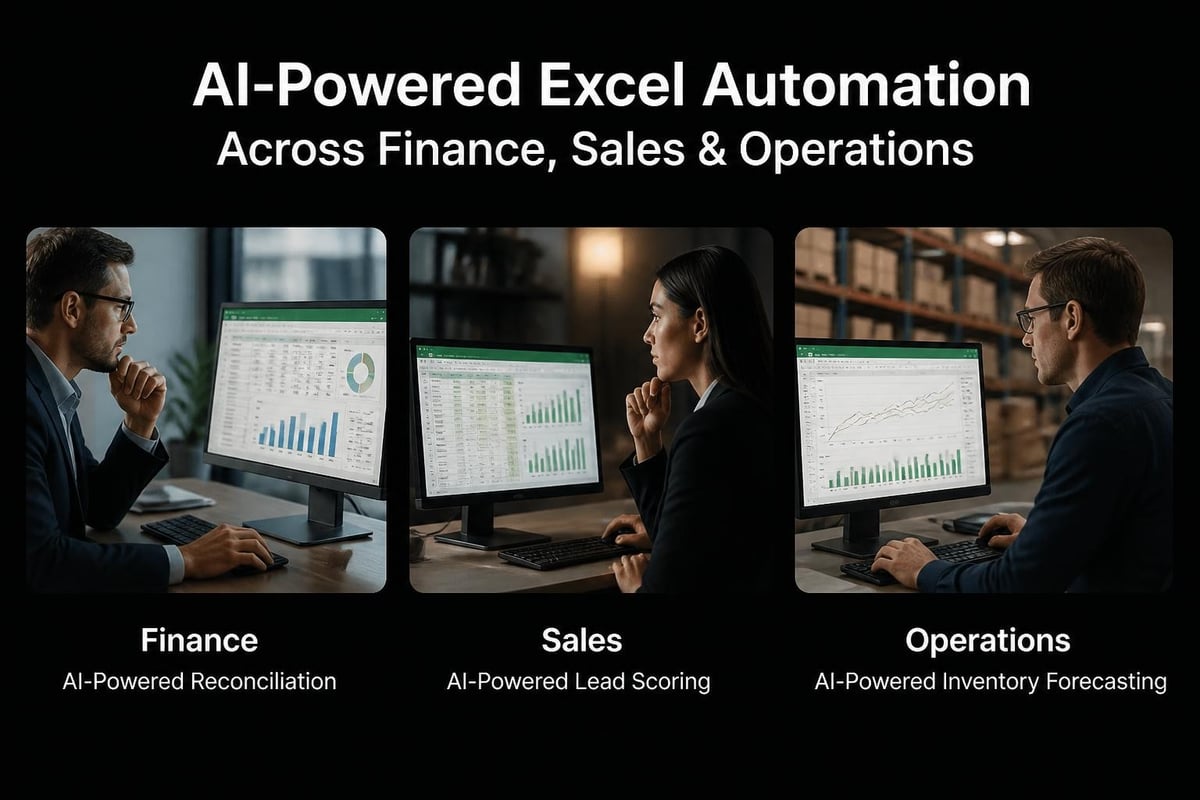
Finance and Accounting
Financial professionals require precision and audit trails. AI automation excels at:
- Reconciliation Tasks: Automatically matching transactions across multiple sources
- Variance Analysis: Identifying unusual patterns that require investigation
- Budget Forecasting: Using historical data to generate realistic projections
- Report Generation: Creating formatted financial statements from raw data
The specialized AI tools for finance workers now include features like automated journal entry suggestions and intelligent classification of expenses.
Sales and Marketing
| Task | Manual Approach | AI-Automated Approach |
|---|---|---|
| Lead Scoring | Manual rating system | Predictive scoring based on conversion patterns |
| Performance Dashboards | Static pivot tables | Dynamic visualizations with natural language queries |
| Campaign Analysis | Manual cross-referencing | Automated attribution modeling |
| Forecasting | Simple trend lines | Multi-variable predictive analytics |
Sales teams benefit from AI tools that automatically categorize leads, predict deal closure probability, and generate customized reports for different stakeholders.
Operations and Inventory
Operations managers dealing with supply chain data can leverage AI for:
- Demand forecasting with seasonal adjustment
- Automated reorder point calculations
- Supplier performance tracking
- Quality control statistical analysis
When managing inventory data, the ability to filter in Excel becomes more powerful when combined with AI that suggests relevant filter criteria based on your typical queries.
Evaluating AI Tools: Key Selection Criteria
Choosing the best AI tool for Excel automation requires careful consideration of several factors that impact both immediate productivity and long-term value.
Integration and Compatibility
Native vs. Third-Party Solutions
Native tools like Microsoft 365 Copilot offer seamless integration but may lack specialized features. Third-party solutions provide flexibility but require additional setup and maintenance.
Consider these integration factors:
- Does the tool work with your current Excel version?
- Are there API limitations or rate restrictions?
- Can it access all your data sources?
- Does it support offline functionality?
Security and Compliance
For organizations handling sensitive data, security cannot be an afterthought. AI tools that process your spreadsheet data require scrutiny regarding:
- Data encryption standards (in transit and at rest)
- Compliance certifications (SOC 2, GDPR, HIPAA)
- Data residency requirements
- Access control and audit logging
- Third-party AI model privacy policies
Organizations that need to password protect Excel workbooks should ensure their AI automation tools respect existing security measures and don't create vulnerabilities.
Cost-Benefit Analysis
Pricing models vary significantly across AI automation tools:
| Pricing Model | Best For | Considerations |
|---|---|---|
| Per-user subscription | Small to medium teams | Predictable monthly costs |
| Usage-based (API calls) | Variable workloads | Can spike unexpectedly |
| Enterprise licensing | Large organizations | Volume discounts available |
| One-time purchase | Budget-conscious users | Limited ongoing support |
Calculate your ROI by estimating time saved on repetitive tasks. If your team spends 10 hours weekly on manual data manipulation, even a modest automation tool typically pays for itself within months.
Implementation Best Practices
Successfully deploying the best AI tool for Excel automation requires more than just purchasing a license. Strategic implementation ensures maximum adoption and value.
Training and Change Management
Even intuitive AI tools require some learning. Effective rollout includes:
- Pilot Program: Start with power users who can provide feedback
- Documentation: Create internal guides with real examples from your workflows
- Regular Training Sessions: Cover new features as they're released
- Success Metrics: Track adoption rates and productivity improvements
- Feedback Loops: Continuously gather user input to refine processes
Gradual Automation Strategy
Attempting to automate everything simultaneously often leads to frustration. Instead, prioritize based on:
- Frequency: Tasks performed daily or weekly get priority
- Complexity: Simple, repetitive tasks are easiest to automate first
- Error Rate: Manual processes with high error rates benefit immediately from AI
- Time Consumption: Tasks taking the most hours offer the biggest wins
Start by automating report generation, then move to data cleaning, followed by advanced analytics and predictive modeling.
Quality Control and Validation
AI isn't infallible. Maintain accuracy by:
- Implementing review checkpoints for critical calculations
- Comparing AI-generated results against known benchmarks initially
- Creating validation rules that flag unusual outputs
- Maintaining human oversight for financial or regulatory reports
- Documenting AI decision logic for audit purposes
When working with drop-down lists in Excel, AI can suggest list values based on data patterns, but human review ensures business logic appropriateness.
Future Developments in Excel AI Automation
The trajectory of AI development suggests several exciting capabilities emerging in the near future.
Reinforcement Learning for Complex Tasks
Research into Spreadsheet-RL frameworks demonstrates how AI agents can learn complex, multi-step spreadsheet tasks through reinforcement learning. This advancement will enable:
- Fully automated workflow creation from high-level descriptions
- Self-optimizing processes that improve over time
- Adaptive automation that adjusts to changing business conditions
- Intelligent error recovery without human intervention
Enhanced Natural Language Processing
The next generation of AI Excel tools will understand context and business terminology more accurately:
- Industry-specific language models trained on finance, healthcare, or logistics terminology
- Multi-turn conversations that refine requests through dialogue
- Ambiguity resolution through clarifying questions
- Preservation of conversation context across sessions
Cross-Platform Intelligence
AI automation will increasingly work across the entire Microsoft 365 ecosystem and beyond:
- Data automatically flowing between Excel, Power BI, and databases
- Insights from Teams conversations informing spreadsheet updates
- Email attachments automatically processed and integrated
- SharePoint document libraries synchronized with workbook data
The broader landscape of AI tools for productivity continues to expand, with Excel automation representing just one component of intelligent workflow systems.
Making Your Decision
Selecting the best AI tool for Excel automation ultimately depends on your specific context, technical capabilities, and budget constraints.
For most business users, Microsoft 365 Copilot represents the optimal choice due to its native integration, security infrastructure, and comprehensive feature set. The learning curve is minimal, and the tool understands Excel's full functionality.
For advanced users requiring customization, GPT-4-based tools or specialized platforms like Zapier offer greater flexibility. These solutions work well when integrating Excel with numerous external systems.
For budget-conscious individuals, exploring Excel's built-in AI features provides significant value before committing to paid tools. Features like Ideas, Flash Fill, and the newer COPILOT function deliver automation without additional cost.
Testing multiple solutions through free trials provides hands-on experience with interface design, response accuracy, and workflow compatibility. Most vendors offer 14-30 day evaluation periods.
When evaluating tools, create a test scenario using actual data from your operations. Generic demonstrations often look impressive but may not address your specific challenges. Tasks like finding duplicate entries in Excel become more complex at scale, and testing reveals how well AI handles your data volumes.
The evolution of AI-powered Excel automation has made sophisticated spreadsheet management accessible to users at every skill level, dramatically reducing the time spent on repetitive tasks while improving accuracy. Whether you choose Microsoft's integrated solution or a specialized third-party tool, the productivity gains justify the investment for most professionals. If you're struggling with complex formulas, untangling legacy workbooks, or simply want to work smarter with your data, The Analytics Doctor provides personalized Excel training and expert support to help you leverage these powerful AI tools effectively and solve your spreadsheet challenges with confidence.