Skip to content

Unlock the full potential of Excel by learning how to enable a macro in excel safely. Many users hesitate to use macros, worried about security risks or data loss. Yet, with the right approach, you can automate repetitive tasks and increase productivity in just a few clicks.
This guide will walk you through the process step by step, ensuring you minimize risks while gaining efficiency. You will discover what macros are, why they matter, how to manage security, and the best ways to troubleshoot and maintain safe macro use. Let’s get started on your journey to Excel mastery.
Understanding Macros in Excel: What They Are and Why They Matter
Macros are powerful tools within Excel designed to automate repetitive tasks and streamline complex processes. At their core, macros are sequences of instructions that tell Excel exactly what to do, step by step. For anyone wondering how to enable a macro in excel, it's important to first understand what these tools can accomplish.

Defining Macros and Their Role in Excel
A macro in Excel is essentially a script that automates actions you would otherwise perform manually. These actions can range from simple formatting changes to more complex workflows, like importing data or generating monthly reports.
Common use cases for macros include:
- Data cleaning and transformation
- Automating financial calculations
- Generating standard reports
- Formatting large datasets
Macros are created in two main ways:
- Recording: Excel tracks your actions and saves them as a macro.
- VBA Programming: Users write custom code in Visual Basic for Applications (VBA) for more advanced automation.
For example, a company might use a macro to automatically compile sales data every month, saving hours of manual work. Since Excel 5.0, macros have played a key role in business automation. According to Microsoft, leveraging automation like macros can reduce spreadsheet processing time by up to 80 percent.
To explore how macros are built and what VBA can do, see this Excel VBA basics and automation guide.
Benefits and Risks of Using Macros
Macros can dramatically boost productivity by handling repetitive tasks and reducing manual errors. They also allow for customization tailored to industry-specific needs, making Excel more flexible for diverse workflows.
Key benefits include:
- Increased efficiency and accuracy
- Time savings for routine processes
- Custom solutions for unique business tasks
However, macros also introduce risks. Because they can run code, malicious actors sometimes use macros to spread malware through infected files. This is why Microsoft disables macros by default to protect users. Before learning how to enable a macro in excel, always consider the source and legitimacy of the file.
Risks to be aware of:
- Macro viruses that exploit vulnerabilities
- Potential for data loss or corruption
- Security threats from untrusted sources
Understanding both the advantages and dangers helps users make informed decisions about macro use.
Macro Use in Modern Organizations
Macros are widely adopted in sectors like finance, accounting, project management, and analytics. For example, automating payroll or invoice processing with macros can save organizations significant time and reduce errors.
As remote work becomes more common, the need for safe macro practices grows. Teams often share Excel files over email or cloud services, increasing the risk of encountering unsafe macros. Competitors and industry experts now highlight that macros are disabled or only partially enabled by default to reduce these risks.
When considering how to enable a macro in excel for your team, always follow strict policies. Only use macros from trusted sources, and educate staff on safe macro practices. This proactive approach helps organizations benefit from automation while minimizing exposure to threats.
Macro Security in Excel: Risks, Protections, and Best Practices
Understanding macro security is crucial for anyone who wants to learn how to enable a macro in excel without unnecessary risk. Macros are powerful, but that power comes with significant responsibilities and potential threats. Let us break down why Excel treats macros with caution, what protections are in place, and how you can confidently use macros while keeping your data safe.
Why Macros Are Disabled by Default
Macros can execute code that changes files, system settings, or even interacts with network resources. This flexibility is the same reason why Microsoft disables macros by default. Historically, macro-based malware like the Melissa and Concept viruses spread rapidly, exploiting the ability to automate tasks.
Today, when users search for how to enable a macro in excel, they are often met with warnings. Microsoft has responded to these threats by evolving security policies, especially in Excel 2021, 2026, and Microsoft 365. Now, stricter controls are the norm. Trusted publishers and digital signatures have become key defenses, ensuring only verified code runs.
The default disabling of macros is a protective barrier, not a limitation. It is an essential step in keeping users safe while still allowing automation when proper precautions are taken.
Built-In Protections in Excel
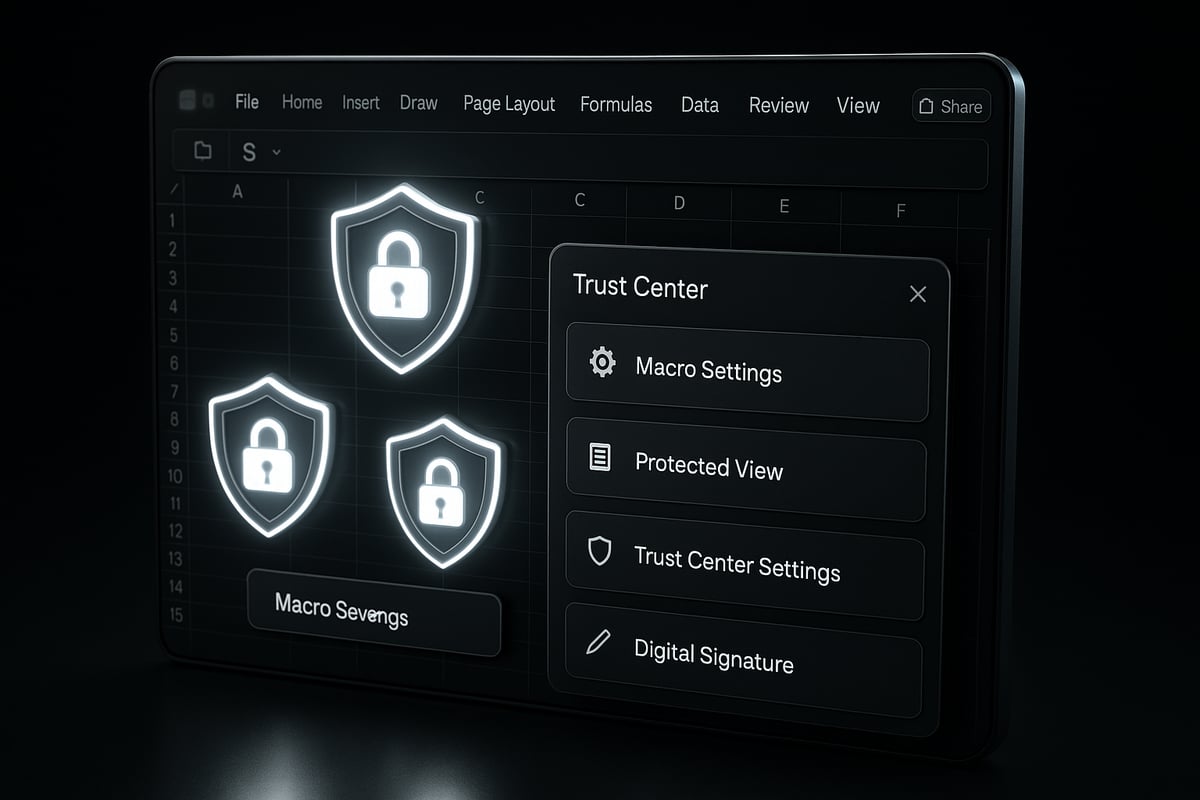
Excel includes several built-in protections to help users who want to know how to enable a macro in excel safely. The Trust Center is the hub for all macro security settings. Here, you can choose from options such as disabling all macros, disabling with notification, only enabling signed macros, or enabling all macros (the least secure option).
Protected View is another critical feature. Files downloaded from the internet or received by email open in this restricted mode, blocking macros until you explicitly enable editing. This helps prevent malicious code from running automatically.
For example, if you open an unknown file and see a yellow warning bar, Excel is actively safeguarding your environment. These layers of protection make it much safer to explore how to enable a macro in excel while minimizing risks.
Best Practices for Macro Safety
To maximize both productivity and security when learning how to enable a macro in excel, you must follow best practices. Only enable macros from sources you trust. Always keep Excel up to date, as Microsoft regularly patches vulnerabilities. For businesses, using digital signatures and trusted publishers is highly recommended.
Maintain up-to-date antivirus software, and restrict macro usage to files that have been approved by your organization. These steps reduce the risk of malware or unauthorized actions. For a comprehensive list of recommendations, review Microsoft’s Macro Security Best Practices, which outlines how to configure macro settings for optimal protection.
Organizations should also implement policies to restrict which files can run macros. This approach helps control the environment and supports a proactive stance in macro management.
Recognizing Safe vs. Unsafe Macros
When considering how to enable a macro in excel, knowing the signs of safe and unsafe macros is vital. Safe macros are often digitally signed by trusted publishers. Excel displays warning messages if a macro is unsigned or comes from an untrusted location.
Always review any alert or prompt before enabling content. For instance, a legitimate business macro will typically have a valid digital signature and come from a known source. In contrast, over 90% of macro malware is distributed via email attachments, according to Microsoft.
If you are ever unsure, consult with IT or review the macro’s code before proceeding. Vigilance and informed decision-making are your best defenses when using macros in Excel.
Step-by-Step Guide: How to Enable a Macro in Excel Safely (2026)
Unlocking automation in Excel starts with understanding how to enable a macro in excel safely. This guide walks you through every step, ensuring you maximize productivity without compromising security.
Preparing to Enable Macros
Before diving into how to enable a macro in excel, preparation is vital for security and data integrity. Begin by verifying the source of your Excel file. Only open files from trusted colleagues, departments, or reputable organizations.
Next, scan the file with updated antivirus software. This extra layer helps detect hidden threats before you even open Excel. Ensuring your version of Excel is up to date is also essential, as Microsoft regularly releases security patches that address new vulnerabilities.
Finally, create a backup of any important data. Save a copy of your workbook in a separate folder or cloud service. This precaution protects you from accidental data loss or corruption if a macro does not behave as expected.
Taking these steps before you enable any macro helps you maintain control and peace of mind throughout the process.
Accessing the Trust Center in Excel 2026
The next step in how to enable a macro in excel is accessing the Trust Center, where all macro-related security settings are managed. Open Excel and click the File tab in the top-left corner of the window.
From the sidebar, select Options. In the Excel Options dialog box, click Trust Center. The Trust Center is Excel’s central hub for privacy and security, providing granular control over macro behavior and file safety.
Navigating here is straightforward, but if you need visual guidance, Microsoft and trusted Excel resources often provide screenshots for each step. Once in the Trust Center, you are ready to adjust macro settings with confidence.
Adjusting Macro Settings
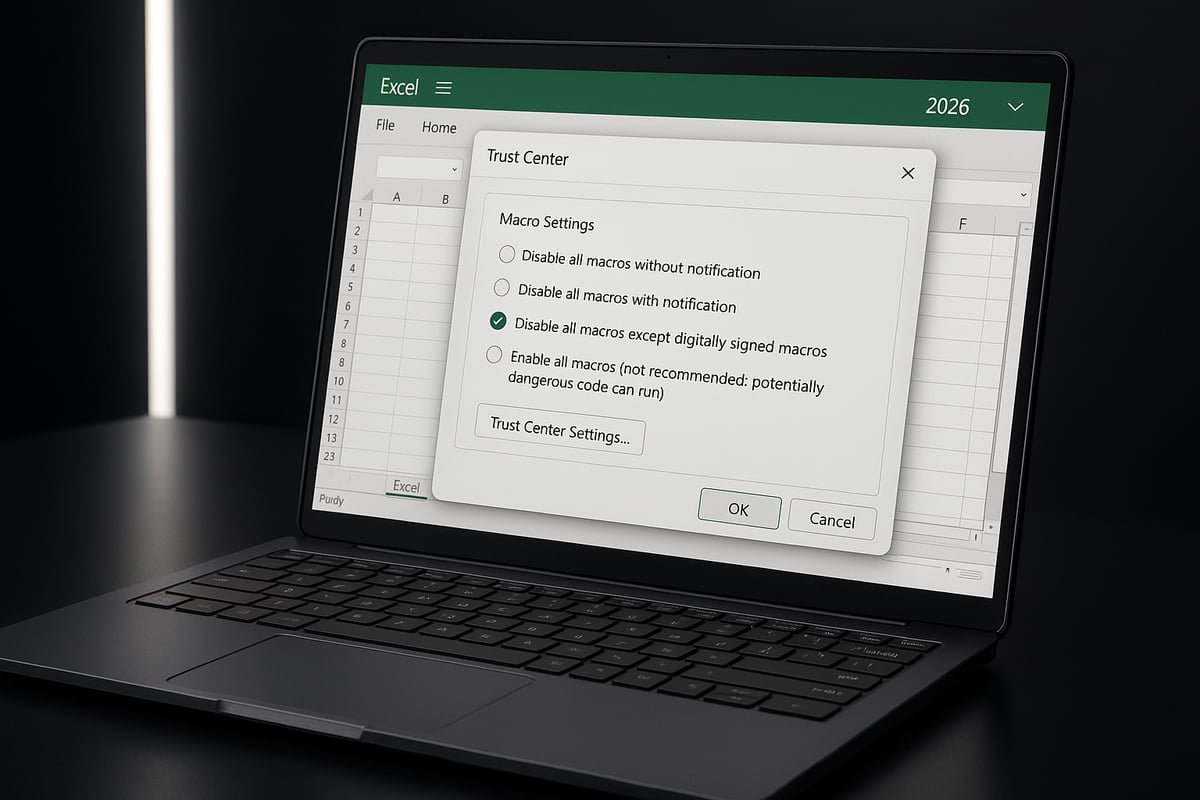
Now that you are in the Trust Center, it’s time to fine-tune macro settings. This is a core part of how to enable a macro in excel while maintaining security. Click Trust Center Settings, then select Macro Settings from the left menu.
You will see four primary options:
| Option | Description | Security Level |
|---|---|---|
| Disable all macros without notification | Blocks all macros silently | Maximum |
| Disable all macros with notification | Prompts you before enabling any macro (default) | High |
| Disable all macros except digitally signed | Allows only trusted, signed macros | Medium |
| Enable all macros | Enables all macros, regardless of source (not recommended) | Low |
Most users should choose “Disable all macros with notification.” This option lets you review and approve macros on a case-by-case basis. For more details on macro-enabled files, see this How to make Excel macro-enabled guide.
Selecting the right setting is key to balancing efficiency and security. Carefully consider your organization’s policy and the sensitivity of your data before changing these options.
Enabling Macros for a Specific File
Once your settings are in place, you can focus on how to enable a macro in excel for an individual file. When you open a workbook containing macros, Excel displays a yellow security warning bar at the top of the worksheet.
Click “Enable Content” to activate macros for that session. If you trust the file’s source and expect to use it regularly, you can select “Always enable macros for this document.” This option is ideal for company-approved templates or recurring reports.
Before enabling, review macro details by clicking on the warning bar’s advanced options. This step helps you confirm the macro’s legitimacy and source. By enabling macros only for specific, trusted files, you minimize the risk of malicious code running on your system.
Trusting Access to the VBA Project Object Model
Some advanced automations require deeper integration with Excel’s programming environment. In these cases, knowing how to enable a macro in excel also involves granting access to the VBA project object model.
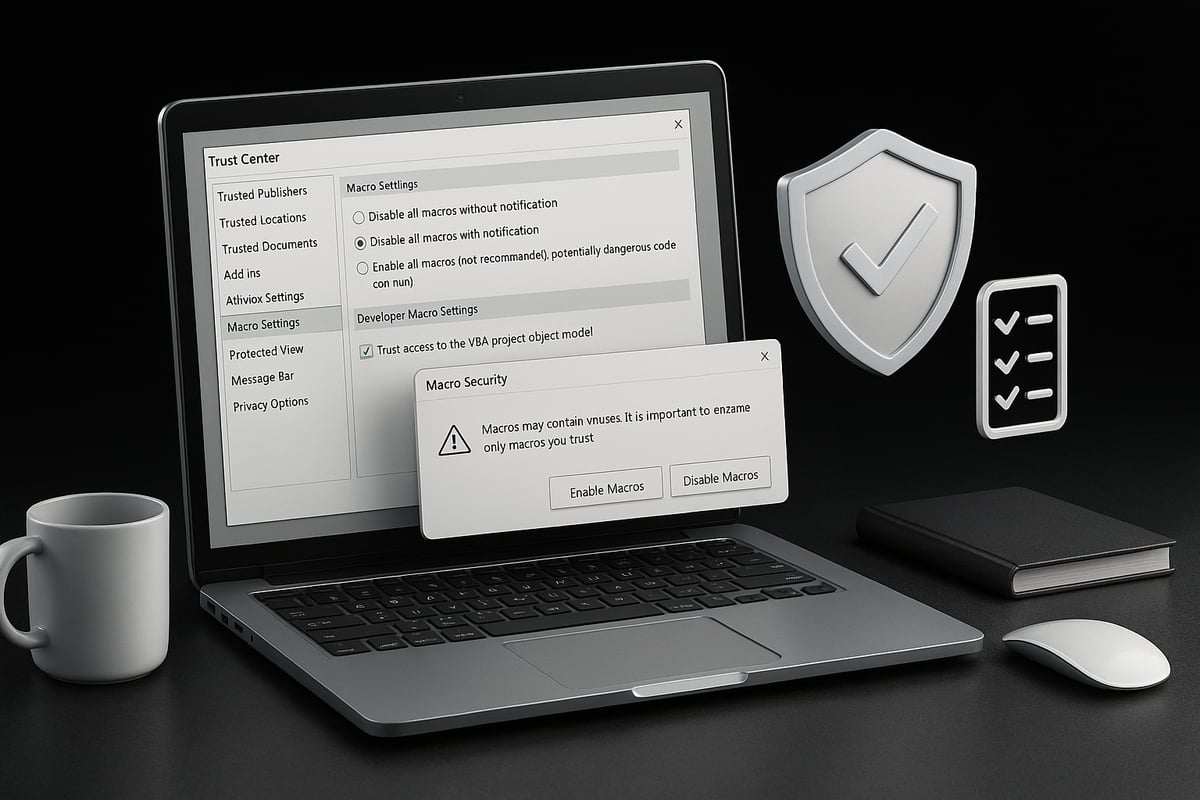
To do this, return to the Trust Center Settings and select Macro Settings. Check the box labeled “Trust access to the VBA project object model.” This setting is generally reserved for trusted, advanced tools or scripts developed by your IT team.
While this access enables sophisticated automation, it can also increase security risks if misused. Only enable it for macros you fully trust and understand. Regular users may never need this setting, but it is essential for power users and developers.
Saving and Testing Macro Settings
After configuring your macro preferences, click OK to save changes and close the Trust Center. Now, test how to enable a macro in excel by running a macro-enabled file. Observe if the macro performs as expected and whether any security prompts appear.
If you encounter issues or suspect unsafe behavior, you can easily revert your macro settings by returning to the Trust Center. This flexibility ensures you remain in control of your environment.
Remember, you can always undo macro permissions or temporarily disable macros for added protection. Taking the time to test and adjust your settings is a smart way to safeguard both your data and device while enjoying the benefits of automation.
Advanced Tips for Safe Macro Use and Management
Unlocking the full benefits of Excel automation requires more than just knowing how to enable a macro in excel. Advanced users and organizations should implement additional safeguards to keep data secure and workflows efficient. Below, you’ll find expert strategies for managing macro security, reducing risk, and maximizing productivity.
Using Digital Signatures and Trusted Publishers
Digital signatures and trusted publishers are essential tools for anyone learning how to enable a macro in excel safely. Signing your macros with a digital certificate confirms the author’s identity and assures users that the code has not been altered.
Organizations often distribute signed macros through IT departments, reducing warning prompts and streamlining approval for frequently used scripts. To add a trusted publisher, navigate to the Trust Center and import the relevant certificate. This step helps ensure only verified macros run on your system.
Benefits of signed macros:
- Fewer security warnings for end users
- Easy identification of trusted code
- Enhanced compliance with organizational policies
Always verify digital signatures before enabling macros, especially in shared environments.
Creating a Trusted Location for Macro-Enabled Files
Another advanced tip for those exploring how to enable a macro in excel is to use trusted locations. Excel allows you to designate specific folders where macro-enabled files can run automatically, bypassing some security prompts.
To set up a trusted location:
- Open Excel Options and select Trust Center.
- Click on Trust Center Settings, then Trusted Locations.
- Add your designated folder (for example, a secure network drive).
Files placed in these locations are considered safe, so only use this method for folders controlled by your organization. This approach reduces the risk of accidentally enabling unsafe macros from unknown sources.
Example:
| Folder Type | Macro Security Level |
|---|---|
| Trusted Location | Macros run automatically |
| Untrusted Location | Prompts before enabling |
Automating Macro Security with Group Policy (For Organizations)
Organizations managing multiple users must know how to enable a macro in excel without compromising network security. Group Policy allows IT administrators to enforce macro settings across all devices in the company, reducing human error and standardizing protections.
Typical policies include:
- Only allowing digitally signed macros
- Disabling all macros except those from trusted publishers
- Restricting macro execution to specified trusted locations
By leveraging Group Policy, companies can automate compliance and minimize risks associated with unauthorized macro use. This is particularly valuable in industries with strict regulatory requirements.
Regularly Reviewing and Auditing Macros
Even if you understand how to enable a macro in excel, regular auditing is vital. Over time, unused or obsolete macros can create vulnerabilities or inefficiencies.
Best practices for macro auditing:
- Keep an inventory of all active macros and their sources
- Remove outdated or unnecessary scripts
- Review macro permissions and access regularly
For detailed guidance, consult resources like the Audit and debug Excel spreadsheets checklist, which outlines proven steps for maintaining safe, reliable automation.
Staying proactive with audits reduces your risk exposure and enhances overall productivity.
Staying Informed About Macro Security Updates
Macro security is not static, so staying updated is crucial for anyone focused on how to enable a macro in excel securely. Microsoft frequently releases updates and advisories that address new vulnerabilities and improve macro management features.
Tips for staying informed:
- Subscribe to Microsoft security bulletins
- Attend internal webinars or training sessions
- Regularly check for Excel updates and apply them promptly
Responding quickly to new threats ensures your macro-enabled workflows remain safe and compliant. Encourage your team to make security awareness an ongoing priority.
Troubleshooting Macro Issues in Excel
Enabling macros in Excel can unlock powerful automation, but sometimes things do not go as planned. Knowing how to enable a macro in excel is only part of the process, as users may face errors or unexpected behavior after activation. Addressing these issues promptly helps maintain both productivity and security.
Common Problems When Enabling Macros
After learning how to enable a macro in excel, users may still encounter several issues, such as:
- Macros not running even after enabling content
- The yellow “Enable Content” notification bar not appearing
- Error messages related to VBA or security settings
- Messages like “Cannot run the macro” after changing options
These problems can disrupt workflow and cause confusion. Understanding the nature of each issue is the first step toward an effective solution.
Diagnosing the Cause
When troubleshooting how to enable a macro in excel, it is crucial to identify why macros are not working. Common causes include:
- The Excel file is blocked by Windows, especially if downloaded from the internet
- Macro settings were not saved or reverted after Excel updates
- Digital signature problems, such as expired or untrusted certificates
- The macro comes from an external source and is not recognized as safe
By pinpointing the root cause, users can apply targeted fixes and reduce downtime.
Solutions and Workarounds
If you face issues after following the steps on how to enable a macro in excel, try these solutions:
- Unblock the file: Right-click the Excel file, choose Properties, and check “Unblock” if available
- Double-check Trust Center macro settings and ensure the correct option is selected
- Update or renew digital certificates for macros that require signatures
- Review Microsoft’s evolving policies on macro security updates for the latest troubleshooting tips
- Contact the file author or your IT department for additional support
These steps can resolve most common macro issues and restore full functionality.
When to Seek Expert Help
If issues persist after you have tried all steps for how to enable a macro in excel, or if you suspect malware, it may be time to consult a professional. Advanced automation needs, complex VBA errors, or ongoing security prompts often require expert intervention. Microsoft’s support resources and community forums can provide further assistance. For business-critical processes, do not hesitate to involve IT specialists to ensure safe and reliable macro use.
Essential Best Practices for Ongoing Macro Use in Excel
Ensuring safe and efficient macro use goes beyond knowing how to enable a macro in excel. It requires ongoing attention to policies, training, and regular reviews. These best practices help you get the most out of automation while minimizing risk.
Developing a Macro Usage Policy
A clear policy is the foundation for secure macro automation. Define who is allowed to create, share, or enable macros within your team or company. Set guidelines for reviewing and approving new macros, and require that all users understand how to enable a macro in excel only for trusted files.
Consider training sessions or workshops to keep everyone informed. For organizations looking to build robust policies and upskill teams, the Excel VBA programming services guide offers a practical playbook for audit-ready macro management.
Regular Backups and Version Control
Before enabling new macros, always back up your Excel files. This simple habit ensures you can recover from accidental changes or corrupted workbooks. Integrating version control lets you track macro changes over time, making it easier to revert to previous states if needed.
When you regularly review how to enable a macro in excel, you naturally develop a routine for safe backup practices. Use cloud storage or network drives to automate backup schedules for critical files.
Keeping Macros and Excel Updated
Staying current with software updates is a vital defense against security threats. Always use the latest version of Excel, and update your macros to comply with new standards. This practice not only protects against vulnerabilities but also ensures compatibility with advanced features.
Review how to enable a macro in excel after each major update, as security settings or macro behavior may change. Keeping everything up to date reduces the risk of exploits targeting outdated code.
Educating Users on Macro Risks and Safe Practices
Continuous education is essential for a secure environment. Train your team to recognize suspicious files and understand how to enable a macro in excel only when they are certain of the file's origin. Share resources, host internal webinars, and provide guides on macro safety.
Encourage users to ask questions if unsure. Well-informed employees are your first line of defense against macro-based attacks.
Monitoring and Responding to Security Alerts
Set up notifications for unusual macro activity, such as unexpected file changes or unauthorized macro-enabled documents. Review logs regularly and investigate any anomalies. Prompt responses to alerts help contain threats early and keep your data secure.
Create a protocol for responding to incidents, including steps for isolating affected files and notifying IT. Regular monitoring and swift action are key to maintaining a safe macro environment.
Frequently Asked Questions About Enabling Macros in Excel (2026)
Unlocking automation in Excel often leads to questions about security, compatibility, and troubleshooting. Here are answers to the most common concerns related to how to enable a macro in excel safely and efficiently.
What are the main risks of enabling macros in Excel?
Enabling macros can introduce risks, including exposure to malware, unauthorized access, and potential data breaches. Macro viruses are often distributed via email attachments, making them a common attack vector. According to EPA’s Macro Security Recommendations, it is essential to understand these risks before deciding how to enable a macro in excel. Always be cautious with files from unknown sources and review macro content before activation.
How can I tell if a macro is safe?
To determine if a macro is trustworthy, first check for a digital signature or a verified trusted publisher. Excel will display warnings if a macro is unsigned or originates from an untrusted source. If you are unsure how to enable a macro in excel securely, consult your IT team or review the macro code before enabling. Never activate macros from suspicious documents, and consider using antivirus software for an added layer of protection.
Are there differences in enabling macros on Mac vs. Windows?
Yes, there are platform-specific steps to consider when learning how to enable a macro in excel. Both Mac and Windows use the Trust Center, but the user interface and some security options differ. For example, the navigation paths and available settings may vary. Always refer to the official Excel documentation for your operating system to ensure you follow the correct procedure.
| Feature | Windows Excel | Mac Excel |
|---|---|---|
| Trust Center | Yes | Yes |
| Macro Settings Range | Full | Limited |
| UI Differences | Moderate | High |
Can I enable macros for just one file instead of all files?
Absolutely. When prompted by the security warning bar, you can select "Enable Content" for a specific document. This approach is the safest way regarding how to enable a macro in excel for trusted files only. Alternatively, designating a Trusted Location allows Excel to run macros automatically for files stored in that folder. This method is ideal for recurring workflows and ensures broader security.
What should I do if macros still won’t work?
If you encounter issues after learning how to enable a macro in excel, start by checking your Trust Center settings. Make sure the file is not blocked by Windows—right-click, go to Properties, and select "Unblock" if available. Verify the digital signature and ensure your Excel version is updated. If problems persist, reach out to IT support or the file’s creator for further assistance.
Will these steps work for earlier or future versions of Excel?
The process for how to enable a macro in excel remains consistent across most recent versions, including Excel 2016, 2019, 2021, and Microsoft 365. However, Microsoft continues to strengthen macro security, such as restricting Excel 4.0 macros by default (Microsoft’s XLM Macro Restrictions). Always check for updates to ensure your approach stays current and secure.