Struggling with messy spreadsheets and repeated data? You’re not alone. Duplicate entries in Excel can quickly disrupt your workflow, leading to inaccurate reports and wasted hours spent troubleshooting.
Duplicates often slip in during manual entry or data imports. This can create serious business risks, from double-counted sales to flawed customer communications. If you’ve ever wondered how to find duplicate entries in excel efficiently, you’re in the right place.
Mastering duplicate detection helps streamline your processes, increases data accuracy, and boosts overall productivity. It’s a crucial skill for anyone working with large datasets.
This expert guide will walk you through the latest and most effective methods to find, manage, and prevent duplicate entries in Excel for 2026. You’ll learn step-by-step strategies using Excel’s built-in tools, formulas, Power Query, VBA, and industry best practices—all designed to keep your data clean and reliable.
Understanding Duplicate Entries in Excel
Duplicate entries are a frequent challenge when working with spreadsheets. Knowing how to find duplicate entries in excel is essential for maintaining reliable data. Duplicates refer to identical rows or values that appear more than once in your dataset. These can be exact matches, such as the same customer name and email, or partial, like repeated product codes with different descriptions.
For example, sales data often contains repeated transactions, and contact lists may have the same email address entered multiple times. The presence of duplicates can disrupt data integrity and lead to faulty business decisions. Common causes include manual entry mistakes, importing data from multiple sources, or copy-paste errors. For a practical guide on removing these issues, see Remove duplicate records in Excel.
What Are Duplicate Entries?
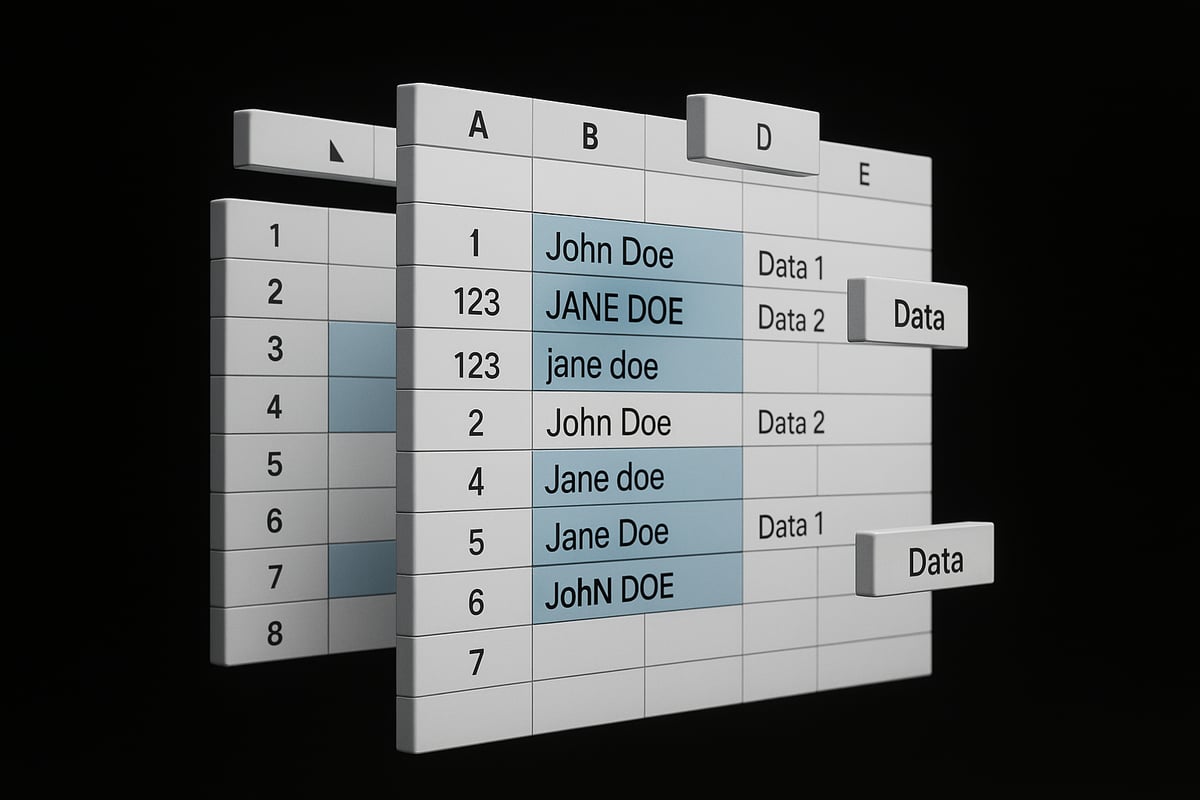
Duplicate entries in Excel are records that repeat within your dataset, either as entire rows or as matching values in specific columns. Understanding how to find duplicate entries in excel involves distinguishing between exact duplicates, where all fields match, and partial duplicates, where only some fields are the same.
For instance, in an inventory list, two rows with the same product ID but different descriptions are considered partial duplicates. In sales records, repeated invoice numbers signal exact duplicates. These issues arise from data imports, manual entry, or copy-paste operations. Duplicates compromise data integrity, leading to errors in analysis and business reporting.
Why Duplicates Are a Problem
The impact of duplicates on your workflow is significant. When you learn how to find duplicate entries in excel, you reduce the risk of double-counting in financial reports and operational summaries. Duplicates can distort data analysis, resulting in misleading insights and wasted resources.
Industry research shows that up to 25% of business data is inaccurate or duplicated. This can cause communication errors, such as sending multiple emails to the same contact, or misallocating inventory in logistics. Addressing duplicates early saves time and prevents costly mistakes.
Types of Duplicates in Excel
There are several types of duplicates you might encounter. Learning how to find duplicate entries in excel means recognizing row-level duplicates, where entire rows are repeated, and cell-level duplicates, where only specific columns have repeated values.
Duplicates can span multiple columns or even different datasets. Case sensitivity and formatting inconsistencies, like "john doe" versus "John Doe," can create hidden duplicates. Other subtle issues include extra spaces at the end of names or inconsistent date formats, making some duplicates difficult to spot without careful review.
Preparing Your Data for Duplicate Detection
Effective duplicate detection starts with data preparation. Before you learn how to find duplicate entries in excel, clean and standardize your data to ensure accurate results. Begin by removing leading and trailing spaces using the TRIM function, and eliminate non-printable characters with CLEAN.
Standardize text by converting to uppercase or lowercase with UPPER or LOWER. For example, use =TRIM(LOWER(A2)) to clean and normalize a customer name before checking for duplicates. Consistent formatting across your dataset improves the accuracy of duplicate searches and simplifies ongoing data management.
Methods to Find Duplicate Entries Using Excel’s Built-in Tools
Dealing with duplicates can slow down your workflow and compromise the integrity of your data. Mastering how to find duplicate entries in excel with built-in tools is essential for efficient data management. Excel offers several straightforward methods to identify and manage duplicates, from simple visual cues to automated removal. Let’s walk through each technique, step by step.
Using Conditional Formatting to Highlight Duplicates
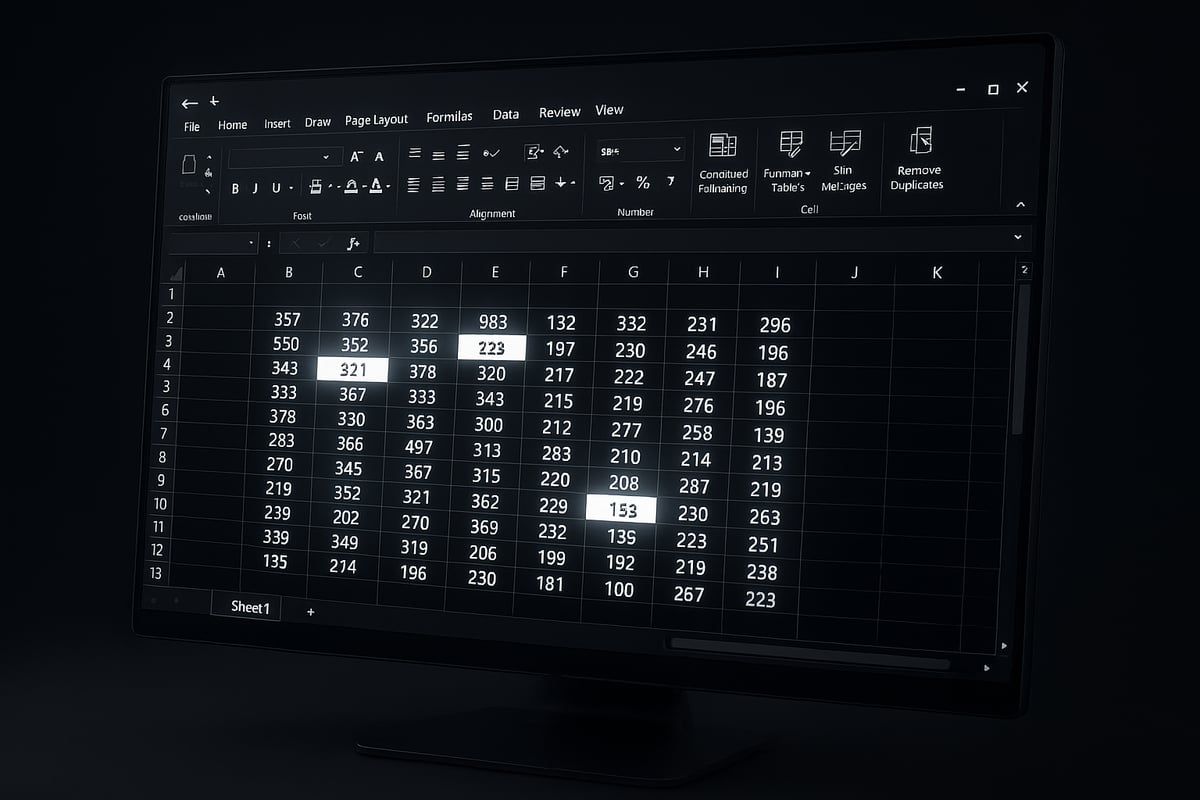
Conditional Formatting is one of the fastest ways to spot duplicates visually. If you want to know how to find duplicate entries in excel without altering your data, this tool is invaluable.
To begin, select the range where you want to check for duplicates. Go to the Home tab, click Conditional Formatting, and choose Highlight Cells Rules, then Duplicate Values. Excel will prompt you to select a formatting style, such as a colored fill or font. After you confirm, all duplicate values within your selected range will be highlighted instantly.
For example, if you have a contact list and worry about duplicate email addresses, simply select the email column and apply this rule. Duplicates will stand out, making it easy to review or take further action.
Keep in mind, Conditional Formatting only highlights duplicates, it does not remove them. Use this as a first step to visually scan your data. For more detailed instructions, refer to Microsoft’s guide on comparing data in two columns.
Remember, how to find duplicate entries in excel should start with a visual check before automated removal, especially in critical datasets.
Removing Duplicates with the ‘Remove Duplicates’ Tool
When you are ready to clean up your data, Excel’s Remove Duplicates tool offers a direct solution. This tool is among the top five most-used Excel features, reflecting its reliability and effectiveness for those learning how to find duplicate entries in excel.
To use it, select your data range, then go to the Data tab and click Remove Duplicates. Excel will ask you which columns to check for duplicates. You can select one or multiple columns, depending on whether you want to compare entire rows or just specific fields.
Before you proceed, make a backup copy of your data. The Remove Duplicates tool deletes repeated entries permanently, which can lead to accidental data loss if you are not cautious.
For instance, in a product inventory list, you might want to remove duplicate product codes to ensure each item is unique. Select the relevant column and confirm. Excel will then display a summary, showing how many duplicates were removed and how many unique values remain.
This method is fast and reliable, but always review the results to ensure no critical information was lost.
Using the ‘COUNTIF’ Formula to Identify Duplicates
The COUNTIF function gives you flexibility in how to find duplicate entries in excel, especially when you need a more tailored approach.
Start by creating a helper column next to your data. In the first row of your helper column, enter the formula =COUNTIF($A$2:$A$100, A2) if your data is in column A. This formula counts how many times each value appears in the selected range.
Drag the formula down to apply it to the entire column. Any value greater than one indicates a duplicate. You can further filter or sort your data based on the helper column to focus on repeated entries.
For more advanced needs, adjust the COUNTIF formula for partial or multi-column duplicates. For example, use =COUNTIFS(A:A, A2, B:B, B2) to count rows where both columns match.
This approach is excellent for flagging duplicates without removing them, allowing for manual review and greater control. However, it requires setup, and the process can become time-consuming with very large datasets.
If your goal is to combine visual cues with flexible detection, COUNTIF is a core method in mastering how to find duplicate entries in excel.
Advanced Filtering for Duplicates
Excel’s Advanced Filter allows you to extract unique or duplicate records based on custom criteria. It’s another way to address how to find duplicate entries in excel, especially in complex datasets.
First, select your data range. Go to the Data tab, click Advanced under the Sort & Filter group. Choose to filter the list in place or copy results to another location. You can specify criteria to display only unique records or filter out duplicates.
For example, if you need to filter duplicate customer IDs from a sales report, you can set up a criteria range with the relevant ID column and apply the filter. The resulting data will display only the rows matching your criteria.
Advanced Filter is powerful for targeted duplicate management, but it requires careful setup. Be sure to define your criteria range precisely to avoid missing important records.
This method works well when you need to quickly isolate or extract duplicates without altering the original data.
Limitations of Built-in Tools
While Excel’s built-in features are robust, they do have limitations when it comes to how to find duplicate entries in excel in more complex scenarios.
For example, these tools may struggle with case-sensitive duplicates. “John Smith” and “john smith” might not be flagged as duplicates unless you standardize text first. Similarly, hidden duplicates caused by extra spaces or inconsistent formats can slip through undetected.
Built-in tools also have difficulty identifying duplicates across multiple sheets or workbooks. If your data is spread out, you may need more advanced methods, such as Power Query or custom formulas.
Another limitation is with dynamic or frequently updated data. Conditional Formatting and Remove Duplicates do not automatically update as new entries are added, so ongoing vigilance is necessary.
Finally, accidental data loss is a risk if you do not back up your data before using removal tools. Always review and prepare your data carefully before performing bulk actions.
Understanding these limitations is crucial for anyone relying on how to find duplicate entries in excel using only built-in tools. For complex or large-scale needs, consider integrating advanced techniques or automation.
Advanced Techniques for Duplicate Detection
If you have ever wondered how to find duplicate entries in excel when built-in tools fall short, advanced solutions can make all the difference. These methods offer flexibility, automation, and the ability to tackle complex scenarios that basic features cannot handle.

Leveraging Power Query for Complex Duplicates
Power Query is a robust tool for anyone learning how to find duplicate entries in excel within large, multi-source datasets. With Power Query, you can import data from several sheets or workbooks, clean and transform your records, and automate recurring tasks.
To get started, load your data into Power Query by selecting "Get & Transform Data" from the Data tab. Use the "Group By" feature to summarize data and the "Remove Duplicates" option to identify and eliminate repeated rows.
Suppose you manage sales data from different regions. Import each region's file, append them in Power Query, and use built-in transformations to spot duplicates across all sources. This process is far more efficient than manual checks.
Power Query can also automate duplicate detection for ongoing projects. Once your query is set, simply refresh to re-run checks on new or updated data, saving significant time.
If you need to compare two Excel spreadsheets for duplicates or reconcile records across files, refer to this step-by-step guide: Compare two Excel spreadsheets. This resource expands on advanced comparison techniques using Power Query and other methods.
Power Query’s automation and repeatability make it essential for modern Excel users who need a scalable solution to how to find duplicate entries in excel.
Using Formulas for Flexible Duplicate Identification
Formulas provide granular control when determining how to find duplicate entries in excel based on custom criteria. The COUNTIFS function can flag duplicates across multiple columns. For instance, use a helper column with =COUNTIFS(A:A, A2, B:B, B2)>1 to identify repeated name and date combinations.
SUMPRODUCT and array formulas help in more nuanced scenarios, such as partial matches or fuzzy duplicates. You might create a formula to count nearly identical customer names, catching entries like "Jon Smith" and "John Smith."
Here’s a simple example using COUNTIF to highlight duplicate invoice numbers:
=IF(COUNTIF($A$2:$A$100, A2)>1, "Duplicate", "Unique")
This formula flags any number that appears more than once.
While formulas are highly customizable, they do require manual setup. However, for analysts wanting to tailor how to find duplicate entries in excel to fit unique business rules, formulas are invaluable.
VBA Macros for Automating Duplicate Checks
VBA macros are powerful when you want to automate how to find duplicate entries in excel across large or frequently updated datasets. Macros can highlight, flag, or even remove duplicates with a single click.
Consider this simple macro to highlight duplicates in column A:
Sub HighlightDuplicates()
    Dim rng As Range
    Dim cell As Range
    Set rng = Range("A2:A100")
    For Each cell In rng
        If WorksheetFunction.CountIf(rng, cell.Value) > 1 Then
            cell.Interior.Color = vbYellow
        End If
    Next cell
End Sub
This script quickly identifies duplicates, making routine checks easy.
Automate monthly duplicate cleanups or embed macros into templates for consistent data hygiene. Always back up your data before running macros, and test scripts in a copy to prevent accidental loss.
For businesses looking to scale their automation, VBA is a strategic tool to simplify how to find duplicate entries in excel.
Handling Case Sensitivity and Formatting Issues
Standard Excel tools may overlook duplicates with different capitalization or hidden formatting. If you need precision in how to find duplicate entries in excel, use the EXACT function or custom formulas.
For example, compare "john doe" and "John Doe" with:
=EXACT(A2, A3)
This returns TRUE only if the text matches exactly, including case.
Standardize data using UPPER, LOWER, TRIM, and CLEAN to remove inconsistencies before your search. This ensures you catch all duplicates, not just the obvious ones.
Addressing formatting nuances is a critical step in any advanced duplicate detection workflow.
Pros and Cons of Advanced Methods
Choosing the right advanced method for how to find duplicate entries in excel depends on your data size, complexity, and required flexibility.
| Method | Flexibility | Scalability | Learning Curve |
|---|---|---|---|
| Power Query | High | High | Moderate |
| Formulas | Very High | Moderate | Moderate |
| VBA Macros | Very High | High | Steep |
Power Query is great for recurring tasks and large datasets; formulas excel in custom logic; VBA automates routine checks at scale. Combining these methods often delivers the most accurate results.
Evaluate your needs, available skills, and data environment before deciding how to find duplicate entries in excel for your organization.
Best Practices for Managing and Preventing Duplicates
Keeping your data clean and accurate is essential for reliable analysis. When you know how to find duplicate entries in excel, you safeguard your spreadsheets against costly errors and inefficiencies. Establishing strong data management habits is the foundation for long-term data integrity.
Data Entry and Import Controls
Preventing duplicates starts at the source. When entering data or importing files, use validation rules to enforce uniqueness. For instance, set up data validation to block duplicate email addresses or customer IDs.
Leverage dropdown lists and unique constraints to limit manual entry errors. Before importing external data, scan for inconsistencies that could lead to duplicates. For a comprehensive approach, review the Excel data validation rules guide for step-by-step instructions.
By implementing these controls, you drastically reduce the need for future duplicate checks. Remember, knowing how to find duplicate entries in excel is only part of the solution—preventing them is equally important.
Regular Data Audits and Maintenance
Routine audits are crucial for maintaining clean data. Create checklists to schedule monthly or quarterly reviews of your key spreadsheets. Use templates to standardize the process and ensure nothing is overlooked.
Consider setting reminders to run duplicate detection tools on a regular basis. Automated scripts or scheduled Power Query updates can catch new issues as data grows. When you consistently monitor your data, you make it far easier to know how to find duplicate entries in excel before problems escalate.
Documentation and Version Control
Clear documentation helps track every change in your data. Use Excel’s version history and comments to record when duplicates are found and removed. This provides a transparent audit trail for future reference.
A simple table can help:
| Action | Date | User | Notes |
|---|---|---|---|
| Removed Duplicates | 2026-01-15 | J. Smith | Cleaned customer list |
| Checked Imports | 2026-02-01 | A. Lee | No duplicates found |
Maintaining records like this supports compliance and makes it easy to demonstrate how to find duplicate entries in excel during audits.
Training and User Awareness
Empower your team to prevent duplicates by providing regular Excel training sessions. Teach best practices for data entry, validation, and duplicate detection. Host workshops that focus on real-world scenarios.
Encourage accountability by highlighting the impact of poor data quality. When everyone understands how to find duplicate entries in excel, mistakes become less frequent, and data quality improves across the organization.
Leveraging Expert Help for Complex Scenarios
Some duplicate issues require specialized expertise. If you face recurring or large-scale problems, consider consulting a professional. Expert support can provide custom automation, advanced troubleshooting, and tailored training.
For example, during major data migrations, external consultants can ensure that duplicate detection is thorough and that your processes are future-proof. Knowing when to seek help is part of mastering how to find duplicate entries in excel for your business’s unique needs.
Get Expert Excel Help from The Analytics Doctor
The Analytics Doctor delivers specialized consulting to resolve duplicate entry challenges in Excel. Services include hands-on workshops, custom automation, and ongoing support for individuals and businesses.

Whether you need help with advanced duplicate detection, prevention strategies, or workflow optimization, their solutions are tailored to your specific requirements. You can also access free guides, templates, and expert advice to streamline your process.
If you want to take your knowledge of how to find duplicate entries in excel to the next level, contact The Analytics Doctor for a custom quote or schedule a consultation today.
Troubleshooting and Special Cases in Duplicate Detection
Identifying and resolving tricky duplicates in Excel can present unique challenges. In this section, you'll discover how to find duplicate entries in excel when standard tools miss subtle, hidden, or complex cases.

Dealing with Hidden and Non-Obvious Duplicates
Hidden duplicates often evade detection due to extra spaces, invisible characters, or inconsistent formatting. To address this, start by cleaning your data using Excel’s built-in functions.
For example, use =TRIM(A2) to remove leading or trailing spaces from names or codes. Combine =CLEAN(A2) to strip non-printable characters. To spot subtle differences, compare original and cleaned data with =LEN(A2) - LEN(TRIM(A2)).
These steps are essential for those learning how to find duplicate entries in excel, as hidden issues can distort results.
Partial and Fuzzy Duplicate Detection
Partial or fuzzy duplicates occur when records are similar but not identical, such as "Jon Smith" versus "John Smith." Standard Excel tools may not catch these cases. Power Query’s fuzzy matching feature can help, allowing for approximate comparisons.
Alternatively, leverage third-party Excel add-ins designed for fuzzy matching. For a deeper understanding of these approaches, review this Methodology for fuzzy duplicate record identification.
Mastering how to find duplicate entries in excel requires awareness of these nuanced detection methods to ensure data accuracy.
Handling Duplicates Across Multiple Sheets or Workbooks
Detecting duplicates across multiple sheets or workbooks introduces additional complexity. Begin by consolidating your data using Power Query or the "Consolidate" feature in Excel.
After combining records, apply duplicate detection techniques such as Conditional Formatting or COUNTIF on the unified dataset. This approach helps you understand how to find duplicate entries in excel when information is scattered throughout various files.
For ongoing needs, consider automating this process to maintain data consistency across your organization.
Dynamic Data and Ongoing Duplicate Management
Live datasets that change frequently require continuous monitoring. Automate duplicate checks by using VBA macros or scheduling Power Query refreshes.
For instance, create a macro that flags duplicates each time new data is added, or set up a Power Query connection that refreshes upon file opening. This ensures you always know how to find duplicate entries in excel, even as your data evolves.
Automation reduces manual effort and supports real-time data integrity.
Data Privacy and Compliance Considerations
When managing duplicates, always consider privacy regulations like GDPR. Maintain audit trails by documenting every duplicate removal or modification.
Use secure deletion practices for sensitive records and leverage Excel’s version history to track changes. These steps are crucial for organizations needing to show they know how to find duplicate entries in excel while protecting personal information.
Documenting actions ensures your process is both transparent and compliant.