Are you frustrated by messy spreadsheets and repeated data entries in Excel? You are not alone. Duplicate records create confusion, cause reporting errors, and slow down workflows. In 2025, many professionals still face challenges with data accuracy because of hidden duplicates.
This step-by-step guide will show you how to remove duplicate records in excel, helping you keep your information clean and reliable. Discover why duplicates happen, explore powerful new Excel tools, and learn proven strategies for efficient data management.
Ready to save time and improve your results? Follow the actionable methods below to master duplicate removal and keep your spreadsheets flawless.
Understanding Duplicate Records in Excel
Duplicate records can quietly undermine your efforts to maintain clean, reliable spreadsheets. Before learning how to remove duplicate records in excel, it is crucial to understand what duplicates are, why they appear, and how they can disrupt your work. This foundational knowledge will set the stage for effective data cleaning.
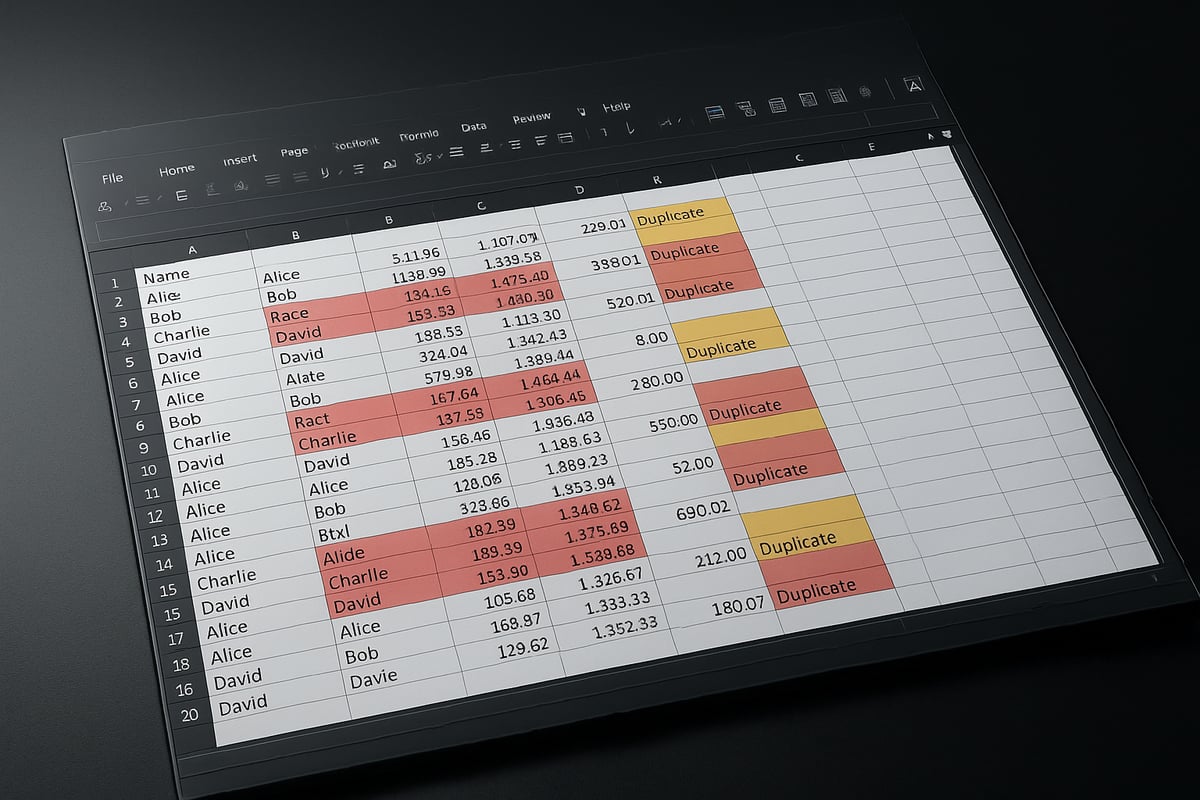
What Are Duplicate Records?
Duplicate records in Excel are rows or fields that contain the same information as another entry. They can be exact matches across all columns or just in specific fields, such as email addresses or customer IDs.
Common scenarios include customer lists where the same person is entered more than once, sales data with repeated transactions, or inventory sheets with identical item numbers. For example, two entries for "Jane Doe" with identical contact details could cause confusion and reporting errors.
These issues often prompt users to search for how to remove duplicate records in excel to restore data integrity.
Why Duplicates Occur in Excel
Duplicates can enter your spreadsheets for a variety of reasons. Manual data entry errors are a frequent cause, especially when multiple team members add information simultaneously. Copy and paste mistakes, such as unintentionally duplicating rows, also contribute.
Another common source is importing data from multiple sources, like merging lists from different departments or systems. If data validation processes are weak or inconsistent, duplicates can easily slip through. For instance, importing several CSV files with overlapping records may result in repeated entries.
Understanding these causes is the first step toward mastering how to remove duplicate records in excel and preventing them in the future.
Risks and Impacts of Duplicate Data
Ignoring duplicates can have serious consequences. Inaccurate analysis and reporting are among the most significant risks, as duplicates can skew totals and mislead decision-making. Double-counting in financial summaries can lead to overestimated revenue or inventory.
Time and resources are wasted when teams repeatedly clean, verify, or reconcile data. According to Gartner, poor data quality costs organizations an average of $12.9 million annually. This underscores the importance of knowing how to remove duplicate records in excel and maintaining high standards for data quality.
Recognizing Duplicates: Signs and Symptoms
Detecting duplicates is not always straightforward. Watch for unusual spikes in totals or counts, which can signal repeated entries. Repeated names, IDs, or transaction numbers are classic signs.
For example, if your monthly sales totals are unexpectedly high, it may be due to duplicate entries. Tools and methods for how to check duplicates in Excel can help you spot these issues early.
Recognizing these symptoms is essential before deciding how to remove duplicate records in excel and ensure your data remains trustworthy.
Types of Duplicates in Excel
Duplicates in Excel can be divided into two categories:
| Type | Description | Example |
|---|---|---|
| Exact | All fields match perfectly | "John Smith", "John Smith" |
| Partial/Near | Some fields match, others differ slightly | "Jane Doe", "Jane A. Doe" |
Knowing the difference helps you tailor your approach when learning how to remove duplicate records in excel.
Preparing Your Data for Duplicate Removal
Preparing your spreadsheet before you begin any steps on how to remove duplicate records in excel is essential for data integrity. By following a structured approach, you reduce the risk of accidental data loss and ensure cleaner, more accurate results.

Backing Up Your Excel Data
Before you start working on how to remove duplicate records in excel, always create a backup copy of your data. Accidental deletions or formatting errors can happen, so having an original version is crucial.
To quickly back up your worksheet, right-click the sheet tab, select "Move or Copy," and check "Create a copy." Save this new sheet with a name like "Original Data." This way, if something goes wrong, you can easily restore your information without panic.
Consider saving a separate file version as well. This practice protects you from losing valuable data, especially when handling large datasets. Imagine deleting thousands of records by mistake and being able to recover everything with just a few clicks. Backing up is a simple step that offers peace of mind.
Identifying the Right Columns for Deduplication
Determining which columns to use is a critical part of how to remove duplicate records in excel. Do you want to check for duplicates across the entire row, or focus on a specific field like email address or customer ID?
For instance, deduplicating based on email ensures unique contacts, while using all columns preserves only completely identical rows. Review the purpose of your dataset before making this choice.
If you need help identifying duplicates, you can explore techniques in this Find duplicates in Excel guide, which covers practical ways to spot repeated values. Properly selecting columns prevents accidental loss of legitimate data and improves the accuracy of your cleanup.
Cleaning and Standardizing Data Before Removal
Data inconsistencies often hide duplicates and complicate how to remove duplicate records in excel. Standardize entries by fixing formatting issues such as extra spaces, mismatched capitalization, or hidden characters.
Use Excel functions like TRIM to remove spaces, UPPER or LOWER to unify text case, and CLEAN to eliminate non-printing characters. For example, "John Smith" and "john smith" might be treated as different entries unless standardized first.
Here’s a quick table for reference:
| Function | Purpose | Example |
|---|---|---|
| TRIM | Remove extra spaces | =TRIM(A2) |
| UPPER | Convert to uppercase | =UPPER(A2) |
| CLEAN | Remove non-print chars | =CLEAN(A2) |
Consistent data ensures the deduplication process works as intended.
Reviewing Data for Special Cases
When preparing for how to remove duplicate records in excel, review your spreadsheet for hidden or special cases. Merged cells, hidden rows, and filtered data can all lead to unexpected results if not addressed.
Be cautious with intentional duplicates, such as recurring customer transactions or scheduled events. Not all repeated entries are mistakes; sometimes, they reflect legitimate business needs.
Check for any filters or hidden rows before running deduplication tools. Carefully document which duplicates should be preserved for reporting or compliance. Reviewing these scenarios helps maintain both data quality and business logic.
Step-by-Step Guide: Removing Duplicates Using Excel’s Built-In Tools
Cleaning up your data is easier than ever with Excel’s powerful built-in tools. If you are wondering how to remove duplicate records in excel, this section will walk you through the most effective methods. Each approach is designed to help you save time, improve accuracy, and maintain a clean spreadsheet, no matter the dataset size.
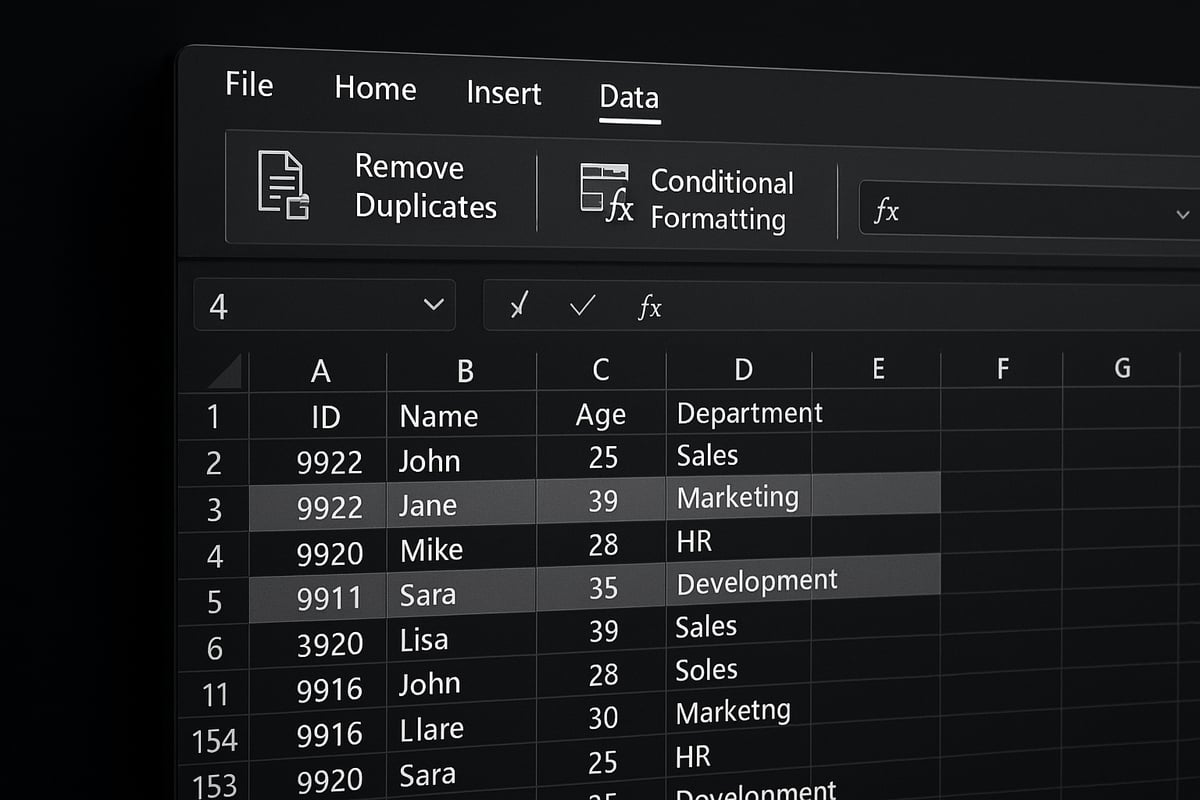
Method 1: Remove Duplicates Feature
The "Remove Duplicates" feature is the fastest way to tackle duplicate data. If you are searching for how to remove duplicate records in excel, this method is often the first step for most users.
Step-by-step process:
- Select your data range. Make sure the entire table or columns you wish to check for duplicates are highlighted.
- Go to the Data tab.
- Click the Remove Duplicates button.
- In the dialog box, choose which columns to check. For example, select just the "Email" column if you only want unique emails.
- Click OK and review the summary of how many duplicates were removed.
Here is a quick summary in table form:
| Step | Action |
|---|---|
| 1 | Select data range |
| 2 | Data tab > Remove Duplicates |
| 3 | Choose columns |
| 4 | Click OK |
| 5 | Review results |
This feature is especially useful for large lists, such as a 5,000-row customer file. Microsoft reports that "Remove Duplicates" is among the top 5 most-used data cleaning features in Excel.
Remember, always back up your data beforehand. If you accidentally remove too much, you can use Ctrl+Z to undo.
Using this method is a foundational skill when learning how to remove duplicate records in excel. It offers speed and reliability for most straightforward deduplication scenarios.
Method 2: Conditional Formatting to Highlight Duplicates
Visualizing duplicates before deletion can prevent mistakes. Conditional formatting helps you spot issues with a few clicks. If you want a detailed walkthrough, check out this guide on Excel conditional formats for duplicates.
How to use conditional formatting:
- Select the range you want to check.
- Go to Home > Conditional Formatting > Highlight Cells Rules > Duplicate Values.
- Choose a formatting style (such as red fill).
- Click OK. Duplicates will be highlighted instantly.
This method is great for reviewing before removal. For example, highlighting duplicate invoice numbers can help you investigate whether the duplicates are accidental or intentional.
Here is a quick visual summary:
| Step | Menu Path | Result |
|---|---|---|
| 1 | Select range | Data selected |
| 2 | Home > Conditional Formatting > Highlight Duplicates | Duplicates highlighted |
| 3 | Choose style, click OK | Visual flags for duplicates |
If you are exploring how to remove duplicate records in excel, conditional formatting gives you the confidence to verify your data before making permanent changes.
Method 3: Advanced Filter for Unique Records
Sometimes, you want to keep your original data intact and extract only unique records. Excel’s Advanced Filter is ideal for this scenario.
Steps to use Advanced Filter:
- Select your data range.
- Go to Data > Advanced in the Sort & Filter group.
- In the dialog, choose either "Filter the list, in-place" or "Copy to another location."
- If copying, specify where to paste the unique values.
- Check "Unique records only" and click OK.
For instance, you might want to create a unique list of product SKUs for inventory management. The Advanced Filter preserves your original data and generates a clean list elsewhere.
Here’s a quick reference:
| Option | Use Case |
|---|---|
| Filter in place | Hide duplicates in the current sheet |
| Copy to another sheet | Generate a unique dataset |
This approach is a practical way for anyone learning how to remove duplicate records in excel to generate unique lists for reporting or analysis.
Method 4: Using Formulas to Flag Duplicates
For more complex situations, formulas provide flexibility. When you need to customize your deduplication process, formulas like COUNTIF, COUNTIFS, or UNIQUE (available in Excel 365/2025) are invaluable.
Common formulas:
-
To flag duplicates in column A:
=COUNTIF(A:A, A2)>1This returns TRUE for duplicate entries.
-
To list unique values (Excel 365/2025):
=UNIQUE(A:A)
Steps for formula-based deduplication:
- Add a helper column next to your data.
- Enter the formula to flag or extract duplicates.
- Filter by TRUE or FALSE to review and delete as needed.
This method is perfect for situations where you want to keep only the first or last occurrence, or when duplicates aren’t exact matches. For example, using COUNTIFS lets you check for duplicates based on multiple columns, such as both name and date.
If you are working with large or complex datasets and need a tailored approach, formulas offer the control you need when considering how to remove duplicate records in excel.
For advanced users, combining formulas with filters or pivot tables can automate quality checks and ensure ongoing data integrity.
Advanced Techniques for Complex Duplicate Removal
Dealing with stubborn or complex duplicates in Excel often requires more than basic tools. As data grows in size and complexity, advanced methods become essential for anyone learning how to remove duplicate records in excel at scale.

Removing Near-Duplicates and Fuzzy Matches
Standard deduplication often misses records that are nearly identical but not exact matches. These near-duplicates can slip through, especially when names or company titles have small differences. For example, "Acme Corp" and "Acme Corporation" may represent the same entity but won't be caught by simple methods.
Excel users can leverage the "Fuzzy Lookup" add-in or Power Query's fuzzy matching feature to catch these tricky cases. Here is a typical process:
- Install and enable the Fuzzy Lookup add-in, or use Power Query's fuzzy join.
- Define the similarity threshold to control how closely values must match.
- Review the matched pairs and decide which records to keep.
While these tools make it easier to understand how to remove duplicate records in excel when entries aren't identical, be aware of limitations. Fuzzy matches may sometimes link unrelated records or miss subtle variations. Always review results before finalizing changes.
Using fuzzy techniques is especially valuable for contact lists, customer databases, and product catalogs where data entry inconsistencies are common. Mastering these features ensures your data is not only clean but also truly unique.
Deduplicating Across Multiple Sheets or Workbooks
When data is spread across several sheets or even entire workbooks, deduplication becomes more challenging. Consolidating information before applying removal techniques is crucial.
Start by combining all relevant data into a single sheet. Power Query makes this process efficient:
- Import tables from each sheet or workbook.
- Append all datasets into one unified table.
- Use Power Query's "Remove Duplicates" to eliminate repeat entries.
This approach is ideal for organizations managing how to remove duplicate records in excel from multiple departments or locations. It saves time, reduces manual errors, and ensures consistency across all records.
Keeping the First or Last Occurrence Only
Sometimes, you may need to keep only the first or last occurrence of a duplicate entry, such as retaining the latest transaction per customer. Excel offers multiple solutions for this scenario.
With formulas, you can use a combination of SORT, UNIQUE, and filtering functions. Power Query also provides "Keep First Rows" or "Keep Last Rows" options during grouping.
For example, to keep the latest entry:
=UNIQUE(SORT(A2:B100, 2, -1))
This formula sorts by date in descending order and extracts unique records. Understanding how to remove duplicate records in excel while preserving specific entries allows for more nuanced data management.
Automating Duplicate Removal with Macros or VBA
Manual deduplication can be tedious, especially for recurring tasks. Automation using macros or VBA scripts streamlines the process and reduces the risk of oversight.
To create a macro for duplicate removal:
- Record the steps using Excel's macro recorder.
- Edit the code as needed for flexibility.
- Assign the macro to a button or shortcut for quick access.
A simple VBA script example:
Sub RemoveDuplicates()
    Range("A1:D10000").RemoveDuplicates Columns:=Array(1,2), Header:=xlYes
End Sub
Organizations that automate how to remove duplicate records in excel can schedule cleanups, ensuring data remains reliable over time. Automation is particularly useful for monthly reports or large-scale imports.
Using Power Query for Scalable Deduplication
Power Query is built for handling large datasets and complex rules. Its user-friendly interface allows you to import, transform, and clean data efficiently.
To use Power Query for deduplication:
- Load your data into Power Query.
- Select the columns for deduplication.
- Click "Remove Duplicates" and load the clean data back into Excel.
This method ensures how to remove duplicate records in excel is both scalable and repeatable. Power Query is indispensable for users dealing with tens of thousands of rows or more.
Troubleshooting and Common Challenges in Duplicate Removal
Even after learning how to remove duplicate records in excel, challenges can arise during the cleanup process. Addressing these issues ensures your spreadsheet data remains accurate and prevents costly mistakes.

Data Loss and Unintended Deletions
When you use how to remove duplicate records in excel, accidental data loss is a real concern. Always make a backup copy before starting any deduplication process. This step allows for quick restoration if needed.
If you delete records by mistake, use Ctrl+Z immediately to undo the action. For larger errors, Excel’s version history can help you revert to a previous state. This feature is especially useful for team-shared files.
Mistakes in duplicate removal can lead to significant business costs. According to Gartner’s Data Quality Cost Analysis, poor data quality costs organizations an average of $12.9 million annually. Taking precautions ensures your data stays safe.
Handling Hidden Rows, Filters, and Formulas
A common pitfall when using how to remove duplicate records in excel is missing hidden or filtered rows. Excel only removes duplicates from visible data. Before starting, clear all filters and unhide any rows or columns.
Check for formulas in your data. Removing duplicates might break linked calculations or summaries. Review dependent cells or use Excel’s “Trace Dependents” tool to spot potential issues.
Follow these steps:
- Unhide all rows and columns.
- Remove any filters.
- Inspect for formulas before deduplication.
Thorough preparation keeps your data structure intact and prevents accidental omissions.
Dealing with Partial Matches and Inconsistent Data
Partial matches and inconsistent formatting can make how to remove duplicate records in excel more complex. Entries like “Jane Doe” and “J. Doe” may refer to the same person but are not identical.
To address this, standardize your data first. Use Excel functions like TRIM, UPPER or LOWER, and CLEAN to align formatting. For near-duplicates, consider using Power Query’s Fuzzy Matching or the Fuzzy Lookup add-in.
Tips for spotting partial matches:
- Search for similar but not identical names or IDs.
- Standardize case and remove extra spaces.
- Review flagged records manually for accuracy.
Careful preparation helps you catch more duplicates and avoid errors.
Verifying Results and Quality Assurance
After you use how to remove duplicate records in excel, always verify your results. Double-check key fields and totals to ensure no important data was lost.
Summarize your data with pivot tables or summary statistics to spot anomalies. Randomly sample a few records to confirm that only true duplicates were removed. This step is vital for maintaining trust in your data.
Regular audits significantly reduce data quality issues. According to the Experian’s Data Quality Benchmark Report, 91% of companies believe revenue is wasted due to poor contact data. Thorough verification is critical for long-term accuracy.
Best Practices to Prevent Duplicate Records in the Future
Keeping your spreadsheets clean is not just about knowing how to remove duplicate records in excel today, but also about building habits that prevent problems before they start. The following best practices help organizations ensure their data stays accurate, reliable, and ready for analysis.
Implementing Data Validation Rules
One of the most effective ways to prevent future issues is to use data validation. Excel allows you to set up rules that block duplicate entries at the point of data entry. By applying validation to key fields, such as invoice numbers or email addresses, you can stop duplicates before they enter your dataset.
For a step-by-step guide on configuring these rules, see Excel data validation rules and checks. Using these features ensures that anyone entering data follows the same standards, which makes how to remove duplicate records in excel less of a recurring challenge.
Standardizing Data Entry Processes
Consistency is crucial for maintaining clean data. Train all users on your team to input data in a standardized format. This includes using drop-down lists for categories, enforcing capitalization rules, and avoiding extra spaces.
When everyone follows the same process, you reduce the risk of partial or near-duplicates that slip past basic checks. By focusing on these practices, you make how to remove duplicate records in excel a rare necessity rather than a routine task.
Automating Data Imports and Integrations
Manual data entry and copying between files are common sources of duplicate records. Automate your data imports using Excel’s Power Query or connect directly to your data sources via APIs. This approach allows you to set up deduplication steps as part of your import routine.
With automation, you can schedule regular imports that automatically check for and eliminate duplicates. This proactive method streamlines how to remove duplicate records in excel, saving time and reducing human error.
Regular Data Audits and Maintenance
Prevention is only effective if you check your results regularly. Schedule periodic data audits to review your spreadsheets for accuracy and completeness. Use templates and checklists to ensure each audit is thorough.
According to MIT Sloan’s Study on Data Quality, companies that prioritize regular data quality reviews can significantly reduce the risk of costly errors. By making these audits part of your workflow, you will need how to remove duplicate records in excel less frequently and keep your data in top shape.