The integration of artificial intelligence into Microsoft Excel has fundamentally changed how professionals interact with their data. What once required hours of manual formula writing and data manipulation now takes minutes with AI-powered assistance. These excel productivity tips using ai represent more than just incremental improvements-they're transformative tools that help users of all skill levels diagnose problems, build complex models, and extract insights faster than ever before. Whether you're struggling with broken formulas or looking to automate repetitive tasks, understanding how to leverage AI in Excel will dramatically improve your spreadsheet efficiency.
Understanding AI-Powered Features in Modern Excel
Microsoft has embedded several AI capabilities directly into Excel 2026, with Copilot leading the charge as the primary assistant. This isn't just autocomplete for cells-it's intelligent analysis that understands context, relationships, and intent.
The Copilot Revolution in Excel
Copilot in Excel represents the most significant productivity enhancement since pivot tables. Microsoft’s official guide on using AI in Excel demonstrates how this tool can analyze datasets, suggest formulas, and even identify patterns you might have missed. The system learns from your spreadsheet structure and offers contextual recommendations.
Key Copilot capabilities include:
- Natural language formula generation
- Automated data cleaning and formatting
- Pattern recognition across large datasets
- Summary generation for complex tables
- Formula error diagnosis and correction
The =COPILOT function allows you to input natural language prompts directly into cells, making AI accessible without leaving your workflow. As TechRadar notes in their coverage, this function enables data categorization and summarization through simple text commands.
Agent Mode for Formula Troubleshooting
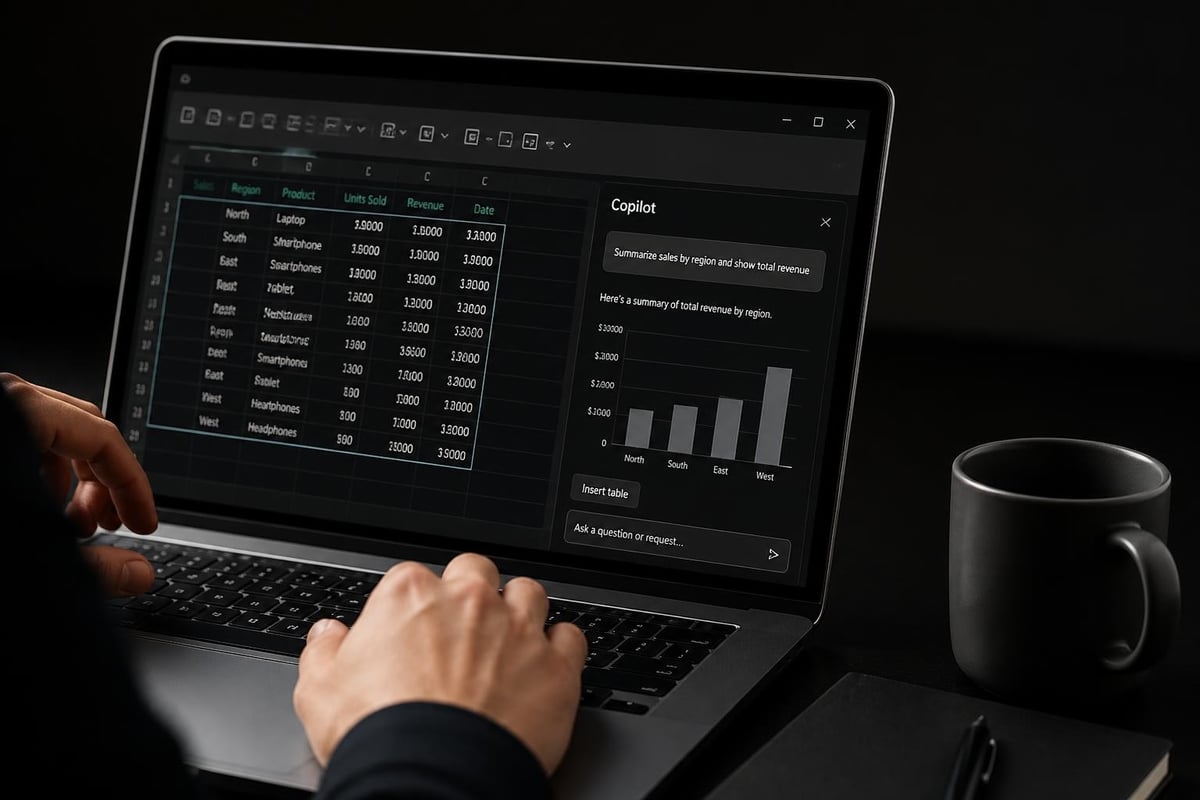
One of the most practical excel productivity tips using ai involves the new Agent Mode feature. Excel’s Agent Mode can identify and fix broken formulas, automatically scanning your workbook for errors and suggesting corrections.
This feature proves invaluable when working with inherited spreadsheets or complex models. Instead of manually tracing precedents and dependents, Agent Mode:
- Scans all formulas in the active workbook
- Identifies circular references, #REF errors, and logic problems
- Suggests specific corrections with explanations
- Implements fixes with user approval
For users who frequently encounter formula issues, this AI capability saves hours of troubleshooting time. Combined with proper macro management, your spreadsheets become more reliable and maintainable.
Leveraging AI for Data Analysis and Insights
Beyond fixing problems, AI excels at uncovering insights hidden in your data. These excel productivity tips using ai focus on analytical capabilities that transform raw numbers into actionable intelligence.
Automated Pattern Recognition
AI can identify correlations, trends, and anomalies faster than manual analysis. When you need to calculate correlation coefficients, AI can suggest not only the formula but also which variables merit investigation.
| Analysis Type | Traditional Method | AI-Enhanced Approach | Time Saved |
|---|---|---|---|
| Trend Detection | Manual charting + visual inspection | Automated pattern recognition | 75% |
| Outlier Identification | Statistical formulas + conditional formatting | AI-powered anomaly detection | 80% |
| Correlation Analysis | Manual CORREL function application | Suggested relationships + visualization | 60% |
| Data Categorization | Manual sorting + filtering | Natural language classification | 85% |
The AI doesn't just calculate-it interprets. You can ask Copilot to "identify which sales regions are underperforming compared to historical averages" and receive a formatted answer with supporting data.
Natural Language Data Queries
Instead of building complex nested formulas, you can query your data conversationally. Type a question like "What were the top 5 products by revenue in Q2?" and AI generates the appropriate summary.
This approach benefits users who understand their business questions but struggle with Excel syntax. Microsoft’s tips for using Copilot effectively emphasize clear, specific prompts that include relevant context about your data structure.
Effective prompt structure:
- Start with the desired outcome ("Show me…" or "Calculate…")
- Specify the data range or table name
- Include relevant filters or conditions
- Define the output format (chart, table, single value)
Automating Repetitive Tasks with AI Assistance
The most impactful excel productivity tips using ai involve eliminating manual repetition. AI can learn from your actions and suggest automation opportunities you might not have considered.
Formula Generation from Examples
Rather than learning complex syntax, you can provide examples of what you want to achieve. If you're working with text manipulation, describe the transformation in plain language or show a few examples, and AI will generate the appropriate formula.
For instance, if you need to extract specific characters from product codes, instead of manually constructing MID, LEFT, or RIGHT functions, you can ask: "Extract the first three letters from column A and the last two numbers from column B, separated by a hyphen."
The AI generates: =LEFT(A2,3)&"-"&RIGHT(B2,2)
This capability extends to complex scenarios involving multiple functions, dates, or conditional logic. Users who previously struggled with VLOOKUP implementations can now describe their lookup requirements and receive working formulas.
Data Cleaning Workflows
AI excels at identifying and correcting data quality issues. Common cleaning tasks automated through AI include:
- Standardizing formats – Converting dates, phone numbers, or addresses to consistent formats
- Removing duplicates – Identifying and handling duplicate entries intelligently
- Filling gaps – Suggesting appropriate values for missing data based on patterns
- Text normalization – Fixing capitalization, spacing, and special characters
- Data type validation – Ensuring numeric fields contain numbers, dates are valid, etc.

Rather than manually filtering data and applying corrections, you can instruct AI to clean entire datasets with a single command. This approach reduces errors and ensures consistency across large workbooks.
Enhancing Collaboration and Documentation
Modern excel productivity tips using ai extend beyond individual efficiency to team collaboration. AI can generate documentation, explain complex workbooks, and make spreadsheets more accessible to non-technical users.
Automatic Documentation Generation
Copilot can analyze your spreadsheet structure and create plain-language documentation explaining:
- What each worksheet contains
- How formulas connect across sheets
- What assumptions or business rules are embedded
- Where data sources originate
- What calculations drive key outputs
This proves invaluable when handing off workbooks to colleagues or revisiting your own work months later. The AI can also suggest improvements to workbook organization and formula efficiency.
Explaining Complex Formulas
When you encounter a complex nested formula-perhaps in a workbook you inherited-AI can break it down into understandable components. This educational aspect helps users learn Excel while solving immediate problems.
For example, a complicated array formula with multiple IF statements can be explained step-by-step, showing what each segment accomplishes and why it's structured that way. This transparency improves spreadsheet literacy across your organization.
Advanced AI Integration Strategies
For power users, these excel productivity tips using ai involve deeper integration with external AI tools and custom solutions. While Copilot provides built-in capabilities, extending Excel's AI functionality opens new possibilities.
Combining AI with Power Query
Power Query's data transformation capabilities combine powerfully with AI-suggested transformations. You can describe the data shape you need, and AI will recommend the appropriate Power Query steps-joins, pivots, unpivots, or custom columns.
| Scenario | Manual Approach | AI-Enhanced Power Query | Complexity Reduction |
|---|---|---|---|
| Multiple source consolidation | Manual UNION queries | Describe desired output, AI builds query | High |
| Complex data reshaping | Trial-and-error with transformations | Natural language transformation request | Medium |
| Conditional data enrichment | Nested if-then logic in M language | Describe business rules, AI codes logic | High |
| Date/time calculations | Manual M function combinations | Request specific date manipulations | Medium |
Integrating External AI APIs
Advanced users can connect Excel to external AI services through custom functions or Power Automate flows. This enables capabilities like:
- Sentiment analysis on customer feedback text
- Predictive modeling using external machine learning services
- Advanced natural language processing beyond built-in features
- Image recognition for processing visual data in spreadsheets
While Microsoft’s AI productivity features handle most common tasks, specialized applications benefit from custom AI integration.

Practical Limitations and Workarounds
Understanding the boundaries of AI capabilities ensures you apply excel productivity tips using ai effectively. While powerful, current AI tools have specific limitations worth acknowledging.
Numerical Calculation Constraints
As Windows Central reports on Copilot’s limitations, the AI excels at data classification and summarization but sometimes struggles with complex numerical computations. For intricate financial models or engineering calculations, traditional formulas remain more reliable.
Best practices for working within AI limitations:
- Use AI for formula structure and logic, verify numerical accuracy manually
- Rely on AI for data preparation, traditional functions for calculations
- Apply AI-suggested approaches to small test datasets before full implementation
- Cross-reference AI-generated formulas against established calculation methods
- Maintain version control when implementing AI suggestions in critical workbooks
Data Privacy Considerations
When working with sensitive information, understand what data Copilot processes and where it's stored. Password protecting your workbooks provides one layer of security, but consider whether certain datasets should remain offline or use local processing only.
Organizations should establish clear policies about which spreadsheets can utilize cloud-based AI features and which require air-gapped environments for compliance or confidentiality reasons.
Building AI-Enhanced Workflows
The most effective excel productivity tips using ai involve reimagining entire workflows rather than simply adding AI to existing processes. Consider how your spreadsheet tasks can be fundamentally restructured with AI assistance.
The Modern Data Analysis Workflow
Traditional workflow:
- Import data manually
- Clean and format (hours of work)
- Build formulas through trial and error
- Create visualizations manually
- Document findings in separate application
- Share static files via email
AI-enhanced workflow:
- Import data with AI-suggested connections
- Describe desired output, AI cleans and formats
- Request analysis in natural language
- Auto-generate charts based on data patterns
- AI creates summary documentation
- Share dynamic, AI-enabled workbooks
This transformation reduces multi-hour processes to minutes while improving accuracy and reproducibility.
Template Creation with AI Assistance
Rather than building spreadsheets from scratch, describe your needs and let AI generate starter templates. For recurring reports, budgets, or trackers, AI can:
- Suggest optimal worksheet structure
- Create appropriate formulas and validation rules
- Set up conditional formatting for key metrics
- Generate sample data for testing
- Build basic charts and dashboards
You then refine these templates with specific business logic and formatting preferences. This approach saves significant setup time while ensuring best practices.
Measuring AI-Driven Productivity Gains
To justify investing time in learning these excel productivity tips using ai, track the measurable improvements in your spreadsheet work. Productivity gains manifest across several dimensions.
Time Savings Metrics
Compare time spent on common tasks before and after implementing AI assistance:
- Formula troubleshooting time reduced by 60-80%
- Data cleaning duration decreased by 70-85%
- Report generation accelerated by 50-75%
- Documentation creation shortened by 80-90%
- Learning new techniques faster by 40-60%
These percentages vary based on task complexity and user proficiency, but most users see substantial time savings within weeks of adopting AI features.
Quality Improvements
Beyond speed, AI enhances accuracy and consistency:
- Fewer formula errors due to AI validation
- More comprehensive data cleaning
- Better documentation of assumptions and logic
- Increased standardization across similar workbooks
- Reduced reliance on institutional knowledge
Skill Development Acceleration
AI serves as an always-available Excel tutor, explaining concepts and suggesting better approaches. Users report learning advanced techniques faster when AI provides contextual explanations alongside solutions. This educational aspect compounds over time, making you more proficient even when working without AI assistance.
Future-Proofing Your Excel Skills
As AI capabilities continue evolving, staying current with excel productivity tips using ai ensures your skills remain relevant. The trajectory points toward increasingly sophisticated assistance that handles more complex scenarios.
Emerging AI Capabilities in Excel
Microsoft continues expanding AI features with each update. Anticipated enhancements for late 2026 and beyond include:
- Multi-workbook analysis and consolidation
- Predictive modeling without external tools
- Advanced scenario planning and simulation
- Natural language pivot table creation
- Intelligent data visualization recommendations based on data characteristics
Preparing for these capabilities means understanding fundamental AI interaction patterns-how to write effective prompts, how to verify AI-generated outputs, and how to combine AI with traditional Excel features strategically.
Building AI-Complementary Skills
The most valuable Excel users in an AI-enabled world possess skills that complement rather than compete with automation:
- Business context understanding – Knowing which questions to ask your data
- Data interpretation – Understanding what results mean for decision-making
- Workflow design – Structuring processes that leverage both AI and human judgment
- Quality assurance – Validating AI outputs against business requirements
- Cross-functional communication – Translating technical findings for diverse audiences
These skills ensure you remain indispensable regardless of how sophisticated AI assistance becomes.
Implementing AI Productivity Tips in Your Organization
Successfully deploying excel productivity tips using ai across teams requires more than individual adoption. Consider organizational change management for maximum impact.
Training and Adoption Strategies
Phased rollout approach:
- Pilot phase – Select power users to test AI features and document use cases
- Quick wins – Identify high-impact, low-complexity applications
- Training sessions – Teach effective prompt writing and AI interaction
- Template library – Create AI-enhanced templates for common tasks
- Support structure – Establish channels for questions and troubleshooting
- Continuous improvement – Regularly share new tips and capabilities
Creating AI Usage Guidelines
Establish clear standards for when and how to use AI features:
| Use Case Category | AI Appropriate | Requires Human Review | Avoid AI |
|---|---|---|---|
| Data cleaning | Yes | Verify results | Highly sensitive PII |
| Formula generation | Yes | Check logic | Mission-critical calculations |
| Documentation | Yes | Edit for clarity | Confidential processes |
| Pattern identification | Yes | Validate insights | Regulated compliance data |
| Template creation | Yes | Customize for needs | N/A |
These guidelines protect data integrity while encouraging beneficial AI adoption.
Implementing excel productivity tips using ai transforms how you work with spreadsheets, saving time while improving accuracy and insights. From automated formula generation to intelligent data cleaning, AI handles repetitive tasks so you can focus on analysis and decision-making. If you're struggling with complex workbooks, broken formulas, or inefficient processes, The Analytics Doctor provides personalized Excel training and support to help you master these AI-powered features and optimize your spreadsheets for maximum productivity.