
Unlock the power hidden in your spreadsheets with a single Excel function. Imagine revealing patterns and relationships in your data that drive smarter decisions and real results.
This comprehensive guide walks you through how to calculate coefficient correlation in excel, step by step, ensuring you can draw valuable insights from your numbers in 2026 and beyond.
You will discover what coefficient correlation means, why it matters, and how to use Excel’s tools for analysis. Expect clear instructions, practical examples, troubleshooting tips, and advanced techniques to boost your confidence and skills.
By the end, you will be ready to apply correlation analysis for better forecasting, risk assessment, and strategic planning—all within Excel.
Understanding Coefficient Correlation: Concepts & Importance
Unlocking the value hidden in your data starts with understanding relationships between variables. Coefficient correlation is a statistical measure that quantifies how two variables move together, revealing whether an increase in one is associated with an increase or decrease in another. When exploring how to calculate coefficient correlation in excel, knowing the basics helps you make sense of the numbers and their impact on business decisions.

What Is Coefficient Correlation?
Coefficient correlation measures the strength and direction of a relationship between two variables. The value ranges from -1 to +1. A result close to +1 means a strong positive relationship, while -1 indicates a strong negative relationship. Zero suggests no relationship. Understanding how to calculate coefficient correlation in excel empowers you to identify patterns and trends efficiently.
Types of Correlation in Excel
There are three main types you’ll encounter:
- Pearson Correlation: Measures linear relationships, commonly used for continuous data.
- Spearman Correlation: Assesses monotonic relationships, useful for ranked or ordinal data.
- Kendall Correlation: Another method for ranked data, less sensitive to outliers.
For example, Pearson correlation is ideal when comparing monthly sales to advertising spend. Spearman or Kendall are better suited for analyzing employee rankings versus performance scores.
Why Correlation Analysis Matters
Identifying correlations helps uncover trends, forecast future outcomes, and assess risks. Businesses often analyze sales and marketing budgets to optimize spend or examine temperature and energy consumption to improve efficiency. According to a 2025 business analytics survey, 68% of companies rely on correlation analysis for strategic planning.
Professionals who understand how to calculate coefficient correlation in excel can quickly answer questions like, “Does increased marketing lead to higher sales?” Tools and techniques discussed in the Excel data analysis guide can further enhance your approach and results.
Key Misconceptions and Limitations
It’s critical to remember that correlation does not imply causation. Two variables may move together due to coincidence or a third factor. Misinterpreting these results can lead to misguided strategies.
Other limitations include the effect of outliers, non-linear relationships, and the risk of spurious correlations. Ethical considerations arise when using correlation results to make decisions that affect people or resources.
Understanding these nuances is essential when learning how to calculate coefficient correlation in excel. By recognizing both the power and the boundaries of correlation analysis, you can make more informed, responsible decisions.
Methods for Calculating Coefficient Correlation in Excel
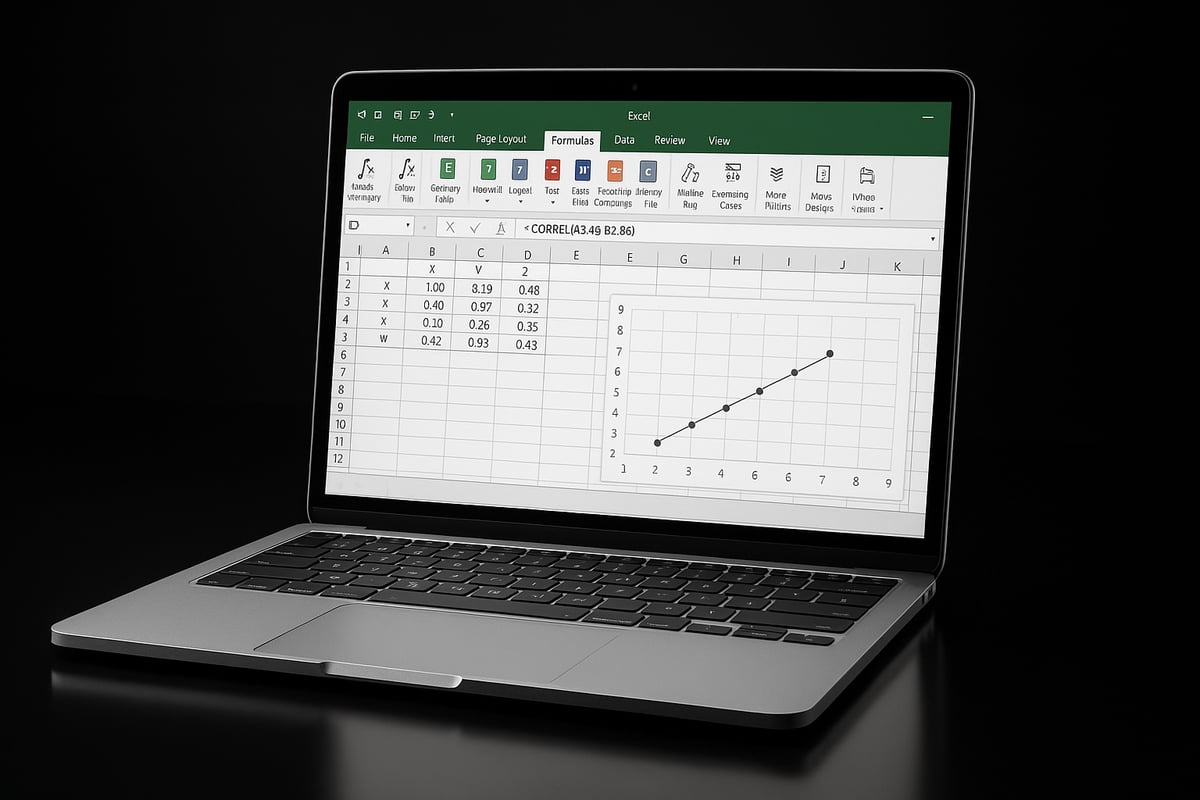
Calculating relationships between variables in Excel is easier than ever. If you want to master how to calculate coefficient correlation in excel, you have multiple tools at your disposal. Excel offers both built-in functions and advanced add-ins, allowing users of all skill levels to perform accurate correlation analysis.
Whether you are working with small datasets or managing large, complex tables, understanding your options will help you select the most efficient approach. Let’s explore the key methods available in Excel for uncovering the strength and direction of relationships in your data.
Excel’s Built-In Correlation Tools: An Overview
Excel provides several methods for correlation analysis:
- CORREL Function: Directly calculates the Pearson correlation coefficient.
- Analysis ToolPak: Offers a graphical interface for batch correlation analysis.
- Data Analysis Add-In: Expands statistical capabilities, including correlation matrices.
The choice of method often depends on your familiarity with Excel and the size of your dataset. If you are new to how to calculate coefficient correlation in excel, starting with the CORREL function is the simplest way to get quick results.
Here’s a quick comparison of the main approaches:
| Method | Best For | Output Type | Skill Level |
|---|---|---|---|
| CORREL Function | Simple pairs | Single value | Beginner |
| Analysis ToolPak | Multiple variables | Matrix | Intermediate |
| Manual Calculation | Custom formulas | Step-by-step | Advanced |
Using the CORREL Function in Excel
The CORREL function is a straightforward way to determine the linear correlation between two data sets. To use it, select two arrays of equal length.
Syntax:
=CORREL(array1, array2)
For example, if your sales data is in column A and advertising spend in column B, the formula would be =CORREL(A2:A13, B2:B13).
A positive result indicates a direct relationship, while a negative value means an inverse relationship. Zero suggests no linear correlation.
If you need detailed instructions or want to understand more about the function’s parameters, refer to the CORREL function – Microsoft Support documentation.
Understanding how to calculate coefficient correlation in excel with this method is vital for quick, accurate analysis.
Analysis ToolPak and Data Analysis Add-In
For larger datasets or when analyzing multiple variables at once, the Analysis ToolPak is invaluable. To activate it:
- Go to File > Options > Add-ins.
- Select Analysis ToolPak and click "Go".
- Check the box and click "OK".
Once enabled, access it via the "Data" tab under "Data Analysis". Choose "Correlation", input your data range, and Excel generates a correlation matrix.
This approach streamlines how to calculate coefficient correlation in excel for complex projects, reducing manual effort and minimizing errors.
If you often run batch analyses or want visual output, the add-in provides a more robust solution than formulas alone.
Manual Calculation vs. Excel Automation & Data Preparation
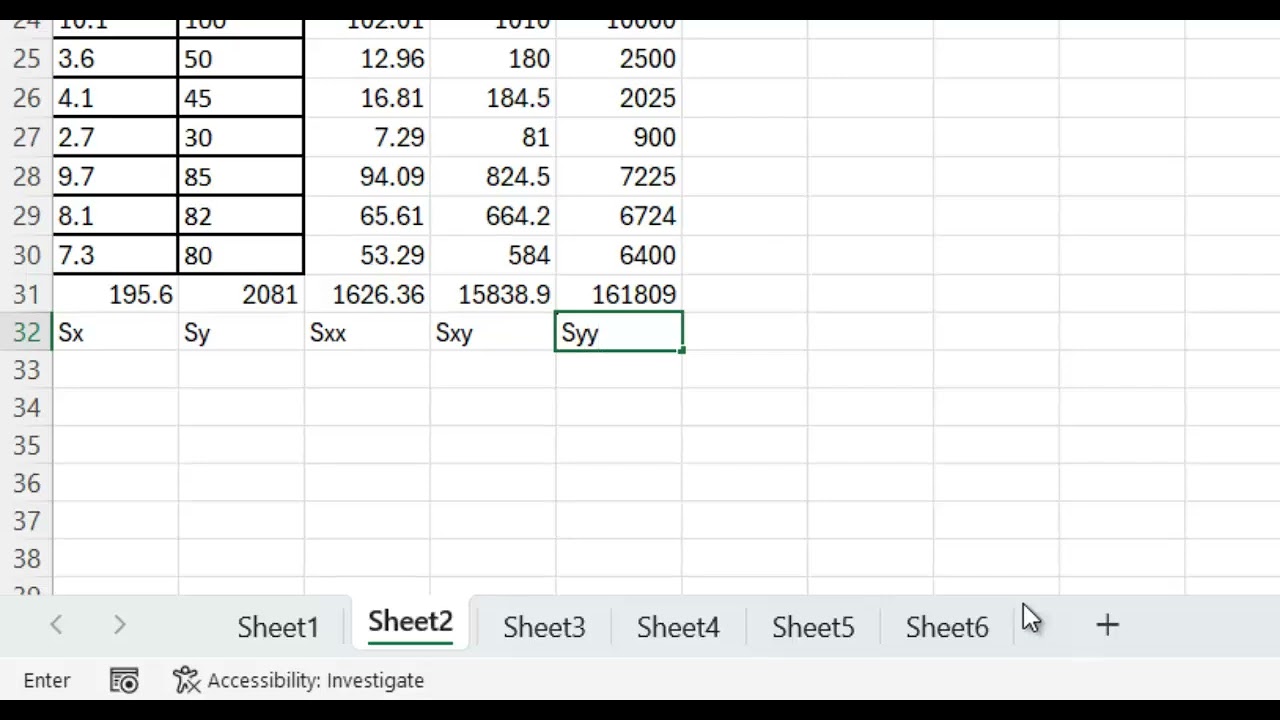
Manual calculation involves computing means, deviations, and covariances step by step. While educational, it can be time-consuming and prone to mistakes, especially with large datasets.
Excel automation, through functions and add-ins, ensures speed and accuracy. However, the quality of your results depends on data integrity.
Before starting, always:
- Remove duplicates and blanks.
- Ensure numeric formatting.
- Align data ranges precisely.
Many top Excel blogs and the latest Microsoft documentation stress the importance of data validation before analysis. Clean data is the foundation for reliable results when learning how to calculate coefficient correlation in excel.
Choosing the Right Method and Expert Tips
Selecting the right approach depends on:
- Dataset size: Use CORREL for small samples, ToolPak for many variables.
- Analysis goals: Choose formulas for transparency, add-ins for efficiency.
- Skill level: Beginners should start simple, while advanced users can automate.
Tips for success:
- Double-check data alignment.
- Use named ranges for clarity.
- Document your steps for future reference.
No matter which method you choose, knowing how to calculate coefficient correlation in excel is a core skill for any data-driven professional. With these tools, you can uncover insights, spot trends, and make smarter decisions.
Step-by-Step Guide: How to Calculate Coefficient Correlation in Excel (2026 Edition)
Unlocking the full potential of your data analysis starts with mastering how to calculate coefficient correlation in Excel. Excel 2026 offers enhanced tools and workflows, making correlation analysis accessible, accurate, and efficient for everyone—from beginners to seasoned analysts.
Whether you are analyzing sales trends, scientific data, or financial returns, this step-by-step guide covers essential preparation, calculation, and visualization techniques. Each section will show you how to calculate coefficient correlation in Excel with confidence.

Preparing Your Data for Correlation Analysis
The foundation for accurate correlation analysis is a clean, well-structured dataset. Before you even begin to learn how to calculate coefficient correlation in Excel, ensure your data is meticulously organized.
Start by removing duplicates and handling missing values. Excel 2026’s improved data validation tools help you quickly spot inconsistencies, non-numeric entries, or empty cells. For a deeper dive into essential data validation techniques, explore Data validation in Excel.
Next, confirm that your data columns are formatted correctly. All values should be numeric, with dates or categories consistently labeled. Make sure the data ranges for each variable have the same number of entries—unequal lengths can lead to errors when you attempt how to calculate coefficient correlation in Excel.
Use sorting and filtering to detect anomalies such as outliers or unexpected zeros. Here’s a quick checklist:
- Remove duplicates in both columns.
- Use filters to highlight blanks or errors.
- Standardize number formats (e.g., decimal places).
- Check for consistent date or text entries.
A clean dataset not only improves accuracy but also saves time troubleshooting. Excel 2026’s validation features streamline this process, making it easier than ever to prepare your data for correlation analysis.
Using Excel’s CORREL Function: Step-by-Step
Once your data is ready, you can use Excel’s built-in CORREL function to calculate the correlation coefficient. This is a straightforward way to learn how to calculate coefficient correlation in Excel for two data sets.
The basic syntax is:
=CORREL(array1, array2)
Here, array1 and array2 are the ranges containing your variables. Select your ranges carefully to avoid mismatched data. You can select ranges manually, like =CORREL(A2:A13, B2:B13), or use named ranges for clarity.
When you use the CORREL function, Excel returns a value between -1 and +1:
- +1: Perfect positive correlation
- 0: No correlation
- -1: Perfect negative correlation
For example, if you are comparing test scores from two exams, simply select the appropriate columns and enter the formula. If you see error messages like #DIV/0! or #N/A, double-check your data ranges and ensure there are no blank cells.
Best practices include documenting your formulas. Add comments or use descriptive named ranges for future reference. Common mistakes to avoid:
- Selecting ranges of unequal length
- Including text or blank cells
- Using data with hidden errors
Documenting each step helps you and your team understand how to calculate coefficient correlation in Excel reliably.
Calculating Correlation with the Analysis ToolPak
For more complex analyses, such as evaluating correlations among multiple variables, Excel’s Analysis ToolPak is invaluable. Here’s how to calculate coefficient correlation in Excel using this add-in.
First, ensure the Analysis ToolPak is enabled:
- Go to
File > Options > Add-ins - Select
Analysis ToolPakand clickGo - Check the box and confirm
Once activated, access it via the Data tab under Data Analysis. Select the “Correlation” tool. Input your data range—this can include multiple columns, such as sales, marketing, and customer satisfaction scores.
The output is a correlation matrix, displaying correlation coefficients for each variable pair. For example, if you analyze three columns, you’ll see a 3×3 matrix showing how each variable relates to the others.
This method is especially useful for large datasets or when you want to compare several variables at once. Export the matrix for reports or further analysis. If you encounter compatibility issues with earlier Excel versions, double-check add-in availability and data formatting.
Using the ToolPak allows you to streamline how to calculate coefficient correlation in Excel for batch analysis, reducing manual work and the risk of errors.
Visualizing Correlation Results in Excel
Visual representation brings correlation analysis to life. Excel 2026 offers advanced charting features that help you interpret and communicate your findings. Understanding how to calculate coefficient correlation in Excel is only half the journey—visualizing results provides context and clarity.
Begin by creating a scatter plot:
- Highlight your two data columns.
- Go to
Insert > Charts > Scatter. - Excel generates a scatter plot, plotting one variable against the other.
Add a trendline by right-clicking on the data points and selecting “Add Trendline.” The slope and direction of the trendline visually reinforce the strength and type of correlation.
Use conditional formatting to highlight strong or weak relationships within your data tables. For presentations, customize chart titles, colors, and labels. Excel 2026 introduces new templates and formatting options, making it easier to tailor visuals for different audiences.
Visualizing how to calculate coefficient correlation in Excel helps stakeholders quickly grasp complex relationships, turning data into actionable insights. Clear visuals are essential for data-driven storytelling and impactful decision-making.
Interpreting and Applying Correlation Results
Interpreting correlation results is the crucial final step in knowing how to calculate coefficient correlation in excel. Understanding what the numbers mean ensures you can draw meaningful conclusions and support smart, data-driven decisions.
Understanding Correlation Values
The correlation coefficient, which ranges from -1 to +1, measures the strength and direction of a relationship between two variables. When you learn how to calculate coefficient correlation in excel, you often see results like 0.85 or -0.55.
Here is a quick reference table for interpreting results:
| Coefficient Value | Relationship Strength | Direction |
|---|---|---|
| +0.70 to +1.00 | Strong | Positive |
| +0.40 to +0.69 | Moderate | Positive |
| +0.10 to +0.39 | Weak | Positive |
| 0.00 | None | No Relationship |
| -0.10 to -0.39 | Weak | Negative |
| -0.40 to -0.69 | Moderate | Negative |
| -0.70 to -1.00 | Strong | Negative |
A value close to +1 indicates a strong positive correlation, meaning as one variable increases, so does the other. A value near -1 signals a strong negative correlation, where one variable rises as the other falls. Zero suggests no linear relationship.
Applying Correlation in Real-World Scenarios
When you know how to calculate coefficient correlation in excel, you unlock insights for forecasting, budgeting, and strategy. For example, a marketing team may find a +0.85 correlation between advertising spend and monthly sales, suggesting that higher ad investments reliably boost revenue.
In another case, a product manager might analyze historical pricing and sales data. By interpreting the correlation coefficient, they can identify the optimal price point that maximizes both sales and profit.
It is important to remember, however, that correlation does not imply causation. Two variables may move together due to coincidence or a hidden third factor. In fact, a 2025 survey found that over 50% of Excel users misinterpret weak correlations, leading to misguided strategies. For practical step-by-step interpretation, see this Calculating Correlation Coefficient in Excel guide.
Statistical Significance, Limitations, and Best Practices
After mastering how to calculate coefficient correlation in excel, it is essential to consider statistical significance. A correlation may appear strong, but without a supporting p-value, it might not be meaningful. Excel’s Data Analysis ToolPak helps you check significance, especially in larger datasets.
Be aware of limitations:
- Outliers can distort correlation results.
- Nonlinear relationships may not be captured by traditional correlation coefficients.
- Spurious correlations can occur when unrelated variables appear connected.
Best practices include:
- Always visualize data with scatter plots.
- Double-check for outliers, missing values, and data entry errors.
- Combine correlation analysis with domain expertise before making decisions.
By following these steps, you ensure your correlation findings are both reliable and actionable.
Advanced Tips, Troubleshooting & Automation for Correlation in Excel
Mastering how to calculate coefficient correlation in excel unlocks a new level of efficiency and accuracy for any data professional. As you progress beyond basic analysis, automation, troubleshooting, and integration become essential for handling larger, more complex data challenges.
Automating and Scaling Correlation Analysis
For those managing recurring reports or large datasets, automating how to calculate coefficient correlation in excel is a game changer. Excel’s VBA (Visual Basic for Applications) allows you to write simple scripts that calculate correlations across multiple variable pairs in seconds.
For example, you can use a VBA macro to loop through columns, applying the CORREL function to each pair. This approach is ideal for weekly or monthly reporting, saving time and reducing manual errors. Batch analysis can be scripted to output results to a new worksheet or summary table, providing a clear overview for decision-makers.
Here is a basic VBA snippet for batch correlation:
Sub BatchCorrelation()
    Dim ws As Worksheet
    Set ws = ActiveSheet
    For i = 2 To ws.UsedRange.Columns.Count
        ws.Cells(1, i).Value = ws.Cells(1, i).Value & " Corr"
        ws.Cells(2, i).Formula = "=CORREL(A2:A100," & ws.Cells(1, i).Address & "2:" & ws.Cells(1, i).Address & "100)"
    Next i
End Sub
Automating these steps not only streamlines how to calculate coefficient correlation in excel, it also ensures consistency across analyses.
Troubleshooting Common Errors
Even experts encounter errors when using Excel for correlation analysis. Recognizing and resolving these issues is crucial for reliable results. The most common errors include:
#DIV/0!when a dataset has zero variance.#VALUE!if non-numeric values are present.#N/Adue to mismatched data ranges or missing values.
To avoid these, always double-check that your data ranges are equal in length and contain only numeric entries. Use Excel’s built-in data validation tools to flag anomalies early. If you receive an error, isolate the problematic cells and correct the data type or fill missing entries.
Maintaining a clean, well-organized dataset is foundational to how to calculate coefficient correlation in excel without interruption. For more advanced troubleshooting and expert guidance, consider Excel coaching and training to refine your workflow.
Handling Large Datasets and Performance
When working with thousands or millions of data points, performance can become a concern. Excel 2026 has improved processing capabilities, but efficiency depends on your approach.
First, limit calculation ranges to only the necessary data. Use dynamic named ranges or Excel Tables to ensure formulas adapt to data size changes. Turn off automatic calculation during setup and only recalculate when needed.
Consider breaking your analysis into smaller batches, then aggregating results. Leverage Excel’s Power Query for efficient data loading, cleaning, and transformation before running correlation analysis.
If your workflow for how to calculate coefficient correlation in excel slows down, check for unnecessary formatting, volatile functions, or external links that could impact speed. Optimize by minimizing open workbooks and closing background applications.
Advanced Tools and Integration
Beyond native functions, several advanced solutions can enhance your correlation analysis. Third-party add-ins offer features like partial or multiple correlation metrics, which are invaluable for complex data relationships. These tools often provide more robust reporting and visualization options.
Integrate your analysis with Excel dashboards to create interactive, real-time displays of correlation results. Power Query and Power Pivot allow for seamless data connections and automated refresh cycles, making it easier to keep your insights up to date.
For those seeking to deepen their expertise in how to calculate coefficient correlation in excel, leveraging resources like WASP using Excel – Correlation and Regression provides academic insights and practical examples.
Regularly audit your correlation formulas, especially if your data or methods change. Leading Excel trainers recommend documenting your process and reviewing calculations to maintain accuracy and trust in your results.
Excel Help & Training Resources: The Analytics Doctor
If you ever feel stuck on how to calculate coefficient correlation in Excel or need help with complex data sets, The Analytics Doctor is your go-to resource for expert support. Their team specializes in guiding users through advanced Excel analytics, including how to calculate moving average in Excel, ensuring you build a strong foundation in statistical methods.

The Analytics Doctor offers:
- Personalized Excel coaching and consulting
- Business process automation
- Advanced data analysis for professionals and teams
You can also access free resources, attend practical workshops, and explore up-to-date Excel guides designed to help you master critical skills. Whether you are a business leader, analyst, or team member, The Analytics Doctor empowers you to make better data-driven decisions with confidence.


