Skip to content

Struggling with inconsistent or incorrect numbers in your spreadsheets? You are not alone. Many professionals face daily challenges when data errors disrupt workflow, damage credibility, and slow decision-making.
This guide is here to help. We will break down validation data in excel, showing you how to create spreadsheets that catch mistakes before they happen. You will learn practical, step-by-step techniques used by experts to ensure your data is accurate and reliable.
Discover what validation data in excel is, why it matters, essential validation types, advanced tools, real-world examples, and expert troubleshooting tips. Ready to take control of your data? Read on for professional guidance.
Understanding Data Validation in Excel
Data accuracy is the backbone of every successful spreadsheet. Whether you are managing finances, HR records, or research data, even small errors can lead to major setbacks. This is where validation data in excel becomes essential, ensuring your information stays reliable from the start.
What is Data Validation?
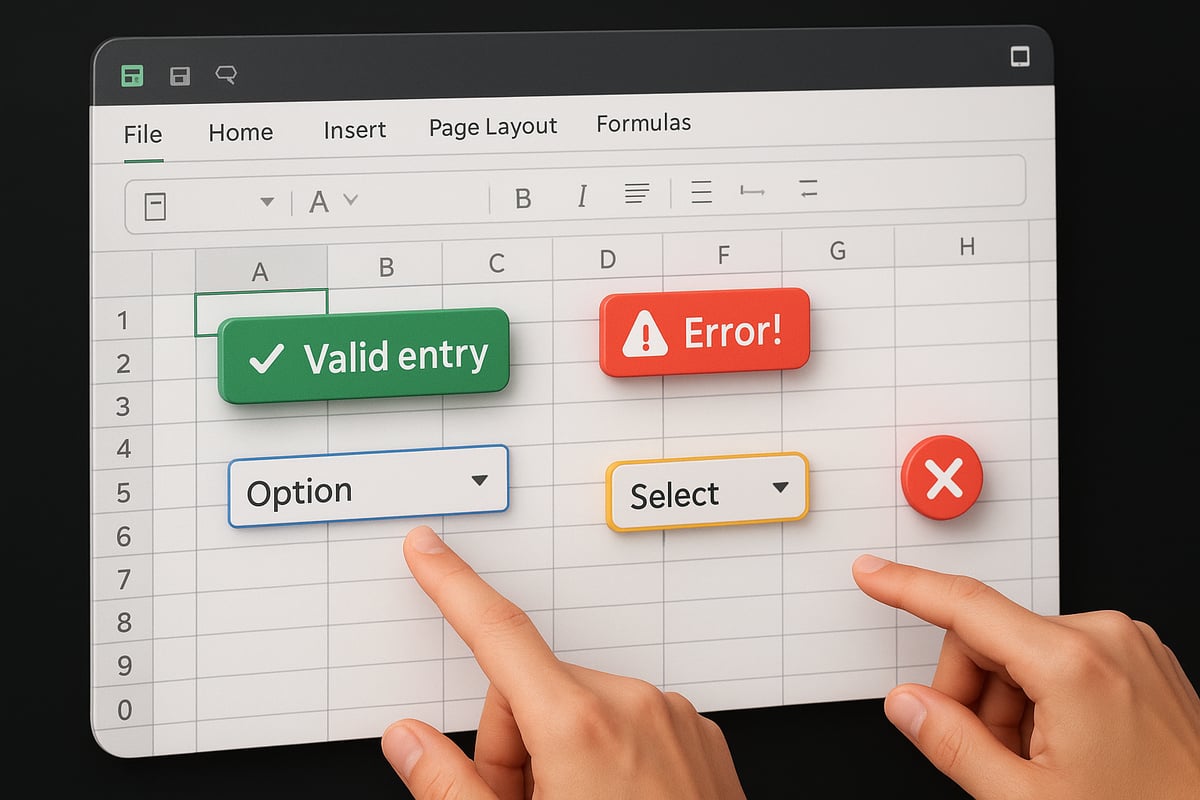
Validation data in excel refers to a set of built-in tools that control what users can enter into each cell. By setting rules—such as only allowing numbers between 18 and 65 for an age field—you can prevent mistakes before they happen. Excel supports criteria like whole numbers, decimals, dates, times, lists, and even custom formulas.
These features apply to both new entries and existing data, guiding users with pop-up messages or alerts if they try to enter something invalid. According to DataCamp, validation is vital for analysts at every level. For a deeper checklist of validation rules and best practices, see the Excel data validation rules and checks resource.
Why Data Validation Matters
Integrating validation data in excel helps prevent inaccurate or inconsistent information from entering your database. This significantly reduces errors and enhances the quality of your analysis—think of it as a digital gatekeeper.
By enforcing rules, you maintain data integrity and support compliance with standards like HIPAA or GDPR. This process saves time and resources that would otherwise be spent cleaning up bad data. For example, restricting inventory counts to non-negative numbers keeps your reports meaningful. DataCamp highlights how robust validation can protect against costly mistakes and improve decision-making.
Key Components of Data Validation
Several elements make validation data in excel highly effective. You can set criteria types (whole number, decimal, date, time, list, custom), provide input messages for user guidance, and configure error alerts to notify users when they enter invalid data.
Other options include allowing or disallowing blank cells and enabling in-cell dropdowns for controlled selection. For instance, an input message might prompt for an email in the correct format, while an error alert stops invalid entries. These features work together to create a seamless, user-friendly experience.
Common Use Cases and Examples
Validation data in excel is used across industries. In university records, only whole numbers are accepted for student counts. Medical records might restrict temperature entries to a realistic range. Employee forms often use dropdown lists for department selection, and finance sheets limit dates to a specific fiscal year.
Survey data also benefits, as validation ensures only valid responses are chosen. For example, CareerPrinciples demonstrates how an age column restricted to 18-45 provides immediate feedback for incorrect entries, helping teams avoid costly data issues.
Core Data Validation Techniques in Excel
Achieving consistent, reliable spreadsheets starts with mastering core techniques for validation data in excel. These strategies help prevent errors, standardize input, and maintain data integrity across your workbooks.

Restricting Data Type, Range, and Length
Setting strict rules is the cornerstone of validation data in excel. You can control what users enter by defining acceptable data types, ranges, and text lengths.
For example, to restrict age entries, choose "Whole Number" as the type and set the minimum to 18 and maximum to 65. This ensures only valid ages are accepted. Logical conditions like "between," "not between," "greater than," and "less than" let you fine-tune acceptable values.
Use these criteria for common scenarios:
- Numbers: Prevent negative inventory counts.
- Dates: Restrict entries to a fiscal year, such as 2021 to 2023.
- Text: Limit names to 2–75 characters.
Here's a quick reference table for setting up these rules:
| Data Type | Example Rule | Validation Setting |
|---|---|---|
| Number | 18 ≤ Age ≤ 65 | Whole Number, Between |
| Date | 01/01/2021 ≤ Date ≤ 12/31/2023 | Date, Between |
| Text | 2 ≤ Length(Name) ≤ 75 | Text Length, Between |
If users try to enter values outside these bounds, validation data in excel will trigger an error alert. This keeps your data clean and ready for analysis.
Creating Drop-Down Lists for Controlled Input
Drop-down lists are a powerful tool for validation data in excel, eliminating typos and ensuring users select only from approved options. Begin by listing allowed values in a separate range, then convert that range to an Excel table for automatic updates.
Follow these steps:
- Enter allowed items (e.g., "Math," "Science," "History") in a column.
- Select the data and press
Ctrl+Tto make it a table. - Select your input cells, go to Data > Data Validation, choose "List," and set the source to your table range.
- Tick "In-cell dropdown" for user-friendly selection.
Whenever you add new items to the source table, the dropdown updates automatically. This is especially useful for department or product lists that change over time.
Example scenario:
- Employee form: Department field restricted to a dropdown with current options only.
For a deep dive into advanced dropdowns and list techniques, check out Advanced Data Validation Techniques, which covers dynamic lists and dependent dropdowns.
Applying Custom Formulas for Advanced Validation
Custom formulas unlock advanced possibilities for validation data in excel. They let you enforce complex rules that go beyond built-in criteria.
Some practical uses include:
- Uppercase enforcement: Only allow uppercase text.
- Email format check: Ensure entries match a pattern.
- No duplicates: Prevent repeated IDs or emails.
To apply a custom formula:
- Select your target cells.
- Go to Data > Data Validation, select "Custom."
- Enter a formula like
=AND(EXACT(A1,UPPER(A1)),ISTEXT(A1))to allow only uppercase text.
Other useful formulas:
- Only numbers:
=ISNUMBER(A1) - Text length:
=AND(LEN(A1)>=2, LEN(A1)<=75) - Unique values:
=COUNTIF($A$1:$A$100, A1)=1
Code example for unique IDs:
=COUNTIF($A$1:$A$100, A1)=1
By leveraging formulas, you tailor validation data in excel to your exact needs, supporting everything from case sensitivity to preventing invalid email addresses.
Input Messages and Error Alerts
Guidance and feedback are essential for effective validation data in excel. Input messages appear when a user selects a cell, letting you provide clear instructions, such as "Enter your first name as shown on your ID."
Error alerts trigger when users enter invalid data. You can customize these alerts:
- Stop: Prevents entry of invalid data.
- Warning: Allows entry but warns user.
- Information: Notifies user but accepts entry.
Example: For a name field, display an input message about proper length and format. If the user enters an invalid name, an error alert explains the mistake. This reduces confusion and helps users correct entries immediately.
Validating Existing Data and Highlighting Errors
Validation data in excel is not just for new entries. You can apply rules to existing cells to audit and clean your data. Use the "Circle Invalid Data" feature to highlight cells that do not comply—Excel will draw red circles around problem entries.
To remove these highlights after corrections, use "Clear Validation Circles." For instance, dates outside an allowed range are instantly visible, making it easy to spot and fix issues during data reviews.
Step-by-Step: Setting Up Data Validation in Excel (2026 Edition)
Ensuring clean, accurate data starts with understanding how to set up validation data in excel. A structured approach prevents errors and streamlines your workflow. This step-by-step guide will walk you through preparing your data, applying rules, and troubleshooting so you can confidently use validation data in excel for any project.

Preparing Your Data for Validation
Before applying validation data in excel, review and clean your existing dataset. Remove duplicates, correct obvious mistakes, and standardize formats. Identify which fields require specific controls, such as dates, numbers, or categories.
Organize dropdown source lists in separate tables for easier management. Naming your source ranges can help when setting up validation data in excel, especially for large sheets. For instance, create a table for department names and assign it a descriptive name. This organization streamlines later steps and reduces errors.
Applying Basic Data Validation Rules
To implement validation data in excel, follow these chronological steps:
- Select the desired cells or range.
- Go to the Data tab, then Data Tools group, and choose Data Validation.
- Pick the appropriate validation type, such as whole number, list, or date.
- Set criteria, like minimum and maximum values or the source list.
- Add input messages and error alerts for user guidance.
Always save and test your validation data in excel to confirm it works as intended. For example, restrict an age field to accept only values between 18 and 65, then try entering values outside this range to see the error message.
Creating and Managing Drop-Down Lists
Drop-down lists are a powerful feature for controlling input and standardizing entries. To set up validation data in excel using drop-downs:
- Enter allowed values in a separate range.
- Convert the range to a table (press Ctrl+T for dynamic updates).
- Select input cells, open Data Validation, choose "List," and specify the source.
- Test the dropdown to ensure it functions correctly.
A well-made drop-down list reduces typos and ensures consistency. For advanced options like dependent lists, see How to build an Excel dependent drop-down list for a detailed walkthrough. This is essential for scalable validation data in excel.
Using Custom Formulas for Complex Validation
For advanced scenarios, use custom formulas in validation data in excel. Select your target cells, open Data Validation, and choose "Custom." Enter a formula to set the rule.
For example, to allow only text entries between 2 and 75 characters with no numbers, use:
=AND(LEN(A1)>=2, LEN(A1)<=75, ISERROR(FIND("0",A1)))
Test various inputs to verify the rule. Custom formulas enable validation data in excel that adapts to unique business needs, such as enforcing email formats or case sensitivity.
Editing and Removing Data Validation Rules
To edit validation data in excel, select the validated cells, open the Data Validation dialog, and adjust the criteria, messages, or formulas. If your requirements change, update the allowed ranges or list sources accordingly.
To remove validation data in excel, select the target cells, open Data Validation, and click "Clear All." This deletes the rules but preserves existing data. For example, update a date range for a project timeline or remove restrictions after data collection ends.
Troubleshooting Common Issues
Sometimes validation data in excel does not work as expected. If invalid data is not flagged, check if the "Ignore blank" option is enabled. If a drop-down list is missing, ensure "In-cell dropdown" is checked in the settings.
If validation is not applying, confirm the correct range is selected. Use "Circle Invalid Data" to highlight errors, making them easier to spot. Addressing these issues quickly ensures your validation data in excel remains reliable and effective for all users.
Advanced Data Validation Strategies and Best Practices
Mastering advanced strategies for validation data in excel elevates your workflow from basic checks to truly robust data governance. Let us explore best practices that help ensure your spreadsheets stay accurate, scalable, and future-ready.
Leveraging Dynamic Validation with Formulas and Named Ranges
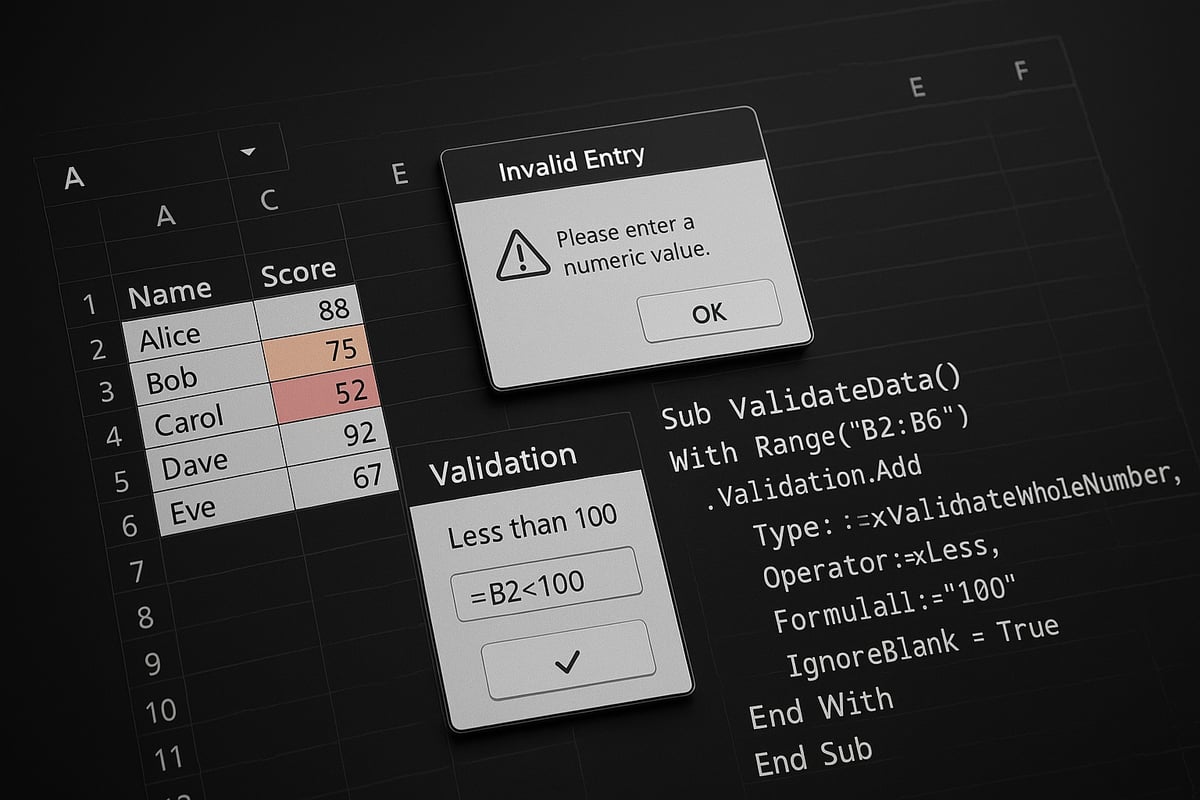
Dynamic approaches to validation data in excel allow your rules to adapt as your data grows. By using named ranges that expand automatically, you can ensure drop-down lists stay current even as new entries are added. Functions like INDIRECT and OFFSET make your validation criteria flexible and scalable.
For example, a department list that updates itself when new departments are added means you never have to manually adjust your validation rules. This approach is especially powerful for large or collaborative workbooks. For a deeper dive into dynamic techniques and best practices, visit Excel Data Validation Best Practices.
Preventing Duplicate Entries
Ensuring unique values is critical in many contexts, such as employee IDs or email addresses. To prevent duplicates, use custom formulas in validation data in excel, like =COUNTIF($A$1:$A$100,A1)=1. When applied, this formula rejects any repeated entry within the specified range.
This method is especially useful for registration forms or tracking systems. Users receive immediate feedback if they try to enter a duplicate, reducing errors early in the data entry process. Maintaining uniqueness helps safeguard data integrity and supports accurate reporting.
Data Validation Across Multiple Sheets and Workbooks
Validation data in excel is not limited to a single sheet. You can reference lists or criteria from other sheets by defining named ranges at the workbook level. The INDIRECT function is handy for cross-sheet validation, ensuring your drop-downs or rules remain synchronized with master lists.
For example, a company-wide dropdown can source its options from a centralized sheet, promoting consistency across multiple departments. This technique is vital for organizations managing large datasets or collaborating across teams. Always ensure your references are correctly named and updated as your data evolves.
Integrating Data Validation with Conditional Formatting
Pairing validation data in excel with conditional formatting creates a powerful visual feedback loop. You can highlight cells that fail validation rules, making errors stand out instantly. For instance, after applying validation, use conditional formatting to shade invalid or blank cells in red.
This combination streamlines auditing and correction. Users can quickly spot and address issues without combing through data manually. Conditional formatting and validation together enhance both the accuracy and usability of your spreadsheets.
Automation and VBA for Complex Validation Needs
Some validation scenarios exceed the capabilities of built-in tools. In these cases, automation via VBA scripts provides advanced control over validation data in excel. VBA can enforce complex business rules, generate automated error reports, or even lock cells after valid entries.
For example, a VBA macro might scan a sheet for invalid data and compile a summary for review. Automation is especially beneficial for large-scale or repetitive validation tasks. While VBA requires some programming knowledge, it unlocks a new level of flexibility and precision in data management.
Real-World Applications and Examples of Data Validation
Dealing with real-world data can be unpredictable, but validation data in excel provides a robust safety net for almost any industry. Let's explore how different sectors leverage these features to ensure data accuracy, integrity, and compliance.
Business Forms and Employee Data Collection
Businesses rely on validation data in excel to streamline employee onboarding and data collection. For example, human resources departments can set age fields to only accept values between 18 and 65, reducing the risk of incorrect entries. Dropdown menus for department selection ensure consistent terminology, making data analysis easier later on.
A typical setup might include:
- Required fields for names and dates of birth
- Dropdown lists for department or job title
- Custom error messages for out-of-range ages
This approach minimizes manual errors and helps HR teams avoid costly mistakes by enforcing standardized input at the source.
Financial and Inventory Management
Finance and inventory teams use validation data in excel to safeguard against invalid or illogical entries. For instance, inventory counts can be limited to non-negative values, and financial dates restricted to the current fiscal year. This prevents data entry mistakes that could impact reporting or compliance.
Key validation rules include:
- Positive numbers only for stock levels or revenue
- Date limits for transaction logs
- Dropdowns for category or account codes
To learn more about setting up these rules and advanced techniques, check out Data Validation in Excel, which covers practical examples and step-by-step instructions.
Academic and Research Data Entry
Educational institutions and research teams benefit from validation data in excel by ensuring that only accurate, relevant values are recorded. Student enrollment numbers can be restricted to whole numbers, while course selection uses dropdowns to prevent typos.
Common examples:
- Whole numbers for student counts or experiment samples
- Dropdown lists for course codes or research categories
- Date validation for experiment logs
By validating data at entry, academic and research staff can focus on analysis rather than data correction, saving time and improving overall quality.
Healthcare and Compliance-Driven Environments
Healthcare organizations must meet strict regulatory standards, and validation data in excel is vital for compliance. Fields like patient age, body temperature, and medication dosages can be restricted to medically appropriate ranges, reducing the risk of dangerous errors.
Examples include:
- Age fields limited to adult or pediatric ranges
- Body temperature restricted to 35-42°C
- Email or contact fields validated for correct format
These controls support compliance with regulations such as HIPAA or GDPR, ensuring sensitive information is accurate and secure.
Enhancing Data Quality for Analysis and Reporting
Reliable reporting depends on clean, validated input. By applying validation data in excel, organizations reduce the time spent on cleaning and correcting data. For instance, survey responses can be limited to valid options, preventing outliers that skew results.
Benefits include:
- Streamlined data preparation for analytics
- Consistency across large datasets
- Early detection of entry errors
For more strategies to minimize spreadsheet mistakes and improve data quality, see How to reduce spreadsheet errors in Excel.
Expert Tips, Troubleshooting, and Future Trends in Excel Data Validation
Mastering validation data in excel requires more than just technical know-how—it demands a strategic approach. By applying expert tips, understanding common pitfalls, and staying ahead of future trends, you can ensure your spreadsheets remain accurate, compliant, and user-friendly.
Pro Tips for Efficient Validation Setup
Efficient use of validation data in excel starts with careful planning. Before entering any data, outline which fields need controls, such as numbers, dates, or categories. Use named ranges and Excel tables for source lists to make your setup scalable and easy to update.
Document your validation rules in a dedicated sheet within your workbook. This makes it easier for teams to reference and update rules as requirements evolve. Regularly audit your validation settings to ensure they align with current business needs.
- Plan validation before data entry
- Use named ranges for source data
- Maintain a master list of validations
By integrating these habits, you build a solid foundation for reliable validation data in excel.
Common Pitfalls and How to Avoid Them
Even experienced users encounter pitfalls with validation data in excel. Overly strict rules can frustrate colleagues, while neglecting to update validation when lists change can block necessary inputs.
Avoid these issues by balancing control and flexibility. Always update your dropdowns or lists when new options become available. Provide clear input messages so users understand the required format and range.
- Do not make rules too restrictive
- Update validation when lists change
- Communicate rules with input messages
Addressing these pitfalls ensures validation data in excel supports productivity rather than hindering it.
Troubleshooting Validation Errors and User Issues
Troubleshooting issues with validation data in excel is a common challenge. Sometimes invalid entries persist, or error alerts do not appear as expected. Use the "Circle Invalid Data" feature to visually flag non-compliant cells for review.
If users bypass validation, consider sheet protection or custom VBA scripts for enforcement. Double-check that error alerts are correctly configured for each rule. For a comprehensive troubleshooting approach, refer to the Excel troubleshooting guide, which covers common causes and solutions in detail.
- Use "Circle Invalid Data" for quick audits
- Lock sheets to prevent bypassing rules
- Confirm error alert settings
A methodical approach to troubleshooting will keep validation data in excel working as intended.
Data Validation and Collaboration in 2026
As teams increasingly collaborate in cloud-based environments, validation data in excel plays a vital role in maintaining consistency. Microsoft 365's shared workbooks allow multiple users to co-author and validate inputs in real time.
When collaborating, assign responsibility for managing validation rules to specific team members. Use shared reference tables for dropdowns to avoid discrepancies. Anticipate future Excel updates that will offer more granular control for collaborative scenarios.
- Assign validation management roles
- Use shared lists for dropdowns
- Monitor for new Excel features
Collaboration is seamless when validation data in excel is managed with clear roles and shared resources.
Integrating Data Validation with Excel Automation Tools
Automation expands the power of validation data in excel. Power Query can transform and validate data before it enters your main worksheet, while Power Automate can trigger workflows when invalid entries are detected.
For advanced needs, custom VBA scripts can lock fields after valid entry or generate reports of problematic data. These tools streamline governance, especially in large organizations handling complex datasets.
- Use Power Query for data transformation
- Automate alerts with Power Automate
- Apply VBA for custom enforcement
By integrating automation, you maximize the effectiveness of validation data in excel.
Accessibility and User Experience Considerations
Creating accessible validation data in excel ensures all users, including those with disabilities, can interact with your spreadsheets. Use clear, descriptive input messages and error alerts that explain the required formats in plain language.
Test your validation setup with keyboard navigation and screen readers to guarantee usability. Avoid overly complex rules that may confuse users or block legitimate data.
- Use plain language in prompts
- Test with accessibility tools
- Simplify validation rules where possible
Prioritizing accessibility makes validation data in excel inclusive and user-friendly.
Resources for Mastering Excel Data Validation
Continuing education is key for staying proficient with validation data in excel. Microsoft’s official documentation is invaluable for in-depth reference, while online courses like DataCamp and CareerPrinciples offer practical, hands-on instruction.
Engage with community forums to troubleshoot unique scenarios and discover advanced techniques. For those seeking a challenge, try the Advanced Data Validation Challenge to test and refine your skills.
- Microsoft documentation and forums
- Online courses for practical skills
- Community forums for troubleshooting
- Practice with real-world challenges
Building expertise with validation data in excel is an ongoing process, supported by a wealth of resources.