Unlock the full potential of your spreadsheets and documents by mastering how to enable macros in 2026. Macros can automate repetitive tasks, boost productivity, and transform the way you work in Excel, Word, and other Office programs.
This comprehensive guide will show you how to enable macros safely and efficiently on any platform, whether you are a beginner or an advanced user. You will learn about macro basics, up-to-date security settings, platform differences, and troubleshooting steps.
Discover expert tips, step-by-step instructions, and practical solutions to maximize your workflow while keeping your data secure. Follow along and gain the confidence to harness the power of macros for smarter, faster results.
Understanding Macros and Macro Security in 2026
Automation is transforming productivity, and macros are at the heart of this shift. Before diving into how to enable macros, it’s important to understand what they are, why professionals rely on them, and how security has evolved in 2026.

What Are Macros and Why Use Them?
Macros are small programs or sets of instructions that automate tasks in Excel, Word, and other Office applications. They can perform repetitive actions, generate custom reports, or clean up large datasets, saving hours each week. For example, a macro might automate monthly financial statement preparation or streamline data entry for thousands of records.
Most advanced users rely on macros to boost efficiency. In fact, 80% of Excel power users use macros regularly to handle complex or repetitive work. Macro-enabled files typically use extensions like .xlsm, .docm, or .pptm. If you are learning how to enable macros, recognizing these file types is essential for safe and effective use.
Macro Security Risks and Microsoft’s Approach
Macros are powerful, but they can also carry risks. Since macros can execute code, they are a common target for malware. This is why Microsoft disables macros by default in all Office applications. Files downloaded from the internet or received via email are especially scrutinized.
In recent years, Microsoft has tightened controls around macro-enabled files. If you open a file from an untrusted source, you might see a message like, “Microsoft has blocked macros from running because the source of this file is untrusted.” Understanding how to enable macros safely means always verifying the source before activating them.
Macro Security Settings Overview
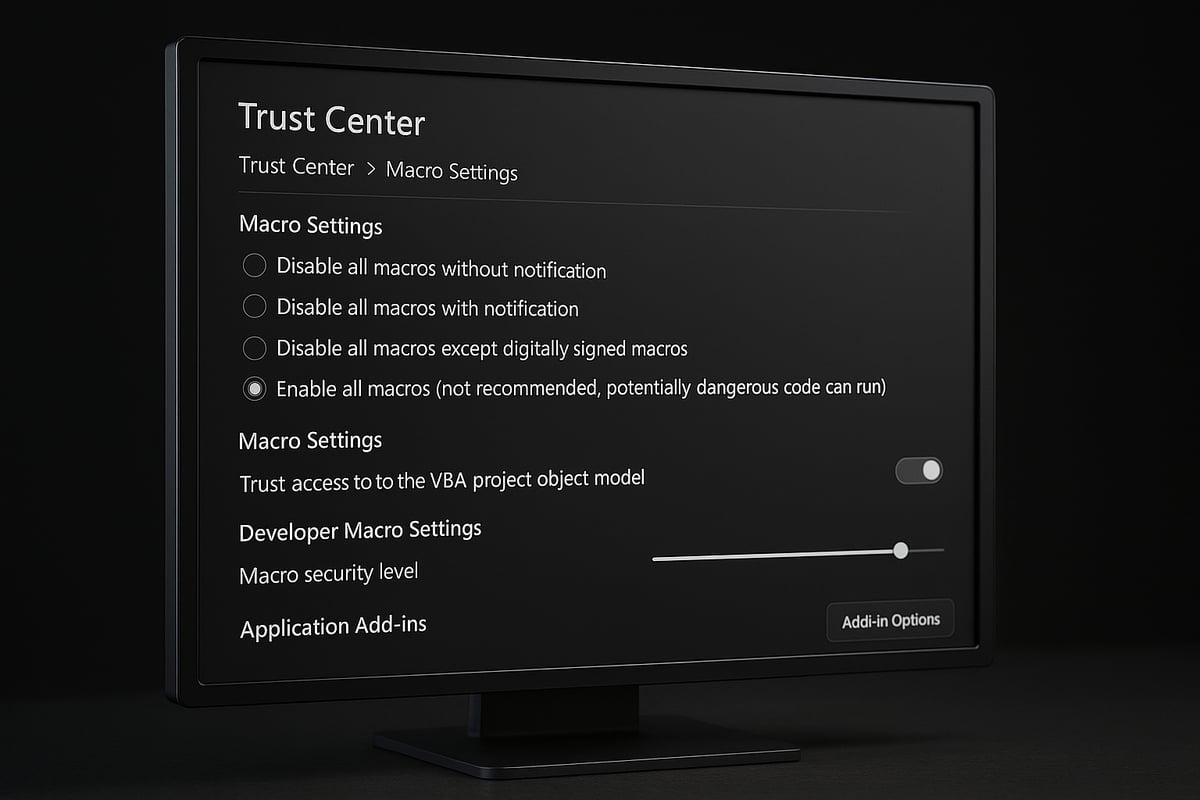
The Trust Center is where you manage macro security settings in Office. Here, you can choose from several options: disable all macros, disable with notification (the default), enable all macros, or allow only digitally signed macros. Each setting balances usability and security.
“Disable all macros with notification” is the recommended default, alerting you when a file contains macros and letting you decide if they should run. These settings are managed separately for each Office app. For a deeper dive into configuring security, consult the Essential Eight macro security guidelines to ensure your setup aligns with best practices.
Trusted Documents and Trusted Locations
Trusted documents are files you have explicitly allowed to run macros in the past. Once trusted, these files will not prompt you again unless you clear your trusted list. Trusted locations are specific folders you designate as safe; any macro-enabled file placed there runs without warnings.
However, not all files can be made trusted documents, especially if they are stored in temporary folders. A best practice is to create a dedicated folder for macro-enabled reports or templates. This approach makes it easier to manage permissions and reduces the risk of accidentally enabling macros in unsafe files.
How to Enable Macros for Individual Files: Step-by-Step
Enabling macros for individual files is a practical approach for users who want to automate tasks without changing global security settings. Whether you are working with Excel, Word, or PowerPoint, knowing how to enable macros for a specific file helps you stay productive while keeping your system safe. Let’s break down each method with clear instructions and important tips.
Enabling Macros via Security Warning Bar
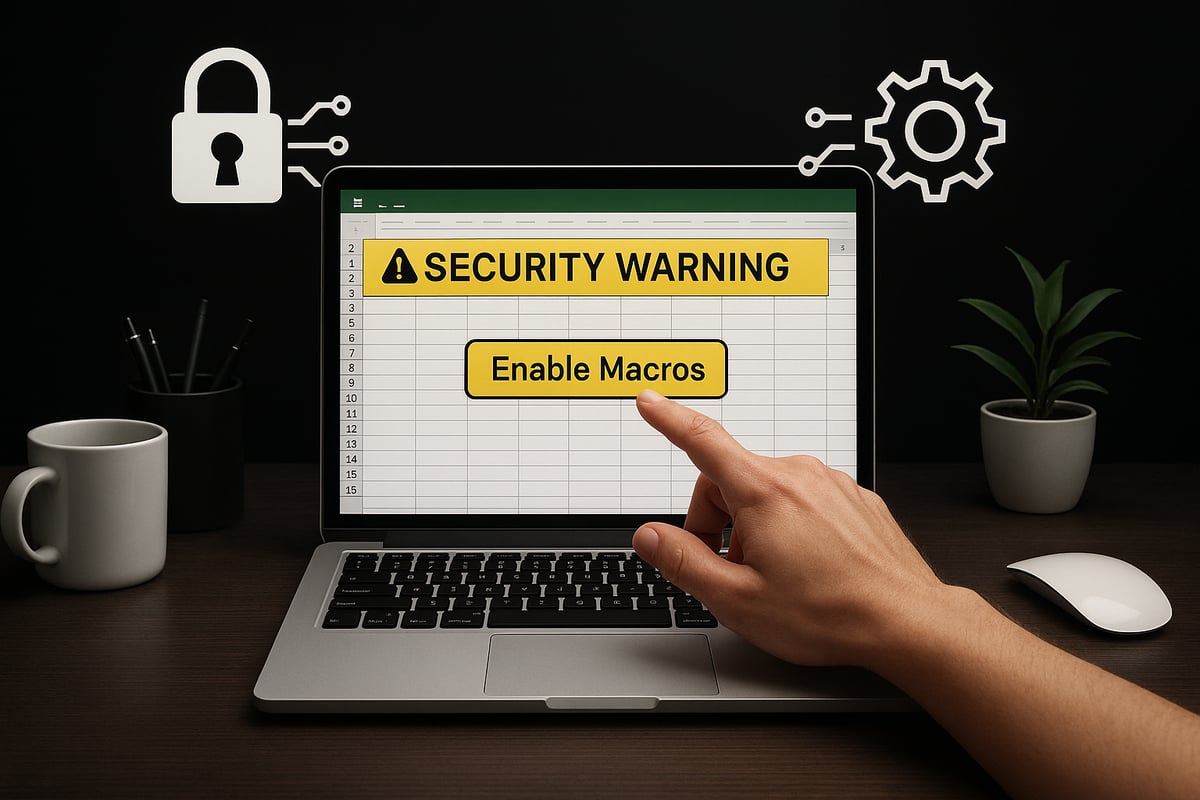
When you open a macro-enabled file, Office applications display a yellow security warning bar at the top of the window. This bar notifies you that macros are disabled for your protection. To proceed, simply click “Enable Content” or “Enable Macros.” This action activates the macros for the current session, allowing automation to run as intended.
For users learning how to enable macros, this method is the most straightforward. If you use the Visual Basic Editor, you might see an additional prompt about macro security. Once enabled, the file is typically trusted for future openings unless it is blocked by stricter security settings or policy.
Enabling Macros via Backstage View
Another way to manage how to enable macros for individual files is through the Backstage View. Click File, then select Info. If you see a Security Warning, choose “Enable Content,” followed by “Enable All Content.” This method not only turns on macros for the session but also marks the document as trusted for future use.
Referencing resources like Turn on macros in Excel can provide step-by-step visuals to assist with this process. This approach is ideal for frequent files, as it avoids the need to repeatedly adjust settings while maintaining a secure environment.
Understanding Trusted Documents for Individual Files
Once you follow the steps for how to enable macros, the file becomes a “trusted document.” This means future sessions will open with macros enabled, saving you time. However, this trusted status remains only until you clear the list in the Trust Center or if the file’s location is deemed unsafe.
It is important to note that files opened from certain locations, such as temporary folders, cannot always be marked as trusted documents. If you need to reset trust settings, visit the Trust Center and choose to clear all trusted documents. This step can help maintain control over which files are allowed to run macros.
Enabling Macros Temporarily for One Session
If you are unsure about a file’s source but still need to use its features, you may want to know how to enable macros just for a single session. Go to File, select Info, click Security Warning, then choose Advanced Options. Here, you can select to enable macros only for the current session.
This temporary activation is perfect for reviewing files from external sources or those you do not fully trust. Once you close the document, macros are disabled again. This reduces your exposure to potential risks while still providing access to automation when needed.
Unblocking Macros Blocked by Microsoft
Microsoft has increased macro security for files downloaded from the internet. If you encounter a red “Security Risk” bar and cannot enable macros, you’ll need to unblock the file. Close the document, navigate to its location in File Explorer, right-click, and select Properties. Check the “Unblock” box, then click OK.
Understanding how to enable macros in these cases is essential for compatibility with updated security policies. This extra step protects users from untrusted files, ensuring that only safe documents have access to powerful automation.
How to Enable Macros Globally via Trust Center Settings
Enabling macros globally can save time and streamline your workflow, especially if you work with multiple macro-enabled files. Understanding how to enable macros safely through the Trust Center ensures you keep your data secure while maximizing productivity.
Accessing Trust Center and Macro Settings
To start, you need to know how to enable macros from the central location in your Office application. Open Excel, Word, or PowerPoint and click on File. Next, choose Options, then select Trust Center. Inside the Trust Center, click on Trust Center Settings and then navigate to Macro Settings.
This area is where you control macro behavior for that specific program. Remember, the steps are the same across all major Office applications. If you are unsure about your version, check the application’s About section for details. These steps ensure that you have a clear path for how to enable macros no matter which Office app you are using.
Macro Settings Explained and Their Impact
Within the Trust Center, you will see several options related to macro security. Understanding these is crucial for anyone learning how to enable macros:
| Setting | Security Level | Description |
|---|---|---|
| Disable all macros without notification | Highest | No macros run, no prompts shown. |
| Disable all macros with notification | Recommended (Default) | Prompts before enabling macros. |
| Disable all except digitally signed macros | Medium | Only signed macros run, others are blocked. |
| Enable all macros | Lowest | All macros run without warning. |
Selecting the right setting impacts your balance of security and convenience. For most users, the default option offers a safe middle ground when deciding how to enable macros in everyday work.
Enabling All Macros: Pros, Cons, and Warnings
If you need to allow all macros, select "Enable all macros" in the Trust Center. This option ensures every macro runs automatically, which can be efficient for trusted workflows. However, enabling this option increases your risk of running malicious code.
It is best used in environments where files are tightly controlled, such as a corporate network. For more details on working with macro-enabled files and the associated risks, refer to this guide on macro-enabled files in Excel. Always weigh the benefits against the risks when deciding how to enable macros globally.
Macro Settings Scope and Limitations
One key point when considering how to enable macros is that these settings apply to each Office program individually. Changing the macro setting in Excel does not automatically apply the same rule in Word or PowerPoint.
Any adjustment you make affects all files opened within that specific application. For shared or public computers, it is not recommended to enable all macros. Restrict changes to your own devices and review settings regularly to maintain control over macro behavior.
Using Digitally Signed Macros for Enhanced Security
Another secure approach in how to enable macros is using digitally signed macros. These are macros that carry a digital signature from a trusted publisher. When you encounter a signed macro, you will have the option to trust the publisher, allowing all future macros from them to run automatically.
Organizations often distribute internal automation tools this way, ensuring only authorized code is executed. Verifying digital signatures adds a strong layer of protection, making it a best practice for businesses and professionals who rely on automation.
Using Trusted Locations to Enable Macros Safely
Trusted locations are a powerful feature for anyone learning how to enable macros securely. When you designate a folder as a trusted location in Excel or other Office programs, every file you open from that folder is considered safe, and macros in those files run without extra warnings. This makes it easier to work with macro-enabled templates and automations you use frequently, reducing interruptions and improving workflow.
For professionals who rely on automated reports or collaborative spreadsheets, trusted locations streamline how to enable macros. Instead of enabling macros for each individual file, you can simply save your macro-enabled files to a specific folder and let Office handle the rest. This approach is especially helpful in team environments or for recurring business tasks.
What Are Trusted Locations and Why Use Them?
Trusted locations are special folders you define in Office applications to make how to enable macros safer and more convenient. Any file placed in a trusted location is automatically allowed to run macros without prompting you each time. This feature is ideal for users who frequently open macro-enabled files, such as monthly financial reports or shared templates.
The main advantage is efficiency. If you trust a folder, you will not be repeatedly asked how to enable macros for every file you open from it. This is especially useful for files you know are safe, like those created internally or by your IT department. By using trusted locations, you can maintain productivity while minimizing the hassle of constant security prompts.
Adding a Trusted Location in Excel and Office
To set up a trusted location, follow these steps for how to enable macros with maximum convenience:
- Open Excel or your Office app and go to
File>Options. - Select
Trust Center, then clickTrust Center Settings. - In the Trust Center, choose
Trusted Locations. - Click
Add new locationto specify your folder. - Optionally, check the box to trust all subfolders as well.
For best results, create a dedicated folder just for macro-enabled files. This makes it easier to control access and review which files are being trusted. Remember, these settings apply per application, so you will need to repeat the process in Word or PowerPoint if needed.
By following these steps, you simplify how to enable macros for all files within your chosen folder, saving time and reducing repetitive actions.
Security Considerations for Trusted Locations
While trusted locations make how to enable macros easier, they also come with important security considerations. Any file placed in a trusted folder will run macros without warning, so you should never designate public, temporary, or downloads folders as trusted.
Here is a quick comparison of safe and unsafe practices:
| Practice | Safe? | Notes |
|---|---|---|
| Dedicated secure folder | Yes | Use for internal, frequently used macro files |
| Temporary/Downloads folder | No | Risk of accidentally running malicious macros |
| Shared network folder | With caution | Limit access and review files regularly |
Stay updated on recent Microsoft Office security updates January 2026 to ensure your trusted locations align with current best practices. Always remove trusted locations that are no longer needed, and periodically review folder access to prevent unauthorized macro execution.
Managing and Reviewing Trusted Locations
Ongoing management is key to keeping how to enable macros both easy and secure. To review or edit trusted locations, return to the Trust Center and select Trusted Locations. Here, you can:
- View all current trusted folders.
- Edit or remove locations as needed.
- Add descriptions to help you remember each folder’s purpose.
Best practices include reviewing trusted locations after major software updates or organizational changes. Restrict access to these folders to only those who need it. According to security experts, most macro-related breaches occur when users place too much trust in the wrong folders, so regular audits are essential.
By actively managing your trusted locations, you keep how to enable macros productive without sacrificing your data security.
How to Enable Macros in Excel on Mac (and Other Platforms)
Enabling macros on Mac and other platforms requires a clear understanding of the unique steps and security settings involved. If you are wondering how to enable macros in Excel for Mac or other Office programs, follow this guide to ensure your automation features work smoothly and securely.
Step-by-Step: Enabling Macros in Excel for Mac
To start, open Excel on your Mac and go to the top menu. Click on Excel and select Preferences. In the Preferences window, choose Security & Privacy. Here, you will find the macro security options.
Select your preferred macro setting:
- Disable all macros with notification (recommended for most users)
- Enable all macros (only if you trust all files you will open)
After choosing your option, close the Preferences window. The macro security setting you pick will apply to every workbook you open in Excel. If you are learning how to enable macros for the first time, always choose the safest setting unless you are confident about your file sources.
If you ever need to adjust settings, repeat these steps. For maximum safety, only enable all macros if you are working with trusted documents.
Differences Between Mac and Windows Macro Settings
There are several important differences between how to enable macros on Mac compared to Windows. On Mac, you access macro settings via Preferences, while Windows uses the Trust Center found in the Options menu.
Mac versions often offer fewer granular settings. For example:
- Mac may not support “trusted locations” in some Office versions.
- Windows users can set different macro rules per file or folder, but Mac users apply settings globally.
- Dialogs and warning messages may look different between platforms.
If you are unsure about your Excel version or want to confirm feature availability, review the Microsoft Office Excel versions guide. This will help you follow the correct steps for your specific software, ensuring you know how to enable macros securely on both Mac and Windows.
Enabling Macros in Other Office Programs (Word, PowerPoint)
The process for how to enable macros in other Office applications, such as Word and PowerPoint, is similar to Excel. Open the app, go to Preferences (on Mac) or Options (on Windows), and look for Trust Center or Security & Privacy.
Choose your macro security level:
- Disable all macros with notification is the safest starting point.
- Enable all macros should only be used for files from reliable sources.
Macro-enabled files use the following extensions:
- Word:
.docm - PowerPoint:
.pptm
Remember, macro security risks and recommendations remain consistent across Office platforms. Always review the source of any macro-enabled document before activating macros.
Platform-Specific Security Best Practices
Regardless of your device, knowing how to enable macros safely is crucial for protecting your data. Always keep your Office apps updated to receive the latest security patches. Use reputable antivirus software alongside Office macro settings for an added layer of defense.
On Mac and Windows, macros are disabled by default on files downloaded from the internet or received as email attachments. This helps prevent accidental exposure to malicious code. If you need to work with such files, review them carefully before enabling macros.
Microsoft regularly updates its security protocols, especially as new Office versions are released. Staying informed will help you confidently manage how to enable macros and keep your workflow both efficient and secure.
Security Best Practices and Safe Macro Usage
Enabling macros can transform your workflow, but safety must always come first. As you learn how to enable macros, following proven security best practices helps protect your data and organization from threats. Below, you will find actionable steps to ensure safe macro usage in 2026.
Only Enable Macros from Trusted Sources
The first rule when deciding how to enable macros is to verify the file's origin. Macros are powerful, but they can be used for malicious purposes if sourced from unknown senders.
- Accept macros only from reputable colleagues or your IT department.
- Avoid enabling macros in files from unsolicited emails or unknown websites.
- Use company-approved templates and automation tools.
Did you know that 90% of macro malware attacks begin with phishing emails? Always pause and assess before clicking "Enable Content." This simple habit is your strongest defense when using how to enable macros in your daily work.
Use Digitally Signed Macros and Trusted Publishers
When learning how to enable macros, prioritize those that are digitally signed by recognized publishers. A digital signature confirms the author's identity and signals that the code has not been altered.
- Look for the security prompt indicating a signed macro.
- Trust publishers only after verifying their credentials.
- Ask your IT team if internal tools are signed for added assurance.
Digitally signed macros provide an extra layer of protection. They reduce the risk of running unauthorized or harmful code, making your macro usage more secure as you implement how to enable macros in your environment.
Regularly Review and Update Macro Security Settings
Macro security is not a set-and-forget process. As you discover how to enable macros, make it a habit to review your Trust Center settings periodically. Remove outdated trusted documents and locations to minimize vulnerabilities.
- Check settings after software updates or staff changes.
- Remove permissions for files you no longer use.
- Stay informed about security patches and new threats.
Recent reports, such as the Microsoft Office macro security flaw patched, highlight the importance of applying updates and maintaining strong settings. Consistent reviews keep your macro-enabled workflows safe and efficient.
Backup Data Before Running Macros
Before you start practicing how to enable macros, always save a backup of your important data. Macros can automate large-scale changes, and even a small error could lead to data loss.
- Save a copy of your file before enabling or running new macros.
- Use cloud backup or version control when possible.
- Test macros on sample data to avoid accidental deletions.
Backing up your files ensures that you can recover quickly from any issues. This step is essential for anyone who wants to confidently explore how to enable macros while keeping information secure.
Common Issues and Troubleshooting When Enabling Macros
Enabling macros can sometimes be more complicated than expected. Users often encounter obstacles that prevent macros from running as intended. This troubleshooting section will help you identify and resolve the most frequent problems related to how to enable macros, so you can maintain productivity and security in your workflow.
“Enable Content” Button Missing or Not Visible
Sometimes, when you open a macro-enabled file, the “Enable Content” button does not appear. This issue often confuses users trying to figure out how to enable macros for their documents.
Common causes include:
- The file is already in a trusted location, so macros are enabled automatically.
- Group policy settings applied by IT administrators restrict visibility of macro options.
- The file type is not recognized as macro-enabled (.xlsm, .docm, or .pptm).
To resolve this, check the file’s location. If it sits in a trusted folder, no warning bar will appear. Review Trust Center settings to confirm macro handling. On managed devices, consult your IT team to understand any restrictions in place. Understanding how to enable macros under these circumstances is key for smooth operation.
Macros Remain Disabled After Enabling
After clicking “Enable Content,” you may find that macros still do not run. This problem is common when users are unsure how to enable macros properly or when additional security layers are present.
Check the following:
- Ensure the file is saved as a macro-enabled type (.xlsm, .docm, or .pptm).
- Examine antivirus or endpoint security settings, which may override Office preferences.
- Organizational group policies might enforce stricter controls, blocking macros regardless of user action.
If these steps do not resolve the issue, contact your IT department for further assistance. Understanding how to enable macros within your organization’s security framework is essential for consistent macro functionality.
Microsoft Blocking Macros on Downloaded Files
Downloaded files, especially those received via email or cloud storage, may trigger a new security feature that blocks macros completely. The warning “Microsoft has blocked macros from running because the source of this file is untrusted” appears, leaving users unsure how to enable macros for these files.
To unblock:
- Close the file.
- In File Explorer, right-click the file and select Properties.
- Check the “Unblock” box at the bottom, then click OK.
- Reopen the file and enable macros as usual.
This process is now standard for files originating from the internet. Following these steps ensures you comply with updated security policies while learning how to enable macros safely.
Enabling Macros Temporarily or for Testing
There are times when you need to enable macros only for a single session, such as when reviewing files from unfamiliar sources. In these cases, understanding how to enable macros temporarily is vital for minimizing risk.
To do this:
- Open the file and go to File > Info > Security Warning > Enable Content > Advanced Options.
- Choose “Enable for this session only.”
This limits macro activation to your current session, increasing security. If you continue to experience persistent macro issues or require advanced troubleshooting, consider seeking professional guidance. The Excel VBA programming services from The Analytics Doctor can provide expert assistance, ensuring you know exactly how to enable macros and automate your tasks with confidence.
Expert Excel Help and Macro Troubleshooting from The Analytics Doctor
If you are struggling with how to enable macros or need advanced support, expert help is available. The Analytics Doctor specializes in diagnosing macro errors, resolving spreadsheet issues, and providing custom automation solutions.

Their services also include hands-on training for all skill levels, ensuring you and your team can work confidently with macros. Businesses and professionals benefit from practical guidance to streamline workflows, improve data accuracy, and implement secure macro solutions.
For tailored assistance with enabling, troubleshooting, or building macros, reach out to The Analytics Doctor and unlock the full potential of your Office applications.