Microsoft has revolutionized spreadsheet work by embedding artificial intelligence directly into Excel through Copilot, creating unprecedented opportunities for automation and efficiency. This copilot excel automation guide explores how professionals can leverage AI-powered features to streamline repetitive tasks, generate complex formulas instantly, and transform raw data into actionable insights without extensive manual effort. Whether you're managing financial reports, analyzing sales data, or automating monthly dashboards, understanding Copilot's capabilities will fundamentally change how you approach Excel work in 2026.
Understanding Copilot's Role in Excel Automation
Copilot represents Microsoft's commitment to integrating conversational AI within the Excel environment. Rather than memorizing complex formula syntax or spending hours on manual data manipulation, users can now communicate their intentions in plain English and watch as the AI translates those requests into executable actions.
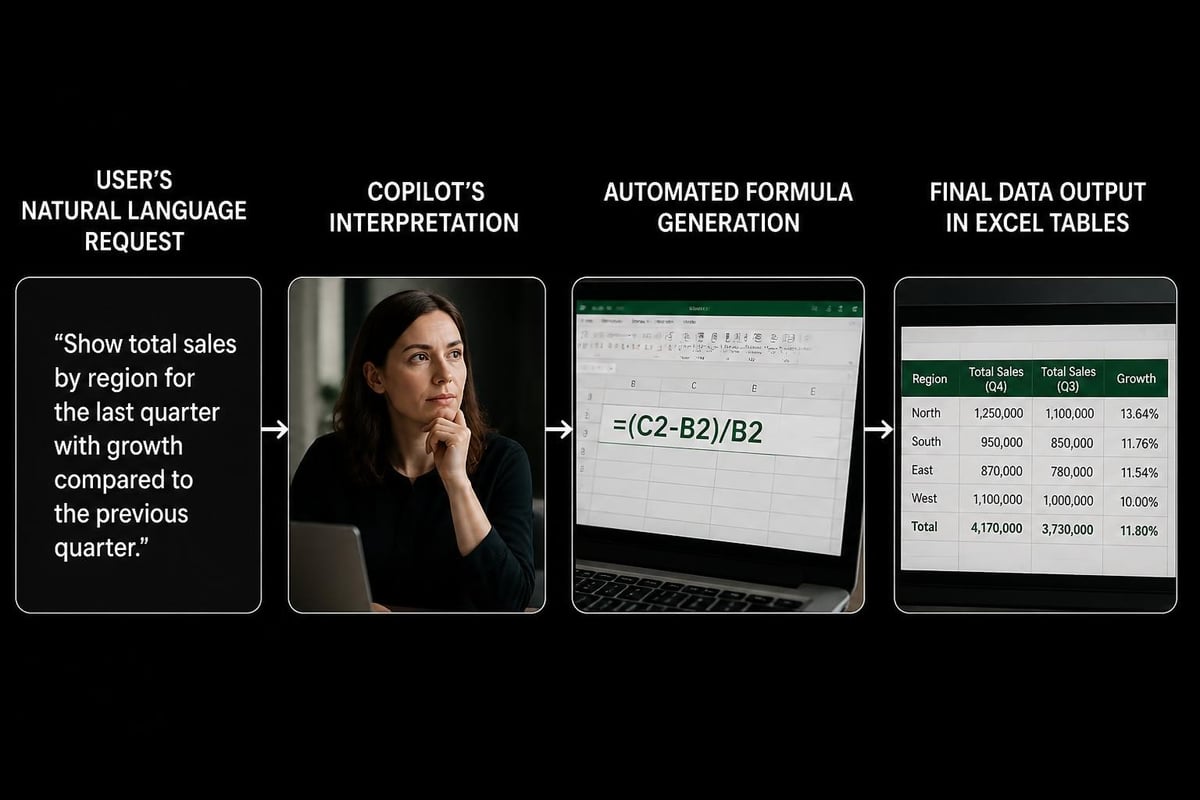
The technology operates through two primary interfaces: the Copilot pane and the COPILOT formula function. The pane provides a chat-like experience where you can ask questions, request analysis, or generate visualizations. The formula function, introduced as a cell-level feature, allows users to input natural language directly into cells for instant automation.
Key Capabilities That Enable Automation
Copilot's automation potential extends across multiple Excel functions:
- Formula generation from natural language descriptions
- Data cleaning and formatting through conversational commands
- Automated insights including trend identification and statistical summaries
- Chart and visualization creation without manual configuration
- Column additions with calculated values based on existing data
- Report summarization that extracts key findings from complex datasets
According to Microsoft’s official guidance on getting started with Copilot in Excel, the tool works best with data formatted as Excel tables, which provides the AI with clear structure and context for automation tasks.
Setting Up Your Workbook for Copilot Automation
Successful automation with this copilot excel automation guide begins with proper data preparation. Copilot requires your data to exist within an Excel table structure, which means converting ranges into formatted tables before invoking AI features.
Preparing Data for AI Processing
Converting your data to a table takes seconds but dramatically improves Copilot's effectiveness. Select your data range, navigate to Insert > Table, and ensure the "My table has headers" option is checked. This simple step provides Copilot with column names and data types that inform its automation suggestions.
Clean headers matter significantly. Instead of abbreviated or cryptic column names like "Q1Rev" or "CustID," use descriptive labels like "Q1 Revenue" or "Customer ID." The AI interprets these labels when generating formulas and insights, so clarity translates directly to better automation results.
| Preparation Step | Why It Matters | Time Investment |
|---|---|---|
| Convert to table | Enables Copilot recognition | 30 seconds |
| Clean headers | Improves AI interpretation | 2-3 minutes |
| Remove blank rows | Prevents processing errors | 1-2 minutes |
| Standardize formats | Ensures consistent calculations | 3-5 minutes |
Similar to how you might filter in Excel to focus on specific data subsets, proper table structure helps Copilot filter and process information accurately.
Automating Common Tasks with Natural Language Prompts
The copilot excel automation guide framework centers on mastering effective prompts. Unlike traditional Excel work where you construct formulas manually, Copilot automation requires translating your analytical goals into clear, specific instructions.
Formula Creation Through Conversation
Instead of researching VLOOKUP syntax or nested IF statements, describe what you need. For example: "Add a column that categorizes revenue as High if above $10,000, Medium if between $5,000 and $10,000, and Low if below $5,000."
Copilot processes this request and generates the appropriate formula, typically using modern functions like IFS or nested IF logic depending on your Excel version. The AI also explains its formula construction, helping you learn while automating.
Effective prompt patterns include:
- "Calculate the average of [column name] grouped by [category column]"
- "Create a column showing the percentage change from [column A] to [column B]"
- "Identify rows where [condition] and [condition] are both true"
- "Extract the [first/last] [number] characters from [column name]"
Data Analysis and Insight Generation
Beyond formula creation, Copilot excels at analytical automation. The data insights feature allows you to request summaries, trend analyses, and pattern identification without building pivot tables or charts manually.
Ask questions like "What are the top three performing products by revenue?" or "Show me monthly trends in customer acquisition." Copilot processes your table data and returns formatted answers, often including suggested visualizations that you can insert with a single click.
This approach proves especially valuable when dealing with duplicate data scenarios. While you might traditionally check duplicate values in Excel through manual formulas, Copilot can identify duplicates and suggest actions through conversational requests.

Advanced Automation Workflows with Copilot
This copilot excel automation guide extends beyond basic tasks to comprehensive workflow automation. By chaining multiple Copilot actions together, you can transform complex multi-step processes into streamlined operations.
Multi-Step Data Transformation
Consider a monthly reporting workflow that previously required manual intervention at each stage. With Copilot, you can automate the sequence:
- Import raw data from multiple sources
- Clean and standardize formatting across datasets
- Calculate derived metrics and KPIs
- Categorize results into performance tiers
- Generate summary statistics
- Create visualization recommendations
Each step can be triggered through natural language prompts, with Copilot maintaining context throughout the process. While the AI handles execution, you retain control over validation and adjustment.
Creating Reusable Automation Patterns
Once you've refined effective prompts for recurring tasks, document them as templates. Copilot doesn't currently save prompt history between sessions, so maintaining a prompt library ensures consistency across multiple workbooks.
Sample prompt library categories:
- Data cleaning: "Remove duplicate rows based on [column names]"
- Calculations: "Create running total column for [value column] grouped by [category]"
- Formatting: "Highlight cells in [column] that exceed [threshold]"
- Analysis: "Compare [current period] performance versus [prior period] by [dimension]"
For users familiar with traditional automation methods, Copilot complements rather than replaces tools like macros. You might still enable macros in Excel for complex VBA-based workflows while using Copilot for ad-hoc analysis and quick automations.
The COPILOT Function for Cell-Level Automation
Microsoft introduced the COPILOT function as a revolutionary approach to spreadsheet automation. As discussed in TechRadar’s coverage of this integration, this function embeds AI capabilities directly within cells, creating dynamic automation that updates with your data.
Function Syntax and Structure
The COPILOT function accepts natural language instructions as arguments, processing them against table data to return results. Basic syntax follows this pattern:
=COPILOT("instruction", [reference data])
For instance, =COPILOT("categorize this revenue amount", [@Revenue]) would analyze the revenue value in the current row and return an appropriate category based on the AI's interpretation of common business thresholds.
| Use Case | Traditional Approach | COPILOT Function |
|---|---|---|
| Text extraction | MID, LEFT, RIGHT formulas | "Extract product code from description" |
| Categorization | Nested IF statements | "Classify as priority based on value and date" |
| Sentiment analysis | Not possible without add-ins | "Determine if this feedback is positive or negative" |
| Data validation | Complex formula logic | "Check if this entry follows standard format" |
Practical Applications and Limitations
While powerful, the COPILOT function comes with important considerations. Microsoft’s FAQ about Copilot in Excel clarifies that results may vary between executions, making the function unsuitable for scenarios requiring absolute consistency.
Best uses for COPILOT function:
- Exploratory data analysis where approximate results guide decision-making
- Text processing tasks like categorization or sentiment assessment
- Rapid prototyping of analytical approaches before building formal formulas
- One-time data transformations that don't require ongoing reproducibility
Situations requiring traditional formulas:
- Financial calculations requiring exact reproducibility
- Regulatory reports demanding audit trails
- Automated processes running without human oversight
- Scenarios where formula logic must be transparent and verifiable
As highlighted in PC Gamer’s analysis of the feature, Microsoft explicitly warns against using the COPILOT function for tasks requiring accuracy or reproducibility, positioning it as an analytical assistant rather than a calculation engine.

Optimizing Prompts for Better Automation Results
Success with this copilot excel automation guide depends significantly on prompt quality. Well-crafted instructions yield precise automation, while vague requests produce unreliable results.
Elements of Effective Automation Prompts
Specificity drives accuracy. Rather than asking Copilot to "analyze sales data," request "calculate month-over-month growth rate for each product category and identify categories with declining performance." The additional context helps the AI understand exactly what calculation method, grouping, and output format you need.
Prompt optimization checklist:
- Specify the data scope: Reference exact column names or table ranges
- Define calculation methods: State whether you want sums, averages, counts, or other aggregations
- Clarify output format: Indicate if results should be percentages, currency, text categories, etc.
- Include conditional logic: Describe any thresholds, criteria, or filtering requirements
- State comparison bases: When analyzing changes, specify what you're comparing against
Iterative Refinement Strategy
Copilot automation often improves through conversation. If the initial result doesn't match your needs, provide feedback and adjustments rather than starting over. Say "recalculate using median instead of average" or "exclude outliers above $100,000 from this analysis."
This iterative approach mirrors how you might work with a human analyst, building on previous context to refine results. The AI maintains conversation history within a session, allowing progressive enhancement of automation outputs.
For complex scenarios similar to creating drop-down lists in Excel, where multiple configuration steps exist, break your automation request into sequential prompts rather than attempting to describe everything simultaneously.
Integrating Copilot Automation into Daily Workflows
Transforming this copilot excel automation guide into practical daily habits requires strategic integration of AI features alongside existing Excel skills. The goal isn't replacing all manual work but identifying high-value automation opportunities.
Workflow Assessment and Prioritization
Begin by documenting your current Excel processes. Which tasks consume the most time? Which involve repetitive patterns? Which require specialized knowledge that creates bottlenecks when certain team members are unavailable?
Copilot delivers maximum value when automating:
- Repetitive formatting across similar datasets
- Standard calculations that follow consistent business rules
- Initial data exploration before deeper analysis
- Report template population with updated data
- Quality checks for data consistency and completeness
Tasks better suited for traditional methods include those requiring exact precision, regulatory compliance documentation, or complete transparency into calculation logic.
Building Sustainable Automation Practices
Create documentation for your most effective Copilot prompts, organizing them by business function or data type. This knowledge base accelerates future automation and helps team members maintain consistency when you're unavailable.
Documentation template elements:
- Business objective: What this automation accomplishes
- Data requirements: Table structure and column names needed
- Exact prompt text: The instruction that produces desired results
- Expected output: What successful execution looks like
- Validation steps: How to verify results are correct
Similar to how password protecting Excel files secures sensitive data, documenting your automation practices protects organizational knowledge and ensures continuity.
Combining Copilot with Traditional Excel Features
The most powerful implementations of this copilot excel automation guide combine AI capabilities with established Excel functionality. Copilot doesn't replace pivot tables, advanced formulas, or data validation-it enhances them.
Hybrid Automation Approaches
Use Copilot for initial data preparation and exploration, then employ traditional tools for final analysis. For example, ask Copilot to clean imported data, standardize formats, and flag anomalies. Then create pivot tables and charts using Excel's built-in features for the final dashboard.
This hybrid approach leverages each tool's strengths: Copilot's natural language interface for quick transformations and Excel's precision tools for reliable calculations and formatting.
| Task Category | Copilot Strength | Traditional Excel Strength |
|---|---|---|
| Data cleaning | Quick pattern recognition | Exact rule application |
| Formula creation | Learning and prototyping | Production-ready calculations |
| Visualization | Suggestion generation | Precise customization |
| Analysis | Exploratory insights | Reproducible reporting |
Complementary Feature Integration
When building automated workflows, consider how Copilot instructions can populate data that feeds into structured Excel features. Generate categorizations through AI, then reference those categories in pivot tables. Use Copilot to extract key metrics, then incorporate them into formulas that calculate derived values.
This integration proves especially valuable when working with complex data validation scenarios. While Copilot can identify patterns and suggest categories, implementing data validation in Excel through traditional methods ensures ongoing data integrity as users input new information.
Troubleshooting Common Copilot Automation Challenges
Even with careful implementation of this copilot excel automation guide, users encounter obstacles that require problem-solving strategies. Understanding common issues and their solutions accelerates your automation journey.
Handling Unexpected Results
When Copilot produces outputs that don't match expectations, the issue typically stems from one of three causes: ambiguous prompts, incorrect data interpretation, or AI model limitations.
Diagnostic steps for troubleshooting:
- Verify your data is formatted as an Excel table
- Check that column headers clearly describe their contents
- Review your prompt for ambiguous terms or missing context
- Test with a smaller data sample to isolate the issue
- Rephrase the request using more specific language
If results vary between attempts despite identical prompts, you've encountered the stochastic nature of AI models. As Windows Central’s coverage explains, some variability is inherent to generative AI. For consistency-critical tasks, transition from Copilot exploration to fixed formulas once you've identified the correct approach.
Performance and Limitation Awareness
Copilot performs best with tables containing fewer than 100,000 rows and reasonable column counts. Extremely large datasets may require preprocessing or sampling before AI analysis. Complex calculations involving multiple table relationships might exceed Copilot's current analytical capabilities, necessitating traditional formula approaches.
Understanding these boundaries helps set realistic expectations and identify when to use AI automation versus conventional Excel techniques. The technology continues evolving rapidly, with capabilities expanding throughout 2026, but current limitations inform effective tool selection.
Security and Privacy Considerations for Automated Workflows
Implementing this copilot excel automation guide within organizational contexts requires attention to data security and privacy implications. AI-powered features process your data through Microsoft's cloud infrastructure, raising important considerations for sensitive information.
Data Handling and Compliance
Microsoft Copilot operates within your organization's Microsoft 365 tenant, subject to existing data governance policies. However, the AI processes workbook contents to generate responses, meaning sensitive data gets analyzed by the service.
Security best practices:
- Review your organization's AI usage policies before implementing Copilot automation
- Avoid using Copilot with personally identifiable information (PII) unless approved
- Test automation workflows with synthetic or anonymized data first
- Document which datasets are appropriate for AI-powered analysis
- Maintain human review for automated processes involving regulated data
For workbooks containing confidential information, traditional automation through macros or formulas may be more appropriate than AI-powered features. Balance the efficiency gains from Copilot against your organization's risk tolerance and compliance requirements.
Version Control and Audit Trails
Unlike formulas that remain visible in cells for audit purposes, Copilot automation can modify data without leaving clear traces of the transformation logic. When building automated workflows for regulated industries or audit-sensitive processes, supplement Copilot actions with documentation explaining what transformations occurred.
Consider maintaining a change log within your workbook that records major Copilot-driven modifications, including the prompts used and the dates of execution. This practice creates accountability and helps future users understand how data was processed.
Future Developments in Excel Automation Technology
This copilot excel automation guide reflects capabilities available in 2026, but the technology continues advancing rapidly. Understanding the trajectory helps you prepare for emerging features and plan long-term automation strategies.
Emerging Capabilities on the Horizon
Microsoft continues expanding Copilot's analytical capabilities, with recent developments including enhanced understanding of financial terminology, improved chart customization options, and better handling of multi-table relationships. Research from UI-Copilot frameworks suggests future iterations may handle increasingly complex multi-step workflows with minimal user intervention.
The integration between Copilot and Power Query represents another evolution area, potentially allowing natural language instructions for data transformation pipelines that currently require technical expertise. Such developments would democratize advanced Excel automation even further.
Adapting Your Skills for AI-Augmented Analysis
As AI capabilities expand, Excel users benefit from developing complementary skills that enhance AI effectiveness. Understanding data structure principles, recognizing when results require validation, and knowing how to translate business questions into clear prompts become increasingly valuable.
The goal isn't replacing Excel expertise with AI dependency but augmenting your analytical capabilities. Users who combine deep Excel knowledge with effective AI utilization gain significant productivity advantages over those relying exclusively on either approach.
Mastering Copilot automation transforms Excel from a manual calculation tool into an intelligent analytical partner that understands natural language and executes complex workflows with minimal friction. By following this copilot excel automation guide, you'll streamline repetitive tasks and focus on higher-value analysis. When you encounter spreadsheet challenges that exceed Copilot's capabilities or need expert guidance optimizing your automation workflows, The Analytics Doctor provides personalized training and support to help you build cleaner, smarter spreadsheets that work exactly as intended.