The intersection of artificial intelligence and spreadsheet software has created powerful new opportunities for Excel users. Understanding how to use Claude with Excel opens doors to advanced automation, intelligent formula debugging, and streamlined data analysis that can transform your productivity. Whether you're managing complex financial models or struggling with formula errors, Claude's integration with Excel provides practical solutions that make spreadsheet work faster and more accurate.
Understanding Claude's Excel Integration
Claude AI integrates directly into Microsoft Excel through an official add-in, creating a collaborative environment where artificial intelligence assists with real-time spreadsheet tasks. This integration allows Claude to read your workbook content, understand your data structure, and provide context-aware assistance without leaving the Excel interface.
The Claude for Excel add-in enables users to query their spreadsheets, adjust financial assumptions, debug complex formulas, and build models through natural language commands. Unlike traditional Excel functions that require precise syntax, Claude understands conversational requests and translates them into actionable spreadsheet operations.
Installation Requirements and Setup
Before learning how to use Claude with Excel effectively, you need to ensure your system meets the basic requirements. Claude for Excel supports Excel 2016 and later versions on Windows, as well as Excel for Microsoft 365 on both Windows and Mac platforms.
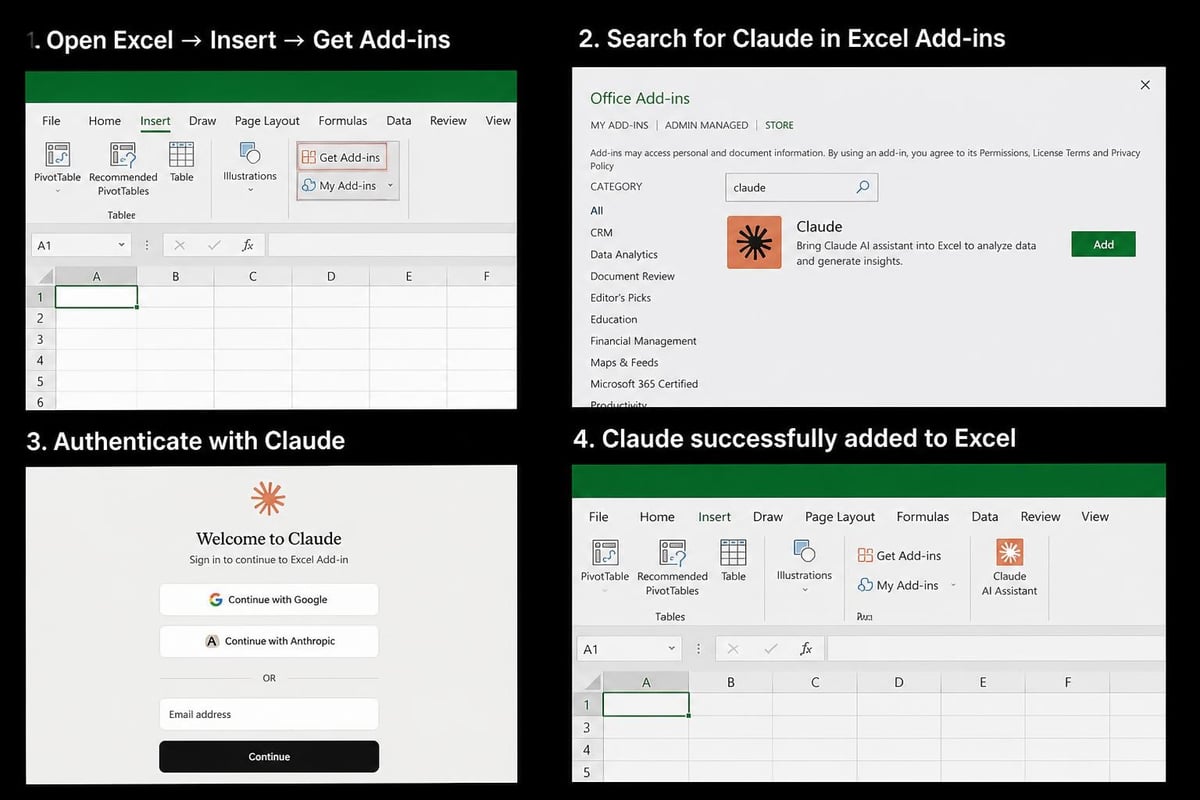
The installation process involves accessing the Office Add-ins store directly from Excel:
- Open Excel and navigate to the Insert tab
- Click on Add-ins or Get Add-ins
- Search for "Claude" in the Office Store
- Select the Claude add-in and click Add
- Authenticate with your Claude account credentials
For organizational deployments, IT administrators can push the Claude add-in to multiple users through centralized deployment in the Microsoft 365 admin center. This ensures consistent availability across teams while maintaining security protocols.
Core Features for Spreadsheet Automation
Once installed, Claude becomes an intelligent assistant within your Excel environment. Understanding how to use Claude with Excel for automation tasks can significantly reduce manual work and minimize errors in repetitive processes.
Formula Generation and Optimization
Claude excels at creating complex formulas based on plain language descriptions. Instead of remembering intricate syntax for nested IF statements or VLOOKUP combinations, you can describe what you need in everyday language.
Common formula tasks Claude handles:
- Creating multi-condition logical tests with nested IF, AND, and OR functions
- Building dynamic array formulas using FILTER, SORT, and UNIQUE
- Generating lookup formulas including XLOOKUP and INDEX-MATCH combinations
- Constructing date and time calculations with proper formatting
- Developing text manipulation formulas using LEFT, RIGHT, MID, and CONCATENATE
For users who frequently work with advanced Excel formulas, Claude can explain existing formulas in plain language, making it easier to understand inherited workbooks or debug problematic calculations.
Data Cleaning and Transformation
Data quality issues plague most spreadsheet users. Claude helps identify and resolve common data problems including inconsistent formatting, duplicate entries, and structural issues that prevent proper analysis.
| Data Issue | Claude Solution | Time Savings |
|---|---|---|
| Duplicate records | Identifies and flags duplicates with explanations | 70-80% |
| Inconsistent dates | Converts various date formats to standard format | 60-75% |
| Text in number columns | Detects and converts text-formatted numbers | 50-65% |
| Missing values | Identifies patterns and suggests fill strategies | 40-55% |
This capability proves particularly valuable when working with data validation in Excel, as Claude can help establish validation rules that prevent future data quality issues.
Debugging and Error Resolution
One of the most valuable aspects of learning how to use Claude with Excel involves troubleshooting. Formula errors frustrate users at all skill levels, and Claude provides diagnostic capabilities that go beyond Excel's basic error messages.
Understanding Error Messages
When you encounter #REF!, #VALUE!, or #N/A errors, Claude can analyze the formula context and explain exactly what went wrong. Rather than generic error definitions, Claude provides specific guidance based on your actual data and formula structure.
Claude's debugging approach includes:
- Analyzing the complete formula chain to identify where errors originate
- Checking data types and range references for compatibility issues
- Suggesting specific corrections with explanations of why errors occurred
- Offering alternative formula approaches that achieve the same result more reliably
Performance Optimization
Large spreadsheets with numerous calculations can slow to a crawl. Claude examines your workbook structure and identifies performance bottlenecks, then recommends specific optimizations such as converting formulas to values, eliminating volatile functions, or restructuring calculations.

Working with Financial Models and Analysis
Financial professionals have found particular value in understanding how to use Claude with Excel for building and maintaining complex financial models. Claude's ability to understand business logic and translate it into proper Excel formulas streamlines model development.
Building Financial Projections
When creating revenue forecasts, cash flow statements, or budget models, Claude can generate the appropriate formula structures based on your assumptions. Describe your growth rates, seasonality factors, or dependency relationships, and Claude constructs the corresponding calculations.
For those managing advanced Excel projects, Claude serves as a collaborative partner that can suggest best practices for model organization, error checking, and scenario analysis capabilities.
Scenario Analysis and Sensitivity Testing
Claude helps establish scenario frameworks by creating data tables, implementing what-if analysis, and building dynamic dashboards that respond to assumption changes. This capability extends beyond simple formula creation to include strategic thinking about which variables matter most in your models.
Natural Language Queries for Data Insights
The comprehensive capabilities of Claude AI with spreadsheets include answering questions about your data without requiring formula knowledge. You can ask Claude to summarize information, identify trends, or calculate specific metrics using conversational language.
Common Query Examples
Users regularly leverage Claude for quick data analysis tasks:
- "What's the average sales amount by region for Q1 2026?"
- "Which products have declining month-over-month performance?"
- "Show me all transactions above $5,000 from the Northeast territory"
- "Calculate the year-over-year growth rate for each product category"
These queries generate immediate insights without manually creating pivot tables or writing complex formulas. Claude interprets the question, identifies relevant data, performs calculations, and presents results in an understandable format.
Data Summarization
When facing large datasets, Claude can quickly generate executive summaries highlighting key metrics, outliers, and patterns. This proves especially useful for creating drop-down lists in Excel that filter to specific summary categories or for building dashboard views that emphasize important trends.
Chart Creation and Visualization Guidance
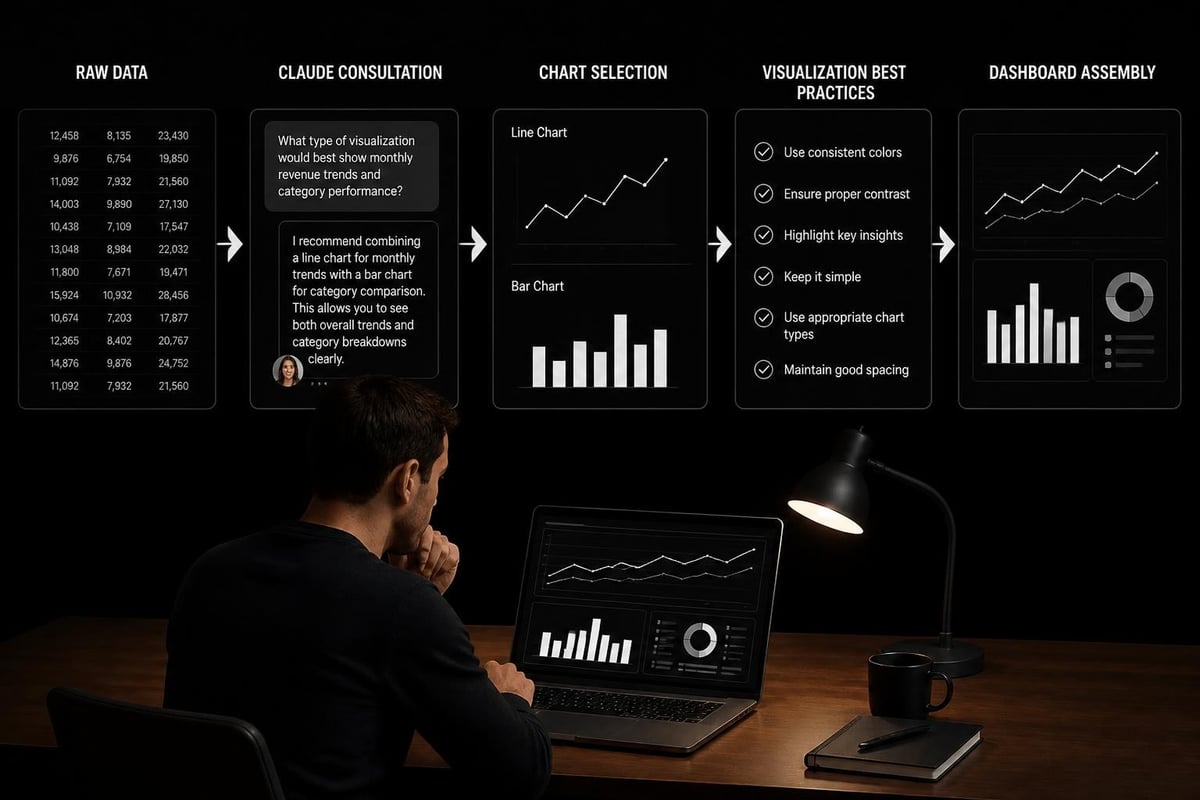
Understanding how to use Claude with Excel extends to data visualization. While Claude doesn't directly generate charts, it provides expert guidance on which chart types best communicate your data story and how to structure your data for effective visualization.
Recommending Appropriate Chart Types
Claude analyzes your data characteristics and analysis objectives to suggest optimal visualization approaches:
| Data Type | Recommended Chart | Best Use Case |
|---|---|---|
| Time series | Line or area chart | Showing trends over time |
| Category comparison | Column or bar chart | Comparing discrete categories |
| Part-to-whole | Pie or donut chart | Showing composition percentages |
| Correlation | Scatter plot | Revealing relationships between variables |
| Distribution | Histogram | Understanding data spread and frequency |
For users learning how to create charts in Excel, Claude can explain the step-by-step process for building each visualization type while ensuring proper data formatting.
Dashboard Design Principles
Claude provides guidance on organizing multiple visualizations into coherent dashboards. This includes recommendations for layout, color schemes, interactive elements, and the most effective ways to highlight key performance indicators.
Customizable Skills and Workflow Automation
Recent developments in Claude's capabilities include customizable skills modules that allow users to teach Claude specific workflows without coding. This advancement significantly enhances how to use Claude with Excel for repetitive business processes.
Creating Reusable Workflows
Skills allow you to define multi-step processes that Claude can execute consistently. For instance, you might create a month-end reporting skill that:
- Imports data from specified ranges
- Applies standard cleaning procedures
- Calculates predefined metrics
- Formats results according to company standards
- Generates summary commentary
Once established, these skills can be invoked with simple commands, eliminating the need to re-explain the process each time.
Industry-Specific Applications
Financial services professionals particularly benefit from specialized skills for tasks like time-consuming financial workflows. Creating skills for regulatory reporting, portfolio analysis, or risk calculations ensures consistency while dramatically reducing processing time.
Cross-Application Context Sharing
Modern Excel work rarely exists in isolation. Understanding how to use Claude with Excel becomes more powerful when you leverage Claude's ability to share context across Microsoft Office applications, particularly Excel and PowerPoint.
Seamless Data-to-Presentation Workflows
Claude maintains context when moving between applications, enabling you to analyze data in Excel and immediately create PowerPoint presentations that accurately reflect your findings. The AI remembers the analysis performed, key insights discovered, and recommendations generated, translating spreadsheet data into presentation-ready content.
This integration streamlines reporting processes that previously required manual copying, reformatting, and explanation of spreadsheet outputs.
Best Practices for Effective Claude Usage
Maximizing the benefits of learning how to use Claude with Excel requires understanding optimal interaction patterns and workflow integration strategies.
Providing Clear Context
Claude performs best when given sufficient context about your objectives. Instead of asking "fix this formula," explain what the formula should accomplish, what data it processes, and what result you expect. This context enables Claude to provide more targeted and accurate assistance.
Effective request structure:
- State the business objective clearly
- Describe the current state and desired outcome
- Identify any constraints or requirements
- Specify preferences for formula approaches when applicable
Verifying AI Recommendations
While Claude provides reliable assistance, maintaining professional judgment remains essential. Always verify that suggested formulas produce expected results across your full dataset, not just visible examples. Test edge cases and unusual data conditions to ensure robust performance.
This verification principle applies equally whether you're working with XLOOKUP functions or implementing complex financial models.
Security and Privacy Considerations
When implementing how to use Claude with Excel in business environments, understanding data handling and privacy protections becomes crucial. Claude's integration respects Excel's existing permission structures and doesn't automatically share workbook contents beyond the user's session.
Data Handling Protocols
Claude processes information within the context of your current Excel session but doesn't retain specific spreadsheet data for model training purposes. However, users should review their organization's AI usage policies before sharing sensitive financial information, customer data, or proprietary business intelligence.
For workbooks containing highly sensitive information, consider using password protection features to add additional security layers beyond standard file permissions.
Organizational Deployment Considerations
IT administrators deploying Claude for Excel across organizations should establish clear guidelines for appropriate use cases, data sensitivity classifications, and approval workflows for AI-assisted spreadsheet tasks. This governance framework ensures productive AI adoption while maintaining compliance requirements.
Troubleshooting Common Integration Issues
Even with proper installation, users occasionally encounter issues when learning how to use Claude with Excel effectively. Understanding common problems and their solutions minimizes disruption to your workflow.
Add-in Not Appearing
If the Claude add-in doesn't appear after installation, check that add-ins are enabled in Excel's Trust Center settings. Navigate to File > Options > Trust Center > Trust Center Settings > Add-ins, and ensure that "Disable all Application Add-ins" is unchecked.
Authentication Problems
Connection issues often stem from network restrictions or authentication token expiration. Signing out and back into your Claude account usually resolves these problems. For persistent issues, clearing Excel's cache or reinstalling the add-in may be necessary.
Performance Considerations
Users working with extremely large workbooks (over 50MB) may experience slower response times. Claude performs best when focused on specific ranges or worksheets rather than entire workbooks with millions of cells.
Comparing Claude to Traditional Excel Assistance
The landscape of AI-powered Excel assistance includes multiple options. Understanding how to use Claude with Excel differs from other AI assistants in several meaningful ways, particularly when compared to Microsoft’s own Copilot.
| Feature | Claude for Excel | Traditional Help Systems |
|---|---|---|
| Context awareness | Understands full workbook context | Limited to selected cells |
| Natural language | Conversational interaction | Keyword-based search |
| Error explanation | Detailed diagnostic analysis | Generic error messages |
| Learning curve | Minimal, conversational interface | Requires function knowledge |
| Customization | Skills-based workflow automation | Template-based solutions |
While both AI assistants and traditional help features have value, Claude's strength lies in understanding business logic and translating complex requirements into appropriate Excel implementations.
Future Developments and Roadmap
The integration between Claude and Excel continues evolving. Anthropic's commitment to expanding Microsoft 365 integration suggests future enhancements will bring additional capabilities to spreadsheet users.
Anticipated Enhancements
Expected developments include deeper integration with Excel's data model, enhanced support for Power Query transformations, and more sophisticated automation capabilities for recurring reports. These improvements will further streamline how to use Claude with Excel for complex business intelligence tasks.
Understanding current capabilities while anticipating future enhancements helps users plan their skill development and identify opportunities for process improvement that will benefit from upcoming features.
Mastering how to use Claude with Excel transforms spreadsheet work from tedious manual tasks into efficient, AI-assisted workflows that deliver better results in less time. If you're struggling with complex formulas, data quality issues, or time-consuming spreadsheet processes, The Analytics Doctor provides expert guidance tailored to your specific challenges. Whether you need help implementing AI tools, optimizing existing workbooks, or developing automated reporting solutions, professional Excel support ensures you get maximum value from both traditional features and cutting-edge AI capabilities.