Named ranges transform spreadsheets from confusing cell references into readable, manageable data structures. When you're working with complex workbooks inherited from colleagues or built over time, knowing how to find name range in Excel becomes essential for understanding formulas, debugging errors, and maintaining data integrity. Whether you're troubleshooting broken calculations or simply trying to navigate a sprawling workbook, locating named ranges quickly saves hours of frustration and reduces the risk of costly mistakes.
Understanding Named Ranges and Why They Matter
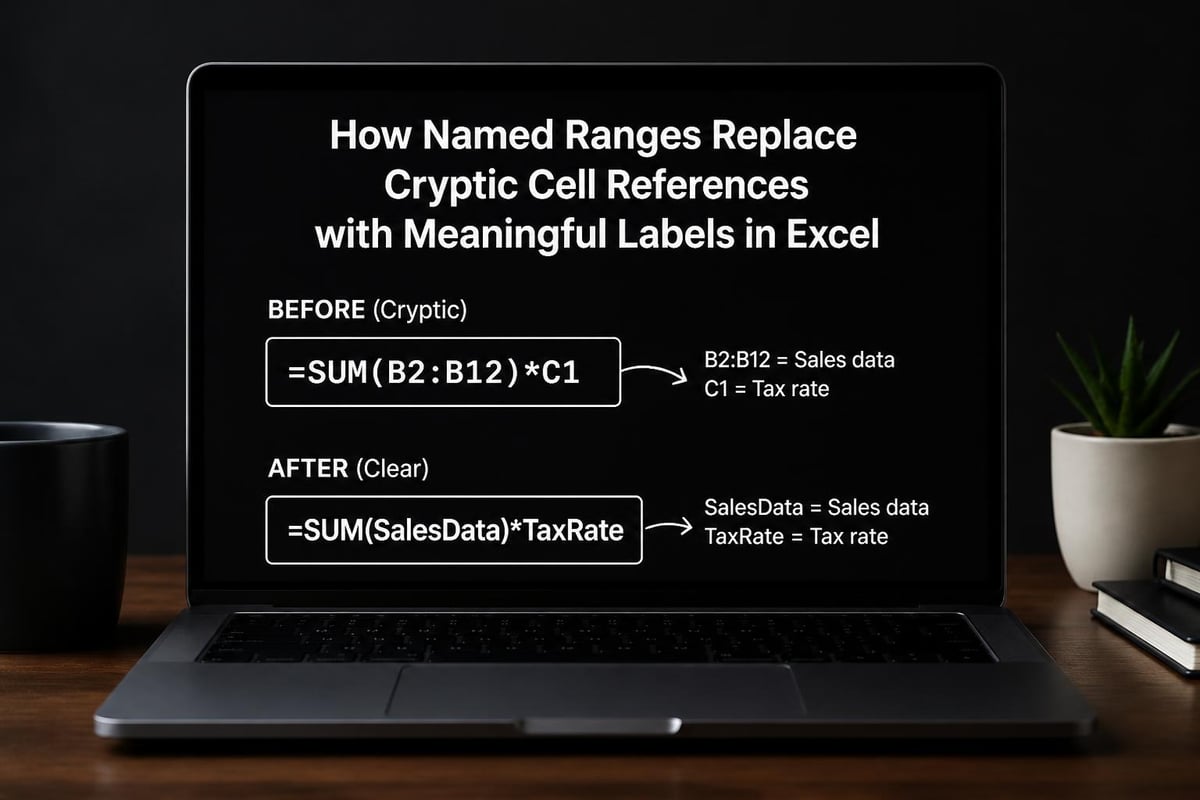
Named ranges are custom labels assigned to specific cells or cell ranges in Excel. Instead of referencing cells as "B2:B150," you might call that range "SalesData" or "Q1Revenue." This approach makes formulas more readable and maintenance significantly easier.
Benefits of using named ranges include:
- Formulas become self-documenting and easier to audit
- Reduced errors when copying formulas across sheets
- Faster navigation in large workbooks
- Simplified collaboration with team members
- More reliable formula updates when data structures change
When you understand how named ranges improve spreadsheet management, you'll see why finding them efficiently is a critical skill. The challenge arises when workbooks contain dozens or hundreds of named ranges, making manual discovery impractical.
Method One: Using the Name Box for Quick Discovery
The Name Box sits directly to the left of the formula bar and displays the active cell reference. This tool provides the fastest way to find name range in Excel when you know the range name or want to see what's currently selected.
Viewing All Named Ranges via Name Box
Click the dropdown arrow on the Name Box to reveal a complete alphabetical list of all named ranges in your workbook. This list includes both worksheet-level and workbook-level named ranges.
- Click the Name Box dropdown arrow
- Scroll through the alphabetical list
- Click any name to instantly jump to that range
- Excel automatically selects the entire named range
This method works exceptionally well for workbooks with fewer than fifty named ranges. Beyond that threshold, scrolling becomes tedious, and you'll need more sophisticated search capabilities.
Identifying Named Ranges for Selected Cells
Select any cell or range in your worksheet, then look at the Name Box. If that selection corresponds to a named range, the Name Box displays the range name instead of the cell reference. This reverse-lookup capability helps you understand existing formulas that reference named ranges.
Method Two: Name Manager for Comprehensive Control
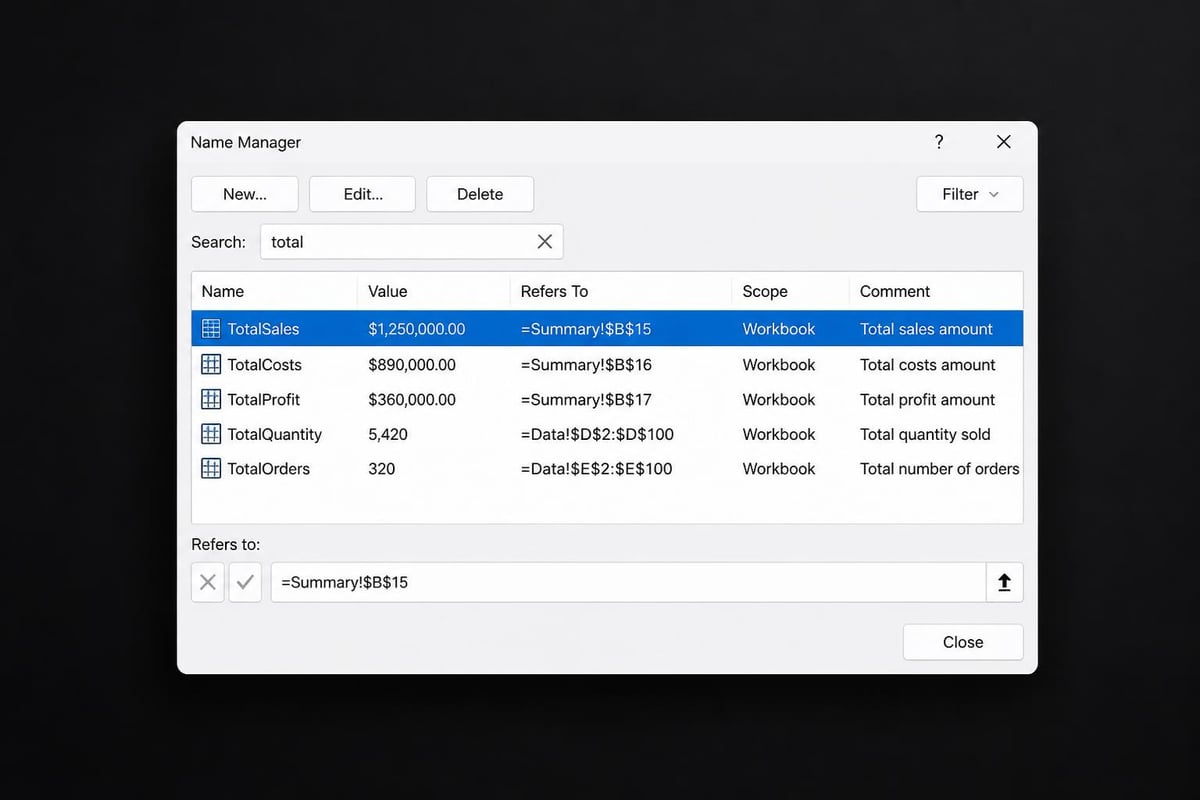
The Name Manager provides the most powerful interface for managing named ranges. Access it through Formulas tab > Name Manager or press Ctrl + F3. This dialog box displays every named range with detailed information about scope, location, and current values.
| Column | Information Displayed | Use Case |
|---|---|---|
| Name | Range identifier | Finding specific ranges |
| Value | Current data or formula | Verifying range contents |
| Refers To | Exact cell reference | Understanding range location |
| Scope | Workbook or worksheet level | Managing naming conflicts |
| Comment | User-added notes | Documentation purposes |
Searching and Filtering in Name Manager
When you need to find name range in Excel within a large workbook, the Name Manager's search functionality becomes invaluable. Type partial text in the search box to filter the list instantly. This feature proves particularly useful when following naming conventions like "Sales_Q1," "Sales_Q2," where you can type "Sales" to see all related ranges.
The Name Manager also reveals broken references highlighted with error indicators. These appear when named ranges point to deleted cells or invalid references, making this tool essential for debugging complex Excel spreadsheets.
Editing and Deleting Named Ranges
Within the Name Manager, you can modify range definitions, update scope, or remove obsolete names. Select any named range and click Edit to change its reference or Delete to remove it entirely. Always verify formula dependencies before deleting named ranges to avoid breaking calculations.
Method Three: Go To Special for Advanced Selection
The Go To feature (F5 or Ctrl + G) offers specialized navigation capabilities beyond simple cell selection. Microsoft’s guidance on finding named ranges emphasizes this method for precise range selection and verification.
Step-by-Step Go To Process
Press F5 to open the Go To dialog box. The left pane lists recently selected cells and all named ranges in the current workbook. This list updates dynamically as you work, providing quick access to frequently used ranges.
- Press F5 or Ctrl + G
- Review the list of named ranges
- Select the desired range name
- Click OK to navigate and select
The Go To Special button unlocks advanced selection criteria, though it's less commonly used for named ranges specifically. For most users learning how to find name range in Excel, the standard Go To dialog provides sufficient functionality.
Keyboard Shortcuts for Power Users
Experienced Excel users combine Go To with keyboard shortcuts for rapid navigation. After pressing F5, type the first few letters of a range name to jump directly to it in the list. This approach proves faster than scrolling through dozens of range names.
Method Four: Formula Auditing and Trace Precedents
Named ranges frequently appear in formulas throughout your workbook. The Formula Auditing tools on the Formulas tab reveal these connections visually, helping you understand how named ranges integrate into your calculations.
Identifying Named Ranges in Formulas
Select any cell containing a formula, then review the formula bar. Named ranges appear as text identifiers rather than cell references. For example, you might see "=SUM(MonthlySales)" instead of "=SUM(B2:B50)."
Formula auditing features include:
- Trace Precedents: Shows arrows pointing to cells that feed into the selected formula
- Trace Dependents: Displays arrows pointing to cells that use the selected cell
- Show Formulas: Reveals all formulas across the worksheet simultaneously
- Error Checking: Identifies formula issues including invalid named range references
When you trace precedents on a formula using named ranges, Excel draws arrows to the actual cells regardless of whether they're on the current worksheet. This visual confirmation helps verify that named ranges point to the correct data, which is particularly valuable when building audit-ready spreadsheet models.
Using Find and Replace for Named Range Discovery
The Find function (Ctrl + F) can locate named ranges within formulas. Search for the range name, and Excel highlights every instance where it appears. This technique works well for impact analysis before modifying or deleting a named range.
Set the Look in option to Formulas rather than Values to search specifically within formula text. This filters out coincidental text matches in cell content while focusing exclusively on formula references.
Creating Named Ranges Efficiently
Understanding how to find name range in Excel becomes more valuable when you also know how to create them properly. Well-structured naming conventions make future discovery significantly easier.
Manual Named Range Creation
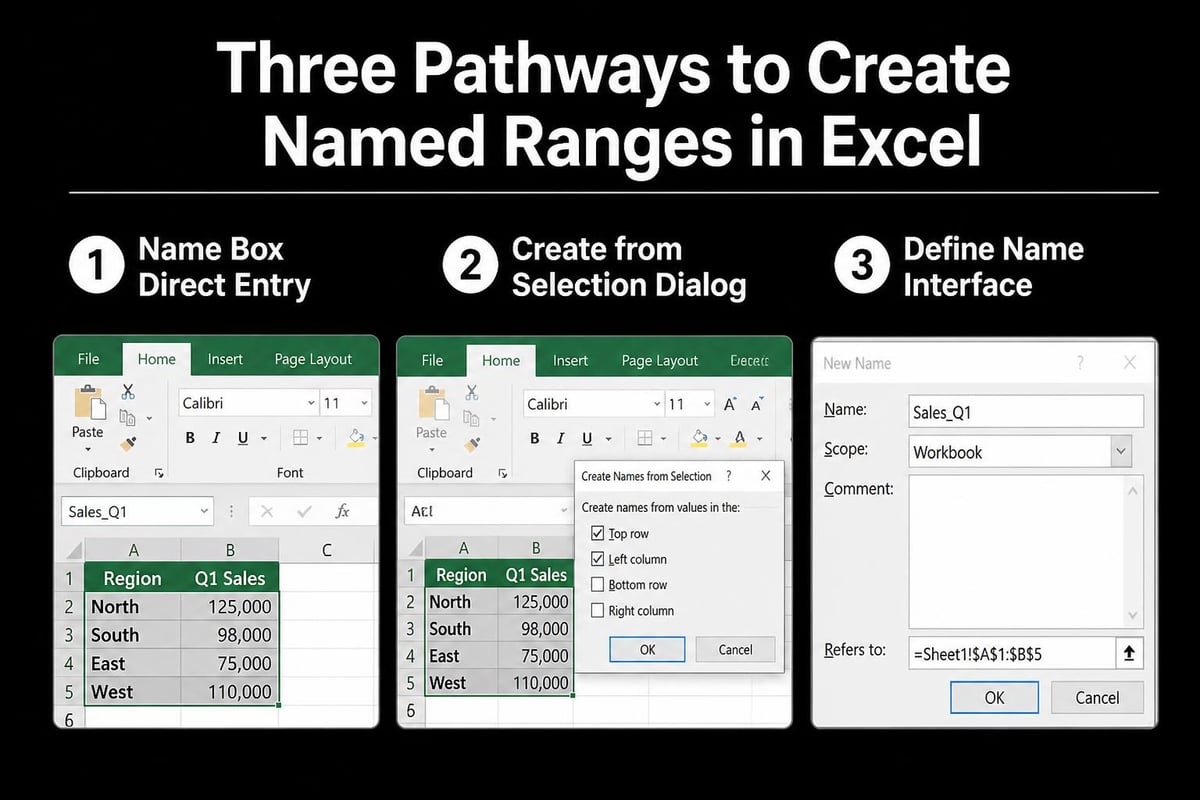
Select the target cells, then click the Name Box and type your desired range name. Press Enter to confirm. Range names must start with a letter, cannot contain spaces, and cannot match cell references like "A1" or "BC3."
Naming best practices:
- Use underscores instead of spaces (Sales_Data not SalesData)
- Include descriptive prefixes for categorization (rng_Sales, tbl_Customers)
- Avoid special characters except underscores and periods
- Keep names under 255 characters for compatibility
- Document naming conventions in a reference sheet
Creating from Selection
Excel can automatically generate multiple named ranges simultaneously using the Create from Selection feature. Select your data including headers, navigate to Formulas > Create from Selection, and choose whether column headers, row headers, or both should become range names.
This bulk creation method particularly benefits structured datasets like Excel dashboards where multiple data series require individual named ranges for chart references and formula clarity.
Scope Considerations: Workbook vs Worksheet Level
Named ranges exist at either workbook level (accessible from any worksheet) or worksheet level (restricted to a specific sheet). This scoping affects how you find name range in Excel and prevents naming conflicts.
Understanding Scope Hierarchy
When two named ranges share the same name but different scopes, Excel prioritizes the worksheet-level name when you're working on that specific sheet. This behavior allows identical names across different worksheets without conflicts, though it can create confusion during audits.
| Scope Type | Access Level | Naming Format | Best Use Case |
|---|---|---|---|
| Workbook | All worksheets | RangeName | Shared constants, lookup tables |
| Worksheet | Single sheet only | SheetName!RangeName | Sheet-specific calculations |
Review scope in the Name Manager to understand which ranges are globally accessible versus locally restricted. When comparing spreadsheets, scope differences often explain unexpected formula results.
Resolving Scope Conflicts
If you encounter scope conflicts, the Name Manager allows you to edit scope settings. Select the named range, click Edit, and modify the Scope dropdown to switch between Workbook and specific worksheet names. This change updates all formula references automatically.
VBA Solutions for Advanced Users
For users managing extensive workbooks with hundreds of named ranges, Visual Basic for Applications (VBA) provides automated discovery solutions. Microsoft’s VBA documentation for named ranges offers comprehensive guidance for programmatic access.
Listing All Named Ranges with VBA
A simple VBA macro can generate a complete inventory of named ranges including their locations, scopes, and current values. This automated documentation proves invaluable for workbook audits and handoff situations.
The macro creates a new worksheet listing:
- Range name
- Refers to address
- Scope (workbook or sheet)
- Current value or formula
- Comments if present
This programmatic approach complements manual methods when you need to find name range in Excel across multiple workbooks or generate audit trails for compliance purposes.
Automated Range Validation
VBA scripts can verify that named ranges still point to valid cells, identify broken references, and flag ranges that haven't been used in any formulas. This maintenance automation prevents the accumulation of obsolete named ranges that clutter the Name Manager and slow workbook performance.
Troubleshooting Common Named Range Issues
Even experienced users encounter challenges when working with named ranges. Understanding these common problems helps you maintain cleaner, more reliable workbooks.
Named Range Not Appearing in Lists
If you've created a named range but it doesn't appear in the Name Box dropdown or Name Manager, verify these potential causes:
- The range may be hidden (select All in Name Manager filter)
- The name might contain invalid characters
- Excel might be in certain protection modes
- The workbook could be corrupted (rare but possible)
Use the Ctrl + F3 shortcut to force-refresh the Name Manager display. If ranges still don't appear, recovering corrupted workbooks may be necessary.
Formulas Showing #NAME? Errors
The #NAME? error indicates Excel doesn't recognize a formula component, often a misspelled or deleted named range. To diagnose these errors systematically:
- Click the cell showing #NAME? error
- Review the formula bar for the unrecognized name
- Open Name Manager to verify the range exists
- Check for spelling differences or scope mismatches
- Recreate the named range if it was accidentally deleted
Prevention strategies include implementing data validation rules that protect named range definitions and establishing change management protocols for shared workbooks.
Performance Impact of Excessive Named Ranges
Workbooks containing thousands of named ranges may experience slower calculation times and increased file sizes. When learning how to find name range in Excel, you might discover obsolete ranges that should be removed.
Conduct periodic named range audits to identify and delete unused ranges. The Name Manager doesn't automatically show which ranges are referenced in formulas, but VBA scripts can generate this dependency analysis. For large-scale optimization, consider whether some named ranges could be replaced with structured table references, which offer similar readability benefits with potentially better performance characteristics.
Integration with Modern Excel Features
Named ranges integrate seamlessly with Excel's advanced features, extending their utility beyond simple cell references.
Named Ranges in Power Pivot
When building data models with Power Pivot, named ranges can serve as source data for tables. This approach provides flexibility for dynamic datasets that expand or contract over time. Define your source data as a named range, then reference that range when loading data into Power Pivot.
However, Power Pivot works more efficiently with Excel Tables (structured references) for most scenarios. Named ranges remain valuable for parameters, single-cell inputs, and calculation results that feed into Power Pivot models.
Named Ranges with Dynamic Arrays
Excel's dynamic array functions (SPILL formulas) can return results directly into named ranges, though this requires careful setup. The named range must accommodate the maximum potential spill size, or you'll encounter #SPILL! errors.
Best practices for dynamic arrays and named ranges:
- Define named ranges larger than expected spill results
- Use OFFSET or INDEX formulas to create dynamic range definitions
- Consider replacing static named ranges with Excel Tables for automatic expansion
- Test thoroughly before deploying in production workbooks
Named Ranges in Charts and Conditional Formatting
Charts and conditional formatting rules often use named ranges for dynamic data sources. When you find name range in Excel through chart data source inspection, you ensure visualizations update correctly as underlying data changes.
Edit chart data ranges through Select Data to view and modify named range references. Similarly, conditional formatting rules accessed through Manage Rules reveal named range dependencies that control formatting application.
Documentation and Knowledge Transfer
Professional Excel users document their named ranges systematically to facilitate collaboration and knowledge transfer. When colleagues need to find name range in Excel within your workbooks, clear documentation prevents confusion and errors.
Creating a Named Range Reference Sheet
Dedicate one worksheet in your workbook to documenting all named ranges. This reference sheet should include:
- Range name and purpose
- Location (worksheet and cell references)
- Scope (workbook or sheet-level)
- Dependencies (which formulas or features use it)
- Last update date and author
- Special notes or business logic
Update this documentation whenever you create, modify, or delete named ranges. This practice proves particularly valuable for complex corporate spreadsheets that multiple team members maintain over time.
Establishing Naming Conventions
Organizational naming conventions ensure consistency across workbooks and teams. Document your standards covering prefixes, separators, capitalization, and abbreviations. Common conventions include:
- rng_ prefix for all named ranges
- tbl_ prefix for table references
- const_ prefix for constant values
- Descriptive middle sections explaining purpose
- Version suffixes for historical comparisons
Enforce these conventions through training and code reviews. Consistent naming makes the task to find name range in Excel significantly faster and reduces errors caused by similar but distinct range names.
Mastering how to find name range in Excel empowers you to navigate complex workbooks confidently, debug formulas efficiently, and maintain data integrity across your organization. Whether you're using the Name Manager for comprehensive control or the Name Box for quick jumps, these techniques form the foundation of professional spreadsheet management. When you encounter persistent issues or need to optimize workbook performance, The Analytics Doctor offers expert diagnosis and practical solutions tailored to your specific spreadsheet challenges, from formula debugging to comprehensive Excel training that transforms how your team works with data.