
Excel password protection serves as a critical security feature for sensitive business data, but there are legitimate scenarios where you need to remove or disable these restrictions. Whether you're working with legacy files where passwords were set years ago, collaborating with team members who need full access, or managing inherited spreadsheets from former employees, knowing how to disable excel password protection is an essential skill. Understanding the different types of Excel passwords and the proper methods for removing them ensures you maintain data integrity while regaining necessary access to your workbooks.
Understanding Excel Password Types and Protection Levels
Excel implements multiple layers of password protection, each serving distinct purposes. Before you learn how to disable excel password features, you need to identify which type of protection is currently applied to your file.
File-Level Password Protection
The most restrictive type prevents users from opening the Excel file entirely. This password encrypts the entire workbook, and without the correct credentials, the file remains completely inaccessible. When you attempt to open a file-level protected workbook, Excel immediately prompts for the password before displaying any content.
Modify Password Protection works differently by allowing users to open and view the file, but restricts editing capabilities. This secondary layer lets you share data for review purposes while preventing unauthorized changes.
Workbook and Worksheet Protection
Workbook structure protection prevents users from adding, deleting, moving, hiding, or renaming worksheets within the file. This maintains the organizational integrity of complex workbooks with multiple interconnected sheets.
Worksheet protection is the most granular level, locking specific cells, ranges, or features within individual sheets. You can protect specific cells while allowing edits to others, creating customized access controls for different users.
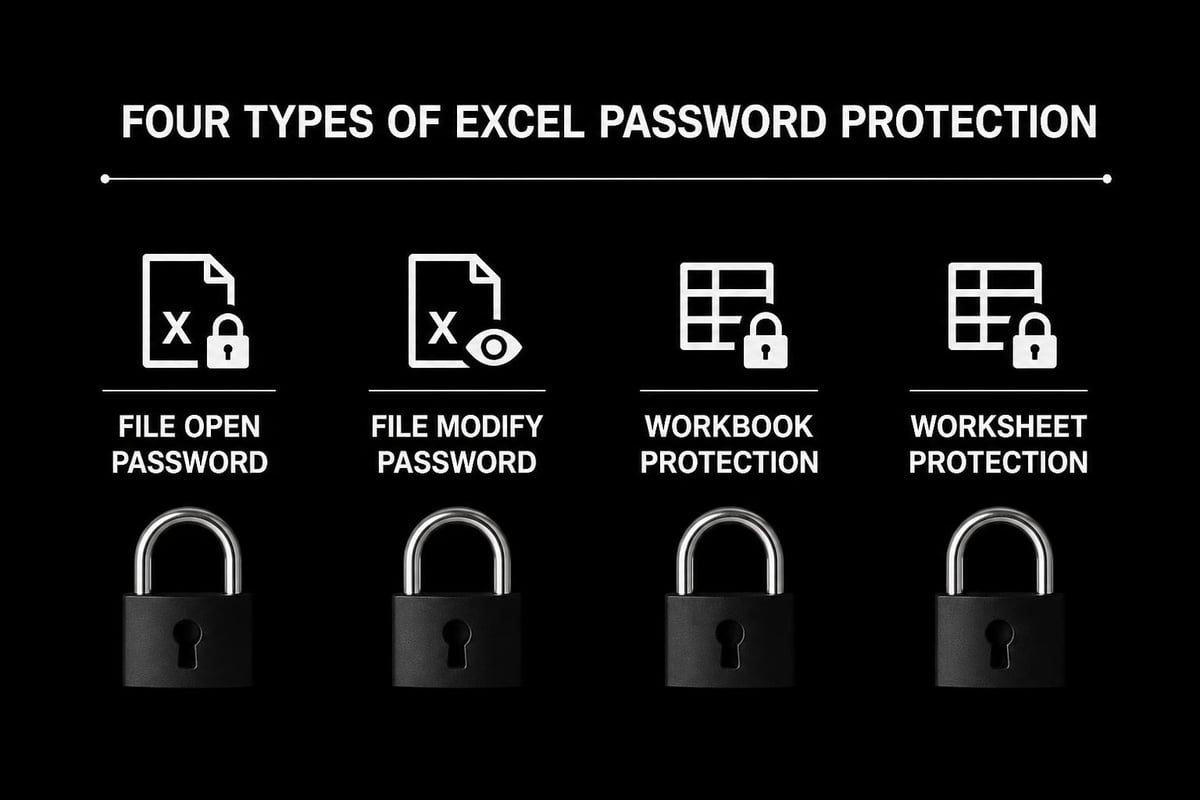
| Protection Type | What It Controls | Impact on Users | Encryption Level |
|---|---|---|---|
| File Open Password | Complete file access | Cannot open file | Full encryption |
| File Modify Password | Editing capabilities | View-only mode | Partial protection |
| Workbook Protection | Sheet management | Cannot alter structure | Settings-based |
| Worksheet Protection | Cell/range editing | Restricted editing | Settings-based |
Removing File-Level Passwords Through Excel Settings
When you know the password and simply want to disable excel password protection for convenience, the process is straightforward using Excel's built-in features.
Method One: Save As Approach
- Open your password-protected Excel file by entering the correct password
- Click File in the ribbon menu
- Select Save As and choose your preferred location
- Click the Tools dropdown button at the bottom of the Save As dialog
- Select General Options from the menu
- Delete the password from the Password to open field and/or Password to modify field
- Click OK and then Save to create an unprotected version
This method creates a new copy without password protection while preserving your original protected file if needed for archival purposes.
Method Two: Info Panel Technique
The Excel Info panel provides another efficient path for disabling file passwords:
- Navigate to File > Info
- Look for the Protect Workbook button
- If a password is set, you'll see Encrypt with Password as an option
- Click this option and clear the password field completely
- Click OK to confirm and save your changes
Microsoft provides official guidance on changing or removing workbook passwords that covers additional scenarios and troubleshooting steps.
Disabling Workbook and Worksheet Protection
Unlike file-level encryption, workbook and worksheet protection can be removed more easily, especially when you have the original password.
Removing Workbook Structure Protection
When you need to modify the structure of a protected workbook:
- Open the workbook in Excel
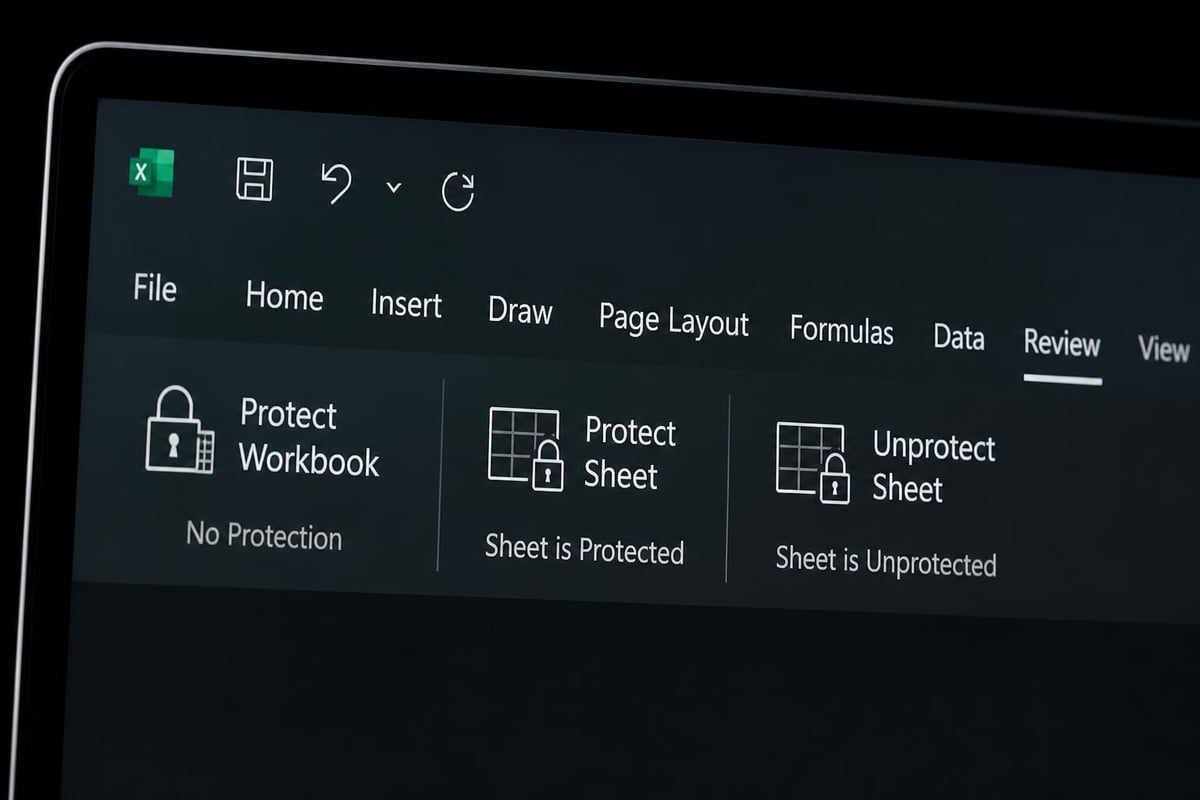
- Navigate to the Review tab on the ribbon
- Locate the Protect Workbook button in the Changes group
- Click it to toggle the protection off
- If prompted, enter the protection password
- The workbook structure is now editable
Unprotecting Individual Worksheets
Learning how to unlock the Excel sheet is crucial for day-to-day spreadsheet management. The process mirrors workbook protection removal:
- Select the protected worksheet tab
- Go to Review > Unprotect Sheet
- Enter the password if required
- The sheet cells and features become fully editable
For workbooks with multiple protected sheets, you'll need to repeat this process for each individual worksheet, as Excel doesn't offer a bulk unprotect feature through the standard interface.
Alternative Methods When Passwords Are Unknown
Sometimes you legitimately need to access your own files but can't remember the password. Several approaches exist for how to disable excel password protection without the original credentials, though success varies by Excel version and encryption strength.
VBA Code Method for Worksheet Protection
For older Excel formats (.xls files) with worksheet protection, VBA macros can sometimes bypass the protection. This method doesn't work for file-level encryption:
1. Press Alt + F11 to open the VBA editor
2. Insert a new module (Insert > Module)
3. Paste specialized VBA code designed for password removal
4. Run the macro to attempt unprotection
5. Save and close the VBA editor
Important caveat: This approach only works on worksheet-level protection and isn't effective against modern encryption standards. Additionally, you should only use this on your own files where you have legitimate ownership.
Online Password Recovery Services
Several services specialize in Excel password recovery, though you should exercise caution with sensitive business data. GroupDocs offers a free online tool for removing passwords from Excel files, as does Aspose with their Excel Password Remover.
Security considerations before using online services:
- Never upload files containing confidential business information
- Verify the service uses secure HTTPS connections
- Review the privacy policy regarding data retention
- Consider whether the data justifies the security risk
- Use offline methods for sensitive corporate files
The Automate Excel tutorial demonstrates multiple removal methods including both manual and automated approaches for different scenarios.
Professional Recovery Solutions for Complex Cases
When dealing with critical business files or strong encryption, professional-grade solutions offer more reliable results for learning how to disable excel password features.
Desktop Password Recovery Software
Enterprise-level password recovery tools provide several advantages:
- Offline processing keeps your sensitive data on your local machine
- Multiple attack methods including brute force, dictionary, and mask attacks
- Higher success rates with newer Excel versions and complex passwords
- Batch processing capabilities for multiple files
- Audit trails documenting the recovery process
These tools work by attempting to decrypt the file using various algorithms and approaches, which can take hours or days depending on password complexity.
Professional Services and Data Recovery
For mission-critical spreadsheets where password recovery software fails, specialized data recovery services employ advanced techniques. Password-Find offers professional services for cases where automated tools don't succeed.
Before engaging professional services:
- Verify the company's credentials and reputation
- Understand their pricing structure and success guarantees
- Clarify data handling and confidentiality policies
- Request references from similar corporate clients
- Establish clear timelines and deliverables
If you're dealing with corrupted workbooks alongside password issues, professional assistance becomes even more valuable.
Prevention Strategies and Password Management Best Practices
The best approach to knowing how to disable excel password protection is preventing password-related access issues before they occur.
Implementing Password Management Systems
Corporate password managers should be your first line of defense:
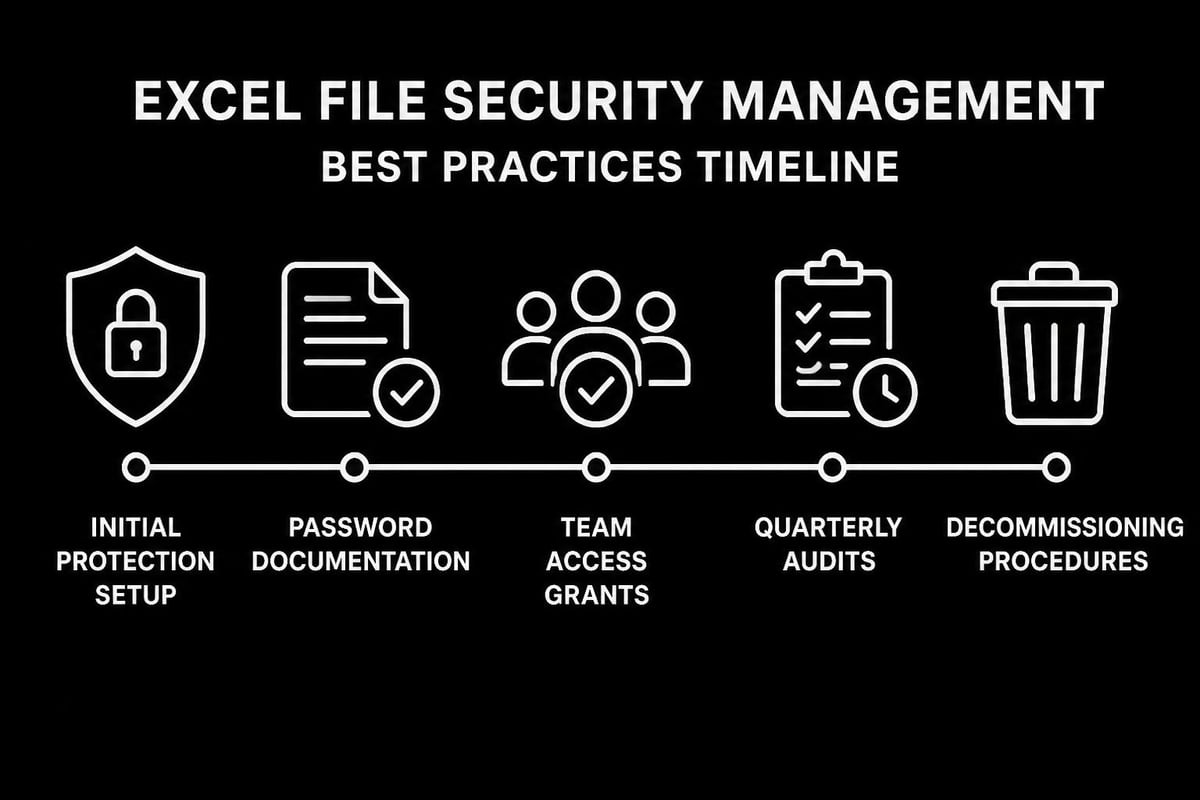
- Store all Excel file passwords in a centralized, encrypted vault
- Enable team access for shared workbooks
- Implement automatic password rotation policies
- Maintain detailed access logs for compliance
- Create secure password sharing workflows
Documentation and Recovery Planning
Every organization should maintain password documentation procedures:
| Documentation Element | Purpose | Update Frequency | Storage Location |
|---|---|---|---|
| Master password list | Quick reference | Monthly | Secure vault |
| File access matrix | Who needs what | Quarterly | SharePoint/internal |
| Recovery procedures | Emergency protocols | Annually | IT documentation |
| Contact information | Support escalation | As changes occur | HR/IT systems |
Alternative Security Approaches
Consider these modern alternatives to traditional password protection:
- Azure Information Protection for cloud-based file security
- SharePoint permissions for collaborative environments
- Windows file encryption for local file protection
- Digital rights management for distribution control
Organizations can also explore administrative controls to disable Excel password protection via group policy, though this requires careful planning and IT coordination.
Troubleshooting Common Password Removal Issues
Even with the correct approach, you may encounter obstacles when trying to disable excel password features. Understanding common problems helps resolve them quickly.
Excel Version Compatibility Challenges
Different Excel versions handle password protection with varying encryption strengths:
- Excel 2003 and earlier used relatively weak encryption that's easier to remove
- Excel 2007-2010 introduced stronger AES encryption with 128-bit keys
- Excel 2013 and later uses 256-bit AES encryption by default
- Microsoft 365 versions include the most robust security features
Files created in newer versions and then opened in older Excel may experience compatibility issues with password features. The comprehensive guide to all six types of Excel passwords explains these distinctions in detail.
Macro Security and VBA Protection
VBA project passwords add another layer of complexity. When attempting to remove passwords from macro-enabled workbooks:
- Verify macro security settings allow VBA execution
- Check if the VBA project itself has separate password protection
- Ensure you're working with the correct file format (.xlsm vs .xlsx)
- Consider whether enabling macros in Excel is necessary for your workflow
Partial Protection Scenarios
Sometimes files have multiple protection layers simultaneously applied. You might successfully remove the worksheet protection but still face file-level encryption. In these cases:
- Systematically remove each protection layer starting from the least restrictive
- Document which passwords correspond to which protection types
- Test file functionality after each removal step
- Keep backups before attempting multiple removal procedures
Similar to removing passwords from protected Excel files, a methodical approach prevents data loss and ensures successful access restoration.
Corporate Governance and Compliance Considerations
Understanding how to disable excel password settings must align with organizational policies and regulatory requirements.
Audit Trail Requirements
Many industries require documented proof of who accessed protected files and when:
- Financial services firms must maintain detailed access logs
- Healthcare organizations need HIPAA-compliant file handling
- Government contractors face specific security clearance protocols
- Public companies require SOX-compliant data management
Before removing passwords from corporate files, verify you have proper authorization and that your actions will be appropriately logged.
Data Classification and Handling
Establish clear policies for different data sensitivity levels:
Public data may not require password protection at all, while confidential or restricted data demands multiple security layers. When you disable excel password protection, ensure the file's new security status matches its classification level.
Team Training and Responsibility
Organizations should invest in comprehensive Excel training courses that cover security best practices alongside technical skills. Proper training reduces password-related incidents by:
- Teaching users when to apply each protection type
- Demonstrating proper password creation and storage
- Explaining the risks of weak or forgotten passwords
- Building awareness of social engineering attacks
- Creating accountability for file security
Advanced Scenarios and Edge Cases
Some situations require specialized knowledge beyond standard password removal procedures.
Shared Workbooks with Mixed Permissions
Legacy shared workbooks often combine file passwords with sharing restrictions. When dealing with these complex files:
- Disable sharing first, then address password protection
- Export data to a new workbook if structural issues exist
- Migrate to modern collaboration tools like Microsoft 365 co-authoring
- Consider rebuilding the workbook with proper data validation rules and checks
Template Files and Add-Ins
Password-protected template files (.xltx, .xltm) and Excel add-ins (.xlam) require special handling. The protection applies to the template structure itself, affecting all workbooks created from it. Remove template passwords before distributing to users.
Linked Workbooks and External Data Connections
When source files have password protection, linked workbooks can't refresh their data connections. To resolve this:
- Remove passwords from all source files in the chain
- Update connection strings if they reference password-protected files
- Test all data refresh operations thoroughly
- Document dependencies in your spreadsheet design workflow
Organizations managing complex spreadsheet ecosystems benefit from systematic auditing and debugging of Excel spreadsheets to identify password-related dependency issues before they impact operations.
Building Sustainable Security Practices
Long-term success in managing Excel security requires moving beyond reactive password removal to proactive security design.
Security by Design Principles
When creating new workbooks, apply these principles:
- Use the minimum necessary protection level
- Document security decisions in file properties
- Implement protection only after finalizing file structure
- Create separate versions for different access levels
- Store master unprotected copies in secure archives
Transition Planning for Legacy Files
Many organizations maintain thousands of password-protected Excel files created over decades. Develop a phased transition plan:
- Inventory phase: Catalog all protected files and their purposes
- Classification phase: Assess which files still require protection
- Migration phase: Systematically remove unnecessary passwords
- Modernization phase: Move appropriate workbooks to newer platforms
- Archival phase: Properly secure or retire obsolete files
Integration with Modern Collaboration Tools
Rather than relying solely on Excel password features, leverage platform-level security:
- Store files in SharePoint with permission-based access
- Use OneDrive sharing controls instead of file passwords
- Implement Azure Active Directory authentication
- Enable version history for recovery without password issues
- Deploy Microsoft Information Protection labels
Mastering how to disable excel password protection empowers you to maintain control over your data while ensuring authorized access when needed. Whether you're removing passwords from legacy files, managing team access, or troubleshooting protected workbooks, the systematic approaches outlined here provide reliable solutions for various scenarios. If you're struggling with complex password issues, corrupted workbooks, or need expert guidance on Excel security and optimization, The Analytics Doctor offers personalized support to diagnose your spreadsheet challenges and implement practical, audit-ready solutions that make your data work smarter.

