
Are you frustrated by Excel crashing, freezing, or throwing unexpected errors at the worst possible moment? If so, you are not alone. Many users ask, how do i open excel in safe mode, when faced with these common issues.
This guide is designed to give you a clear, step-by-step answer for 2025. Discover what Safe Mode is, why it matters, and how to use it on both Windows and Mac. You will also find troubleshooting tips and expert advice for smoother, more reliable Excel performance.
Ready to solve your Excel problems? Follow this guide to get back on track quickly and efficiently.
What Is Excel Safe Mode and Why Use It?
Struggling to get Excel working smoothly? If you are wondering how do i open excel in safe mode, you are not alone. Safe Mode is a built-in troubleshooting environment designed to help users quickly identify and resolve startup problems, especially when Excel crashes, freezes, or loads incorrectly.
What Is Excel Safe Mode?
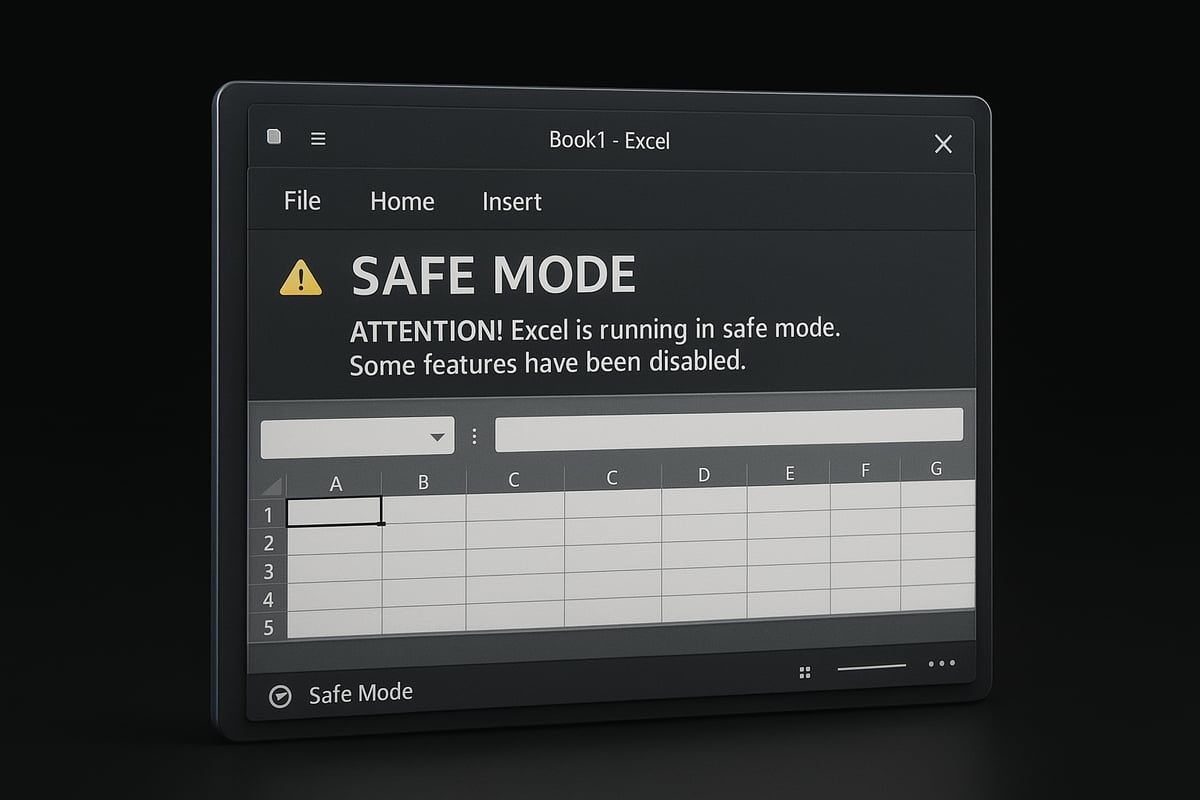
Excel Safe Mode is a special launch option that starts the application with only the essential files and settings. When you ask, how do i open excel in safe mode, you are actually looking to bypass most customizations, add-ins, and extensions that might be causing issues. In Safe Mode, Excel ignores many non-essential features, which helps users pinpoint what is triggering errors.
Why Use Safe Mode?
The main reason to use Safe Mode is to troubleshoot issues that prevent Excel from starting or working properly. When you are unsure how do i open excel in safe mode, think of it as a diagnostic tool. Safe Mode disables all add-ins, custom toolbars, and certain advanced settings, making it easier to isolate the source of the problem.
-
Safe Mode disables:
- COM and Excel add-ins
- Custom toolbars and macros
- User templates and startup files
-
Safe Mode keeps:
- Core spreadsheet functions
- Basic file opening and saving
- Essential data editing tools
When Should You Use Safe Mode?
There are several situations where knowing how do i open excel in safe mode is essential:
- Excel crashes immediately after launch
- The program freezes or becomes unresponsive
- Workbooks take too long to load
- Error messages appear at startup
- Excel fails to launch after installing new add-ins or updates
According to Microsoft and user forums, startup failures account for a significant portion of Excel support requests. Using Safe Mode often reveals if add-ins or customizations are the culprits.
Features & Limitations
Here is a summary of what you can and cannot do in Excel Safe Mode:
| Feature | Available in Safe Mode | Available in Normal Mode |
|---|---|---|
| Basic editing | ✔ | ✔ |
| Add-ins | ✖ | ✔ |
| Macros | ✖ | ✔ |
| Custom toolbars | ✖ | ✔ |
| Startup files/templates | ✖ | ✔ |
| File Recovery | ✔ | ✔ |
While Safe Mode is powerful, it cannot fix hardware faults, deep file corruption, or issues caused by a damaged Office installation. If problems persist, advanced troubleshooting or professional help may be needed.
Real-World Example
Consider this scenario: An analyst repeatedly experienced Excel crashes after a recent update. Unsure how do i open excel in safe mode, they followed step-by-step instructions and launched Excel in this diagnostic mode. Safe Mode worked perfectly, pointing to a faulty add-in as the cause. After disabling the problematic add-in, Excel returned to normal operation.
For more detailed troubleshooting steps that complement Safe Mode, see the Excel troubleshooting guide.
Windows vs Mac Comparison
On Windows, launching Excel in Safe Mode is straightforward with keyboard shortcuts or command-line options. Mac users, however, do not have a direct Safe Mode switch. Instead, they must manually disable add-ins and reset preferences to mimic Safe Mode’s benefits. Regardless of platform, learning how do i open excel in safe mode can save hours of trial and error and help you quickly return to productivity.
How to Open Excel in Safe Mode on Windows (2025)
If you are wondering, "how do i open excel in safe mode" on Windows, you are not alone. Safe Mode is a powerful tool for diagnosing problems when Excel will not start or keeps crashing. Let us walk through the most reliable methods to launch Excel in Safe Mode on Windows in 2025.
Step-by-Step Methods to Launch Safe Mode
There are several proven techniques for those who ask, "how do i open excel in safe mode" using Windows. Each method is straightforward and helps you bypass potentially problematic add-ins or customizations.
1. Keyboard Shortcut Method
- Close all open Excel windows.
- Hold down the
Ctrlkey on your keyboard. - While holding
Ctrl, double-click the Excel shortcut or select Excel from the Start menu. - A prompt will appear: "Do you want to start Excel in Safe Mode?" Click "Yes".
Using this method, you quickly start Excel with minimal features, which can resolve many launch issues.
2. Run Command Method
- Press
Windows + Ron your keyboard to open the Run dialog box. - Type
excel /safeand press Enter.
This method is especially useful if Excel will not open normally. The Safe Mode banner should appear at the top of the window.
3. Command Prompt Method (Advanced)
- Open Command Prompt.
- Enter
start excel /safeand press Enter.
This approach is ideal for power users or those automating troubleshooting steps.
4. Creating a Dedicated Safe Mode Shortcut
- Right-click your desktop and select "New" then "Shortcut".
- In the location field, enter
excel /safe. - Name the shortcut, for example, "Excel Safe Mode", and finish.
Now, you can launch Excel in Safe Mode anytime by double-clicking this shortcut.
Visual Cues to Confirm Safe Mode
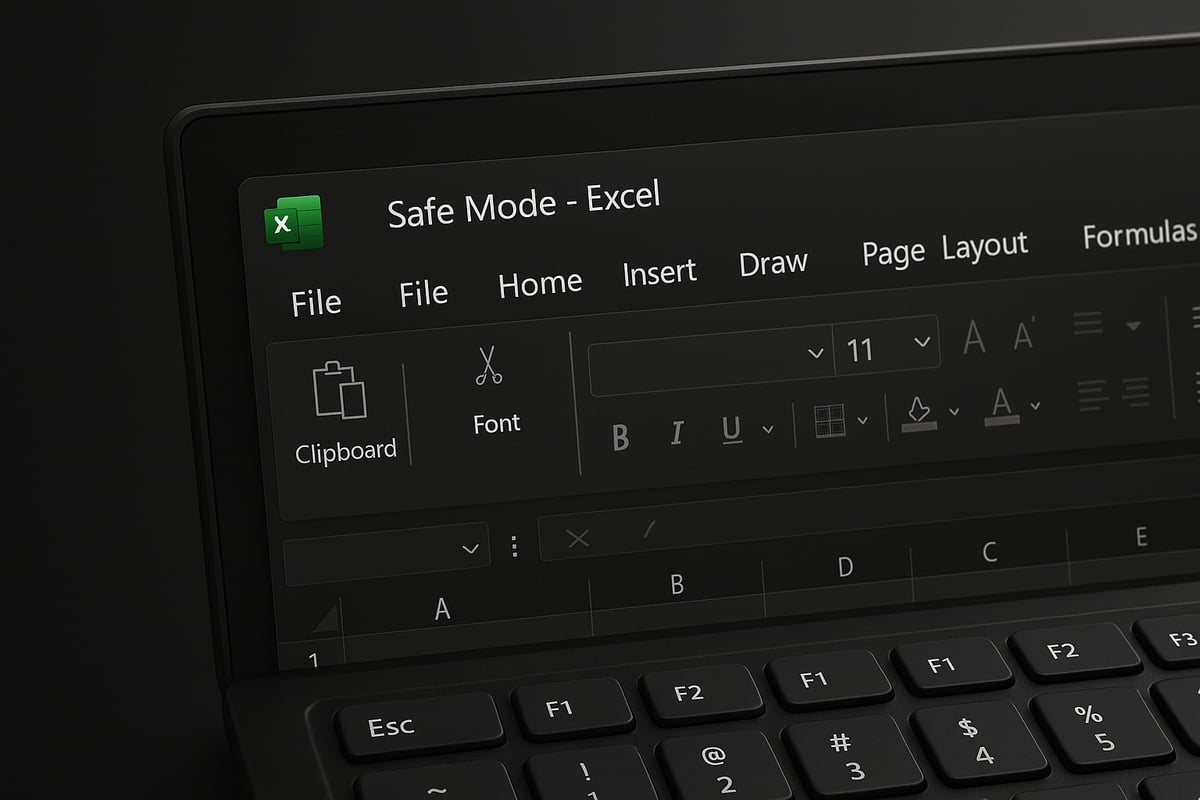
When you use any of these methods, Excel displays "Safe Mode" in the title bar. Some features will be disabled, such as certain add-ins, macros, or custom toolbars. This restricted environment helps answer the question, "how do i open excel in safe mode" in a way that isolates problems.
Example Table: Quick Reference for Safe Mode Launch Methods
| Method | Steps | When to Use |
|---|---|---|
| Keyboard Shortcut | Hold Ctrl, launch Excel | Most common issues |
| Run Command | excel /safe in Run dialog |
Excel will not start |
| Command Prompt | start excel /safe |
Advanced troubleshooting |
| Desktop Shortcut | Create shortcut with excel /safe |
Frequent Safe Mode use |
If Safe Mode does not launch, double-check your Excel installation or refer to the official Open Office apps in safe mode on a Windows PC guide for more troubleshooting steps.
Troubleshooting Common Issues in Windows Safe Mode
Once you have answered "how do i open excel in safe mode", you may still encounter issues. Safe Mode is the first step, but further troubleshooting may be required.
Identifying and Disabling Problematic Add-ins
- Go to File > Options > Add-ins.
- At the bottom, set "Manage" to "COM Add-ins" and click "Go".
- Uncheck all add-ins and restart Excel.
By disabling add-ins, you can often pinpoint the source of persistent crashes or freezes.
Resetting or Restoring Default Settings
- Navigate to File > Options > Advanced.
- Click "Reset" or manually adjust settings to default.
Resetting your preferences may resolve settings-related errors that even Safe Mode cannot bypass.
Recovering Corrupted Files
Safe Mode lets you open files that would otherwise crash Excel. If you suspect file corruption, try opening the workbook in Safe Mode first, then use Excel's built-in repair features.
Checking for Office Updates
- Go to File > Account > Update Options > Update Now.
- Keeping Excel up to date ensures you have the latest fixes for known issues.
Testing with a Different Windows User Profile
Sometimes user profile corruption causes Excel to misbehave. Create a new Windows user and test Excel in Safe Mode under that account.
Common Safe Mode Error Messages and Solutions
- "Excel cannot open in Safe Mode": Reinstall or repair your Office installation.
- "File is corrupt and cannot be opened": Use Safe Mode to access file recovery tools.
Case Study: Resolving a Startup Crash
A corporate user repeatedly faced Excel crashing on startup. By following the "how do i open excel in safe mode" process and disabling all add-ins, Excel launched successfully. Gradually re-enabling add-ins revealed a third-party plugin as the culprit.
According to Microsoft, add-in conflicts are responsible for a significant portion of Excel startup failures. Safe Mode is an essential diagnostic tool for these scenarios.
If you continue experiencing issues after applying these troubleshooting steps, consider deeper repairs or professional assistance.
How to Open Excel in Safe Mode on Mac (2025)
Opening Excel in Safe Mode is a common troubleshooting step for Windows users, but Mac users face unique challenges. If you are asking, "how do i open excel in safe mode" on a Mac, understanding these differences is essential. Let's explore what options are available and how you can effectively diagnose Excel issues on macOS.
Safe Mode Limitations on macOS
If you are wondering how do i open excel in safe mode on a Mac, it is important to know that Excel for macOS does not have a direct Safe Mode option like Windows. According to Microsoft’s official documentation, there is no built-in command or shortcut to launch Excel in Safe Mode on macOS.
Instead, Mac users must rely on alternative methods to diagnose and resolve issues. While Windows users can disable add-ins and customizations automatically, Mac users need to manually isolate problems. This approach requires a bit more effort but can be equally effective for resolving stubborn Excel errors and crashes.
In comparison, Windows Safe Mode provides a controlled environment where Excel runs with minimal features, making it easier to pinpoint causes. On Mac, you will use a combination of manual steps to achieve similar diagnostic results.
Diagnostic Steps for Mac Users
If you are searching for how do i open excel in safe mode on a Mac, here are practical steps to help you troubleshoot and resolve common issues:
1. Disable Add-Ins Manually
Go to Excel > Tools > Add-ins. Uncheck all add-ins to disable them. Alternatively, navigate to ~/Library/Group Containers/UBF8T346G9.Office/User Content/Add-Ins in Finder and temporarily move add-in files to another location. Restart Excel to check if the problem persists.
2. Reset Excel Preferences
Corrupted preferences can cause Excel to misbehave. To reset, quit Excel, then go to ~/Library/Preferences/ and move com.microsoft.Excel.plist to the desktop. Relaunch Excel and see if the issue is resolved. This simulates a Safe Mode–like environment by restoring default settings.
3. Clear Office Cache
Cached files sometimes lead to performance problems. Close Excel, then open Finder and navigate to ~/Library/Containers/com.microsoft.Excel/Data/Library/Caches. Delete the contents of this folder. This step is especially useful if you face frequent freezing and are asking how do i open excel in safe mode for file recovery.
4. Create a Clean User Profile
Problems tied to your user account can be isolated by creating a new macOS user. Go to System Settings > Users & Groups and add a new user. Log in with this account, open Excel, and check if the issues remain. This method helps answer how do i open excel in safe mode when profile corruption is suspected.
5. Check Fonts and Printers
Excel on Mac can freeze or crash due to problematic fonts or printer drivers. Remove recently added fonts from Font Book and set your default printer to "PDF" or another basic option in System Settings. This often resolves launch and printing errors.
6. Use Terminal and Console for Diagnostics
Advanced users can launch Excel from Terminal to monitor output for errors. Open Terminal and type open -a "Microsoft Excel". For deeper analysis, use Console.app to review Excel-related logs. These logs can reveal issues not visible in the main app and provide clues when you are investigating how do i open excel in safe mode on macOS.
Example Scenario
Consider a user whose Excel repeatedly crashed when opening specific files. By disabling all add-ins and resetting preferences, Excel launched successfully and the user could recover data. This manual diagnostic approach is the closest equivalent to Safe Mode for Mac users.
For further troubleshooting, consult the Excel not responding, hangs, freezes or stops working official Microsoft support page, which offers step-by-step guidance for persistent issues on both Windows and Mac.
User forums indicate that these steps resolve most issues for Mac users, with add-ins and preferences being the most common root causes. If you find yourself repeatedly asking how do i open excel in safe mode, following these manual steps will help you isolate and fix the problem efficiently.
Advanced Troubleshooting: When Safe Mode Isn’t Enough
Sometimes, even after following every step to answer the question, "how do i open excel in safe mode," persistent issues remain. If Excel continues to crash, freeze, or behave unpredictably, it is time to move beyond Safe Mode and explore advanced troubleshooting techniques.

When Safe Mode Isn't Enough
Safe Mode helps isolate problems, but some issues are rooted deeper in system files, user profiles, or hardware. Here are critical steps to take when Safe Mode does not resolve your Excel problems:
| Step | Description |
|---|---|
| Office Repair | Use built-in repair tools to fix corrupted installations. |
| Reinstall Excel | Uninstall and reinstall if repairs do not help. |
| Update OS & Office | Ensure Windows or Mac and Office are fully updated. |
| Antivirus Conflicts | Temporarily disable or adjust antivirus settings. |
| Hardware Diagnostics | Check RAM, disk space, and overall system health. |
| Remove Third-Party Add-ins | Uninstall or update any external add-ins or scripts. |
Office Repair and Reinstallation
If you have asked yourself, "how do i open excel in safe mode," but Excel still misbehaves, run an Office repair. On Windows, go to Control Panel > Programs > Programs and Features, select Microsoft Office, and choose Repair. On Mac, reinstall Office by moving it to Trash and downloading a fresh copy.
System and Software Updates
Outdated software often causes compatibility problems. Always update your operating system and Excel to the latest versions. This step can resolve bugs that are not fixed by Safe Mode alone.
Antivirus and Malware Conflicts
Security software can sometimes interfere with Excel. Temporarily disable your antivirus and see if Excel performance improves. For example, one user reported severe lag, even after learning how do i open excel in safe mode, until they updated their antivirus definitions and excluded the Excel process from real-time scanning.
Hardware and Add-in Checks
Low memory, failing drives, or outdated drivers can cause persistent crashes. Run built-in diagnostics or use third-party tools to check your system health. Also, remove or update any third-party Excel add-ins or scripts, as these are frequent sources of hidden problems.
For those facing ongoing issues, consider following a structured forensic approach. The guide on how to audit and debug complex spreadsheets provides advanced techniques for pinpointing stubborn errors that Safe Mode cannot resolve.
Expert Recommendations
Microsoft MVPs and support forums suggest creating a new user profile, checking for system-wide corruption, and consulting IT support if you have exhausted all options. Sometimes, the problem lies outside Excel, such as in your printer settings or network drives.
In summary, if you repeatedly need to search for "how do i open excel in safe mode" and still encounter issues, these advanced steps can help you find a lasting solution. Do not hesitate to seek help from experts if the problem persists.
Expert Tips for Preventing Excel Startup Issues
Proactively protecting your Excel environment is the best way to avoid crashes, freezes, or the need to ask yourself how do i open excel in safe mode. By following a few expert-backed habits, you can minimize disruption and keep your spreadsheets running smoothly.

Keep Excel and Plugins Up to Date
Staying current with updates is fundamental for stability. Microsoft frequently releases patches that address security vulnerabilities, performance bottlenecks, and bugs that can cause startup failures.
Set Excel and all related Office applications to update automatically. Do not forget to update any third-party plugins or add-ins, as outdated extensions are a common source of errors that may force you to wonder how do i open excel in safe mode.
Routine updates keep your system secure and compatible with new features, reducing the risk of startup problems.
Manage Add-Ins and Preferences
Regularly review and manage your Excel add-ins. Too many or poorly coded add-ins can slow down Excel or prevent it from launching.
Visit the Add-Ins menu and disable those you no longer use. If Excel starts acting up, try disabling all add-ins, then re-enable them one by one to identify culprits. This approach is often the first step when troubleshooting how do i open excel in safe mode issues.
Additionally, back up your Excel preferences and settings. This allows for a quick restore if preferences become corrupted.
Workbook Hygiene and System Health
Maintaining clean, well-structured workbooks is essential. Remove unnecessary formulas, links, and data, as bloated files are more prone to corruption and slow performance.
Scan your system for malware and keep your OS, drivers, and printer software up to date. These steps support a healthier environment and reduce the likelihood you will need to research how do i open excel in safe mode.
For additional strategies, check out the guide to reduce spreadsheet errors in Excel, which covers preflight checks and safe-save workflows for corporate teams.
Training, Templates, and Proactive Maintenance
Invest in ongoing Excel training for yourself and your team. Well-trained users are less likely to create problematic files that trigger startup issues.
Use only official or trusted templates, avoiding those from unreliable third-party sources. Corrupt or poorly designed templates are a frequent cause of Excel crashes, leading users to ask how do i open excel in safe mode.
Finally, establish a routine for reviewing add-ins, cleaning up workbooks, and backing up settings. A proactive approach today prevents headaches tomorrow.
Getting Professional Excel Help for Complex Issues
Sometimes, even after following every troubleshooting step for how do i open excel in safe mode, persistent problems remain. If you encounter recurring errors, complex automation failures, or mission-critical files that will not open, it may be time to seek professional Excel help.
The Analytics Doctor specializes in diagnosing and resolving advanced spreadsheet issues that go far beyond simple fixes. Services include repairing corrupted files, optimizing workflows, and delivering personalized Excel training for all skill levels. For those struggling with file corruption, expert intervention can dramatically improve outcomes—see the Recover corrupted Excel workbooks guide for a proven recovery protocol.
Consider a scenario where a business repeatedly asks, “how do i open excel in safe mode” but still faces unexplained crashes. In these cases, an expert can quickly identify hidden conflicts, such as incompatible add-ins or deeper system issues. Through tailored support, The Analytics Doctor helps clients restore productivity and reduce downtime, saving both time and resources.
Professional Excel support offers several key benefits:
- Customized solutions for unique business needs
- Faster problem resolution
- Prevention of future issues through proactive guidance
- Enhanced Excel skills for individuals and teams
Both corporate teams and solo professionals gain from this expertise, particularly when Excel is a backbone of daily operations. Departments that rely on large, complex spreadsheets or automation workflows often find that professional help delivers measurable results.
Additionally, The Analytics Doctor provides free resources, including guides and templates, to help users who frequently search for how do i open excel in safe mode. Introductory consulting sessions are available for those unsure where to start or facing ongoing challenges.
Getting started is straightforward. Visit The Analytics Doctor’s website to request a consultation, access free materials, or schedule custom training. If you find that how do i open excel in safe mode does not solve your toughest Excel problems, professional support is a reliable next step.


