
Artificial intelligence has transformed how we work with spreadsheets, and Google's Gemini AI represents one of the most powerful tools available for Excel users in 2026. This gemini for excel tutorial will walk you through everything you need to know about integrating Gemini's capabilities into your Excel workflows, from basic setup to advanced automation techniques. Whether you're struggling with complex formulas, analyzing large datasets, or simply looking to work more efficiently, understanding how to leverage Gemini alongside Excel can dramatically improve your productivity and analytical capabilities.
Understanding Gemini's Role in Excel Workflows
Gemini AI serves as an intelligent assistant that can understand context, generate formulas, analyze data patterns, and even create entire spreadsheet structures based on natural language instructions. Unlike traditional Excel functions, Gemini processes requests conversationally, making it accessible even for users who aren't formula experts.
The integration between Gemini and Excel isn't a native built-in feature from Microsoft, but rather a connection you establish through various methods. This gemini for excel tutorial focuses on practical approaches that work reliably in professional environments.
Key capabilities include:
- Generating complex formulas from plain English descriptions
- Analyzing datasets and identifying trends or anomalies
- Creating data visualization recommendations
- Debugging existing formulas and explaining their logic
- Automating repetitive data transformation tasks

Why Excel Users Need AI Assistance
Even experienced Excel users encounter situations where formulas become unwieldy or data analysis requires fresh perspectives. Gemini bridges the gap between what you want to accomplish and the technical Excel knowledge needed to execute it. For businesses handling financial modeling, inventory management, or customer analytics, this AI assistance can reduce hours of manual work to minutes.
At The Analytics Doctor, we've seen countless professionals struggle with spreadsheet challenges that AI tools like Gemini can help resolve more efficiently. The key is knowing how to integrate and use these tools properly.
Integration Methods for Gemini and Excel
Several approaches exist for connecting Gemini AI with Microsoft Excel, each with distinct advantages depending on your technical comfort level and specific needs.
Direct API Integration
For users with programming experience, the most powerful method involves using Excel's VBA or Office Scripts to make API calls to Gemini. This approach requires:
- Obtaining API credentials from Google Cloud Platform
- Setting up authentication protocols
- Writing custom functions that send spreadsheet data to Gemini
- Processing the AI responses back into Excel
While technically demanding, this method provides maximum control and customization. The integration guide from ListenData offers detailed implementation steps for developers comfortable with this approach.
Add-In Solutions
A more accessible option involves using third-party add-ins designed specifically to bridge Excel and AI platforms. The GPT for Excel Word add-in can connect to Gemini, providing a user-friendly interface within your familiar Excel environment.
Add-in benefits:
- No coding knowledge required
- Simple installation process
- Pre-built functions for common tasks
- Regular updates and support
Similar to how you might add other Excel add-ins for enhanced functionality, AI-powered add-ins integrate seamlessly into your ribbon interface.
Web-Based Interaction
The simplest approach for occasional use involves uploading Excel files directly to Gemini through its web interface. According to DataStudios analysis, this method works well for one-time analysis tasks or formula generation.
Limitations to consider:
- File size restrictions (typically under 100MB)
- Privacy concerns with sensitive data
- Manual copy-paste required to implement solutions
- Less suitable for ongoing workflows
| Integration Method | Technical Skill Required | Best Use Case | Setup Time |
|---|---|---|---|
| Direct API | Advanced | Custom automation, large-scale operations | 4-8 hours |
| Add-In Solutions | Beginner | Daily formula help, regular analysis | 15-30 minutes |
| Web Upload | None | Occasional assistance, learning | 5 minutes |
Practical Applications in This Gemini for Excel Tutorial
Understanding integration methods is just the beginning. The real value emerges when you apply Gemini to solve actual spreadsheet challenges.
Formula Generation and Debugging
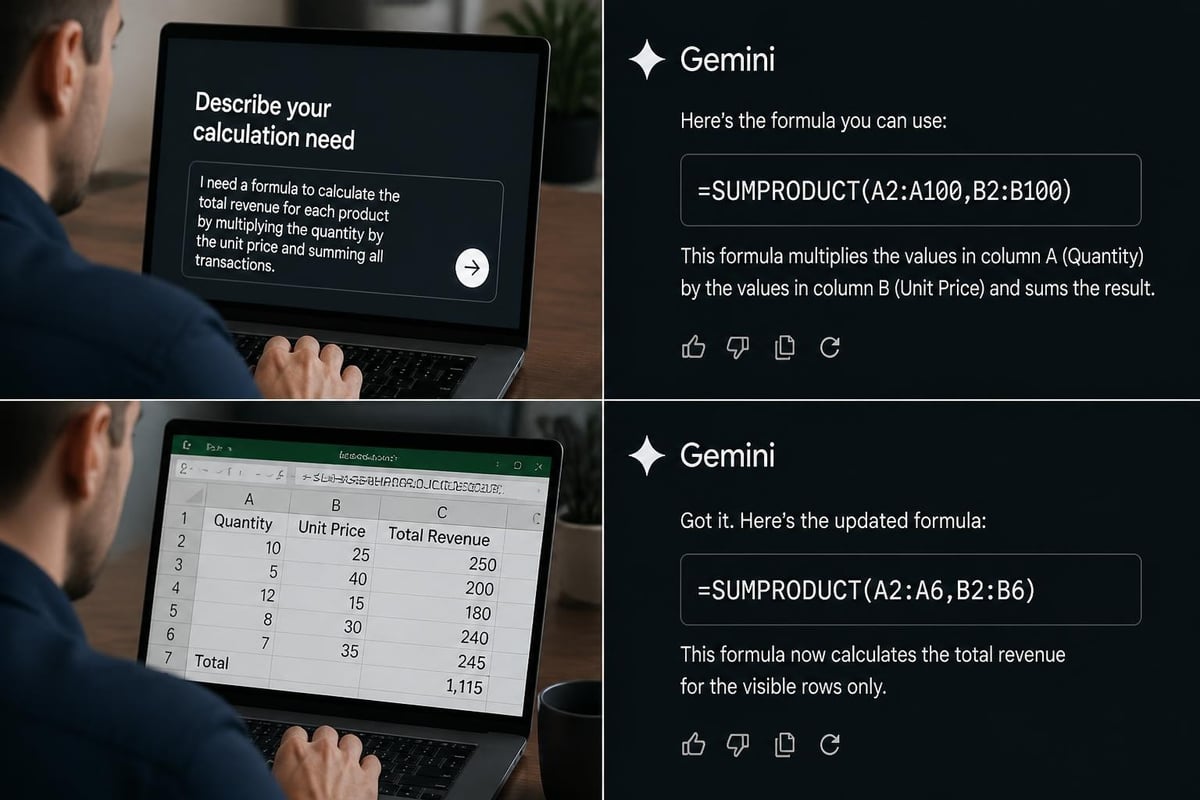
One of Gemini's most immediately useful applications is creating complex formulas from descriptions. Instead of searching through function documentation, you can describe what you need in plain language.
Example scenario: You need to calculate the average sales for products sold in Q4 2025, but only for transactions above $500 from the Western region.
Rather than building nested IF, AND, and AVERAGEIFS functions manually, you describe this requirement to Gemini, which generates the appropriate formula structure. This approach is particularly valuable for users exploring Excel functions they haven't mastered yet.
When formulas aren't working as expected, Gemini can analyze them to identify logic errors or suggest more efficient alternatives. This debugging capability has proven invaluable for professionals who inherit complex workbooks from predecessors.
Data Analysis and Pattern Recognition
Beyond formula creation, Gemini excels at analyzing datasets to identify trends, outliers, and relationships that might not be immediately obvious. Upload or describe your dataset structure, and Gemini can suggest relevant analytical approaches.
For instance, if you're working with sales data across multiple quarters, Gemini might recommend:
- Seasonal trend analysis using moving averages
- Variance calculations to identify anomalies
- Correlation analysis between product categories
- Predictive modeling based on historical patterns
This analytical guidance helps users who understand their business context but need statistical direction for their Excel implementation.
Automating Repetitive Tasks
Many Excel users spend hours performing the same data transformation sequences weekly or monthly. This gemini for excel tutorial wouldn't be complete without addressing automation opportunities.
Gemini can generate VBA code for repetitive tasks like:
- Consolidating data from multiple worksheets
- Formatting reports consistently
- Cleaning imported data (removing duplicates, standardizing formats)
- Creating recurring charts and dashboards
Those already familiar with VBA functions can use Gemini to accelerate development, while beginners can implement automation without learning VBA syntax first.
Step-by-Step Gemini for Excel Tutorial Workflow
Let's walk through a complete workflow using the add-in approach, which balances accessibility with functionality.
Initial Setup Process
First, install your chosen AI-powered Excel add-in from the Microsoft Office Store or the provider's website. After installation, you'll typically need to:
- Authenticate with your Gemini API credentials
- Configure default settings (response length, model version)
- Familiarize yourself with the custom ribbon or sidebar interface
The setup process resembles adding any Excel add-in but includes the additional authentication step for AI services.
Working with Gemini in Your Spreadsheet
Once configured, the typical workflow involves:
Selecting your data range – Highlight the cells relevant to your question or task. This provides context for Gemini's responses.
Formulating your request – Be specific about what you want to accomplish. Instead of "analyze this data," try "identify the top 5 products by revenue growth comparing 2025 to 2024."
Reviewing and implementing suggestions – Gemini will provide formulas, analysis, or code. Test these suggestions in a separate area of your workbook before applying them to production data.
Iterating based on results – If the first response doesn't perfectly match your needs, refine your request with additional context or constraints.
Best Practices for Effective Prompts
The quality of Gemini's output directly correlates with how well you frame your requests. This gemini for excel tutorial emphasizes several proven prompting techniques:
- Provide context: Mention relevant column names, data types, and business logic
- Specify desired output: Describe the exact result format you need
- Include constraints: Note any conditions, filters, or exceptions
- Reference examples: If possible, show a small sample of expected results
For complex requests, breaking them into smaller steps often yields better results than asking for everything at once.
Advanced Techniques and Considerations
As you become comfortable with basic Gemini integration, several advanced applications can further enhance your Excel capabilities.
Dynamic Dashboard Creation
Gemini can suggest optimal chart types, data ranges, and formatting for executive dashboards based on your dataset characteristics. Rather than manually experimenting with visualization options, you receive data-driven recommendations aligned with best practices.
This capability proves especially valuable when working with pivot tables and other summary tools that benefit from thoughtful design choices.
Cross-Functional Integration
Many businesses use Excel as part of larger workflows involving other applications. According to Android Central’s coverage, Gemini can generate multiple file formats, facilitating seamless transitions between Excel and other business tools.
You might use Gemini to:
- Extract insights from Excel data and format them for presentation documents
- Generate SQL queries to pull data from databases into Excel
- Create documentation explaining complex spreadsheet logic
- Develop Python scripts that extend Excel's capabilities
Data Privacy and Security Protocols
When working with sensitive business information, understanding data handling becomes critical. Different integration methods have varying privacy implications:
| Consideration | API Integration | Add-Ins | Web Upload |
|---|---|---|---|
| Data leaves your computer | Yes | Yes | Yes |
| Encryption in transit | Yes | Varies | Yes |
| Data retention policies | Configurable | Vendor-dependent | Per Google's terms |
| Suitable for confidential data | With proper setup | Review vendor policies | Generally no |
For organizations with strict compliance requirements, implementing Gemini through private API deployments with enterprise agreements offers the best security posture. Professionals handling protected Excel workbooks should ensure AI integrations respect existing security measures.

Performance Optimization
As with any external service integration, response times and reliability matter for productive workflows. Several strategies can optimize your Gemini for Excel experience:
- Cache frequently used formulas or code snippets locally
- Batch similar requests together rather than making individual calls
- Use more specific prompts to reduce processing time
- Implement timeout handling for unreliable connections
- Consider maintaining an offline reference of successful Gemini responses
The ExcelMojo integration guide provides additional performance tuning recommendations for workbook-level implementations.
Troubleshooting Common Integration Issues
Even with proper setup, users occasionally encounter challenges when implementing this gemini for excel tutorial approach in their specific environments.
API Connection Failures
If your integration suddenly stops working, verify:
- API credentials haven't expired
- Your organization's firewall isn't blocking requests
- You haven't exceeded rate limits or quotas
- The Gemini service status is operational
Many connection issues stem from authentication problems that require regenerating credentials or updating stored tokens.
Unexpected or Incorrect Responses
When Gemini produces formulas or analysis that don't match your expectations:
- Review your prompt for ambiguity or missing context
- Check that your data selection includes all relevant information
- Verify data types are consistent (text vs. numbers)
- Consider whether your request requires domain knowledge Gemini lacks
Sometimes the AI interprets requests differently than intended. Rephrasing with more specific terminology often resolves these misunderstandings.
Add-In Compatibility Problems
Office versions, operating systems, and security settings can all impact add-in functionality. If an add-in isn't appearing or functioning:
- Confirm your Excel version supports the add-in requirements
- Check that macros and add-ins aren't blocked by IT policies
- Try repairing or reinstalling the Office suite
- Review event logs for specific error messages
The Analytics Doctor’s Excel consulting services regularly address integration challenges for professionals implementing AI tools in corporate environments.
Real-World Use Cases and Examples
Understanding theoretical capabilities differs from seeing practical applications. These scenarios demonstrate how professionals use Gemini with Excel across industries.
Financial Modeling Enhancement
A financial analyst needs to create a five-year revenue projection model incorporating multiple growth scenarios, seasonality adjustments, and market condition assumptions. Using Gemini, she:
- Describes the model structure and business assumptions conversationally
- Receives a template layout with appropriate formula frameworks
- Gets scenario analysis formulas for sensitivity testing
- Obtains VBA code to automate monthly data updates
What previously required extensive spreadsheet knowledge and hours of formula writing now takes a fraction of the time, with built-in best practices from Gemini's training.
Inventory Management Automation
A warehouse manager maintains complex inventory tracking across multiple locations. His weekly reporting process involves data cleanup, calculations, and formatting that consumed several hours. Following this gemini for excel tutorial approach, he now:
- Uses Gemini to generate data validation rules preventing input errors
- Implements automated reorder point calculations considering lead times and seasonality
- Creates dynamic dashboards highlighting critical stock situations
- Develops macros for one-click report generation
The time savings allow focus on strategic inventory decisions rather than spreadsheet maintenance.
Academic Research Data Analysis
A graduate student working with survey data needs to perform statistical analysis but lacks advanced Excel skills. Gemini helps her:
- Structure raw survey responses into analyzable formats
- Generate appropriate statistical tests based on research questions
- Create visualization recommendations for dissertation presentation
- Understand the logic behind suggested formulas for methodology documentation
This educational application of Gemini serves as an on-demand tutor, similar to personalized Excel training but available 24/7.
Comparing Alternative AI Solutions
While this gemini for excel tutorial focuses specifically on Google's Gemini, understanding how it compares to alternatives helps you choose the right tool for your needs.
| Feature | Gemini | ChatGPT | Copilot for Excel |
|---|---|---|---|
| Excel Integration Ease | Moderate (requires add-in) | Moderate (requires add-in) | Native (Microsoft 365) |
| Formula Generation | Excellent | Excellent | Very Good |
| Data Analysis Depth | Excellent | Good | Good |
| Cost Structure | API usage-based | Subscription or API | Microsoft 365 subscription |
| Privacy Options | Flexible | Limited | Enterprise-grade |
| Learning Curve | Moderate | Low | Low |
Each solution offers distinct advantages. Gemini's strength lies in its analytical depth and multimodal capabilities, making it particularly effective for complex data interpretation tasks.
Looking Forward: AI and Excel Evolution
The integration between AI platforms like Gemini and spreadsheet applications continues evolving rapidly. As we progress through 2026, several trends are shaping how these technologies converge:
Natural language interfaces are becoming more sophisticated, understanding context and intent with greater accuracy. Future iterations will likely require less prompt engineering and deliver more precise results from conversational descriptions.
Real-time collaboration between AI and multiple users working on the same spreadsheet will enable teams to collectively leverage AI insights, with Gemini understanding the broader context of collaborative work.
Predictive analytics integration will move beyond historical data analysis to forecast future trends directly within Excel, powered by Gemini's advanced modeling capabilities.
Automated documentation will become standard, with AI generating comprehensive explanations of complex spreadsheet logic automatically, solving the perennial problem of undocumented workbooks.
These developments will continue making Excel more accessible to non-technical users while simultaneously expanding capabilities for power users who understand how to leverage AI effectively.
Maximizing Your Investment in AI-Enhanced Excel
Successfully implementing the techniques in this gemini for excel tutorial requires more than just technical setup. Consider these strategic approaches to maximize your return:
Develop a Learning Roadmap
Start with simple applications like formula generation before progressing to complex automation. Track which types of requests produce the best results for your specific work, building a personal knowledge base of effective prompts and use cases.
Create Organizational Standards
If multiple team members will use Gemini with Excel, establish guidelines for:
- Data security protocols and approved use cases
- Prompt templates for common business tasks
- Quality assurance processes for AI-generated content
- Documentation requirements for AI-assisted workbooks
Standardization ensures consistent results and prevents quality issues from undocumented AI implementations.
Invest in Continuous Skill Development
As AI tools evolve, maintaining current knowledge ensures you're leveraging the latest capabilities. The Analytics Doctor blog regularly publishes updates on Excel AI integration techniques and best practices.
Balance AI Assistance with Excel Expertise
While Gemini dramatically accelerates many tasks, fundamental Excel knowledge remains valuable. Understanding what formulas do, not just that they work, enables you to verify accuracy and troubleshoot when necessary. AI should augment your capabilities, not replace foundational knowledge.
Integrating Gemini AI with Excel opens powerful possibilities for data analysis, automation, and productivity enhancement across virtually any industry or role. This gemini for excel tutorial has covered integration methods, practical applications, troubleshooting strategies, and real-world use cases to help you harness these capabilities effectively. Whether you're struggling with formula complexity, spending too much time on repetitive tasks, or simply want to unlock deeper insights from your data, The Analytics Doctor can help you implement AI-enhanced Excel solutions tailored to your specific needs. Visit The Analytics Doctor to discover how expert guidance can transform your spreadsheet challenges into streamlined, intelligent workflows.


