Excel add-ins transform the basic spreadsheet application into a powerful, customized tool tailored to your specific workflow needs. Whether you're automating repetitive tasks, extending Excel's calculation engine, or integrating third-party data sources, understanding how to excel add addin functionality is essential for maximizing productivity. From COM add-ins that enhance the ribbon interface to Office Web Add-ins that work across platforms, mastering add-in management helps you build a more efficient, reliable spreadsheet environment while maintaining security and performance.
Understanding Excel Add-In Types and Their Functions
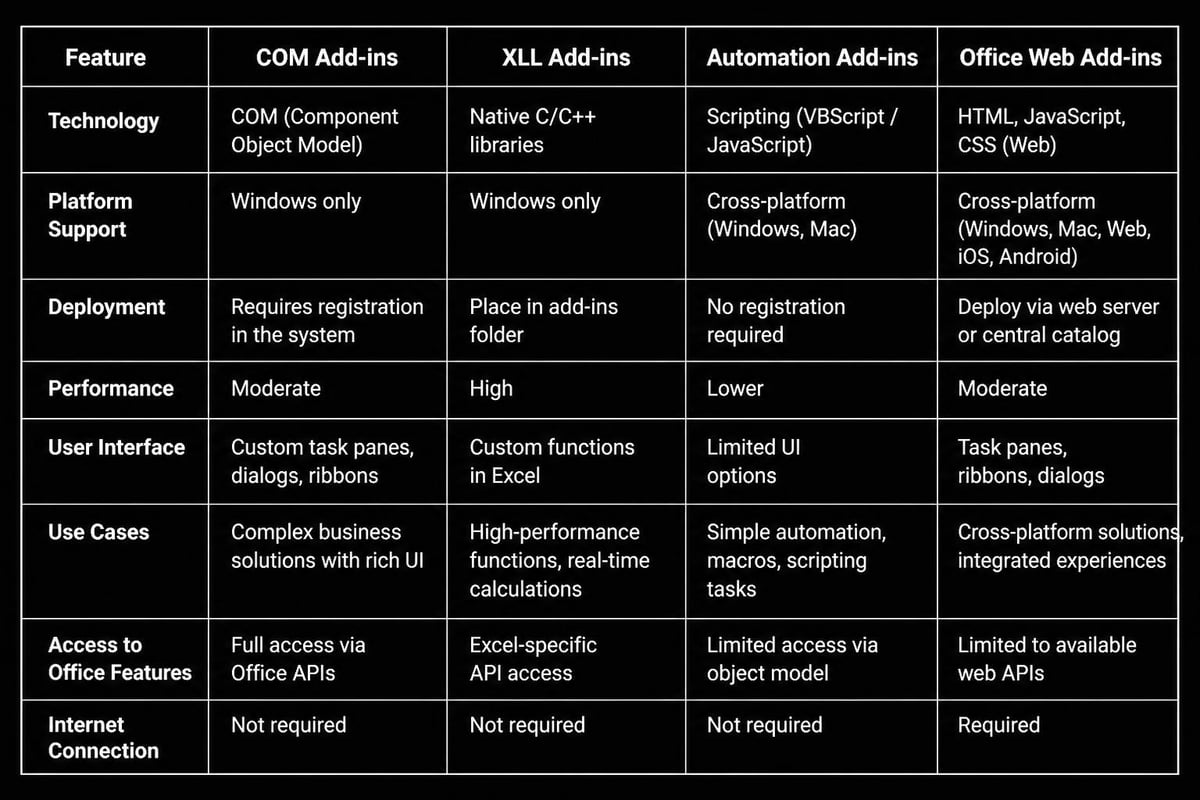
Excel supports multiple add-in architectures, each serving distinct purposes and offering different levels of integration with the application. The primary categories include COM add-ins, XLL add-ins, automation add-ins, and the newer Office Web Add-ins (also called Office Add-ins). COM add-ins typically provide user interface enhancements such as custom ribbon tabs, task panes, and dialog boxes, making them ideal for workflow automation tools and data integration solutions.
XLL add-ins are specialized dynamic link libraries designed for high-performance numerical calculations. These add-ins often provide custom worksheet functions that execute faster than equivalent VBA code. However, Microsoft has implemented stricter security controls around XLL files. According to Microsoft’s security documentation, Excel now blocks untrusted XLL add-ins by default to protect against potential malicious code execution.
Office Web Add-Ins and Modern Development
Office Web Add-ins represent the modern approach to excel add addin development, built using web technologies like HTML, CSS, and JavaScript. These add-ins work across multiple platforms including Excel for Windows, Mac, and Excel Online. Microsoft provides comprehensive guidance on building task pane add-ins using Visual Studio for developers looking to create cross-platform solutions.
One significant advantage of Web Add-ins is their ability to create custom functions using JavaScript, extending Excel's calculation capabilities without requiring traditional VBA programming. This approach offers better maintainability and wider deployment options compared to older add-in formats.
Installing and Managing Add-Ins Effectively
To excel add addin installation correctly, you need to understand the different loading mechanisms Excel uses. Built-in Excel add-ins are accessed through File > Options > Add-ins, where you'll find a list of available, active, and inactive add-ins. The management interface separates add-ins by type, allowing you to enable or disable Excel Add-ins, COM Add-ins, and Actions separately.
For custom or third-party add-ins, the installation process varies depending on the add-in type:
Excel Add-Ins (.xlam files)
- Copy the .xlam file to a trusted location
- Open Excel and navigate to File > Options > Add-ins
- Select "Excel Add-ins" from the Manage dropdown
- Click "Go" and browse to the add-in file
- Check the box next to the add-in name to activate it
COM Add-Ins (.dll or .xll files)
- May require administrative rights for installation
- Often include dedicated installer programs
- Managed through the COM Add-ins dialog (File > Options > Add-ins > COM Add-ins > Go)
- Can be installed system-wide or for individual users
Office Web Add-ins
- Installed directly from the Office Store
- Accessed through Insert > Get Add-ins
- Automatically synchronized across devices when using Microsoft 365
When working with corporate Excel training scenarios, understanding these installation pathways helps teams deploy standardized tools across departments. Consistent add-in configurations reduce support requests and ensure everyone has access to the same analytical capabilities.
Troubleshooting Common Add-In Loading Issues
Add-in failures represent one of the most frustrating Excel issues users encounter. When an add-in fails to load, Excel may display error messages or simply fail to show the expected ribbon tabs or functions. A common problem occurs when add-in ribbon tabs disappear after installation, often related to file properties or security settings that block the add-in from loading properly.
Diagnostic Steps for Non-Loading Add-Ins
| Issue | Diagnostic Step | Solution |
|---|---|---|
| Add-in not visible in list | Check file location and permissions | Move to trusted location or adjust folder permissions |
| Checkbox grayed out | Verify file isn't corrupted | Test on another computer; request fresh copy from developer |
| Error on startup | Review disabled items list | File > Options > Add-ins > Disabled Items > Re-enable |
| Ribbon tab missing | Check security settings | Unblock file in Properties dialog; adjust Trust Center settings |
Excel maintains a list of disabled items when add-ins cause crashes or errors during startup. Navigate to File > Options > Add-ins and select "Disabled Items" from the Manage dropdown to review and potentially re-enable problematic add-ins. This mechanism protects Excel stability but can inadvertently disable legitimate tools after system updates or crashes.
For organizations concerned with workbook integrity, Excel consultancy services can audit your add-in ecosystem, identifying conflicts between competing add-ins and recommending optimal configurations for your specific use cases.
File Location and Trust Center Configuration
Excel's Trust Center controls which files and locations are considered safe for add-in loading. To excel add addin security management, configure trusted locations through File > Options > Trust Center > Trust Center Settings > Trusted Locations. Adding your standard add-in folders to this list prevents security warnings while maintaining protection against unknown files.
However, avoid making entire drive roots trusted locations. Instead, create specific folders like "C:\Company\Excel Add-ins" and restrict write access to prevent unauthorized add-in installation. This approach balances convenience with security, particularly important when dealing with Excel business automation scenarios where multiple users share standardized tools.

Building Custom Add-Ins for Specific Workflows
Creating your own add-ins to excel add addin capabilities allows you to package frequently used macros, custom functions, and specialized tools for easy distribution. VBA-based Excel add-ins (.xlam files) offer the simplest entry point for custom development. The process involves creating a workbook with your VBA code, then saving it as an Excel Add-in file format rather than a standard workbook.
According to ExcelTip’s comprehensive guide on building add-ins, the key advantage of add-in format is that your code remains hidden from casual users while staying accessible to Excel's function library. User-defined functions created in an add-in appear in the Insert Function dialog alongside native Excel functions, improving discoverability and adoption.
Essential Steps for VBA Add-In Development
- Develop and test your code in a standard .xlsm workbook to ensure all functions and subroutines work correctly
- Create a custom ribbon interface (optional) using Custom UI Editor or Ribbon XML to provide user-friendly access to your tools
- Add error handling throughout your code to prevent add-in crashes that would disable the entire tool
- Document your functions using comment blocks that describe parameters, return values, and usage examples
- Save as .xlam format through File > Save As, selecting "Excel Add-in (*.xlam)" from the file type dropdown
- Test installation on a clean Excel instance to verify loading behavior and function availability
- Distribute with instructions that specify the installation folder and Trust Center configuration requirements
For complex VBA programming projects, consider implementing version control within your add-in code using constants that track major and minor version numbers. This practice simplifies troubleshooting when supporting multiple users across different departments.
Performance Considerations for Add-In Code
Add-ins load into memory when Excel starts, affecting application startup time and overall performance. To minimize this impact, use event handlers judiciously and avoid placing computationally intensive code in the Workbook_Open event. Instead, implement lazy loading patterns where complex initialization occurs only when users first access specific features.
Additionally, when creating custom worksheet functions through excel add addin development, remember that these functions recalculate whenever dependent cells change. Optimize your function code by minimizing array operations, avoiding volatile functions like NOW() or RAND() unless absolutely necessary, and implementing application-level caching for expensive calculations that don't need to run repeatedly.
Security Best Practices for Add-In Usage
Add-in security requires balancing functionality with protection against malicious code execution. Oracle’s security best practices documentation emphasizes authentication controls, secure data transmission, and proper credential management when developing add-ins that connect to external systems. These principles apply broadly across all add-in types, not just Oracle-specific tools.
When evaluating whether add-ins are safe to use, consider the source, code signing status, and permissions requested. Legitimate add-ins from reputable vendors typically include digital signatures that verify the publisher's identity. Excel displays certificate information when you first attempt to enable a signed add-in, allowing you to make informed trust decisions.
Security Checklist for Add-In Evaluation
- Verify the publisher's identity through digital certificate inspection
- Research the vendor or developer's reputation and support history
- Review requested permissions and data access requirements
- Test in an isolated environment before deploying to production workbooks
- Monitor for unusual behavior like unexpected network connections or file modifications
- Keep add-ins updated to receive security patches and bug fixes
- Document approved add-ins in company security policies
Academic research on cross-site scripting vulnerabilities in cloud add-ons highlights potential security risks even in web-based add-ins from major platforms. The study demonstrates that insufficient input validation can allow malicious scripts to execute within the add-in context, potentially accessing sensitive spreadsheet data.

Managing Add-Ins in Locked or Protected Environments
Some corporate environments use XLS Padlock or similar tools to control which add-ins can load when opening protected workbooks. These systems selectively enable or disable COM add-ins and built-in Excel add-ins based on security policies. When distributing workbooks that depend on specific add-ins to excel add addin functionality, include clear documentation about required add-ins and their approved sources.
For workbooks requiring data validation and integrity controls, consider whether add-in dependencies create audit risks. External add-ins introduce calculation logic outside the workbook's transparent formula environment, potentially obscuring how results are derived. Document all add-in functions used in critical calculations and maintain copies of add-in files alongside archived workbooks for future reference.
Optimizing Add-In Performance and Compatibility
Add-in conflicts occur when multiple add-ins attempt to modify the same Excel objects or intercept the same events. These conflicts manifest as unexpected errors, disabled functionality, or Excel crashes. To excel add addin management in complex environments, maintain an inventory of installed add-ins and test new additions in isolation before deploying to production systems.
Excel's safe mode provides a valuable diagnostic tool for add-in troubleshooting. Launch Excel in safe mode by holding Ctrl while starting the application or using the command line switch "excel.exe /safe". In this mode, Excel loads without any add-ins, allowing you to determine whether performance issues or errors originate from add-in code rather than Excel itself or your workbooks.
Performance Monitoring and Optimization
- Track startup time with and without specific add-ins enabled to identify performance bottlenecks
- Monitor memory usage using Task Manager while add-ins load and execute their functions
- Review calculation time for workbooks using custom functions from add-ins
- Test compatibility across Excel versions (2016, 2019, 2021, Microsoft 365) if supporting diverse users
- Document dependencies between add-ins to avoid conflicts when updating or removing tools
- Implement selective loading where possible, enabling resource-intensive add-ins only when needed
The Analytics Doctor frequently encounters situations where well-intentioned add-in accumulation degrades Excel performance over time. Regular add-in audits help identify unused tools that can be safely removed, improving startup speed and reducing memory consumption. Excel training sessions often include add-in management modules that teach users how to evaluate which extensions truly benefit their workflow versus those that simply occupy system resources.
Advanced Add-In Distribution and Deployment Strategies
Enterprise deployment of add-ins requires standardized installation procedures that work across diverse user environments. Network share deployment allows IT departments to maintain a single authoritative copy of each add-in file, ensuring version consistency across the organization. Users point their Excel installations to these network locations rather than maintaining local copies.
Group Policy Objects (GPO) in Windows domains can automatically configure Excel's trusted locations, add-in settings, and security policies during user login. This approach ensures compliance with corporate standards while reducing support burden from manual configuration steps. For organizations without domain infrastructure, documented installation procedures combined with automated scripts provide an alternative deployment pathway.
Deployment Methods Comparison
| Method | Pros | Cons | Best For |
|---|---|---|---|
| Network Share | Centralized updates, version control | Requires network access, loading delays | Corporate environments with stable network |
| Local Installation | Fast loading, offline access | Version drift, update complexity | Individual users, remote workers |
| GPO Deployment | Automated configuration, policy enforcement | Requires domain infrastructure | Large enterprises, IT-managed environments |
| Office Store | Easy discovery, automatic updates | Limited to Web Add-ins, less customization | Microsoft 365 users, cross-platform needs |
When developing custom add-ins for internal distribution, include version checking logic that alerts users when updates are available. This functionality prevents the common scenario where some users continue running outdated add-in versions long after newer releases fix bugs or add features. The version check can query a network location or web service to compare the installed version against the current release.
Troubleshooting Add-In Interaction with Workbook Features
Add-ins occasionally interfere with standard Excel functionality, particularly when they modify calculation behavior, event handling, or object models. For instance, add-ins that intercept the Workbook_BeforeSave event might conflict with your own VBA code attempting to perform pre-save validation. To excel add addin debugging, systematically disable add-ins one at a time while testing the problematic functionality to isolate the source of conflicts.
Certain Excel features have known compatibility considerations with add-ins. Protected worksheets may prevent add-in functions from modifying cells even when the add-in code includes unprotect commands. Similarly, shared workbooks have limited add-in support, as Excel disables many object model features when workbook sharing is active. Understanding these limitations helps set appropriate expectations when deploying add-in-dependent solutions.
When workbooks exhibit unexpected behavior like calculation errors, missing ribbon commands, or disabled features, the diagnostic process should include add-in evaluation. Experienced users learn to recognize symptoms indicating add-in involvement: functions returning #NAME errors suggest missing add-ins, while ribbon tabs disappearing points to disabled COM add-ins or security blocks. These patterns guide efficient troubleshooting rather than blind trial-and-error approaches.
For businesses seeking to automate workflows while maintaining audit trails, documenting add-in dependencies becomes critical. When auditors review your spreadsheet models, they need to understand which calculations derive from workbook formulas versus external add-in functions. Clear documentation prevents delays and ensures compliance with regulatory requirements in finance, healthcare, and other governed industries.
Mastering how to excel add addin functionality transforms Excel from a standard spreadsheet tool into a customized analytical platform aligned with your specific workflow needs. Whether you're installing third-party extensions, developing custom solutions, or managing add-in security across your organization, understanding these principles ensures reliable, efficient spreadsheet operations. If you're struggling with add-in conflicts, need help developing custom tools, or want to optimize your Excel environment for better performance, The Analytics Doctor provides expert guidance to diagnose issues, implement solutions, and train your team on best practices that make your data work harder for you.