When you're working with Excel automation, understanding the mechanics of calling functions in VBA becomes essential for building efficient, reusable code. Functions serve as the workhorses of your VBA projects, performing calculations, manipulating data, and returning values that drive your spreadsheet solutions. Whether you're automating monthly reports, cleaning imported data, or building custom business logic, mastering function calls will transform how you approach Excel development. This comprehensive guide walks through the syntax, techniques, and practical strategies that make calling functions in VBA second nature for Excel users at every skill level.
Understanding VBA Functions and Their Purpose
VBA functions differ from Sub procedures in one critical way: they return a value. While Sub procedures execute a series of actions, functions perform calculations or operations and send a result back to the code that called them. This fundamental distinction shapes how you structure your automation projects.
Functions excel at compartmentalizing logic. Instead of writing the same calculation multiple times across different procedures, you create one function and call it whenever needed. This approach reduces errors, simplifies maintenance, and makes your code more readable for future troubleshooting.
Key characteristics of VBA functions:
- Return a single value of a specific data type
- Can accept multiple parameters as input
- Execute independently and don't modify the calling procedure's scope
- Can be called from Sub procedures, other functions, or directly from worksheet cells
- Support optional parameters and default values
When you structure code properly, functions become building blocks that snap together like puzzle pieces. A sales analysis macro might call a function to calculate commission rates, another to format currency, and a third to validate date ranges. Each function handles one responsibility, making your entire project more maintainable.

Basic Syntax for Calling Functions in VBA
The most straightforward approach to calling functions in VBA involves assigning the function's return value to a variable. This method captures the result for further processing or display. The syntax follows a simple pattern that becomes automatic with practice.
variableName = FunctionName(argument1, argument2, ...)
Consider a function that calculates sales tax. You declare a variable to hold the result, then assign it the value returned by your function:
Dim totalTax As Double
totalTax = CalculateSalesTax(subtotal, taxRate)
The function CalculateSalesTax receives two arguments, performs its calculation, and returns a Double value that gets stored in totalTax. From there, you can use that variable in formulas, display it in message boxes, or write it to worksheet cells.
Direct Usage Without Variable Assignment
Sometimes you need a function's result immediately without storing it. You can embed function calls directly within other statements. This technique streamlines code when the return value serves a single, immediate purpose.
Common direct usage scenarios:
- Displaying results in message boxes:
MsgBox "Tax: " & FormatCurrency(CalculateSalesTax(amount, rate)) - Writing directly to cells:
Range("C5").Value = GetQuarterlyTotal(quarter) - Using in conditional statements:
If ValidateEmail(userInput) Then - Passing as arguments:
SendReport(GenerateFileName(reportDate), reportData)
According to Microsoft’s documentation on calling procedures, you can invoke functions with or without the Call statement, though most developers omit it for function calls since you're capturing a return value.
Working With Function Parameters and Arguments
Parameters define what information a function needs to perform its work. When calling functions in VBA, you must provide arguments that match the function's parameter list in both quantity and data type. This matching ensures your function receives the correct information in the expected format.
| Parameter Type | Description | Example Declaration |
|---|---|---|
| Required | Must be provided when calling | Function Calculate(amount As Double) |
| Optional | Can be omitted, uses default | Function Format(text As String, Optional bold As Boolean = False) |
| ParamArray | Accepts variable number of arguments | Function Sum(ParamArray values() As Variant) |
Positional Versus Named Arguments
You can pass arguments to functions using two methods. Positional arguments follow the order defined in the function declaration. Named arguments use the parameter name followed by a colon-equals and the value, allowing any order.
Positional arguments example:
result = CalculateDiscount(1000, 0.15, True)
Named arguments example:
result = CalculateDiscount(amount:=1000, includeShipping:=True, discountRate:=0.15)
Named arguments improve readability when functions accept multiple parameters, especially when some are optional. You can skip optional parameters by name without needing placeholder values. This flexibility proves invaluable when building comprehensive Excel training solutions that require clear, maintainable code.
Calling Functions From Sub Procedures
The most common scenario involves calling functions in VBA from within Sub procedures. Your Sub orchestrates the workflow while functions handle specific calculations or data transformations. This division of labor creates cleaner, more modular code.
A typical automation Sub might follow this pattern:
- Collect input data from worksheet ranges
- Call validation functions to check data integrity
- Process data through calculation functions
- Format results using formatting functions
- Write outputs back to the worksheet
Each function call represents a discrete step with a clear purpose. If you need to debug issues or enhance functionality, you know exactly where to look. The Sub procedure serves as a roadmap, showing the sequence of operations at a glance.
Handling Function Return Values in Complex Workflows
Real-world Excel automation often requires chaining multiple function calls together, where one function's output becomes another's input. You might retrieve data with one function, clean it with a second, calculate results with a third, and format the final output with a fourth.
Dim rawData As Variant
Dim cleanData As Variant
Dim calculatedResults As Double
Dim formattedOutput As String

rawData = GetWorksheetData("A1:A100")
cleanData = RemoveInvalidEntries(rawData)
calculatedResults = ComputeAverage(cleanData)
formattedOutput = FormatAsPercentage(calculatedResults)

Range("D1").Value = formattedOutput
This sequential approach makes troubleshooting straightforward. If the final output looks wrong, you can inspect each intermediate variable to identify where the process breaks down. You can also refer to resources like this tutorial on VBA functions for additional examples of function implementation patterns.

Using the Call Statement With Functions
While the Call statement typically applies to Sub procedures, you can use it with functions when you want to execute the function but ignore its return value. This unusual approach appears in specific scenarios where the function's side effects matter more than its result. The Call statement documentation provides detailed syntax information.
Call LogActivity(userName, timestamp)
In this example, LogActivity might write to a file or update a database. The function returns a success/failure code, but if you're confident in its execution or handling errors differently, you can invoke it with Call and disregard the return value.
Situations where Call with functions makes sense:
- Logging or auditing functions where you track the call but don't need confirmation
- Functions that update class properties and return status codes you're not monitoring
- Legacy code compatibility where functions were later converted from Subs
Most experienced VBA developers avoid this pattern because it obscures intent. If you don't need a return value, consider whether the procedure should be a Sub instead. Clear code prevents confusion when you or colleagues revisit projects months later.
Function Calls in Worksheet Formulas
One powerful feature of VBA functions is their availability in worksheet formulas. User-defined functions (UDFs) extend Excel's built-in formula library with custom calculations specific to your business needs. When you create a Public function in a standard module, it becomes accessible just like SUM or VLOOKUP.
Public Function CalculateCommission(salesAmount As Double, rate As Double) As Double
    CalculateCommission = salesAmount * rate
End Function
After creating this function, users can type =CalculateCommission(B2, 0.05) into any cell. The function executes, returns the result, and recalculates automatically when referenced cells change. This capability bridges VBA programming with everyday spreadsheet work, making automation accessible to non-programmers.
Best Practices for Worksheet-Callable Functions
When designing functions for worksheet use, consider performance and error handling carefully. Unlike functions called from VBA code, worksheet functions execute every time Excel recalculates, which can happen frequently in large workbooks.
| Best Practice | Reason | Implementation Tip |
|---|---|---|
| Minimize cell references | Reduces calculation dependencies | Pass values as parameters instead of reading ranges internally |
| Add error handling | Prevents #VALUE! errors | Return error values or empty strings for invalid inputs |
| Avoid volatile operations | Improves performance | Don't use Now(), Rnd(), or similar functions without cause |
| Document parameters clearly | Helps users understand usage | Add comments describing expected inputs and outputs |
Many professionals who seek Excel help with custom solutions benefit from UDFs that encapsulate complex business logic into simple formulas. A mortgage calculator, territory assignment lookup, or custom date calculation becomes a reusable formula that appears in formula bars just like native Excel functions.
Error Handling When Calling Functions in VBA
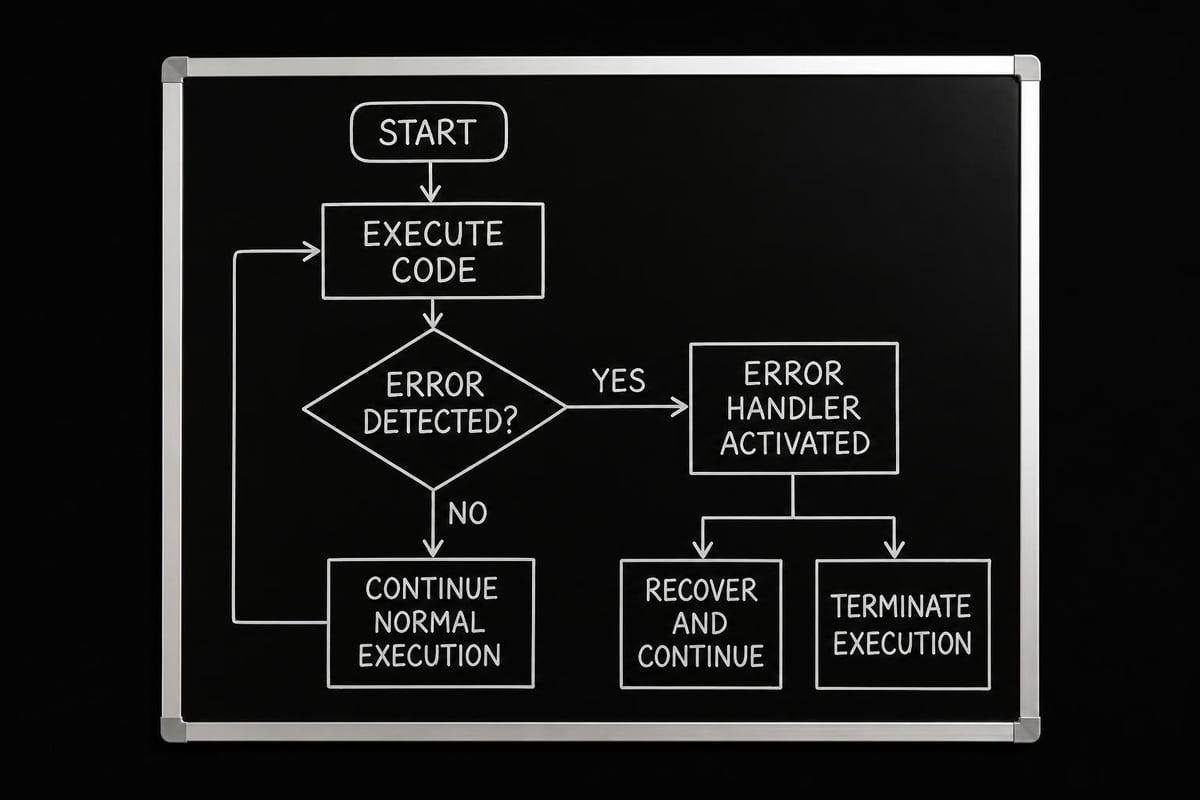
Robust code anticipates that functions might fail or return unexpected results. When calling functions in VBA, implement error handling strategies that prevent crashes and provide meaningful feedback when problems occur. This defensive programming approach saves countless hours of troubleshooting.
The basic error handling pattern uses On Error statements to control execution flow when errors arise:
Sub ProcessData()
    On Error GoTo ErrorHandler

    Dim result As Double
    result = RiskyCalculation(value1, value2)

    Range("A1").Value = result
    Exit Sub

ErrorHandler:
    MsgBox "Calculation failed: " & Err.Description
End Sub
When RiskyCalculation encounters an error-perhaps dividing by zero or receiving invalid data types-execution jumps to the ErrorHandler label. You can log the error, notify the user, or attempt recovery procedures.
Validating Function Return Values
Beyond catching runtime errors, validate that function return values meet expected criteria before using them in calculations or data operations. A function might execute without errors but return logically invalid results.
Validation checks to implement:
- Numeric ranges: Ensure percentages fall between 0 and 1, ages are positive
- Data types: Confirm variant returns contain expected types
- String formats: Verify email addresses, phone numbers match patterns
- Null or empty: Check for uninitialized or missing data
Dim discountRate As Double
discountRate = GetDiscountRate(customerID)

If discountRate < 0 Or discountRate > 1 Then
    MsgBox "Invalid discount rate returned"
    Exit Sub
End If
This proactive validation catches logic errors that wouldn't trigger VBA's error handling system. Users working with validation data in Excel understand the importance of ensuring data integrity throughout their workbooks.
Performance Optimization for Function Calls
Frequent function calls can impact macro performance, especially when processing large datasets. Understanding the performance implications of calling functions in VBA helps you design faster, more responsive automation solutions. Small optimizations compound when functions execute thousands of times in loops.
Performance optimization strategies:
- Minimize redundant calls: Cache results when the same function executes repeatedly with identical arguments
- Reduce parameter passing overhead: Pass arrays by reference rather than by value for large data structures
- Consolidate operations: Combine multiple simple functions into one complex function when called together frequently
- Avoid worksheet interactions: Reading from or writing to cells inside functions dramatically slows execution
- Use appropriate data types: Variants offer flexibility but process slower than specific types like Long or Double
Consider a scenario where you process 10,000 rows of data, calling a function for each row. If that function takes 0.1 seconds to execute, your macro runs for 16 minutes. Optimize the function to 0.01 seconds, and runtime drops to 1.6 minutes-a critical difference for user experience.
Benchmarking Function Performance
Professional developers measure function performance to identify bottlenecks. VBA's Timer function provides a simple benchmarking tool:
Dim startTime As Double
Dim endTime As Double

startTime = Timer

For i = 1 To 10000
    result = MyFunction(data(i))
Next i

endTime = Timer
Debug.Print "Execution time: " & (endTime - startTime) & " seconds"
Run this test before and after optimizations to quantify improvements. When multiple functions contribute to slow performance, benchmark each individually to prioritize optimization efforts on the biggest time consumers.
Recursive Function Calls
Advanced VBA programming sometimes requires functions that call themselves-a technique called recursion. Recursive functions solve problems by breaking them into smaller, similar subproblems. While less common in typical Excel automation, recursion elegantly handles certain calculations like factorials, tree traversals, or hierarchical data processing.
A classic example calculates factorials:
Function Factorial(n As Long) As Long
    If n <= 1 Then
        Factorial = 1
    Else
        Factorial = n * Factorial(n - 1)
    End If
End Function
When you call Factorial(5), it calls Factorial(4), which calls Factorial(3), and so on until reaching the base case where n equals 1. The function then returns up the chain, multiplying values until producing the final result.
Important considerations for recursive functions:
- Always include a base case that stops recursion
- Be mindful of VBA's call stack limitations
- Consider iterative alternatives for better performance
- Test thoroughly with boundary values
Recursion shines when processing nested structures like folder hierarchies or organizational charts. However, iterative loops often run faster and use less memory for simple calculations. Choose recursion when it makes the logic clearer, not just because it seems elegant.
Practical Applications and Real-World Examples
Understanding theory matters, but practical application cements knowledge. Here are real-world scenarios where calling functions in VBA solves common Excel challenges faced by businesses and analysts.
Financial Calculations
A finance team needs to calculate loan payments with varying interest rates and terms across hundreds of scenarios. Rather than using Excel's PMT function directly in cells, create a wrapper function that adds business-specific logic:
Function CustomLoanPayment(principal As Double, annualRate As Double, years As Integer) As Double
    Dim monthlyRate As Double
    Dim numberOfPayments As Integer

    monthlyRate = annualRate / 12
    numberOfPayments = years * 12

    If monthlyRate = 0 Then
        CustomLoanPayment = principal / numberOfPayments
    Else
        CustomLoanPayment = (principal * monthlyRate) / (1 - (1 + monthlyRate) ^ -numberOfPayments)
    End If
End Function
This function handles the edge case of zero interest and provides a simplified interface for loan calculations. Call it from VBA macros to batch-process scenarios or use it directly in worksheet formulas.
Data Transformation
Data imported from external systems often requires cleaning before analysis. Functions isolate transformation logic:
Function CleanPhoneNumber(rawPhone As String) As String
    Dim cleanPhone As String
    Dim i As Integer

    For i = 1 To Len(rawPhone)
        If Mid(rawPhone, i, 1) Like "[0-9]" Then
            cleanPhone = cleanPhone & Mid(rawPhone, i, 1)
        End If
    Next i

    If Len(cleanPhone) = 10 Then
        CleanPhoneNumber = "(" & Left(cleanPhone, 3) & ") " & Mid(cleanPhone, 4, 3) & "-" & Right(cleanPhone, 4)
    Else
        CleanPhoneNumber = "Invalid"
    End If
End Function
A main Sub procedure can loop through thousands of records, calling CleanPhoneNumber for each entry. When requirements change-perhaps to support international formats-you update one function rather than searching through procedural code.
Businesses seeking expert Excel consulting often need custom functions that bridge the gap between generic Excel capabilities and specific business requirements. These functions become institutional knowledge, documenting business rules in executable code.
Common Mistakes and How to Avoid Them
Even experienced developers encounter pitfalls when calling functions in VBA. Recognizing common mistakes helps you write cleaner code from the start and debug issues faster when they arise.
Ignoring Return Values
Calling a function without capturing its return value wastes processing and creates confusion. If you don't need the return value, the procedure should probably be a Sub:
Problematic:
ValidateData(dataRange) ' Function returns Boolean but result ignored
Better:
If Not ValidateData(dataRange) Then
    MsgBox "Data validation failed"
    Exit Sub
End If
Type Mismatch Errors
Passing arguments of the wrong data type causes runtime errors. VBA sometimes converts types automatically, but relying on implicit conversion invites bugs:
Function CalculateAge(birthDate As Date) As Integer
    CalculateAge = Year(Date) - Year(birthDate)
End Function

' This might work due to automatic conversion
age = CalculateAge("1/1/1990")

' This is explicit and safer
age = CalculateAge(CDate("1/1/1990"))
Modifying ByRef Parameters Unintentionally
By default, VBA passes arguments ByRef (by reference), meaning the function can modify the original variable. This behavior surprises developers expecting ByVal (by value) passing:
Function ProcessValue(ByRef value As Double) As Double
    value = value * 2  ' Modifies the original variable
    ProcessValue = value
End Function
Explicitly declare parameter passing method to avoid unintended side effects. Use ByVal unless you specifically want to modify the original variable.
| Issue | Symptom | Solution |
|---|---|---|
| Wrong argument count | "Argument not optional" error | Verify function declaration matches call |
| Type mismatch | "Type mismatch" error | Use explicit type conversion or correct data types |
| Infinite recursion | Stack overflow | Ensure base case is reachable |
| Unhandled errors | Macro crashes | Implement On Error handling |
Building a Function Library for Reuse
Professional Excel developers maintain libraries of tested, documented functions they reuse across projects. This approach accelerates development and ensures consistency. When you build a collection of reliable functions, calling functions in VBA becomes like assembling solutions from a toolkit rather than building from scratch every time.
Organize your function library by category in separate modules:
- StringFunctions: Text manipulation, formatting, parsing
- DateFunctions: Date calculations, fiscal periods, workday counting
- ValidationFunctions: Data type checking, format validation, range verification
- MathFunctions: Business calculations, statistical operations, conversions
- FileSystemFunctions: File operations, path manipulation, directory listing
Document each function with clear comments explaining purpose, parameters, return values, and example usage. Future you-and colleagues-will appreciate this documentation when incorporating functions into new projects.
'******************************************************************************
' Function: CalculateWorkdays
' Purpose: Calculates number of workdays between two dates excluding weekends
' Parameters:
'   startDate (Date): Beginning date of period
'   endDate (Date): Ending date of period
'   excludeHolidays (Boolean): Optional, whether to exclude holiday dates
' Returns: Integer - Number of workdays in period
' Example: workdayCount = CalculateWorkdays(#1/1/2026#, #1/31/2026#, True)
'******************************************************************************
Many professionals who pursue comprehensive Excel training develop personal function libraries that grow throughout their careers, becoming valuable assets that distinguish their capabilities.
Mastering the art of calling functions in VBA transforms how you approach Excel automation, enabling modular, maintainable solutions that scale with your business needs. By understanding syntax, error handling, performance optimization, and best practices, you build a foundation for professional-grade spreadsheet development. Whether you're struggling with complex function calls, need help building custom VBA solutions, or want to level up your Excel automation skills, The Analytics Doctor provides expert guidance tailored to your specific challenges and goals.