Working with dates in Excel often feels like solving a puzzle, especially when you need to calculate future deadlines, payment schedules, or project milestones. Whether you're tracking invoice due dates, planning project timelines, or managing employee schedules, knowing how to add dates excel properly can transform your spreadsheet from a static list into a dynamic planning tool. This guide walks through multiple methods to manipulate dates effectively, from simple addition to sophisticated formulas that account for months and years.
Understanding Excel's Date System
Excel stores dates as sequential serial numbers, making date arithmetic surprisingly straightforward once you understand the underlying structure. January 1, 1900 represents the number 1, and each subsequent day increments by one. This system enables you to add dates excel using basic mathematical operations.
When you enter a date like 5/14/2026, Excel converts it to the serial number 46152. This conversion happens automatically, allowing you to perform calculations without worrying about the internal representation. The key advantage is that you can treat dates like regular numbers while Excel handles the complex calendar mathematics behind the scenes.
Why Date Arithmetic Matters
Business applications require precise date calculations:
- Payment terms (Net 30, Net 60)
- Project milestone tracking
- Warranty expiration dates
- Employee anniversary dates
- Subscription renewal schedules
The ability to add dates excel accurately eliminates manual calendar counting and reduces errors in critical business processes.
Simple Addition: Adding Days to Dates
The most straightforward method to add dates excel involves using the plus operator. If cell A1 contains a date, you can add any number of days directly.
Formula structure: =A1 + [number of days]
For example, if A1 contains 5/14/2026 and you want to calculate 45 days later, enter =A1 + 45 in another cell. Excel returns 6/28/2026 automatically. This approach works perfectly for business scenarios like calculating invoice due dates from invoice dates.
| Scenario | Formula | Result |
|---|---|---|
| Invoice date + Net 30 | =A1 + 30 | Due date 30 days later |
| Start date + Project duration | =B2 + 90 | Project end date |
| Order date + Shipping time | =C3 + 7 | Expected delivery |
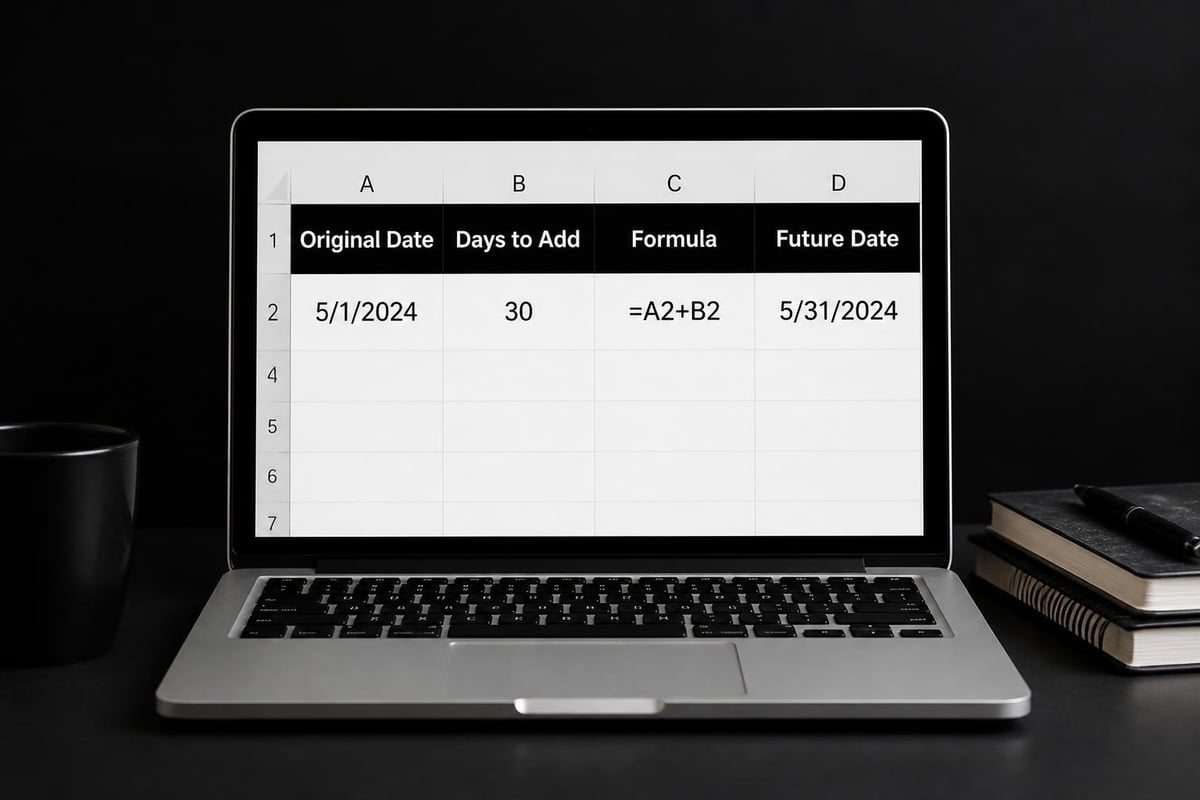
This method for adding or subtracting dates handles most daily requirements without complex formulas. The beauty lies in its simplicity and immediate applicability.
Using the EDATE Function for Month Calculations
When you need to add dates excel by months rather than days, the EDATE function becomes essential. Unlike simple addition, EDATE accounts for varying month lengths and year boundaries automatically.
Syntax: =EDATE(start_date, months)
The function takes two arguments: the starting date and the number of months to add (positive numbers) or subtract (negative numbers). If you need to calculate quarterly payment dates, EDATE handles the complexity seamlessly.
Practical EDATE Applications
=EDATE("5/14/2026", 3)    Returns: 8/14/2026
=EDATE(A1, 12)            Adds one year (12 months)
=EDATE(B2, -6)            Subtracts six months
Common business use cases:
- Subscription renewal dates (monthly, quarterly, annually)
- Lease agreement milestones
- Performance review schedules
- Loan payment schedules
- Contract renewal notifications
The EDATE function guide from How-To Geek provides detailed examples for various scenarios. This function proves particularly valuable when you need consistency across different month lengths, as February's 28 or 29 days won't throw off your calculations.
When you add dates excel using EDATE, the function automatically adjusts for months with different day counts. If you add one month to January 31, EDATE returns February 28 (or 29 in leap years) rather than creating an invalid date.
The DATE Function for Precision Control
The DATE function offers granular control when you need to add dates excel with specific components. Instead of working with complete date values, DATE constructs dates from individual year, month, and day values.
Syntax: =DATE(year, month, day)
This function shines when you're building dates dynamically or need to add specific amounts to individual components. For instance, =DATE(2026, 5, 14) returns 5/14/2026, but you can also manipulate each component separately.
Advanced DATE Formulas
To add three months and fifteen days to a date in cell A1:
=DATE(YEAR(A1), MONTH(A1)+3, DAY(A1)+15)
Excel automatically handles overflow. If you specify month 14, Excel converts it to February of the following year. Similarly, specifying day 45 rolls into the next month correctly.
| Component | Formula | Purpose |
|---|---|---|
| Add 2 years | =DATE(YEAR(A1)+2, MONTH(A1), DAY(A1)) | Anniversary calculations |
| Add 6 months | =DATE(YEAR(A1), MONTH(A1)+6, DAY(A1)) | Six-month reviews |
| Subtract 1 year | =DATE(YEAR(A1)-1, MONTH(A1), DAY(A1)) | Historical comparisons |
The DATE function documentation from Exceljet explores additional examples and edge cases. When building dashboards in Excel, DATE formulas enable dynamic date calculations that update automatically.

Working with WORKDAY for Business Days
Business planning often requires excluding weekends and holidays when you add dates excel. The WORKDAY function calculates future dates based on working days only, essential for project management and deadline tracking.
Syntax: =WORKDAY(start_date, days, [holidays])
For example, =WORKDAY("5/14/2026", 10) returns the date that is 10 business days after May 14, 2026, automatically skipping weekends. The optional holidays parameter accepts a range of dates to exclude.
Setting up a holiday calendar:
- Create a range containing company holidays
- Name the range (e.g., "CompanyHolidays")
- Reference it in the WORKDAY formula
- Update the range annually
=WORKDAY(A1, 30, CompanyHolidays) calculates 30 business days from the date in A1, excluding both weekends and specified holidays. This precision proves invaluable for accurate project timelines.
Combining Functions for Complex Scenarios
Real-world spreadsheets often require combining multiple approaches to add dates excel effectively. Strategic formula combinations solve intricate business requirements that single functions cannot address.
Quarterly Payment Schedules
To generate payment dates falling on the last day of each quarter:
=EOMONTH(EDATE(start_date, 3*period_number), 0)
This formula uses EDATE to add months and EOMONTH to find the month's end, perfect for quarterly reporting cycles or payment terms.
Conditional Date Addition
Using IF statements with date functions creates intelligent spreadsheets:
=IF(A1<TODAY(), A1+30, A1+60)
This formula adds 30 days to past dates but 60 days to current or future dates, useful for different payment terms based on timing.
Nested function examples:
=WORKDAY(EDATE(A1, 6), 5)– Six months plus five business days=DATE(YEAR(TODAY()), MONTH(A1), DAY(A1))– Same month/day, current year=EOMONTH(A1, 0) + 15– Mid-month date of following month
These combinations demonstrate the power of Excel's date and time functions working together. When calculating moving averages or time-based metrics, these techniques ensure accurate temporal calculations.
Autofilling Date Sequences
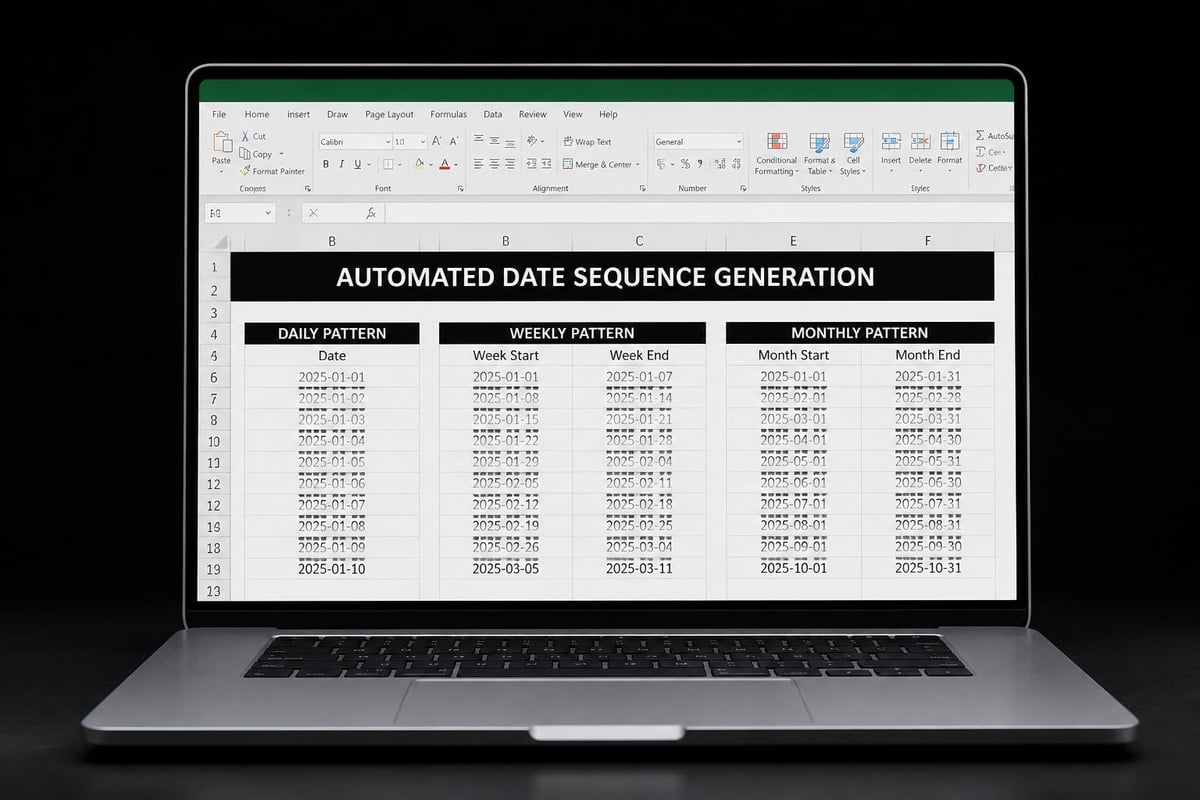
When building schedules or calendars, manually entering each date becomes tedious. Excel's autofill capabilities dramatically speed up the process to add dates excel in sequential patterns.
Using Fill Handle
Step-by-step process:
- Enter your starting date in a cell
- Select the cell containing the date
- Hover over the small square in the bottom-right corner
- Drag down or across to fill adjacent cells
- Release to populate sequential dates
Excel recognizes date patterns intelligently. Enter two dates with a specific interval, select both, then drag the fill handle to continue the pattern. This works for daily, weekly, monthly, or custom intervals.
Fill Series Command
For more control, use the Fill Series dialog:
- Enter the starting date
- Select the range to fill
- Go to Home > Fill > Series
- Choose Date unit (day, weekday, month, year)
- Set step value and stop value
- Click OK
The autofill dates tutorial from How-To Geek demonstrates various pattern options. This approach works particularly well when creating project timelines or recurring event schedules.
Troubleshooting Common Date Issues
Even experienced users encounter challenges when they add dates excel. Understanding common pitfalls and their solutions saves hours of frustration.
Date Format Recognition
Excel sometimes treats dates as text, preventing calculations. Indicators include:
- Left-aligned values in cells
- Green triangle in cell corner
- Formulas returning error values
- Sorting in alphabetical rather than chronological order
Solution: Convert text to dates using DATEVALUE function or Text to Columns feature with date formatting. Alternatively, multiply the text date by 1 to force numeric conversion.
Regional Date Formatting
Different regions use varying date formats (MM/DD/YYYY vs DD/MM/YYYY), causing confusion when you add dates excel. Excel interprets dates based on your system's regional settings.
| Format | Example | Region |
|---|---|---|
| MM/DD/YYYY | 05/14/2026 | United States |
| DD/MM/YYYY | 14/05/2026 | United Kingdom, Europe |
| YYYY-MM-DD | 2026-05-14 | ISO standard |
Always use the DATE function with explicit year, month, and day values for international compatibility: =DATE(2026, 5, 14) works regardless of regional settings.
Calculation Errors
When formulas return unexpected results, verify that:
- Calculation mode is set to Automatic
- Date values aren't actually text strings
- Cell formatting displays dates correctly
- Negative date results (before 1/1/1900) aren't attempted
The Microsoft Support guide for date calculations addresses many edge cases and provides official solutions. For complex spreadsheet issues, The Analytics Doctor’s audit services can diagnose and fix persistent problems.
Building Dynamic Date Systems
Professional spreadsheets often require date calculations that update automatically based on changing inputs. Creating dynamic systems to add dates excel elevates your workbooks from static templates to intelligent tools.
Named Range Approach
Define key dates as named ranges for easy reference:
- Select cell containing the base date
- Go to Formulas > Define Name
- Enter a descriptive name (e.g., "ProjectStart")
- Click OK
- Reference in formulas:
=ProjectStart + 30
This approach makes formulas readable and simplifies updates. When you change the ProjectStart date, all dependent calculations update automatically.
Table-Based Date Calculations
Converting your data to an Excel Table enables structured references that enhance clarity:
=[@[Start Date]] + [@[Duration Days]]
Tables also support automatic formula replication when you add new rows, ensuring consistency across your dataset. Combined with drop-down lists, you can create user-friendly date selection interfaces.
Today and Now Functions
Dynamic formulas using TODAY() or NOW() calculate dates relative to the current moment:
=TODAY() + 7– One week from today=EOMONTH(TODAY(), 0)– Last day of current month=DATE(YEAR(TODAY())+1, 1, 1)– January 1st of next year
These formulas update automatically each day Excel recalculates, perfect for aging reports, countdown timers, or current status dashboards.
Advanced Techniques for Power Users
Sophisticated applications require advanced methods to add dates excel that go beyond basic formulas. These techniques serve complex business intelligence and automation needs.
Array Formulas for Bulk Operations
Modern Excel's dynamic arrays enable calculating multiple dates simultaneously. To generate a year of monthly dates from a start date:
=EDATE(start_date, SEQUENCE(12, 1, 0))
This single formula produces twelve dates, one for each month. The SEQUENCE function generates numbers 0 through 11, which EDATE uses to calculate successive months.
VBA for Complex Logic
When formula complexity becomes unwieldy, Visual Basic for Applications provides programming flexibility. Custom functions can add dates excel while incorporating business rules that formulas cannot easily express.
Function AddBusinessDays(startDate As Date, numDays As Integer) As Date
    Dim currentDate As Date
    Dim addedDays As Integer

    currentDate = startDate
    addedDays = 0

    Do While addedDays < numDays
        currentDate = currentDate + 1
        If Weekday(currentDate) <> vbSaturday And Weekday(currentDate) <> vbSunday Then
            addedDays = addedDays + 1
        End If
    Loop

    AddBusinessDays = currentDate
End Function
For organizations requiring extensive automation, Excel VBA programming services can develop custom solutions tailored to specific workflow requirements.
Power Query for Data Transformation
Power Query enables sophisticated date manipulations during data import and transformation. You can add dates excel to entire columns, adjust for time zones, or standardize formats across multiple data sources simultaneously.
Operations like "Add months" or "Subtract days" apply to thousands of rows instantly, making Power Query ideal for processing large datasets with temporal components.
Best Practices for Date Management
Implementing consistent standards when you add dates excel prevents errors and improves spreadsheet maintainability across your organization.
Documentation standards:
- Comment complex formulas explaining the logic
- Use descriptive range names instead of cell references
- Document assumptions about business days, holidays
- Create a data dictionary for key dates
Validation rules:
- Set minimum and maximum date constraints
- Use data validation to prevent invalid entries
- Highlight dates outside expected ranges
- Create warning messages for unusual values
Formatting consistency:
- Apply uniform date formats across workbooks
- Use custom formats for specific display requirements
- Distinguish input dates from calculated dates visually
- Consider freezing cells containing critical date formulas
Professional Excel training courses teach these standards alongside technical skills, ensuring teams maintain high-quality spreadsheets.
Real-World Applications
Understanding how to add dates excel translates directly into business value across multiple departments and industries.
Finance and Accounting
Payment scheduling: Calculate invoice due dates based on payment terms (Net 30, Net 60). Combine with conditional formatting to highlight approaching or overdue payments.
Fiscal period calculations: Determine quarter-end dates, financial year boundaries, and reporting deadlines automatically based on company fiscal calendar.
Depreciation schedules: Track asset depreciation over time with monthly or annual calculations derived from purchase dates.
Project Management
Milestone tracking: Set project milestones as offsets from the project start date. When the start date changes, all milestones update automatically.
Resource allocation: Calculate team member availability windows, vacation schedules, and training completion deadlines using date arithmetic.
Dependency management: Link task completion dates to successor task start dates, creating dynamic project timelines that adjust to delays automatically.
Human Resources
Anniversary tracking: Calculate employment anniversaries, probation end dates, and benefits eligibility dates from hire dates.
PTO accrual: Determine vacation day accrual based on employment duration and company policies using date calculations.
Certification expiration: Monitor professional certification renewal deadlines and training compliance requirements.
The comprehensive overview of date functions from GeeksforGeeks demonstrates additional industry-specific applications worth exploring.
Integration with Other Excel Features
Date calculations become more powerful when combined with Excel's broader functionality. Strategic integration creates sophisticated analytical tools.
Pivot Tables with Date Grouping
When you add dates excel to your source data, pivot tables can automatically group by days, months, quarters, or years. This enables time-based analysis without manually creating period categories.
Understanding how to make Excel pivot tables enhances your ability to analyze temporal trends and patterns in your data.
Conditional Formatting for Visual Alerts
Apply conditional formatting rules based on date calculations:
- Highlight rows where deadline is within 7 days
- Color-code tasks by priority using days remaining
- Flag expired contracts or outdated information
Formulas like =TODAY() - A1 > 30 identify dates older than 30 days, triggering formatting rules automatically.
Charts and Timeline Visualization
Date-based data creates compelling visualizations when properly structured. Line charts show trends over time, Gantt charts display project schedules, and timeline charts track multiple concurrent initiatives.
Proper date calculations ensure your x-axis displays correctly and data points align to actual timeframes rather than arbitrary positions.
Mastering how to add dates excel transforms your spreadsheets from simple record-keeping tools into dynamic planning and analysis systems that drive better business decisions. Whether you're using simple addition for day calculations, EDATE for monthly projections, or complex nested formulas for sophisticated scenarios, these techniques eliminate manual errors and save countless hours across your organization. When your date calculations become too complex or you need expert guidance to optimize your spreadsheet workflows, The Analytics Doctor provides personalized training, formula debugging, and automation services to make your data work smarter for you.