Skip to content

Are you tired of dealing with inconsistent data and frustrating manual errors in your Excel spreadsheets? You are not alone. In this 2026 guide, you will learn exactly how to add drop down list in excel to simplify your workflow and reduce mistakes. Discover step-by-step instructions, explore advanced features, and gain practical tips to make your data entry faster and more accurate. Ready to streamline your spreadsheets? Follow along and master drop down lists in Excel today.
Understanding Drop Down Lists in Excel
If you want to master how to add drop down list in excel, it helps to start with the basics. Drop down lists are a form of data validation, making it easy to create structured, error-free spreadsheets. You might have seen these as small arrows inside a cell, letting users pick from a set of predefined options. Whether you are tracking job titles, categories, or product selections, drop down lists standardize entries and minimize mistakes. By setting up these lists using Excel Data Validation Rules and Checks, you ensure your data stays consistent and professional.

What is a Drop Down List?
A drop down list in Excel is a feature that lets you restrict cell entries to a specific set of choices. When users click a cell, an arrow appears, and they can select from the list instead of typing. This reduces manual errors and keeps your data organized. Common uses include forms, reports, and standardized entry fields. For example, in HR sheets, you can select job titles from a list instead of typing each one. The visual cue is the in-cell arrow, making it clear that options are available. Learning how to add drop down list in excel starts with understanding these basics.
Benefits of Using Drop Down Lists
Implementing drop down lists brings many advantages to your workflow. First, they streamline data entry by allowing users to choose from preset options, which means less typing and fewer mistakes. They also prevent invalid or inconsistent data, making your spreadsheets more reliable. If you share workbooks with a team, drop down lists make collaboration easier and ensure everyone uses the same terminology. In large datasets, this feature increases speed and efficiency. According to leading Excel guides, drop down lists are among the top-recommended tools for data validation. That is why learning how to add drop down list in excel can significantly improve your work.
Types of Drop Down Lists in Excel
Excel offers several types of drop down lists to fit various needs. The most common is the static drop down, where you manually enter list items or reference a fixed range. Dynamic drop down lists automatically update as your source data changes, which is ideal for growing inventories or staff lists. Dependent drop down lists let one selection control the options in another, such as choosing a category first, then a subcategory. Advanced users might explore multi-select options using VBA or add checkboxes for more flexibility. Understanding these types helps you decide how to add drop down list in excel for your specific scenario.
Key Limitations and Considerations
While drop down lists are powerful, they come with some limitations. Excel has a maximum number of items allowed in a drop down (around 32,767), but practical usability drops with very long lists. Compatibility can vary between desktop, web, and mobile versions, so plan your lists for the intended platform. There is no native support for selecting multiple items at once, and formatting options within drop downs are limited. Source data should be carefully planned and structured for easy updates and scalability. Always consider the user experience, including clear error messages and prompts, when you learn how to add drop down list in excel.
Step-by-Step Guide: How to Add a Drop Down List in Excel
Adding a drop down list in Excel is one of the most effective ways to improve data accuracy and streamline your workflow. This section will walk you through each step, ensuring you master how to add drop down list in excel for any scenario.
Step 1: Prepare Your Source Data
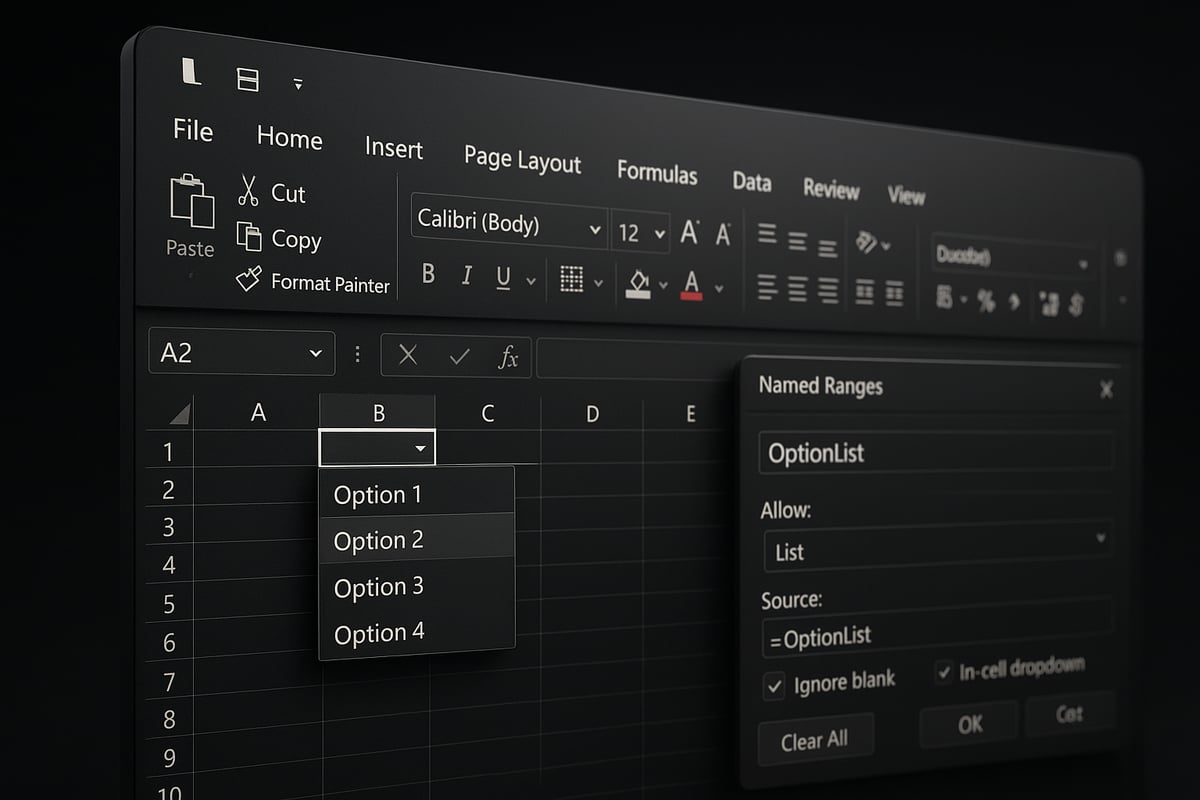
Before you start, organize the items for your drop down in a single column or row. Place this source data on a separate worksheet to keep your main data clean. For example, list job titles in Sheet2, cells A1 to A7.
Naming your range (like "JobList") makes it easier to reference later. To do this, select the range, then use the Name Box above the grid. If you plan to update the list often, format it as an Excel Table. This approach ensures your drop down adapts as items are added or removed.
For more on dynamic lists, check out Excel Table Best Practices.
Step 2: Select Target Cells for the Drop Down
Next, decide where you want users to select from the drop down. Click a single cell, or highlight a range, such as B2 to B20 for employee job titles.
Consider whether you want the drop down in an entire column, a data entry form, or just specific rows. Applying it to a range is helpful for templates or shared workbooks. This step is crucial in how to add drop down list in excel, as it defines where data validation applies.
If working with forms, ensure the target cells are empty and ready for user input.
Step 3: Open the Data Validation Dialog
With your target cells selected, navigate to the Data tab in the Excel ribbon. Look for the Data Tools group, then click the Data Validation button.
In the dialog window that appears, you will configure the settings for your drop down. This interface is central to how to add drop down list in excel, giving you control over allowed values and user prompts.
If you do not see the Data Validation button, ensure you are using a supported version of Excel.
Step 4: Set Up the Drop Down Criteria
Inside the Data Validation dialog, switch to the Settings tab. Under Allow, choose “List” from the dropdown menu. This is the key step in how to add drop down list in excel.
Now, specify your source:
- Reference a range: Enter
=Sheet2!A1:A7if your list is on another sheet. - Use a named range: Type
=JobListfor easier management. - Manual entry: List items separated by commas, like
Yes,No,Maybe.
Ensure “In-cell dropdown” is checked so the arrow appears, and “Ignore blank” if empty cells are allowed.
For example, to create a project status drop down, enter Not Started,In Progress,Completed in the Source box.
If you use a Table for your source data, referencing the column ensures your list stays current. This flexibility is essential for dynamic models, making how to add drop down list in excel work for growing datasets.
Step 5: Test and Use Your Drop Down List
After clicking OK, check the target cell. You should see a small arrow appear. Click it to open the drop down and see your options.
Try selecting different entries. If you enter something not in the list, Excel will display an error, maintaining data integrity. Copy the cell or use the fill handle to apply the drop down to additional cells if needed.
Testing is a vital part of how to add drop down list in excel, ensuring your setup works as intended.
Step 6: Edit or Remove a Drop Down List
To edit your drop down, revisit the Data Validation dialog and adjust the Source or other settings. If you need to remove the validation, select the cell, go to Data > Data Validation, and click Clear All.
The cell will retain its current value, but the drop down and validation are gone. For example, when updating a department list, modify the source range or Table, and the drop down will reflect the changes.
Managing changes is a routine part of how to add drop down list in excel, especially in collaborative environments.
Step 7: Tips for Managing Drop Down Lists Efficiently
- Use Excel Tables for source data to enable automatic updates.
- Hide or protect source lists to prevent accidental edits.
- Document your drop down sources for team clarity.
- Regularly review and update list options for accuracy.
Following these tips ensures you get the most from how to add drop down list in excel, keeping your workbooks reliable and user-friendly.
Customizing Drop Down Lists: Input Messages and Error Alerts
Customizing your Excel drop down lists goes beyond just selection options. Well-designed input messages and error alerts can transform your workflow, providing clear guidance and protecting your data from mistakes. Mastering these features is a crucial step in learning how to add drop down list in excel for maximum efficiency and user satisfaction.

Adding Input Messages to Guide Users
Input messages act as helpful prompts that appear when a user selects a cell containing a drop down list. These messages guide users through data entry, reducing confusion and minimizing errors. If you are exploring how to add drop down list in excel, utilizing input messages is a simple way to make your forms more intuitive.
To add an input message, select your target cell, then navigate to Data > Data Validation > Input Message tab. Here, you can enter a title and a message, such as “Please select a category from the drop down list.” This message will display whenever the cell is active.
Common use cases include onboarding forms, expense reports, and standardized templates. Clear prompts ensure that even new users know exactly what is expected, improving data consistency across your workbook.
Creating Custom Error Messages for Invalid Entries
Custom error messages are essential for enforcing rules in your drop down lists. When users enter a value that is not in the list, Excel can display an alert, preventing incorrect data from slipping in. This is a key consideration when learning how to add drop down list in excel, especially for shared files.
In the Data Validation dialog, switch to the Error Alert tab. Choose a style: Stop (blocks entry), Warning, or Information. Enter a concise message, like “Invalid entry. Please select a valid department.” This immediate feedback helps users correct mistakes before they impact your data.
For a comprehensive walkthrough of these features, consult this Excel Data Validation Guide, which covers input messages, error alerts, and best practices for robust data validation.
Best Practices for User-Friendly Drop Down Lists
Designing effective drop down lists is about more than just knowing how to add drop down list in excel. Follow these best practices to ensure a smooth user experience:
- Keep messages concise and easy to understand.
- Use color coding or cell comments for extra guidance.
- Test messages for clarity and helpfulness.
- Standardize input prompts across your workbooks.
Accessibility is also vital. Use larger fonts or high-contrast colors so all users can interact confidently. Well-crafted prompts and alerts reduce frustration and streamline team collaboration.
Advanced Customization Options
Take your drop down lists further with advanced customization. Combine your knowledge of how to add drop down list in excel with features like conditional formatting, formulas, and protected sheets.
You can use conditional formatting to highlight selections, making important choices stand out. Link drop down selections to formulas such as VLOOKUP or XLOOKUP for automated workflows. Protect source lists or hide them on separate sheets to prevent accidental edits.
By leveraging these advanced options, you can create dynamic and interactive spreadsheets that respond to each selection, further enhancing data quality and user satisfaction.
Advanced Techniques: Dependent and Dynamic Drop Down Lists
Striving to take your Excel skills to the next level? Advanced drop down lists can transform data entry and analysis, especially when you need to manage complex datasets or workflows. In this section, you will learn how to add drop down list in excel with sophisticated features, including dependent (cascading) and dynamic lists, as well as formulas and practical use cases.
Creating Dependent Drop Down Lists (Cascading Lists)
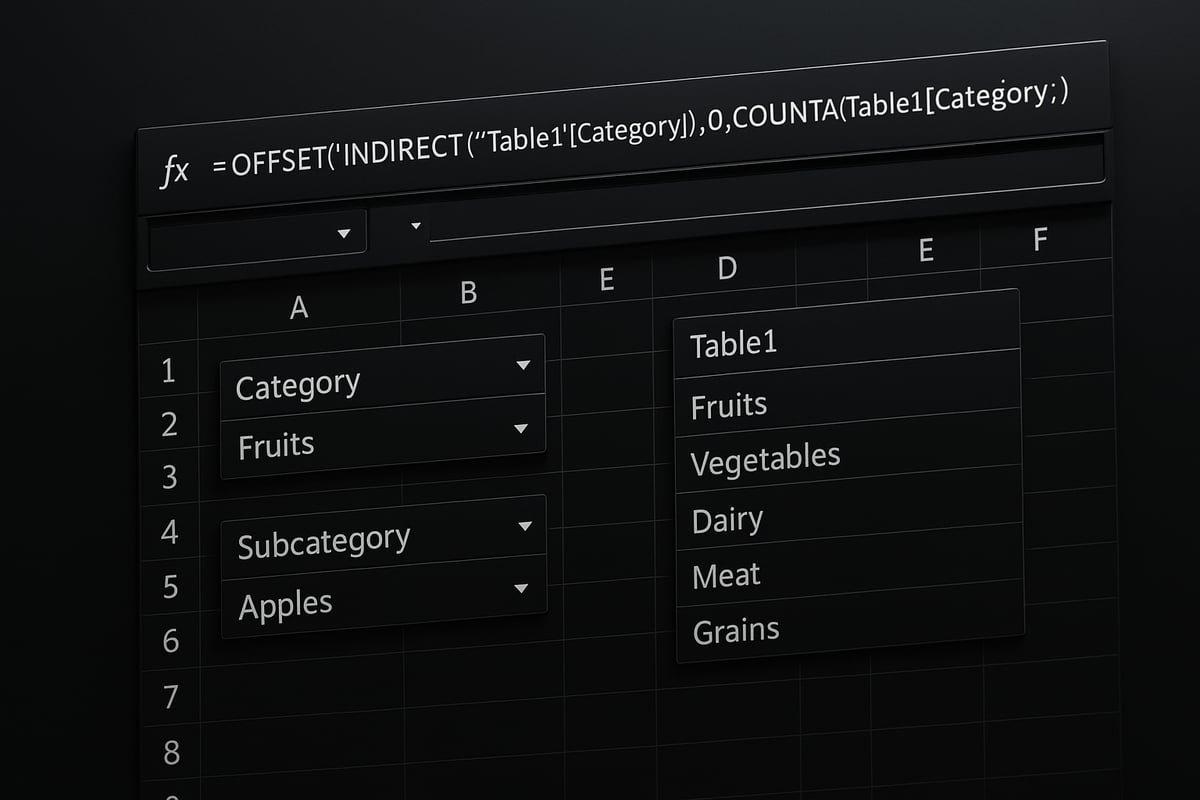
Dependent drop down lists, also called cascading lists, allow the choices in one drop down to change based on the selection in another. This is especially useful for scenarios like “Region” and “City,” or “Product Category” and “Product SKU.” Understanding how to add drop down list in excel with dependencies can greatly improve data accuracy.
To build a dependent drop down list, follow these steps:
- Organize your source data: Place main categories in one column and subcategories in adjacent columns. For example, column A for fruits, columns B and C for apples and bananas.
- Name the ranges: Highlight each subcategory group and assign a name that matches the main category using the Name Manager.
- Set up the first drop down: Use Data Validation with the source set to your main category range (e.g.,
=Category). - Configure the dependent drop down: In the second cell, use Data Validation with the formula
=INDIRECT(A1)(assuming A1 holds the main category selection).
For a detailed visual walkthrough, check out this Building Dependent Drop Down Lists guide.
Dependent lists make workflows smarter and more intuitive. They are essential for anyone wanting to master how to add drop down list in excel for dynamic forms.
Building Dynamic Drop Down Lists (Automatically Updating)
Dynamic drop down lists automatically reflect changes in your source data, so you never have to manually update your list as new items are added or removed. This is a powerful way to streamline how to add drop down list in excel for datasets that change frequently, such as employee directories or product inventories.
Here are two effective methods:
- Format your source as a Table: Select your list, press
Ctrl+T, and reference the table column in your Data Validation source (e.g.,=Table1[Job Title]). This will include any new entries automatically. - Use OFFSET and COUNTA: Define a named range using a formula like
=OFFSET(Sheet2!$A$1,0,0,COUNTA(Sheet2!$A:$A),1)This updates the range as items are added or removed.
Dynamic lists save time and reduce the risk of missing data. They are especially valuable for collaborative workbooks where multiple users update information. If you are looking for how to add drop down list in excel that adapts to your needs, dynamic lists are the answer.
Using Formulas and Named Ranges for Flexibility
Formulas and named ranges make managing advanced drop down lists much easier. When you use named ranges, you can reference your list sources directly in Data Validation, making it simple to update or reuse lists across your workbook.
A common technique is the INDIRECT function, which lets you create dynamic references. For example, if you want a drop down list that changes based on a user’s department, you could use:
=INDIRECT(B2)
where B2 contains the department name.
However, be aware that INDIRECT is not supported in Excel Online, so test your workbook if you plan to share it across platforms.
Leveraging formulas and named ranges is key to mastering how to add drop down list in excel for customized, scalable solutions. These tools give you more control and flexibility over your data validation rules.
Limitations and Workarounds for Advanced Lists
Even with these advanced features, there are some limitations when you look into how to add drop down list in excel. For example, Excel does not natively support multi-select options in drop down lists. If you need users to select multiple items, you will have to use VBA scripts or add checkboxes in separate columns.
Compatibility is another consideration. Some functions, like INDIRECT, may not work in Excel Online or on mobile devices. Data validation can also be affected by hidden rows, blanks, or duplicate values in your source list.
To address these challenges:
- Use helper columns to manage complex dependencies.
- Protect source data by hiding or locking sheets.
- Regularly audit your data validation rules to ensure accuracy.
Understanding these limitations helps you avoid common pitfalls as you learn how to add drop down list in excel with advanced features.
Real-World Applications and Case Studies
Advanced drop down lists have a significant impact across industries. In HR onboarding, you can use dependent lists for “Department” and “Role” selections, ensuring only valid combinations are chosen. Sales teams benefit from “Product Category” to “SKU” cascading lists, making order entry faster and more accurate.
Project managers often rely on dynamic lists for task status or priority, allowing teams to update options as workflows evolve. These practical uses highlight the value of knowing how to add drop down list in excel for real business needs.
According to competitor data, over 70 percent of corporate Excel templates use drop down lists for data validation. This demonstrates just how crucial these tools are for maintaining clean, reliable data in professional environments.
Troubleshooting and Best Practices for Drop Down Lists
If you encounter issues while learning how to add drop down list in excel, you are not alone. Even experienced users can face common pitfalls. Let us walk through the top troubleshooting tips and best practices to ensure your drop down lists work smoothly, remain secure, and are easy to maintain.
Common Problems and Solutions
When figuring out how to add drop down list in excel, users often notice the drop down arrow missing or lists not updating. This is usually caused by incorrect data validation settings, hidden rows, or issues with the source range. Always ensure your list is properly formatted and referenced.
- If the drop down arrow does not appear, check that Data Validation is still applied.
- When options are missing, confirm your source range includes all intended items.
- For the error "The value you entered is not valid," verify that the cell's entry matches an item in your source list.
Broken named ranges after renaming sheets can also cause problems. Double-check all references. For more on fixing these issues, see Troubleshooting Excel Drop Down Issues.
Ensuring Compatibility Across Excel Versions
Compatibility is vital when you learn how to add drop down list in excel, especially if you share files with others. Different Excel versions, such as Excel 2026, Excel 365, and Excel Online, support drop down lists but may have varying feature sets.
For example, the INDIRECT function does not work in Excel Online, which can impact dependent drop downs. Always test your workbook on the platform your team uses most. Stick to features supported across all versions if you plan to collaborate. Avoid advanced formulas or VBA if your audience uses web or mobile Excel.
If unsure about which data validation techniques are universally supported, refer to the official Apply data validation to cells guide.
Maintaining and Auditing Drop Down Lists
Proper maintenance is key to mastering how to add drop down list in excel. Keep your source lists up to date by regularly reviewing and editing them. Outdated options can lead to confusion or errors.
- Audit your data validation rules in large workbooks using Excel’s "Circle Invalid Data" tool.
- Document your drop down list sources in a dedicated sheet or with cell comments.
- Create a "Data Validation Map" to track where lists are used, making it easier for teams to manage and update.
A well-organized approach helps prevent accidental deletions and ensures all drop down lists remain accurate and relevant as your data evolves.
Security and Data Protection Considerations
When you use how to add drop down list in excel for sensitive data, security is a top priority. Protect sheets containing source lists to prevent accidental changes. Limit editing rights to critical drop down cells by locking them and using worksheet protection.
For highly sensitive data, consider storing source lists on hidden sheets. This reduces the risk of unauthorized changes, especially in HR or payroll templates. Always review permissions before sharing files externally. Secure drop down lists help maintain data integrity and protect confidential information.
Frequently Asked Questions About Drop Down Lists in Excel
How do I remove a drop down list in Excel?
If you are wondering how to add drop down list in excel, you may also need to know how to remove one. To delete a drop down, select the cell or range containing the list. Go to the Data tab, then click Data Validation. In the dialog box, choose Clear All and press OK.
After removal, the cell keeps any existing value, but the drop down and its validation are gone. This is useful when updating templates or starting new projects. Remember, removing validation does not erase cell content. Always double-check your cells if you want to clear both the list and the value.
Can I create a drop down list with multiple selections?
Many users ask if how to add drop down list in excel supports multiple selections. Natively, Excel does not allow selecting more than one option from a drop down list. However, you can use a VBA (macro) solution to enable this feature.
Alternatively, for projects needing multiple choices, consider using checkboxes in adjacent columns or rows. Sometimes, splitting options into separate columns is more manageable for data analysis. Choose the best approach depending on your workflow and team needs.
Why is my drop down list not showing all options?
If your drop down is missing items, it could relate to how to add drop down list in excel using source ranges. First, check if your source range includes all desired items. If you use a Table or named range, make sure it expands as you add data.
Common issues include hidden rows, blank cells, or incorrect range references. For example, if you add new SKUs to a product list, ensure the validation range updates too. Regularly review your source data to keep your drop downs accurate and complete.
Additional Tips and Resources for Mastering Drop Down Lists
Mastering how to add drop down list in excel involves continuous learning and exploring new features. For faster data entry, Excel’s AutoComplete for drop down lists can be a game changer. Learn more about this productivity boost in the Speed up data entry with AutoComplete guide from Microsoft.
For further support, explore official Microsoft tutorials, Excel communities, and books on advanced data validation. Experiment with different list types and collaborate with peers to troubleshoot challenges. Engaging with forums can help you solve problems and discover new techniques.