
Working with dates in Excel can feel like solving a puzzle, especially when you need to calculate future or past dates for project deadlines, payment schedules, or inventory tracking. Whether you're managing a simple task list or building complex financial models, knowing how to add a day in Excel is a fundamental skill that saves time and prevents costly errors. This guide walks you through multiple methods to add days to dates, from basic arithmetic to advanced functions that account for weekends and holidays.
Understanding Excel Date Format Basics
Before you can effectively add a day in Excel, you need to understand how Excel stores dates. Behind every date you see displayed on your spreadsheet, Excel stores a serial number representing the number of days since January 1, 1900. This system makes date calculations remarkably straightforward once you grasp the concept.
For example, January 1, 2026 is stored as 46,020. When you add 1 to this number, Excel automatically interprets the result as January 2, 2026. This serial number system is what makes date arithmetic possible in Excel.
Date Formatting Matters
If your dates appear as numbers instead of recognizable dates, you'll need to apply proper formatting. Select your cells, right-click, choose "Format Cells," and select your preferred date format under the "Number" tab. This step ensures your results display correctly when you add a day in Excel.
Common date format issues include:
- Dates displaying as five-digit numbers
- Text entries that look like dates but don't calculate
- Inconsistent date formats across a workbook
- Regional format conflicts between systems
The Simplest Method: Direct Addition
The most straightforward way to add a day in Excel involves simple arithmetic. If you have a date in cell A1 and want to add one day, you can use the formula =A1+1. This method works because Excel treats each day as a whole number in its serial date system.
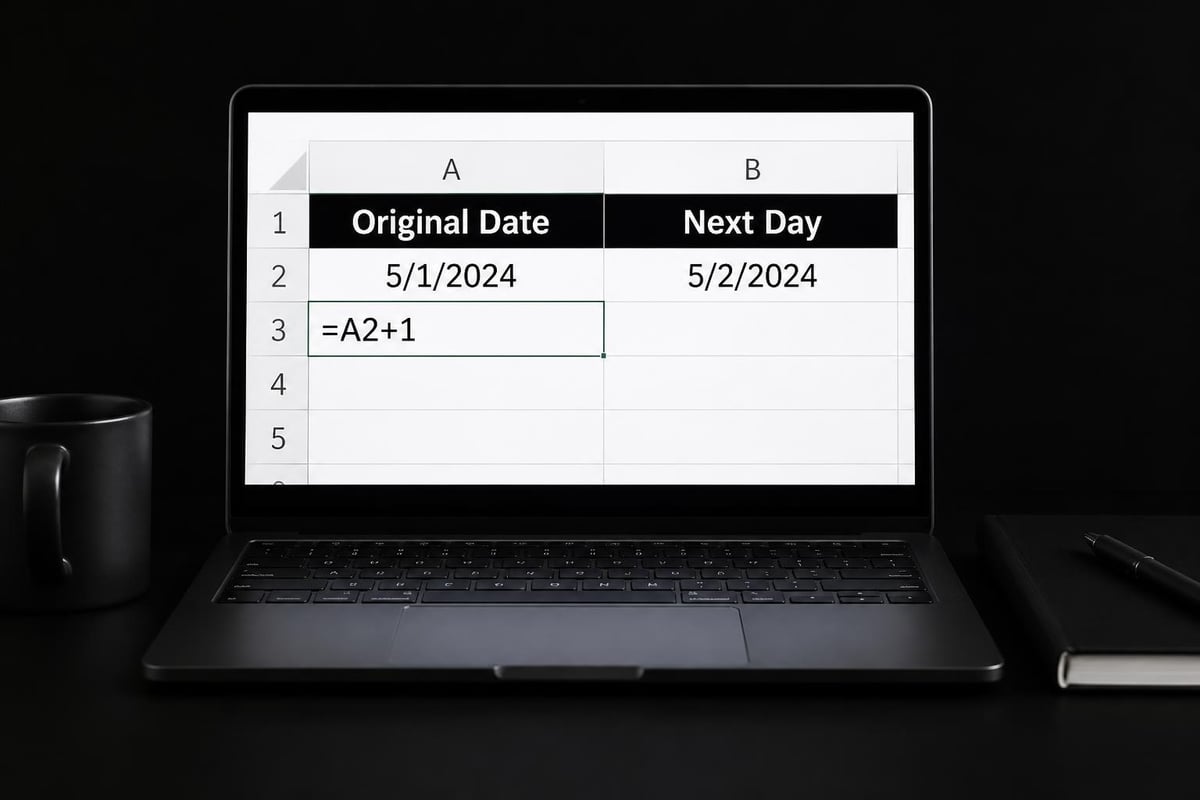
Let me show you how this works in practice:
| Original Date | Formula | Result |
|---|---|---|
| 05/05/2026 | =A2+1 | 05/06/2026 |
| 12/31/2025 | =A3+1 | 01/01/2026 |
| 02/28/2026 | =A4+1 | 03/01/2026 |
Adding Multiple Days
You're not limited to adding just one day. To add multiple days, simply change the number in your formula. For instance, =A1+7 adds one week to your date, while =A1+30 adds approximately one month.
This flexibility makes direct addition perfect for scenarios where you need to calculate due dates, follow-up schedules, or project timelines. The Microsoft Support article on adding or subtracting dates provides additional examples of this technique.
Using the DATE Function for Precision
When you need more control over date calculations, the DATE function offers superior precision. This function constructs dates from individual year, month, and day components, making it ideal when you need to add a day in Excel while also manipulating other date elements.
The DATE function syntax is: =DATE(year, month, day)
Breaking Down DATE Function Components
To add one day using the DATE function, you'll extract the components from your original date and modify the day value:
=DATE(YEAR(A1), MONTH(A1), DAY(A1)+1)
This formula takes the year and month from cell A1, then adds 1 to the day component. While this seems more complex than simple addition, it offers advantages when dealing with month-end scenarios or when combining multiple date operations.
Benefits of the DATE function approach:
- Automatically handles month-end rollovers
- Prevents invalid dates like February 30
- Combines easily with other date calculations
- Provides clarity in complex formulas
The DATE function documentation from Microsoft offers comprehensive examples for advanced scenarios.
Adding Business Days with WORKDAY
Many business scenarios require adding working days rather than calendar days. When you need to add a day in Excel while excluding weekends and holidays, the WORKDAY function becomes indispensable.
The WORKDAY function syntax is: =WORKDAY(start_date, days, [holidays])
WORKDAY Function in Action
Suppose you need to calculate a delivery date five business days from May 5, 2026. The formula =WORKDAY("5/5/2026", 5) automatically skips weekends to give you the correct business day.
| Start Date | Business Days to Add | Formula | Result |
|---|---|---|---|
| 05/05/2026 (Mon) | 1 | =WORKDAY(A2,1) | 05/06/2026 (Tue) |
| 05/08/2026 (Fri) | 1 | =WORKDAY(A3,1) | 05/11/2026 (Mon) |
| 05/08/2026 (Fri) | 3 | =WORKDAY(A4,3) | 05/13/2026 (Wed) |
For more advanced business day calculations, ExcelJet’s guide on adding business days demonstrates how to incorporate holiday lists into your formulas.
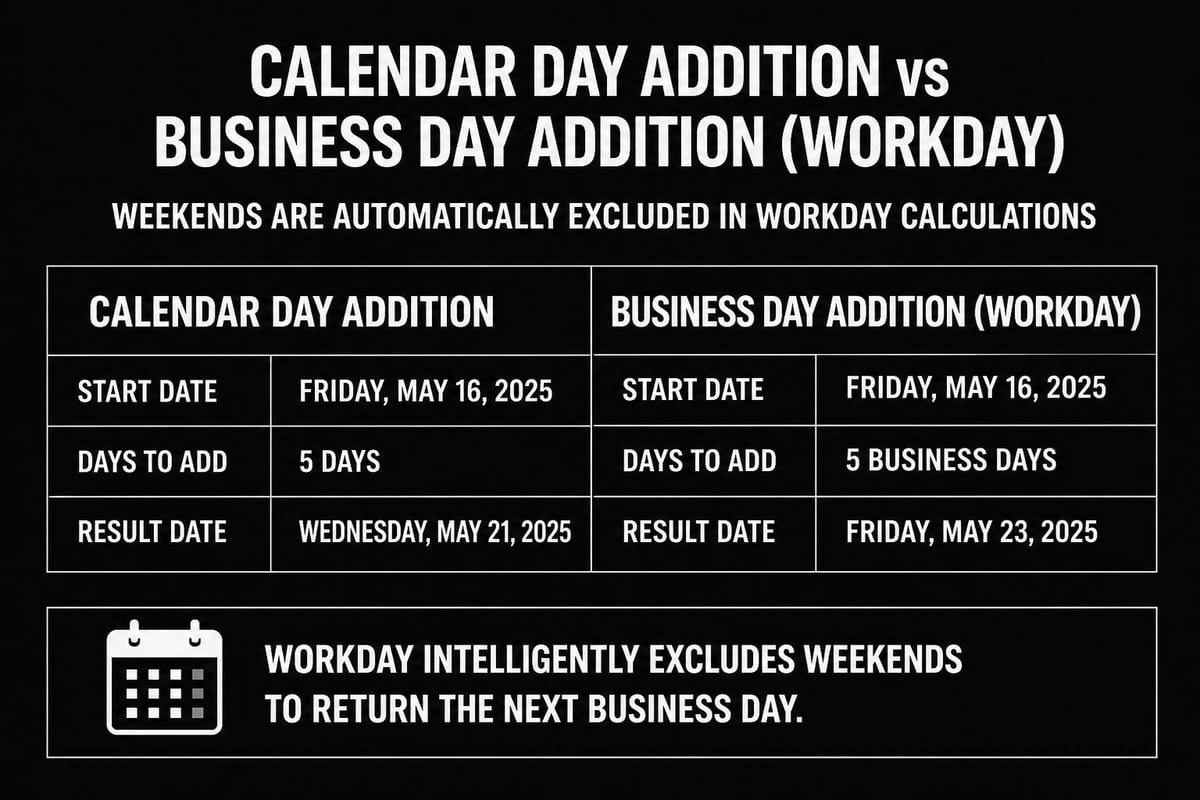
Including Holiday Exclusions
To exclude company holidays, create a list of holiday dates in a separate range and reference it in your formula:
=WORKDAY(A1, 5, $H$2:$H$10)
This formula adds five business days to the date in A1 while skipping any dates listed in cells H2 through H10. This capability makes the WORKDAY function essential for project management, procurement schedules, and compliance deadlines.
Common Errors When Adding Days
Even experienced Excel users encounter problems when working with date calculations. Understanding these common pitfalls helps you troubleshoot issues quickly and maintain accurate spreadsheets.
Text-Formatted Dates
The most frequent error occurs when dates are stored as text rather than date values. If you try to add a day in Excel to a text-formatted date, you'll get a #VALUE! error. To fix this, use the DATEVALUE function to convert text to a proper date:
=DATEVALUE(A1)+1
Incorrect Regional Settings
Regional date format differences can cause confusion. A date entered as "5/6/2026" might be interpreted as May 6 in the United States but June 5 in Europe. Always verify your system's regional settings when sharing workbooks internationally.
Troubleshooting checklist:
- Verify cells are formatted as dates, not text or general
- Check for leading or trailing spaces in date cells
- Confirm regional settings match your intended format
- Use data validation to prevent incorrect entries
If you're experiencing persistent formatting issues, The Analytics Doctor’s corporate Excel training can help your team standardize date handling across your organization.
Advanced Date Addition Techniques
Once you master the basics of how to add a day in Excel, you can combine methods for more sophisticated calculations. These advanced techniques solve real-world business problems that simple formulas cannot address.
Conditional Date Addition
Sometimes you need to add days only when certain conditions are met. The IF function combines perfectly with date addition:
=IF(A1="Complete", B1+7, B1)
This formula adds seven days to the date in B1 only if cell A1 contains "Complete." Otherwise, it returns the original date unchanged.
Dynamic Day Addition
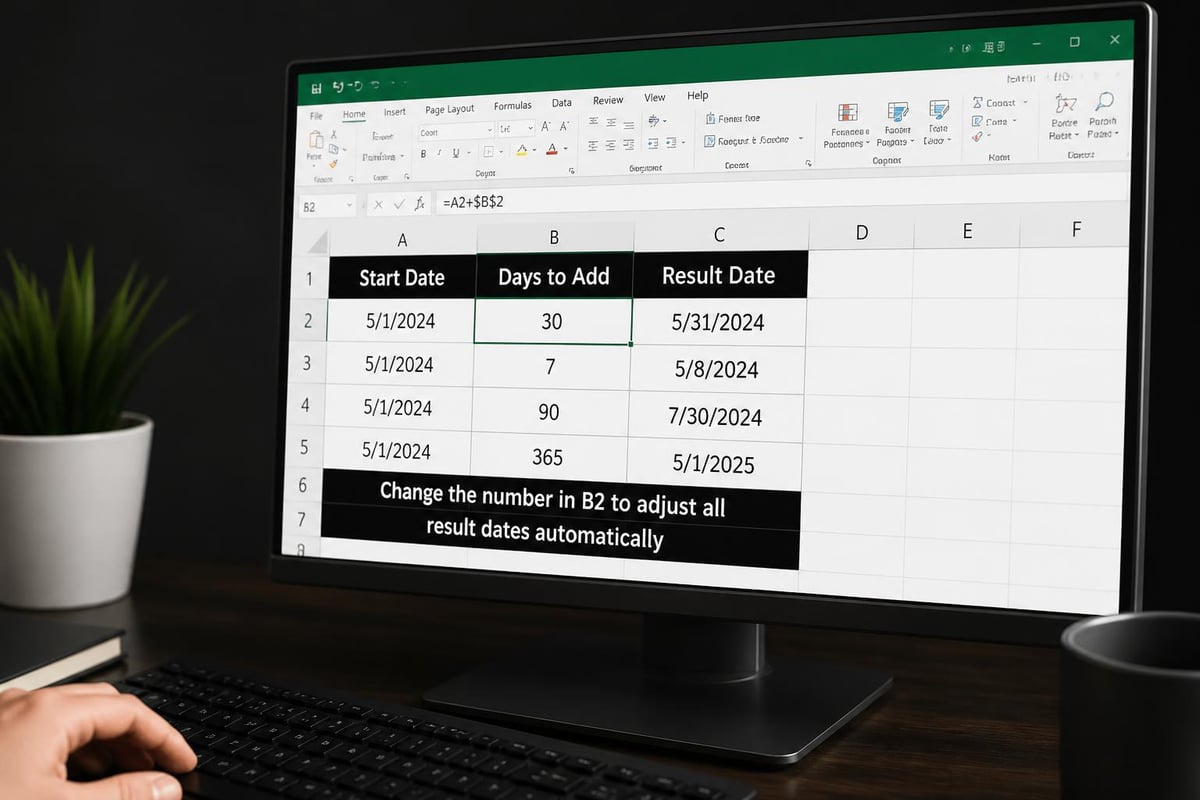
For interactive spreadsheets, reference a cell containing the number of days to add:
=A1+$C$1
This formula adds whatever number of days you enter in cell C1, making your spreadsheet flexible without editing formulas.
Working with Date Arrays and Tables
When managing multiple dates across large datasets, you'll want to apply date addition formulas efficiently. Excel's table features and array formulas make this process seamless.
Using Excel Tables for Date Management
Convert your data range to an Excel Table (Ctrl+T) to enable structured references. If your table is named "Schedule" with a column called "StartDate," you can add days using:
=[@StartDate]+[@DaysToAdd]
This structured reference automatically applies to all rows in your table, making it easy to add a day in Excel across hundreds or thousands of records simultaneously. For comprehensive date function guidance, explore GeeksforGeeks’ Excel date functions overview.
Array Formula Approach
For Excel 365 users, dynamic arrays allow you to add days to an entire range with a single formula:
=A2:A100+7
This spills the results down automatically, eliminating the need to copy formulas manually.
| Feature | Traditional Formulas | Dynamic Arrays |
|---|---|---|
| Setup time | Copy to each cell | Single formula |
| Updates | Manual recopy | Automatic |
| Error risk | Medium | Low |
| Version requirement | All versions | Excel 365 only |
Combining Date Functions for Complex Scenarios
Real business problems often require combining multiple date functions. Understanding how to add a day in Excel using composite formulas expands your analytical capabilities significantly.
End-of-Month Calculations
To add a specific number of days but ensure the result doesn't exceed month-end, combine DATE, EOMONTH, and MIN functions:
=MIN(A1+7, EOMONTH(A1,0))
This formula adds seven days but caps the result at the last day of the current month. Such calculations are common in subscription billing, accounting periods, and regulatory reporting.
Quarter-Aware Date Addition
For fiscal quarter calculations, you might need to add days while staying within quarter boundaries:
=MIN(A1+30, DATE(YEAR(A1), CEILING(MONTH(A1)/3,1)*3+1, 0))
While complex, this formula demonstrates how date functions stack to solve specific business requirements. When formulas become this intricate, consider Excel consultancy services to build maintainable, documented solutions.
Best Practices for Date Calculations
Maintaining accurate, auditable date calculations requires adherence to established best practices. These guidelines prevent errors and ensure your spreadsheets remain reliable as they grow in complexity.
Essential date calculation practices:
- Always format date columns explicitly to prevent display ambiguity
- Document your formulas with comments explaining business logic
- Use named ranges for holiday lists and reference dates
- Test boundary conditions like month-ends, year-ends, and leap years
- Standardize date entry with data validation to prevent text entry
Creating Audit Trails
For compliance-critical spreadsheets, maintain an audit trail showing when dates were calculated and what values were used. A simple approach adds columns for calculation date and source:
=TODAY() & " - Added " & $C$1 & " days to " & TEXT(A1,"mm/dd/yyyy")
This creates a text record of each calculation, invaluable during audits or error investigation. The Excel data validation guide from The Analytics Doctor explains how to lock down date entry to prevent calculation errors.
Troubleshooting Date Calculation Issues
When your date formulas don't work as expected, systematic troubleshooting identifies the root cause quickly. Most date calculation problems fall into a few predictable categories.
Formula Auditing Tools
Excel's built-in auditing tools help visualize how your formulas work. Press F2 while editing a cell to see color-coded cell references, or use the Formula Auditing ribbon to trace precedents and dependents.
Common error codes and solutions:
| Error | Cause | Solution |
|---|---|---|
| #VALUE! | Text instead of date | Use DATEVALUE or reformat |
| #NUM! | Invalid date calculation | Check for negative dates |
| ##### | Column too narrow | Widen column or change format |
| Wrong date | Regional format mismatch | Verify system settings |
For complex spreadsheet debugging, Make Use Of’s date functions guide provides additional troubleshooting strategies.
Practical Applications Across Industries
Understanding how to add a day in Excel serves diverse business needs across every industry. Real-world applications demonstrate the value of mastering these techniques.
Project Management Scenarios
Construction schedules, software development sprints, and marketing campaigns all rely on accurate date projections. Adding buffer days to critical path items or calculating milestone dates becomes straightforward with proper formula construction.
Financial and Accounting Uses
Invoice due dates, payment terms, accrual calculations, and fiscal period management all require precise date arithmetic. Adding days to transaction dates while respecting business day conventions ensures compliance and cash flow accuracy.
Healthcare and Compliance
Medical records, prescription refills, certification renewals, and inspection schedules depend on accurate future date calculations. The ability to add a day in Excel while accounting for weekends and holidays ensures regulatory compliance.
Supply Chain Operations
Purchase order lead times, inventory replenishment cycles, and shipping schedules require complex date calculations. Combining simple day addition with conditional logic creates dynamic supply chain models that adapt to changing conditions.
For teams managing complex operational spreadsheets, The Analytics Doctor’s Excel business automation services can streamline these recurring calculations.
Integration with Other Excel Features
Date calculations become more powerful when integrated with Excel's broader feature set. Understanding these connections transforms basic date addition into comprehensive analytical tools.
Conditional Formatting Based on Dates
Highlight upcoming deadlines by combining date addition with conditional formatting. Create a rule that formats cells red when the deadline (original date plus buffer days) is within three days:
=($A1+$B1)-TODAY()<=3
PivotTable Date Grouping
When analyzing trends over time, PivotTables automatically group dates by month, quarter, or year. Adding calculated fields that incorporate day addition enables period-over-period comparisons.
Chart Timeline Visualizations
Gantt charts and timeline visualizations rely on accurate start and end date calculations. Adding days to start dates creates duration-based end dates that update automatically when project parameters change.
The How to Geek guide on Excel date and time functions demonstrates advanced integration techniques for dashboard building.
Building Date Calculation Templates
Rather than recreating date formulas repeatedly, build reusable templates that standardize calculations across your organization. These templates reduce errors and accelerate spreadsheet development.
Template Components
A comprehensive date calculation template includes:
- Pre-formatted date entry cells with data validation
- Drop-down lists for common day addition scenarios
- Named ranges for holiday lists and business parameters
- Protected formula cells to prevent accidental modification
- Instructions and examples on a documentation sheet
Template Distribution Best Practices
When sharing templates across teams, lock formula cells while leaving input cells editable. Include a version number and update log so users know they're working with current logic.
Consider creating templates for specific use cases: invoice due date calculators, project timeline builders, or subscription renewal trackers. Each template becomes a reliable tool that eliminates the need to add a day in Excel manually.
Performance Considerations for Large Datasets
When working with thousands of date calculations, formula efficiency matters. Poorly optimized date formulas can slow spreadsheet performance dramatically, especially in older Excel versions.
Volatile Function Alternatives
Functions like TODAY() and NOW() recalculate every time the spreadsheet changes, even when their results haven't changed. For large datasets, consider entering the current date once in a cell and referencing it, rather than using TODAY() thousands of times.
Calculation Mode Management
Switch to manual calculation mode (Formulas > Calculation Options > Manual) when building large date models. This prevents Excel from recalculating after every cell entry, dramatically improving data entry speed.
Performance optimization tips:
- Limit array formulas to necessary ranges
- Use helper columns instead of complex nested formulas
- Convert formulas to values once dates are finalized
- Remove unnecessary worksheet references
- Break large workbooks into smaller, linked files
For enterprise-scale spreadsheet optimization, ExcelJet’s guide on adding years to dates includes performance considerations for large-scale date manipulations.
Mastering how to add a day in Excel gives you precise control over date calculations, from simple deadline tracking to complex business day scenarios across large datasets. When your spreadsheet needs go beyond basic formulas or you're facing persistent date calculation errors, The Analytics Doctor provides expert troubleshooting, custom formula development, and personalized training to help you build reliable, audit-ready workbooks. Whether you need one-time fixes or comprehensive team training, clear solutions are just a consultation away.


