Accidentally overwriting an important Excel file can feel like a disaster, especially when it contains critical business data, financial reports, or hours of painstaking work. The good news is that Excel and Windows offer several built-in recovery mechanisms that can help you retrieve your lost data. Whether you saved over the wrong version, hit "Save" when you meant to create a new file, or accidentally replaced important information, you have multiple pathways to recover an Excel file that was overwritten. Understanding these recovery methods and implementing proper preventive measures can save you countless hours of work and significant stress.
Understanding What Happens When You Overwrite an Excel File
When you overwrite an Excel file, the current version replaces the previous one in the same storage location. Unlike deleting a file (which moves it to the Recycle Bin), overwriting permanently alters the file's contents in that specific location.
However, several backup systems work behind the scenes. Excel's AutoRecover feature creates temporary backup copies at regular intervals. Windows File History maintains snapshots of your files. OneDrive and SharePoint track version history for cloud-stored documents. These redundant systems create your safety net for recovery.
The critical factor in successful recovery is acting quickly. The longer you wait after overwriting a file, the more likely temporary files will be cleared or version histories will be overwritten themselves. Immediately stop working in the file and begin the recovery process as soon as you realize the mistake.

Using Excel's AutoRecover Feature to Retrieve Overwritten Data
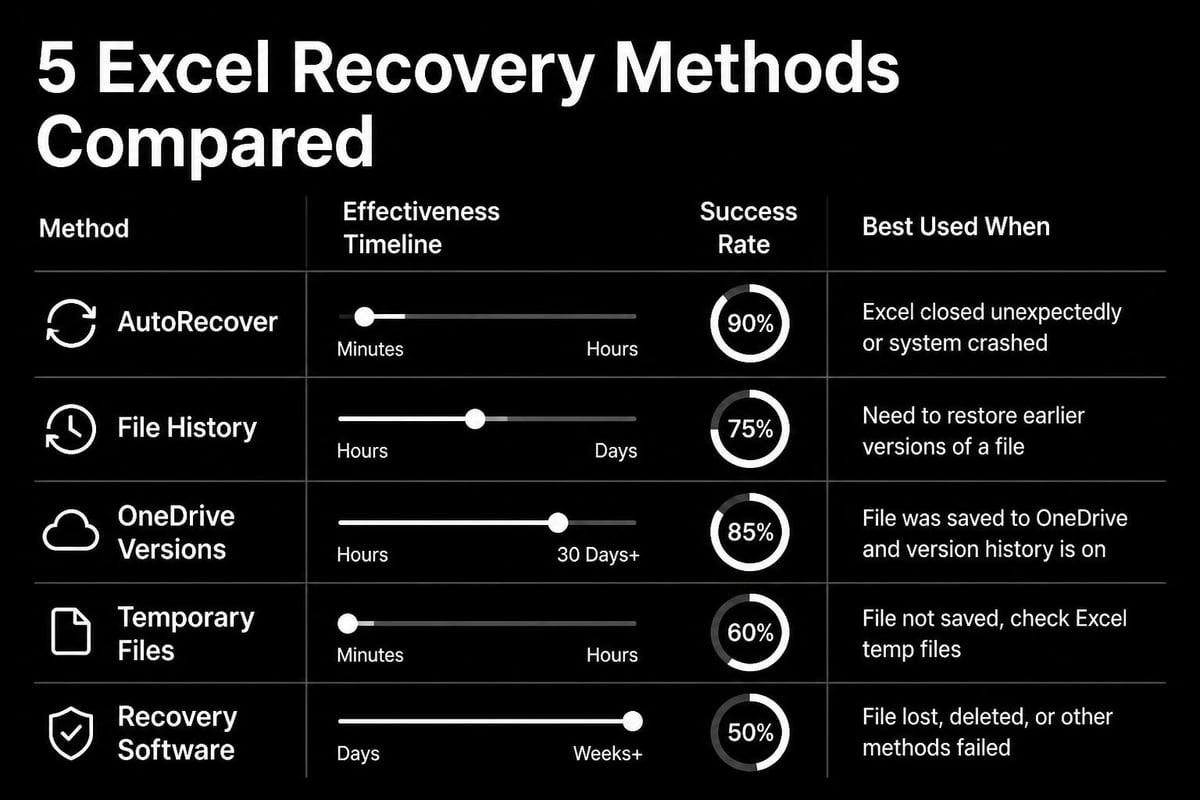
Excel's AutoRecover function automatically saves temporary versions of your workbook at predetermined intervals, typically every 10 minutes by default. This feature provides your first line of defense when attempting to recover an excel file that was overwritten.
Accessing AutoRecover Files Through Excel
To locate AutoRecover files, open Excel and navigate to File > Info > Manage Workbook. Look for "Recover Unsaved Workbooks" at the bottom of the versions list. Click this option to open the file browser showing all available AutoRecover files.
The AutoRecover folder stores files with the extension .xlsb (Excel binary format). Browse through these files by date and time stamps to find versions created before you overwrote your original file. When you locate a promising candidate, open it and verify the content matches what you need.
Configuring AutoRecover Settings
Maximizing your recovery options requires proper AutoRecover configuration:
- Navigate to File > Options > Save
- Check "Save AutoRecover information every X minutes"
- Reduce the interval to 5 minutes for critical work
- Verify the AutoRecover file location path
- Enable "Keep the last AutoRecovered version if I close without saving"
| Setting | Recommended Value | Purpose |
|---|---|---|
| AutoRecover Interval | 5-10 minutes | Minimizes data loss between saves |
| Keep Last Version | Enabled | Preserves recovery options after closing |
| AutoRecover Location | Known, accessible path | Ensures you can find backup files |
If you're working on important financial models or client reports, consider setting AutoRecover to save every 5 minutes. While this creates more frequent disk writes, the protection far outweighs any minor performance impact. For those who need structured guidance on Excel best practices, corporate Excel training can help establish these safeguards across your organization.
Recovering Previous Versions Through Windows File History
Windows File History provides another powerful tool to recover an excel file that was overwritten. This feature creates periodic snapshots of files in monitored folders, allowing you to roll back to earlier versions.
Enabling and Accessing File History
First, verify File History is enabled on your system. Navigate to Settings > Update & Security > Backup. If File History is active, you'll see backup options and the last backup date. If not enabled, configure an external drive or network location to begin automatic backups.
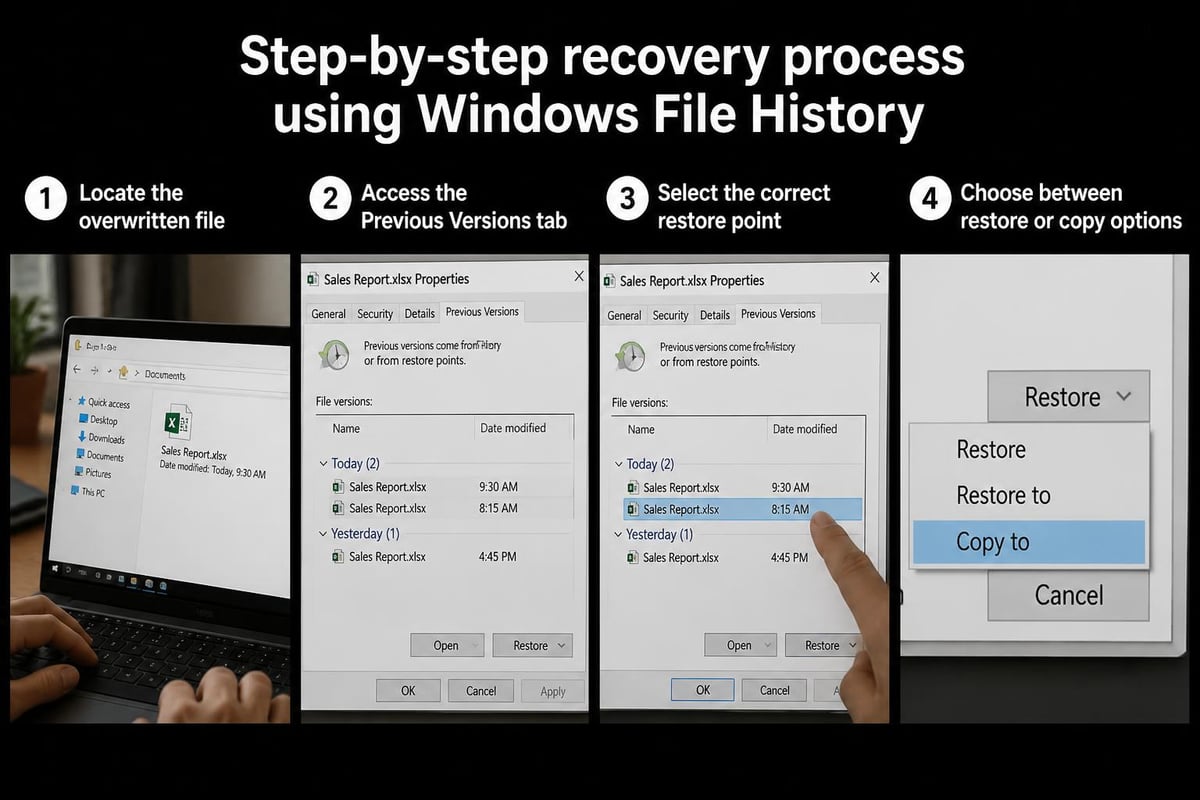
To restore a previous version:
- Navigate to the folder containing your overwritten Excel file
- Right-click the file and select "Properties"
- Click the "Previous Versions" tab
- Review the list of available restore points with dates and times
- Select the version you want to recover
- Click "Restore" to replace the current file, or "Open" to view before restoring
Important consideration: The "Restore" button immediately replaces your current file. If there's any chance you need content from the overwritten version, select "Copy" instead to save the previous version to a different location. This preserves both versions for comparison and selective data recovery.
Understanding Version Timestamps
File History creates restore points based on system settings, typically hourly when changes are detected. Review multiple versions if available, as the most recent previous version may not contain all the data you need. Sometimes the version you need sits several restore points back, especially if you made multiple saves over a short period.
Microsoft provides detailed guidance on recovering earlier versions of Office files through their official support documentation, which covers both local and cloud-based recovery methods.
Leveraging OneDrive and SharePoint Version History
For files stored in OneDrive or SharePoint, cloud-based version history offers the most comprehensive recovery solution. Microsoft 365 maintains extensive version histories that can span hundreds of versions and months of changes.
Accessing OneDrive Version History
OneDrive retains version history for all Office documents automatically. To access these versions, navigate to OneDrive through your web browser and locate the overwritten Excel file. Right-click the file and select "Version history" from the context menu.
The version history panel displays all saved versions chronologically, showing who made changes and when. Each version entry includes a timestamp and the editor's name. You can preview any version by clicking on it, and restore a previous version by selecting the dropdown menu next to that version and choosing "Restore."
Key advantages of OneDrive version history:
- Retains up to 500 versions per file
- Maintains history for 30 days (or longer with retention policies)
- Allows comparison between versions
- Enables selective restoration without affecting other files
- Provides audit trail showing who made changes
SharePoint Version Control Features
SharePoint offers more advanced version control capabilities for enterprise environments. Major and minor versioning, check-in/check-out systems, and approval workflows prevent accidental overwrites in collaborative settings.
To recover an excel file that was overwritten in SharePoint, access the document library, select the file, and click "Version History" from the ribbon or context menu. SharePoint displays all major and minor versions with detailed metadata about each change.
Microsoft's documentation on restoring previous versions of Excel files provides platform-specific instructions for Excel for the web and desktop applications.
Exploring Temporary File Locations for Recovery
Excel creates temporary files during normal operation that may contain recoverable data. These hidden files serve as another potential recovery source when other methods fail.
Locating Excel Temporary Files
Excel stores temporary files in several default locations depending on your Windows version and configuration:
- C:\Users[YourUsername]\AppData\Local\Microsoft\Office\UnsavedFiles
- C:\Users[YourUsername]\AppData\Roaming\Microsoft\Excel
- C:\Users[YourUsername]\AppData\Local\Temp
Navigate to these folders using File Explorer. You may need to enable "Show hidden files" in View options to access AppData folders. Look for files with extensions like .tmp, .xlsb, or those beginning with tilde (~) or dollar sign ($).
Sort files by date modified to identify temporary files created around the time you were working on your spreadsheet. Excel temporary files often have cryptic names, but the modification date helps narrow your search.
Opening and Verifying Temporary Files
Temporary files may not open directly in Excel. Try these approaches:
- Change the file extension from .tmp to .xlsx or .xlsb
- Open Excel first, then use File > Open to select the temporary file
- Import the file using Excel's "Open and Repair" feature
- Copy the file to a different location before attempting to open it
Not all temporary files contain complete workbook data. Some serve as caching mechanisms and contain only fragments. Open multiple candidates to find the most complete version of your overwritten data.
Using Third-Party Recovery Software Options
When built-in recovery methods fail to recover an excel file that was overwritten, specialized data recovery software provides additional options. These tools scan your drive for file remnants and attempt to reconstruct overwritten data.
Commercial Recovery Software Features
Professional recovery applications offer advanced features beyond Windows capabilities:
- Deep scanning of storage devices for file signatures
- Recovery of permanently deleted files
- Reconstruction of partially overwritten data
- Support for various file systems (NTFS, FAT32, exFAT)
- Preview capabilities before recovery
Popular options include Stellar Data Recovery, EaseUS Data Recovery Wizard, and Recuva. These applications typically offer free scanning to identify recoverable files, with payment required for actual recovery.
Important Limitations and Considerations
Recovery software success depends heavily on how much time has passed and how much disk activity occurred since the overwrite. New data written to your drive may occupy the same physical sectors as your original file, making recovery impossible.
| Recovery Scenario | Success Probability | Recommended Action |
|---|---|---|
| Immediate recovery attempt | High | Stop using the drive, run recovery software |
| Several hours later, moderate use | Medium | Prioritize deep scan, check all found files |
| Days later, heavy disk activity | Low | Try anyway, but manage expectations |
| SSD with TRIM enabled | Very Low | Focus on cloud/backup recovery methods |
Critical warning: Install recovery software on a different drive than the one containing your overwritten file. Installing software to the same drive risks overwriting the exact sectors containing your recoverable data. For guidance on complex Excel recovery scenarios, Excel consulting services can provide expert assistance.
Implementing Prevention Strategies to Avoid Future Data Loss
The most effective approach to recovering overwritten Excel files is preventing overwrites in the first place. Establishing robust backup and workflow practices eliminates most recovery scenarios.
Creating Systematic Backup Routines
Implement a multi-layered backup strategy for important Excel files:
- Real-time cloud sync: Store critical files in OneDrive or SharePoint for automatic version history
- Daily local backups: Use File History or third-party backup software for local protection
- Weekly archive copies: Create dated copies of important workbooks in a separate location
- Monthly off-site backups: Maintain cloud or external drive backups stored away from your primary location
This redundant approach ensures multiple recovery points regardless of the failure type. Even if one backup system fails, others provide fallback options.
Developing Safe File Management Practices
Modify your daily Excel workflow to minimize overwrite risks:
- Use "Save As" liberally: When making major changes, save a new version with a descriptive name
- Implement version numbering: Add v1, v2, v3 to filenames for easy identification
- Create date-stamped copies: Include dates in filenames (e.g., Budget_2026-05-04.xlsx)
- Maintain a working folder: Keep all active versions in a dedicated folder separate from archives
- Enable automatic saving: Configure Excel to auto-save to OneDrive every few seconds
For businesses handling sensitive data or complex financial models, Excel business automation can establish enterprise-grade version control and backup systems.
Configuring Excel for Maximum Protection
Optimize Excel settings to prevent accidental overwrites and enhance recovery options:
File options to enable:
- AutoRecover (5-minute intervals)
- AutoSave (for OneDrive/SharePoint files)
- Keep last AutoRecovered version
- Prompt before overwriting existing files
Additional protective measures:
- Enable workbook protection for critical sheets
- Use read-only mode when reviewing files
- Configure Excel to open files in Protected View
- Implement naming conventions that prevent confusion
| Protection Level | Configuration | Best For |
|---|---|---|
| Basic | AutoRecover + File History | Individual users, standard documents |
| Advanced | Cloud sync + version control + local backup | Business-critical files, financial data |
| Enterprise | SharePoint + retention policies + audit logs | Regulated industries, collaborative teams |
Troubleshooting Common Recovery Challenges
Even with the right tools and methods, you may encounter obstacles when attempting to recover an excel file that was overwritten. Understanding common issues and their solutions improves recovery success rates.
Dealing with Corrupted AutoRecover Files
AutoRecover files occasionally become corrupted, especially if Excel crashed during the save process. When an AutoRecover file won't open normally, try these techniques:
- Use Excel's "Open and Repair" feature (File > Open > Browse > select file > Open dropdown > Open and Repair)
- Copy the file to a new location before attempting to open
- Try opening in Excel Safe Mode (hold Ctrl while launching Excel)
- Attempt opening with Excel Online through OneDrive upload
Microsoft provides specific guidance on repairing corrupted workbooks that can salvage data from damaged files.
Resolving Access and Permission Issues
Version history and previous versions may be unavailable due to permission restrictions or disabled features. Common solutions include:
- Check if File History is enabled: Navigate to Windows Settings > Backup to verify
- Verify OneDrive sync status: Ensure files are actually syncing to the cloud
- Confirm administrative privileges: Some recovery operations require elevated permissions
- Review retention policies: Enterprise OneDrive accounts may have custom version retention settings
Contact your IT department if working with managed devices or network drives with restricted access.
Handling Cases with No Available Versions
When no previous versions exist through any recovery method, you're dealing with a worst-case scenario. Limited options remain:
- Check if anyone emailed you a copy of the file
- Look for exported copies in other formats (CSV, PDF)
- Search for printed copies that could be manually re-entered
- Examine related files that might contain the same data
- Review Recycle Bin thoroughly (though overwrites don't send files there)
In these situations, prevention becomes even more critical for future work. Resources like ExcelDemy’s recovery guide offer additional techniques for challenging recovery scenarios.
Understanding Recovery Limitations and Realistic Expectations
Setting realistic expectations about recovery possibilities helps you make informed decisions about time investment and alternative approaches. Not every overwrite situation has a happy ending.
Factors That Impact Recovery Success
Several variables determine whether you can successfully recover an excel file that was overwritten:
Time elapsed since overwrite: The longer the gap, the more likely temporary files have been cleaned and disk sectors reused. Immediate recovery attempts have the highest success rates.
Storage device type: Traditional hard drives retain overwritten data longer than solid-state drives (SSDs). SSD TRIM operations actively erase deleted data, making recovery significantly harder.
Backup system status: Disabled or improperly configured AutoRecover, File History, or cloud sync eliminates your primary recovery pathways.
System activity level: Heavy disk usage after the overwrite increases the chance that new data has occupied the space previously used by your file.
When to Accept Data Loss and Move Forward
Sometimes recovery isn't possible despite best efforts. Recognize these situations to avoid wasting valuable time:
- No AutoRecover files exist and the feature was disabled
- File History shows no previous versions and wasn't enabled
- The file was never saved to OneDrive or cloud storage
- Several days have passed with heavy computer use
- Recovery software finds no traces of the original file
When recovery fails, focus energy on reconstructing the data through alternative means and implementing prevention measures. For complex spreadsheet rebuilding, professional Excel training can accelerate the reconstruction process and establish better practices.
Advanced Recovery Techniques for IT Professionals
IT professionals supporting multiple users may need more sophisticated recovery approaches. These advanced techniques extend beyond standard user-level recovery methods.
PowerShell Scripts for Bulk Recovery Operations
IT administrators can automate version recovery across multiple files using PowerShell and SharePoint/OneDrive APIs. Scripts can identify recently modified files, extract version histories, and batch-restore previous versions based on timestamps or other criteria.
Network Share Shadow Copies
Windows Server environments with Volume Shadow Copy Service (VSS) enabled maintain shadow copies of network shares. Administrators can access these through:
- Right-click the network share in File Explorer
- Select "Properties" > "Previous Versions"
- Choose the appropriate shadow copy snapshot
- Restore the entire share or specific files
Shadow copy retention depends on server configuration and available disk space. Coordinate with system administrators to access these enterprise-level backups.
Database-Backed Recovery Systems
Organizations relying heavily on Excel for data management should consider implementing database-backed systems that log all changes. These systems provide:
- Complete audit trails of all modifications
- Ability to rollback to any previous state
- Protection against both accidental and malicious overwrites
- Compliance with regulatory retention requirements
Transitioning from Excel-dependent workflows to hybrid database solutions requires careful planning. Community discussions like this Microsoft Q&A thread highlight real-world recovery challenges and solutions from IT professionals.
Special Considerations for Mac Users
Mac users attempting to recover an excel file that was overwritten have access to different recovery tools and features compared to Windows environments.
Time Machine for Excel Recovery
Time Machine, macOS's built-in backup solution, functions similarly to Windows File History. When enabled and configured with an external drive:
- Open the folder containing your overwritten Excel file
- Launch Time Machine from the menu bar or Applications
- Navigate through the timeline to find the desired backup date
- Select the file and click "Restore"
Time Machine maintains hourly backups for the past 24 hours, daily backups for the past month, and weekly backups for older files (until the backup drive fills).
Accessing AutoRecover on Mac
Excel for Mac stores AutoRecover files in a different location:
Path: ~/Library/Containers/com.microsoft.Excel/Data/Library/Application Support/Microsoft/Office/Office 2016 AutoRecover
Access this by opening Finder, selecting Go > Go to Folder, and pasting the path. Sort by date modified to find recent AutoRecover files.
Version History in Excel for Mac
Excel for Mac integrates with iCloud Drive for automatic version history. Files stored in iCloud Drive maintain previous versions accessible through:
- File > Browse Version History (for OneDrive/SharePoint files)
- Right-click file in Finder > Revert To > Browse All Versions (for local files with Time Machine)
Successfully recovering overwritten Excel files depends on having the right backup systems enabled before disaster strikes and knowing where to look when problems occur. While AutoRecover, File History, and cloud version history provide excellent recovery options, the most effective strategy combines multiple backup layers with disciplined file management practices. Whether you're dealing with a simple overwrite or complex data loss scenario, The Analytics Doctor offers expert Excel support to help recover your valuable data and implement robust safeguards that prevent future losses.