Skip to content

Struggling with messy data and hidden duplicates in your Excel sheets? You're not alone. Duplicate data can derail analysis and lead to expensive mistakes for any business.
This expert guide will show you how to search for duplicates on excel, helping you ensure your data is both accurate and reliable. Clean data is essential to make confident decisions and avoid reporting errors.
You will explore Excel's built-in tools, advanced techniques, automation strategies, and proven best practices for managing duplicates. Master these skills to boost your efficiency and keep your data trustworthy.
Understanding Duplicates in Excel
Struggling with how to search for duplicates on excel? Understanding what duplicates are and their impact is the first step toward clean, reliable data. Duplicates in Excel refer to repeated values or rows that appear unintentionally, often due to manual entry errors, data imports, or copy-paste actions. These duplicates can distort analysis, leading to inaccurate reporting and wasted resources. According to a 2023 data quality survey, up to 25% of business data contains duplicates. Imagine a sales report that double-counts client entries—this could inflate revenue projections and misguide business decisions. Early detection is essential for maintaining data integrity. Duplicates can appear in single columns, multiple columns, or entire rows. Not every duplicate is a mistake, though; sometimes, they are intentional. For a deeper look at foundational techniques, see how to check duplicates in Excel.

What Are Duplicates and Why Do They Matter?
Duplicates in Excel datasets are repeated values or entire rows that can appear unintentionally. They often originate from manual data entry, importing records from external sources, or even accidental copy-pasting. The risks of unchecked duplicates include flawed analysis, inaccurate reporting, and wasted company resources. For example, a sales report with duplicate client names could overstate revenue figures, misleading decision-makers. According to industry research, up to a quarter of business data may be affected. Early detection is crucial, as duplicates can exist in one column, multiple columns, or across rows. It is important to remember that not every duplicate is an error—context matters.
Types of Duplicates in Excel
When learning how to search for duplicates on excel, it is vital to recognize the different types. Exact duplicates are entries that match entirely, while partial duplicates may share some fields but differ in others, such as identical names with different email addresses. Duplicates can occur in a single column or span multiple columns. Challenges also arise from case sensitivity, hidden characters, and trailing spaces. For instance, "John Doe" and "john doe" may be treated differently. Conditional formatting may not catch every variation. Understanding these nuances helps determine the best detection method, and often, combining several methods yields better results.
Common Scenarios Where Duplicates Occur
Duplicate entries frequently surface during data imports from CSV files or databases, when merging multiple datasets, or through manual entry. For example, combining employee lists from different departments can introduce duplicates if the same person is listed twice. These issues can impact financial modeling, inventory management, and customer relationship management (CRM) systems. Anticipating situations where duplicates are likely helps prevent them. Regular audits and data validation rules can minimize new duplicates, making it easier to manage how to search for duplicates on excel in ongoing operations.
The Importance of Cleaning Duplicates Before Analysis
Failing to address duplicates before analysis can significantly distort results. For example, a marketing campaign’s ROI calculation could be skewed if duplicate leads are counted more than once. Clean data supports better business decisions and improves the performance of large spreadsheets. Removing duplicates is not a one-time activity—it should be part of a continuous data management process. There are also compliance and audit risks associated with duplicate data. Regular cleaning is essential for anyone who wants to master how to search for duplicates on excel and maintain data accuracy.
Built-in Excel Tools for Finding Duplicates
Struggling to figure out how to search for duplicates on excel using only what is built into the software? Fortunately, Excel offers several straightforward tools that help you spot and manage duplicate data with ease. Whether you are handling small lists or large tables, these built-in options offer practical solutions for everyday data challenges.
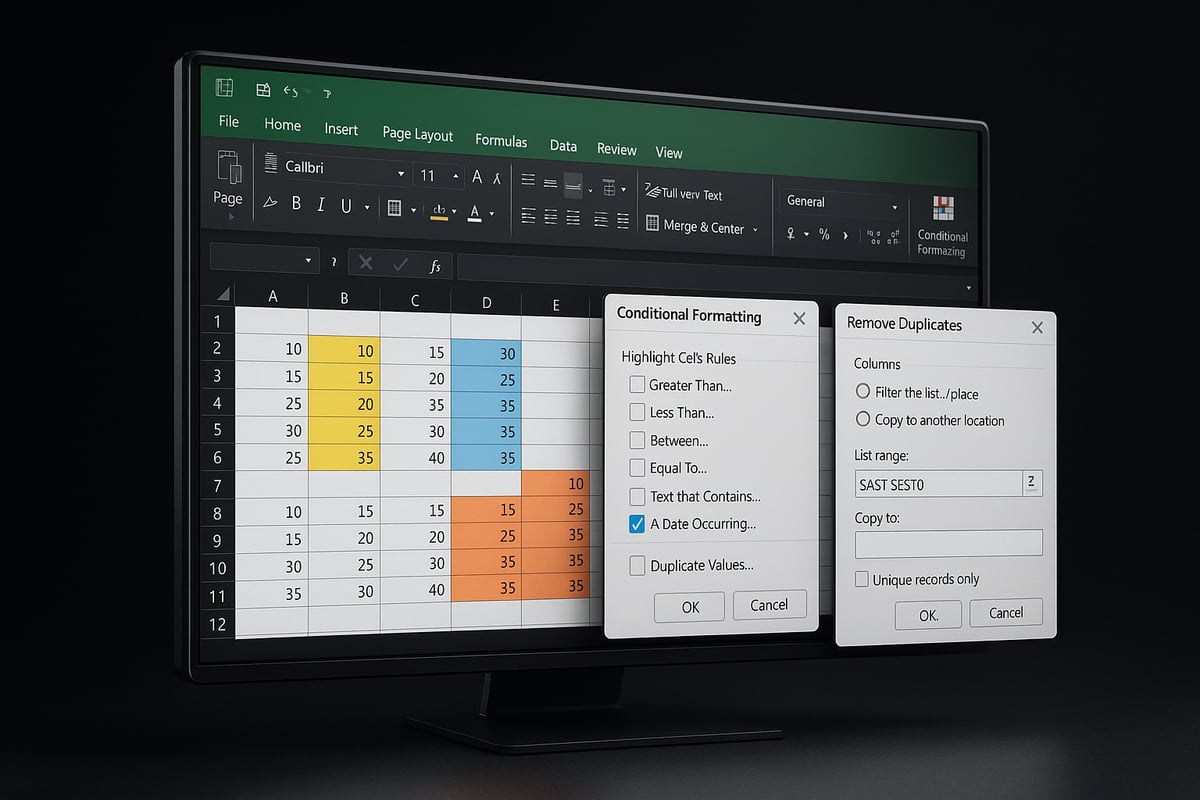
Using Conditional Formatting to Highlight Duplicates
Conditional Formatting is often the first tool people use when learning how to search for duplicates on excel. To start, select the range you want to check. Then, go to the Home tab, click Conditional Formatting, choose Highlight Cells Rules, and select Duplicate Values.
You can customize the colors to make duplicates stand out, such as red for high-priority issues. For example, highlight duplicate product codes in an inventory list so you can quickly spot problems. This tool provides instant visual feedback, making it ideal for quick reviews of small or medium datasets.
Keep in mind, Conditional Formatting only highlights duplicates. It does not remove them. For a deeper dive into other ways to highlight and find duplicates, see this how to find duplicates in Excel resource.
Remove Duplicates Feature: How and When to Use
Excel’s Remove Duplicates feature streamlines how to search for duplicates on excel and delete them in just a few clicks. Start by selecting your data, then go to the Data tab and click Remove Duplicates. You will be prompted to select one or more columns to define what counts as a duplicate.
For instance, removing duplicate customer records based on both email and phone number ensures you only keep unique entries. This tool is efficient and direct, perfect for routine data cleaning tasks. Always save a backup first, since this operation cannot be undone easily. Remember, Remove Duplicates deletes records immediately and does not offer an option to review entries before deletion.
Advanced Filter Tool for Custom Duplicate Searches
The Advanced Filter tool is another effective way to learn how to search for duplicates on excel, especially when you want more control. To use it, select your dataset, go to the Data tab, and choose Advanced under the Sort & Filter group. Select "Unique records only" and decide whether to filter in place or copy the results to a new location.
This tool is ideal for extracting a list of unique vendors or clients from a master sheet. Advanced Filter is non-destructive, keeping your original data intact. It is especially useful for reporting and creating summary lists. However, it does require manual setup and is best suited to users comfortable with Excel’s filtering options.
Pros and Cons of Built-in Tools
Each built-in tool for how to search for duplicates on excel has its strengths and weaknesses. Consider the table below for a quick comparison:
| Tool | Speed | Ease of Use | Accuracy | Best For |
|---|---|---|---|---|
| Conditional Formatting | Fast | Easy | Visual | Small/medium datasets |
| Remove Duplicates | Fast | Easy | High | Quick cleaning |
| Advanced Filter | Medium | Moderate | Flexible | Custom searches |
No single tool fits all scenarios. Combining methods often delivers the best results, especially for complex or large datasets. According to feedback from Excel forums in 2024, built-in tools are ideal for most business needs, but users handling massive data often supplement them with formulas or add-ins.
Limitations and Common Pitfalls
Despite their utility, Excel’s built-in tools for how to search for duplicates on excel have limitations. They can miss duplicates hidden by extra spaces, merged cells, or inconsistent formatting. For example, a trailing space can cause two seemingly identical entries to be treated as unique.
Manual review is sometimes necessary to catch these issues. Also, most built-in options are not case-sensitive, so "John Doe" and "john doe" might be overlooked as duplicates. Advanced users often use formulas or scripts for more nuanced detection. Preventing duplicates at the source, through data validation and standardized entry, helps reduce future problems.
Advanced Techniques for Duplicate Detection
Ready to take your skills beyond the basics? Mastering how to search for duplicates on excel at an advanced level opens up powerful options for tackling complex datasets, automating your process, and ensuring data integrity. Let’s explore expert techniques that give you more control and accuracy.
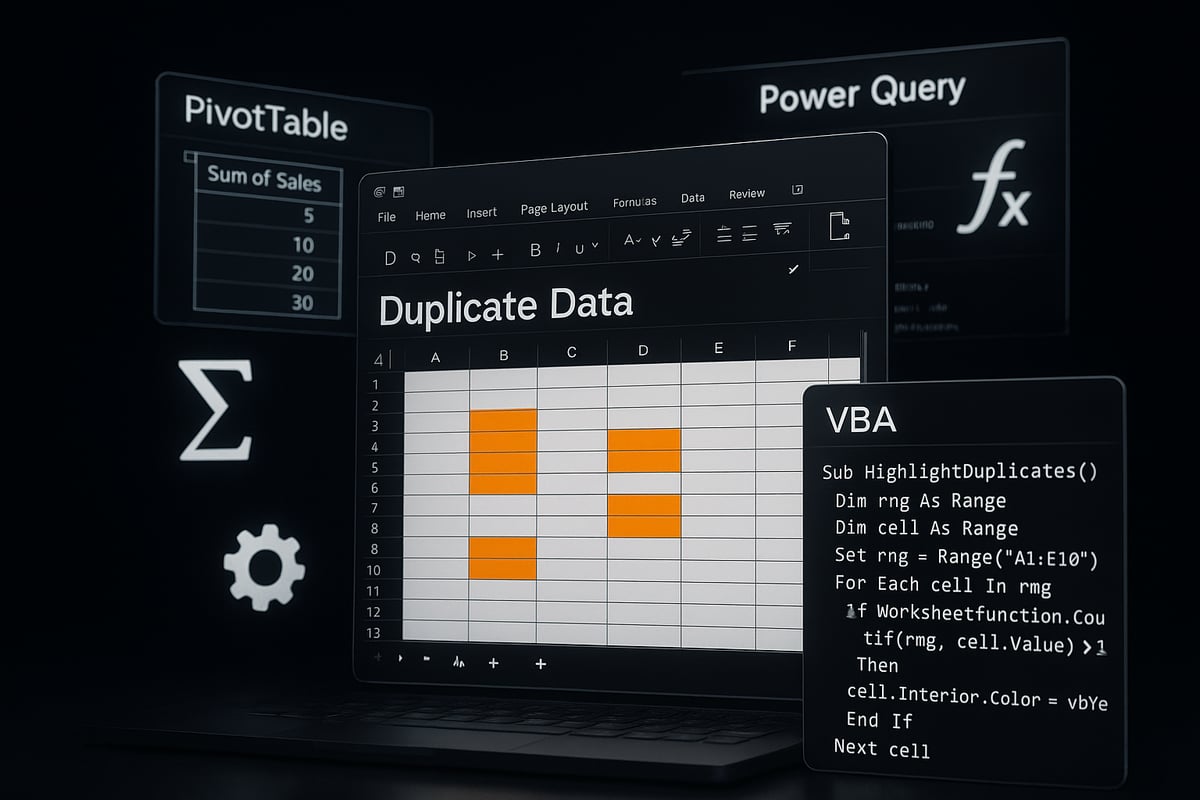
Using Formulas to Find Duplicates
One of the most versatile ways to learn how to search for duplicates on excel is by using formulas. Functions like COUNTIF, COUNTIFS, and MATCH allow for customized detection.
To flag duplicates in a single column, use:
=COUNTIF(A:A, A2)>1
This formula returns TRUE if the value in A2 appears more than once in column A.
- Ideal for large datasets or partial matches
- Can be extended to multiple columns with
COUNTIFS - Allows you to filter and review flagged entries
While formulas require some Excel knowledge, they provide flexibility and can be tailored to your specific needs.
Leveraging PivotTables for Duplicate Analysis
PivotTables offer a powerful visual summary for how to search for duplicates on excel when you need to analyze frequency or patterns.
Steps:
- Select your dataset and insert a PivotTable.
- Drag the column of interest (e.g., Invoice Number) into the Rows area.
- Add the same column to the Values area to count occurrences.
Quickly spot which values appear more than once, indicating duplicates. PivotTables are excellent for summary reporting and identifying trends, though not for direct data cleaning.
Use this method to highlight recurring issues or outliers in your data, making it easier to focus your cleaning efforts.
Using Power Query for Duplicate Management
Power Query streamlines how to search for duplicates on excel, especially for recurring or large-scale tasks.
Process:
- Load your data into Power Query via Data > Get & Transform.
- Select the relevant columns, then use "Remove Duplicates" or "Group By" for custom aggregation.
- Load the cleaned data back into your worksheet.
Power Query is non-destructive and repeatable, making it ideal for workflows that need to be run regularly. It handles large volumes efficiently and maintains a clear audit trail of steps.
This approach is best for advanced users or when working with complex or merged datasets.
VBA Macros for Automated Duplicate Detection
Automation is key when you need to repeatedly perform how to search for duplicates on excel. VBA macros can flag or remove duplicates across vast workbooks.
Example macro to highlight duplicate order IDs:
Sub HighlightDuplicates()
    Dim rng As Range
    Set rng = Range("A2:A1000")
    rng.FormatConditions.AddUniqueValues
    rng.FormatConditions(rng.FormatConditions.Count).SetFirstPriority
    rng.FormatConditions(1).DupeUnique = xlDuplicate
    rng.FormatConditions(1).Font.Color = vbRed
End Sub
Benefits include:
- Saves manual effort on repetitive tasks
- Customizable for unique business rules
- Can process large data volumes quickly
Macros require enabling developer options and macro security settings.
Handling Case Sensitivity and Formatting Issues
Data inconsistencies can undermine how to search for duplicates on excel. For case-sensitive checks, use the EXACT function:
=EXACT(A2, A3)
This returns TRUE only if the values (including case) match exactly.
To clean data, apply:
TRIM()to remove leading/trailing spacesCLEAN()to strip non-printable characters
Standardizing formatting before duplicate checks increases accuracy. Sometimes, multiple cleaning steps are needed, especially if your data comes from various sources.
Combining Multiple Methods for Maximum Accuracy
For mission-critical data, the best approach is to combine several advanced techniques when considering how to search for duplicates on excel.
Example workflow:
- Use Power Query to preprocess and remove obvious duplicates.
- Apply formulas or Conditional Formatting for targeted checks.
- Leverage PivotTables for summary analysis and validation.
Document each step for future repeatability. This layered approach ensures fewer missed duplicates and higher data quality. To explore more advanced tools and strategies, check out this in-depth review of duplicate finder tools for Excel.
By integrating methods, you can confidently manage even the most challenging duplicate scenarios in Excel.
Step-by-Step Guide: Searching for Duplicates in Excel
Messy data can quickly become a roadblock, but mastering how to search for duplicates on excel transforms your workflow. This step-by-step guide walks you through every stage, from preparation to advanced automation, ensuring your spreadsheets remain clean, accurate, and reliable.
Preparing Your Data for Duplicate Search
Before you start learning how to search for duplicates on excel, preparation is crucial. Begin by creating a backup of your spreadsheet. This protects your original data, letting you undo changes if necessary.
Next, remove unnecessary formatting, such as merged cells or color fills, which can interfere with duplicate detection tools. Standardize your entries by ensuring consistent capitalization, number formats, and spelling. For example, use Excel's TRIM function to eliminate trailing spaces that may cause false negatives.
Check for hidden rows or columns, as these may contain duplicates you might otherwise miss. Consider applying Data Validation to key fields, which helps prevent new duplicates from being entered in the future.
A well-prepared dataset ensures your search for duplicates is accurate and efficient.
Method 1: Using Conditional Formatting
Conditional Formatting is an easy visual way to begin when you want to know how to search for duplicates on excel. Start by selecting the range of cells you wish to check.
Navigate to the Home tab, click on "Conditional Formatting," then choose "Highlight Cells Rules" and "Duplicate Values." Excel will instantly color-code any duplicate values in your selected range. You can customize the highlight color to suit your preferences or to align with your data's importance.
This method is ideal for quickly spotting duplicate SKUs in a product list or repeated names in a contact sheet. While it only highlights duplicates and does not remove them, it provides a fast overview for small to medium datasets.
Remember, this is a first-pass tool—deeper analysis may be needed for more complex scenarios.
Method 2: Remove Duplicates Tool
For those looking for a direct solution on how to search for duplicates on excel and clean them, the Remove Duplicates feature is a powerful option. Start by selecting your dataset, then go to the Data tab and click "Remove Duplicates."
A dialog box will appear, letting you pick which columns to analyze. This is useful for cases where duplicates are defined by a combination of fields, such as both email and phone number. After confirming your selections, Excel will remove all but the first occurrence of each duplicate.
Always save a backup before using this tool, as the removal is irreversible. For a more in-depth walkthrough, you can refer to Remove duplicate records in Excel for detailed, stepwise instructions.
This method is fast and effective, perfect for periodic data cleaning.
Method 3: Formula-Based Detection
If you need more flexibility in how to search for duplicates on excel, formulas offer a customizable approach. Insert a helper column next to your data. Use the formula =COUNTIF(A:A, A2)>1 to flag duplicate entries in column A.
For multiple criteria, use COUNTIFS or combine with IF statements for partial matches. Once flagged, filter the helper column to review duplicates before deleting or handling them as needed.
This approach is especially useful for partial duplicates or when you want to review each instance before removal. It also works well for large datasets, giving you granular control over what counts as a duplicate.
With formulas, you gain precision and visibility into your duplicate management process.
Method 4: Power Query for Complex Datasets
When working with large or complex datasets, Power Query is a robust solution for how to search for duplicates on excel. Start by importing your data into Power Query through the "Data" tab and selecting "From Table/Range."
In Power Query, use the "Remove Duplicates" function or the "Group By" feature to identify and manage duplicates across multiple columns. After processing, load the cleaned data back into your worksheet.
Power Query is efficient for recurring tasks, as you can save and reuse your steps, ensuring consistency over time. It is non-destructive, so your original data remains untouched until you choose to load the results.
This method is best for advanced users handling ongoing or large-scale data projects.
Method 5: VBA Macro Automation
For repetitive or highly specific tasks, VBA macros automate how to search for duplicates on excel. Begin by pressing Alt + F11 to open the VBA editor. Insert a new module and paste a macro script designed for duplicate detection or removal.
For example, a simple macro can highlight or delete rows with duplicate order IDs, speeding up monthly report reviews. After saving your macro, run it from the Developer tab and let it process your data automatically.
Macros can be tailored to fit unique business rules, such as case-sensitive checks or multi-field comparisons. Always enable macro security settings and test on a backup to prevent accidental data loss.
Automation with VBA saves time and reduces manual effort for complex or repetitive workflows.
Reviewing and Validating Results
After applying any method for how to search for duplicates on excel, thorough validation is essential. Review all flagged or removed entries to ensure no important data was lost.
Cross-check changes against your backup copy, especially if deletions were performed. For critical datasets, spot-check a sample of cleaned records to confirm accuracy. If needed, use Excel's "Undo" feature or restore from your backup.
Document every change made during the duplicate management process. This practice supports compliance, audit requirements, and team transparency.
A careful review ensures data integrity and builds trust in your final analysis.
Best Practices for Managing Duplicates in Excel
Efficiently managing duplicates is critical for anyone learning how to search for duplicates on excel. Adopting best practices not only helps maintain clean data, but also streamlines future analysis and reporting. By focusing on prevention, regular maintenance, documentation, and team training, you can greatly reduce the risk of duplicate data disrupting your workflows.
Preventing Duplicates at the Source
The best way to address how to search for duplicates on excel is to prevent duplicates from being entered in the first place. Use Excel’s Data Validation rules to restrict entries in key fields such as usernames or email addresses. For example, you can set up Data Validation to block duplicate entries in a registration form, ensuring each value is unique.
- Train users on proper data entry habits.
- Standardize input formats across your team.
- Use drop-down lists to minimize manual typing errors.
Proactive prevention is always more efficient than later correction. For official guidance on setting up validation and removal steps, review the Find and remove duplicates – Microsoft Support article.
Regular Data Auditing and Maintenance
Routine audits are essential for reinforcing how to search for duplicates on excel and keeping your data healthy. Schedule regular duplicate checks, such as monthly reviews of sales leads or quarterly customer list cleanups. Rely on templates that include built-in duplicate checks to streamline your process.
- Set calendar reminders for periodic audits.
- Use conditional formatting and formulas for quick reviews.
- Monitor shared datasets for unexpected changes.
Consistent maintenance helps prevent data decay and ensures your Excel files remain trustworthy for all business decisions.
Documenting Your Duplicate Management Process
Documentation is vital for ensuring everyone understands how to search for duplicates on excel in a consistent way. Create step-by-step guides or standard operating procedures (SOPs) for your team. This might include detailed instructions for quarterly customer list cleaning or onboarding new staff to your duplicate management process.
- Outline each step for detecting and resolving duplicates.
- Store documentation in a shared location for easy access.
- Update guides as your process evolves.
Well-documented processes help maintain data quality, support compliance, and reduce knowledge loss when staff transition.
Training and Upskilling Teams
Ongoing training is fundamental to mastering how to search for duplicates on excel and preventing issues before they occur. Offer regular Excel workshops focusing on advanced duplicate detection, data validation, and automation techniques. Encourage your team to stay current with Excel’s latest features.
- Host hands-on sessions for real scenarios.
- Share video tutorials and resource links.
- Foster a culture of continuous learning.
A well-trained team not only catches duplicate issues early but also contributes to a more productive and data-savvy organization.
Expert Support and Resources for Excel Duplicate Management
Finding reliable support is crucial when learning how to search for duplicates on excel, especially for large or complex data challenges. Sometimes, built-in tools and personal expertise are not enough. Knowing when to bring in professionals can save time, prevent costly mistakes, and ensure your data remains accurate.
When to Seek Professional Help
There are times when managing duplicates becomes too complex for standard Excel features. If you are merging massive datasets, dealing with cross-sheet duplicates, or need to automate recurring tasks, expert assistance is invaluable. For example, during a business acquisition, integrating multiple databases can introduce subtle duplicate issues.
Recognizing your limits is essential. Attempting to handle advanced scenarios without the right skills can lead to data loss or flawed analysis. Consulting with an Excel expert ensures that your approach to how to search for duplicates on excel is both efficient and safe. If your team faces repeated challenges, outside help can also provide long-term solutions and training.
Excel Help from The Analytics Doctor
The Analytics Doctor specializes in helping businesses and professionals master how to search for duplicates on excel. Their services include hands-on workshops, troubleshooting, and custom solutions for duplicate detection, data cleaning, and automation.

For instance, a company may require corporate training to automate duplicate checks using macros or advanced Power Query techniques. The Analytics Doctor delivers practical, business-focused support that addresses real workflow needs. Whether you need a one-time consultation or ongoing guidance, you can access resources, guides, and direct support to improve your Excel data quality and duplicate management process.
Additional Tools and Online Resources
Expanding your toolkit can make how to search for duplicates on excel more effective. Several reputable Excel add-ins, such as Ablebits and Kutools, offer advanced options for duplicate detection and removal. Official Microsoft support articles and community forums are great sources for troubleshooting and learning new techniques.
For visual learners, the Dealing with Duplicate Data in Excel (Video) – NASBA Registry provides a step-by-step tutorial from an Excel expert. If you work with large datasets and need advanced strategies, check out Practical Tips and Strategies for Managing Data Duplication in Large Datasets for insights on fuzzy matching and machine learning methods. Staying updated with new tools and best practices keeps your Excel skills sharp.