
Protecting sensitive financial data, proprietary business information, and confidential client records requires more than just trusting your coworkers or file permissions. When you're working with critical spreadsheets containing formulas, analysis, or strategic data, understanding how to implement a workbook password excel security strategy becomes essential. Whether you're a financial analyst safeguarding quarterly reports, an HR professional managing employee data, or a business owner protecting intellectual property, Excel's password protection features offer multiple layers of security that can prevent unauthorized access, accidental modifications, and data breaches.
Understanding Workbook Password Excel Protection Levels
Excel provides several distinct security mechanisms that serve different purposes, and many users confuse these options or don't realize the full scope of protection available.
Workbook Structure Protection
When you protect your workbook structure, you prevent users from adding, deleting, hiding, or renaming worksheets within the file. This level of protection maintains the organizational integrity of your spreadsheet without restricting access to the data itself. Microsoft’s official guidance on protection and security features emphasizes that structural protection is particularly valuable for complex workbooks where the relationship between sheets matters.
Key benefits of workbook structure protection:
- Maintains navigation consistency for users
- Preserves sheet order in linked workbooks
- Prevents accidental deletion of critical worksheets
- Keeps hidden sheets containing sensitive formulas secure
File-Level Password Encryption
The most robust workbook password excel option is full file encryption, which requires a password just to open the document. This encryption-based protection scrambles the entire file using advanced encryption standards, making it virtually impossible to access without the correct password.
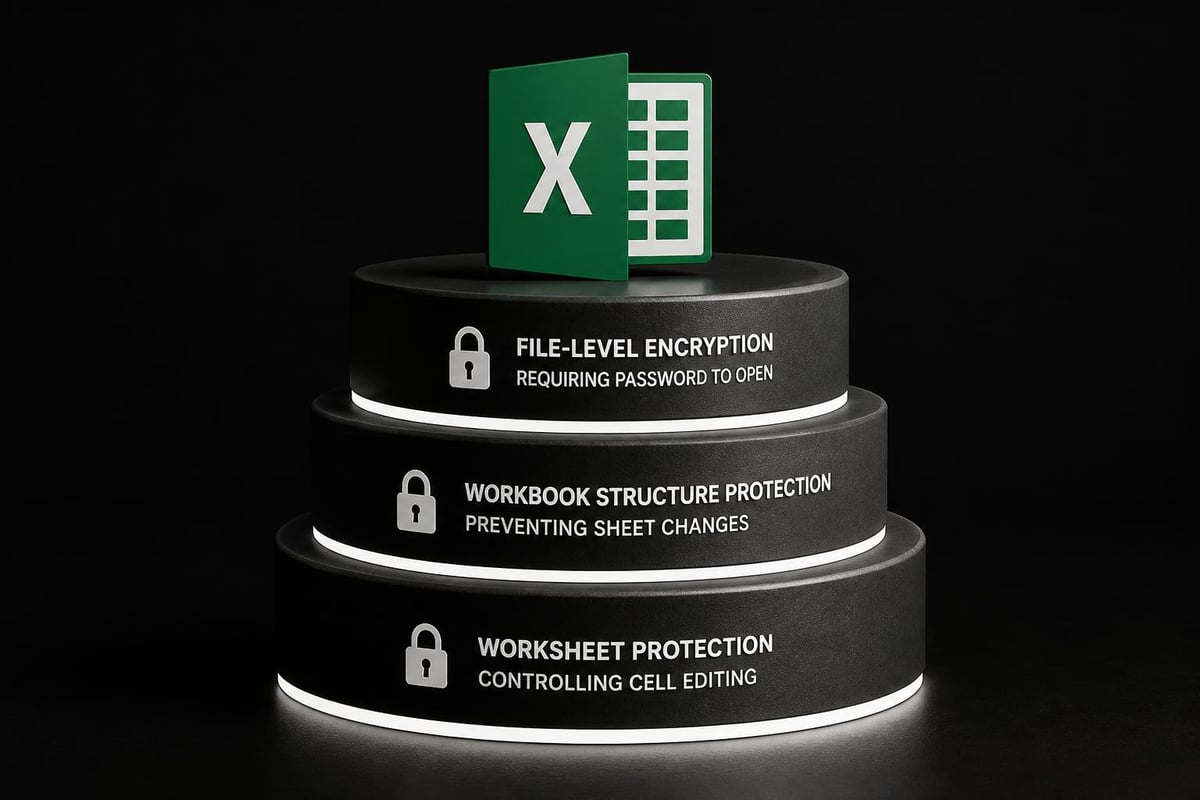
When you implement password protection for Excel workbooks, Microsoft uses AES-256 encryption in modern versions, providing government-grade security for your data. This method is ideal for financial models, strategic planning documents, and any spreadsheet containing trade secrets or personally identifiable information.
| Protection Type | What It Secures | Use Case | Encryption Strength |
|---|---|---|---|
| File Open Password | Entire workbook access | Highly sensitive data | AES-256 |
| Modify Password | Write access | Shared reference files | Medium |
| Structure Protection | Sheet organization | Template preservation | Low |
| Worksheet Protection | Cell-level editing | Collaborative models | Low |
Setting Up Workbook Password Excel Protection
Implementing password protection requires following specific steps that vary slightly depending on your protection goals.
Applying File-Level Encryption
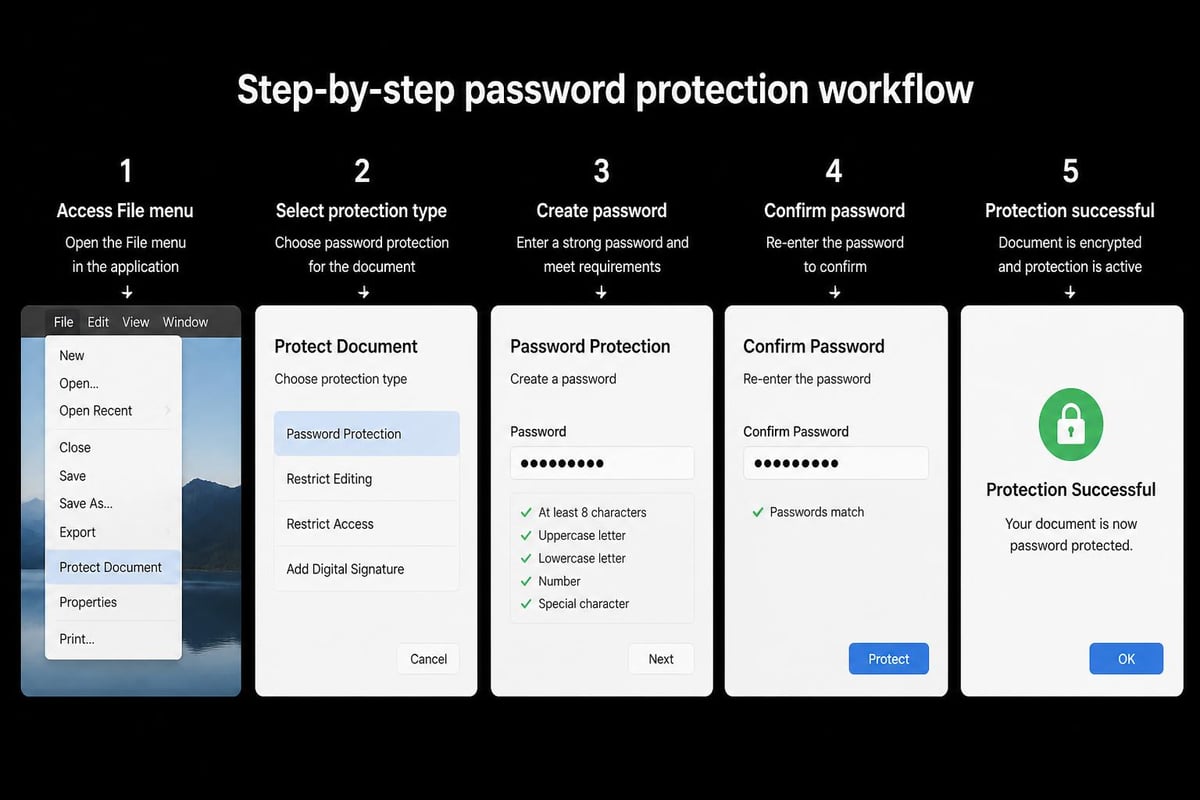
To add the strongest workbook password excel protection:
- Open your Excel file and click File in the ribbon
- Select Info from the left sidebar
- Click Protect Workbook and choose Encrypt with Password
- Enter your desired password (minimum 8 characters recommended)
- Re-enter the password to confirm
- Save the file to apply encryption
Critical password considerations:
- Use a combination of uppercase, lowercase, numbers, and symbols
- Avoid dictionary words or personal information
- Store passwords in a secure password manager
- Create different passwords for different sensitivity levels
If you need to share a workbook for viewing but prevent modifications, you can set a separate "password to modify" option. This allows recipients to open the file in read-only mode without a password but requires authentication to make changes.
Protecting Workbook Structure
For scenarios where you want users to access and edit data but not reorganize sheets:
- Navigate to the Review tab in the ribbon
- Click Protect Workbook in the Protect group
- Check the Structure box (and optionally Windows)
- Enter a password if desired
- Click OK and confirm the password
This approach is particularly useful for advanced Excel projects where sheet relationships and named ranges depend on specific worksheet positions. Without structure protection, a user might unknowingly delete a hidden calculation sheet that supports a dashboard, breaking all dependent formulas.
Managing Multiple Password Protection Scenarios
Different business situations demand different workbook password excel strategies, and understanding when to use each approach prevents both security gaps and unnecessary access restrictions.
Collaborative Environment Protection
When multiple team members need access to portions of a workbook, worksheet-level protection with unlocked ranges provides granular control. You can protect formulas and structure while allowing specific cells to remain editable for data entry.
Collaborative protection workflow:
- Identify which cells contain formulas or static reference data
- Unlock only the data entry ranges
- Apply worksheet protection with a password
- Share the worksheet password only with authorized editors
- Keep the workbook structure password separate and more restricted
This multi-tiered approach is especially valuable when creating Excel dashboards that combine automated calculations with user-input parameters. The dashboard formulas remain protected while input cells stay accessible.
Temporary vs. Permanent Protection
Not all workbook password excel implementations should be permanent. Consider these scenarios:
| Scenario | Protection Duration | Recommended Method |
|---|---|---|
| Monthly reports in progress | Until finalized | Structure protection only |
| Approved financial statements | Permanent | Full file encryption |
| Templates with locked formulas | Permanent | Worksheet protection |
| Collaborative budget models | Temporary | Unlocked ranges with notes |
For documents that circulate through approval chains, temporary protection prevents premature edits while allowing authorized reviewers to make necessary adjustments. Once approved, you can escalate to full encryption.
Password Recovery and Security Challenges
Despite careful management, password loss remains one of the most common spreadsheet emergencies. Understanding your options and limitations helps you make informed decisions about recovery attempts.
When Passwords Are Lost
If you've forgotten a workbook password excel file, the situation varies significantly based on the protection type. Worksheet and structure passwords use weaker encryption that third-party tools can sometimes bypass, while file-level encryption passwords are nearly impossible to recover without specialized services.
Recovery options by protection type:
- Worksheet protection: VBA macros or recovery tools often succeed
- Structure protection: Similar recovery success rate as worksheet
- File encryption (modern Excel): Extremely difficult; professional services may be required
- Legacy Excel formats (.xls): Older encryption is more vulnerable to recovery tools
If you need guidance on removing password protection from Excel files, understanding the legal and ethical implications is crucial. Only attempt password recovery on files you own or have explicit authorization to access. Professional password recovery solutions offer varying success rates depending on the Excel version and protection method used.
Security Best Practices
Implementing workbook password excel protection effectively requires ongoing security hygiene:
- Document your protection strategy – Maintain a record of which files have passwords and what type of protection is applied
- Use a password manager – Store complex passwords securely rather than writing them down or using predictable patterns
- Regular security audits – Review which workbooks contain sensitive data and verify appropriate protection levels
- Employee training – Ensure team members understand when and how to apply protection
- Backup procedures – Maintain secure backups of encrypted files with documented password storage
For organizations handling regulated data, consider implementing a formal password policy that defines minimum password complexity, rotation schedules, and approval workflows for accessing protected files.
Advanced Protection Techniques
Beyond basic password application, sophisticated users can implement additional security layers that enhance workbook password excel protection.
Combining Protection Methods
The most secure Excel files use multiple protection mechanisms simultaneously:
- File-level encryption prevents unauthorized opening
- Structure protection prevents sheet manipulation
- Worksheet protection locks formulas and formatting
- Hidden worksheets contain sensitive calculations
- Protected ranges allow selective editing permissions
This defense-in-depth approach ensures that even if one protection layer is compromised, additional barriers prevent unauthorized access or modifications. When working with professional Excel consulting services, experts can design custom protection schemes that balance security with usability.
VBA Project Protection
If your workbook contains macros or custom functions written in Visual Basic for Applications (VBA), protecting the VBA project with a separate password prevents users from viewing or modifying your code. This is essential for protecting proprietary algorithms, custom business logic, or automated workflows.
To protect VBA projects:
- Press Alt+F11 to open the VBA Editor
- Right-click your project in the Project Explorer
- Select VBAProject Properties
- Navigate to the Protection tab
- Check "Lock project for viewing" and enter a password
- Click OK and save the workbook
This protection operates independently from workbook password excel file encryption, requiring a separate password to access the code even if someone can open the spreadsheet.

Digital Signatures and Certificates
For the highest level of authentication and integrity verification, Excel supports digital signatures that prove a file hasn't been modified since signing. This goes beyond password protection by providing non-repudiation, meaning the signer cannot deny having signed the document.
Digital signatures require obtaining a certificate from a trusted certificate authority or creating a self-signed certificate. While not technically a workbook password excel technique, digital signatures complement password protection by verifying authenticity alongside controlling access.
Common Mistakes and How to Avoid Them
Even experienced Excel users make critical errors when implementing workbook password excel security that can lead to data loss or inadequate protection.
Mistake 1: Using Weak or Predictable Passwords
Many users choose simple passwords like "password123" or "Excel2026" that provide minimal security. Password-cracking tools can test millions of combinations per second against weak passwords.
Better approach: Use a password generator to create random passwords with at least 12 characters including uppercase, lowercase, numbers, and symbols. Store these in a secure password manager rather than trying to memorize them.
Mistake 2: Not Documenting Password Storage Locations
Organizations frequently lose access to critical workbooks because the person who created the password left the company or forgot to document it. This results in expensive recovery attempts or permanent data loss.
Better approach: Establish a secure, centralized password repository with appropriate access controls. Document which files require passwords and where those passwords are stored. Implement a succession plan for password knowledge transfer.
Mistake 3: Over-Protecting Workbooks
Applying maximum protection to every workbook creates unnecessary friction for legitimate users. When accessing files becomes too cumbersome, users often find workarounds that bypass security entirely.
Better approach: Classify workbooks by sensitivity level and apply appropriate protection. Public reference data might need no protection, departmental reports might use structure protection, while strategic financial models require full encryption.
Mistake 4: Forgetting to Remove Protection Before Sharing
Sending password-protected files to external stakeholders without coordinating password delivery creates confusion and delays. Multiple password types can make this even more complicated.
Better approach: Before sharing workbooks externally, review all protection layers and decide which are necessary. If recipients only need to view data, consider sharing as PDF instead. If they need Excel access, document all required passwords clearly in your communication.
Industry-Specific Protection Strategies
Different industries face unique workbook password excel requirements based on regulatory compliance, data sensitivity, and collaboration needs.
Financial Services
Banks, investment firms, and accounting practices handle highly sensitive financial data subject to regulations like SOX and GDPR. These organizations typically require:
- Mandatory file-level encryption for all client data
- Audit trails tracking who accesses protected workbooks
- Regular password rotation policies
- Two-factor authentication for accessing password repositories
- Secure deletion procedures for obsolete encrypted files
Healthcare
Medical practices and hospitals working with protected health information (PHI) must comply with HIPAA regulations. Excel workbooks containing patient data should implement comprehensive protection including file encryption, access logging, and secure transmission protocols.
Professional Services
Consulting firms, law offices, and research organizations protect intellectual property and client confidentiality through workbook password excel strategies that emphasize version control and controlled sharing. Many maintain separate password policies for internal working documents versus client deliverables.
Testing and Verifying Protection
After implementing workbook password excel security measures, verification ensures your protection functions as intended.
Protection Validation Checklist
- Attempt to open the file without a password (should fail for encrypted files)
- Try modifying structure without the structure password (should be blocked)
- Test whether protected cells can be edited (should be locked)
- Verify that shared users can access their designated areas
- Confirm backup copies maintain the same protection levels
- Check that passwords work correctly across different Excel versions
Regular testing prevents the frustrating scenario where you discover protection failures only after a security incident occurs. Schedule quarterly reviews of critical protected workbooks to verify ongoing security effectiveness.
Cross-Platform Considerations
Workbook password excel protection behaves differently across Windows, Mac, and mobile versions of Excel. Files created in Excel 2026 for Windows should maintain protection when opened on Excel for Mac, but legacy compatibility modes can introduce vulnerabilities.
Before distributing protected workbooks to users on different platforms, test the files on representative systems to ensure consistent security behavior. Cloud-based Excel versions (Excel Online and Microsoft 365) have their own permission systems that interact with traditional password protection in complex ways.
Effective workbook password excel protection balances security with accessibility, ensuring your sensitive data stays safe without hindering legitimate productivity. By understanding the different protection levels, implementing appropriate security measures, and following best practices for password management, you can confidently protect your most critical spreadsheet assets. When you encounter complex protection scenarios, need help recovering from password issues, or want to design comprehensive security strategies for your organization, The Analytics Doctor provides expert Excel help tailored to your specific needs, from troubleshooting locked files to implementing enterprise-wide protection policies that keep your data secure.


