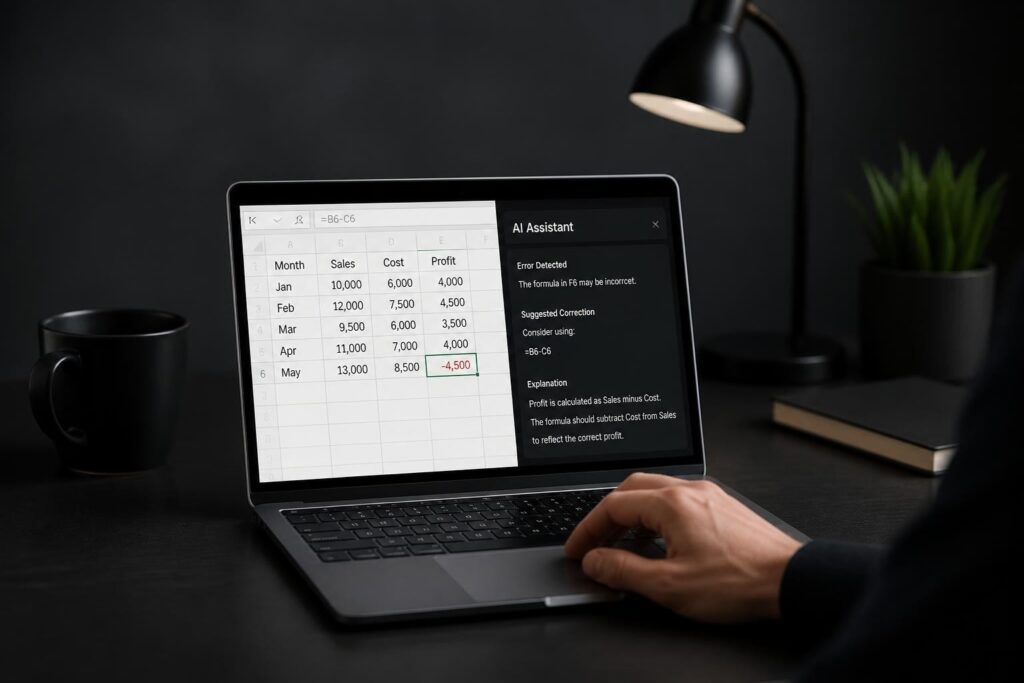
Mastering while loops vba transforms how you automate repetitive tasks in Excel, enabling you to process data efficiently without manual intervention. Whether you're analyzing thousands of rows, validating user input, or building dynamic reports, understanding while loops is essential for any Excel user looking to streamline their workflows. This comprehensive guide explores the fundamental concepts, syntax variations, and practical applications that will elevate your VBA programming skills and make your spreadsheets work smarter.
Understanding While Loop Fundamentals in VBA
While loops vba execute a block of code repeatedly as long as a specified condition remains true. Unlike For loops that run a predetermined number of times, while loops continue until a condition changes, making them ideal for scenarios where you don't know exactly how many iterations you'll need.
The power of while loops lies in their flexibility. When processing data where the endpoint isn't fixed, such as reading through database records or validating entries until all errors are corrected, while loops provide the control structure you need. This makes them particularly valuable for business applications where data volumes fluctuate.
Two Primary While Loop Structures
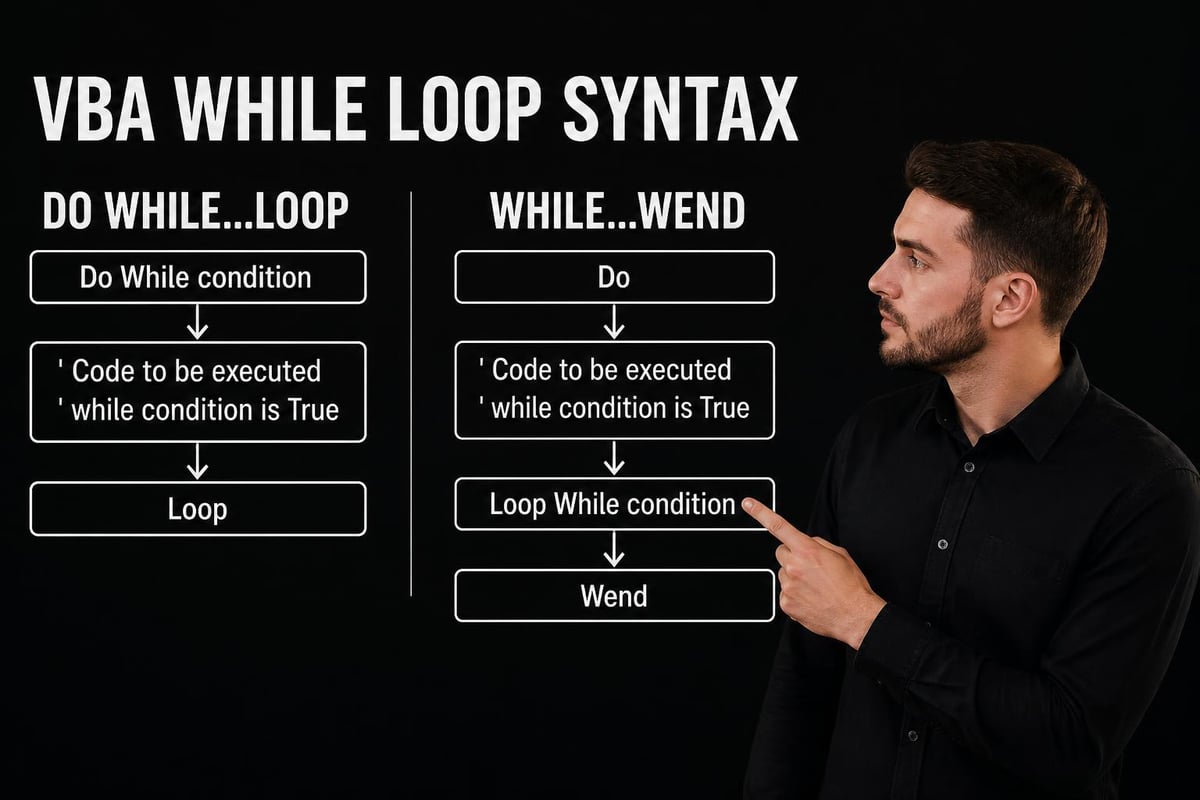
VBA offers two main while loop variations: Do While…Loop and While…Wend. Each has specific use cases and syntax requirements that affect how your code executes.
The Do While…Loop structure provides more flexibility and is generally recommended for modern VBA development. The official Microsoft documentation on Do…Loop statements outlines comprehensive details about syntax variations and best practices.
Key differences between structures:
- Do While…Loop allows condition checking at the beginning or end
- While…Wend always checks the condition before executing
- Do While…Loop supports Exit Do for premature loop termination
- While…Wend lacks a built-in exit mechanism
Do While Loop Syntax and Implementation
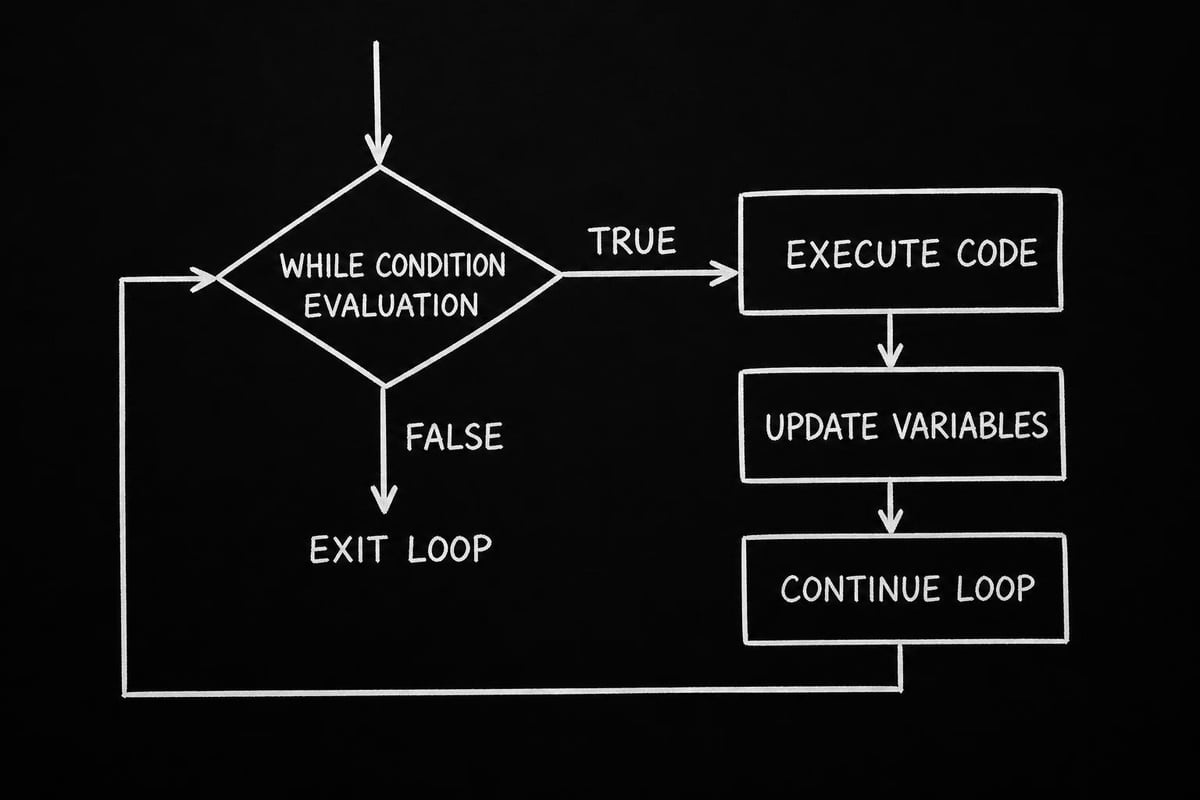
The Do While loop checks the condition before executing the code block, ensuring that if the condition is initially false, the loop body never runs. This "pre-test" approach prevents unnecessary execution when conditions aren't met from the start.
Basic Do While Syntax
Do While condition
    ' Code to execute
    ' Update variables affecting condition
Loop
The condition must evaluate to True or False. As long as it returns True, the loop continues. This structure is perfect for processing data until you reach a specific marker or threshold.
Common use cases include:
- Processing rows until encountering a blank cell
- Validating input until criteria are met
- Reading file contents until end-of-file
- Iterating through collections with dynamic sizes
When working with Excel data, you'll frequently use Do While loops to traverse worksheets. For instance, starting at row 2 (assuming row 1 contains headers), you can process customer records, sales data, or inventory lists until reaching an empty row.
Practical Do While Example
Consider a scenario where you need to calculate running totals for monthly expenses. The number of expense entries varies each month, so you can't use a fixed For loop. Here's where while loops vba excel:
Dim currentRow As Long
Dim runningTotal As Double

currentRow = 2
runningTotal = 0

Do While Cells(currentRow, 1).Value <> ""
    runningTotal = runningTotal + Cells(currentRow, 2).Value
    Cells(currentRow, 3).Value = runningTotal
    currentRow = currentRow + 1
Loop
This code starts at row 2, adds each expense amount to the running total, writes the cumulative sum, and moves to the next row until it finds an empty cell in column A.
Do Until Loop: The Inverse Approach
While technically not a "while" loop, the Do Until loop deserves mention as it's the logical inverse. Instead of continuing while a condition is true, it runs until a condition becomes true. The comprehensive guide on VBA while loops explores these nuanced differences thoroughly.
| Loop Type | Continues When | Stops When | Best For |
|---|---|---|---|
| Do While | Condition is True | Condition becomes False | Processing while criteria met |
| Do Until | Condition is False | Condition becomes True | Processing until goal reached |
| While…Wend | Condition is True | Condition becomes False | Simple legacy scenarios |
The syntax mirrors Do While, with only the keyword changing:
Do Until condition
    ' Code executes until condition becomes True
Loop
For example, if you're searching for a specific value in a column, Do Until makes semantic sense: continue searching until you find the target value.
While Wend Loop Structure
The While…Wend statement represents the original while loop syntax in VBA, maintained primarily for backward compatibility. While still functional in 2026, most developers prefer Do While…Loop for its enhanced capabilities.
While Wend Syntax
While condition
    ' Code to execute
Wend
The keyword "Wend" stands for "While End," marking the loop's conclusion. This structure always evaluates the condition before executing the loop body, similar to Do While.
Limitations of While Wend:
- No Exit statement available
- Cannot check condition at loop end
- Less readable than modern alternatives
- Limited error handling options
Despite these constraints, you might encounter While Wend in older codebases. Understanding this syntax helps when maintaining legacy Excel applications or calling functions in VBA from older projects.
Condition Placement: Top-Tested vs Bottom-Tested Loops
One powerful feature of Do loops is flexibility in condition placement. You can test conditions before (top-tested) or after (bottom-tested) the loop body executes.
Top-Tested Loops
Do While condition
    ' Code executes only if condition is True
Loop
Top-tested loops may never execute if the initial condition is False. This prevents unnecessary processing when prerequisites aren't met.
Bottom-Tested Loops
Do
    ' Code executes at least once
Loop While condition
Bottom-tested loops guarantee at least one execution, regardless of the initial condition. This proves valuable when you need to perform an action before checking whether to continue.
When to use each approach:
- Top-tested: Validating data existence before processing
- Top-tested: Preventing operations on empty datasets
- Bottom-tested: Getting user input then validating
- Bottom-tested: Executing setup code before conditional repetition
The tutorial on VBA Do-While loops provides detailed flow diagrams illustrating these execution patterns.
Controlling Loop Execution with Exit Do
Professional VBA development requires robust error handling and control mechanisms. The Exit Do statement lets you break out of a loop prematurely when specific conditions arise, preventing infinite loops or unnecessary iterations.
Strategic Exit Do Usage
Do While currentRow <= 1000
    If Cells(currentRow, 1).Value = "STOP" Then
        Exit Do
    End If

    ' Process data
    currentRow = currentRow + 1
Loop
This pattern searches up to 1000 rows but stops immediately upon finding a "STOP" marker. Without Exit Do, you'd process all 1000 rows unnecessarily.
Common Exit Do scenarios:
- Finding a target value in search operations
- Detecting error conditions requiring immediate termination
- Meeting success criteria before maximum iterations
- User cancellation through input box responses
When building Excel dashboards, Exit Do helps optimize data refresh macros by stopping once all required data is loaded, rather than processing unnecessary additional rows.
Avoiding Infinite Loops
The most critical mistake with while loops vba is creating infinite loops that never terminate. This occurs when the loop condition never becomes False, causing Excel to freeze and potentially lose unsaved work.
Infinite Loop Prevention Strategies
Always ensure loop variables update correctly:
' WRONG - Infinite loop
currentRow = 2
Do While Cells(currentRow, 1).Value <> ""
    ' Process data but forget to increment currentRow
    ' currentRow never changes, loop never ends
Loop
' CORRECT - Proper increment
currentRow = 2
Do While Cells(currentRow, 1).Value <> ""
    ' Process data
    currentRow = currentRow + 1  ' Critical increment
Loop
The common VBA programming mistakes article highlights these and other critical errors to avoid when working with loops.
| Prevention Technique | Implementation | Benefit |
|---|---|---|
| Counter limits | Add maximum iteration check | Prevents runaway loops |
| Variable updates | Ensure condition variables change | Guarantees eventual termination |
| Debug statements | Use Debug.Print to monitor progress | Identifies stuck loops during testing |
| Error handlers | Implement On Error statements | Allows graceful failure recovery |
Adding a safety counter provides an additional safeguard:
Dim currentRow As Long
Dim safetyCounter As Long

currentRow = 2
safetyCounter = 0

Do While Cells(currentRow, 1).Value <> "" And safetyCounter < 10000
    ' Process data
    currentRow = currentRow + 1
    safetyCounter = safetyCounter + 1
Loop

If safetyCounter >= 10000 Then
    MsgBox "Loop exceeded maximum iterations. Please check data."
End If
Nested While Loops for Complex Data Processing
Real-world business scenarios often require processing multi-dimensional data structures. Nested while loops handle these situations by placing one loop inside another, enabling row-and-column processing simultaneously.
Nested Loop Structure
Dim outerRow As Long
Dim innerCol As Long

outerRow = 2
Do While Cells(outerRow, 1).Value <> ""
    innerCol = 2
    Do While Cells(outerRow, innerCol).Value <> ""
        ' Process each cell in the row
        innerCol = innerCol + 1
    Loop
    outerRow = outerRow + 1
Loop
This pattern processes variable-width rows in a dataset, perfect for scenarios like:
- Analyzing survey responses with varying answer counts
- Processing transaction details with different line item quantities
- Validating form data with conditional field requirements
Nesting best practices:
- Limit nesting depth to 2-3 levels for readability
- Use descriptive variable names (outerRow vs innerRow)
- Comment each loop's purpose clearly
- Consider extracting inner loops into separate functions
The guide on VBA loops explores various looping mechanisms and when to use each type effectively.
Performance Optimization for While Loops
When processing large datasets, while loops vba performance becomes critical. Inefficient loops can transform a quick automation into a time-consuming process that frustrates users.
Key Optimization Techniques
Screen updating and calculation management:
Application.ScreenUpdating = False
Application.Calculation = xlCalculationManual

Do While ' your condition
    ' Your loop code
Loop

Application.ScreenUpdating = True
Application.Calculation = xlCalculationAutomatic
Disabling screen updates prevents Excel from redrawing the interface after each cell change, dramatically improving speed. Similarly, manual calculation mode prevents formula recalculation during data updates.
Reading to arrays instead of cell-by-cell:
Dim dataArray As Variant
Dim i As Long

' Load data to array once
dataArray = Range("A2:B1000").Value

i = 1
Do While i <= UBound(dataArray, 1) And dataArray(i, 1) <> ""
    ' Process array elements (much faster)
    i = i + 1
Loop
Array processing runs significantly faster than repeated Cells() references because it minimizes Excel object interaction.
Real-World Business Applications
Understanding while loops vba theory matters less than applying it effectively. Here are practical scenarios Excel professionals encounter regularly.
Data Validation Until Error-Free
Dim isValid As Boolean
Dim currentRow As Long

currentRow = 2
Do While Cells(currentRow, 1).Value <> ""
    isValid = True

    ' Check email format
    If InStr(Cells(currentRow, 3).Value, "@") = 0 Then
        Cells(currentRow, 4).Value = "Invalid Email"
        isValid = False
    End If

    ' Check numeric value range
    If Cells(currentRow, 2).Value < 0 Or Cells(currentRow, 2).Value > 100 Then
        Cells(currentRow, 5).Value = "Invalid Score"
        isValid = False
    End If

    currentRow = currentRow + 1
Loop
This validation loop checks email formats and score ranges, flagging errors for user correction. It's perfect for data import processes where quality matters.
Dynamic Report Generation
When building automated reports, you often don't know how many summary rows you'll need. While loops adapt to varying data volumes:
Dim sourceRow As Long
Dim summaryRow As Long
Dim currentCategory As String

sourceRow = 2
summaryRow = 2
currentCategory = Cells(sourceRow, 1).Value

Do While Cells(sourceRow, 1).Value <> ""
    If Cells(sourceRow, 1).Value <> currentCategory Then
        ' New category found, write summary
        Sheets("Summary").Cells(summaryRow, 1).Value = currentCategory
        summaryRow = summaryRow + 1
        currentCategory = Cells(sourceRow, 1).Value
    End If
    sourceRow = sourceRow + 1
Loop
This approach works excellently when creating category-based summaries from transaction data of unknown length.
File Processing Until Directory Empty
Dim filePath As String

filePath = Dir("C:\DataImport\*.xlsx")
Do While filePath <> ""
    ' Process the file
    Workbooks.Open "C:\DataImport\" & filePath
    ' Extract data, update records, etc.
    Workbooks(filePath).Close SaveChanges:=False

    ' Move to next file
    filePath = Dir
Loop
This pattern processes all Excel files in a directory, continuing until no files remain. It's invaluable for batch import operations.
Combining While Loops with Other VBA Elements
While loops rarely work in isolation. Integrating them with conditional statements, functions, and error handling creates robust automation solutions.
While Loops with Conditional Logic
Do While Cells(currentRow, 1).Value <> ""
    Select Case Cells(currentRow, 2).Value
        Case Is >= 90
            Cells(currentRow, 3).Value = "A"
        Case Is >= 80
            Cells(currentRow, 3).Value = "B"
        Case Is >= 70
            Cells(currentRow, 3).Value = "C"
        Case Else
            Cells(currentRow, 3).Value = "F"
    End Select
    currentRow = currentRow + 1
Loop
Combining Select Case statements within loops enables sophisticated data categorization based on multiple criteria.
While Loops with User-Defined Functions
When processing requires complex calculations, calling functions in VBA keeps your loop code clean and maintainable:
Function CalculateCommission(salesAmount As Double) As Double
    If salesAmount > 10000 Then
        CalculateCommission = salesAmount * 0.15
    ElseIf salesAmount > 5000 Then
        CalculateCommission = salesAmount * 0.1
    Else
        CalculateCommission = salesAmount * 0.05
    End If
End Function

Sub ProcessSales()
    Dim currentRow As Long
    currentRow = 2

    Do While Cells(currentRow, 1).Value <> ""
        Cells(currentRow, 3).Value = CalculateCommission(Cells(currentRow, 2).Value)
        currentRow = currentRow + 1
    Loop
End Sub
This separation makes testing easier and improves code reusability across multiple procedures.
Error Handling in While Loops
Production-quality VBA code requires comprehensive error handling. While loops processing external data or user input need protection against unexpected conditions.
Implementing On Error Handling
On Error GoTo ErrorHandler

Dim currentRow As Long
currentRow = 2

Do While currentRow <= 1000
    ' Potentially problematic operations
    Cells(currentRow, 3).Value = Cells(currentRow, 1).Value / Cells(currentRow, 2).Value
    currentRow = currentRow + 1
Loop

Exit Sub

ErrorHandler:
    If Err.Number = 11 Then ' Division by zero
        Cells(currentRow, 3).Value = "N/A"
        currentRow = currentRow + 1
        Resume Next
    Else
        MsgBox "Error " & Err.Number & ": " & Err.Description
        Exit Sub
    End If
This pattern catches division-by-zero errors gracefully, marking problematic cells while continuing to process valid data.
Error handling strategies:
- Resume Next: Continue after error (use sparingly)
- Resume: Retry the problematic line (after fixing condition)
- Exit Sub: Terminate on critical errors
- Log errors: Write problem rows to error sheet for review
When building mission-critical automation for expert Excel help scenarios, robust error handling prevents data corruption and provides clear feedback about what went wrong.
Debugging While Loops Effectively
Even experienced developers encounter while loop issues. Strategic debugging techniques identify and resolve problems quickly.
Debug.Print for Loop Monitoring
Dim currentRow As Long
currentRow = 2

Do While Cells(currentRow, 1).Value <> ""
    Debug.Print "Processing row: " & currentRow & " | Value: " & Cells(currentRow, 1).Value

    ' Your processing code

    currentRow = currentRow + 1
Loop
Debug.Print statements write to the Immediate Window (Ctrl+G), letting you monitor loop progress without interrupting execution.
Breakpoints and Step-Through Execution
Setting breakpoints (F9) at the Do While line lets you examine variable values before each iteration. Press F8 to step through line-by-line, watching how conditions and variables change.
Debugging checklist:
- Verify loop counter increments properly
- Check condition logic evaluates as expected
- Confirm loop exit conditions can be reached
- Monitor memory usage for large datasets
- Test edge cases (empty data, single row, maximum rows)
The detailed tutorial on Do Loop structures offers additional insights into debugging strategies and common pitfalls.
Best Practices for While Loops VBA
Professional VBA development follows established conventions that improve code quality, maintainability, and performance.
Code Organization Standards
Use meaningful variable names:
' Poor naming
Dim i As Long
Do While Cells(i, 1).Value <> ""
    i = i + 1
Loop

' Better naming
Dim currentInvoiceRow As Long
Do While Cells(currentInvoiceRow, 1).Value <> ""
    currentInvoiceRow = currentInvoiceRow + 1
Loop
Descriptive names make code self-documenting, reducing the need for excessive comments.
Comment Strategy
' Process all customer records until blank row encountered
' Updates last contact date and calculates account age
Dim customerRow As Long
customerRow = 2

Do While Cells(customerRow, 1).Value <> ""
    ' Update last contact to today's date
    Cells(customerRow, 5).Value = Date

    ' Calculate days since account creation
    Cells(customerRow, 6).Value = Date - Cells(customerRow, 3).Value

    customerRow = customerRow + 1
Loop
Comments should explain why code exists, not what it does (the code itself shows that).
Variable Declaration and Scope
Always declare variables explicitly using Dim statements at the procedure's beginning. This prevents type mismatches and makes code more predictable.
Option Explicit  ' Force variable declaration

Sub ProcessData()
    Dim currentRow As Long
    Dim totalAmount As Double
    Dim recordCount As Long

    ' Loop implementation
End Sub
The Option Explicit statement at the module's top catches undeclared variables during compilation, preventing runtime errors.
When to Choose While Loops Over Alternatives
Understanding when while loops vba provide the best solution versus For loops or For Each loops optimizes your code architecture.
| Scenario | Best Loop Type | Reason |
|---|---|---|
| Known iteration count | For…Next | More efficient, clearer intent |
| Unknown endpoint | Do While | Continues until condition met |
| Collection processing | For Each | Simplest syntax for collections |
| Complex exit conditions | Do While with Exit Do | Maximum flexibility |
| Simple counting | For…Next | Traditional, widely understood |
While loops excel when processing data of unknown length, validating user input, or searching for specific values. For scenarios with predictable iteration counts, For loops offer better performance and readability.
Mastering while loops vba empowers you to build sophisticated Excel automation that adapts to varying data conditions and business requirements. From processing dynamic datasets to validating user input and generating flexible reports, these control structures form the foundation of professional VBA development. Whether you're struggling with infinite loops, need to optimize existing code, or want to implement advanced automation workflows, The Analytics Doctor provides expert Excel help and personalized training to transform your spreadsheets from static documents into powerful business tools that work smarter for you.