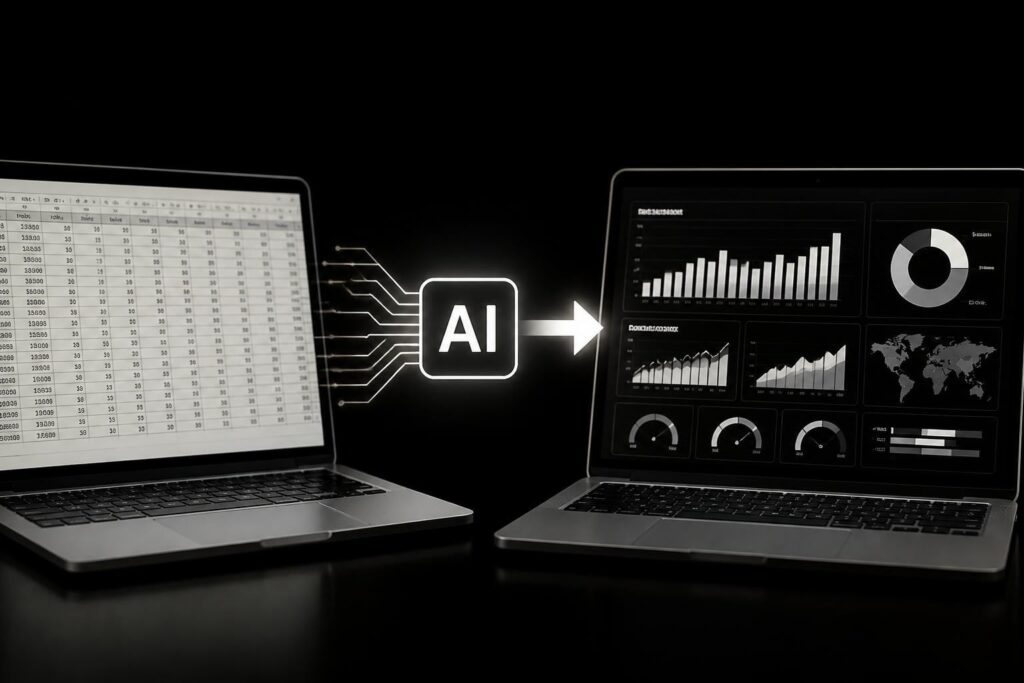
Artificial intelligence has fundamentally changed how we interact with spreadsheets, transforming what was once a tedious, syntax-heavy process into something remarkably intuitive. Learning how to create excel formulas using ai is no longer a futuristic concept but a practical skill that can save hours of work and reduce errors dramatically. Whether you're struggling with nested IF statements, VLOOKUP challenges, or complex array formulas, AI assistants can now translate your plain-language requests into functional Excel code. This shift represents one of the most significant productivity improvements for spreadsheet users since the introduction of pivot tables.
Understanding AI-Powered Formula Generation
AI formula generators work by processing natural language descriptions and converting them into executable Excel syntax. These tools leverage large language models trained on millions of formula examples, enabling them to understand context, data structure, and business logic from simple descriptions.
The technology behind how to create excel formulas using ai relies on several key capabilities. First, these systems parse your request to identify the calculation type, data references, and logical conditions you need. Second, they map your requirements to appropriate Excel functions, often combining multiple functions to achieve the desired result. Third, they generate syntactically correct formulas that account for cell references, operator precedence, and proper function nesting.
Key advantages of AI formula generation include:
- Elimination of syntax memorization requirements
- Reduced time spent debugging formula errors
- Access to advanced functions without prior knowledge
- Natural language explanations of complex formulas
- Instant suggestions for formula optimization
The Microsoft Excel Agent Mode represents a significant advancement in this space, allowing users to interact conversationally with their spreadsheets to both create and repair formulas.

Using Microsoft Copilot for Formula Creation
Microsoft Copilot has become the most integrated solution for how to create excel formulas using ai within the native Excel environment. This AI assistant sits directly within your Excel interface, accessible through a sidebar panel that responds to natural language prompts.
Getting Started with Copilot Formula Generation
To begin creating formulas with Copilot, you'll need an active Microsoft 365 subscription that includes Copilot access. Once enabled, click the Copilot icon in your Excel ribbon and describe the calculation you need in plain English.
For example, instead of manually constructing a formula to calculate the percentage change between two quarters, you can simply type: "Calculate the percentage change from Q1 to Q2 sales." Copilot will analyze your data structure, identify the relevant columns, and generate an appropriate formula like =(B2-A2)/A2.
Our Microsoft Copilot for Excel tutorial provides comprehensive guidance on maximizing Copilot's capabilities for various business scenarios.
Advanced Copilot Formula Techniques
| Technique | Description | Example Prompt |
|---|---|---|
| Conditional Logic | Create complex IF statements | "Flag customers who spent over $1000 in the last month" |
| Data Lookup | Generate VLOOKUP or XLOOKUP | "Find employee names based on ID numbers in column A" |
| Array Formulas | Build dynamic array calculations | "List unique product categories sorted alphabetically" |
| Date Calculations | Work with date arithmetic | "Calculate days between order date and delivery date" |
However, it's important to understand Copilot's limitations. As discussed in PC Gamer’s analysis of Copilot AI functions, Microsoft itself acknowledges that the tool shouldn't be relied upon for tasks requiring absolute accuracy or reproducibility without human verification.
For practical examples of Copilot formulas in action, explore our Copilot Excel formulas examples guide.
Leveraging Google Gemini for Spreadsheet Formulas
While Google Sheets operates separately from Excel, Gemini's approach to formula generation offers valuable insights for anyone learning how to create excel formulas using ai. Gemini's integration with Google Sheets provides sophisticated formula assistance that can be applied to Excel workflows when using compatible AI tools.
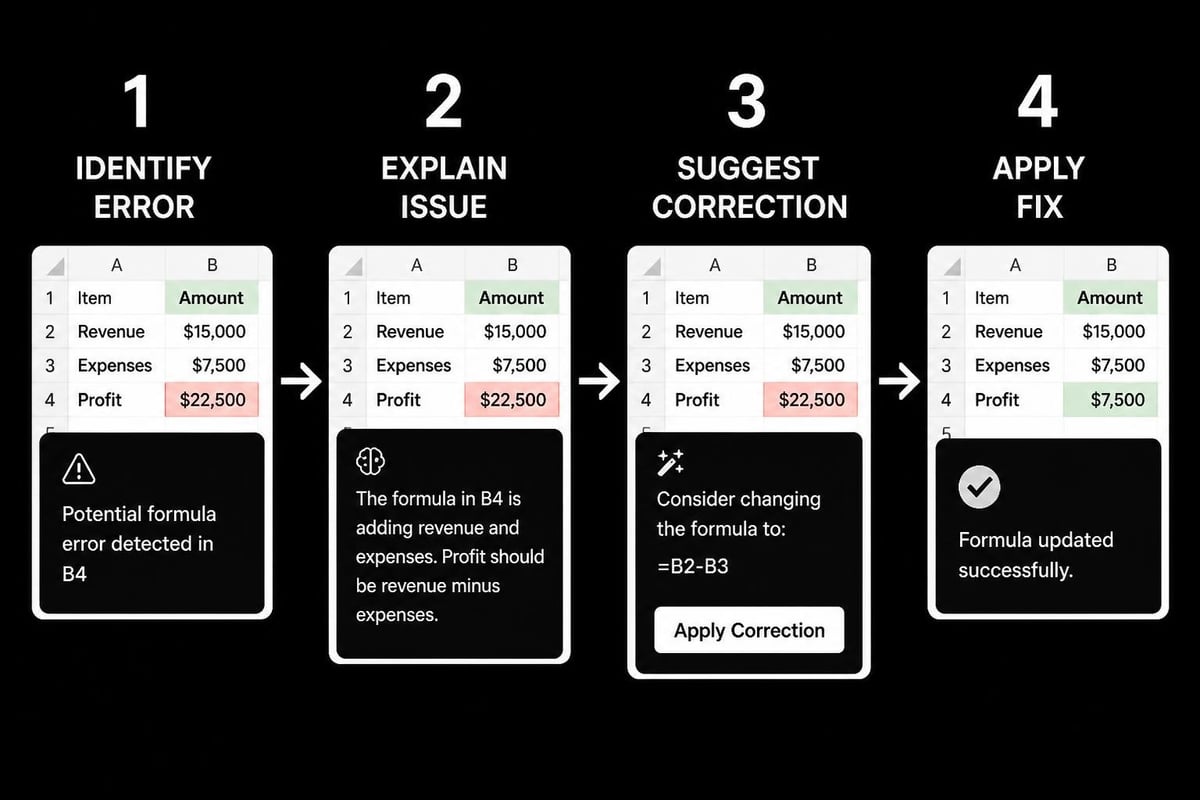
Gemini excels at explaining existing formulas and suggesting corrections. According to TechRadar’s coverage, Gemini can now diagnose broken formulas, provide natural-language explanations, and offer fixes automatically.
Gemini's formula creation strengths:
- Contextual understanding of data relationships across multiple sheets
- Error detection that identifies logical flaws before execution
- Formula optimization suggestions for performance improvement
- Multi-step calculations broken into manageable components
When working with cross-platform spreadsheet projects, comparing different AI approaches becomes essential. Our Gemini vs Copilot for Excel comparison helps you understand which tool suits your specific needs.
Creating Formulas with Claude AI
Claude represents another powerful option for how to create excel formulas using ai, particularly for users who need detailed explanations alongside their formulas. Recent developments have brought Claude integration directly into Excel environments through specialized add-ins and sidebar interfaces.
Claude's Approach to Formula Development
Claude differs from Copilot and Gemini in its conversational depth. When you request a formula, Claude typically provides not just the solution but a thorough explanation of how it works, why certain functions were chosen, and potential variations you might consider.
For instance, when asked to create a formula for weighted averages, Claude might respond with the SUMPRODUCT approach while also explaining alternative methods using SUM and array multiplication, helping you understand the underlying logic.
The Claude for Excel integration enables reading, modifying, and creating spreadsheets through a sidebar interface, making it particularly valuable for learning while building.
Best Practices for Claude Formula Prompts
Effective prompts significantly improve the quality of AI-generated formulas. When using Claude or similar tools, structure your requests with specific details:
- Define your data structure: "Column A contains dates, Column B contains revenue amounts"
- Specify the desired output: "I need the total revenue for each month in 2026"
- Include edge cases: "If there's no data for a month, show 0 instead of an error"
- Request explanations: "Explain each part of the formula so I can modify it later"
Our best Claude prompts for Excel users resource offers tested prompt templates for common business scenarios.
Practical Applications and Real-World Examples
Understanding how to create excel formulas using ai becomes most valuable when applied to actual business challenges. Different industries and roles benefit from AI formula generation in distinct ways.
Financial Analysis Scenarios
Financial professionals frequently need complex formulas for projection models, variance analysis, and ratio calculations. AI assistants can generate formulas for:
- Compound annual growth rate (CAGR) calculations
- Net present value (NPV) and internal rate of return (IRR) analysis
- Rolling averages for trend analysis
- Conditional formatting rules based on financial thresholds
A typical prompt might be: "Create a formula that calculates the year-over-year revenue growth rate, showing the result as a percentage with two decimal places."
Marketing and Sales Applications
Marketing teams leverage AI-generated formulas for campaign tracking, conversion analysis, and ROI calculations. Common use cases include:
| Use Case | Formula Type | Business Value |
|---|---|---|
| Lead scoring | Weighted scoring models | Prioritize high-value prospects |
| Attribution modeling | Multi-touch calculation | Understand campaign effectiveness |
| Customer segmentation | Conditional categorization | Targeted messaging strategies |
| Forecast accuracy | Variance percentage | Improve planning processes |
For marketing professionals working with campaign data, exploring how to automate Excel tasks with AI can transform monthly reporting workflows.
Operational Efficiency Formulas
Operations teams benefit from formulas that calculate inventory turnover, production efficiency, scheduling conflicts, and resource utilization. AI excels at creating formulas that incorporate multiple business rules and constraints.
When you need to create a formula that flags orders requiring expedited shipping based on order date, customer priority, and inventory status, describing these conditions in plain language to an AI assistant produces accurate results faster than manual formula construction.

Troubleshooting and Refining AI-Generated Formulas
Even with sophisticated AI assistance, generated formulas sometimes require adjustment. Understanding how to create excel formulas using ai includes knowing how to validate, test, and refine the results.
Validation Steps for AI Formulas
- Test with sample data: Apply the formula to a small dataset with known outcomes
- Check edge cases: Verify behavior with empty cells, zero values, and text entries
- Verify cell references: Ensure relative and absolute references are correctly applied
- Confirm calculation logic: Walk through the formula step-by-step to verify accuracy
- Compare with manual calculations: Spot-check results against hand-calculated values
When formulas don't produce expected results, use iterative prompting. Describe what's wrong: "The formula is returning #DIV/0! errors when the denominator is zero. How can I modify it to show 'N/A' instead?"
Common AI Formula Generation Challenges
Challenge 1: Ambiguous Data References
AI might misidentify which columns or ranges you're referencing. Solution: Provide explicit cell references in your prompt ("using data in cells A2:A100").
Challenge 2: Overlooked Business Logic
The AI might not understand unstated business rules. Solution: Include all conditions explicitly ("exclude any transactions marked 'cancelled' in column F").
Challenge 3: Performance Issues with Large Datasets
AI-generated formulas might work correctly but calculate slowly. Solution: Ask for optimized versions ("rewrite this formula to calculate faster with 50,000 rows of data").
The research on generating benchmark datasets for Excel formula repair highlights how even advanced AI models face challenges with complex formula correction, emphasizing the importance of clear initial prompts.
Comparing AI Formula Tools and Choosing the Right One
Different AI tools excel at different aspects of how to create excel formulas using ai. Selecting the appropriate tool depends on your specific requirements, existing software ecosystem, and workflow preferences.
Feature Comparison Matrix
| Feature | Microsoft Copilot | Google Gemini | Claude AI |
|---|---|---|---|
| Native Integration | Excel desktop/web | Google Sheets | Third-party add-ins |
| Explanation Depth | Moderate | Good | Excellent |
| Formula Complexity | Advanced | Advanced | Advanced |
| Error Correction | Yes | Yes | Yes |
| Learning Curve | Low | Low | Moderate |
| Cost Model | Microsoft 365 subscription | Google Workspace add-on | Separate subscription |
For detailed comparisons tailored to Excel users, review our Claude vs Copilot for Excel analysis.
Choosing Based on Your Use Case
Choose Microsoft Copilot if:
- You work primarily in Excel desktop or web versions
- You need seamless integration with your existing Microsoft 365 workflow
- Your organization has already invested in Copilot licensing
Choose Gemini if:
- You work across both Google Sheets and Excel
- You need strong collaborative features with team members
- You value detailed formula explanations and learning support
Choose Claude if:
- You want comprehensive explanations that teach formula logic
- You work with complex, multi-step calculations
- You need an AI that can handle extensive context about your data
Research on natural language to formula generation demonstrates that different AI models approach formula creation with varying strengths, making tool selection a strategic decision.
Advanced Techniques for AI Formula Creation
Mastering how to create excel formulas using ai extends beyond basic prompts. Advanced users combine AI capabilities with Excel's powerful features to create sophisticated analytical solutions.
Combining AI with Named Ranges
Named ranges make formulas more readable and maintainable. When working with AI assistants, reference named ranges in your prompts: "Create a formula using the 'SalesData' named range to calculate total revenue by region."
This approach produces cleaner formulas like =SUMIF(SalesData[Region],"West",SalesData[Revenue]) instead of cryptic cell references.
Iterative Formula Development
Complex calculations often require multiple iterations. Start with a basic request, test the result, then refine:
- Initial prompt: "Calculate the average sales per customer"
- Test result: Notice it includes cancelled orders
- Refinement: "Modify to exclude orders where status is 'Cancelled'"
- Further refinement: "Also exclude customers with less than 3 orders"
This iterative approach, guided by AI assistance, builds robust formulas incrementally while ensuring each component works correctly.
Creating Formula Templates with AI
Request formula patterns that you can adapt for multiple scenarios. For example: "Create a template formula for calculating running totals that I can copy down a column." The AI will generate a formula with proper absolute and relative references that maintains its logic when copied.
The FLAME model research demonstrates how specialized AI models designed specifically for spreadsheet formulas can achieve competitive performance with compact architectures, suggesting future improvements in formula assistance tools.
Learning how to create excel formulas using ai represents a fundamental shift in spreadsheet productivity, transforming hours of manual formula construction into minutes of conversational interaction with intelligent assistants. Whether you're debugging broken calculations, building complex financial models, or simply trying to understand what a formula does, AI tools provide unprecedented support for users at every skill level. If you're ready to transform your spreadsheet workflow with expert guidance, personalized training, and practical solutions for your most challenging Excel problems, The Analytics Doctor offers the specialized support you need to make your data work smarter, not harder.