Skip to content

Unlock the true power of data analysis by mastering maximum minimum excel functions. As organizations rely on Excel for critical decision-making in 2026, knowing how to quickly find the highest and lowest values can transform your workflow.
This comprehensive guide offers step-by-step instructions, expert tips, and advanced techniques to help you work smarter with maximum minimum excel calculations. You will discover the basics, explore powerful conditional formulas, and troubleshoot common issues with confidence.
Are you ready to boost your Excel skills and future-proof your expertise? Dive in to learn essential methods that make your data analysis faster, more accurate, and ready for tomorrow's challenges.
Understanding Maximum and Minimum Functions in Excel
Unlocking the power of the maximum minimum excel functions begins with understanding their core purpose. These tools allow users to instantly identify the highest and lowest values within any dataset, providing essential insights at a glance. Whether you are analyzing sales, tracking deadlines, or monitoring inventory, mastering these functions is the foundation of efficient data analysis.
Definition and Purpose
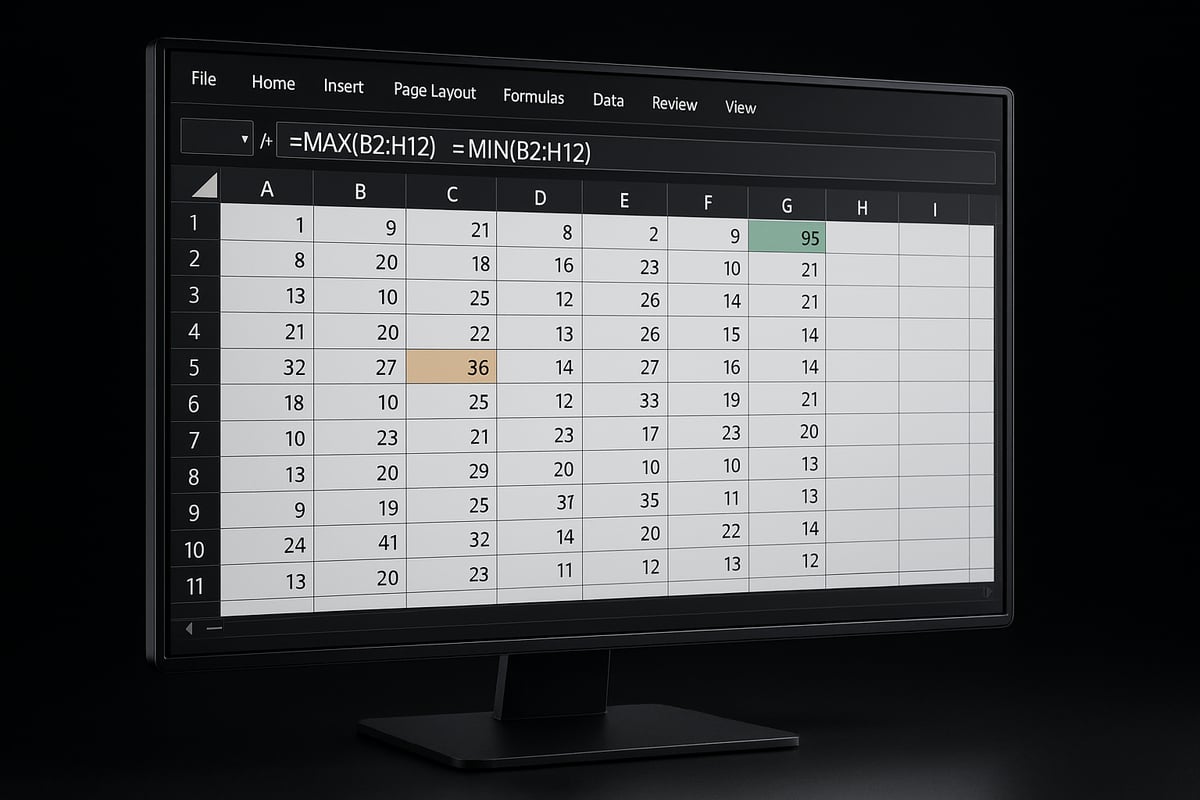
The MAX function in Excel returns the largest value from a range, while the MIN function finds the smallest. Using maximum minimum excel functions is essential for quick data checks. For example, finding the best sales month or the earliest project deadline becomes a one-step process with these formulas.
Syntax and Usage
The syntax for these functions is straightforward:
=MAX(range)
=MIN(range)
For example, to find the highest sales in cells B2:B13, use =MAX(B2:B13). To determine the lowest, use =MIN(B2:B13). These formulas work instantly, no matter the dataset size. If you need a visual step-by-step, the Excel MAX and MIN Functions Tutorial offers practical examples and animations to guide you.
Supported Data Types
Maximum minimum excel functions handle a variety of data types. They work with numbers, dates, and logical values (TRUE/FALSE). For dates, MAX finds the latest date, and MIN finds the earliest. Logical values are ignored unless using MAXA or MINA.
Real-World Applications
These functions are used across industries. In finance, maximum minimum excel analysis pinpoints the highest revenue quarter. In project management, they help determine the earliest or latest milestone. Inventory teams can instantly track which item has the lowest stock.
- Financial analysis: Identify peak sales periods
- Project deadlines: Find earliest or latest due dates
- Inventory control: Spot low-stock or overstocked items
Comparing MAX, MIN, MAXA, and MINA
Understanding the differences between these functions is crucial:
| Function | Handles Numbers | Handles Logical | Handles Text | Ignores Text |
|---|---|---|---|---|
| MAX | Yes | No | No | Yes |
| MIN | Yes | No | No | Yes |
| MAXA | Yes | Yes | Yes | No |
| MINA | Yes | Yes | Yes | No |
- MAX and MIN ignore logical values and text.
- MAXA and MINA include TRUE as 1, FALSE as 0, and count text as 0.
Limitations of Basic Functions
While maximum minimum excel functions are powerful, they have limits. They only evaluate a single range at a time and do not support built-in criteria. For analysis that requires conditions, advanced functions like MAXIFS and MINIFS are needed.
Example: Summarizing Quarterly Sales
Suppose you have quarterly sales in C2:C5. Enter =MAX(C2:C5) for the highest quarter and =MIN(C2:C5) for the lowest. This gives instant insight into performance trends, making maximum minimum excel a must-have for dashboards.
Why Mastering the Basics Matters
Building expertise with maximum minimum excel functions sets the stage for mastering more complex analysis. These foundational skills are critical for leveraging conditional formulas, automations, and advanced data workflows.
Advanced Techniques: Using MINIFS and MAXIFS for Conditional Analysis
Unlocking the power of conditional analysis in Excel starts with understanding how MINIFS and MAXIFS functions transform your approach to data. These tools go far beyond the basics, enabling you to extract nuanced insights from complex datasets. For anyone aiming to master maximum minimum excel calculations in 2026, conditional analysis is a must-have skill.
Introduction to MINIFS and MAXIFS
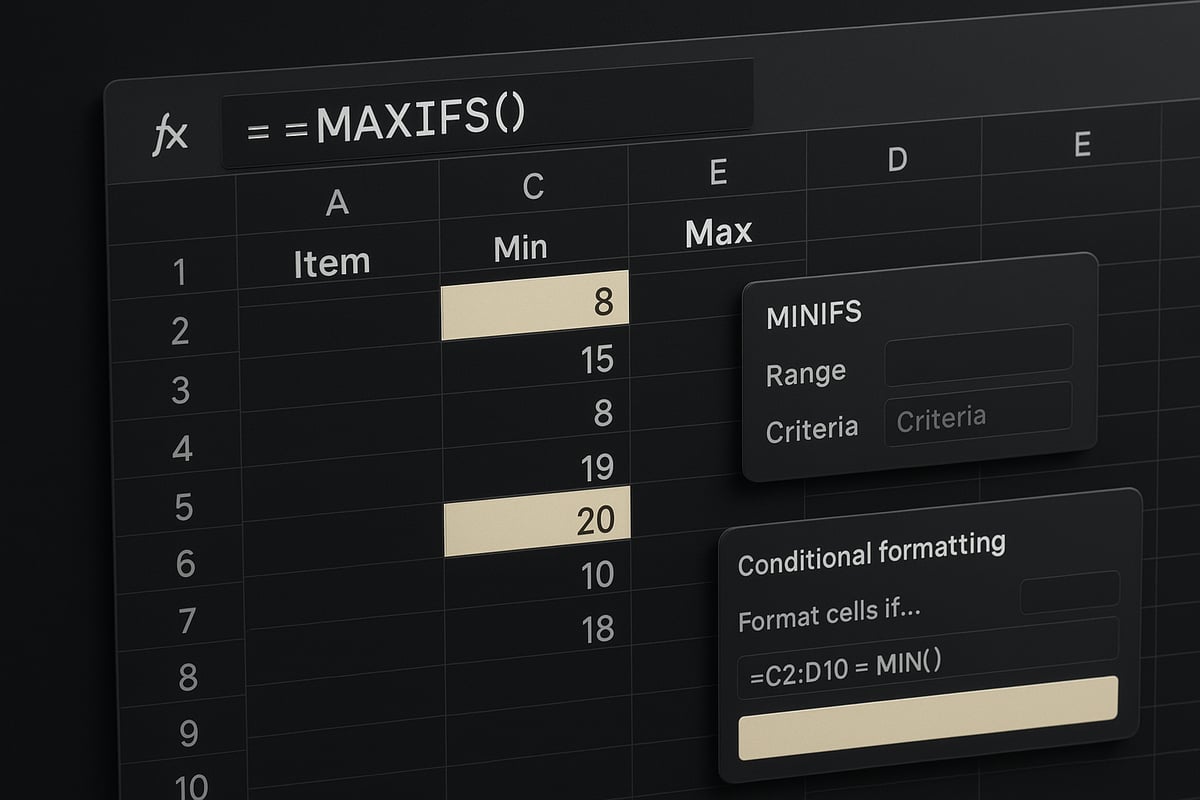
MINIFS and MAXIFS are advanced Excel functions designed to find the minimum or maximum value in a range, but only if certain criteria are met. Unlike the basic MAX or MIN functions, they allow you to filter your data as you calculate.
The syntax for MINIFS is:
=MINIFS(min_range, criteria_range1, criteria1, [criteria_range2, criteria2], ...)
MAXIFS follows the same structure:
=MAXIFS(max_range, criteria_range1, criteria1, [criteria_range2, criteria2], ...)
These functions are available in Excel 2019, Microsoft 365, and later versions. They replace many older, complex array formulas and eliminate the need for SUMPRODUCT in multi-criteria scenarios.
For example, to find the lowest sales amount for a specific year, you can use MINIFS to target just those entries. This makes maximum minimum excel analysis not only more accurate, but also far simpler in practice.
Setting Up Criteria-Based Maximum and Minimum Calculations
To harness the full potential of MINIFS and MAXIFS, start by organizing your data with clear input cells for criteria like date range or category. This enables dynamic, criteria-driven analysis with your maximum minimum excel calculations.
Follow these steps:
- Create input cells for user-defined criteria (e.g., select a fiscal year or product category).
- Use dynamic named ranges or Excel Tables so your formulas automatically expand as data grows.
- When conditions are complex, add helper columns to combine AND/OR logic, such as
=AND(Year=2024, Region="West").
A typical formula to highlight the highest sales in a specific year might look like:
=MAXIFS(SalesRange, YearRange, SelectedYear)
Similarly, to find the minimum for a category:
=MINIFS(SalesRange, CategoryRange, SelectedCategory)
To avoid errors, pay careful attention to absolute and relative references when building your formula. Data validation is essential for user-friendly input cells, ensuring only valid criteria are used. For robust validation strategies, you can refer to Excel data validation rules.
Using criteria-based functions enhances the statistical accuracy of your maximum minimum excel analysis. By filtering out irrelevant data, your summaries become more relevant and actionable.
Practical Examples and Use Cases
Conditional maximum minimum excel analysis has tangible impacts across industries. Consider these scenarios:
- Sales Performance: Identify the top-performing product in a specific region using MAXIFS, or find the lowest sales month for targeted improvement.
- HR Analytics: Use MINIFS to pinpoint the employee with the fewest absences in a department, supporting data-driven HR decisions.
- Financial Modeling: Track the maximum expense in a category over a rolling six-month period, improving budget oversight.
- Project Tracking: Highlight the earliest or latest milestone within a project phase, using multiple criteria like phase and status.
- Competitor Benchmarking: Analyze competitor data to find minimum or maximum values within a year range, a strategy often featured in expert Excel tutorials.
For advanced workflows, combine MINIFS or MAXIFS with functions like IFERROR to handle missing data gracefully. Nesting these with other functions, such as SUMPRODUCT or INDEX/MATCH, allows for even more granular insights in your maximum minimum excel reports.
Conditional analysis is essential for tailored business intelligence. By leveraging these techniques, you ensure your Excel skills are future-ready and aligned with the demands of 2026.
Step-by-Step Guide: Highlighting Maximum and Minimum Values with Conditional Formatting
Unlocking the full power of maximum minimum excel analysis requires more than formulas—it demands clear, visual cues. Conditional formatting brings your data to life by instantly highlighting top and bottom values, making trends and outliers stand out for rapid decision-making.
Preparing Your Data
Before you apply conditional formatting, ensure your data is organized for maximum minimum excel efficiency. Start by arranging your numbers and dates into a structured Excel Table. This format allows formulas and formatting to update automatically as your data grows.
Check that all values are consistent in type. Dates should be genuine date values, not text. Numbers must be free from stray characters or formatting that could interfere with calculations. Remove any duplicate entries and correct errors to prevent misleading highlights.
Use helper columns if you plan to filter or apply criteria, such as flagging only certain years or categories. For example, create a column labeled "In Range" that marks TRUE for rows matching your criteria. Document your data structure with clear headers and notes so others understand your setup. This attention to detail ensures your maximum minimum excel functions work accurately across all analysis.
Applying Conditional Formatting Rules
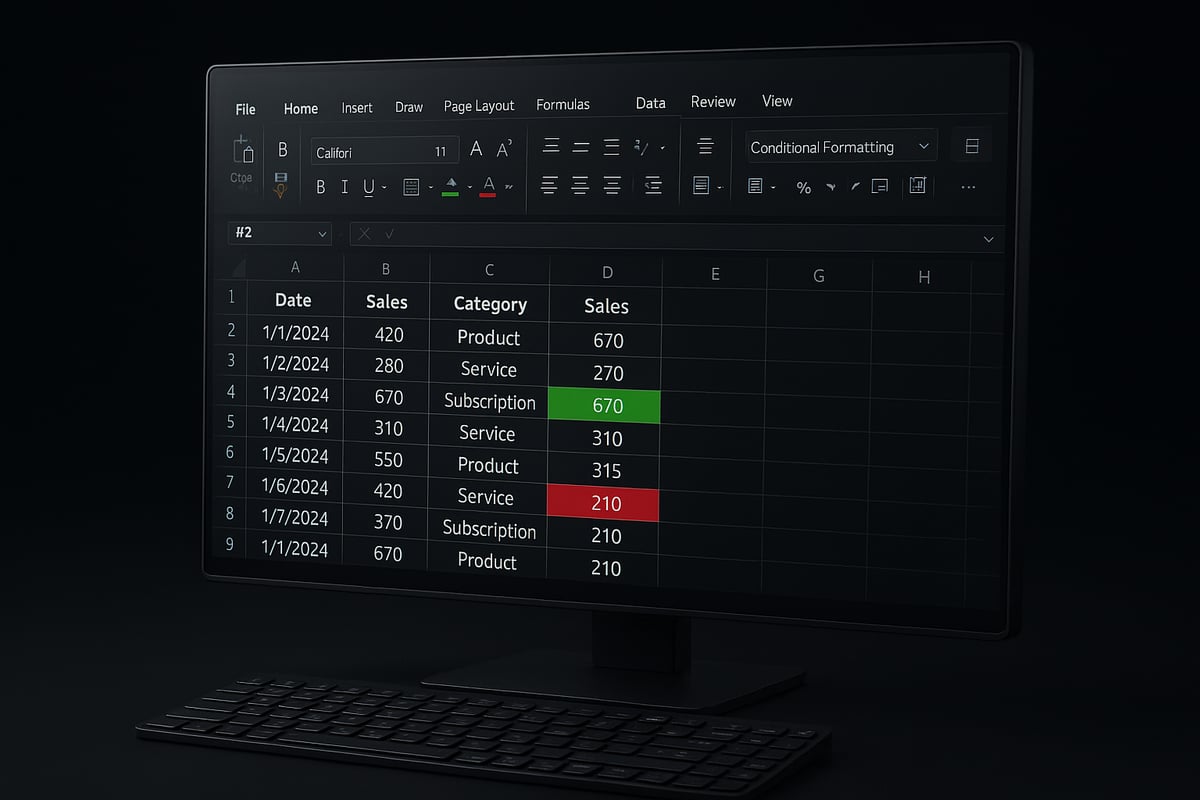
Now, bring your maximum minimum excel values into focus using conditional formatting. Follow these steps:
- Select the range of cells you wish to analyze.
- Go to the Home tab, then click Conditional Formatting.
- Choose "New Rule" and select "Use a formula to determine which cells to format."
- For the maximum, enter:
=$D4=MAXIFS($D$4:$D$17,$F$4:$F$17,TRUE) - For the minimum, use:
=$D4=MINIFS($D$4:$D$17,$F$4:$F$17,TRUE) - Click Format, pick your styles (such as a bold fill color), and confirm.
- Apply both rules to highlight the highest and lowest matching values.
If your formatting does not update as expected, double-check your formula references and ensure your helper columns are correct. For additional techniques and troubleshooting, see the Excel conditional formatting guide.
This process helps you spot maximum minimum excel values at a glance, even as your data changes.
Customizing and Testing Your Setup
Take your maximum minimum excel analysis further by customizing rules to fit your reporting needs. Adjust your formulas to include multiple criteria, such as region and year, by incorporating additional helper columns or using logical functions.
You can also highlight the top N or bottom N values by combining conditional formatting with formulas like LARGE or SMALL. Test your setup by changing input values, ensuring highlighted cells update dynamically. Hide any helper columns to keep your worksheet clean and focused.
Verify your formulas with sample data and different scenarios. Save your formatting as a template for future use, streamlining your workflow across projects. By refining and testing, you ensure your maximum minimum excel highlights are always accurate, actionable, and ready for any business challenge.
Troubleshooting Common Issues with Maximum and Minimum Functions
When working with maximum minimum excel calculations, errors can appear unexpectedly and disrupt your workflow. Understanding common pitfalls and their solutions ensures your formulas deliver accurate results every time.
Common Errors with Maximum Minimum Excel Functions
Errors such as #VALUE! or #N/A are frequent when using maximum minimum excel formulas. These usually happen if your data contains non-numeric values, blank cells, or unexpected text entries.
Typical causes and solutions:
| Error | Likely Cause | Quick Fix |
|---|---|---|
| #VALUE! | Non-numeric data in range | Clean data, use =NUMBERVALUE() |
| #N/A | No matching criteria | Check your logic and criteria |
If you use conditional min/max formulas like MAXIFS or MINIFS and get errors, double-check that your ranges are the same size. For a comprehensive approach to solving these issues, refer to Excel troubleshooting techniques.
Data Type Consistency and Formatting
Inconsistent data types can lead to incorrect maximum minimum excel results. For example, mixing numbers formatted as text with true numbers in your range may cause MAX or MIN to ignore some values.
To avoid this:
- Format all relevant columns as numbers or dates before applying formulas.
- Use the
ISTEXT()orISNUMBER()functions to audit your data. - Remove leading/trailing spaces that may disrupt calculations.
Always standardize your dataset to guarantee consistent and reliable outcomes.
Handling Hidden Rows and Array Formulas
When your worksheet has filtered or hidden rows, standard maximum minimum excel functions like MAX or MIN will include all rows, even those you do not want. Instead, use the SUBTOTAL function to target only visible data:
=SUBTOTAL(104, A2:A100) // Maximum of visible cells
=SUBTOTAL(105, A2:A100) // Minimum of visible cells
If you are using legacy Excel versions, remember that array formulas sometimes require pressing Ctrl+Shift+Enter (CSE) to work properly. This is especially true for custom criteria-based max/min calculations.
Optimizing Performance and Preventing Calculation Errors
Large datasets can slow down maximum minimum excel formulas, especially when using multiple criteria or dynamic ranges. To optimize performance:
- Use Excel Tables for dynamic referencing.
- Limit your ranges to only necessary rows.
- Replace volatile functions with more efficient alternatives when possible.
When criteria return no matching values, MAXIFS or MINIFS may return 0 or an error. Wrap these formulas with IFERROR to handle such cases gracefully:
=IFERROR(MAXIFS(...), "No Data")
Being proactive with these troubleshooting steps will save you time and help maintain the integrity of your analyses.
Expert Tips and Best Practices for 2026 Excel Power Users
Unlocking the full capabilities of maximum minimum excel analysis is essential for power users aiming to stay ahead in 2026. As data grows in scale and complexity, mastering advanced strategies, automation, and integration with new tools will set you apart. The following expert tips will help you streamline workflows, minimize errors, and future-proof your skills for the evolving demands of data analysis.
Automating Maximum and Minimum Analysis
Automating your maximum minimum excel routines saves time and ensures consistency across large and complex datasets. Start by using dynamic named ranges and Excel Tables, which automatically expand as you add or remove data. This approach keeps your maximum minimum excel formulas accurate without constant manual updates.
Power Query is another powerful tool for preprocessing data before running any maximum minimum excel calculations. With Power Query, you can clean, transform, and merge datasets, preparing them for seamless min/max analysis. For recurring reports, consider automating tasks with macros or VBA. For example, you can use a macro to highlight the top and bottom performers in a monthly dashboard with a single click.
Sub HighlightMinMax()
    Dim ws As Worksheet
    Set ws = ActiveSheet
    ws.Range("D4:D17").FormatConditions.Delete
    ws.Range("D4:D17").FormatConditions.Add Type:=xlCellValue, Operator:=xlEqual, Formula1:="=MAX($D$4:$D$17)"
    ws.Range("D4:D17").FormatConditions(1).Interior.Color = RGB(0, 176, 80)
    ws.Range("D4:D17").FormatConditions.Add Type:=xlCellValue, Operator:=xlEqual, Formula1:="=MIN($D$4:$D$17)"
    ws.Range("D4:D17").FormatConditions(2).Interior.Color = RGB(255, 0, 0)
End Sub
Integrate external data sources for real-time maximum minimum excel updates, ensuring your analysis is always current. Document each automation step clearly, making it easier for team collaboration and future maintenance. For more foundational automation knowledge, explore Data analysis in Excel basics.
Automation reduces manual errors and increases productivity, letting you focus on interpreting results rather than repetitive tasks. Keep refining your workflows to maximize efficiency and reliability.
Combining Maximum and Minimum Functions with Other Excel Tools
Taking maximum minimum excel analysis to the next level involves combining these functions with other Excel features. Nesting MAX, MIN, MAXIFS, or MINIFS within IF, SUMPRODUCT, or INDEX/MATCH allows for more sophisticated logic and tailored insights. For instance, you can create formulas that identify top sales only within a certain region or time frame.
Conditional formatting paired with maximum minimum excel functions creates interactive dashboards that visually highlight trends and outliers. Pivot tables further enhance your ability to summarize and drill down into data, making it easy to spot min/max values across categories.
Consider the following table to compare integration strategies:
| Excel Tool | Benefit for Min/Max Analysis |
|---|---|
| IF/INDEX/MATCH | Custom logic for dynamic conditions |
| Conditional Formatting | Visual cues for instant insights |
| Pivot Tables | Quick summaries and comparisons |
| Alerts | Notifications for threshold breaches |
You can also set up alerts using formulas to notify you when values exceed critical thresholds, streamlining decision-making. For a deeper dive into applying MAXIFS and MINIFS with multiple criteria, check out How to Use Excel MAXIFS & MINIFS Functions with Multiple Criteria.
Layering maximum minimum excel functions unlocks richer, more actionable analysis. Experiment with function combinations to discover new perspectives within your data.
Future-Proofing Your Excel Skills
To remain a maximum minimum excel expert in 2026, prioritize continuous learning and adaptability. Stay updated on new Excel features, such as dynamic arrays and the LAMBDA function, which offer more flexibility for min/max calculations. Explore Excel’s AI-powered analysis tools for smarter, faster recommendations.
Taking online courses, earning certifications, and joining user communities will keep your maximum minimum excel knowledge sharp. Practice regularly with real-world datasets to reinforce your skills and adapt to emerging trends.
Evolving your expertise in maximum minimum excel is essential as data-driven roles evolve. By staying proactive and curious, you ensure your skills remain relevant and valuable in any analytical environment.
Get Expert Excel Help from The Analytics Doctor
Unlocking the full power of maximum minimum excel analysis often requires expert guidance. The Analytics Doctor is dedicated to helping users at every skill level conquer Excel’s most challenging functions, including MAXIFS and MINIFS. Whether you are struggling with complex formulas or simply want to elevate your reporting, professional support can make all the difference.

With The Analytics Doctor, you gain access to a suite of specialized services designed to streamline your maximum minimum excel workflow:
- Personalized Excel training, covering everything from foundational MAX and MIN functions to advanced conditional logic.
- Custom automation solutions, including VBA macros for recurring data analysis tasks.
- Troubleshooting support to resolve errors, formula issues, and workflow bottlenecks.
- Workflow optimization strategies tailored to your unique business needs.
These services translate into tangible benefits. You can save hours on reporting, reduce costly mistakes, and gain confidence in your ability to leverage maximum minimum excel functions for smarter decision-making. Imagine automating conditional formatting across thousands of rows or untangling a complex workbook with ease. For step-by-step guidance on using MAXIFS and MINIFS, consider referencing How to Use MAXIFS and MINIFS Functions in Excel for practical examples.
The Analytics Doctor serves a diverse audience, including:
- Corporate teams looking to standardize reporting processes.
- Professionals seeking to sharpen their Excel skills for career advancement.
- SMEs needing reliable support for ongoing data projects.
- Anyone aiming to master maximum minimum excel for business growth.
What sets The Analytics Doctor apart is the Texas-based expertise, fully customized solutions, and ongoing support that adapts to your evolving needs. This approach ensures you receive not just one-time fixes, but lasting improvements to your Excel skillset.
Getting started is simple. Access free resources to boost your foundational knowledge, schedule a one-on-one consultation for tailored advice, or enroll in interactive workshops to deepen your understanding of maximum minimum excel. Investing in expert help today ensures you stay ahead of the curve as Excel evolves, empowering you to solve tomorrow’s data challenges with confidence.