Skip to content

Are you frustrated by messy data and wondering how to split the cell in excel? You are not alone. Many professionals face this challenge, and mastering it can save hours of tedious work.
This 2026 expert guide is designed to help you take control of your data. We will walk you through every proven method, from Excel’s built-in features to advanced formulas and automation tools.
Whether you are cleaning up names, prepping reports, or managing large datasets, you will find step-by-step solutions here. Get ready to transform your workflow and unlock the full power of Excel cell splitting.
Understanding Cell Splitting in Excel: What, Why, and When
Splitting cells in Excel is a foundational skill for anyone working with structured data. When you learn how to split the cell in excel, you unlock the ability to reorganize, analyze, and clean your data for better insights. Unlike merging or formatting, which combine or style cells, splitting separates the information within one cell into multiple distinct cells.
Defining Cell Splitting and Its Importance
At its core, cell splitting involves taking the contents of a single cell and dividing them into separate pieces, each placed in its own cell. This is different from merging, which combines multiple cells into one, or formatting, which simply changes how data looks. For example, if you have "John Smith" in one cell, splitting divides it into "John" and "Smith" in two separate cells.
Businesses frequently encounter scenarios where knowing how to split the cell in excel is essential. Common needs include separating full names into first and last names, breaking out product codes, or dividing addresses into street, city, and zip code. Each of these tasks supports cleaner databases and more accurate reporting.
Splitting cells improves data integrity and workflow efficiency. Clean, separated data is easier to sort, filter, and analyze, which is critical for automation and consistent reporting. It also reduces errors when importing or exporting data across systems. The technique can be applied to text, numbers, and even dates, but the method may differ slightly depending on the data type.
For a comprehensive overview of splitting, managing, and merging cells with practical examples, you can explore UpGrad’s guide on splitting and managing cells.
Key Use Cases and Real-World Examples
The need to learn how to split the cell in excel arises in many real-world scenarios. For instance, when importing customer lists from a CSV file, names and addresses often come in a single column, requiring separation for mail merges or targeted communication. In finance, splitting transaction codes into components helps with detailed analysis. HR teams may need to extract first names for personalized emails, while marketing uses split data to segment audiences.
According to a 2023 Microsoft Tech Community survey, 68% of Excel users report needing to split data at least once a month. This highlights the widespread importance of mastering these techniques across industries.
Here is a quick comparison of popular methods:
| Method | Pros | Cons |
|---|---|---|
| Built-in Split Tools | Fast, easy for simple cases | Limited flexibility |
| Helper Columns | More control, keeps original data | Can clutter worksheets |
| Formulas | Highly customizable | May require formula expertise |
Choosing the right approach depends on data complexity and workflow needs. While built-in tools work for basic splits, formulas and helper columns offer more control for complex tasks. Understanding when and how to split the cell in excel ensures your data remains actionable and reliable.
The Basics: How to Split Cells Using Excel’s Built-In Features
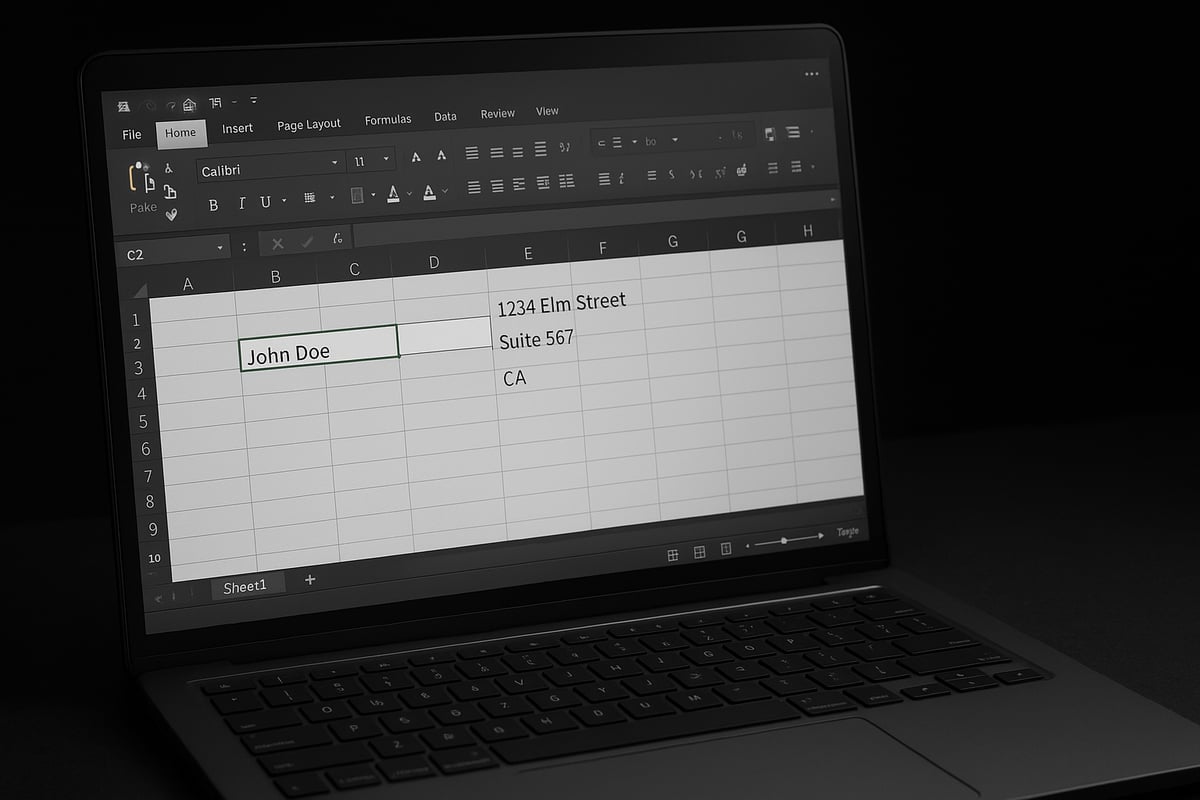
Splitting data in Excel is a foundational skill for anyone who wants organized, actionable information. If you have ever wondered how to split the cell in excel for cleaner analysis, you are in the right place. This section covers three essential built-in methods: Text to Columns, Flash Fill, and platform-specific approaches for Mac and Web. You will learn practical steps, best practices, and real-world examples to master this process with confidence.

Step-by-Step: Using Text to Columns Wizard
The Text to Columns Wizard is the most direct method for anyone learning how to split the cell in excel. You can use this tool to separate data based on a specific character, such as a comma, space, or custom delimiter.
Here is how to use the Text to Columns Wizard:
- Select the column containing the data you want to split.
- Go to the "Data" tab and click "Text to Columns."
- Choose "Delimited" or "Fixed width," depending on your data structure.
- Pick your delimiter (comma, space, semicolon, or custom character).
- Preview the results and adjust as needed.
- Click "Finish" to complete the split.
Supported delimiters include:
- Commas (e.g., "John,Smith")
- Spaces (e.g., "New York")
- Semicolons, tabs, or custom symbols
Example:
Splitting John Smith into separate "John" and "Smith" columns is a common scenario in contact lists.
Limitations:
- Overwrites data in adjacent columns if not cleared beforehand
- Struggles with inconsistent delimiters or missing data
Best practices:
- Always back up your data before splitting
- Use helper columns to preserve original data
For more guidance, refer to Microsoft’s official guide on splitting cells, which offers visual steps and troubleshooting tips.
Remember, when you need to know how to split the cell in excel for simple, repeatable tasks, Text to Columns is often your fastest solution.
Using Flash Fill for Quick Splitting
Flash Fill is Excel’s intelligent tool that automatically detects patterns and fills in data for you, making it ideal when you want to learn how to split the cell in excel based on custom logic.
How Flash Fill works:
- Enter the desired result in a new column next to your data
- Start typing the pattern (e.g., first names from "Jane.Doe@company.com")
- Press
Ctrl + Eor select "Flash Fill" from the Data tab
Practical examples:
- Extracting initials: Typing "J" for "John Smith" prompts Flash Fill to do the same for the rest
- Pulling domains from emails: Typing "company.com" for the first entry, Flash Fill continues for all
When does Flash Fill outperform Text to Columns?
- When data has inconsistent delimiters or unique structures
- For extracting substrings that are not always in the same position
Limitations and troubleshooting:
- Requires a clear, consistent pattern in your sample entries
- May not work with highly variable data or missing values
If you are facing complex formats or need to split data in non-standard ways, consider using Flash Fill as a quick, adaptable solution for how to split the cell in excel.
Splitting Cells in Excel for Mac and Web
Excel for Mac and Excel Online offer similar functionality to Windows, but there are some key differences that affect how to split the cell in excel.
Key interface differences:
- The "Text to Columns" tool in Mac is under the "Data" tab, but the layout may differ
- In Excel Online, some advanced features are limited or missing
Workarounds for missing features:
- Use formulas like
LEFT,RIGHT, orMIDwhen built-in tools are unavailable - Copy data to the desktop version of Excel for advanced splitting tasks
Feature parity insights:
According to recent 2024 update statistics, Microsoft has improved parity between platforms, but Flash Fill and certain data tools may still perform differently on Mac and Web.
Tips for Mac and Web users:
- Always check for the latest updates, as new features roll out frequently
- Leverage browser add-ins or import data to desktop Excel if you require advanced cell splitting
No matter your platform, knowing how to split the cell in excel ensures you can clean and prepare data for analysis, reporting, or automation. Use these built-in features as your foundation before moving to more advanced methods.
Advanced Techniques: Splitting Cells with Formulas and Functions
Splitting data in Excel goes far beyond basic tools. For those aiming to master how to split the cell in excel, formulas and functions unlock a new level of precision and flexibility. Advanced techniques let you target patterns, handle complex data, and automate tasks for large datasets.

Leveraging LEFT, RIGHT, MID, and FIND for Custom Splits
When you need to control exactly how to split the cell in excel, core text functions are your toolkit. The LEFT, RIGHT, MID, and FIND functions help extract specific parts of a cell based on position or pattern.
For example, to pull the area code from a phone number formatted as (123) 456-7890, you could use:
=MID(A2, 2, 3)
This formula starts at the second character and grabs three digits. If you want to split a name like "Jane.Doe" at the period, combine LEFT and FIND:
=LEFT(A2, FIND(".", A2) - 1)
This extracts "Jane" from "Jane.Doe" by finding the position of the period and taking the text before it. To get the domain from an email like "jane.doe@company.com", use:
=RIGHT(A2, LEN(A2) - FIND("@", A2))
Pros:
- Full control over splitting logic.
- Works with both text and numbers.
- No need for extra add-ins.
Cons:
- Can become complex with inconsistent data.
- Requires understanding of Excel formula syntax.
Mastering these functions is essential for anyone serious about how to split the cell in excel, especially when built-in tools fall short.
Using TEXTSPLIT (Excel 365/2021+) and Alternatives
Excel 365 and 2021 introduced the TEXTSPLIT function, making it much easier to split data using multiple delimiters in one step. For instance, to parse "SKU-1234-Red" into three separate cells, use:
=TEXTSPLIT(A2, "-")
This instantly separates "SKU", "1234", and "Red". TEXTSPLIT supports arrays, multiple delimiters, and works across rows and columns. Here’s a quick compatibility table:
| Feature | TEXTSPLIT (365/2021+) | Older Excel Versions |
|---|---|---|
| Multi-delimiter | Yes | No |
| Dynamic arrays | Yes | No |
| Simplicity | High | Moderate |
If you are using an older version of Excel, you can replicate similar results by combining SEARCH, MID, and LEN functions, but it requires more manual setup. For teams automating repetitive splitting, exploring Business Process Automation in Excel can streamline workflows and boost efficiency.
Choosing between TEXTSPLIT and traditional methods depends on your Excel version and complexity of your task. Understanding both approaches ensures you stay adaptable as Excel evolves.
Array Formulas and Dynamic Arrays for Bulk Splitting
When faced with hundreds or thousands of rows, knowing how to split the cell in excel at scale is crucial. Dynamic arrays and array formulas let you apply splitting logic to entire columns with one formula. For example, if you have a column of emails and want to extract usernames, you can enter:
=LEFT(A2:A1000, FIND("@", A2:A1000) - 1)
In Excel 365, this formula spills results automatically into adjacent cells, splitting all emails at once. This saves hours compared to manual splitting.
Best practices:
- Always preview results to check for errors.
- Use helper columns to protect original data.
- Watch for #SPILL! errors, which indicate blocked output ranges.
Dynamic arrays are powerful for bulk operations, but performance can dip with very large datasets or complex formulas. If you encounter errors, check for inconsistent data or non-text entries.
For anyone aiming to master how to split the cell in excel, dynamic arrays and array formulas are indispensable tools for high-volume tasks. They transform splitting from a manual chore into a scalable, repeatable process.
Automating Cell Splitting with Power Query and VBA
Unlocking the full potential of how to split the cell in excel often means moving beyond manual steps. For large datasets or recurring tasks, automation is the key to speed, consistency, and accuracy. Power Query and VBA are two robust tools that can transform the way you handle cell splitting in Excel, streamlining your workflow and minimizing errors.

Power Query: Step-by-Step Cell Splitting Workflow
Power Query is Excel’s built-in tool for powerful data transformation. When learning how to split the cell in excel efficiently, Power Query offers a repeatable, non-destructive process that handles large datasets with ease.
Step-by-step workflow:
- Import Data: Select your dataset, then go to the “Data” tab and choose “From Table/Range” to launch Power Query Editor.
- Split Column: In the editor, highlight the column to split. Use the “Split Column” option, choosing by delimiter (comma, space, or custom), by number of characters, or by advanced logic.
- Preview and Confirm: Instantly preview split results. Adjust settings as needed for consistent output.
- Apply Changes: Click “Close & Load” to return the transformed data to your Excel sheet.
Example: Suppose you have a column with full addresses: 123 Main St, Boston, MA. With Power Query, you can split this single cell into separate columns for street, city, and state in just a few clicks.
Advantages of Power Query:
- Non-destructive—original data is preserved
- Fully repeatable for future imports
- Handles inconsistent delimiters and bulk operations
- Scalable for hundreds or thousands of rows
According to Microsoft, using Power Query for splitting cells can make data prep up to 40% faster compared to manual methods. For anyone serious about how to split the cell in excel for recurring business processes, Power Query is a clear winner.
Automating Repetitive Splits with VBA
For advanced automation, VBA (Visual Basic for Applications) enables you to script custom cell splitting routines. If your workflow requires splitting cells in Excel based on unique rules or needs to be triggered by a single action, VBA can save hours of manual effort.
Getting Started with VBA:
- Press
ALT + F11to open the VBA editor. - Insert a new module and paste your macro code.
Sample Macro: Split Cells by Comma
Sub SplitCellsByComma()
    Dim rng As Range, cell As Range
    Set rng = Selection
    For Each cell In rng
        If InStr(cell.Value, ",") > 0 Then
            cell.Offset(0, 1).Value = Trim(Split(cell.Value, ",")(0))
            cell.Offset(0, 2).Value = Trim(Split(cell.Value, ",")(1))
        End If
    Next cell
End Sub
This macro selects each cell, splits the contents at the comma, and places the results in adjacent columns. You can tailor the logic to match your exact needs for how to split the cell in excel.
When to use VBA vs. Power Query:
- VBA is ideal for custom, event-driven automation or when you need to split cells as part of a larger macro.
- Power Query suits repeatable, scalable data transformations and is easier for users without coding experience.
Security and Sharing:
- Macros can be disabled by default due to security policies.
- Document your code and keep backups.
- Share with colleagues using signed macros for safety.
For step-by-step guidance and best practices, you can explore the Automate Excel Workflows with VBA guide, which covers professional automation, audit-ready solutions, and team upskilling.
With the right automation, how to split the cell in excel becomes a seamless part of your workflow, freeing up your time for higher-value analysis.
Troubleshooting Common Cell Splitting Issues
Splitting cells in Excel can be transformative, but it’s also where many users get tripped up by messy data and unexpected errors. Whether you’re a new analyst or an Excel veteran, understanding how to split the cell in excel without headaches requires a methodical approach to troubleshooting. Let’s break down the most common issues and how to resolve them.
Dealing with Inconsistent Data and Delimiters
One of the most frequent obstacles when learning how to split the cell in excel is inconsistent delimiters. Sometimes, imported data uses commas, other times tabs, or even multiple spaces. This inconsistency can cause the split to fail or produce unwanted results.
Start by examining your dataset. Look for irregular patterns, such as extra spaces or mixed delimiters. Use the TRIM, CLEAN, and SUBSTITUTE functions to prepare your data. For example, you can remove excess spaces with =TRIM(A1), or replace semicolons with commas using =SUBSTITUTE(A1, ";", ",").
If you’re dealing with inconsistent address formats, try standardizing them before running the split. This might mean combining multiple cleaning functions or running a quick find-and-replace. Always preview the results before applying changes to the whole dataset.
Preventing Data Loss and Overwrites
A common risk when executing how to split the cell in excel is overwriting adjacent columns. If you use features like Text to Columns without adequate preparation, important data might be lost.
To safeguard your work:
- Always insert blank columns to the right of your data before splitting.
- Back up your worksheet or use Excel’s version history.
- Consider using helper columns to keep original data intact.
If you want to reduce spreadsheet errors, adopting a preflight workflow is invaluable. For more strategies on protecting your data, refer to the Efficient Spreadsheet Error Reduction guide. These steps ensure you can undo mistakes and maintain data integrity throughout the process.
Error Messages and How to Resolve Them
Encountering error messages can be frustrating when figuring out how to split the cell in excel, especially with formulas or advanced features. Common errors like #VALUE!, #SPILL!, or formula issues often arise from mismatched data types or incorrect delimiter settings.
To resolve errors:
- Double-check your formula syntax and range references.
- Ensure all cells contain the expected delimiter.
- Use Excel’s “Undo” feature to quickly revert mistakes.
- When using dynamic arrays, verify that there is enough empty space for the output.
If you continue to face issues, consult the Excel Troubleshooting Guide for step-by-step solutions and advanced tips. The Excel community forums are also helpful for unique scenarios or persistent problems. Remember, patience and systematic testing are key to mastering how to split the cell in excel without errors.
Pro Tips and Best Practices for Efficient Cell Splitting
Mastering how to split the cell in excel is not just about knowing the tools, but also about adopting smart strategies that improve accuracy and save time. Whether you are handling a quick data cleanup or building a scalable workflow, best practices make all the difference.
Choose the Right Approach: Split, Parse, or Transform
Before you begin, ask yourself if you need to split, parse, or transform your data. Splitting is ideal for breaking structured text, such as names or codes, into separate columns. Parsing is better for extracting patterns or specific values, while data transformation is suited for complex reshaping. Understanding which method fits your scenario ensures you use the best Excel feature for your needs.
Organize Data for Automation and Scalability
Always structure your data so that future automation is straightforward. Keep raw data in separate columns and use helper columns for intermediate results. This organization supports easier troubleshooting and enables you to reuse workflows across projects.
Document Your Process for Team Collaboration
Clear documentation is key when multiple users interact with the same spreadsheet. Use comments, cell notes, or a dedicated documentation sheet to explain your workflow. This transparency helps teams quickly understand how to split the cell in excel and reduces errors during handovers.
Leverage Templates and Reusable Workflows
Save time by creating templates for recurring cell splitting tasks. You can set up reusable formulas, Power Query steps, or VBA scripts for consistent results. Templates also help maintain quality and speed when processing large datasets.
Stay Current with Excel 2026 Features
Excel evolves rapidly, and new functions can streamline your workflow. For example, dynamic array formulas and improved Power Query tools in Excel 2026 offer more robust options for splitting cells at scale. Keep an eye on Microsoft’s Excel roadmap to anticipate and leverage upcoming improvements.
Practice and Learn from Trusted Resources
Continuous learning is essential. Explore detailed, step-by-step guides such as the GeeksforGeeks tutorial on splitting cells to refine your skills and discover new techniques. Community forums and official Microsoft documentation also provide valuable troubleshooting advice.
Adopting these pro tips will help you master how to split the cell in excel efficiently, minimize errors, and keep your data processes future-ready. By combining thoughtful planning, documentation, and ongoing learning, you ensure every cell split contributes to clean, actionable data.