Tired of sorting through messy data or fixing manual entry mistakes in your spreadsheets? Discover how to make drop down in excel and take control of your workflow in 2026. Drop-down lists are the key to consistent, reliable data entry for everyone, from beginners to advanced users.
In this essential guide, you will learn step-by-step methods to create, customize, and troubleshoot drop-down lists. Explore the latest Excel features, best practices, and expert tips that help you work smarter, not harder. Ready to transform your spreadsheets? Let’s begin your journey to becoming an Excel drop-down expert.
Understanding Drop Down Lists in Excel
Drop-down lists in Excel are interactive menus that let users select a value from a predefined set of options within a cell. They serve as a powerful tool for controlling data entry, making it easier to enforce rules and maintain standardized information across workbooks. When exploring how to make drop down in excel, understanding their fundamental purpose is the first step.

What Are the Key Benefits and Applications?
Drop-down lists improve data quality by enforcing consistency and reducing manual entry errors. By using drop-downs, teams can eliminate typos, mismatched entries, and inconsistencies that often occur in free-text fields. This approach is especially useful in collaborative environments where multiple users handle data.
For organizations that prioritize accuracy, leveraging Excel data validation rules ensures drop-downs are set up correctly, further minimizing mistakes. Typical use cases include inventory management, financial reporting dashboards, survey forms, and HR onboarding checklists. Learning how to make drop down in excel allows you to streamline these everyday business tasks.
Types of Drop Down Lists in Excel
Excel supports several drop-down list variations:
- Single-selection drop-downs: The standard type, allowing one choice per cell.
- Multi-selection drop-downs: Achieved through VBA or Office Scripts, these let users select multiple values in a single cell.
- Dependent or cascading drop-downs: Options in one list change dynamically based on a previous selection, ideal for scenarios like selecting both a department and a specific role.
Understanding these types is essential when deciding how to make drop down in excel that fits your workflow. Each serves different data collection and validation needs.
Comparison: Drop Down Lists vs. Other Tools
While drop-down lists are versatile, Excel also offers checkboxes, radio buttons, and free-form fields for data entry. Drop-downs are best when you need controlled, repeatable choices, whereas checkboxes work for binary yes/no selections and radio buttons suit exclusive options in forms.
Below is a quick comparison:
| Tool | Best For | Pros | Cons |
|---|---|---|---|
| Drop Down | Multiple choice fields | Easy, scalable | Limited to list values |
| Checkbox | Yes/No, true/false | Simple | Not for multiple values |
| Radio Button | Exclusive selection | Visual clarity | More setup required |
Knowing how to make drop down in excel gives you flexibility, but consider your project's needs before choosing a data entry tool.
Limitations and New Features in Excel 2026
Despite their strengths, drop-down lists have limitations. Large datasets can slow down performance, and managing very long lists may become unwieldy. There are also constraints on multi-select functionality without scripting.
The Excel 2026 update brings notable improvements. Users can now create longer, searchable drop-downs, and the new interface offers enhanced formatting and easier integration with tables. These updates make it even more practical to learn how to make drop down in excel for both simple and advanced scenarios.
Example: Standardizing Expense Categories in Finance
Consider a finance team tracking expenses. By implementing drop-down lists for expense categories, they ensure everyone uses the same set of terms. This consistency simplifies monthly reporting, reduces time spent cleaning data, and supports accurate analysis. Mastering how to make drop down in excel empowers teams to maintain high data standards and efficiency.
Step-by-Step Guide: How to Make a Basic Drop Down in Excel
Creating a drop-down list in Excel is one of the fastest ways to control data entry, improve accuracy, and make your spreadsheets more interactive. In this guide, you will learn how to make drop down in excel using the latest 2026 features, with practical steps and expert tips to ensure success, whether you are a beginner or an experienced user.
Prerequisites and Getting Started
Before diving into how to make drop down in excel, confirm you are using Excel 2026 or a compatible version. The user interface remains familiar, but some data validation and drop-down features have been enhanced for better usability and speed.
Open your workbook and identify the worksheet and cells where you want to add your drop-down list. Ensure your data source—whether typed manually or stored in a range—is ready.
Step 1: Select the Target Cell(s)
Click the cell where you want the drop-down to appear. If you want to apply the drop-down to multiple cells, select an entire column or a custom range. This sets the stage for the next steps in how to make drop down in excel.
Step 2: Access Data Validation Tools
Navigate to the Data tab on the Excel ribbon. Click on Data Validation in the Data Tools group. This opens the Data Validation dialog box, the core tool for how to make drop down in excel.
Step 3: Choose the 'List' Option and Enter Source Values
Within the dialog box, set the Allow field to List. In the Source field, you can either:
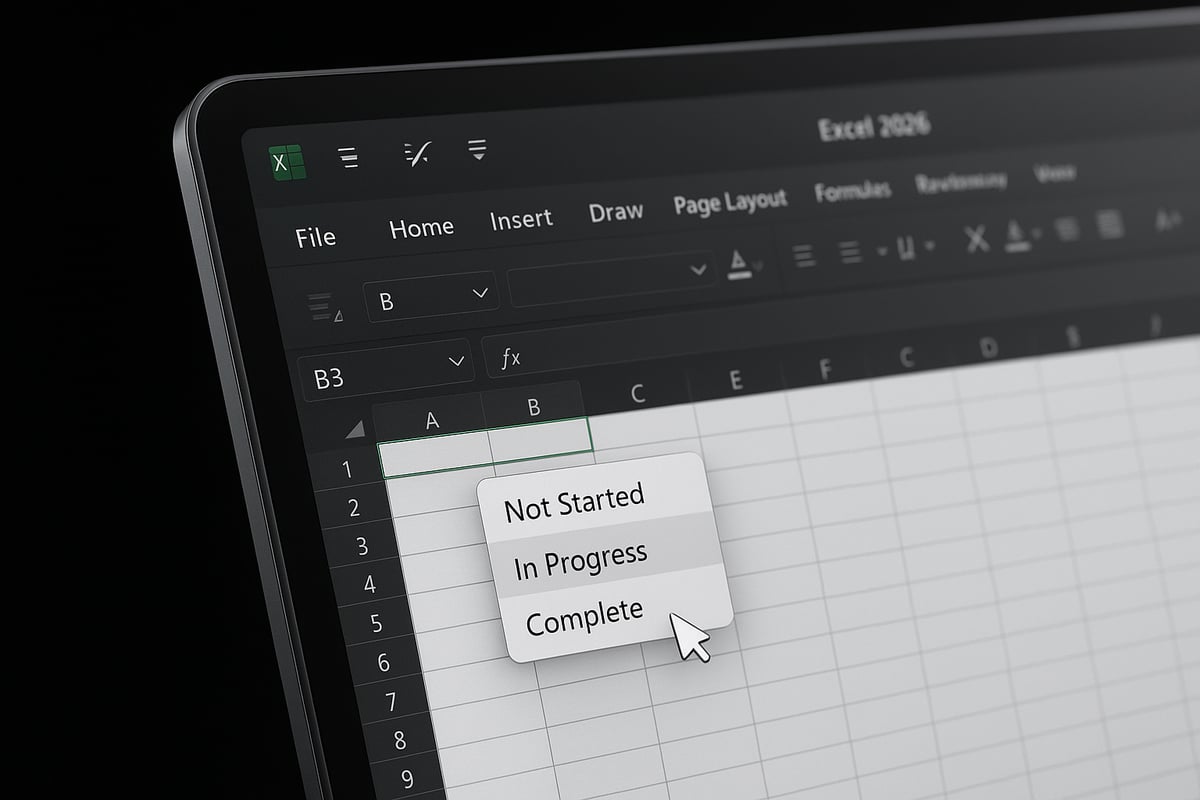
- Type your options directly, separated by commas (e.g.,
Not Started, In Progress, Complete) - Reference a range of cells that contains your list items
Here is an example of manual entry for project statuses:
Not Started, In Progress, Complete
Alternatively, to use a cell range, click the collapse button and select your list on the worksheet. This method is recommended if your list may change over time.
Step 4: Apply the Drop-Down to Multiple Cells or Columns
If you are applying the same drop-down to multiple cells, select all target cells before opening Data Validation. This ensures that your setup for how to make drop down in excel is consistent and efficient.
To copy the drop-down to other cells later, use the fill handle or copy-paste. Excel will retain the validation rules.
Step 5: Test Your Drop-Down
Click any cell where you have added the drop-down. A small arrow will appear on the right. Click the arrow to see your list of options. Select an item to enter it into the cell. This step confirms whether your process for how to make drop down in excel worked as expected.
If you want a more comprehensive visual guide, the official Managing Drop-Down Lists in Excel offers step-by-step video instructions tailored for all skill levels.
Visual Walkthrough
Imagine the following sequence:
- Select cell B2.
- Go to the Data tab, click Data Validation.
- Set Allow to List. Enter
Not Started, In Progress, Completeas the source. - Click OK. A drop-down arrow appears next to cell B2.
- Click the arrow and pick a project status.
This visual flow makes it easy to follow the steps for how to make drop down in excel.
Example: Creating a Project Status Drop-Down
Suppose you manage multiple projects and want to track their status efficiently. By setting up a drop-down with the statuses Not Started, In Progress, and Complete, you can ensure that every project row uses consistent language and prevents typos.
Here is a simple table for your reference:
| Project Name | Status (Drop-Down) |
|---|---|
| Website Revamp | Not Started |
| App Launch | In Progress |
| Marketing Plan | Complete |
This approach streamlines reporting and data analysis.
Common Mistakes to Avoid
- Forgetting to select all target cells before applying Data Validation
- Typing source values with extra spaces or missing commas
- Overwriting drop-down cells with free text, which can break validation
- Not updating the source range when adding new options
By following these steps for how to make drop down in excel, you can avoid common pitfalls and ensure reliable, user-friendly data entry.
Advanced Drop Down Techniques in Excel
Unlocking advanced techniques takes your understanding of how to make drop down in excel to a new level. These methods let you create smarter, more dynamic lists that adapt as your data or user needs evolve. Whether you're managing complex workflows or designing intuitive forms, mastering these skills will save time and improve accuracy.
Dynamic Drop-Down Lists
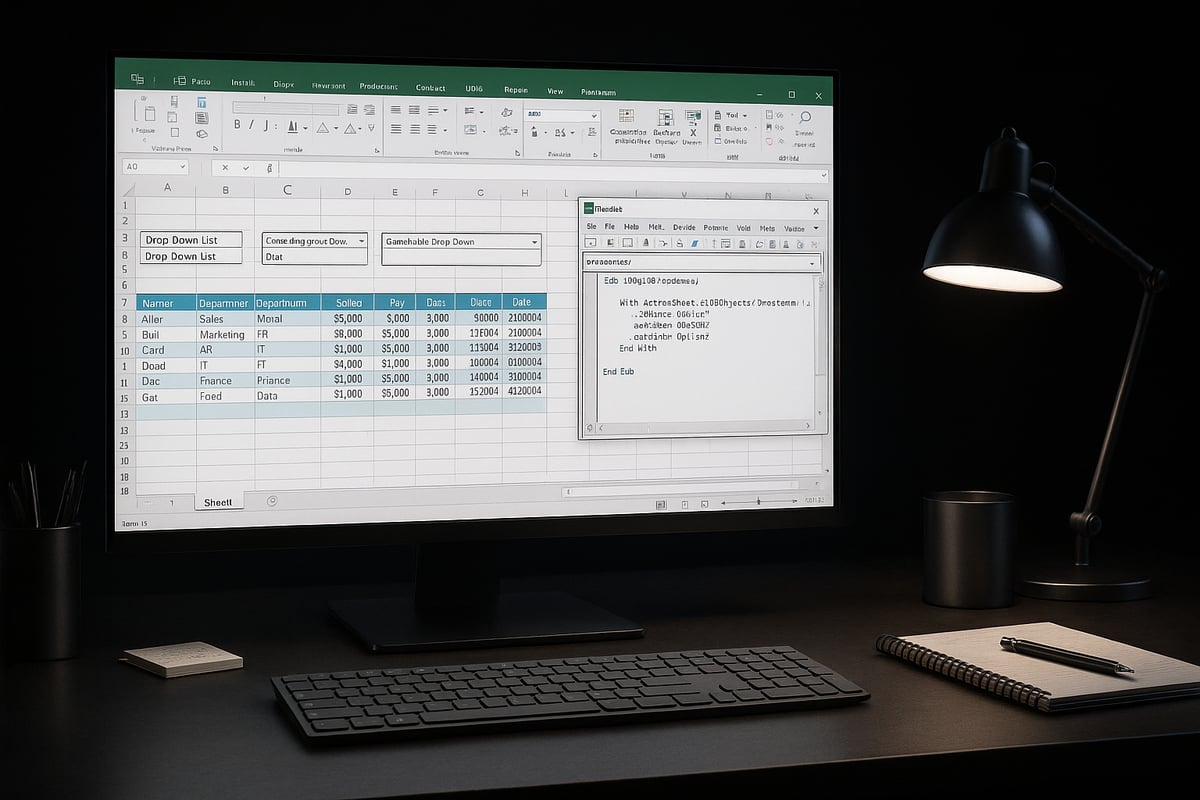
Dynamic drop-down lists automatically update as your data grows or changes. This is essential if you want your lists to reflect the latest information without manual edits. To create a dynamic list, use the OFFSET and COUNTA functions together.
For example:
=OFFSET($A$2,0,0,COUNTA($A:$A)-1,1)
This formula creates a range that expands as you add items to column A. By referencing a named range based on this formula, your drop-down always stays current.
Using tables is another strategy. Convert your source list into a table, then reference it in the Data Validation source field. The drop-down will automatically include new entries as you add them to the table.
Understanding how to make drop down in excel with dynamic sources empowers teams to maintain accurate, up-to-date options with minimal effort.
Dependent and Cascading Drop-Downs
Dependent or cascading drop-downs allow you to filter choices in one list based on a selection in another. This is vital for multi-level selections, such as choosing a department and then a role within that department.
The INDIRECT function is essential for this setup. For example, if you select "Finance" in cell A2, a dependent drop-down in B2 can reference a named range called "Finance" using =INDIRECT(A2).
For a step-by-step tutorial, see the Excel dependent drop-down list guide. It covers the process in detail and is invaluable when learning how to make drop down in excel that adapts to user input.
Cascading lists streamline forms and reduce the risk of invalid selections, making them perfect for onboarding, inventory, or customer forms.
Enhancing Drop-Downs with Advanced Controls
Beyond standard lists, you can enhance drop-downs with features like search and autocomplete. Combo box controls, available through the Developer tab, let users type to filter options, improving usability for long lists.
In Excel 2026, drop-downs can now integrate with new autocomplete features, speeding up data entry. To enable search, add an ActiveX combo box and link it to your source data. This approach is especially useful if you are exploring how to make drop down in excel for large datasets.
Structured references with Excel tables also allow you to create drop-downs that are both dynamic and easy to manage, as table names are intuitive and update automatically.
Multi-Select Drop-Downs and User-Based Customization
Standard Excel drop-downs support only one selection, but with VBA or Office Scripts, you can enable multi-select functionality. For example, a VBA macro can append selected values to a cell, separated by commas.
Here is a basic VBA snippet:
Private Sub Worksheet_Change(ByVal Target As Range)
    If Target.Column = 2 Then
        If Target.Validation.Type = 3 Then
            Application.EnableEvents = False
            If InStr(Target.Offset(0, 1).Value, Target.Value) = 0 Then
                Target.Offset(0, 1).Value = Target.Offset(0, 1).Value & ", " & Target.Value
            End If
            Application.EnableEvents = True
        End If
    End If
End Sub
Role-based customization is also possible. You can use formulas or VBA to restrict available options based on a user's role, department, or other criteria. This level of control is key when considering how to make drop down in excel that meets security or compliance requirements.
Data Validation Customization and Real-World Example
Excel’s data validation tools offer more than just lists. You can add custom input messages to guide users, set error alerts to prevent invalid entries, and use conditional formatting to highlight selections.
For instance, in an HR onboarding form, you might use cascading drop-downs to select a department, followed by a role, and apply color-coding to highlight new hires. These techniques not only ensure data quality but also enhance the user experience.
Mastering how to make drop down in excel with advanced validation empowers you to build forms and dashboards that are both flexible and robust. The result is a streamlined workflow and data you can trust.
Best Practices for Managing Drop Down Lists
Creating robust and flexible drop-down lists is essential for anyone mastering how to make drop down in excel. Following best practices ensures your data stays accurate, your lists remain scalable, and your team can work efficiently.
Organize and Document Your Source Lists
Start by storing your drop-down source lists on a dedicated worksheet or a clearly labeled section. This approach avoids confusion and makes updates easier as your business needs evolve. Document the purpose and usage of each list, especially in shared workbooks, to ensure everyone understands their role.
Use named ranges to simplify references, which is particularly useful if you want to know how to make drop down in excel that can be reused across multiple sheets. Named ranges also help minimize errors when formulas or data validation rules change.
Keep Drop-Down Options Dynamic
Business categories, products, or project statuses often change over time. To keep your drop-downs current, link the source list to dynamic tables or use formulas like OFFSET and COUNTA to automatically include new entries. This proactive approach prevents outdated choices and supports ongoing data integrity.
For more advanced scenarios, such as dependent lists or dynamic updates, refer to Excel Data Validation Best Practices for actionable tips.
Enhance Usability with Formatting
Color coding and conditional formatting can make drop-down lists more user-friendly. For example, highlight invalid choices in red or use shading to indicate required fields. This visual guidance is especially helpful for large teams or when onboarding new users.
If you are teaching someone how to make drop down in excel, show them how to apply these formatting rules to improve the clarity and speed of data entry.
Secure Drop-Downs and Collaborate Effectively
Protect your drop-down lists from accidental edits by locking cells and using worksheet protection. This is crucial when multiple people work on the same file, whether locally or in cloud environments like OneDrive or SharePoint.
When collaborating, communicate where lists are managed and who is responsible for updates. This reduces confusion and ensures ongoing accuracy. For more on minimizing mistakes in collaborative environments, see Reduce spreadsheet errors in Excel.
Prioritize Accessibility and Audit Regularly
Make sure your drop-downs are accessible to all users. Use clear fonts, sufficient contrast, and consider keyboard navigation for those who cannot use a mouse. Regularly review your data validation rules and drop-down sources to catch issues before they affect reporting.
A simple audit checklist can help:
| Audit Step | Frequency | Responsible Party |
|---|---|---|
| Check source lists for accuracy | Monthly | Data Owner |
| Test drop-down functionality | Monthly | Team Lead |
| Review formatting and protection | Quarterly | IT/Admin |
Example: Monthly Sales Reporting Template
Imagine a sales team updating a monthly report. By knowing how to make drop down in excel with dynamic product lists, they ensure every entry is consistent and up-to-date. The template highlights missing data, locks validated cells, and allows for easy updates as new products launch.
Following these best practices will help you maximize the value of your drop-down lists, minimize errors, and streamline your Excel workflow.
When to Seek Expert Help with Excel Drop Down Lists
Even experienced users can reach a point where managing drop-down lists in Excel becomes overwhelming. If you find yourself repeatedly searching for solutions on how to make drop down in excel, you are not alone. Complex requirements, frequent errors, or time-consuming troubleshooting are clear signs that expert help may be needed.

Recognizing When Drop-Down Lists Get Too Complex
Simple drop-downs are manageable, but as your needs evolve, so does the complexity. Are you building multi-level dependent lists, integrating drop-downs with external data, or automating workflows? If so, these advanced scenarios often exceed the limits of standard guides on how to make drop down in excel.
You might also encounter challenges such as:
- Drop-downs not updating automatically after data changes
- Performance issues with large datasets or multiple validations
- Compatibility problems between different Excel versions
When these issues persist, relying solely on built-in tools may not be enough.
Beyond Built-In Features: When Custom Solutions Are Needed
Excel's built-in features are powerful, but they are not limitless. If your team requires dynamic dependent lists, multi-select options, or role-based access, you may need scripting (VBA or Office Scripts) or integration with external systems.
Professional consultants can design robust solutions tailored to your business, ensuring drop-downs work seamlessly and securely. For example, automating report generation with advanced drop-down logic can save countless hours and prevent errors.
Troubleshooting persistent problems also becomes easier with expert support. If you are struggling with validation errors or broken lists, consider referencing resources like this guide on how to audit and debug complex spreadsheets, which offers practical steps for resolving hidden issues that impact drop-down performance.
Training and Ongoing Support: Investing in Excel Expertise
Investing in professional Excel training can elevate your team's skills and confidence. When learning how to make drop down in excel at an advanced level, structured training helps users master best practices, avoid common pitfalls, and adapt to new features introduced in Excel 2026.
Ongoing support from experts ensures your spreadsheets remain efficient as your business grows. Consultants often provide tailored documentation, troubleshooting checklists, and process audits to maintain data quality and compliance.
For advanced dependent lists, you may also benefit from external resources like this comprehensive guide to dynamic dependent drop-down lists, which covers strategies beyond the basics.
Case Study: Streamlining Data Entry with Expert Solutions
Consider a mid-sized business struggling with inconsistent expense categorization. Despite knowing how to make drop down in excel, their team faced ongoing issues with outdated options and manual errors. By partnering with an Excel consultant, they implemented dynamic drop-downs linked to a central data source, automated updates, and added security to prevent unauthorized edits.
The result? Faster data entry, fewer mistakes, and streamlined reporting. This approach allowed the business to focus on analysis rather than troubleshooting, unlocking the full potential of their Excel investment.
If you consistently face challenges beyond basic drop-down creation, expert help can bridge the gap between standard tools and your organization's unique needs.