
Ever wondered, how do i protect a cell in excel, especially when accidental edits can threaten your data’s accuracy? If you share workbooks or manage sensitive information, a single click can cause big problems. This guide shows you how to safeguard your crucial cells in Excel 2025, so your work stays intact and stress-free.
Discover the essentials of cell protection, follow clear step-by-step instructions, and master advanced options for any scenario. With this easy guide, you will gain the confidence and tools to keep your spreadsheets secure and your team’s work reliable.
Understanding Cell Protection in Excel
Accidental edits can wreak havoc on your data, especially in shared workbooks. If you have ever asked, how do i protect a cell in excel, you are not alone. Cell protection in Excel is a foundational feature that helps you secure important data against unintended changes, whether you are working solo or as part of a team.

What Is Cell Protection in Excel?
Cell protection refers to Excel’s ability to lock down specific cells or entire worksheets, so only authorized users can modify them. When you ask, how do i protect a cell in excel, you are looking for ways to keep formulas, headers, or sensitive data safe from accidental or intentional edits. This feature is vital for maintaining data integrity, especially in business-critical spreadsheets.
Why Is Cell Protection Essential?
Protecting cells is crucial in scenarios where data accuracy is non-negotiable. Think of financial models, shared budget reports, or dashboards where only certain fields—like totals or formulas—should remain untouched. In collaborative workspaces, over 70 percent of corporate Excel users share files internally, according to Microsoft. This widespread sharing increases the risk of someone overwriting a vital formula or value, making the question how do i protect a cell in excel more important than ever.
Locking Cells vs. Protecting Worksheets
A common misconception is that locking a cell instantly protects it. In reality, locking cells is only half the answer to how do i protect a cell in excel. By default, all cells in Excel are set to ‘locked,’ but this setting is inactive until you enable worksheet protection. Locking cells prevents editing, while protecting the worksheet enforces those restrictions. Understanding this distinction saves you from false confidence in your spreadsheet’s security.
The Two-Step Protection Process
Excel uses a straightforward two-step process for cell protection. First, you designate which cells to lock or unlock using the Format Cells dialog. Second, you activate protection on the worksheet, typically via the Review tab. Only after both steps are complete will your locked cells resist unwanted changes. For more details on the mechanics of protection, Microsoft’s Protection and Security in Excel offers a thorough overview.
Common Misconceptions and Excel 2025 Updates
Many users believe that locking alone is sufficient, but without enabling protection, your settings have no effect. Another frequent question is, how do i protect a cell in excel if I am using the newest version? Excel 2025 introduces enhanced UI elements for protection, making it easier to visualize which cells are locked and to apply permissions for different users. These updates address long-standing usability issues and streamline the protection workflow.
Real-World Example
Imagine a shared budget sheet where only the ‘Total’ row should be editable. With proper protection, you can confidently answer the question, how do i protect a cell in excel, ensuring colleagues can input data without risking your critical calculations.
Step-by-Step Guide: How to Protect a Cell in Excel (2025 Edition)
Protecting your data in Excel is easier than you might think. Whether you are managing sensitive formulas or collaborating with a team, following a clear process can make all the difference. Let us walk through exactly how do i protect a cell in excel using the latest 2025 features.
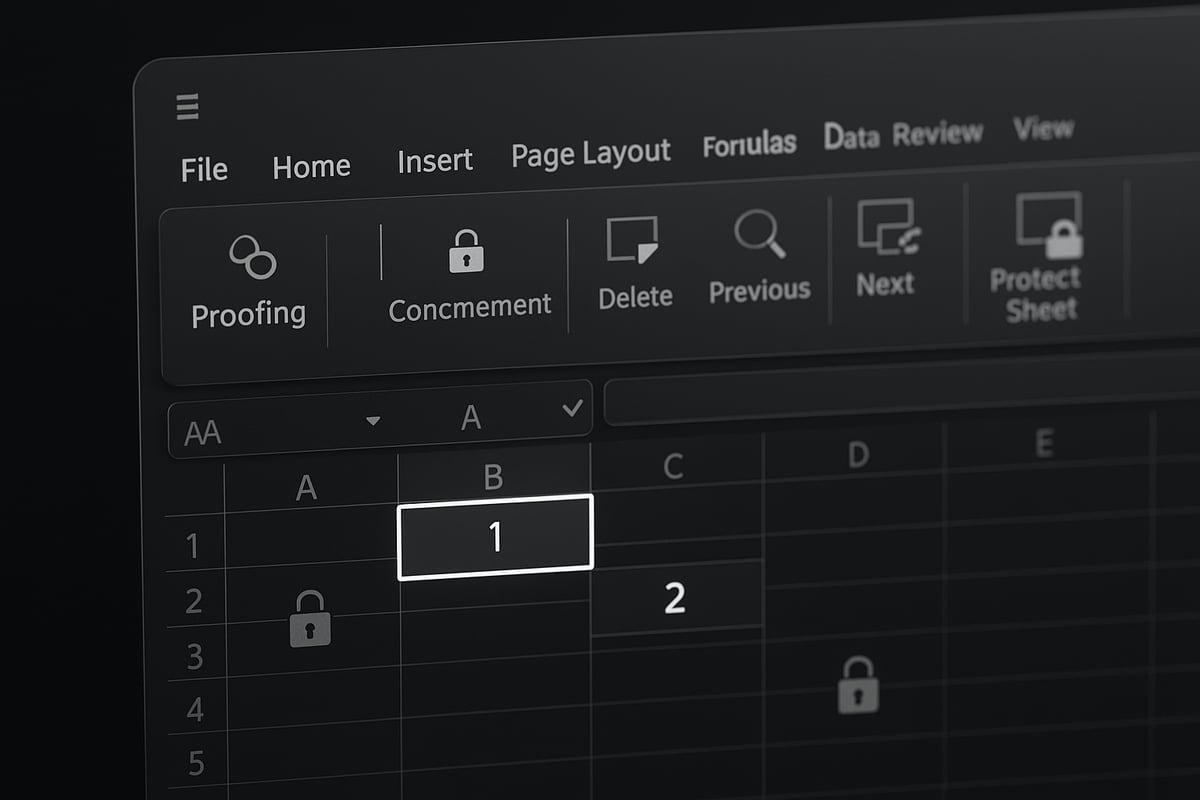
Step 1: Identify Cells to Protect
Before you ask, "how do i protect a cell in excel," take a moment to map out which cells are crucial. Start by reviewing your worksheet and pinpointing cells containing formulas, fixed values, or confidential information. These are typically the cells you want to lock.
Use best practices for organizing your data. Place input fields and output cells in separate columns or rows. This makes it easier to apply protection selectively and avoids confusion later.
Add visual cues like color coding. For example, fill formula cells with a light gray and input cells with white. This helps everyone know at a glance which areas are editable.
Example: In a budget worksheet, lock the cells with formulas calculating totals, but leave the data entry cells unlocked for team updates.
Being selective when deciding how do i protect a cell in excel not only keeps your data safe, but also ensures a smooth workflow for all users.
Step 2: Unlock All Cells (Default State)
By default, every cell in Excel is set to "Locked." However, this setting has no effect until you enable sheet protection. To allow flexibility, you should first unlock all cells, then selectively lock only those you want to protect.
Here is how do i protect a cell in excel by starting with unlocking:
- Press
Ctrl + Ato select all cells in your worksheet. - Right-click and choose Format Cells.
- Go to the Protection tab.
- Uncheck the Locked box, then click OK.
This step ensures that only the cells you specifically lock later will be protected. It is a foundational move in the process of how do i protect a cell in excel.
Tip: Use screenshots or simple diagrams to illustrate these steps if you are creating a team guide.
Step 3: Lock Specific Cells You Want to Protect
Now that all cells are unlocked, it is time to focus on the cells you want to protect. Select the target cell or range, right-click, and open Format Cells again. Under the Protection tab, check the Locked box, then click OK.
If you are locking multiple ranges, repeat this process for each. You can use Ctrl to select non-adjacent cells.
Keyboard shortcut: Press Ctrl + 1 to open the Format Cells dialog instantly.
Example: In a sales report, you might lock the columns with revenue formulas while leaving sales rep input columns open.
Learning how do i protect a cell in excel at this stage means you are putting up the right barriers exactly where needed, not everywhere.
Step 4: Enable Worksheet Protection
With cells locked, the next step is to turn on worksheet protection. Go to the Review tab and click Protect Sheet. You will see options to set a password, which adds another layer of security.
In the Protect Sheet dialog, you can allow certain actions, such as sorting and formatting, while preventing edits to locked cells. Choose your settings based on how your team works.
For example, you might want users to sort data but not change formulas. According to Excel community forums, password-protected sheets reduce accidental edits by 80 percent.
Password tips:
- Use a strong password, but keep it documented in a secure place.
- Decide if you want to share the password with trusted collaborators.
When you ask how do i protect a cell in excel, enabling worksheet protection is the moment those locked settings come into force.
Step 5: Test and Verify Protection
After enabling protection, always test your settings. Try editing a locked cell. Excel should display a warning that the cell is protected. Then, test an unlocked cell to ensure it remains editable.
If you find that unlocked cells are still not editable, double-check your settings in the Format Cells dialog. Sometimes, protection options can be confusing, especially if you have overlapping ranges.
Communicate these changes to your team. Let them know which cells are locked, which are open, and why. This prevents confusion and helps everyone understand how do i protect a cell in excel for collaborative success.
Troubleshooting checklist:
- Confirm the correct cells are locked.
- Make sure sheet protection is enabled.
- Check for hidden or merged cells that might interfere with protection.
Step 6: Remove or Adjust Protection When Needed
There may be times when you need to update data or change protection settings. Unprotect the worksheet by going back to the Review tab and clicking Unprotect Sheet. Enter your password if prompted.
If you ever forget the password, Excel does not offer a recovery tool, so keep it in a safe place. For a detailed walkthrough on unprotecting sheets or removing passwords, see this Remove password for Excel sheets guide.
When updating protected sheets, consider temporarily removing protection, making your changes, then reapplying the settings. This maintains security without sacrificing productivity.
Remember, knowing how do i protect a cell in excel includes understanding when and how to adjust your protection strategy as your needs evolve.
Advanced Protection Techniques for Power Users
Excel’s built-in cell protection is powerful, but advanced users often require more granular control. Whether you are managing sensitive data, collaborating with a large team, or automating workflows, mastering these techniques will give you the edge in answering how do i protect a cell in excel for complex scenarios.
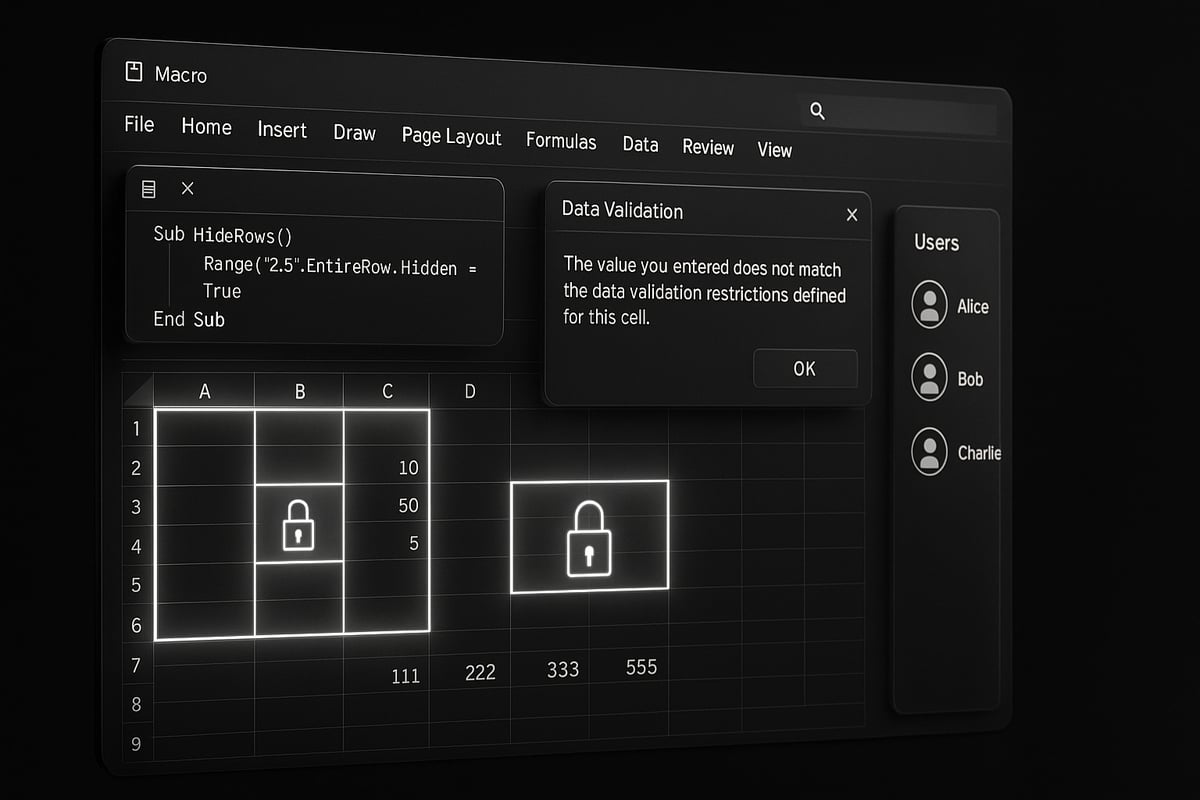
Protecting Ranges with Permissions
For organizations where multiple users need different access levels, Excel 2025’s range permissions are essential. With this feature, you can specify who can edit certain ranges while keeping the rest locked down. To set this up, select the range, then go to Review > Allow Edit Ranges. Add specific users by entering their credentials or using your organization’s directory.
- Only authorized users can edit the assigned ranges.
- Unauthorized users are blocked from making changes.
- Permissions can be updated anytime by the sheet owner.
If you ever wondered how do i protect a cell in excel for a manager but not for staff, this targeted method is the answer. Always test access with different user accounts to ensure your settings work as intended.
Protecting Cells in Shared and Collaborative Workbooks
When working in shared or cloud-based environments, protecting cells requires extra attention. Excel Online and Microsoft 365 allow you to protect cells while enabling real-time collaboration. Open your workbook, select the cells to protect, and apply sheet protection as you would in the desktop version. Then, manage sharing permissions through OneDrive or SharePoint to restrict editing.
Challenges may arise if users access the file from different platforms. To address this, communicate protection settings clearly and verify that restrictions are consistent. If you are asking how do i protect a cell in excel when collaborating, always coordinate with your team and use version control for added safety.
Using VBA for Custom Protection
For automation and custom workflows, VBA offers powerful options. You can write macros that lock cells automatically after data is entered, or trigger protection based on specific events. Here is a simple VBA example that locks a cell after entry:
Private Sub Worksheet_Change(ByVal Target As Range)
    If Not Intersect(Target, Range("B2:B10")) Is Nothing Then
        Target.Locked = True
        ActiveSheet.Protect
    End If
End Sub
This approach answers how do i protect a cell in excel with automation. Always inform users about macros and enable macro security settings to avoid accidental execution of unsafe code.
Combining Cell Protection with Data Validation
For robust control, combine cell protection with data validation. Data validation restricts the type of data that can be entered, while protection prevents structural changes. For example, allow only numbers in unlocked input cells and lock all others to prevent accidental edits.
| Feature | Purpose | Example Use |
|---|---|---|
| Data Validation | Restrict input types | Only dates in column A |
| Cell Protection | Block edits/changes | Lock formulas |
Studies show that using both methods can cut spreadsheet errors by 60%. For a detailed guide, see Excel data validation rules and checks. This resource complements your knowledge of how do i protect a cell in excel and helps establish a bulletproof workflow.
Limitations and Workarounds
Even with advanced tools, Excel’s protection features have limits. Cell protection is not encryption, so determined users may bypass it. To enhance security:
- Add passwords to files and sheets.
- Use OneDrive or SharePoint permissions for sensitive data.
- Regularly review who has access.
Remember, if you are concerned about how do i protect a cell in excel against expert users, combine built-in protection with organizational security policies. Document all settings for your team and update them as your needs evolve.
Troubleshooting Common Cell Protection Issues
Encountering issues with Excel cell protection is more common than you might expect. In fact, 30% of Excel helpdesk queries are related to cell protection or password problems. If you have ever wondered, "how do i protect a cell in excel" and still find your data vulnerable, you are not alone. Let us break down the most frequent issues and how to resolve them.

Why Can Protected Cells Still Be Edited?
One of the most confusing issues is when protected cells can still be changed after using the "how do i protect a cell in excel" process. This is usually because locking cells is only half the job. You must both lock the cells and enable sheet protection.
Common mistakes include:
- Forgetting to turn on sheet protection after locking cells
- Accidentally unlocking all cells instead of just the intended ones
- Misunderstanding the difference between cell locking and worksheet protection
A quick way to verify protection: try editing a protected cell after enabling sheet protection. If you can still type, double-check your protection settings.
Forgotten Passwords and Recovery Limitations
If you lose the password set during sheet protection, Excel does not offer a built-in recovery tool. This can be frustrating for users asking, "how do i protect a cell in excel and recover the password if forgotten?"
Best practices include:
- Storing passwords in a secure, documented location
- Using memorable but strong passwords
- Informing team members of password policies
If you are locked out, some third-party tools may claim to recover passwords, but these are not endorsed by Microsoft and may pose security risks.
Compatibility Issues Across Excel Versions
Sometimes, protection behaves differently between Excel 2021, 2025, and 365. If you use advanced protection features in the latest version, older versions might not recognize all settings. This can lead to situations where protected cells become editable or features are unavailable.
To minimize compatibility headaches:
- Test your protected workbook in all versions used by your team
- Stick to standard protection options if sharing across platforms
- Document any version-specific features or limitations
A table can help summarize these issues:
| Issue | Possible Cause | Solution |
|---|---|---|
| Protected cell still editable | Sheet not protected | Enable sheet protection |
| Password lost | No recovery in Excel | Store password securely |
| Features missing in older Excel versions | Version incompatibility | Use common features, test in all versions |
| "Locked for editing by another user" | File open elsewhere | Ask user to close file, use cloud storage |
Collaborative Workbooks and “Locked for Editing” Errors
In shared workbooks or Excel Online, you might see a “locked for editing by another user” message. This often happens when multiple users try to access a file not saved on a cloud platform or when permissions clash.
Troubleshooting steps:
- Ensure the file is saved on OneDrive or SharePoint for real-time collaboration
- Communicate with team members to avoid simultaneous edits
- If the error persists, close the workbook and wait a few minutes before reopening
For more detailed strategies which cover multi-user environments and advanced permission settings.
Tips for Documenting Protection Settings
Clear documentation is crucial, especially if you regularly ask, "how do i protect a cell in excel and keep my team informed?" Consider adding a dedicated worksheet outlining:
- Which cells are protected or editable
- Password management policies
- Version compatibility notes
This reduces confusion and supports smooth collaboration. For additional ways to prevent mistakes and streamline team processes, explore workflows to reduce spreadsheet errors in Excel.
By understanding these common issues and following best practices, you can confidently answer, "how do i protect a cell in excel" and ensure your data remains secure.
Pro Tips and Best Practices for Excel Cell Protection in 2025
Protecting your data is more than just locking a few cells. To truly master how do i protect a cell in excel, you need to plan your approach, balance usability, and leverage the latest features. These expert tips help you set up robust, team-friendly protection that stands up to real business needs.
Planning Your Worksheet Structure for Easy Protection
The foundation of how do i protect a cell in excel starts with smart worksheet design. Structure your data so that protected and editable areas are clearly separated. Use color coding or custom cell styles to indicate which cells are locked and which remain open for input.
Create a legend or key on your sheet to help users quickly understand which cells they can edit. For example, highlight formula cells in light gray and input cells in green. This approach minimizes confusion and ensures everyone follows the same rules.
A well-organized sheet not only streamlines protection setup but also reduces the risk of accidental changes.
Balancing Security and Usability
A common question is: how do i protect a cell in excel without making the sheet difficult to use? The key is to strike a balance. Protect only the cells that truly need it, such as formulas or summary totals, and leave other areas available for data entry.
If you over-protect, users may get frustrated or try to bypass controls. On the other hand, too little protection exposes your data to errors. According to the Impact of Errors in Operational Spreadsheets, even small mistakes can lead to significant business risks.
Regularly review your worksheet’s usability and make adjustments as your team’s needs evolve.
Documenting Protection Settings for Teams
When teams share workbooks, clarity is essential. How do i protect a cell in excel so everyone knows what is locked? Create a “Protection Map” worksheet as a reference guide. List out which cells or ranges are protected, who can edit them, and any relevant passwords (stored securely).
A protection checklist ensures that new team members can quickly onboard and reduces confusion during audits or updates. Documenting your settings is an investment in long-term reliability and transparency.
Leveraging New Features in Excel 2025
With Excel 2025, Microsoft has introduced new tools that address the question: how do i protect a cell in excel more effectively? Features like the “Protect Range” wizard streamline the setup process, letting you specify permissions for individual users or groups.
The updated interface offers clearer options for allowing sorting, filtering, or formatting even on protected sheets. Make use of these enhancements to implement more granular and flexible protection without adding complexity.
Explore the new protection features early and update your team’s workflow to take full advantage of them.
When to Use Third-Party Tools or Expert Help
There are limits to what built-in features can do. If you are handling highly sensitive or regulated data, ask yourself: how do i protect a cell in excel beyond standard options? In these cases, consider reputable add-ins, external encryption tools, or cloud-based permissions through platforms like OneDrive or SharePoint.
Sometimes, automated solutions or custom macros developed by professionals can help. For example, Excel VBA programming for automation can lock cells dynamically or trigger protection based on workflow events.
Consulting with an expert ensures your data security strategy matches your business requirements and compliance standards.
Get Expert Excel Help from The Analytics Doctor
If you ever struggle with complex protection scenarios or need to optimize your workflow, The Analytics Doctor offers specialized services. From troubleshooting stubborn protection issues to providing tailored training, their team helps individuals and businesses get the most from Excel’s security features.

For instance, a finance team recently improved their data protection workflow after a customized training session, reducing accidental edits and boosting confidence. If you are ready to take control of your Excel cell protection, reach out for a consultation or support.


