Skip to content

Are you ready to unlock the full power of Excel multiplication for 2026’s data-driven world? As businesses and professionals demand faster, smarter, and more accurate calculations, mastering this essential skill is more valuable than ever.
This expert guide answers the question, how can i multiply in excel, by revealing every method from basic formulas to advanced automation. Whether you are new to Excel or an experienced analyst, you will find practical solutions to fit any scenario.
Discover essential multiplication techniques, advanced formulas, troubleshooting strategies, automation tips, and the latest Excel features. Each section is designed to help you boost efficiency and accuracy in your daily workflow.
Excel mastery sets you apart in today’s competitive landscape. Follow this step-by-step guide to gain confidence and achieve results that matter.
Understanding Multiplication in Excel: The Fundamentals
Multiplication is at the heart of nearly every Excel calculation. Whether you are analyzing sales, managing budgets, or forecasting growth, knowing how can i multiply in excel is essential for accuracy and efficiency. This section will guide you through the core principles, ensuring your foundation is strong before moving to advanced techniques.
What Is Multiplication in Excel?
Multiplication in Excel refers to using formulas to calculate the product of numbers, cell values, or ranges. Unlike manual multiplication or a calculator, Excel lets you automate and scale calculations instantly. If you have ever wondered how can i multiply in excel to speed up your work, this is where it starts. Multiplication is crucial for data analysis, financial modeling, and any scenario where precise results matter.
Excel’s Multiplication Operators and Functions
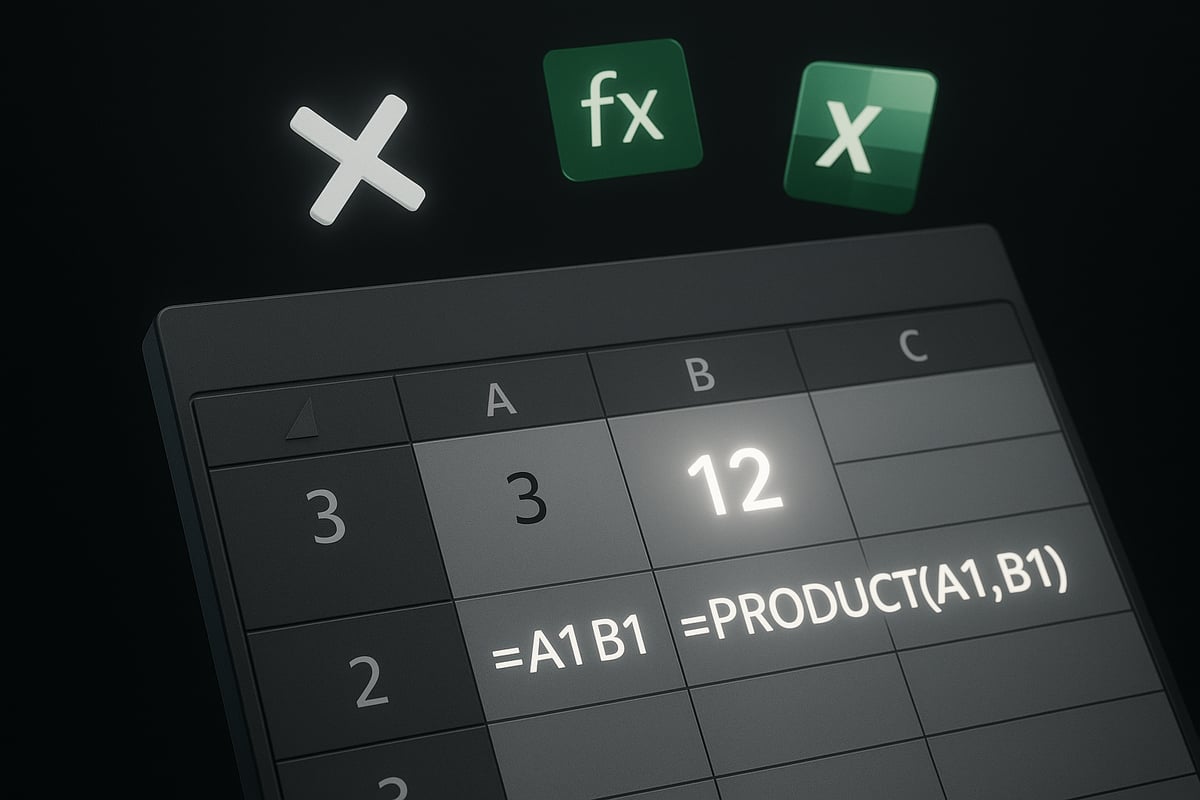
Excel provides two main ways to multiply: the asterisk * operator and the PRODUCT() function. The asterisk is direct, like typing =A1*B1, while PRODUCT(A1,B1) works well for multiple factors. Both methods answer the question, how can i multiply in excel, but each has its advantages. For a step-by-step mastery of these and related techniques, see Mastering Excel Formulas in 2025.
| Method | Example | Best For |
|---|---|---|
| Asterisk (*) | =A1*B1 | Two values |
| PRODUCT() | =PRODUCT(A1,B1) | Multiple values |
Multiplying Numbers, Cells, and Ranges
To multiply numbers directly, enter a formula like =5*10 in any cell. To multiply cell values, use references such as =A1*B1. If you ask, how can i multiply in excel for linked data, referencing cells is the answer. You can also use =PRODUCT(A1,B1) for clarity. Watch the formula bar for instant feedback and corrections as you enter your calculation.
Multiplying Multiple Values and Arrays
When multiplying more than two values, PRODUCT() shines. For example, =PRODUCT(A1,B1,C1) quickly multiplies three numbers. If you need to calculate how can i multiply in excel with arrays, dynamic array formulas like =A1:A3*B1:B3 multiply entire ranges. This approach is perfect for sales calculations, such as multiplying units sold by price across an entire column.
Common Use Cases in Business and Analysis
Multiplication in Excel powers many business operations. You might calculate totals, apply tax rates, or project future growth. Real-world examples include inventory costing, financial analysis, and monthly reporting. For instance, multiplying quantity and unit price helps track inventory value, while multiplying revenue and commission rate determines payouts.
- Inventory management
- Sales forecasting
- Financial projections
Multiplication is a core function in almost every spreadsheet-driven business process.
Key Excel Multiplication Shortcuts
Excel offers shortcuts to speed up multiplication tasks. Use Ctrl + Enter to fill a formula across multiple cells at once. The fill handle lets you drag formulas down a column, rapidly multiplying entire datasets. Double-click the fill handle to autofill to the bottom of a data range. These tips help you multiply faster and reduce manual effort.
- Ctrl + Enter: Fill formula in selected cells
- Drag fill handle: Apply multiplication quickly
- Double-click fill handle: Autofill to last data row
Mastering these shortcuts will boost your productivity.
Limitations and Considerations
While learning how can i multiply in excel is powerful, you must be aware of limitations. Precision errors can occur with very large numbers, and rounding may affect totals. Overflow happens if results exceed Excel’s numeric limits. Sometimes, formulas may return unexpected results due to data types or references. Always double-check your formulas and results to ensure accuracy.
Step-by-Step Guide: How to Multiply in Excel
Mastering multiplication in Excel is essential for accuracy and speed in any data-driven workflow. This step-by-step guide will show you exactly how can i multiply in excel, from the simplest formulas to more advanced approaches. Whether you are new to Excel or looking to refine your skills, each method below is designed to help you multiply data efficiently and confidently.
Multiplying Two Numbers or Cells
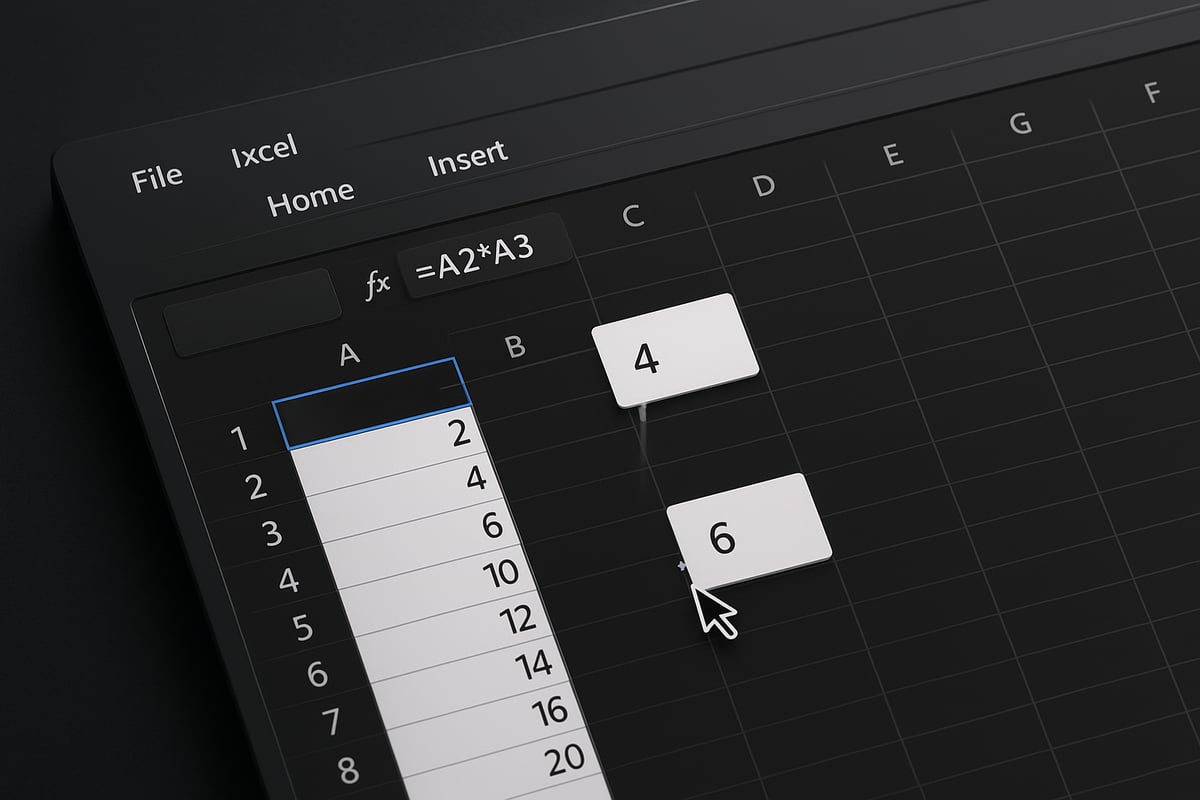
To begin, how can i multiply in excel if you want to work with just two values? Start by clicking on a cell where you want the result to appear. Type an equal sign, then enter your multiplication formula. For example, =5*10 multiplies two numbers directly, while =A2*B2 multiplies values in cells A2 and B2. Hit Enter to see the result instantly.
You can also view and edit your formula in the formula bar above the worksheet. This is a great way to double-check your work. Using cell references allows you to update numbers easily, and the result will change automatically.
Multiplying Multiple Cells or Ranges
If you are wondering how can i multiply in excel when dealing with several numbers, the PRODUCT() function is your friend. Select the destination cell, type =PRODUCT(A1, B1, C1) to multiply cells A1, B1, and C1 together. This function is especially helpful for calculating compounded growth or totals involving more than two factors.
For a more dynamic approach, you can also use ranges: =PRODUCT(A1:A3) multiplies all values in A1 through A3. This method keeps your formulas clean and easy to manage, especially as your datasets grow.
Multiplying Entire Columns or Rows
Need to multiply whole columns or rows? This is a common question for those asking how can i multiply in excel across large datasets. Enter your formula in the first row, such as =A2*B2, then drag the fill handle down the column to apply the calculation to all rows. This method works for sales totals, inventory calculations, and more.
When working with Excel Tables, structured references make multiplication even easier. For a deep dive into best practices, see Excel Table Formulas and Best Practices. Tables automatically expand formulas to new data, reducing errors and saving time.
Multiplying with Constants and Absolute References
Many users ask, how can i multiply in excel when a fixed value, like a tax rate or multiplier, is needed? Use absolute references. Enter your constant (e.g., tax rate) in a cell, say A1. In another cell, type =$A$1*B2 to multiply the constant by the value in B2. The dollar signs lock the reference to A1, so when you drag the formula down, it always uses the same multiplier.
This approach is perfect for applying consistent calculations, such as a 7 percent tax, across an entire dataset. It also prevents accidental changes to your multiplier.
Multiplying with Percentages and Decimals
Formatting numbers correctly is key to understanding how can i multiply in excel with percentages or decimals. To calculate a commission, for example, use =A1*10%. Excel automatically recognizes the percentage format and applies it to your calculation.
Always format your input cells as numbers or percentages to avoid confusion. This ensures your formulas give accurate, expected results every time.
Using Paste Special for Multiplication
For quick bulk updates, how can i multiply in excel using Paste Special? Copy the cell containing your multiplier. Select the range you want to update, right-click, and choose Paste Special. In the dialog box, select Multiply and click OK. Instantly, all selected values are multiplied by your constant.
This technique is ideal for adjusting prices, applying markups, or quickly scaling data. It saves time and minimizes manual entry errors.
Error Checking and Formula Auditing
Even experts sometimes wonder, how can i multiply in excel without running into errors? Use Excel's built-in error checking tools. If you see #VALUE! or #REF!, double-check your formula for text entries or incorrect references. The Trace Precedents and Dependents tools help you track formula connections and spot mistakes.
Regularly reviewing and auditing your formulas keeps your multiplication accurate and your spreadsheets reliable. This habit is essential for maintaining data integrity in any Excel project.
Advanced Multiplication Techniques in Excel
Mastering advanced multiplication in Excel is essential for anyone asking, "how can i multiply in excel" beyond basic formulas. As your data grows in size and complexity, you need techniques that offer speed, flexibility, and accuracy. Below, we explore the most powerful methods—array formulas, dynamic references, VBA, and more—so you can tackle any multiplication challenge with confidence.
Array Formulas and Dynamic Arrays
If you want to know how can i multiply in excel at scale, array formulas and dynamic arrays are game changers. Array multiplication lets you perform calculations on entire ranges at once, removing the need for repetitive cell-by-cell formulas.
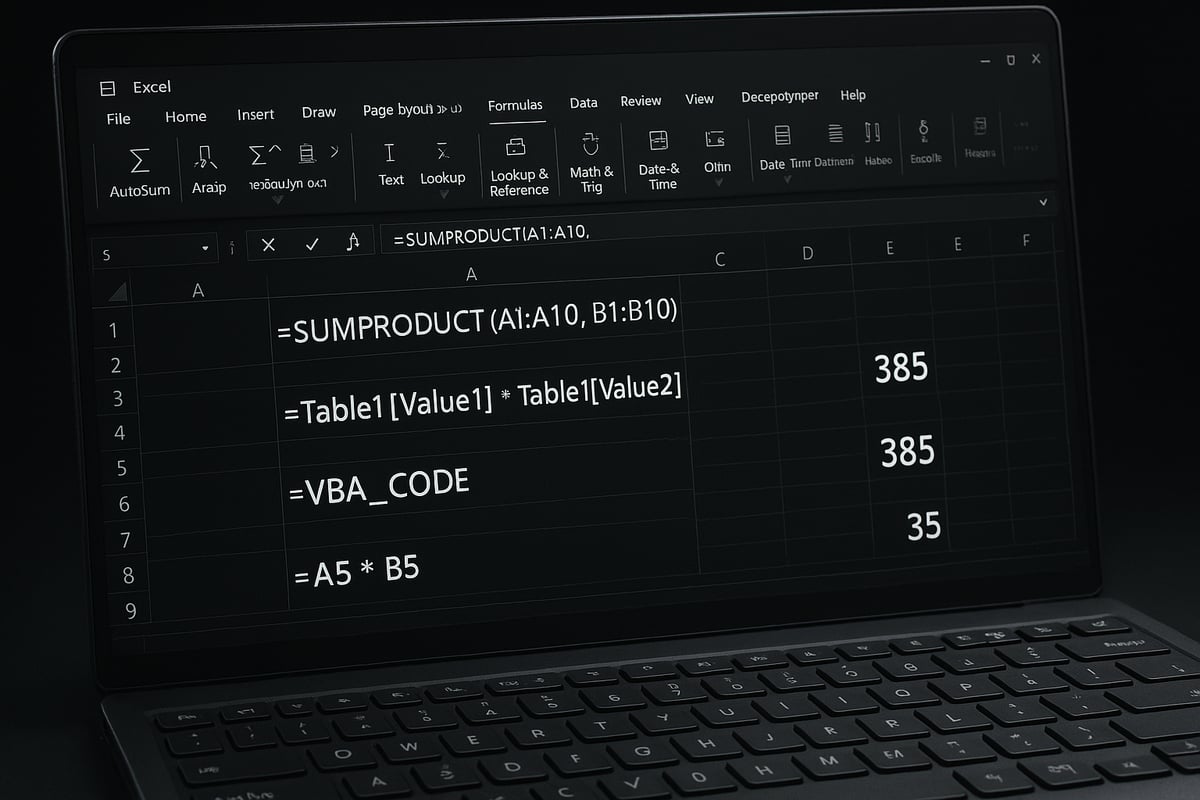
In modern Excel, you can simply enter =A1:A10*B1:B10 and press Enter. The results spill into adjacent cells automatically, making it easy to multiply two columns for large datasets. For legacy Excel, you would use Ctrl+Shift+Enter to create a traditional array formula.
Table: Array Operator vs. PRODUCT()
| Method | Use Case | Syntax Example |
|---|---|---|
| Array (*) | Multiply two columns | =A1:A10*B1:B10 |
| PRODUCT() | Multiply multiple single cells | =PRODUCT(A1, B1, C1) |
Dynamic arrays make Excel smarter, letting you process thousands of rows with one formula. This method ensures you handle complex multiplication tasks efficiently.
Multiplying Across Worksheets and Workbooks
You might ask, how can i multiply in excel when data is spread across different sheets or files? Excel makes this easy with cross-sheet and cross-workbook references.
To multiply values from two worksheets, use a formula like =Sheet1!A1*Sheet2!B1. For workbooks, include the file path: ='[Sales2026.xlsx]Q1'!A1*[Inventory.xlsx]Sheet1!B1. This approach is vital for consolidating data from multiple departments or sources.
Keep in mind, linked workbooks should be open when updating formulas to avoid reference errors. Cross-sheet multiplication is essential for accurate reporting and analysis in collaborative environments.
Multiplying with Conditional Logic (IF, IFS, and Multiplication)
Conditional logic allows you to tailor multiplication based on specific criteria. If you have ever wondered, "how can i multiply in excel only when certain conditions are met?", IF and IFS functions are your answer.
For example, to apply a sales bonus only if revenue exceeds $10,000, use:
=IF(A2>10000, A2*1.1, A2)
This multiplies by 1.1 only when the condition is true. The IFS function can evaluate multiple conditions, streamlining complex business rules. Conditional multiplication ensures your calculations reflect real-world scenarios and policies.
Multiplying Using Named Ranges and Structured References
Clarity and flexibility matter when scaling your formulas. Named ranges and structured references help answer how can i multiply in excel while keeping formulas readable and maintainable.
Assign a name to a cell or range (e.g., "TaxRate" for cell D1). Now, your formula can be =Sales*TaxRate instead of =A2*D1. In Excel Tables, structured references like =[@Price]*[@Quantity] adapt as data grows.
This approach reduces errors, simplifies updates, and makes your spreadsheets easier to audit. Named ranges are especially useful in templates or when formulas span multiple sheets.
Multiplying with Excel Tables and Structured Data
When working with large datasets, Excel Tables offer dynamic multiplication power. If you are asking, "how can i multiply in excel for scalable, automated calculations?", tables are the answer.
Convert your data range to a Table (Ctrl+T), then use formulas like =[@Price]*[@Quantity] in the Total column. These structured references automatically adjust as you add or remove rows, ensuring calculations stay accurate.
Tables also enable total row summaries and seamless integration with other Excel features. This is ideal for sales, inventory, and financial models that require frequent updates.
Multiplying with VBA and Macros
Automation is key for repetitive or complex multiplication. If you are seeking advanced solutions for how can i multiply in excel, VBA and macros unlock powerful automation.
Using VBA, you can write a macro to multiply selected cells by a constant, process entire columns, or apply complex logic that formulas cannot handle. For example:
Sub MultiplyByFactor()
    Dim cell As Range
    For Each cell In Selection
        cell.Value = cell.Value * 1.1
    Next cell
End Sub
To learn more about automating these tasks, visit Automating Calculations with Excel VBA for expert tips and services.
Troubleshooting Complex Multiplication Scenarios
Even with advanced skills, you may encounter issues and wonder, "how can i multiply in excel without errors?" Common pitfalls include mismatched array sizes, non-numeric data, or broken references.
Use Excel's Formula Auditing tools to trace precedents and dependents. Check data types to ensure all values are numbers. When troubleshooting arrays, verify that ranges align in size and structure.
Staying vigilant with error checks and clear formula documentation ensures your advanced multiplication remains reliable, even as your data and models evolve.
Multiplication Applications: Real-World Excel Examples for 2026
Excel’s multiplication capabilities are essential for nearly every business and analytical task. From sales forecasting to engineering calculations, understanding how can i multiply in excel unlocks efficiency and accuracy. Let’s explore practical scenarios where mastering multiplication in Excel can make a measurable impact.
Sales and Financial Modeling
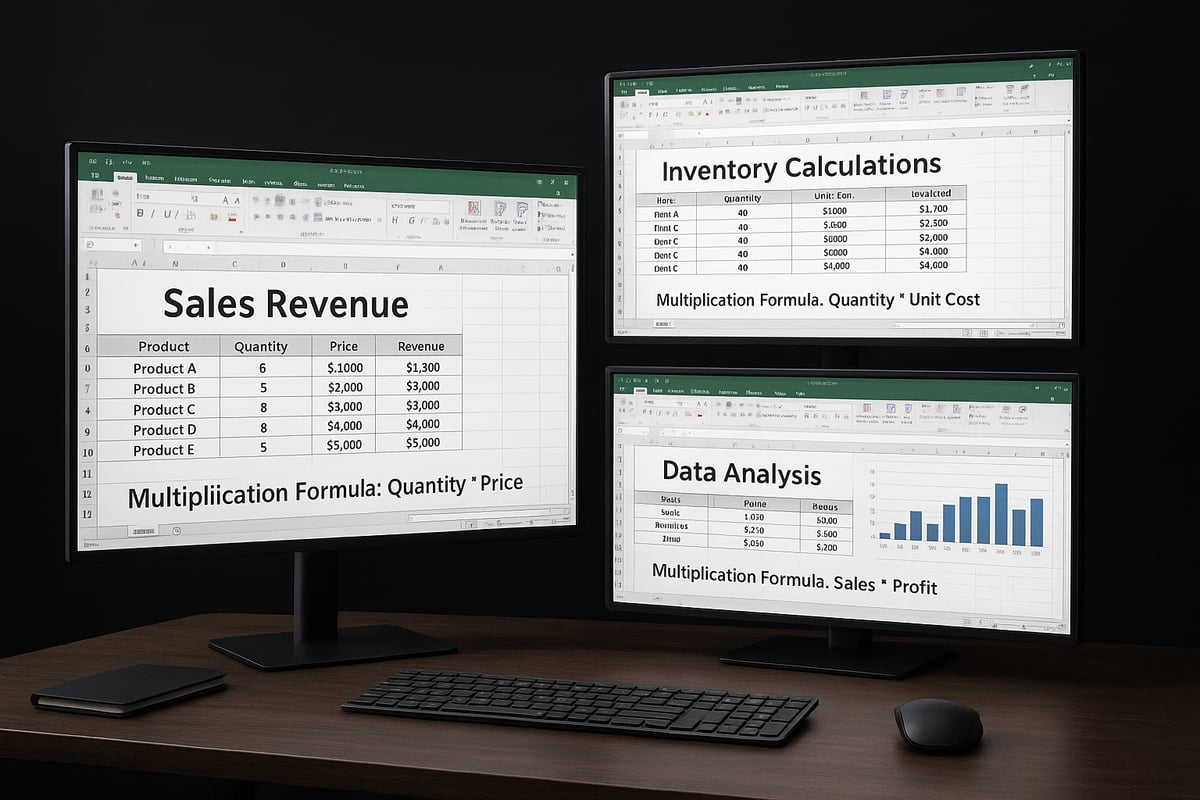
Sales teams and financial analysts constantly ask, how can i multiply in excel to streamline revenue calculations and projections? Multiplying units sold by price per unit yields revenue, while advanced models forecast growth and margins.
For multi-year forecasts, you might use dynamic arrays or the PRODUCT() function to multiply growth factors across years. For example:
=PRODUCT(A2:A6)
This multiplies all values in the range, perfect for compounding annual growth. For professionals seeking to advance their skills, check out Advanced Excel Formulas for Professionals for in-depth strategies.
Inventory and Operations Management
Inventory managers frequently face the question, how can i multiply in excel to track stock and costs efficiently? Multiplying quantity on hand by unit cost gives real-time inventory value.
For batch updates, use structured references in Excel Tables:
=[@Quantity]*[@Unit_Cost]
This formula scales across hundreds of products, helping operations teams prevent stockouts and overstocking.
- Calculate reorder values
- Estimate bulk order costs
- Track packaging needs
Data Analysis and Reporting
Analysts often wonder, how can i multiply in excel to process survey scores or calculate weighted averages? Multiplying response counts by assigned weights generates meaningful metrics for business decisions.
For customer satisfaction, use:
=B2*D2
where B2 is the response count and D2 the weight. Summing these products yields a weighted score, supporting clear data-driven reporting.
Budgeting and Forecasting
Budget planners ask, how can i multiply in excel to model future expenses and revenues? Multiplying base costs by projected increase percentages simulates budget growth scenarios.
For example, to add a 5% increase:
=A2*1.05
Scenario analysis becomes simple, enabling teams to prepare for best- and worst-case outcomes with a few formula adjustments.
- Project expenses by year
- Compare variable multipliers
- Evaluate impact of inflation
Scientific and Engineering Calculations
Engineers and scientists use Excel extensively, prompting the question, how can i multiply in excel for technical computations? Multiplying measurements enables fast unit conversions and area or volume calculations.
For instance, to calculate total energy use from multiple sensors:
=SUM(A2:A10*B2:B10)
This quickly aggregates large datasets, ensuring precision in research and design.
Education and Training Use Cases
Educators frequently encounter how can i multiply in excel when automating grading or training exercises. Multiplying student scores by assignment weights standardizes grading for large classes.
Use a table like:
| Student | Score | Weight | Weighted Score |
|---|---|---|---|
| Alice | 85 | 0.3 | =B2*C2 |
| Bob | 90 | 0.4 | =B3*C3 |
This method simplifies grade calculations and supports interactive Excel lessons.
Industry-Specific Multiplication Scenarios
Across industries, professionals ask, how can i multiply in excel to solve unique problems? In healthcare, multiply dosage per weight for medication planning. Retailers multiply unit price by quantity for point-of-sale systems.
Other examples include:
- Logistics: Multiply shipment volume by cost per unit
- Manufacturing: Multiply production rate by shift hours
- Finance: Multiply loan amount by interest rate for payment schedules
No matter your field, Excel’s multiplication features offer robust solutions for specialized needs.
Troubleshooting Multiplication Errors and Optimizing Performance
Multiplication in Excel is powerful, but errors or slowdowns can disrupt your workflow. If you have ever asked, "how can i multiply in excel without running into mistakes or performance problems," this section is for you. Let us break down common issues, solutions, and best practices to help you multiply data with confidence and speed.
Common Multiplication Formula Errors
When exploring how can i multiply in excel, understanding formula errors is crucial. The most frequent issues include #VALUE!, #REF!, and #DIV/0!. These errors often result from attempting to multiply text, referencing empty or deleted cells, or dividing by zero.
- #VALUE!: Occurs when non-numeric data is in the formula.
- #REF!: Appears after deleting or moving referenced cells.
- #DIV/0!: Happens when dividing by zero, but can also signal issues in multiplication formulas that reference division.
To fix these, check that all referenced cells contain numbers, ranges are correct, and no cells have been deleted. For a deeper dive into diagnosing these problems, see Troubleshooting Excel Formula Errors.
Data Type and Formatting Issues
As you consider how can i multiply in excel, data type consistency is essential. Multiplying numbers formatted as text leads to errors or unexpected results. Always verify that your data is in numeric format, especially when importing from external sources.
- Use the
VALUE()function to convert text numbers to true numeric values. - Format cells as "Number," "Currency," or "Percentage" as needed.
- Check for leading spaces or non-printing characters that may prevent accurate multiplication.
Proper formatting ensures formulas like =A1*B1 deliver the expected result every time.
Debugging and Auditing Multiplication Formulas
If you are still wondering how can i multiply in excel without hidden mistakes, leverage Excel's built-in auditing tools. These features help you trace errors and ensure accuracy.
- Trace Precedents/Dependents: Visualize which cells affect or are affected by your multiplication formula.
- Evaluate Formula: Step through the calculation process to spot where errors arise.
- Show Formulas: Display all worksheet formulas for quick inspection.
For example, if a formula is not updating as expected, use "Trace Precedents" to reveal broken links or incorrect references. Regular use of these tools keeps your calculations reliable.
Optimizing Multiplication for Large Datasets
When scaling up, how can i multiply in excel efficiently across thousands of rows? Performance can lag if formulas are not optimized.
- Use dynamic arrays and structured references to minimize resource use.
- Avoid volatile functions that recalculate unnecessarily.
- Break complex calculations into smaller, manageable parts.
A well-structured formula, such as =A1:A100000*B1:B100000, leverages Excel 2026's improved processing for large datasets. Test performance by timing recalculations and simplifying formulas where possible.
Preventing and Handling Calculation Overflows
Large numbers can cause overflows or scientific notation in results, leading users to ask, "how can i multiply in excel without data loss?" Excel handles up to 15 significant digits, but results may be displayed in scientific notation if too large.
- Split calculations if values exceed Excel's limits.
- Use ROUND or TRUNC functions to control precision.
- Monitor for warning signs such as
########in cells.
If calculations must exceed these limits, document each step and validate outputs regularly to prevent silent errors.
Best Practices for Clean, Reliable Multiplication
To consistently answer how can i multiply in excel with accuracy, adopt these best practices:
- Document formulas with comments for clarity.
- Use consistent naming conventions for ranges and tables.
- Regularly check for errors and version changes before sharing files.
A preflight checklist ensures your spreadsheets remain robust. Explore additional strategies in Reducing Spreadsheet Errors in Excel for a more reliable workflow.
Excel Multiplication in 2026: New Features, Trends, and Future-Proof Strategies
Excel continues to evolve, and understanding how can i multiply in excel using the latest features is essential for staying competitive. The 2026 version brings significant advancements that make calculations faster, more accurate, and more collaborative than ever. Let us explore what is new and how you can future-proof your multiplication workflows.
Latest Excel Updates Impacting Multiplication
Excel 2026 introduces several innovations that directly impact how can i multiply in excel for business and analytics. The most notable updates are new dynamic array functions, such as LET and LAMBDA, which allow for more flexible and readable multiplication formulas. Enhanced performance ensures calculations process swiftly, even with large datasets.
| Feature | Benefit for Multiplication |
|---|---|
| Dynamic Arrays | Multiply entire ranges without CSE |
| LET Function | Define variables for clearer formulas |
| LAMBDA Function | Create custom multiplication functions |
| Improved Speed | Handle millions of calculations smoothly |
For a comprehensive overview of these upgrades and how they transform multiplication workflows, see the Excel 2026: Game-Changing Features guide.
AI and Automation in Excel Multiplication
Artificial intelligence is redefining how can i multiply in excel by automating formula creation and error correction. In Excel 2026, AI-powered suggestions offer real-time prompts for multiplication formulas, reducing manual input and minimizing mistakes. When working with complex datasets, the AI can auto-detect patterns and recommend optimized multiplication strategies.
For example, when you enter a multiplication formula, Excel may propose array formulas, dynamic cell references, or highlight potential errors before you finalize your input. The integration of AI tools not only saves time but also improves accuracy for advanced users and beginners alike.
Cloud-Based and Collaborative Multiplication
Collaboration is at the core of modern Excel. With the 2026 release, how can i multiply in excel has become a shared experience, allowing multiple users to edit and multiply data in real time. Excel for web supports simultaneous editing, ensuring that calculations update instantly as your team works together.
Shared workbooks now support advanced multiplication formulas, and changes are tracked for full transparency. This is especially valuable in budgeting or forecasting scenarios where teams must update figures quickly and efficiently.
Cross-Platform Multiplication: Windows, Mac, and Mobile
Excel’s multiplication capabilities are now consistent across Windows, Mac, and Mobile platforms. Users often ask, how can i multiply in excel on different devices? Excel 2026 delivers a unified experience, so formulas, dynamic arrays, and formatting behave the same way everywhere.
On Excel Mobile, for instance, you can multiply ranges with touch gestures, and the app supports all modern multiplication functions. Compatibility tips are built into the interface, guiding users to avoid device-specific errors.
Integrating Excel with Other Tools for Multiplication
Modern workflows often require integrating Excel with tools like Power Query and Power BI. If you are wondering how can i multiply in excel and automate data processing, these integrations are essential. Power Query allows you to set up multiplication logic during data import, while Power BI visualizes multiplied results for business intelligence.
Third-party add-ins can further automate repetitive multiplication tasks, reducing manual intervention and increasing accuracy. This integration streamlines everything from inventory calculations to financial modeling.
Security and Data Integrity in Multiplication Tasks
Protecting your multiplication formulas and data is more important than ever. In Excel 2026, how can i multiply in excel securely is addressed with enhanced audit trails, cell locking, and formula protection features. You can now restrict editing to specific ranges, ensuring only authorized users can modify critical multiplication formulas.
Best practices include using Excel’s built-in protection settings, documenting formula logic with comments, and enabling version control to track changes. This approach safeguards sensitive business calculations against accidental or unauthorized changes.
Preparing for Future Excel Multiplication Needs
To stay ahead, continuous learning is key. Excel 2026 introduces new features regularly, so keeping up with updates ensures you always know how can i multiply in excel using the most efficient methods. Set up training plans for your team, leverage built-in tutorials, and explore community resources.
Preparing for the future means adopting dynamic arrays, AI tools, and secure workflows now. By doing so, you ensure your multiplication processes remain efficient, accurate, and ready for whatever challenges come next.