
Ever felt frustrated wasting hours trying to update thousands of cells in Excel just to swap out a single character? Many users face this challenge, leading to lost time and unnecessary errors.
Mastering how to excel replace a character in a string can transform your workflow and ensure your data remains clean and accurate. Imagine saving hours and preventing costly mistakes with just a few expert techniques.
In this complete guide, you will discover step-by-step solutions for every skill level, including the latest features in Excel 2026. Whether you are a beginner or a power user, you will find practical tips and troubleshooting advice tailored for your needs.
Follow along as we explore built-in tools, powerful formulas, automation tricks, and expert troubleshooting strategies. By the end, you will confidently handle any character replacement task in Excel, every single time.
Understanding Character Replacement in Excel
Character replacement is a fundamental process in Excel. It involves swapping one character for another within text strings across your data. When you use excel replace a character in a string, you can quickly fix data inconsistencies, update outdated symbols, or prepare your spreadsheet for analysis. This concept is essential for anyone looking to maintain clean, standardized, and reliable Excel datasets.
What is Character Replacement in Excel?
In Excel, character replacement means switching one symbol, letter, or punctuation mark for another within cell contents. For example, you might need to use excel replace a character in a string when converting all dashes in date fields to slashes for a consistent format. This process can be applied to individual cells or across entire columns, depending on your needs.
Why is Character Replacement Important?
Data rarely arrives perfectly formatted. Errors such as stray punctuation, inconsistent separators, or accidental spaces can cause issues in analysis. Using excel replace a character in a string helps you enforce formatting standards, remove unwanted characters, and ensure accuracy. Clean data supports better reporting and prevents downstream errors.
Common Use Cases and Examples
You might encounter a range of scenarios requiring character replacement. These include:
- Removing unwanted symbols from imported lists.
- Correcting recurring typos in product codes.
- Standardizing data formats, such as changing all commas to semicolons in CSV exports.
A typical example is replacing every “-” in a date column with “/” to match your organization’s preferred date style. For each of these, excel replace a character in a string provides a practical, efficient solution.
Methods and Tools for Character Replacement
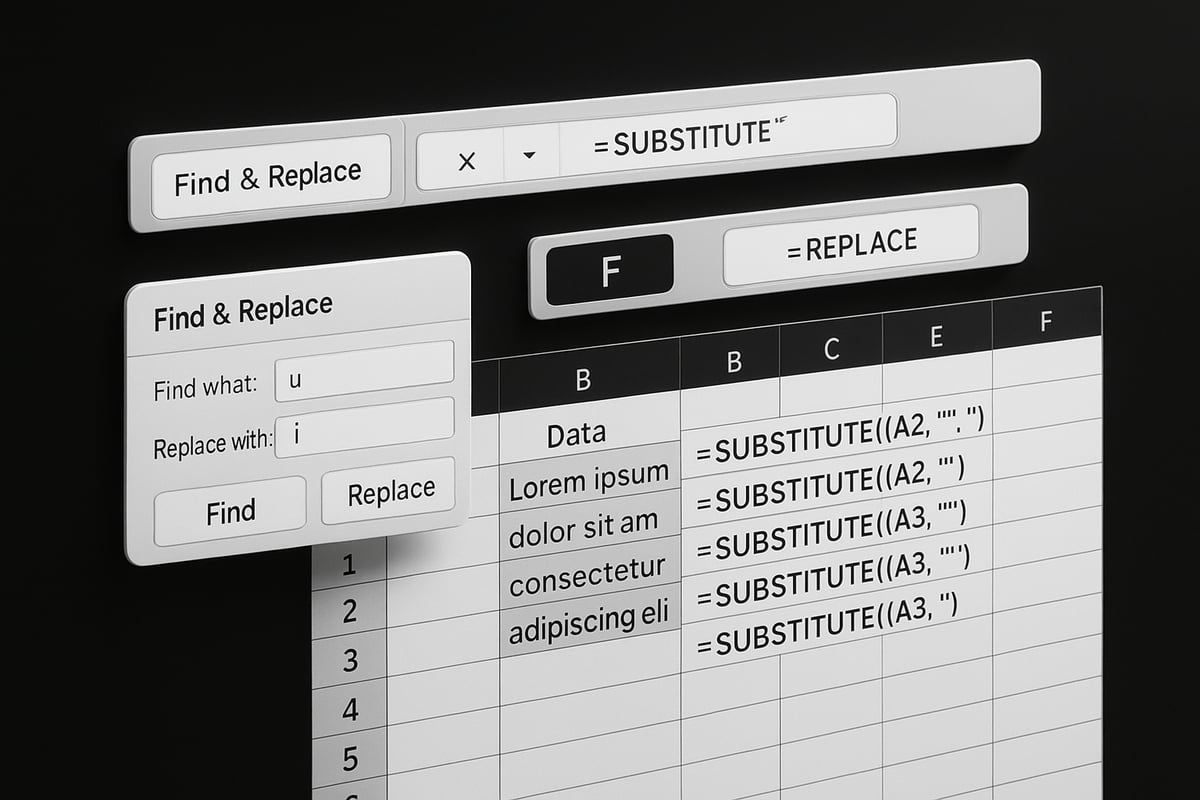
Excel offers several built-in features for character replacement:
- Find & Replace: Quickly swap all instances of a character throughout a selection or worksheet.
- SUBSTITUTE: A formula that replaces specific characters or text within a string.
- REPLACE: Changes content at a specific position in a string.
Each tool serves different scenarios. For a comprehensive walkthrough of REPLACE, refer to the Excel REPLACE function tutorial. Understanding which tool to use, and when, is key to mastering excel replace a character in a string.
Manual vs. Automated Approaches, Excel 2026 Updates
Manual methods like Find & Replace are fast for small, one-time fixes. However, for recurring tasks or large datasets, automation is essential. Power Query and VBA macros allow for bulk and repeatable replacements. Excel 2026 introduces enhanced text functions and improved formula capabilities, making character replacement more flexible and efficient than ever.
Basic Methods: Find & Replace Tool
Need a fast way to manage thousands of cells? Excel’s Find & Replace tool is your go-to for instant character changes. Whether you’re working with dates, codes, or text lists, this basic method is the foundation for anyone learning how to use excel replace a character in a string.
What is Find & Replace?
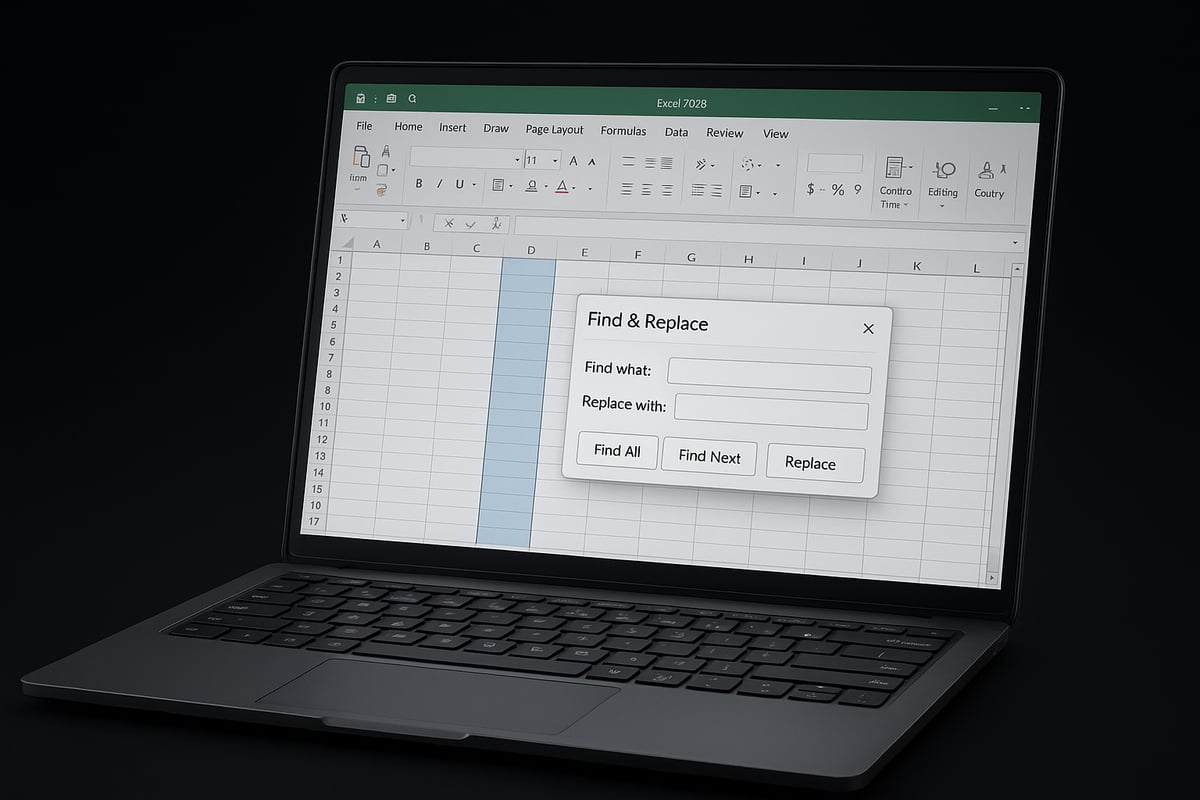
Find & Replace is a built-in feature in Excel 2026 that lets you quickly search for specific text or characters and swap them for something else. You can access it via the Home tab under the Editing group, or by pressing Ctrl+H on your keyboard. This tool is especially useful when you need to excel replace a character in a string across large datasets or when standardizing imported information.
Common scenarios include updating delimiters in CSV exports, correcting repeated entry errors, or removing unwanted symbols from product codes. For example, if your data uses commas but you need semicolons, Find & Replace makes the switch with just a few clicks.
Step-by-Step: Using Find & Replace
To get started, open your worksheet and select the range where you want changes. Press Ctrl+H to launch the Find & Replace dialog. In the "Find what" field, enter the character you want to change. In "Replace with", type the new character.
You can choose between "Replace All" to update every instance or "Replace" to review and confirm each change individually. Excel allows you to target the entire worksheet, a single column, or a custom selection, making it flexible for any excel replace a character in a string task.
For example, imagine a date column formatted as 2026-06-01. To convert all hyphens to slashes, enter - in "Find what" and / in "Replace with". Click "Replace All". Excel will instantly update every date in your selection.
If you want to limit changes, use filters or highlight specific cells before opening Find & Replace. This helps avoid mass changes to unintended data.
When using Find & Replace, be careful with case sensitivity and partial matches. Excel treats uppercase and lowercase as the same unless you check the "Match case" box. Always double-check your results. If you make a mistake, press Ctrl+Z immediately to undo the last action and restore your data.
Limitations of Find & Replace
While Excel’s Find & Replace is powerful, it has its limits. It cannot use formulas or logical conditions, so it won’t help if you need complex or dynamic replacements. In some cases, wildcards are unsupported, restricting advanced search patterns.
Another risk of using Find & Replace for excel replace a character in a string is accidental global replacements. If you forget to limit your selection, you might change data in hidden rows or unrelated columns. This tool is not suitable for recurring tasks or real-time data updates, as it only works on the current data snapshot.
Pro Tips for Efficient Use
To maximize your efficiency, learn the keyboard shortcut Ctrl+H for instant access. Filter or select data before replacing to focus only on what needs changing.
Combine Find & Replace with Excel’s filter tools to preview results in a sample range before applying to the full dataset. This is a smart way to reduce errors and ensure you excel replace a character in a string safely. For a more robust error prevention workflow, consider reviewing Reduce spreadsheet errors in Excel for best practices.
Always test on a small selection first, and keep a backup of your data. This approach keeps your work safe while leveraging the speed of Find & Replace.
Using Excel Formulas: REPLACE, SUBSTITUTE, and More
Formula-based methods for character replacement in Excel offer dynamic, flexible solutions for both simple and complex data tasks. If you regularly need to use excel replace a character in a string, learning these functions will save time and improve accuracy. Let’s break down each key formula, their advantages, and how you can leverage them for efficient data cleaning.
SUBSTITUTE Function Explained
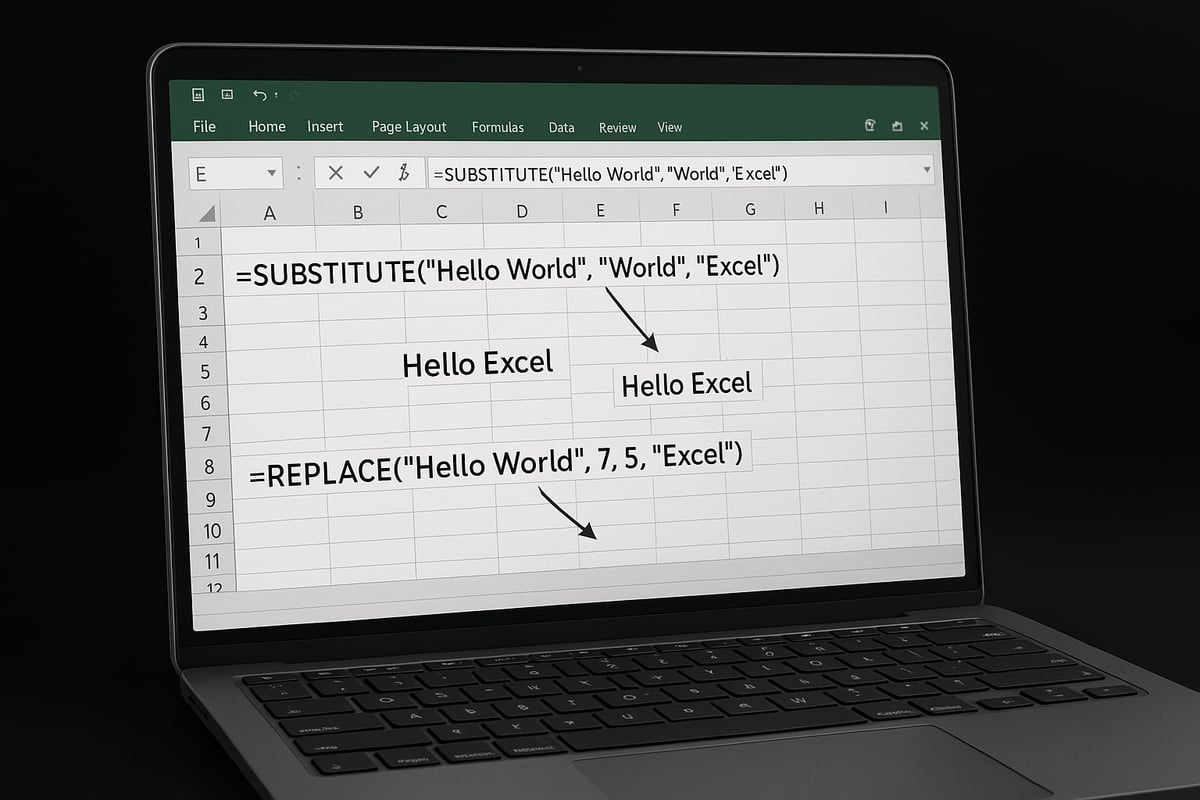
The SUBSTITUTE function is essential for anyone who uses excel replace a character in a string. Its syntax is straightforward:
=SUBSTITUTE(text, old_text, new_text, [instance_num])
text: The cell or value containing the string you want to modify.old_text: The character or substring to find.new_text: The character or substring to replace it with.[instance_num]: (Optional) The specific occurrence you want to replace (if omitted, all are replaced).
SUBSTITUTE is ideal when you need to replace every occurrence of a specific character or substring. For example, if your product codes use “A” and you want to change all “A” to “B”, you would use:
=SUBSTITUTE(A2,"A","B")
If you only want to replace the second “A”, set [instance_num] to 2.
This function is case-sensitive, so “a” and “A” are treated differently. For multiple replacements, you can nest SUBSTITUTE functions, such as replacing several unwanted symbols in one formula.
For more details and advanced use cases, the Excel SUBSTITUTE function documentation provides official guidance.
While SUBSTITUTE is powerful, it does not handle wildcards and works best when your replacement needs are consistent. In the context of excel replace a character in a string, SUBSTITUTE is often the first method to try.
REPLACE and REPLACEB Functions
The REPLACE and REPLACEB functions offer another way to tackle excel replace a character in a string, especially when you need to change characters by their position in the text.
REPLACE syntax:
=REPLACE(old_text, start_num, num_chars, new_text)
old_text: The original string.start_num: The position where replacement begins.num_chars: Number of characters to replace.new_text: What to insert in place.
For example, to mask the first three digits of a Social Security Number:
=REPLACE(A2, 1, 3, "***")
REPLACEB is similar but is used for double-byte character sets. If your data contains languages like Chinese or Japanese, REPLACEB ensures accurate replacement.
Use REPLACE when your replacement depends on character position, not just value. For many excel replace a character in a string tasks, REPLACE allows precise edits in structured data.
Advanced Formula Techniques
Advanced users often combine SUBSTITUTE, REPLACE, and other string functions to solve complex excel replace a character in a string challenges. Nesting SUBSTITUTE lets you replace several characters at once, for example:
=SUBSTITUTE(SUBSTITUTE(A2,"/","-")," ","")
This formula replaces all “/” with “-” and removes spaces in one step.
Excel 2026 introduces enhancements like LET and LAMBDA functions. LET allows you to define variables within your formula for cleaner, reusable logic:
=LET(temp, SUBSTITUTE(A2,"-","/"), SUBSTITUTE(temp," ",""))
LAMBDA lets you create custom functions to apply your preferred replacement logic across your workbook.
Combining these tools enables you to build robust solutions for excel replace a character in a string, especially when you need to standardize formats or clean up imported datasets.
Dynamic and Array-Based Replacement
When you need to apply excel replace a character in a string across entire columns or large datasets, array formulas are invaluable. With dynamic arrays, you can enter a formula once and have it spill results into adjacent cells automatically.
For instance, to replace “.” with “:” in an entire column:
=SUBSTITUTE(A2:A1000,".",":")
This formula instantly updates every cell in the range. Dynamic formulas help you scale, especially when cleaning imported data or standardizing thousands of records.
Array-based approaches make excel replace a character in a string fast and repeatable, minimizing manual effort and risk of error.
Troubleshooting Formula Errors
Troubleshooting is key when using formulas for excel replace a character in a string. Common mistakes include using the wrong instance_num, referencing the wrong cell, or mismatched parentheses.
Error types to watch for:
#VALUE!: Usually means a wrong data type or range.#NAME?: Typo in the function name.
If your formula does not work as expected, break it into smaller parts and test each piece. Use helper columns to isolate issues and verify results before applying changes to your full dataset.
Always double-check your excel replace a character in a string formulas on a sample set before scaling up. This approach helps prevent unintended changes and ensures accuracy.
Automating Character Replacement: Power Query & VBA
Automating repetitive tasks is essential for anyone working with large datasets. When it comes to excel replace a character in a string, manual methods can be slow, error-prone, and hard to repeat. Fortunately, Excel provides two robust automation options: Power Query and VBA. Both tools let you transform your data efficiently, maintain accuracy, and save countless hours.
Power Query for Bulk Replacement
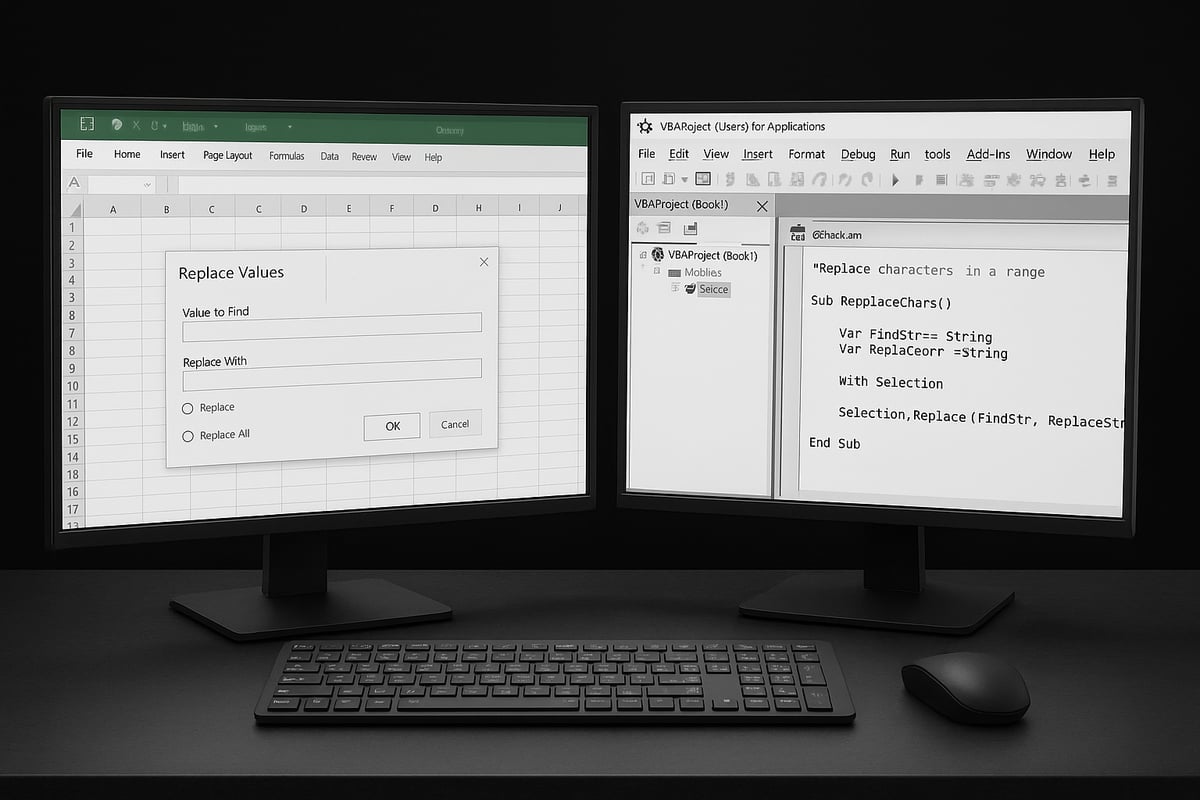
Power Query is a powerful tool built into Excel that streamlines data transformation. It is especially effective when you need to excel replace a character in a string across thousands or millions of rows. With Power Query’s Replace Values feature, you can automate replacements without altering your original data.
Here’s how to use Power Query for character replacement:
- Load your data: Click Data > Get & Transform Data > From Table/Range to open Power Query.
- Select the column: Click the column header containing the text you want to modify.
- Apply Replace Values: Right-click the column, select Replace Values, then specify the character to find and the replacement character.
- Multiple replacements: Repeat the Replace Values step for each character or pattern you want to change.
- Close & Load: After all replacements, click Close & Load to export the cleaned data back to Excel.
For example, if you import a text file where all dates use “-” instead of “/”, simply use Replace Values to fix every occurrence. Power Query is great for recurring tasks because you can refresh your query whenever the data source updates, ensuring consistency.
Advantages include:
- Non-destructive editing (original data remains intact)
- Repeatable steps for future imports
- Clear audit trail of every transformation
This method is perfect when you need to excel replace a character in a string on a regular basis or with large volumes of data. It is also ideal for complex cleaning jobs that would be tedious by hand.
VBA Macros for Advanced Automation
For scenarios that require customization, logic, or integration with other tasks, VBA macros are the go-to solution. If you frequently need to excel replace a character in a string but with specific rules—such as only in selected columns or based on conditions—VBA offers ultimate flexibility.
Here’s a sample macro to replace a specific character in a selected range:
Sub ReplaceCharacterInRange()
    Dim cell As Range
    For Each cell In Selection
        If Not IsEmpty(cell) Then
            cell.Value = Replace(cell.Value, "-", "/")
        End If
    Next cell
End Sub
You can modify this macro to target particular columns, prompt for input values, or loop through entire sheets. Always save your work before running macros, as changes are immediate.
Safety tips:
- Enable macros only from trusted sources.
- Test on sample data before applying to large datasets.
- Document your code for future reference.
If you need professional help or want to scale up automation, consider exploring Excel VBA programming services for tailored solutions. VBA is ideal for automating monthly reports, batch processing, or integrating with other Office applications.
Whether you are a beginner or advanced user, VBA allows for deep customization when using excel replace a character in a string, making it a vital tool for power users.
Comparing Power Query and VBA
Choosing between Power Query and VBA depends on your project requirements. Both can help you excel replace a character in a string at scale, but each has its strengths.
| Feature | Power Query | VBA Macros |
|---|---|---|
| Ease of use | User-friendly interface | Requires coding knowledge |
| Repeatability | Easily refresh for new data | Can automate with scheduled tasks |
| Customization | Limited logic, step-based | Highly customizable, supports logic |
| Auditability | Built-in step history | Must be documented manually |
| Risk | Non-destructive, reversible | Changes are immediate, need backups |
Use Power Query for straightforward, repeatable replacements with minimal setup. Opt for VBA when you need advanced logic, integration, or batch automation.
Both approaches make it possible to excel replace a character in a string efficiently, so choose the one that best fits your workflow and technical comfort level.
New Features & Best Practices in Excel 2026
Staying current with new features is essential if you want to confidently use excel replace a character in a string. Excel 2026 brings several updates that can make text manipulation faster, safer, and more flexible than ever. Whether you are cleaning up imported data or standardizing formats, understanding these enhancements and best practices will help you achieve reliable results.

What’s New in Excel 2026 for String Manipulation?
Excel 2026 introduces several improvements that make excel replace a character in a string tasks more efficient. The enhanced LAMBDA function allows users to create custom, reusable text transformation logic without writing VBA. New text functions, such as TEXTSPLIT and updated SUBSTITUTE, provide more control and flexibility for complex replacements.
For example, you can now use formulas like this to replace multiple characters in one step:
=SUBSTITUTE(SUBSTITUTE(A2, "/", "-"), " ", "")
Dynamic arrays also enable bulk text replacements across entire columns with a single formula. This ensures consistency and speeds up data cleaning.
Recent updates, as highlighted in New Excel features in 2025, include better compatibility for text functions and improved performance on large datasets. These changes mean that character replacement is not only easier but also more reliable for enterprise-scale data.
Best Practices for Safe and Accurate Replacement
To get the best results when you use excel replace a character in a string, follow these proven best practices:
- Always work on a copy of your data before making changes.
- Use filters to narrow the scope of your replacements and avoid affecting unintended cells.
- Document each replacement step, especially in shared workbooks, to maintain an audit trail.
- Test your replacement logic on a small sample before applying it to the full dataset.
- Leverage structured references and Excel Tables to keep formulas dynamic and manageable.
Advanced users may benefit from exploring advanced text manipulation in Excel for deeper insights and automation options. Consistently applying these practices will minimize errors and increase your confidence.
Avoiding Common Pitfalls
Even with new features, excel replace a character in a string can present challenges. Stay alert to these common pitfalls:
- Accidentally overwriting important data due to broad replacements.
- Missing hidden or filtered rows that need updating.
- Issues with merged cells or special formatting disrupting your workflow.
Double-check your selections, preview changes, and use the Undo feature if you spot any mistakes. By maintaining vigilance, you ensure your character replacements are both safe and successful.
Real-World Examples and Troubleshooting
Handling real data often exposes the true power of excel replace a character in a string. Let us look at how these techniques work in practice, and what to do when things go wrong. Each real-world scenario below demonstrates how you can apply the right approach for your data challenges.
Case Study: Cleaning Imported Data Sets
Imagine importing a dataset where address fields use the pipe symbol "|" as a separator instead of commas. This makes analysis and mail merges complicated. Using excel replace a character in a string, you can quickly standardize your data.
First, select the column with the problematic character. Open Find & Replace, enter "|" in the Find field, and "," in the Replace field. Click "Replace All" to update every occurrence instantly.
If you need more control or want to automate the process, use the SUBSTITUTE function:
=SUBSTITUTE(A2, "|", ",")
This formula replaces every "|" with "," in cell A2. For a full walkthrough using SUBSTITUTE, watch this Excel SUBSTITUTE function tutorial.
After applying your changes, double-check the results. This method saves hours when you have thousands of rows. It also ensures data consistency for downstream processes.
Troubleshooting Common Issues
Sometimes, excel replace a character in a string does not work as expected. For example, non-printable or invisible Unicode characters can sneak in from web data. These are hard to spot and may break formulas.
Common troubleshooting steps include:
- Use
CLEANorTRIMfunctions to remove non-printable characters. - Add a helper column to test formulas before applying them broadly.
- Use Find & Replace with copy-pasted invisible characters if needed.
- Check for case sensitivity or extra spaces that block matches.
For more guidance, refer to these Excel troubleshooting strategies. They cover root causes, error messages, and advanced fixes. A methodical approach helps you resolve even the toughest data cleaning problems.
Expert Tips for Large Data Sets
When working with massive spreadsheets, excel replace a character in a string can become slow or resource-intensive. Optimize your workflow with these tips:
- Use Power Query for bulk replacements, as it handles millions of rows efficiently.
- Convert your range to an Excel Table for structured references and easier formula application.
- Minimize volatile formulas to speed up recalculation.
- Test replacements on a sample before scaling up.
These practices not only save time but also reduce the risk of accidental data loss.
When to Seek Professional Help
There are times when excel replace a character in a string is not enough. Complex replacements, recurring automation, or special data formats may require advanced solutions.
If you encounter persistent issues, or if manual fixes take too long, consider consulting an Excel expert. Professionals can create custom macros, automate Power Query steps, and provide training tailored to your needs. Their expertise ensures your processes are scalable, accurate, and future-proof.


