Imagine transforming your everyday spreadsheets into polished, professional reports with just a few clicks. Merging boxes in Excel is a simple skill that delivers big results, yet many users overlook its full potential.
This guide will show you how to merge box in excel using clear, up-to-date methods tailored for the 2025 release. Whether you are a beginner or a seasoned user, mastering this feature will elevate your workflow.
You will discover step-by-step instructions, common mistakes to avoid, advanced merging strategies, and expert-approved best practices. Each section is designed to help you work smarter and present your data with confidence.
Excel’s flexibility can solve your formatting headaches. By following this guide, you will create cleaner, more organized spreadsheets and unlock a new level of efficiency.
Understanding Merging in Excel: What Does It Mean?
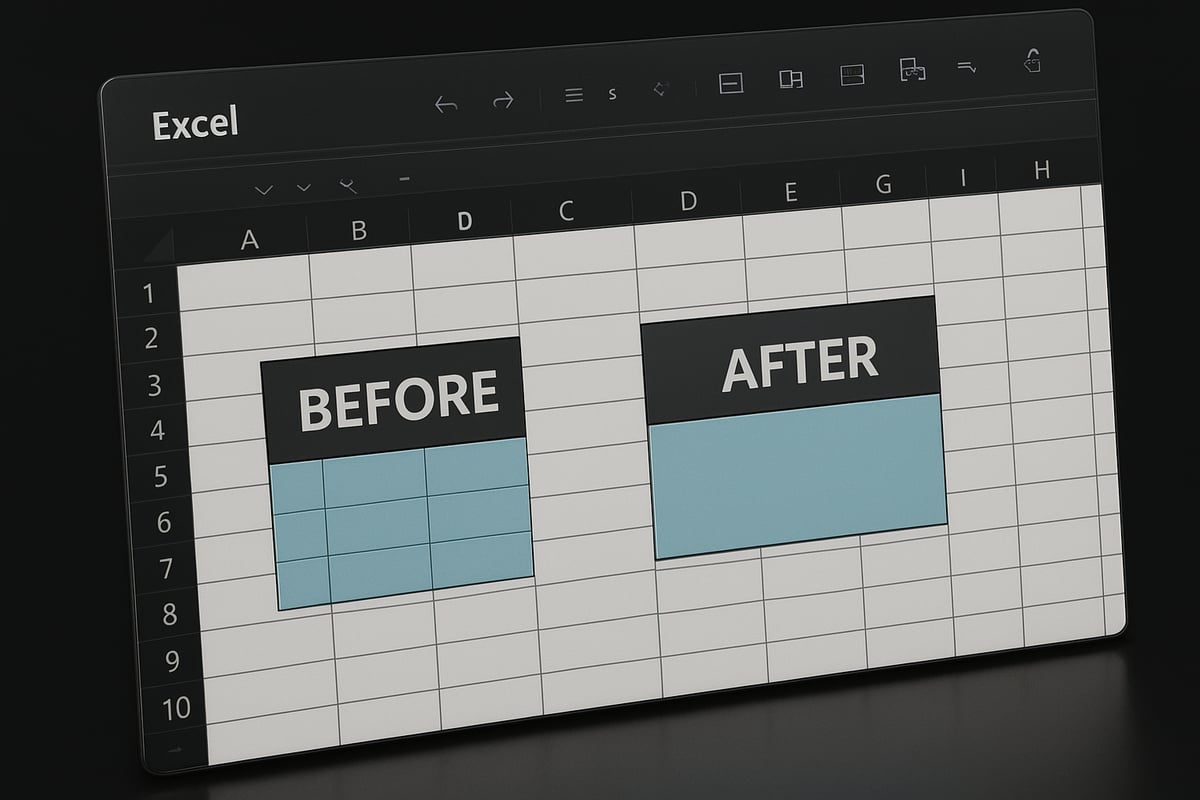
Unlocking the benefits of how to merge box in excel starts with understanding what merging actually is. Merging cells is a formatting feature that lets you combine two or more adjacent cells into a single, larger cell. This process is commonly referred to as “merging boxes,” though in Excel’s terminology, you are merging cells. It’s important to note that merging is not the same as centering content, grouping data, or combining cell values. Merging simply unifies the selected cells into one, which can dramatically affect both the appearance and functionality of your worksheet.
Defining “Merging Boxes” in Excel
In Excel, merging boxes means combining selected adjacent cells into one cell. This is often called “merging cells” within the application. While the term “box” is sometimes used informally, the official Excel action is “merge cells.” It’s crucial not to confuse merging with centering content or grouping data, as those actions do not change the structure of the worksheet in the same way.
The process does not blend the data from each cell but instead keeps only the content from the upper-left cell. This distinction is important when you learn how to merge box in excel, as it affects both layout and data retention.
Why Merge Cells? Key Use Cases
Why should you learn how to merge box in excel? Merging cells is widely used for creating visually appealing headers, labels, and organized tables. It enhances readability by allowing you to present titles that span multiple columns or rows, making reports clearer and more professional.
In real-world business scenarios, merged cells are common in financial statements, project schedules, and dashboards. For example, a monthly sales report may use merged cells to create a prominent section title above segmented data, helping stakeholders navigate information quickly.
Types of Merge Options in Excel
Excel offers several merge options to suit different needs. Understanding these is key when considering how to merge box in excel:
| Merge Option | Description | Common Use Case |
|---|---|---|
| Merge & Center | Merges cells and centers content | Table headers |
| Merge Across | Merges cells across each row in a selection | Sectioned tables |
| Merge Cells | Merges cells without centering | Custom layouts |
| Unmerge | Splits merged cells back into individual cells | Reverting formatting |
Each option serves a specific purpose. For instance, “Merge & Center” quickly creates a centered title, while “Merge Across” is ideal for batch formatting rows.
Limitations and Risks of Merging Cells
While merging cells can improve layout, it brings several limitations. Only the upper-left cell’s data is retained; all other cell contents are deleted. Sorting and filtering become challenging if merged cells are present, and formulas or pivot tables may not function as expected with merged ranges.
It’s wise to review expert advice on the Risks of Merging Cells in Excel, which details how merging can complicate data management and lead to formatting headaches. Always weigh these risks before deciding to merge, especially in collaborative or data-heavy workbooks.
Merging in Excel 2025: What’s New?
Excel 2025 brings subtle but useful enhancements to the merging experience. The interface now provides clearer visual cues when cells are merged, making it easier to identify merged areas at a glance. Some merge functions are more accessible in the ribbon, and improved undo capabilities help reduce accidental data loss.
Microsoft has also refined compatibility with shared workbooks, so merged cells behave more predictably when collaborating. These updates make it simpler to master how to merge box in excel using the latest version.
Alternatives to Merging
Sometimes, merging is not the best option. Alternatives like “Center Across Selection” offer similar visual results without the drawbacks. This alignment feature centers text across a range of cells while keeping the cells independent, preserving sorting and filtering functionality.
Other alternatives include using bold fonts, background colors, or borders to group data visually. Consider these options when you want to maintain flexibility and avoid common pitfalls associated with merging. Knowing when and how to merge box in excel or use alternatives is key for professional spreadsheet management.
Step-by-Step Guide: How to Merge Box in Excel
Unlocking the secret to efficient spreadsheets starts with mastering how to merge box in excel. This step-by-step guide will walk you through every method, from basic merges to troubleshooting common issues. Follow these concise instructions to streamline your workflow and avoid common pitfalls.

Preparing Your Data for Merging
Before you begin learning how to merge box in excel, preparation is crucial. Start by scanning your spreadsheet for existing data in the cells you plan to merge. If any cell contains important information, make a backup copy to avoid accidental loss.
Standardize formatting across selected cells for a consistent look. This reduces the risk of formatting issues after merging. Use these quick checks:
- Confirm all cells are empty except for the primary cell.
- Copy your data to a new sheet as a backup.
- Apply the same font and alignment to selected cells.
Taking time to prepare ensures a smooth merging process and helps maintain data integrity in your Excel files.
How to Merge Cells Using Ribbon Commands
The most common method for how to merge box in excel is through the Ribbon commands. Select the cells you wish to merge, usually for headers or labels. Go to the Home tab and locate the "Merge & Center" button in the Alignment group.
You will see several options:
- Merge & Center: Merges selected cells and centers the content.
- Merge Across: Merges cells in each row individually.
- Merge Cells: Combines cells without centering.
- Unmerge Cells: Reverses the merge.
For example, to create a header for a monthly sales report, select the cells above your data, click "Merge & Center," and your title appears centered across columns. This approach makes your spreadsheet more readable and visually appealing.
Merging Cells with Keyboard Shortcuts
Efficiency is key when learning how to merge box in excel, especially for frequent tasks. On Windows, use Alt + H + M + C to quickly merge and center. On Mac, try Cmd + Option + M (may require customization).
To customize shortcuts:
- Go to File > Options > Customize Ribbon.
- Assign your preferred shortcut for merging commands.
Example: If you regularly format tables, these shortcuts save time and reduce manual clicks. Use them to streamline your workflow when preparing recurring reports or dashboards.
| Platform | Default Shortcut |
|---|---|
| Windows | Alt + H + M + C |
| Mac | Cmd + Option + M |
Mastering these shortcuts accelerates your daily Excel tasks.
Merging Cells Using Right-Click Menu
Another user-friendly method for how to merge box in excel is through the right-click context menu. Select your target cells, right-click, and choose "Format Cells." Then, go to the Alignment tab and check "Merge cells."
This method is especially handy during data entry, as it lets you merge on the fly without navigating the Ribbon. Compared to the Ribbon method, the right-click menu offers quick access but with fewer options for centering or merging across.
Use this approach when you need to merge cells in isolated parts of your worksheet or when customizing cell formatting during entry.
Unmerging Cells: How to Reverse the Process
Mistakes happen, so knowing how to unmerge cells is vital when exploring how to merge box in excel. Select the merged cell, go to the Home tab, and click "Unmerge Cells." The content will return to the upper-left cell, and the rest will become blank.
What if you lose data? Unfortunately, only the content of the top-left cell is retained. To recover lost information, use the Undo (Ctrl + Z) function or restore from your backup.
This process helps you correct accidental merges and keep your data organized.
Handling Data Loss During Merging
One major risk when using how to merge box in excel is losing data from non-primary cells. Only the value in the upper-left cell is preserved, while other data is discarded. To prevent this, always check your selection before merging.
Strategies to preserve information include:
- Copying all cell contents to a separate sheet.
- Using formulas to concatenate data before merging.
- Reviewing your selection for hidden or important values.
For corporate teams, minimizing errors is essential. Learn more about safeguarding your data with the Reduce spreadsheet errors in Excel guide, which covers best practices for preventing mistakes during merges.
Troubleshooting Common Merging Issues
Problems can arise when you use how to merge box in excel. Common error messages include "Cannot merge cells that are part of a table" or "Cannot merge overlapping ranges." If you encounter these, check if your cells are within an Excel Table or contain protected elements.
For protected sheets, ensure you have the necessary permissions to merge or unmerge cells. In shared workbooks, merging may be restricted to preserve data integrity.
Quick troubleshooting tips:
- Unprotect your sheet if merging is disabled.
- Remove table formatting before attempting to merge.
- Communicate with collaborators when working in shared files.
Addressing these challenges helps maintain a smooth experience while working with merged cells.
Advanced Merging Techniques for Power Users
Unlocking advanced merging techniques is essential for anyone who wants to master how to merge box in excel and create truly professional spreadsheets. If you manage complex reports, dashboards, or large datasets, these strategies will elevate your workflow. Let us explore the most effective methods for power users, ensuring your Excel sheets are both functional and visually impressive.

Merging Cells Across Multiple Rows and Columns
Merging cells across several rows and columns is a powerful method for organizing large tables and creating complex headers. To do this, select the range of cells you want to merge, then use the Merge & Center command. This combines all selected cells into one, making it ideal for section dividers or grouping related columns.
For example, in a financial summary, you might merge cells A1 to D1 for a prominent title. Remember, Excel does not allow merging non-adjacent cells, so plan your layout carefully. This technique is fundamental when learning how to merge box in excel for comprehensive data presentation.
Using Formulas with Merged Cells
When you merge cells, formulas may behave differently. If you reference a merged cell in a formula, Excel uses the top-left cell of the merged range. This can affect functions like SUM, AVERAGE, or LOOKUP, especially if your data relies on consistent cell references.
For best results, avoid merging cells that need to be included in calculations. Instead, merge only for headers or labels. In a financial summary sheet, keep data cells unmerged and use merging for descriptive rows. Mastering how to merge box in excel requires understanding these formula interactions to maintain accuracy.
Conditional Formatting and Merged Cells
Conditional formatting is a valuable tool for highlighting trends or errors, but it can be tricky with merged cells. When you apply formatting rules to a merged range, Excel may not always apply them as expected, especially with row- or column-based conditions.
A practical solution is to format before merging or to apply rules to the unmerged range. For more in-depth guidance on handling these scenarios, see Excel conditional formats explained. Navigating these nuances is crucial when refining how to merge box in excel for dynamic reports.
Printing and Exporting Sheets with Merged Cells
Printing and exporting spreadsheets with merged cells can introduce layout challenges. Merged ranges may cause misaligned columns or unexpected page breaks. To ensure your printouts look polished, always preview the page layout before printing.
When exporting to PDF, check that all merged cells display correctly and that text is not clipped. For CSV exports, be aware that merged cells will split into individual cells, which can affect data interpretation. These considerations are vital as you develop expertise in how to merge box in excel for professional documentation.
Merging in Excel Tables and Pivot Tables
Excel restricts merging within structured tables and pivot tables to preserve data integrity. Attempting to merge cells in a table will result in an error. Instead, use grouping or custom formatting to achieve a similar effect.
For pivot tables, consider using calculated fields or custom labels to present grouped data without merging. For example, adjust field settings to create multi-level headers. Understanding these limitations is part of mastering how to merge box in excel in data analysis contexts.
VBA and Automation for Merging Tasks
For repetitive merging tasks, VBA macros offer a powerful solution. You can write a simple macro to merge a specific range automatically:
Sub MergeHeader()
    Range("A1:D1").Merge
End Sub
This approach is efficient for large datasets or templates that require frequent merging. Automating how to merge box in excel saves time and ensures consistency, especially in enterprise environments.
Best Practices for Advanced Users
Power users should avoid excessive merging, as it can hinder sorting, filtering, and accessibility. Maintain a balance between visual clarity and data functionality. Always document merged ranges in shared workbooks to prevent confusion.
Consult Excel expert forums for insights and real-world examples. Prioritize accessibility by using alternative alignment options when possible. By following these best practices, you will excel at how to merge box in excel while preserving usability and collaboration.
Merging Boxes on Different Devices: Desktop, Web, and Mobile
Merging cells in Excel is not limited to just one platform. Whether you use a desktop, browser, or mobile device, knowing how to merge box in excel effectively ensures your data looks polished and professional wherever you work.

Merging in Excel for Windows vs. Mac
If you are wondering how to merge box in excel on different desktop systems, you will notice some subtle differences. On Windows, the Merge & Center button is prominent on the Home tab, and the shortcut is Alt + H + M + C. Mac users find the merge options in a similar spot, but shortcuts differ, typically using Cmd + Option + M.
Feature gaps exist: Windows often receives updates first, while Mac may lag in advanced features. Some users report minor bugs when merging in large files on Mac. Always check for the latest version to avoid compatibility issues.
Merging Cells in Excel Online (Web Version)
Learning how to merge box in excel online is straightforward, but there are limitations. In the web interface, select your cells, then use the Merge option under the Home tab. However, not all merge types are available, and complex formatting may not sync perfectly with desktop files.
Collaboration is a strong suit of Excel Online, but merged cells can affect shared editing. When working with teams, consider using alternatives like Center Across Selection Alternative for smoother collaboration and fewer conflicts.
Using Excel Mobile (iOS/Android) to Merge Cells
Mobile users can still master how to merge box in excel with a few taps. Tap and hold to select your cell range, then use the formatting menu to find the Merge option. This process is touch-driven, making it intuitive for quick edits.
There are restrictions: not all merge features from the desktop version are present. Merging is best for simple headers or labels on mobile, rather than complex tables. For advanced formatting, switch to desktop or web versions when possible.
Syncing and Compatibility Across Devices
Syncing your work is crucial when using how to merge box in excel across multiple devices. Merged cells generally retain their appearance, but formatting may shift slightly between platforms. To preserve data integrity, always save and review your file after syncing.
If you edit a merged cell on one device, check how it appears on others—especially when collaborating. For best results, maintain a backup before major changes.
Troubleshooting Device-Specific Issues
Device-specific issues can arise when figuring out how to merge box in excel. On mobile, merged cells may not display correctly in older app versions. The web version sometimes restricts merging in protected sheets. If you encounter errors, try updating your app or browser, and unmerge before performing complex tasks.
For persistent issues, consult Excel support forums or official documentation for targeted solutions.
Accessibility Considerations for Mobile and Web
Accessibility is essential when merging cells, especially for users relying on screen readers. Merged cells can disrupt navigation and data interpretation. To keep your spreadsheets accessible, use clear labels and avoid excessive merging.
For more guidance, review these Excel Accessibility Best Practices, which offer practical tips for creating inclusive spreadsheets across all devices.
Best Practices, Tips, and Alternatives to Merging in Excel
When to Merge vs. When to Avoid Merging
Knowing when and how to merge box in excel can significantly impact your productivity. Merging is ideal for headers, section titles, and when data clarity is the priority. For example, merging cells across a table creates a visually unified title.
However, avoid merging if you plan to sort, filter, or perform advanced analysis. Experts caution that excessive merging complicates data handling. Always evaluate your workflow before merging, especially in shared workbooks or databases.
Alternatives: “Center Across Selection” and Alignment Tricks
If you want the visual effect of merging without the risks, consider “Center Across Selection.” This feature aligns text across selected cells without actually merging them. To use it, highlight your range, right-click, select Format Cells, then choose Alignment and Center Across Selection.
This method maintains data structure and usability. Remember, learning how to merge box in excel includes knowing its alternatives. Experiment with horizontal alignment and text wrapping for additional flexibility in your layouts.
Formatting Tips for Professional-Looking Reports
Combining merge features with bold text, color coding, and cell borders can elevate your reports. Consistency is key—use standardized templates and align with corporate branding.
For more on professional formatting, review the Excel page layout checklist. This resource will help you avoid common mistakes when deciding how to merge box in excel for presentations or audits.
Maintaining Data Integrity and Usability
Merging can disrupt sorting, filtering, and data analysis. When using how to merge box in excel, always consider the downstream effects. Collaborative workbooks are especially vulnerable to errors from merged cells.
According to community surveys, a significant percentage of users encounter issues due to merged cells. To safeguard your data, regularly audit your spreadsheets and test formulas after merging. Explore this audit and debug complex spreadsheets guide for more tips.
Excel Shortcuts and Productivity Hacks
Mastering shortcuts for how to merge box in excel saves valuable time. Use Ctrl + M for quick merging (on Windows with custom shortcuts) or Command + Option + M on Mac. Customize your Quick Access Toolbar for even faster access.
Streamline monthly reports by creating templates with pre-merged headers. Save repetitive actions as macros to further boost productivity. These hacks help maintain efficiency and consistency across your projects.
Common Mistakes and How to Avoid Them
Over-merging is a frequent pitfall. Large merged areas can block data analysis or make formulas unreliable. Always unmerge before running calculations or exporting data.
Another common mistake is forgetting to check for hidden data in merged cells. Review your sheets regularly to catch these issues early. Lessons from real-world audits show that careful planning prevents costly errors and rework.
Expert Resources and Further Learning
Stay updated by consulting Microsoft’s official documentation and joining Excel forums. Many YouTube channels and online courses offer in-depth tutorials on how to merge box in excel and related skills.
Explore community discussions for advanced tips and troubleshooting. Continuous learning ensures you stay ahead of evolving Excel features and best practices.