
Working with dates in Excel can be challenging, especially when you need to automate calculations, generate reports, or manage time-sensitive data. VBA date functions provide powerful tools to manipulate, analyze, and format dates programmatically. Whether you're tracking project deadlines, calculating employee tenure, or creating dynamic reports, understanding these functions transforms how you work with temporal data. This comprehensive guide explores the essential vba date functions that every Excel user should master to build more efficient and reliable spreadsheets.
Understanding the Date Function in VBA
The Date function serves as the foundation for working with dates in VBA. This function returns the current system date without any time component, making it perfect for timestamp operations and date comparisons. When you use the Date function in your VBA code, it retrieves the date from your computer's system clock.
Common applications include:
- Creating automatic date stamps in worksheets
- Logging when macros execute
- Setting baseline dates for calculations
- Validating data entry against current dates
The syntax is remarkably simple: just type Date in your VBA code. Unlike worksheet functions, you don't need parentheses or arguments. For instance, if you want to insert today's date into cell A1, you would write Range("A1").Value = Date. This straightforward approach makes the Date function ideal for beginners learning VBA.
The Now Function for Date and Time
While Date returns only the date portion, the Now function captures both date and time. This distinction becomes critical when you need precise timestamps for audit trails, transaction logging, or performance monitoring. The Now function includes hours, minutes, and seconds, providing a complete temporal snapshot.
Consider scenarios where precision matters. When tracking when users submit forms, when automated processes complete, or when data updates occur, Now provides the detail you need. The function follows the same simple syntax as Date, requiring no arguments: Range("B1").Value = Now.

Working with DateAdd for Date Arithmetic
The DateAdd function stands out as one of the most versatile vba date functions available. This function allows you to add or subtract specific time intervals from any date, making it indispensable for deadline calculations, scheduling, and forecasting. The VBA DateAdd function accepts three arguments: the interval type, the number of intervals, and the base date.
| Interval | Code | Example Use |
|---|---|---|
| Year | "yyyy" | Contract renewal dates |
| Quarter | "q" | Quarterly reporting periods |
| Month | "m" | Monthly billing cycles |
| Day | "d" | Project deadlines |
| Week | "ww" | Weekly schedule planning |
| Hour | "h" | Shift scheduling |
The real power emerges when you combine DateAdd with loops and conditional logic. Imagine calculating payment due dates that fall 30 days after invoice dates while skipping weekends. You can nest DateAdd within Do loops to increment dates until they meet specific criteria. For example: NewDate = DateAdd("d", 30, InvoiceDate) adds 30 days to any invoice date.
Practical DateAdd Applications
Financial analysts frequently use DateAdd to project future values and create amortization schedules. Project managers rely on it to calculate milestone dates based on task dependencies. Human resources departments utilize it for tracking probation periods, performance review dates, and certification expirations.
When building dynamic Excel dashboards, DateAdd enables you to create rolling date ranges that automatically update. You might calculate the last 90 days of sales data by using StartDate = DateAdd("d", -90, Date). This approach keeps your reports current without manual intervention.
Calculating Date Differences with DateDiff
The DateDiff function solves the opposite problem: determining how much time exists between two dates. This essential function calculates the interval between a start date and end date, returning the result in your specified unit. Understanding the VBA DateDiff function opens possibilities for aging analysis, duration tracking, and timeline calculations.
DateDiff requires four arguments:
- Interval type (same codes as DateAdd)
- Start date
- End date
- Optional: First day of week
- Optional: First week of year
The syntax DateDiff("d", StartDate, EndDate) returns the number of days between two dates. Change "d" to "m" for months, "yyyy" for years, or "h" for hours. This flexibility makes DateDiff adaptable to virtually any time measurement scenario.
Real-World DateDiff Examples
Accounts receivable teams calculate invoice aging using DateDiff to determine how many days invoices remain outstanding. The formula DaysOverdue = DateDiff("d", DueDate, Date) instantly shows which accounts need attention. Customer service departments measure response times, while operations teams track production cycles.
Employee tenure calculations demonstrate another practical application. Using YearsEmployed = DateDiff("yyyy", HireDate, Date) provides immediate tenure information for anniversary recognition or benefit eligibility. However, be aware that DateDiff counts interval boundaries, not complete intervals. An employee hired December 31, 2025 would show one year of service on January 1, 2026, even though only one day passed.
Extracting Date Components with DatePart
The DatePart function extracts specific components from a date value, giving you granular control over date analysis. Whether you need the month number, day of week, or quarter, the VBA DatePart function delivers precise results. This function proves invaluable for grouping data, creating custom reports, and implementing business logic based on temporal patterns.
Common interval codes include "m" for month, "d" for day, "yyyy" for year, "q" for quarter, and "w" for weekday. The syntax follows the pattern: DatePart("m", TargetDate) to extract the month number from any date. You can then use this information to route data, trigger calculations, or format displays.
Building Conditional Logic with DatePart
Sales organizations use DatePart to analyze seasonal trends by extracting months or quarters from transaction dates. Fiscal year reporting becomes straightforward when you can identify which quarter each date falls into. The expression CurrentQuarter = DatePart("q", Date) returns values 1 through 4, enabling quarter-based calculations.
Weekend detection represents another practical use case. Using Weekday = DatePart("w", TargetDate), you receive a number from 1 to 7, where 1 typically represents Sunday. This allows you to create logic that skips weekends when scheduling deliveries, calculating business days, or processing time-sensitive operations. Many professionals who seek expert Excel training want to master these date manipulation techniques for their specific industries.
Creating Dates with DateSerial
The DateSerial function constructs date values from individual year, month, and day components. This reverse approach to date creation provides exceptional flexibility when building dates from user inputs, database fields, or calculation results. The VBA DateSerial function accepts three numeric arguments representing year, month, and day.
| Component | Valid Range | Overflow Behavior |
|---|---|---|
| Year | 100-9999 | Error if outside range |
| Month | Any integer | Adjusts year up/down |
| Day | Any integer | Adjusts month/year |
The syntax NewDate = DateSerial(2026, 5, 15) creates May 15, 2026. What makes DateSerial powerful is its handling of out-of-range values. Entering DateSerial(2026, 13, 1) automatically adjusts to January 1, 2027. This overflow feature enables creative date calculations without complex conditional logic.
Advanced DateSerial Techniques
You can combine DateSerial with other vba date functions to solve complex problems. Finding the last day of any month becomes simple: LastDay = DateSerial(Year, Month + 1, 0). The zero in the day argument causes DateSerial to return the last day of the previous month, which is exactly what you need.
Dynamic quarter-end dates follow similar logic. To find the end of the current quarter, calculate which quarter you're in, multiply by 3 to get the last month, then use DateSerial with a day value of 0 for the following month. These techniques appear frequently in practical VBA date examples that demonstrate real-world applications.
Converting Strings to Dates with DateValue
The DateValue function transforms text representations of dates into actual date values that Excel can calculate with. When users enter dates as text, import data from external systems, or work with legacy spreadsheets, DateValue converts strings to proper date serial numbers. This conversion enables all the mathematical operations and functions that require genuine date data types.
DateValue handles various text formats:
- "May 15, 2026"
- "5/15/2026"
- "15-May-2026"
- "5-15-26"
The function interprets the string based on your system's regional settings, which can create challenges when working with international date formats. The VBA DateValue function returns only the date portion, stripping any time information from the text string.
Handling Date Conversion Challenges
Data validation becomes critical when converting text to dates. Invalid date strings cause runtime errors that halt your VBA code unless you implement error handling. Using On Error Resume Next before DateValue calls prevents crashes, but verify the results afterward to catch conversion failures.
Regional format differences create another common pitfall. A string like "3/4/2026" means March 4 in the United States but April 3 in many European countries. When building applications for international audiences or working with data from multiple sources, explicitly specify date components using DateSerial rather than relying on DateValue interpretation. Those seeking professional Excel consulting often need assistance standardizing date formats across complex workbooks.
Formatting Dates with Format Function
While not exclusively a date function, the Format function works hand-in-hand with vba date functions to control date display. After calculating dates with DateAdd, DateDiff, or DateSerial, Format presents them in user-friendly ways. This function accepts a date value and a format string, returning text formatted according to your specifications.
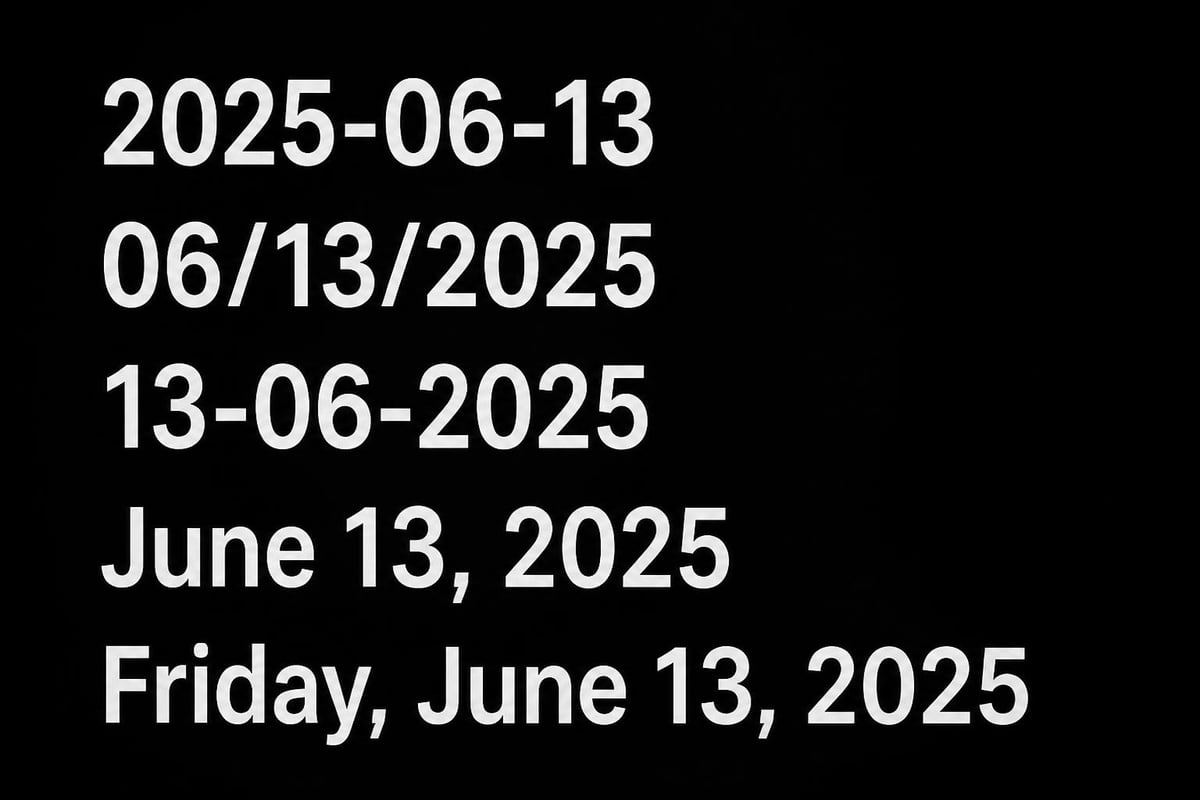
Format codes provide extensive customization options. Use "mm/dd/yyyy" for American-style dates, "dd-mmm-yyyy" for abbreviated months, or "mmmm d, yyyy" for long-form dates. The flexibility extends to including day names with "dddd, mmmm d, yyyy" producing results like "Thursday, May 15, 2026."
Strategic Date Formatting
Report headers benefit from formatted dates that provide context without cluttering the display. Including ReportDate = Format(Date, "mmmm yyyy") in your automation creates professional-looking monthly reports. Custom formats can incorporate literals too: Format(Date, "Report Generated: mm/dd/yyyy at hh:nn AM/PM") produces complete timestamp descriptions.
Sorting considerations emerge when formatting dates as text. While "May 15, 2026" reads naturally, it doesn't sort chronologically with other months. For sortable displays, use ISO format: Format(TargetDate, "yyyy-mm-dd"). This format maintains chronological order even when sorted alphabetically, making it ideal for file names, log entries, and exported data.
Combining Multiple Date Functions
The true power of vba date functions emerges when you combine them in sophisticated automation. Complex business requirements rarely need just one function. Instead, you'll chain functions together, using the output of one as input for another. This modular approach builds powerful date logic from simple components.
Consider calculating the next business day after adding 30 days to an invoice date. You'd use DateAdd to add the days, DatePart to check if the result falls on a weekend, and conditional logic with additional DateAdd calls to move forward to Monday if needed. This multi-step process handles a common business requirement that no single function addresses.
Building a Fiscal Year Calculator
Many organizations operate on fiscal years that don't align with calendar years. Creating a function that determines fiscal year, quarter, and period requires combining several date techniques. Extract the month with DatePart, compare it to your fiscal year start, adjust the year if necessary, and calculate quarters based on the fiscal calendar.
Function GetFiscalYear(InputDate As Date) As Integer
    If DatePart("m", InputDate) >= 7 Then
        GetFiscalYear = DatePart("yyyy", InputDate) + 1
    Else
        GetFiscalYear = DatePart("yyyy", InputDate)
    End If
End Function
This example assumes a July fiscal year start. The logic checks if the month is July or later, incrementing the year if true. Building these custom functions creates reusable tools that simplify complex date operations throughout your workbooks. Professionals developing these solutions often turn to specialized Excel help to ensure their automation runs reliably.
Common Date Function Pitfalls and Solutions
Working with dates in VBA presents several challenges that can derail your automation if not addressed properly. Understanding these common issues and their solutions prevents frustration and ensures reliable code. Date-related errors often stem from data type mismatches, regional settings, or incorrect assumptions about date behavior.
Frequent problems include:
- Treating dates as text or text as dates
- Ignoring time components when comparing dates
- Assuming all months have the same number of days
- Overlooking daylight saving time adjustments
- Misunderstanding how DateDiff counts intervals
Type mismatch errors occur when you pass text to functions expecting dates or vice versa. Always validate data types before performing date operations. Use IsDate() to verify that variables contain valid date values before processing them. This simple check prevents runtime errors that interrupt your automation.
Date Comparison Accuracy
When comparing dates that might include time components, precision matters. The expression If Date1 = Date2 can return False even when the dates appear identical because hidden time values differ. Strip time components using DateValue() or compare only the integer portion with If Int(Date1) = Int(Date2).
Month-end calculations fail when you assume all months contain the same number of days. February's variable length and the different lengths of other months require dynamic calculation. Using DateSerial with month + 1 and day 0 reliably returns the last day regardless of month length. The comprehensive VBA date and time functions guide provides additional examples of handling these edge cases.
Optimizing Date Function Performance
When processing large datasets, date function performance becomes critical. Inefficient date calculations can slow macros from seconds to minutes, frustrating users and reducing productivity. Understanding which operations are resource-intensive and how to optimize them improves your VBA code significantly.
Repeated function calls inside loops create the most common performance bottleneck. If you're calling Date thousands of times within a loop, you're retrieving the system date unnecessarily. Instead, assign CurrentDate = Date once before the loop and reference that variable. This simple change can reduce execution time dramatically.
Efficient Date Processing Strategies
Array processing outperforms cell-by-cell operations for large datasets. Load your date range into a variant array, process all calculations in memory, then write results back to the worksheet in one operation. This approach minimizes interactions with the Excel object model, which constitutes the slowest part of most VBA operations.
When validating dates, fail fast on obvious issues before calling date functions. Check string length and presence of date separators before attempting DateValue conversion. This preliminary validation prevents expensive function calls on data that will obviously fail, improving overall processing speed. Organizations processing substantial data volumes often benefit from advanced Excel training that covers these optimization techniques.
Mastering vba date functions transforms how you work with temporal data in Excel, enabling sophisticated automation that saves time and reduces errors. From basic date retrieval to complex interval calculations, these functions provide the tools needed to build professional, reliable solutions. If you're struggling with date calculations, need to automate time-sensitive processes, or want to develop more robust Excel applications, The Analytics Doctor provides expert guidance and practical solutions tailored to your specific needs.


