Imagine transforming your spreadsheets into powerful, automated tools that save hours every week. In 2026, knowing how to activate macros is the key to unlocking this next level of productivity.
This essential guide will walk you through every step, from understanding the basics of macros to enabling them safely on any platform. You will gain expert insights, learn up-to-date safety measures, and understand the latest updates in spreadsheet technology.
Discover what macros are, why they matter, and how they help automate repetitive tasks. Find out how to enable macros securely, troubleshoot common issues, and optimize your workflow for the future.
See firsthand how businesses are boosting efficiency and reducing errors with automation. Ready to streamline your daily tasks? Follow this roadmap and start making macros work for you.
Understanding Macros: What, Why, and How They Work
Unlocking the secrets behind macros is the first step to mastering how to activate macros for your spreadsheets. Macros have transformed from simple time-savers to powerful automation tools, making them essential for modern users. Before you dive into the technical steps, let’s break down what macros are, why they matter in 2026, and how they impact security and compatibility.
What Are Macros?
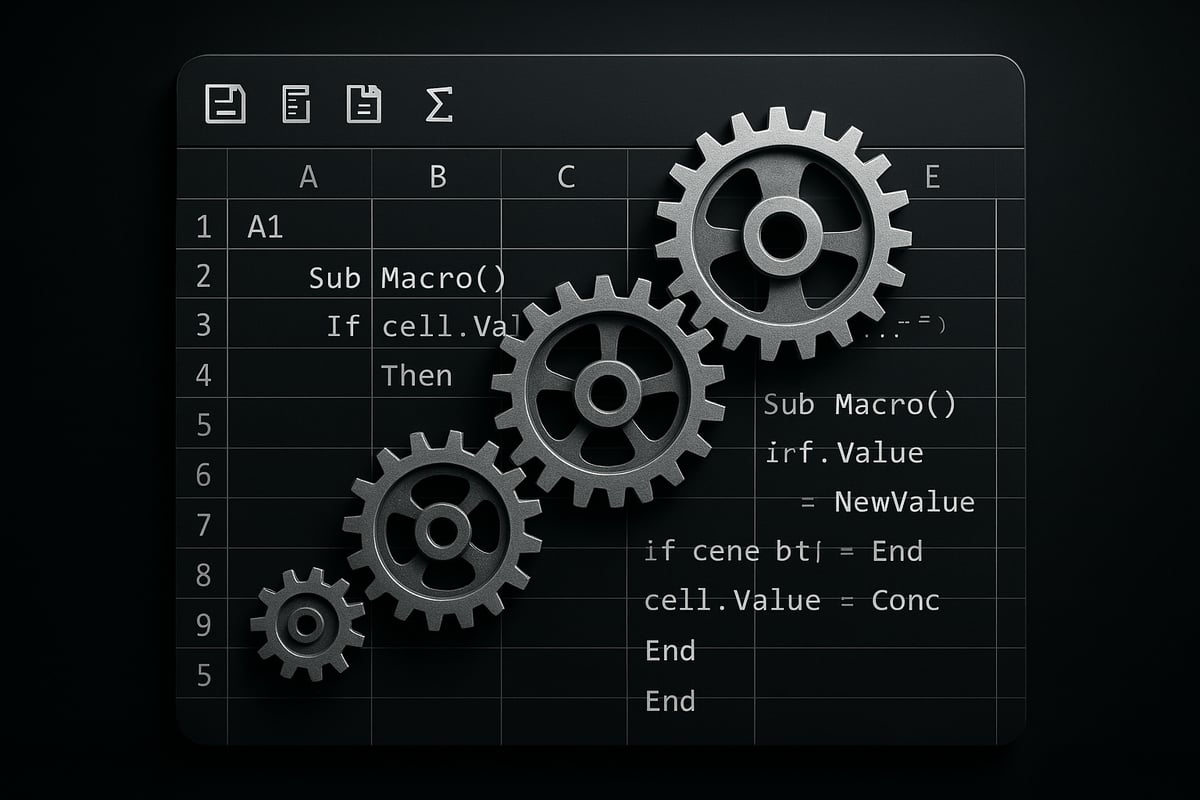
Macros are automated sequences of instructions that perform tasks within spreadsheets. At their core, they allow users to record or write a set of actions, such as formatting data, generating reports, or running calculations, and replay them with a single click.
Originally, macros were basic tools for automating repetitive steps, like copying data between sheets. Over the years, they have evolved. Now, they can include advanced scripting, data manipulation, and even integration with external data sources.
For example, a macro can automate monthly sales reporting by copying values, applying formulas, and generating charts, all in seconds. This core functionality is crucial for anyone learning how to activate macros for efficiency.
Benefits of Using Macros in 2026
The advantages of macros in 2026 are more significant than ever. Here’s why:
- Time Savings: Automate multi-step processes and eliminate manual repetition.
- Error Reduction: Standardize workflows and minimize mistakes.
- Enhanced Data Analysis: Perform advanced calculations and generate instant reports.
- Integration with AI and Cloud: Modern Excel versions allow macros to connect with AI-driven insights and cloud data.
According to recent statistics, 68% of businesses have reported increased productivity after learning how to activate macros and use them effectively. The combination of automation and new AI features means macros can now adapt to your workflow, offering benefits that go far beyond simple shortcuts.
Imagine reducing a process that once took an hour to just a few clicks. That’s the real-world impact of using macros today.
Macro Types and Compatibility
Macros come in two main types: recorded macros and written macros (usually in VBA—Visual Basic for Applications). Understanding these types is essential for anyone wanting to know how to activate macros across different platforms.
| Macro Type | Description | Best For | Platform Compatibility |
|---|---|---|---|
| Recorded Macros | Actions recorded in real-time | Simple tasks | Excel desktop, limited on web |
| VBA Macros | Written code with advanced logic | Complex automation | Excel desktop (Windows/Mac) |
| Google Apps Script | JavaScript-based, web integration | Google Sheets tasks | Google Sheets (web/mobile) |
Web-based and mobile spreadsheet apps have limitations. For instance, Excel Online supports viewing but not running traditional macros, while Google Sheets uses its own Apps Script engine.
If you’re unsure about macro-enabled files or need background on compatibility and safety, check out Macro-enabled in Excel explained. This resource is invaluable for understanding how to activate macros securely across different environments.
Risks and Security Considerations
While macros are powerful, they also introduce risks. Macro viruses and malicious scripts have been used for years to exploit spreadsheet software. In response, Microsoft has updated macro security policies in 2026 to help protect users.
Key risks include:
- Macro Viruses: Harmful code can be hidden in macros from untrusted sources.
- Phishing Attacks: Attackers may use macros to steal data or compromise systems.
- Compatibility Issues: Macros from older versions or different platforms may not run as expected.
To stay safe, always verify macro sources and inspect the code before enabling. Many organizations now enforce strict macro policies, controlling how to activate macros and which files can run. Real-world incidents, such as macro-based phishing attacks, highlight the importance of robust security practices.
Microsoft’s recent changes require users to confirm or block macros in files downloaded from the internet, providing another layer of defense. As you prepare to enable macros, follow organizational guidelines and keep your software updated to benefit from the latest security enhancements.
Preparing to Activate Macros: Prerequisites and Safety Steps
Before you dive into automation, it is crucial to prepare your environment properly. Setting up your spreadsheet platform, data, and security ensures a safe and smooth experience as you learn how to activate macros. These steps protect your data, maintain compliance, and minimize risks from malicious code.
Checking Your Spreadsheet Platform and Version
The first step in how to activate macros is to identify your spreadsheet software and its version. Excel 2026, Office 365, and Google Sheets each offer unique macro capabilities.
Check if your application supports macros and review any new features or restrictions. For example, Excel 2026 introduces enhanced security controls and some macro limitations on mobile or web versions. Use this compatibility checklist before proceeding:
| Platform | Macro Support | Key Notes |
|---|---|---|
| Excel 2026 | Full | New Trust Center UI, stricter defaults |
| Office 365 | Limited | Macros limited in browser-based Excel |
| Google Sheets | Script-based | Uses Apps Script, not VBA |
| Mobile Versions | Minimal | Macro support is highly restricted |
Ensuring compatibility helps you avoid errors later in the process of how to activate macros.
Backing Up Your Data
Before you enable any macros, always back up your data. This is a vital part of how to activate macros safely. Macros, especially those from external sources, can unintentionally modify or delete data.
Best practices include:
- Saving a copy of your file to a secure location
- Using version history in cloud platforms
- Scheduling regular automated backups
Consider this scenario: A macro misconfiguration corrupts your spreadsheet. With a backup, you can quickly restore your data and continue working. Prioritizing backups ensures peace of mind as you proceed with how to activate macros.
Updating Security Settings
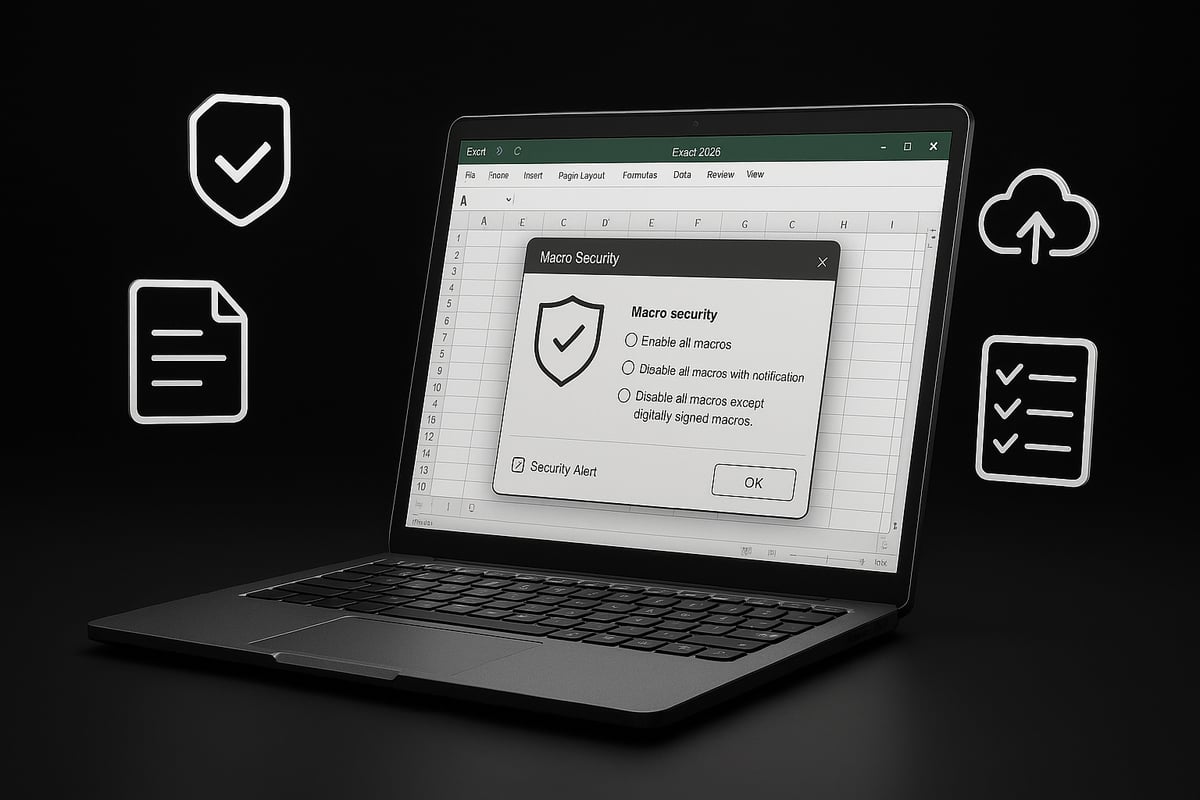
Configuring macro security is essential in the process of how to activate macros. In Excel 2026, navigate to the Trust Center under Options to adjust your macro settings. Review trusted document locations and verify trusted publishers.
Enhance your safety by:
- Setting macros to prompt before enabling
- Using antivirus and endpoint protection tools
- Regularly updating your software for the latest security patches
Microsoft has introduced new protections, including improved default settings and digital signature validation. For a detailed walkthrough, refer to the Change macro security settings in Excel guide. These precautions are crucial as you learn how to activate macros securely.
Reviewing Macro Source and Code
Understanding where your macros come from is a core safety step in how to activate macros. Examine macro code before enabling it, especially if it originates from an email or download.
Look for these signs of a trusted macro:
- Digital signatures from recognized publishers
- Clear documentation and comments in the code
- Distribution through official or organizational channels
If you spot suspicious or obfuscated code, consult your IT department before proceeding. Vigilance at this stage prevents security incidents as you implement how to activate macros.
Organizational Policies and IT Guidelines
Your company may have established policies about how to activate macros. IT administrators often centralize macro settings, enforce trusted locations, and manage compliance requirements.
Key steps include:
- Reviewing your organization’s macro usage policy
- Seeking IT approval before enabling macros in sensitive files
- Keeping records for audit and compliance purposes
Following these guidelines ensures your workflow aligns with both security and regulatory standards. Staying informed about organizational rules is a final safeguard in your journey to understand how to activate macros.
Step-by-Step Guide: How to Activate Macros in 2026
Unlocking the automation power of your spreadsheet tools starts with understanding how to activate macros. Whether you use Excel 2026, Office 365, or Google Sheets, following the right steps ensures both productivity and security. This guide walks you through each process, highlights recent UI changes, and provides troubleshooting tips for a seamless experience.

Enabling Macros in Excel 2026 (Windows & Mac)
Activating macros in Excel 2026 is more intuitive than ever, but the process still demands careful attention to security. If you are wondering how to activate macros in the latest version, begin with these steps:
- Open your Excel file: Launch Excel 2026 and open the workbook that contains macros.
- Navigate to Options: Click on the
Filetab, selectOptions, then chooseTrust Center. - Access Trust Center Settings: In the Trust Center pane, select
Trust Center Settings. - Adjust Macro Settings: Click
Macro Settings. You will see options such as:- Disable all macros without notification
- Disable all macros with notification
- Enable all macros (not recommended)
- Disable all macros except digitally signed macros
- Set Your Preference: For most users, "Disable all macros with notification" is safest. This lets you enable macros on a per-file basis.
- Respond to Prompts: When you open a macro-enabled file, Excel displays a security warning. Click "Enable Content" if you trust the source.
Example: Enabling macros for a financial dashboard allows automated calculations and custom reports to run instantly.
Screenshot Reference: The macro settings menu in Excel 2026 now features clear icons and a streamlined layout for faster navigation.
For a visual walkthrough, refer to this comprehensive How to turn on macros in Excel guide.
Activating Macros in Office 365 and Excel Online
Office 365 and Excel Online support macros differently from desktop versions. Understanding how to activate macros in these environments is essential for cloud-based teams.
- Office 365 (Desktop): The process mirrors Excel 2026, with Trust Center settings accessible via the Options menu.
- Excel Online: Macro support is limited. Users can view macro-enabled files, but running or editing macros requires downloading the file and opening it in the desktop app.
- Workarounds: If you must use macros online, consider using Office Scripts or automating workflows through Power Automate.
Table: Macro Support Comparison
| Platform | Macro Support | Activation Method |
|---|---|---|
| Excel 2026 | Full (VBA) | Trust Center |
| Office 365 | Full (VBA) | Trust Center |
| Excel Online | Limited (View Only) | Not supported, use desktop |
Always check your version's documentation for the latest changes, as cloud macro support is evolving rapidly.
Macro Activation in Google Sheets and Alternatives
Google Sheets tackles automation differently. Instead of classic macros, it relies on Google Apps Script. If you want to know how to activate macros in Google Sheets, follow these steps:
- Open Your Sheet: Go to your Google Sheets document.
- Access Extensions: Select
Extensions>Macros>Record MacroorManage macros. - Enable and Run: Recorded macros use Apps Script. To view or edit, select
Extensions>Apps Script. - Grant Permissions: The first time you run a macro, Google prompts for script permissions. Review and accept if you trust the script.
Example: Automate monthly reporting by recording a macro that formats data and sends emails with a single click.
While Google Sheets macros do not use VBA, they offer powerful automation for collaborative workflows.
Managing Macro Security Levels
Balancing productivity and safety is crucial when learning how to activate macros. Excel 2026 provides robust tools for managing macro security.
- Security Levels: Choose between disabling all macros, enabling with notification, or only allowing digitally signed macros.
- Trusted Locations: Add folders as trusted locations for macro-enabled files to reduce repeated prompts.
- Digital Certificates: Require macro code to be signed by a trusted publisher for added security.
- Best Practices: Regularly review trusted publishers and only enable macros from verified sources.
Example: An organization sets up a shared drive as a trusted location, ensuring team macros run smoothly without constant warnings.
Tip: Keep antivirus and endpoint protection updated to detect malicious macros, and periodically audit your trusted locations.
Troubleshooting Common Activation Issues
Even after following steps on how to activate macros, users may encounter errors or unexpected behavior. Here are solutions to frequent problems:
- Error Messages: "Macros have been disabled" typically appears if macro settings are too restrictive. Revisit Trust Center settings and adjust as needed.
- Disabled Macro Settings: If options are greyed out, check with your IT administrator. Organizational policies or group policy settings might restrict changes.
- Corrupted Macro Files: If macros stop working, the file may be corrupted. Restore from backup or try the built-in repair feature.
- Security Prompts Won’t Disappear: Clear trusted locations or reset macro settings to default.
Example: A user repeatedly sees the "Macros have been disabled" warning. After adding the file’s folder to trusted locations, macros activate without further issues.
For more complex troubleshooting, consulting official Microsoft resources or seeking expert help may be necessary.
Advanced Macro Management and Automation Strategies
Unlocking the true power of macros requires more than just knowing how to activate macros. Mastering advanced macro management ensures your automation is robust, secure, and tailored to your workflow. In this section, explore expert strategies that will help you leverage macros for maximum productivity and reliability in 2026.
Editing and Customizing Macros
To fully harness the benefits of macros, you need to go beyond recording basic actions. Start by accessing the Visual Basic for Applications (VBA) editor, where you can modify existing macros or write new ones tailored to your business needs.
- Open the VBA editor in Excel 2026 through the Developer tab.
- Tweak recorded macros to add features like error handling, input validation, or conditional logic.
- Incorporate detailed comments and documentation for each macro, ensuring clarity for future edits.
Adding error handling is crucial. For example, use On Error Resume Next in your code to prevent workflow interruptions. Document each change to maintain auditability and streamline collaboration. For organizations seeking to scale automation, consider leveraging Excel VBA programming services for expert support with advanced customizations and best practices in how to activate macros.
Automating Complex Workflows
Modern businesses often require end-to-end automation rather than isolated tasks. Chaining multiple macros enables seamless data processing, from importing raw data to generating reports and sending notifications.
Integrate your macros with Power Query for advanced data transformation, or use Power Automate to trigger macros based on external events. For instance, automate monthly reporting by combining macros that clean data, update dashboards, and email results in a single workflow.
When learning how to activate macros for complex automation, always validate each step independently. This modular approach ensures reliability and simplifies troubleshooting if an issue arises.
Macro Security Best Practices for 2026
Security is paramount when managing macros in 2026. Excel and Office 365 now offer enhanced features like stricter default settings, code signing, and support for digital certificates. These improvements help mitigate risks from unauthorized or malicious macros.
- Sign all macros with trusted digital certificates.
- Use organizational controls to restrict macro execution to approved files and locations.
- Implement company-wide whitelisting to ensure only vetted macros are permitted.
Understanding how to activate macros securely means staying current with Microsoft’s evolving policies and training users to recognize potential threats. Regularly review macro permissions and audit usage to maintain compliance with your organization's standards.
Performance Optimization and Troubleshooting
Even well-written macros can slow down as datasets grow or workflows become more complex. Optimize performance by disabling screen updates during execution, minimizing unnecessary calculations, and breaking up long procedures.
Excel 2026 provides advanced debugging tools within the VBA editor. Use breakpoints, watch windows, and the immediate window to pinpoint bottlenecks. For example, a macro that once took minutes can often be refined to complete in seconds with proper optimization.
If you encounter issues with how to activate macros, consult official documentation and leverage built-in diagnostic tools. Always keep a backup of your original files before making changes, as this can help recover quickly from unforeseen problems.
The Analytics Doctor: Expert Help with Macros and Automation
If you need hands-on support or expert training, The Analytics Doctor offers specialized consulting for users at every level. Services include custom macro solutions, workflow automation, and ongoing troubleshooting for how to activate macros and optimize their use.

Businesses have streamlined complex reporting and eliminated errors by partnering with macro experts. Real-world case studies highlight measurable gains in productivity and accuracy. Contact The Analytics Doctor for tailored solutions, training, and ongoing support to ensure your automation strategy remains future-ready.
Macro Safety and Compliance in the Modern Workplace
Staying compliant and secure when learning how to activate macros is essential for any organization in 2026. As macro capabilities evolve, so do the risks and regulatory standards governing their use. This section explores how to create a safe macro environment, stay compliant, and protect your data and processes.
Adapting to Evolving Security Standards
The landscape of macro security is rapidly changing. In 2026, new regulations like GDPR and SOX continue to impact how organizations approach how to activate macros. Microsoft’s latest updates now block macros from the internet by default, requiring extra steps for activation. This shift protects users from malware but also means legitimate files need careful vetting.
For example, if you download a spreadsheet, macros may be disabled until you explicitly trust the source. This policy helps prevent the spread of macro-based attacks and encourages safer workflows. To understand these changes, review Macros from the internet are blocked by default in Office for the latest guidance.
Organizations must regularly update their macro usage policies to reflect these evolving standards. This ensures compliance and reduces the risk of data breaches.
Creating a Macro Governance Policy
A strong governance policy is the backbone of macro safety. If you want to ensure your team knows how to activate macros responsibly, start by assigning clear roles for macro management. IT administrators should oversee macro deployment, while end users need guidance on approved sources and usage rules.
Consider drafting a policy that covers:
- Macro approval workflows
- Regular code reviews
- Restrictions on downloading macros from unknown sources
A sample policy template might include sections for requesting new macros, documenting their use, and requiring sign-off from IT security. This level of structure helps organizations remain audit-ready and compliant with industry regulations.
By establishing governance early, businesses can confidently automate processes while minimizing risk.
Training and User Awareness
User education is the most effective defense against macro-related threats. Even with strong policies, end users must know how to activate macros safely and recognize potential risks. Comprehensive training should cover macro basics, safe sources, and how to identify suspicious prompts.
Effective strategies include:
- Regular security awareness sessions
- Interactive tutorials on macro activation steps
- Simulated phishing exercises using macro-enabled files
For example, companies that invest in quarterly training see fewer incidents of accidental macro activation or exposure to malicious files. Keeping staff updated on the latest threats empowers them to make informed decisions.
Auditing and Monitoring Macro Usage
Continuous monitoring is vital for maintaining macro safety. Organizations deploying how to activate macros at scale should implement auditing tools that log macro activity and flag anomalies. Microsoft Defender for Office 365 and similar platforms offer robust tracking and alerting features.
Best practices for macro monitoring include:
- Setting up real-time alerts for unusual macro activity
- Regularly reviewing macro execution logs
- Conducting periodic audits of macro-enabled files
For further guidance, Microsoft’s Essential Eight configure Microsoft Office macro settings offers actionable steps for configuring auditing and security controls. Proactive monitoring helps detect issues early and supports compliance reporting.
Legal and Compliance Considerations
Navigating legal requirements is a crucial part of how to activate macros in regulated industries. Documentation is key: keep detailed records of macro usage, approvals, and any changes made to macro code. This supports audits and demonstrates compliance with data protection laws.
Sensitive data handled by macros must be encrypted and access-controlled. During compliance audits, organizations may be asked to provide evidence of macro governance and user training. Failure to comply can result in penalties or reputational harm.
A summary of compliance essentials:
| Requirement | Action Item | Benefit |
|---|---|---|
| Documentation | Maintain usage logs | Audit readiness |
| Access Controls | Restrict macro permissions | Data protection |
| Regular Reviews | Schedule policy audits | Ongoing compliance |
By prioritizing compliance, businesses can harness the power of macros while protecting their reputation and customer trust. Understanding how to activate macros in this context ensures both productivity and regulatory alignment.
The Future of Macros: Trends and Innovations for 2026 and Beyond
The landscape for how to activate macros is rapidly evolving as technology advances. In 2026, macro automation is not just about repeating tasks, but about transforming workflows with AI, seamless cross-platform compatibility, and enhanced security. Let us explore the trends shaping the future of macros and why understanding how to activate macros will keep your productivity on the cutting edge.
AI-Driven Macros and Automation
Artificial intelligence is revolutionizing how to activate macros and use them. In 2026, Excel and other spreadsheet platforms integrate AI to automate not only repetitive actions but also to analyze user habits and suggest new automation.
For example, AI-driven macros can learn which data you review every month, then automatically generate custom reports. Imagine macros that adapt to errors, self-correct, or even recommend optimizations based on historical usage.
Industry analysts predict that by 2026, half of new Excel features will include built-in AI. This means learning how to activate macros will increasingly involve working with intelligent, self-improving tools. As AI evolves, expect macros to become more proactive partners in your workflow.
Cross-Platform Macro Compatibility
Another major trend is the push for seamless macro functionality across devices and platforms. Knowing how to activate macros is now essential whether you work on Windows, Mac, or cloud-based environments.
Recent updates have improved compatibility between Excel, Google Sheets, and other applications. Users can now automate tasks across platforms, such as syncing financial data between Excel and Google Sheets, without rewriting complex code.
Here is a quick comparison of macro compatibility in 2026:
| Platform | Macro Support | AI Integration | Cloud Sync |
|---|---|---|---|
| Excel 2026 | Full (VBA, AI) | Yes | Yes |
| Google Sheets | Apps Script | Limited | Yes |
| Excel Online | Partial | Yes | Yes |
Mastering how to activate macros on each platform unlocks the potential for truly integrated, automated business processes.
No-Code and Low-Code Macro Solutions
The rise of no-code and low-code tools is democratizing how to activate macros. In 2026, business users can build automation visually, without needing to write VBA or JavaScript.
Modern macro builders feature drag-and-drop interfaces, pre-built templates, and guided setup wizards. For instance, a sales manager can automate data consolidation from multiple sheets using a simple workflow designer.
This shift enables faster deployment, reduced IT dependency, and empowers more users. As a result, understanding how to activate macros now means being able to leverage both traditional code-based and new visual automation tools.
Security Innovations and Threat Landscape
Security remains a top concern in the evolution of how to activate macros. In 2026, enhanced threat detection and AI-powered scanning are standard in leading spreadsheet applications.
Microsoft has introduced stricter macro policies, such as default blocking of legacy macros. For more details, see their announcement on Excel 4.0 (XLM) macros now restricted by default, which highlights efforts to protect users from malicious code.
AI systems now monitor macro behavior in real-time, identifying suspicious activity before it causes harm. Future-proofing your workflow requires not only knowing how to activate macros but also how to do so safely, aligning with the latest security protocols and compliance requirements.
Macro Communities and Shared Resources
The macro ecosystem is thriving, with vibrant online communities sharing resources, templates, and troubleshooting advice. If you are learning how to activate macros or looking for advanced solutions, these communities offer invaluable support.
Popular repositories provide vetted, safe macros for common business needs. Open-source initiatives are driving innovation, making it easier to find and adapt automation scripts.
For those facing complex challenges, expert-led guides on how to audit and debug complex spreadsheets can accelerate troubleshooting and ensure smooth macro activation.
By staying engaged with these communities, users keep pace with the latest trends and best practices in macro automation.