
Tired of messy data and repetitive errors in your spreadsheets? Many Excel users face these daily frustrations, but there is a simple fix. Drop down lists are one of Excel’s most effective features, yet many overlook their true potential.
In this comprehensive guide, you’ll learn excel how to create a drop down list that keeps your data accurate, consistent, and easy to manage—even with the changes coming in 2026. We’ll break down what drop down lists are, why they matter, step-by-step instructions, advanced tips, troubleshooting, and the latest Excel 2026 enhancements. Let’s make your spreadsheets smarter and more reliable, starting now.
Understanding Drop Down Lists in Excel
Creating reliable, user-friendly spreadsheets is a challenge for many. One feature that can transform your workflow is the drop down list. This section explains everything you need to know about drop down lists in Excel, from definitions to practical uses and key limitations.
What is a Drop Down List?
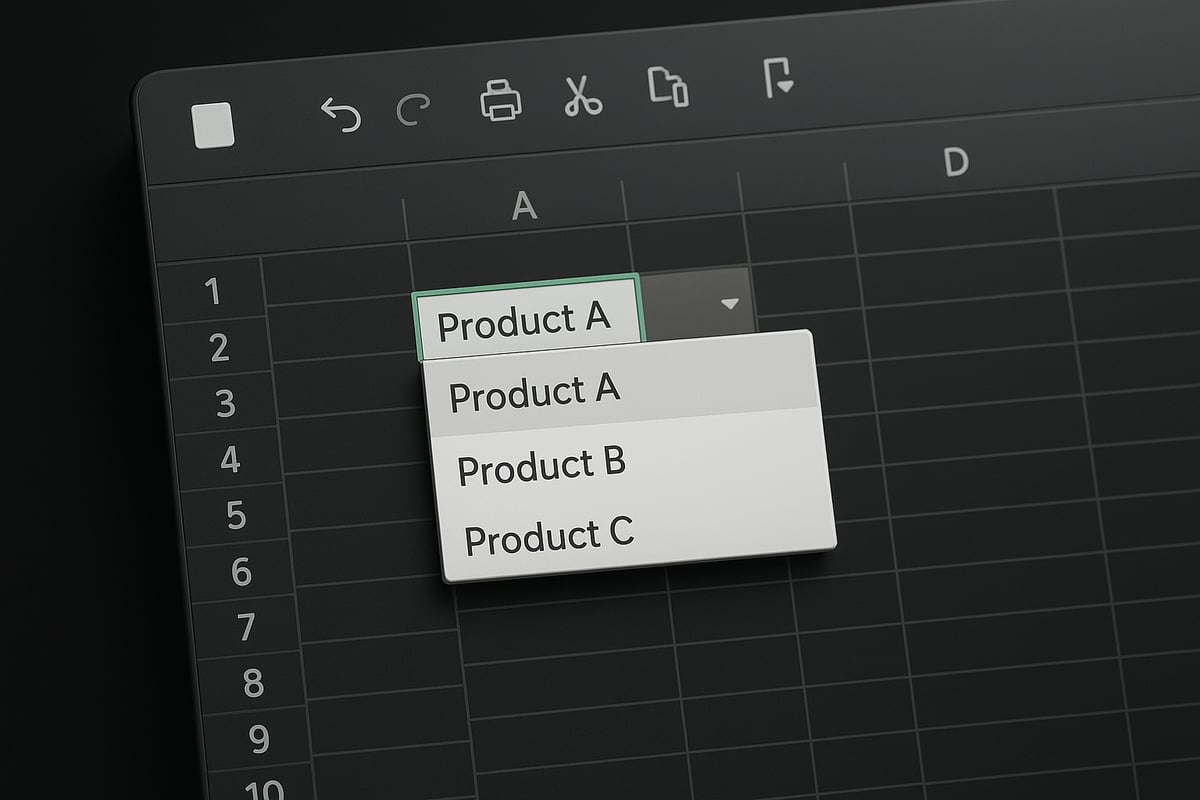
A drop down list in Excel is a cell feature that lets users pick an item from a predefined list. This tool limits choices to valid entries, making data input faster and more consistent. For example, in a sales sheet, a drop down list can offer product names, ensuring only approved items are selected.
Compared to other data validation tools, drop down lists are more interactive and visually intuitive. They have evolved across Excel versions, gaining new customization and integration features. If you want a step-by-step guide on the basics of excel how to create a drop down list, the official Microsoft tutorial is an excellent starting point.
Benefits of Using Drop Down Lists
Drop down lists offer several advantages for anyone learning excel how to create a drop down list. First, they reduce data entry errors by restricting inputs to approved options. This ensures consistency, especially in large or shared workbooks.
They also speed up workflows, as users can select rather than type. This makes spreadsheets more approachable for teams and clients. For instance, HR forms can use drop downs to standardize department names, simplifying reporting and analytics. Ultimately, drop down lists make your Excel files more robust and user-friendly.
Common Uses for Drop Down Lists
Understanding excel how to create a drop down list unlocks a range of practical applications. Drop downs are frequently used in forms such as surveys, order sheets, and HR records. They are also essential in financial models, budgeting tools, and inventory management systems.
Project tracking benefits from drop downs for status updates or assignments. Some advanced users set up drop downs linked to hidden numeric values, streamlining calculations while keeping inputs clear and simple for users. This versatility makes drop down lists a staple in both simple and complex spreadsheets.
Limitations and Considerations
While mastering excel how to create a drop down list is valuable, it is important to recognize their limitations. Excel imposes a maximum number of items per list, and compatibility can vary between desktop, online, and older versions.
Formatting options are somewhat limited, and visual customization may require extra steps. User permissions and data protection policies should be considered, especially in collaborative settings. In certain cases, using a Combo Box or other form controls may be better if you need features like autocomplete or more advanced styling.
Step-by-Step Guide: How to Create a Drop Down List in Excel (2026 Edition)
Are you ready to master excel how to create a drop down list? This step-by-step guide brings clarity and confidence to your workflow. Whether you are building forms, streamlining data entry, or standardizing processes, these instructions will help you utilize drop down lists effectively in Excel 2026.
Preparing Your Source Data
Before you dive into excel how to create a drop down list, proper data preparation is essential. Well-organized source data ensures your lists are accurate and easy to manage. Start by dedicating a worksheet or a specific range for your list items. For example, if you are creating an employee roles list, place each role in a single column without any blank cells in between.
Best practices for structuring source data:
- Use a single column for list items
- Remove duplicates and blanks
- Consider naming your range (e.g., "Roles") for easier reference
To name a range, select your list, click the Name Box left of the formula bar, and type a unique name. This makes your drop down lists easier to update and maintain. Avoid mixing unrelated values and keep your data consistent. Clean source data is the foundation for reliable drop down functionality in Excel.
Creating a Basic Drop Down List with Data Validation
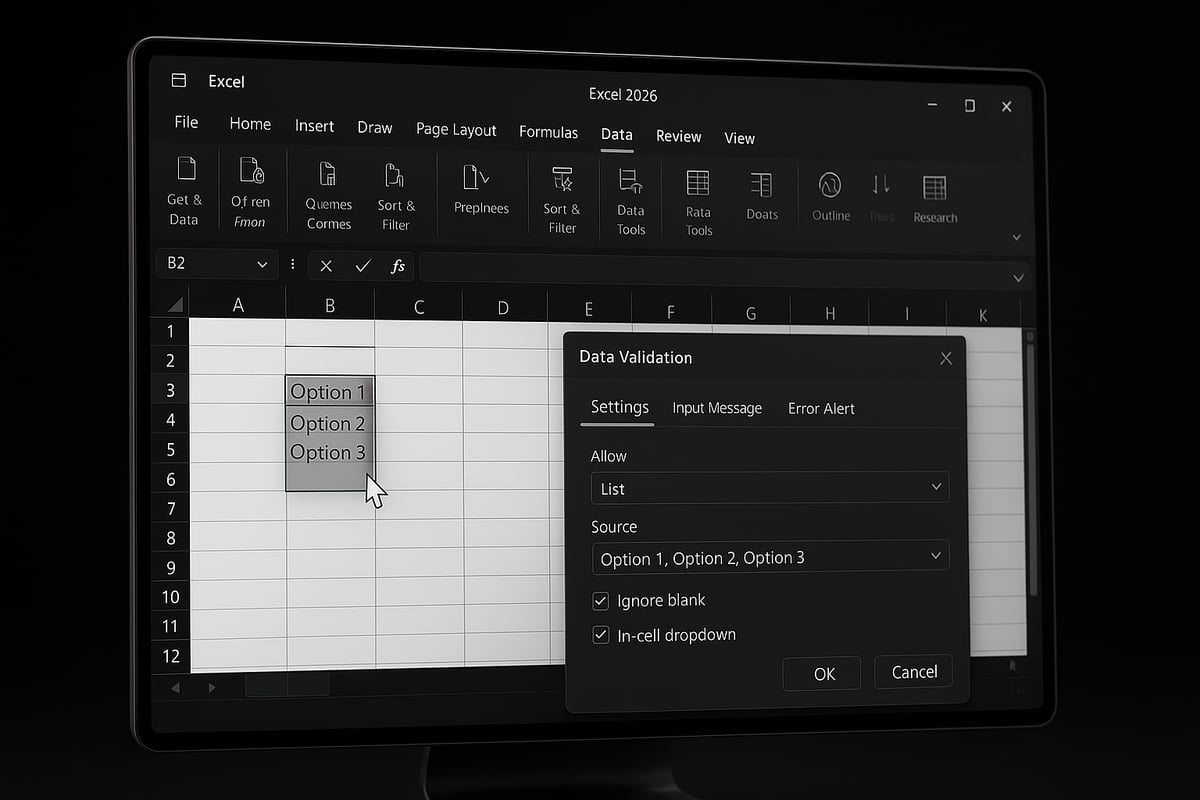
Once your source data is ready, the next step in excel how to create a drop down list is applying data validation. Go to the Data tab, then click Data Validation. In the dialog box, select "List" as the validation type. Reference your source range directly or use a named range for better management.
Input and error messages guide users and prevent mistakes. For example, you can display "Select a region" as an input prompt in a sales report. If someone tries to enter an invalid value, an error message helps maintain data quality.
For a comprehensive approach to building bulletproof drop down lists, consider reviewing Excel Data Validation Rules and Checks for best practices. This ensures that your drop downs are robust and compliant with your workflow needs.
Using Drop Down Lists with Dynamic Ranges
Dynamic ranges are a game-changer when learning excel how to create a drop down list that updates automatically. A dynamic range expands or contracts as your source data changes, so the drop down list always reflects the latest entries.
You can create a dynamic named range using Excel Tables. Select your list, press Ctrl+T to turn it into a table, and reference the table name in data validation. Alternatively, use the OFFSET formula for custom dynamic ranges. This is especially useful for inventory lists or any scenario where items are frequently added or removed.
Excel 2026 enhances dynamic list management with improved table integration and better performance. As your product inventory grows, your drop down lists will update seamlessly, reducing the need for manual adjustments.
Creating Drop Down Lists from Another Worksheet or Workbook
Often, you will need to use excel how to create a drop down list that references data from a different worksheet. In Excel 2026, this is straightforward. When setting up data validation, enter the source range using the sheet name, like =Sheet2!A1:A10.
Referencing lists from another workbook is more complex and often limited, especially if the source workbook is closed. For centralized data—such as a master list used across multiple forms—keep the source within the same workbook for best results.
Always consider security and sharing settings. If you share your file, ensure users have access to all referenced data. Protect sensitive lists by restricting editing rights to authorized users.
Customizing Drop Down List Appearance and Behavior
Customization is key in excel how to create a drop down list that is both functional and user-friendly. Format drop down list cells with cell shading or borders for visibility. Add instructional tooltips using the input message option in Data Validation to guide users.
Lock drop down cells to prevent accidental edits. In a project tracker, you might color-code cells based on categories for quick identification. These small enhancements improve usability and reduce errors, especially in shared or team environments.
Adding Multiple Drop Down Lists in a Table or Form
Efficiency matters when you need excel how to create a drop down list for multiple rows or columns. Use the Fill Handle in Excel to copy your data validation settings across a range. This is ideal for forms like onboarding checklists, where each employee row requires role and department selectors.
To ensure each drop down operates independently, validate that the source ranges are correct for every cell. This approach streamlines repetitive tasks and ensures consistent data entry across your entire table or form.
Advanced Drop Down List Techniques
Unlocking the full potential of drop downs in Excel goes well beyond the basics. Advanced techniques empower you to create dynamic, interactive spreadsheets that adapt to your business needs. In this section, you will learn excel how to create a drop down list that responds to user input, connects to other data, and streamlines complex workflows.
Creating Dependent (Cascading) Drop Down Lists
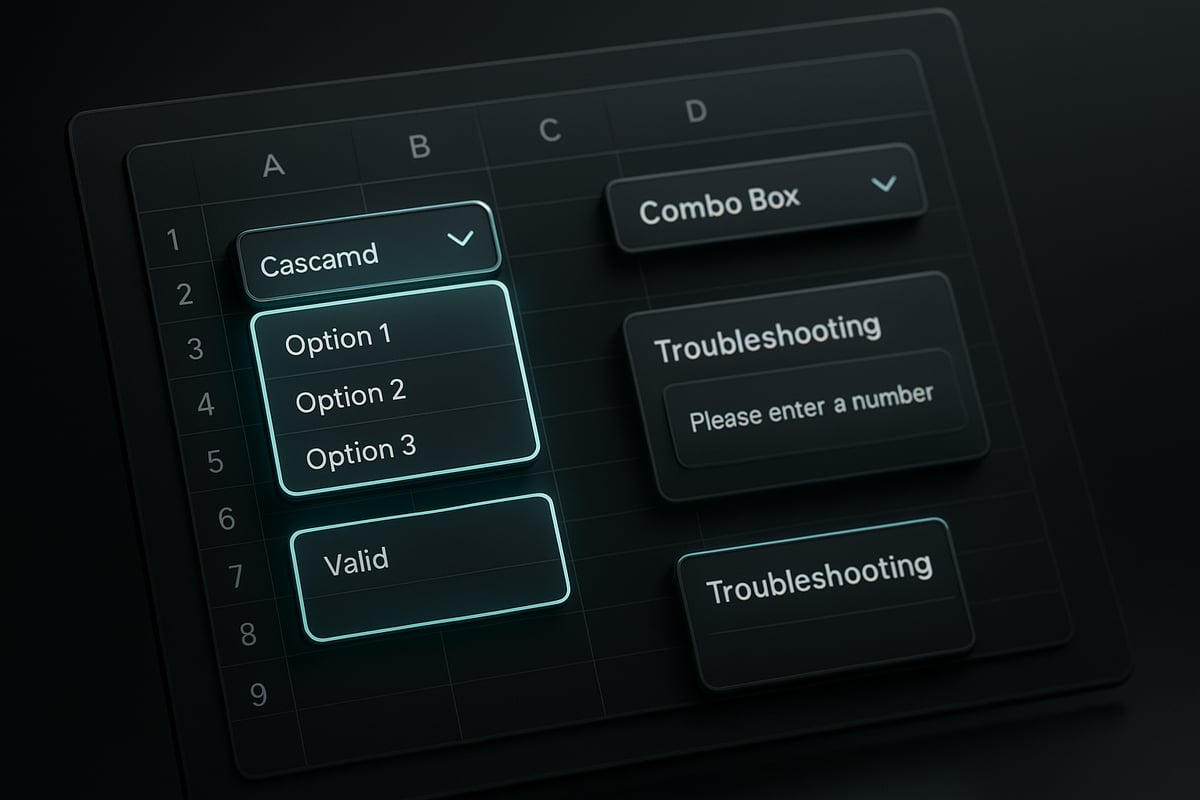
Dependent drop down lists, also called cascading drop downs, change their available options based on a selection in another list. This technique is essential when choices are related, such as selecting a country and then seeing only relevant states.
To start, organize your source data in a clear structure. For example, list countries in one column and create separate named ranges for each country's states or regions.
Follow these steps:
- Set up the first drop down (e.g., Country) using Data Validation.
- Create named ranges for each subset (e.g., USA_States, Canada_Provinces).
- In the second drop down (e.g., State), use the INDIRECT formula to reference the selected country’s named range.
- Test your setup by switching country selections and observing the state options update.
This approach keeps your data entry clean and intuitive. If you need a detailed, step-by-step walkthrough, see Build a Dependent Drop Down List for visuals and troubleshooting tips. Mastering dependent lists is a key part of excel how to create a drop down list for interactive forms.
Displaying Text with Hidden Numeric Values
Sometimes, you want your drop down to display friendly text but use a hidden number for calculations. For example, a survey might show ratings like "Excellent," "Good," and "Poor," but store 5, 3, and 1 behind the scenes.
To achieve this in excel how to create a drop down list:
- Set up a reference table with text in one column and corresponding numbers in another.
- Use Data Validation to display the text options.
- In your calculation cells, apply
VLOOKUPorXLOOKUPto convert the selected text into its numeric value.
This method keeps your spreadsheet user-friendly while supporting automated analysis and reporting.
Using Form Controls: Combo Box vs. Data Validation List
Excel offers two main ways to add drop downs: Data Validation lists and Form Controls like Combo Box. While Data Validation is simple and built-in, Combo Box offers more flexibility for advanced users of excel how to create a drop down list.
Key differences include:
| Feature | Data Validation List | Combo Box |
|---|---|---|
| Autocomplete | No | Yes |
| Formatting | Limited | Customizable |
| Linked Cells | No direct link | Linked cell |
| Visual Appeal | Basic | Enhanced |
Combo Boxes are ideal for dashboards or when you need autocomplete. To insert one, go to the Developer tab, select Combo Box, and configure its properties. This approach enhances interactivity for power users.
Allowing Manual Entry Alongside Drop Down Selection
There are times when your drop down list cannot cover every possible input. For instance, a survey might include an “Other” option, letting users enter custom responses.
To set up excel how to create a drop down list that allows manual entry:
- In Data Validation, select "List" and enter your source items.
- Uncheck "Show error alert after invalid data is entered."
- Optionally, add an "Other" item to prompt custom input.
This method provides flexibility but may affect data consistency. Ensure you audit entries for unexpected values and guide users with clear input messages.
Data Validation with Formulas for Dynamic Lists
Dynamic drop down lists update automatically as your data changes. This is powerful for booking systems, inventory, or any scenario where available options may change.
To use formulas in excel how to create a drop down list:
- Use dynamic array formulas like
UNIQUE,FILTER, or structured Excel Tables for your source data. - Reference these formulas in your Data Validation settings.
- For example, exclude already-booked times in a scheduling sheet using
FILTER.
Excel 2026 supports expanded formula options, making it easier to build intelligent lists that adapt to your workflow.
Troubleshooting Common Drop Down List Problems
Even with careful setup, issues can arise. Here are common problems and how to resolve them:
- Drop down not appearing: Check Data Validation settings and source range.
- Incorrect or missing items: Update your source list and validation reference.
- Blank entries: Remove empty cells from your source data.
- Outdated lists: Refresh named ranges or formulas.
Troubleshooting is a crucial part of mastering excel how to create a drop down list. Always test your lists after making changes to avoid errors.
Integrating Drop Down Lists with Excel Formulas and Automation
Integrating drop down lists with formulas and automation takes your spreadsheets to a new level of interactivity and reliability. Whether you want to power calculations, automate workflows, or create dynamic dashboards, mastering these techniques is essential. This section will guide you through the key ways to combine drop downs with formulas, automation, and best practices using the excel how to create a drop down list approach.
Using Drop Down Selections in Formulas
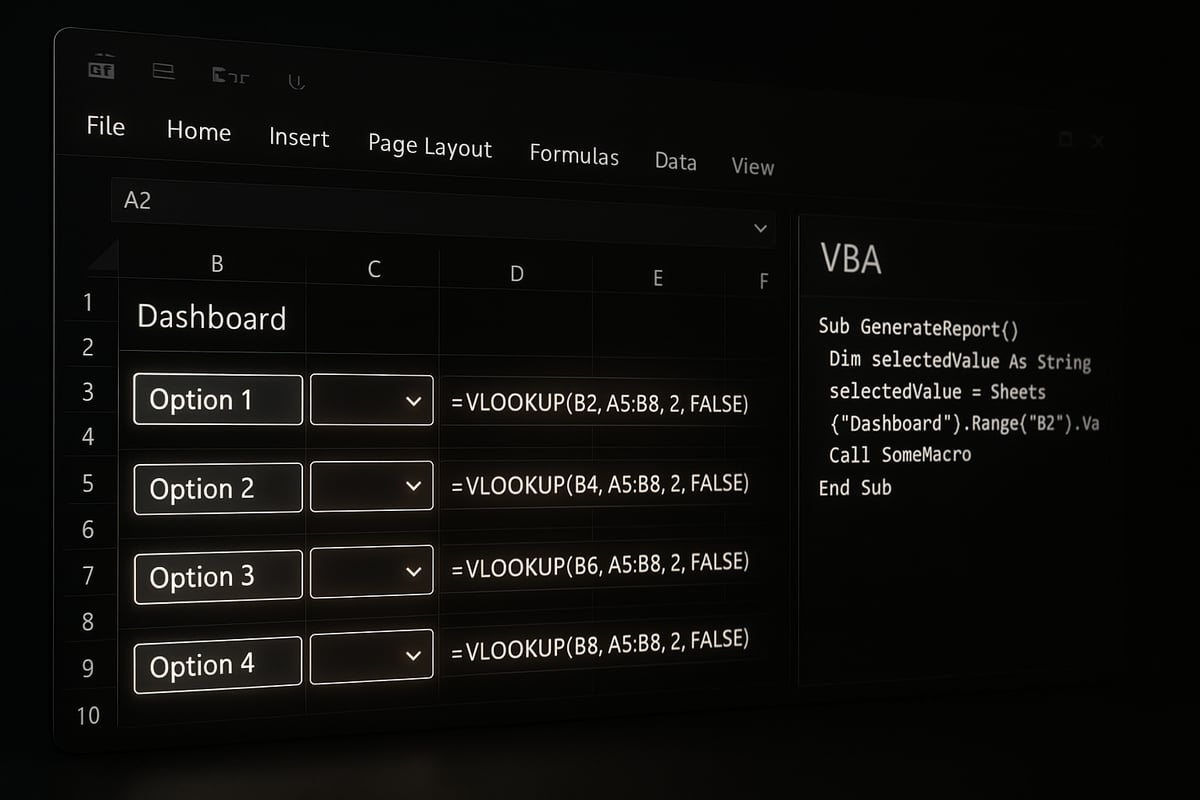
When you use the excel how to create a drop down list method, you unlock powerful formula integration. By linking a drop down cell to formulas like SUMIF, VLOOKUP, or XLOOKUP, you ensure that calculations update instantly as users make selections.
For example, imagine a product pricing sheet. Select a product from a drop down, and a formula like =VLOOKUP(A2, Products, 2, FALSE) fetches the corresponding price. This dynamic approach reduces manual errors and streamlines reporting.
Common formula uses:
- Calculate totals based on selected region or category.
- Display details for a chosen employee or item.
- Trigger conditional formatting based on drop down choice.
Properly integrating drop downs with formulas makes your data models smarter and more resilient.
Automating Drop Down Lists with VBA and Macros
Automation accelerates the excel how to create a drop down list process, especially in complex or large-scale workbooks. With VBA, you can generate drop down lists across multiple sheets, update list items dynamically, or even enforce data policies.
A sample macro to apply a drop down list to a range might look like:
Sub AddDropDown()
    With Range("B2:B100").Validation
        .Delete
        .Add Type:=xlValidateList, AlertStyle:=xlValidAlertStop, Formula1:="=Roles"
    End With
End Sub
For more advanced automation or to upscale your team's workflow, consider exploring Excel VBA Programming Services for tailored solutions.
Macros can streamline repetitive tasks, but always review security settings in Excel 2026 before enabling them.
Drop Down Lists in Excel Tables, PivotTables, and Dashboards
Embedding drop down lists in Tables and PivotTables transforms the way you interact with data. When you follow the excel how to create a drop down list workflow in these contexts, you enable users to filter and manipulate data visually.
For dashboards, drop down selectors let users choose regions, products, or time periods, updating charts and metrics automatically. In a PivotTable, tying a drop down to a slicer or filter can create interactive reports for business insights.
Benefits:
- Streamlined data exploration.
- Interactive dashboards for presentations.
- Simplified report customization for end users.
This integration boosts engagement and ensures your data stays actionable.
Data Validation and Error Prevention Best Practices
Strong data validation is at the heart of the excel how to create a drop down list strategy. Protecting your drop down cells helps prevent accidental changes and maintains data quality.
Best practices:
- Lock drop down cells and protect the worksheet.
- Use input messages and error alerts to guide users.
- Audit entries regularly to catch inconsistencies.
For instance, an HR form with department drop downs can block invalid codes and prompt users to correct mistakes immediately. These steps ensure your data remains reliable and compliant with organizational standards.
The Analytics Doctor: Expert Help for Excel Drop Down Lists
When you need step-by-step guidance for excel how to create a drop down list, The Analytics Doctor is your trusted partner. This expert service offers tailored Excel training, consulting, and automation to help businesses and professionals master drop down lists and related features.

Whether you require custom programming, workflow optimization, or hands-on workshops, The Analytics Doctor delivers results for teams seeking data entry consistency and error-proof forms. You can also access free guides, templates, and expert advice to advance your Excel skills.
Learn more about The Analytics Doctor’s Excel drop down list solutions.
What’s New in Excel 2026 for Drop Down Lists?
Excel 2026 has introduced a suite of enhancements for drop down lists, making data management smarter and more intuitive than ever. Whether you are a seasoned analyst or learning excel how to create a drop down list, these updates streamline data validation, boost collaboration, and improve usability across devices.
Enhanced Data Validation Features
Excel 2026 has reimagined data validation, offering a more streamlined interface and faster performance. The maximum number of items supported in a drop down list has increased, making large-scale inventory or product management seamless. For those searching excel how to create a drop down list, the new interface reduces clicks and adds intelligent suggestions as you build your lists.
A notable addition is the improved error handling, helping users catch mistakes quickly. If you want a detailed breakdown of these innovations, check out the What’s New in Excel (August 2025) blog, which previews many of these features.
Integration with Microsoft 365 and Cloud Data Sources
Excel 2026 now enables you to build drop down lists directly from live cloud data, such as SharePoint or Microsoft Teams. This advancement means your lists can sync in real time across devices and users, making collaboration effortless. When you follow excel how to create a drop down list using cloud sources, updates are instantly reflected for every team member.
For example, distributed sales teams can now use real-time product lists, ensuring everyone has access to the latest options. This level of integration helps maintain consistency and accuracy for complex workflows.
Improved Accessibility and User Experience
Accessibility is a core focus in Excel 2026. New keyboard navigation shortcuts and screen reader compatibility empower all users to interact with drop down lists efficiently. If you are learning excel how to create a drop down list, the updated visual styles make selections clearer, with customizable colors and sizes for better visibility.
Enhanced mobile support means working with drop down lists on tablets and phones is smoother and more responsive. These improvements ensure everyone can work productively, regardless of device or accessibility needs.
Future Trends and Best Practices
Looking ahead, Excel 2026 leverages AI-powered suggestions to help you build smarter drop down lists. When you start excel how to create a drop down list, Excel can now recommend list items based on your data patterns. Integration with Power Query and Power Automate also opens new possibilities for automating list updates and workflows.
To stay ahead, regularly review Microsoft’s update channels and community forums. These resources help you master emerging features and apply best practices for drop down lists in your organization.


