Excel users face countless challenges every day, from broken formulas and messy datasets to time-consuming manual tasks that eat away at productivity. The integration of Claude AI with Excel has opened new possibilities for solving these problems faster and more efficiently. By mastering the best claude prompts for excel users, you can transform how you work with spreadsheets, turning hours of manual work into minutes of intelligent automation. This guide explores the most effective prompts that will help you harness Claude's capabilities to diagnose spreadsheet issues, build sophisticated models, and streamline your data workflows.
Understanding Claude's Excel Integration
Claude's integration with Excel represents a significant advancement in how professionals interact with spreadsheet software. The AI assistant can read, interpret, and modify Excel workbooks through natural language commands, making complex operations accessible to users at any skill level.
When you connect Claude to Excel, you gain access to a virtual spreadsheet consultant that understands context, recognizes patterns, and executes sophisticated operations. The official Claude for Excel documentation outlines core capabilities including formula debugging, template creation, and model analysis.
Key advantages of using Claude with Excel include:
- Instant formula generation without memorizing syntax
- Automated debugging that identifies and fixes errors
- Natural language explanations of complex workbook structures
- Template building based on verbal descriptions
- Data transformation and cleaning operations

The technology works by analyzing your workbook's structure, understanding relationships between cells and sheets, and applying changes based on your instructions. Whether you need help with pivot table creation or complex VBA operations, Claude adapts to your specific needs.
Formula Generation and Troubleshooting Prompts
Creating and debugging formulas represents one of the most common pain points for Excel users. The best claude prompts for excel users in this category focus on clarity and specificity.
Prompt Template for Formula Creation
When you need a new formula, structure your prompt to include the data location, desired outcome, and any specific conditions:
"Create a formula in cell D2 that calculates the 30-day average of sales in column B, excluding weekends and holidays listed in the Holidays sheet. The formula should be draggable down the entire column."
This prompt succeeds because it specifies:
- Exact cell location
- Data source (column B)
- Calculation type (30-day average)
- Exclusion criteria (weekends, holidays)
- Reference location (Holidays sheet)
- Scalability requirement (draggable)
Debugging Broken Formulas
For troubleshooting, provide context about the error and expected behavior:
"This VLOOKUP formula in E5 returns #N/A. It should match customer IDs from column A with discount rates from the Pricing sheet. The lookup table is in Pricing!A2:B200. Why is it failing and how do I fix it?"
| Prompt Type | Key Elements | Example Use Case |
|---|---|---|
| Formula Creation | Target cell, data source, logic, conditions | Building dynamic pricing calculators |
| Error Diagnosis | Error type, formula purpose, data range | Fixing #REF! and #VALUE! errors |
| Optimization | Current formula, performance issue | Reducing calculation time in large workbooks |
| Translation | Non-Excel description, desired output | Converting business rules into formulas |
The practical Claude prompts for Excel demonstrate how specific instructions yield better results. When working with complex Excel consulting projects, clarity in your prompts directly impacts the quality of Claude's responses.
Data Analysis and Transformation Prompts
Transforming messy data into clean, analyzable formats consumes substantial time for most Excel users. Claude excels at understanding data cleaning requirements when given proper context.
"I have 5,000 rows of customer addresses in column C. Many contain inconsistent formatting with extra spaces, mixed case, and abbreviated state names. Clean this data to have proper capitalization, remove extra spaces, and expand all state abbreviations to full names. Create the cleaned data in column D."
This prompt works because it identifies the problem (inconsistent formatting), specifies the exact issues (spaces, case, abbreviations), and defines where the output should appear.
Advanced Data Analysis Prompts
For statistical analysis and pattern recognition:
-
Trend Identification: "Analyze the monthly revenue data in B2:B36 and identify seasonal patterns, growth trends, and any anomalies. Provide the analysis in a summary table on a new sheet called Analysis."
-
Correlation Analysis: "Calculate correlation coefficients between marketing spend (column D), website traffic (column E), and sales revenue (column F) for the past 24 months. Highlight strong correlations."
-
Data Segmentation: "Segment customers in the Database sheet into three tiers based on lifetime value in column G. Create Bronze (bottom 60%), Silver (next 30%), and Gold (top 10%) categories in column H."
The data analysis prompts collection offers additional examples of how to structure requests for complex analytical tasks. When you encounter data challenges beyond standard formulas, these prompts can replace hours of manual work.

Template and Model Building Prompts
Creating reusable templates and sophisticated financial models becomes significantly faster with well-crafted prompts. The best claude prompts for excel users in this category include detailed specifications about structure and functionality.
Financial Model Construction
"Build a 5-year discounted cash flow (DCF) model with the following structure: input assumptions on Sheet1 (revenue growth rate, EBITDA margin, tax rate, WACC, terminal growth rate), annual projections on Sheet2 (revenue, EBITDA, taxes, capex, working capital changes, free cash flow), and valuation calculation on Sheet3 (discount periods, present values, terminal value, enterprise value, equity value). Include data validation for all inputs and conditional formatting to highlight negative cash flows."
This comprehensive prompt defines:
- Time horizon (5 years)
- Model type (DCF)
- Sheet organization (three sheets with specific purposes)
- Required calculations (all DCF components)
- Input controls (data validation)
- Visual aids (conditional formatting)
Dashboard and Reporting Templates
For creating interactive dashboards:
"Design a sales dashboard template that pulls data from the Transactions sheet. Include: (1) monthly sales trend chart, (2) top 10 products by revenue table, (3) regional performance comparison chart, (4) YTD vs. target KPI indicators, and (5) filter controls for date range and product category. All charts should update automatically when filters change."
- Clear component list with numbering
- Data source identification
- Interactivity requirements
- Dynamic updating specifications
Users seeking Excel training benefit greatly from understanding how to articulate template requirements clearly. According to advanced prompting techniques, role assignment and iterative feedback significantly enhance template quality.
Workbook Audit and Documentation Prompts
Understanding complex workbooks built by others ranks among the most challenging Excel tasks. Claude can analyze and explain intricate spreadsheet structures when prompted correctly.
Comprehensive Workbook Analysis
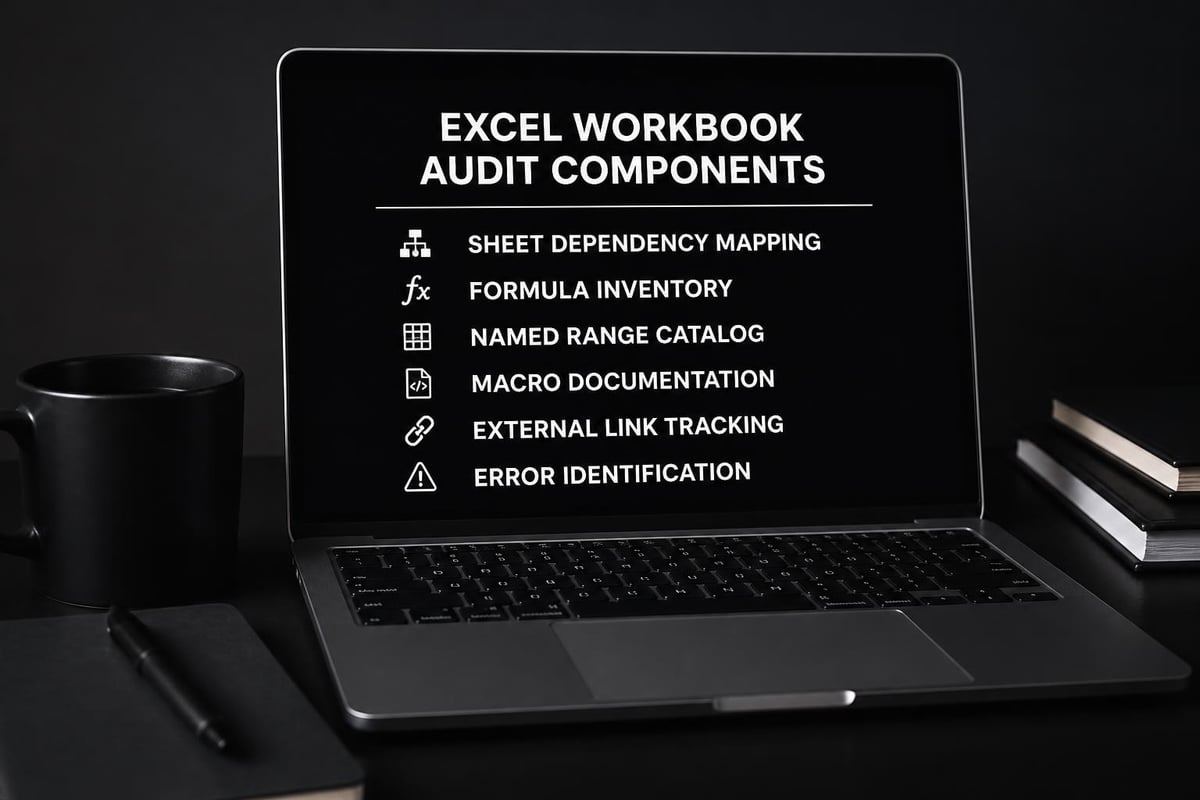
"Analyze this financial model and provide a complete audit report including: (1) list of all named ranges and their purposes, (2) mapping of sheet dependencies showing which sheets feed data to others, (3) identification of any circular references, (4) documentation of all macros and their functions, (5) list of external links and data connections, (6) summary of key assumptions and their locations. Present this as a structured report on a new sheet called Audit Report."
This prompt creates systematic documentation by requesting:
- Specific components to analyze (named ranges, dependencies, etc.)
- Relationship mapping between elements
- Problem identification (circular references)
- Code documentation
- External dependency tracking
- Organized output format
Formula Documentation
"Create documentation for all formulas in the Budget sheet. For each unique formula, provide: the cell location(s) where it appears, plain English explanation of what it calculates, list of cells it references, and any potential error conditions. Format as a table sorted by complexity."
| Documentation Element | Purpose | Benefit |
|---|---|---|
| Cell Location | Reference point | Quick navigation |
| Plain English Explanation | Understanding | Knowledge transfer |
| Referenced Cells | Dependencies | Impact analysis |
| Error Conditions | Risk assessment | Preventive maintenance |
When dealing with workbook password protection issues or inherited spreadsheets, comprehensive documentation becomes essential for maintenance and troubleshooting.
Automation and Macro Generation Prompts
VBA automation intimidates many Excel users, but Claude can generate functioning code from natural language descriptions. The best claude prompts for excel users seeking automation include step-by-step process descriptions.
Simple Automation Tasks
"Write a VBA macro that does the following when run: (1) prompts the user to select a date range, (2) filters the Sales sheet to show only transactions within that date range, (3) copies the filtered data to a new sheet named with the date range (e.g., 'Jan2026-Mar2026'), (4) formats the new sheet with headers in bold and auto-fits all columns, (5) displays a message box confirming completion with the count of rows copied."
This prompt succeeds by breaking the automation into numbered steps, specifying user interaction points, defining naming conventions, and requesting confirmation feedback.
Complex Process Automation
"Create a macro suite for monthly reporting that: (1) imports CSV files from a folder path specified in cell Settings!B2, (2) consolidates all files into the RawData sheet with a source filename column, (3) removes duplicates based on transaction ID in column A, (4) runs data validation checks (non-blank customer names, positive amounts, valid dates), (5) logs any validation failures to the ErrorLog sheet with row references, (6) updates all pivot tables, (7) exports the Summary sheet as PDF to a Reports folder. Include error handling for missing files and invalid data types."
For users working with VBA date functions or VBA sorting operations, these detailed prompts eliminate the need to write code from scratch. The Claude prompting strategies emphasize the importance of breaking complex requests into sequential steps.
Error Diagnosis and Resolution Prompts
Excel errors frustrate users at every skill level. Effective diagnostic prompts help Claude identify root causes and suggest fixes.
Systematic Error Diagnosis
"My workbook is calculating slowly and sometimes crashes when I update certain cells. The workbook has 15 sheets with approximately 50,000 total formulas. Help me diagnose the performance issue by: (1) identifying the sheets with the most volatile formulas, (2) finding any array formulas that could be optimized, (3) checking for unnecessary INDIRECT or OFFSET functions, (4) locating any VLOOKUP formulas that could be replaced with INDEX-MATCH, (5) identifying conditional formatting rules that apply to large ranges. Provide a prioritized list of performance improvements."
Common error diagnosis prompts:
-
#REF! Errors: "I'm getting #REF! errors in column F after deleting column C. Identify all formulas now showing this error and explain what references broke. Suggest corrected formulas."
-
Circular Reference Issues: "Excel says I have circular references in this model. Locate all circular references, map the dependency chain causing the problem, and recommend how to restructure the formulas to eliminate the circularity."
-
Data Type Mismatches: "My SUM formulas in row 50 return 0 even though the cells contain numbers. Diagnose whether this is a formatting issue, hidden characters, or text-stored-as-numbers problem. Provide the fix."
When supporting Excel services, these diagnostic approaches streamline troubleshooting and reduce resolution time.
Data Validation and Quality Control Prompts
Ensuring data integrity requires robust validation rules. Claude can implement sophisticated quality controls through properly structured prompts.
"Set up a comprehensive data validation system for the Customer Database sheet with these rules: (1) column A (Customer ID) must be unique, 6 digits, starting with 2 or 3, (2) column B (Company Name) required, text only, max 100 characters, (3) column C (Email) must match standard email format with @ symbol, (4) column D (State) must be valid US state abbreviation from a dropdown, (5) column E (Revenue) must be positive number between 1000 and 10000000, (6) column F (Category) must be one of: Enterprise, Mid-Market, Small Business. Create a validation summary sheet that logs any existing data violations with row numbers."
Conditional Data Entry Controls
-
Dependent Dropdowns: "Create cascading dropdowns where column B (Category) determines the options available in column C (Subcategory). The relationships are defined in the Lookup sheet, columns A-B."
-
Date Range Validation: "Ensure the End Date in column E is always at least 7 days after the Start Date in column D. Display a custom error message explaining the 7-day minimum requirement."
-
Cross-Sheet Validation: "Validate that every Product Code entered in column A of the Orders sheet exists in column A of the Products sheet. Highlight invalid entries in red."
| Validation Type | Complexity | Best Use Case |
|---|---|---|
| Simple List | Low | Standard categories with fixed options |
| Custom Formula | Medium | Business rule enforcement (dates, ranges) |
| Dependent Dropdown | Medium | Hierarchical data entry |
| Cross-Sheet Lookup | High | Referential integrity across tables |
| Multiple Criteria | High | Complex business logic validation |
Report Generation and Formatting Prompts
Professional report generation requires attention to both data and presentation. The best claude prompts for excel users combine analytical and aesthetic requirements.
"Generate a monthly executive summary report from the Sales sheet data: (1) create a new sheet called 'Executive Summary – [current month]', (2) calculate and display: total revenue, revenue growth vs. prior month, top 5 customers by revenue with percentages, revenue by region in a formatted table, (3) add a column chart showing daily revenue trend for the month, (4) format the entire sheet with: company logo in cell A1, section headers in 14pt bold, data tables with banded rows, currency values formatted with $ and 2 decimals, percentages with 1 decimal, (5) add print setup for landscape on one page."
Advanced Formatting Automation
"Apply professional formatting to the Financial Statements sheet: (1) merge and center the company name and period in rows 1-2, (2) format section headers (Revenue, Expenses, Net Income) with dark blue fill and white bold text, (3) apply accounting number format to all values, (4) add borders: thick border around entire statement, medium borders between sections, thin borders between line items, (5) hide gridlines, (6) set row heights: 20 for headers, 15 for data rows, (7) freeze top 3 rows for scrolling."
Users managing Excel templates across teams benefit from standardized formatting prompts that ensure consistency. The ability to specify every formatting detail produces publication-ready reports without manual adjustment.
Integration and Data Connection Prompts
Modern Excel work often involves connections to external data sources. Claude can help establish and manage these connections effectively.
"Set up a Power Query connection that: (1) connects to the CSV files in the folder path 'C:\Data\Monthly', (2) combines all files with matching column structures, (3) adds a 'Source File' column showing the original filename, (4) transforms the Date column from text format 'YYYY-MM-DD' to Excel date format, (5) filters out any rows where Status column equals 'Cancelled', (6) loads the result to a table named 'ConsolidatedData' starting in cell A1 of the DataImport sheet, (7) sets the query to refresh automatically when the file opens."
External System Integration
"Create a solution to import data from our accounting system CSV export: The export format includes: Account Code (column A, format '####-###'), Description (column B), Debit (column C), Credit (column D), Balance (column E). Requirements: (1) map Account Codes to our chart of accounts categories using the Mapping sheet, (2) combine Debit and Credit columns into a single signed Amount column (debits positive, credits negative), (3) calculate running balance by category, (4) flag any unmapped account codes for review."
Organizations seeking Excel help for data integration challenges can leverage these prompts to automate routine import processes and ensure data consistency.
Best Practices for Crafting Effective Prompts
The quality of Claude's output directly correlates with prompt clarity and completeness. Based on proven prompting methodologies, several principles consistently improve results.
Essential Prompt Components
Every effective Excel prompt should include:
- Context: Describe your data structure and current state
- Objective: Specify exactly what you want to achieve
- Constraints: Define limitations, ranges, or rules
- Output format: Explain where and how results should appear
- Success criteria: Describe how you'll know it worked correctly
Weak prompt: "Help me fix this formula"
Strong prompt: "The SUMIFS formula in cell G15 should sum values from column D where column A matches 'Electronics' and column B dates fall within Q1 2026. Currently it returns 0 when I know there should be $45,000. The data range is A2:D5000. What's wrong and how do I correct it?"
Iterative Refinement Strategy
- Start with a basic prompt describing the core requirement
- Test the result and identify gaps or issues
- Refine the prompt adding specificity about problems
- Request modifications to adjust the solution
- Document the final working prompt for reuse
When working through complex problems that might require Excel consulting expertise, this iterative approach helps you arrive at optimal solutions efficiently.
Mastering the best claude prompts for excel users transforms your spreadsheet productivity by turning complex tasks into simple conversations with AI. From formula generation and data cleaning to model building and error diagnosis, these prompts enable you to work faster, smarter, and with greater confidence. Whether you're struggling with broken formulas, messy data, or complex automation needs, The Analytics Doctor provides expert guidance to help you leverage AI tools effectively and solve your spreadsheet challenges with personalized training and hands-on support.