Imagine automating tedious spreadsheet tasks and reclaiming valuable hours each week. Macros offer a powerful way to streamline workflows and increase accuracy, whether you are managing complex reports or handling repetitive data entry.
In this guide, you will discover how to enable macro in 2026, step by step, across all major platforms. We focus on secure, efficient methods so you can harness automation with confidence.
You will learn what macros are, why enabling them matters, how to do it safely, and how to troubleshoot common issues. Ready to optimize your productivity? Let us get started.
Understanding Macros: What They Are and Why Enable Them
Unlocking the full potential of spreadsheets begins with understanding macros and how to enable macro features safely. Macros are the backbone of automation in tools like Excel, Google Sheets, and LibreOffice, making repetitive tasks easier and more consistent.

What Are Macros in Spreadsheet Applications?
Macros are sequences of automated commands that perform tasks within spreadsheet applications. They allow you to record or program actions, such as formatting cells, importing data, or generating reports, and then execute those actions with a single click. In Excel, Google Sheets, and other platforms, macros reduce manual effort and boost accuracy.
There are two main ways to create macros: recording your actions step by step, or manually programming them using languages like VBA (Visual Basic for Applications) or Apps Script. If you're interested in building advanced automations, learning more about Excel VBA programming services can help you understand how to enable macro-based solutions efficiently. By mastering both recording and programming, users can tailor macros to suit unique workflows.
Benefits of Enabling Macros
Enabling macros can transform the way you work with spreadsheets. With automation, you can handle complex or repetitive tasks in seconds, improving productivity and reducing errors. For example, macros simplify monthly sales reporting by automatically pulling data, formatting tables, and generating charts.
Teams and individuals benefit from streamlined workflows, as macros eliminate manual steps that often lead to mistakes. By learning how to enable macro features, users unlock advanced data analysis and reporting tools that would otherwise require significant time and expertise. This efficiency not only saves hours but also enhances the reliability of your results.
Macro Security Considerations
While macros offer powerful automation, they also present security risks if used carelessly. Malicious macros can introduce viruses or compromise sensitive data, which is why most spreadsheet software disables macros by default. For example, Excel 2021, Excel 2026, and Microsoft 365 all start with macro execution turned off unless you approve them.
Recent reports indicate that over 70% of organizations restrict macro execution due to these risks. Therefore, knowing how to enable macro functions safely is essential. Always review the source of macro-enabled files, and only enable macros from trusted or digitally signed documents to protect your data and systems.
When Should You Enable Macros?
There are specific situations when enabling macros is both necessary and safe. For instance, corporate templates or customized automation tools often rely on macros to function correctly. If you trust the document's origin—such as files from your IT department or reputable vendors—enabling macros can offer substantial productivity gains.
Before deciding how to enable macro features, weigh the benefits against the potential risks. Always verify the source, look for digital signatures, and consider your organization’s security policies. Balancing automation with safety ensures you get the most out of macros while keeping your data secure.
Macro Security and Safety: Risks, Settings, and Best Practices
Keeping macros secure is crucial for personal and organizational safety. Understanding the risks, settings, and best practices can help you use automation efficiently while avoiding threats. Whether you are learning how to enable macro for the first time or refining your workflow, this section will guide you through the essentials.
Macro Security Risks Explained
Macros can be a double-edged sword. While they offer automation, they have also been targeted by cybercriminals since the 1990s. Macro viruses, ransomware, and data breaches often exploit poorly secured macros. If you want to know how to enable macro safely, it's important to recognize that malicious code can be embedded in files from unknown sources.
For example, there have been high-profile attacks where opening a macro-enabled spreadsheet allowed harmful software to run undetected. Microsoft has responded by making macro execution more restrictive by default, especially for files from the internet. Always stay vigilant and educate team members about these risks.
Macro Security Settings Overview
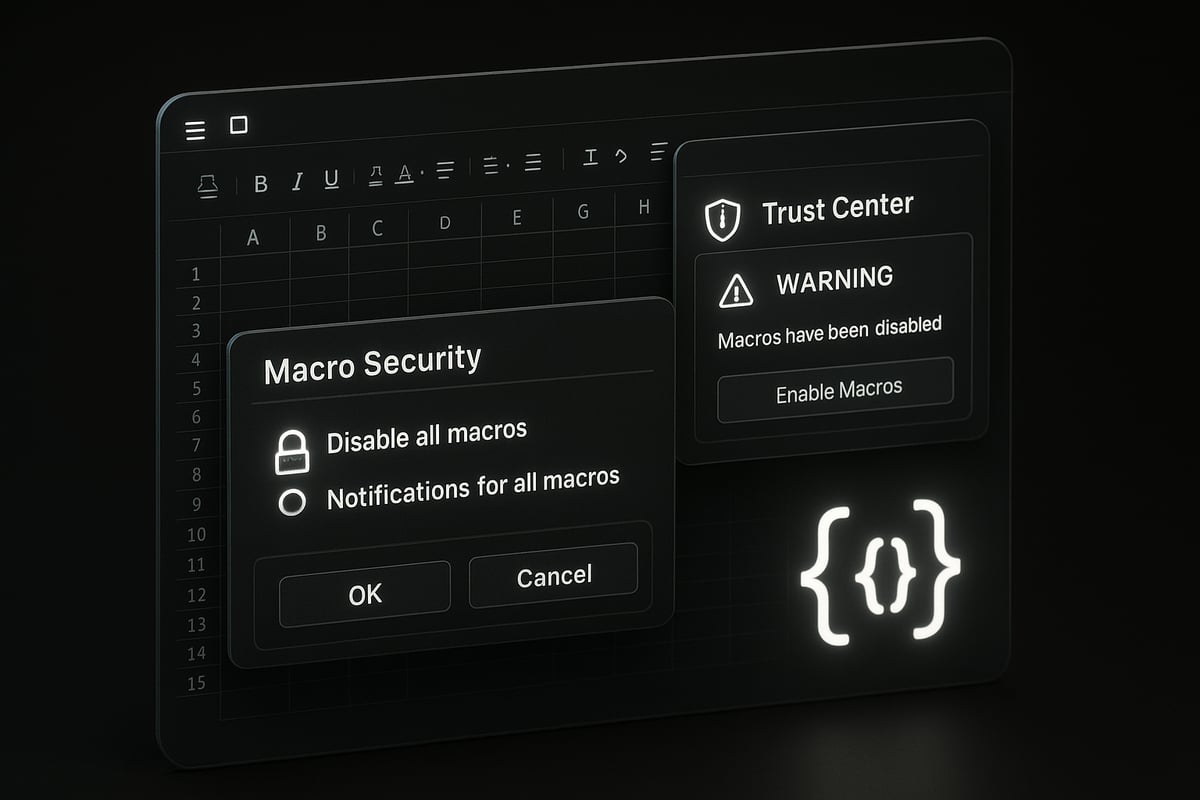
Modern spreadsheet tools like Excel use default settings to protect users from unsafe macros. These settings include options like disabling all macros, allowing notifications, permitting only digitally signed macros, or enabling all macros. The Trust Center in Excel is where you configure these preferences.
Understanding these settings is key to mastering how to enable macro without exposing your system. Microsoft continues to enhance macro security, such as restricting legacy Excel 4.0 macros. For more details on these changes, see their official update on restricting usage of Excel 4.0 macros.
Safe Macro Usage Practices
To reduce risks, only enable macros from trusted sources or those that are digitally signed. Storing macro-enabled files in designated trusted locations can help you avoid constant security warnings. Keeping your software updated is equally important, as vendors regularly patch vulnerabilities.
If you are learning how to enable macro, remember that global enablement is rarely necessary. Instead, activate macros for specific files or folders. This approach minimizes your exposure to potential threats and keeps your workflow secure.
How to Identify Trusted Macros
Not sure if a macro is safe? Look for digital signatures from trusted publishers, which verify the origin of the file. When you open a macro-enabled document, Excel displays a security warning bar. Review this warning before deciding how to enable macro for the file.
You can also use the Backstage view to inspect macro content and verify the publisher. If in doubt, consult your IT department or refer to documentation on trusted sources. This step is vital for ensuring that only legitimate macros run on your system.
Organizational Policies and User Education
Organizations often set policies to manage macro usage and mitigate risks. IT teams may restrict how to enable macro for users, allowing only pre-approved templates or trusted sources. Regular training helps users recognize macro warnings and understand safe practices.
By fostering awareness and compliance, companies can protect data and maintain productivity. Periodic reviews of macro-enabled files further strengthen security. Always follow your organization's guidelines to stay protected while benefiting from macro automation.
Step-by-Step Guide: How to Enable Macro in Excel (2026 Edition)
Unlocking the full potential of Excel often relies on the ability to automate tasks. If you want to know how to enable macro features in Excel 2026, follow this step-by-step guide. We will walk through every method, from enabling macros in a single workbook to adjusting global settings, so you can work efficiently and securely.
Preparing to Enable Macros
Before you learn how to enable macro functionality, take a few preparatory steps. First, always back up your important data. This ensures any changes made by macros can be reversed if necessary.
Make sure your Excel version is up-to-date. The latest Excel 2026 or Microsoft 365 updates include security improvements and macro enhancements. Next, confirm that the macro is essential for your workflow. Do not enable macros unnecessarily, as this may expose your files to risk.
If your organization has IT policies regarding macros, consult them before proceeding. Preparation is key to a safe and successful macro experience.
Enabling Macros for a Single Workbook
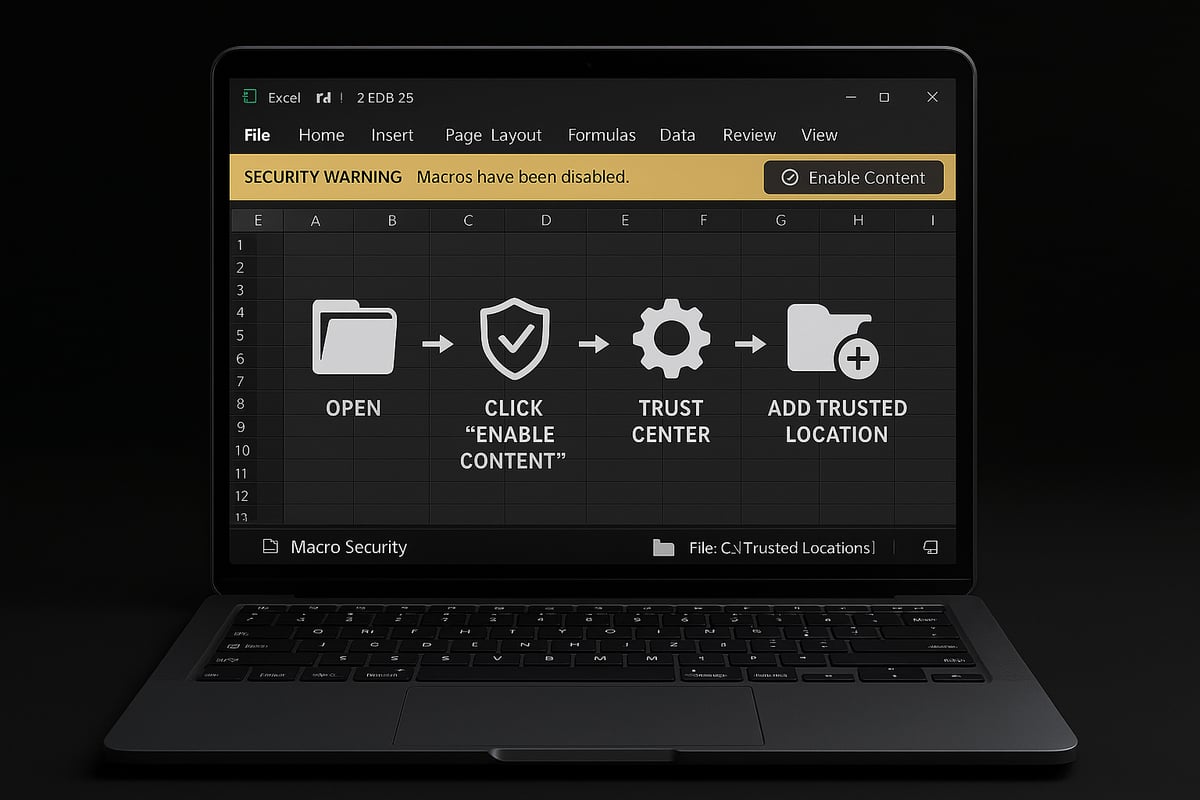
If you receive a macro-enabled workbook, such as a file with the .xlsm or .xlsb extension, here is how to enable macro execution for just that file. Open the workbook in Excel 2026. At the top, you will see a yellow security warning bar stating that macros have been disabled.
To proceed, click the “Enable Content” or “Enable Macros” button. This action allows macros to run for that session. The file is now considered a trusted document, so macros will run automatically the next time you open it.
This approach is ideal when you only need macros for a specific file from a trusted source.
Enabling Macros via Backstage View
Another way for users to control how to enable macro access is through the Backstage View. Start by clicking the “File” tab in Excel, then select “Info.” In the Security Warning area, you will find an option labeled “Enable Content.”
Click “Enable All Content” to activate macros for the workbook. This change persists, so future sessions will not prompt you again for this file. Using Backstage View is an efficient method, especially when you frequently work with macro-enabled documents.
Remember, only use this method with files that you trust.
Adjusting Macro Settings Globally via Trust Center
Sometimes, you may need to adjust how to enable macro settings globally, especially if you work with many macro-enabled files. Navigate to File > Options > Trust Center > Trust Center Settings. In the Trust Center dialog, select “Macro Settings.”
Here is a quick table summarizing your options:
| Setting | Description |
|---|---|
| Disable all macros without notification | No macros run, no warnings |
| Disable all macros with notification | Macros disabled, but user is alerted (default) |
| Disable all macros except digitally signed macros | Only signed macros run |
| Enable all macros (not recommended) | All macros run, highest risk |
Select the option that fits your needs. Save changes and close the dialog. Be cautious, as enabling all macros globally increases your exposure to potential threats.
Using Trusted Locations for Permanent Macro Enablement
A secure way to manage how to enable macro operations is by using Trusted Locations. In the Trust Center, select “Trusted Locations.” Click “Add new location” and specify a folder path. Any macro-enabled files saved in this folder will run without security warnings.
For example, you might store your Personal Macro Workbook in a trusted folder for easy, universal access. This approach is safer than enabling macros globally, as it limits risk to files in specific locations.
Tip: Avoid setting your Downloads or Temporary folders as trusted locations to maintain security.
Unblocking Macros Blocked by Microsoft
Sometimes, Excel 2026 may block macros in files downloaded from the internet. If you see a message stating that Microsoft has blocked macros, here is how to enable macro execution for that file.
Close the workbook, then locate it in File Explorer. Right-click the file and select “Properties.” At the bottom of the dialog, check the “Unblock” box next to Security, then click OK. Reopen the file in Excel, and you will be able to enable macros as usual.
This step is essential for files from email attachments or online sources.
Enabling Macros Temporarily for Current Session
If you only want to know how to enable macro features for one session, Excel provides an option for temporary activation. After opening your workbook, go to File > Info > Security Warning > Enable Content > Advanced Options.
Select “Enable content for this session.” Macros will run until you close the workbook. This method is useful for one-time tasks or when you are unsure about the file’s safety.
Always use temporary enablement with caution.
Additional Tips for Enabling Macros
Managing how to enable macro settings effectively involves a few extra tips. If you need to clear your Trusted Documents list, go to Trust Center > Trusted Documents > Clear. To disable macros after enabling them, revisit macro settings in Trust Center and select your preferred option.
If you want visual step-by-step instructions, refer to this Enable macros in Excel guide for further details.
Always remember to disable macros if you accidentally enable them in an untrusted file. Staying vigilant protects your data and ensures a smooth automation experience.
How to Enable Macros in Other Platforms: Google Sheets, LibreOffice, and Beyond
Unlocking automation goes beyond Excel. Understanding how to enable macro in other spreadsheet platforms can transform your workflow, no matter what software you use. Each tool has its own approach, language, and security process, so let’s break down the essentials.

Google Sheets Macro Enablement
Google Sheets handles macros differently from Excel. If you want to know how to enable macro in Google Sheets, you’ll use the built-in Apps Script editor.
To set up:
- Go to Tools Macros Record macro or Import macro.
- Scripts are executed with Google Apps Script, a JavaScript-based language.
- The first time you run a macro, you’ll be prompted to review and authorize permissions.
function myMacro() {
  // Example: Format selected cells bold
  var range = SpreadsheetApp.getActiveRange();
  range.setFontWeight('bold');
}
Always review script permissions before running. This ensures your data stays secure.
LibreOffice Calc Macro Enablement
LibreOffice Calc supports macros through LibreOffice Basic or Python. If you’re wondering how to enable macro here, follow these steps:
- Go to Tools Options LibreOffice Security Macro Security.
- Choose a security level: Very High, High, Medium, or Low.
- For most users, “High” is recommended, allowing macros only from trusted documents.
You can also assign trusted locations for macro-enabled files. Adjusting these settings helps balance flexibility and security.
Apple Numbers and Other Spreadsheet Tools
Apple Numbers supports limited automation. To learn how to enable macro-like functions, explore AppleScript or Shortcuts integration.
- Open Script Editor to write AppleScript, or use the Shortcuts app for basic tasks.
- Third-party add-ins may require explicit permission in your system settings.
Other spreadsheet tools may offer plugins or scripting, each with unique steps for enabling automation. Always check documentation for precise instructions.
Cross-Platform Macro Compatibility
Macro languages vary across platforms. Understanding how to enable macro on one platform does not guarantee cross-compatibility.
| Platform | Macro Language | Compatible with Excel VBA? |
|---|---|---|
| Excel | VBA | Yes |
| Google Sheets | Apps Script (JS) | No |
| LibreOffice | Basic, Python | No |
| Apple Numbers | AppleScript | No |
If you move a file between platforms, you may need to rewrite automation scripts. Always test macros after migrating files to ensure proper function.
Security and Permissions Across Platforms
Regardless of the software, knowing how to enable macro safely is crucial. Every platform will prompt for permissions before running scripts or macros.
- Only enable macros or scripts from trusted sources.
- Regularly update your applications to patch vulnerabilities.
- Review permission requests carefully before accepting.
Following these practices helps keep your data and systems protected across all spreadsheet platforms.
Troubleshooting Macro Enablement: Common Issues and Solutions
Enabling macros should streamline your workflow, but sometimes things do not go as planned. If you are stuck or unsure how to enable macro features, this troubleshooting guide will help you identify and resolve the most frequent problems users encounter.
Macros Not Running After Enabling
If macros are not working even after you think you know how to enable macro features, start by checking your macro settings. Sometimes, Excel disables macros due to security reasons or file location issues.
- Open Trust Center settings and confirm macros are allowed.
- Make sure the file is not in a restricted folder.
- Move the workbook to a trusted location and try again.
If the problem persists, verify that the macro itself is not corrupted.
“Microsoft Has Blocked Macros” Warning
Seeing the “Microsoft has blocked macros” notification? This usually happens when you download files from the internet or receive them via email.
- Right-click the file in File Explorer.
- Choose Properties, then check the “Unblock” box.
- Click OK and reopen the file in Excel.
You should now be able to proceed with how to enable macro for this document.
Macros Disabled Without Notification
If Excel gives no warning but your macros do not run, you may have set “Disable all macros without notification.”
- Go to File > Options > Trust Center > Trust Center Settings.
- Select “Macro Settings.”
- Change to “Disable all macros with notification.”
This lets you manage how to enable macro with proper prompts next time you open a file.
Digitally Signed Macro Issues
Sometimes, macros will not run unless the publisher is trusted. If you are working with digitally signed macros, check the publisher’s status.
- In the Security Warning, click “Trust all documents from this publisher.”
- Alternatively, re-sign the macro with a trusted certificate.
For more detailed activation steps and troubleshooting, see Turn on macros in Excel.
Compatibility Problems
Macros written for older versions of Excel may not work properly in 2026. If you are facing compatibility issues:
- Review the macro code for deprecated functions.
- Update the code or consult Excel’s compatibility documentation.
- Test the macro in a new workbook.
This approach helps ensure you know how to enable macro compatibility across versions.
Macro Errors and Debugging
Common errors include missing references, syntax mistakes, or disabled VBA project access. To resolve these issues:
- Enable “Trust access to the VBA project object model” in Trust Center.
- Check for missing libraries or modules in the VBA editor.
- Use the built-in debugger to step through code and identify errors.
Careful debugging is essential for anyone learning how to enable macro safely.
IT Policy Restrictions
If you cannot change macro settings, your organization’s IT policies may be blocking changes. In this case:
- Contact your IT administrator for access or exceptions.
- Ask if there are approved templates or locations where macros are allowed.
- Never attempt to bypass company policies, as this could compromise security.
By following these steps, you will resolve most issues related to how to enable macro successfully.
Macro Best Practices for Productivity and Safety
Unlocking the full potential of macros requires a careful balance between automation and safety. As you learn how to enable macro features, following industry best practices will help you streamline workflows while protecting your data and systems.
Only Enable Macros from Trusted Sources
Before you decide how to enable macro capabilities, always verify the source of your macro-enabled files. Open files only from trusted colleagues, reputable organizations, or digitally signed publishers. If in doubt, inspect the macro’s code or consult your IT team. With 72% of cyber leaders reporting rising cybersecurity risks, exercising caution is essential to avoid malware and data breaches.
Store Macros in Trusted Locations and Keep Software Updated
Designate secure folders as trusted locations for storing macro-enabled files. This not only prevents repeated security warnings but also reduces the risk of accidentally enabling harmful macros. Avoid using download or temporary folders as trusted locations. Additionally, keep your spreadsheet software up to date. Regular updates patch vulnerabilities and enhance macro security, so check for updates regularly as you follow guides on how to enable macro in Excel or other platforms.
Limit Global Macro Enablement and Educate Users
Rather than enabling macros globally, prefer enabling them for individual files or within trusted locations. Global enablement increases the risk of running malicious code. Equip your team with knowledge about macro warnings, safe practices, and the importance of verifying macro sources. Consider sharing resources like how to enable macros in Excel to support ongoing education and awareness.
Review, Audit, and Backup Macros
Periodically review all active macros to confirm they are still necessary and safe. Remove outdated, unused, or suspicious macros promptly. Before running new or complex macros, always back up your data to prevent accidental loss or corruption. This habit is a crucial part of responsible macro management and ensures that learning how to enable macro features benefits productivity without compromising safety.
Frequently Asked Questions About Enabling Macros
Curious about how to enable macro and keep your data secure? Below are answers to the most common questions users ask about macro functionality, safety, and best practices.
What is the difference between enabling macros for a single file and globally?
Enabling macros for a single file allows only that document to run macros, while global enablement affects all files. For most users, knowing how to enable macro for individual files is the safer choice.
Are macros safe to use in 2026?
Macros are safe if sourced from trusted publishers and locations. Always verify the origin before you decide how to enable macro in your spreadsheet. Updated security features in Excel 2026 help reduce risks.
How do I know if a macro is trustworthy?
Look for digitally signed macros or files from known publishers. Check the security warning bar and confirm the source before deciding how to enable macro. When in doubt, consult your IT team.
Can I enable macros on mobile or web versions of Excel?
Most mobile and web versions do not support full macro functionality. For detailed macro features, use the desktop Excel app. Refer to this Microsoft Office Excel versions guide for platform differences.
What happens if I enable a malicious macro by mistake?
Immediately close the file and disconnect from the internet. Run antivirus scans and notify your IT administrator to ensure your system is secure.
How do I disable macros after enabling them?
Go to Trust Center settings in Excel, change macro settings to disable, or remove the file from trusted locations. This will prevent future macro execution.
Are there alternatives to macros for automation?
Yes, consider using Excel’s built-in Power Query, Power Automate, or Google Sheets Apps Script for automation tasks if macros are not suitable for your needs.
Can enabling macros affect performance?
Complex macros may slow down spreadsheets, especially with large data sets. Monitor performance and optimize macro code for efficiency.
Is macro support different in Excel 2026 vs. Microsoft 365?
Yes, there are minor differences in security defaults and feature updates. For a detailed comparison, review the Microsoft Office Excel versions overview.
Where can I find more help or training on macros?
Check out official Microsoft documentation and this Enabling macros in Excel guide for step-by-step instructions and best practices.