Imagine turning hours of repetitive work into a single click. Learning how to enable the macros in Excel can be the breakthrough that transforms your daily workflow in 2026.
This guide reveals how to enable the macros safely and efficiently, empowering you to automate tasks, unlock advanced spreadsheet features, and boost productivity. You will gain step-by-step instructions, industry best practices, and expert insights tailored for both beginners and experienced users.
Read on to discover what macros are, why they matter more than ever, how to enable them in any Excel version, and how to maximize their potential while staying secure. Let’s streamline your workflow and set you up for spreadsheet success.
Understanding Macros: What They Are and Why They Matter in 2026
Macros are powerful tools found in Excel and other spreadsheet applications. They allow users to automate repetitive actions, from formatting large sets of data to generating complex reports with a single click. At their core, macros are sequences of instructions that carry out tasks automatically, saving time and reducing manual errors.
There are two main ways to create macros in Excel. The first is by recording actions step-by-step using the built-in Macro Recorder. The second is by writing custom scripts in Visual Basic for Applications (VBA), which offers greater flexibility and control. For example, a simple macro might automate the process of cleaning and formatting imported data, while a more advanced VBA macro could generate and email monthly financial summaries. Understanding how to enable the macros is the first step toward unlocking these capabilities.

What Are Macros?
Macros in Excel are sets of instructions that automate tasks you perform often. Whether you are reformatting hundreds of rows or compiling monthly reports, macros can do it for you with a single command. The Macro Recorder lets you capture your actions, while VBA-written macros let you design more complex routines.
Common uses for macros include:
- Data formatting and cleanup
- Bulk report generation
- Automating repetitive calculations
The distinction between recorded and VBA-written macros is important. Recorded macros are quick and easy to make. VBA-written macros, however, offer more customization and logic, making them perfect for advanced users who want to explore how to enable the macros for complex automation.
The Evolution of Macros: 2026 Landscape
By 2026, macro technology has evolved dramatically. Modern Excel versions support seamless integration with cloud platforms, making it possible to use macros in both desktop and browser-based apps. Cross-platform compatibility is now a standard, allowing users to run macros on Windows, Mac, and even mobile devices.
Low-code and no-code solutions have also become popular, enabling users with limited programming experience to build and deploy macros quickly. These advancements mean that learning how to enable the macros is more relevant than ever, as businesses increasingly rely on automation to stay competitive.
Why Enabling Macros is Essential for Success
In data-driven fields such as finance, operations, and project management, macros are critical for success. According to industry surveys, over 60% of business analysts use macros regularly to streamline their work. Enabling macros reduces manual effort, eliminates repetitive mistakes, and accelerates decision-making processes.
The ability to automate complex workflows gives professionals a significant edge. As organizations handle larger datasets and tighter deadlines, knowing how to enable the macros is becoming a must-have skill, not just a nice-to-have feature.
Risks and Rewards: The Macro Security Dilemma
While macros bring major productivity gains, they also introduce security risks. Malicious macros can deliver malware or phishing attacks if users are not careful. Microsoft has responded by strengthening security protocols, such as more robust warning prompts and default settings that limit macro execution.
To strike the right balance between productivity and safety, users should follow best practices for macro security. For detailed instructions on adjusting your macro settings and protecting your data, consult the official Change macro security settings in Excel guide. Mastering how to enable the macros safely is essential for both individuals and organizations.
Real-World Examples of Macro Success
Consider a finance team that automates monthly report generation with macros, saving over 10 hours each month. Large organizations use macros to streamline massive data imports, reducing errors and freeing up staff for higher-value tasks.
Step-by-Step Guide: How to Enable Macros in Excel (2026 Edition)
Unlocking the full power of Excel in 2026 starts with understanding how to enable the macros. This step-by-step guide breaks down the process for every user, whether you are on the latest version or working across platforms. Follow each step to ensure safe, effective macro activation and maximize your productivity.
Step 1: Identify Your Excel Version
Before you begin, you need to know your Excel version. Macro settings can differ between Excel 2016, 2019, 2021, 365, and 2026. This is crucial for anyone learning how to enable the macros, as instructions may vary.
To check your version:
- Open Excel
- Go to
File>AccountorHelp - Look for "About Excel" or version details
Here’s a quick comparison:
| Excel Version | Macro Settings Location | Macro Support |
|---|---|---|
| 2016/2019/2021 | Trust Center | Full |
| 365 | Trust Center | Full |
| 2026 | Trust Center | Enhanced |
Choosing the correct guide ensures you do not miss any security or compatibility updates. Accurately identifying your version is the first step in mastering how to enable the macros for your workflow.
Step 2: Accessing Macro Settings
Once you know your version, the next step in how to enable the macros is to access the proper settings menu. In Excel for Windows or Mac:
- Click
Filein the Ribbon. - Select
Options. - Go to
Trust Center. - Click
Trust Center Settings. - Choose
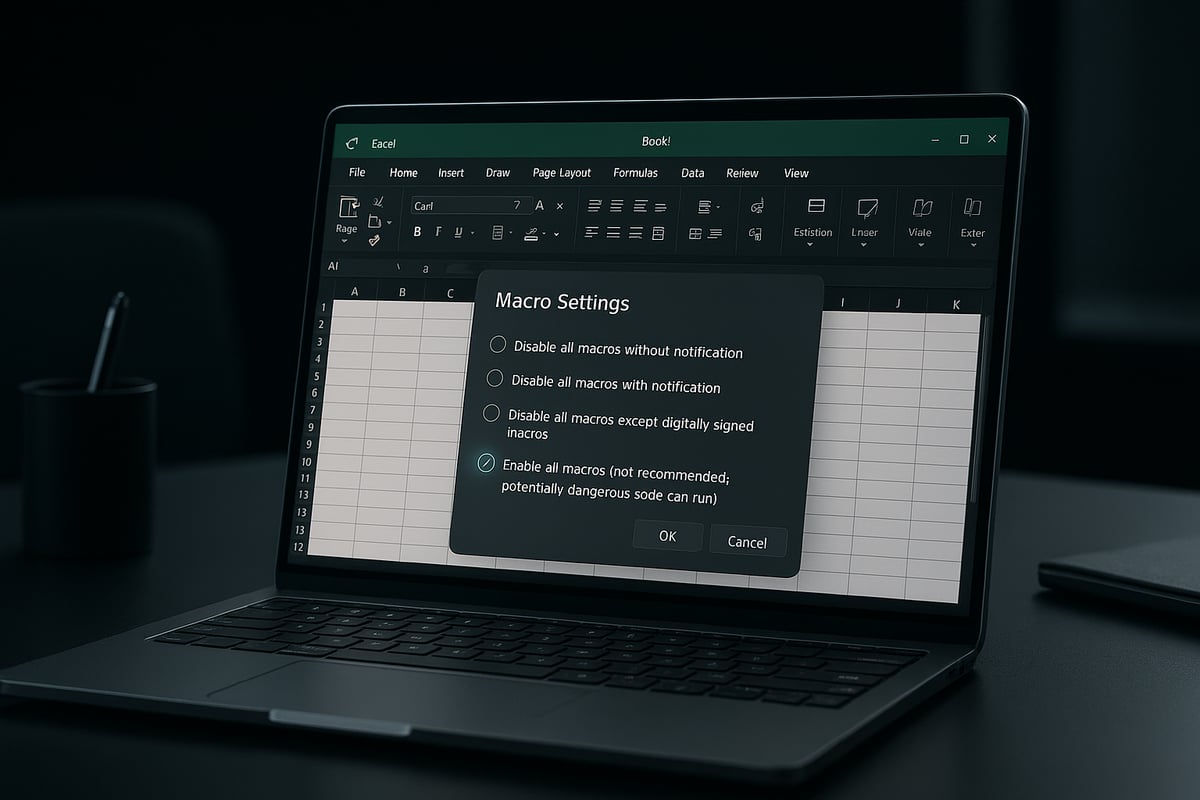
Macro Settings.
Look for visual cues, such as a shield icon or highlighted warnings, to guide you. Screenshots or detailed images are helpful, especially for first-time users.
If you need a visual walkthrough, the How to turn on macros in Excel guide provides step-by-step visuals and extra tips for multiple Excel versions.
Being able to navigate directly to macro settings is essential in the process of how to enable the macros.
Step 3: Choosing the Right Macro Security Level
The next decision is selecting the macro security level. This is a crucial part of understanding how to enable the macros safely.
Excel offers these options:
- Disable all macros without notification
- Disable all macros with notification
- Enable all macros (not recommended)
- Enable macros only from trusted locations
For most business users, "Disable all macros with notification" is recommended, allowing you to enable macros on a file-by-file basis. For personal use, trusted locations can streamline your workflow.
Set trusted folders via the Trust Center to reduce repetitive prompts. This balance between productivity and security is a key aspect of how to enable the macros correctly.
Step 4: Enabling Macros for a Single Workbook
If you only need macros for one file, follow these steps:
- Open the macro-enabled workbook (
.xlsm). - If prompted, click "Enable Content" in the yellow security bar.
- Confirm that the macros run as expected.
After enabling, test the macro by running it from the View > Macros menu or by using any assigned shortcut. This targeted approach to how to enable the macros keeps your system secure while allowing automation.
Step 5: Enabling Macros Globally
Some advanced users may want to enable macros for all workbooks. This is a powerful, but riskier, method in how to enable the macros.
To enable globally:
- Go to
Trust Center Settings - Select "Enable all macros"
Remember, this exposes you to potential security threats if you open untrusted files. Always revert to stricter settings if you notice suspicious activity or after completing your tasks. Use this option only when your workflow demands it.
Step 6: Enabling Macros in Excel Online and Mobile
Enabling macros in Excel Online and mobile apps is still limited in 2026. Currently, most macros do not run natively in Excel Online, though Microsoft is expanding support.
For now:
- Download the workbook and open it in the desktop app to run macros.
- Mobile apps allow limited macro viewing, but not editing or execution.
Stay updated on Microsoft’s roadmap, as macro support in cloud and mobile environments is evolving. Knowing these limitations is part of mastering how to enable the macros on every platform.
Step 7: Troubleshooting Common Issues
Sometimes, you may follow the steps for how to enable the macros and still face issues. Here are common troubleshooting tips:
- If macros will not enable, check for blocked files or corrupted workbooks.
- Ensure VBA add-ins are active.
- Look for security prompts or "Protected View" warnings.
- If all else fails, consult Excel support forums or Microsoft Help.
Quick troubleshooting can save you time and keep your projects on track. By addressing these common problems, you will become confident in how to enable the macros and resolve challenges swiftly.
Macro Security Best Practices in 2026
Securing your spreadsheets is just as important as learning how to enable the macros. As automation becomes central to data workflows, understanding the modern threat landscape and the best ways to defend against it is essential for every Excel user. Let us explore the most effective strategies for keeping your macros—and your data—safe in 2026.

Understanding Macro-Related Threats
Macro-based malware continues to pose significant risks in 2026. Cybercriminals often use malicious code hidden in macro-enabled files to gain unauthorized access or compromise sensitive data. Recent incidents show that attackers target businesses through phishing emails containing deceptive attachments.
Microsoft has responded with frequent security bulletins and automatic updates to help users learn how to enable the macros safely. Common threats include ransomware, credential theft, and data corruption. Staying informed about the latest attack vectors is crucial for everyone working with macros.
Setting Up Trusted Locations and Documents
One of the simplest ways to control how to enable the macros securely is by using trusted locations. Trusted folders allow you to open macro-enabled files with reduced security prompts, minimizing workflow interruptions for power users.
For instance, you can designate your corporate network drive as a trusted location. This ensures that only documents stored in approved folders can run macros without constant warnings. To set this up, navigate to Excel's Trust Center, select Trusted Locations, and add your chosen folder. This step is vital for balancing convenience with security.
Using Digital Signatures for Macros
Digital signatures play a key role in verifying the authenticity of macro-enabled files. When considering how to enable the macros, signing your code provides an extra layer of trust for both users and organizations.
A digital signature in Excel confirms that the macro has not been altered since it was signed. To add a signature, use the SelfCert tool or a certificate from a trusted authority, then sign your VBA project through the Visual Basic Editor. This practice not only enhances security but also builds confidence among users who rely on your automation tools.
Organizational Policies and Compliance
In 2026, enterprise environments must enforce strong policies regarding how to enable the macros. IT administrators are responsible for configuring group policies, setting macro permissions, and ensuring compliance with regulations like GDPR and HIPAA.
Organizations should document their macro usage policies, conduct regular audits, and restrict macro execution to trusted sources. The role of IT is to educate staff, monitor macro activity, and promptly address any security incidents. Clear guidelines help maintain productivity while minimizing risk.
Tips for Safe Macro Usage
Every user should follow a checklist when deciding how to enable the macros:
- Always verify the source of macro-enabled files.
- Keep Excel and antivirus software up to date.
- Use trusted locations and digital signatures whenever possible.
- Educate team members on macro security risks.
- Regularly review Microsoft’s Essential Eight configure Microsoft Office macro settings to stay current with industry standards.
By following these tips, you can take full advantage of macro automation while protecting your organization from evolving threats.
Advanced Macro Usage: Unlocking Automation and Efficiency
Unlocking the full potential of Excel means going beyond basic tasks. Advanced macro usage lets you automate, customize, and supercharge your spreadsheets for unmatched productivity. By learning how to enable the macros and mastering these techniques, you can transform routine processes into seamless, efficient workflows.
Recording and Editing Your Own Macros
Start by using the Macro Recorder, Excel’s built-in tool for capturing your actions. With just a few clicks, you can record repetitive formatting or data entry steps. After recording, view the generated VBA code using the Visual Basic for Applications editor.
Editing macros allows you to fine-tune automation. For example, you might adjust cell ranges or add loops for more dynamic tasks. If you want to know how to enable the macros before recording, ensure your Excel settings allow macros to run. This unlocks the ability to create and use custom automations.
- Launch the Macro Recorder from the View tab.
- Name your macro and assign a shortcut if desired.
- Edit recorded code in the VBA editor for more flexibility.
Mastering these basics opens the door to even more advanced automation.
Introduction to VBA Programming
VBA, or Visual Basic for Applications, is the programming language behind Excel macros. Understanding VBA syntax lets you build powerful, custom solutions. Start with simple scripts, such as automating calculations or generating reports.
If you are learning how to enable the macros for custom scripts, make sure your security settings support macro execution. Use resources like official documentation or online tutorials to deepen your skills.
For organizations or individuals looking to accelerate their VBA journey, Excel VBA programming services provide expert support and training. This ensures robust, audit-ready automation tailored to your needs.
Integrating Macros with Power Query and Power Automate
Combining macros with Power Query enables advanced data transformation, merging the strengths of both tools. For instance, use Power Query to clean and structure large datasets, then trigger macros to apply custom calculations or formatting.
Power Automate (formerly Microsoft Flow) lets you connect Excel macros with cloud-based workflows. This integration brings automation beyond the desktop, helping teams synchronize data across platforms.
To leverage these features, first learn how to enable the macros in your environment. Once enabled, experiment with connecting macro routines to Power Query steps, or use Power Automate triggers to run macros when new data arrives.
- Clean data with Power Query, then automate with macros.
- Use Power Automate to schedule or trigger macro tasks.
- Ensure macro settings allow cross-platform execution.
Best Practices for Macro Documentation and Maintenance
Clear documentation is vital for sustainable macro usage. Always comment your code, explaining what each section does. This helps both you and your team understand and modify macros in the future.
Version control tools, such as Git or built-in Excel features, keep track of changes and prevent loss of work. For organizations, standardized documentation templates ensure consistency across projects.
Before sharing or updating, verify how to enable the macros on all relevant devices. This step avoids compatibility issues and maintains workflow continuity.
- Add comments to clarify logic and parameters.
- Maintain a change log for each macro.
- Use shared documentation standards for teams.
Collaboration and Sharing Macro-Enabled Workbooks
Sharing macro-enabled workbooks is now easier than ever. Platforms like Teams, SharePoint, and OneDrive support collaborative editing and secure sharing. Set permissions to control who can view or edit your macros.
Cross-platform compatibility is crucial. Always test your macros on different devices and Excel versions. Double-check how to enable the macros in each environment, especially when collaborating with colleagues who may have stricter security settings.
- Share files in trusted cloud environments.
- Set appropriate access levels for collaborators.
- Test macro functionality across platforms before rollout.
Staying Up-to-Date: Macro Innovations in 2026
Excel 2026 introduces AI-assisted macro creation, smarter debugging tools, and expanded integration with cloud services. These innovations simplify automation for both beginners and experts.
Stay informed by joining community forums and subscribing to newsletters focused on macro trends. Regularly update your skills and review how to enable the macros, as security protocols and features continue to evolve.
- Explore AI-driven macro suggestions in Excel 2026.
- Participate in user communities for the latest tips.
- Adapt to new security and automation features as they launch.
Troubleshooting and Optimizing Macro Performance
When working to optimize your workflow, understanding how to enable the macros is only the first step. Even after successful activation, you may face slowdowns, errors, or compatibility challenges. This section provides actionable solutions to keep your macros running smoothly, ensuring you unlock the full potential of Excel automation.
Diagnosing Slow or Failing Macros
Slow or unreliable macros can disrupt productivity. When troubleshooting, first confirm how to enable the macros was followed correctly, as improper settings often cause issues. Common culprits include inefficient code, excessive looping, or large data sets.
Use Excel’s VBA debugger to step through your code. Identify bottlenecks by watching which lines take longest to execute. For persistent issues, check out this Macro-enabled Excel workbooks guide for detailed diagnostic steps.
Troubleshooting Table:
| Symptom | Likely Cause | Solution |
|---|---|---|
| Macro runs slowly | Inefficient code | Optimize loops, avoid Select/Activate |
| Macro fails to start | Disabled macros | Review macro settings |
| Error messages appear | Unhandled errors | Add error handling in VBA |
By addressing these points, you can restore macro performance and reliability.
Resolving Compatibility Issues
Compatibility problems often arise if you are unsure how to enable the macros across different Excel versions. Features available in Excel 2026 may not work in older versions, leading to errors or missing functionality.
Check your version and review documentation such as Microsoft Office Excel versions explained to understand specific macro support. Always test your macros in the target environment to catch deprecated functions or unsupported features early.
When sharing workbooks, save them as .xlsm files to preserve macro functionality. This practice ensures your automation works seamlessly for everyone involved.
Preventing and Fixing Macro Errors
Macro errors can stem from syntax mistakes, missing references, or unexpected data. Learning how to enable the macros securely is crucial, but so is robust error handling.
Use the VBA editor’s debugging tools to identify issues. Implement basic error handling with code like:
On Error Resume Next
' Macro code here
If Err.Number <> 0 Then
    MsgBox "An error occurred: " & Err.Description
End If
This approach prevents your macros from crashing Excel. Regularly back up your files and keep documentation updated, reducing downtime if errors occur.
Optimizing for Large Data Sets
Processing large volumes of data can test even well-written macros. If you notice slow performance after learning how to enable the macros, optimization techniques can help.
Disable screen updating and automatic calculations during macro execution:
Application.ScreenUpdating = False
Application.Calculation = xlCalculationManual
' Macro code
Application.Calculation = xlCalculationAutomatic
Application.ScreenUpdating = True
Batch process data instead of row-by-row operations. Monitor resource usage and break tasks into smaller chunks if necessary. These steps keep your automation efficient, even with big data.
Where to Get Expert Help with Macros
If you have followed all steps on how to enable the macros and still face persistent issues, consider seeking expert assistance. Online communities like Microsoft Tech Community, Stack Overflow, and Reddit’s r/excel provide peer support and troubleshooting tips.
For complex problems, consult professional services or Microsoft’s official support. Document your issue clearly and include details such as Excel version, error messages, and a description of your macro. With the right help, you can quickly resolve even the toughest challenges.
Resources and Tools for Mastering Macros
Unlocking the full power of Excel macros in 2026 requires more than just knowing how to enable the macros. You need the right resources, training, and support. Below, explore the essential platforms, guides, communities, and official documentation to help you master macro automation and stay ahead in your field.
Recommended Learning Platforms and Courses
To truly understand how to enable the macros and use them effectively, invest in quality learning resources. In 2026, top online platforms like Microsoft Learn, Coursera, and Udemy offer up-to-date courses on Excel macros and VBA.
- Microsoft Learn: Free, interactive tutorials on macro basics and advanced VBA.
- Coursera: University-backed courses with certificates.
- Udemy: Affordable, user-rated classes for all skill levels.
These platforms provide structured paths, allowing you to practice how to enable the macros in real-world scenarios. Many courses now include cloud-based labs and community Q&A, ensuring you get hands-on experience and support as you progress.
Essential Books and Guides for Macro Users
Books remain invaluable for deep dives into how to enable the macros and master VBA. In 2026, “Excel VBA Programming for Dummies” continues to be a best-seller, offering clear guidance for beginners and pros alike.
Other popular titles include:
- “Mastering Excel Macros”
- “Power Programming with VBA”
- “Excel Macros for Business Automation”
For those seeking step-by-step instructions, look for guides that include screenshots, sample code, and troubleshooting tips. These resources help reinforce your understanding of how to enable the macros safely and efficiently.
Useful Macro Templates and Add-Ins
Ready-to-use templates and add-ins can accelerate your journey to mastering how to enable the macros. Platforms like Automate.io and ASAP Utilities provide a range of automation tools designed for modern Excel environments.
- Automate.io: Streamlines repetitive workflows.
- ASAP Utilities: Adds hundreds of time-saving features.
- Microsoft’s Template Gallery: Download macro-enabled spreadsheets for instant productivity.
Using these tools, you can see how to enable the macros in practical settings, adapting and customizing templates for your own needs.
Community Forums and Peer Support
Joining Excel communities is a powerful way to improve your skills and troubleshoot issues related to how to enable the macros. Leading forums include Reddit’s r/excel, Stack Overflow, and the Microsoft Tech Community.
Benefits of community engagement:
- Quick answers to macro problems
- Peer-reviewed solutions and code examples
- Access to experts and regular knowledge sharing
By participating in these forums, you not only get help with how to enable the macros, but also stay connected with industry trends and best practices.
Staying Current: Blogs, Newsletters, and Updates
To keep your knowledge of how to enable the macros current, subscribe to reputable blogs and newsletters. Top sources in 2026 include ExcelJet, Chandoo.org, and the official Microsoft Excel blog.
- ExcelJet: Tips, tricks, and video tutorials.
- Chandoo.org: In-depth macro use cases and templates.
- Microsoft Excel Blog: News on updates and features.
Subscribing ensures you receive timely alerts about macro security, new features, and evolving best practices for how to enable the macros in different environments.
How The Analytics Doctor Can Help with Macro Challenges
When you encounter complex macro issues or want tailored training, The Analytics Doctor is a valuable partner. Their team specializes in how to enable the macros, troubleshoot errors, and design custom automation for businesses and professionals.

Services include:
- Diagnosing and fixing macro errors
- Optimizing spreadsheet and macro performance
- Personalized VBA coaching
Access their free guides, templates, and resources to streamline your workflow. For advanced needs, reach out for bespoke solutions that maximize the benefits of how to enable the macros for your organization.
Microsoft’s Official Resources and Documentation
For authoritative answers on how to enable the macros, Microsoft’s official documentation is essential. The Support and Office Dev Center sites feature step-by-step guides, troubleshooting articles, and updates on macro security.
Refer to:
- Microsoft Support: Comprehensive how-to articles.
- Office Dev Center: Resources for developers and IT admins.
Staying informed about macro security is crucial. For context on evolving risks, review the End of life for Microsoft Office puts malicious macros in the security spotlight, which highlights why ongoing education and vigilance are vital when learning how to enable the macros.