Accurate, clean data is the backbone of every decision made in Excel. Yet, duplicate entries can silently undermine productivity and lead to costly errors. In this expert guide, you’ll learn how to find duplicate cells in excel using the latest features and best practices for 2026. Recent studies show that data errors, including duplicates, cost businesses millions each year. This article will help you understand duplicates, use Excel’s built-in and advanced tools, automate checks, troubleshoot issues, and implement expert tips. Take control of your data by following this step-by-step guide.
Understanding Duplicate Cells in Excel
Duplicate cells in Excel are a hidden threat to reliable data analysis and efficient workflows. Understanding how to find duplicate cells in excel is the first step toward cleaner, more trustworthy spreadsheets.

What Are Duplicate Cells?
In Excel, duplicate cells are values that appear more than once within a specified range or dataset. This means that two or more cells contain exactly the same information, whether numbers, text, or dates. Unique entries, by contrast, are values that appear only once in the selected range.
Duplicates can exist at the cell level, where a single value is repeated, or at the row level, where entire rows match across all columns. For example, sales data might have repeated invoice numbers, contact lists could show the same email address multiple times, or inventory sheets may list a product code more than once.
Identifying how to find duplicate cells in excel matters because duplicates can quickly undermine the accuracy of your records. If you want to learn more about removing duplicates after detection, see Remove duplicate records in Excel for a step-by-step approach.
Common Causes of Duplicates
Duplicate cells often sneak into Excel through several common channels:
- Manual data entry errors, such as typing the same information twice.
- Importing datasets from different sources without proper checks.
- Copying and pasting data between sheets or workbooks.
- Merging records from multiple systems or integrating third-party tools.
- Users misunderstanding the intended structure or rules of the spreadsheet.
According to industry studies, 27% of spreadsheet errors are caused by duplication. This statistic highlights the importance of knowing how to find duplicate cells in excel before errors multiply.
Risks and Impacts of Duplicate Data
The presence of duplicate data can introduce several significant risks:
- Analytical results become unreliable, leading to poor business decisions.
- Financial losses may occur, such as overpaying vendors or misreporting inventory.
- Staff spend hours manually cleaning and correcting errors.
- The organization’s reputation suffers if clients or stakeholders notice inconsistencies.
For example, duplicate customer records can cause marketing teams to send multiple emails to the same person, wasting resources and irritating recipients. Recognizing how to find duplicate cells in excel helps avoid these costly pitfalls.
Types of Duplicates in Excel
Not all duplicates are created equal. The main types include:
- Exact duplicates: Values or rows that match perfectly.
- Partial or conditional duplicates: Entries that match based on selected criteria, such as same name but different address.
- Single-column duplicates: Repeated values within one column, like email addresses.
- Multi-column or row-level duplicates: Entire rows or combinations of fields that repeat.
- Case sensitivity and formatting: "ABC123" and "abc123" may be treated differently, depending on settings.
Scenarios include duplicate emails in a mailing list, repeated product IDs in inventory, or transactions logged more than once. Defining what counts as a duplicate for your context is vital when deciding how to find duplicate cells in excel.
Using Excel’s Built-In Features to Find Duplicates
Mastering how to find duplicate cells in Excel is fundamental for anyone seeking to maintain clean, reliable data. Excel’s built-in features offer both quick visual checks and powerful tools for efficient duplicate detection. Whether you’re working with small lists or large datasets, these methods can save you time and reduce costly errors.
Highlighting Duplicates with Conditional Formatting
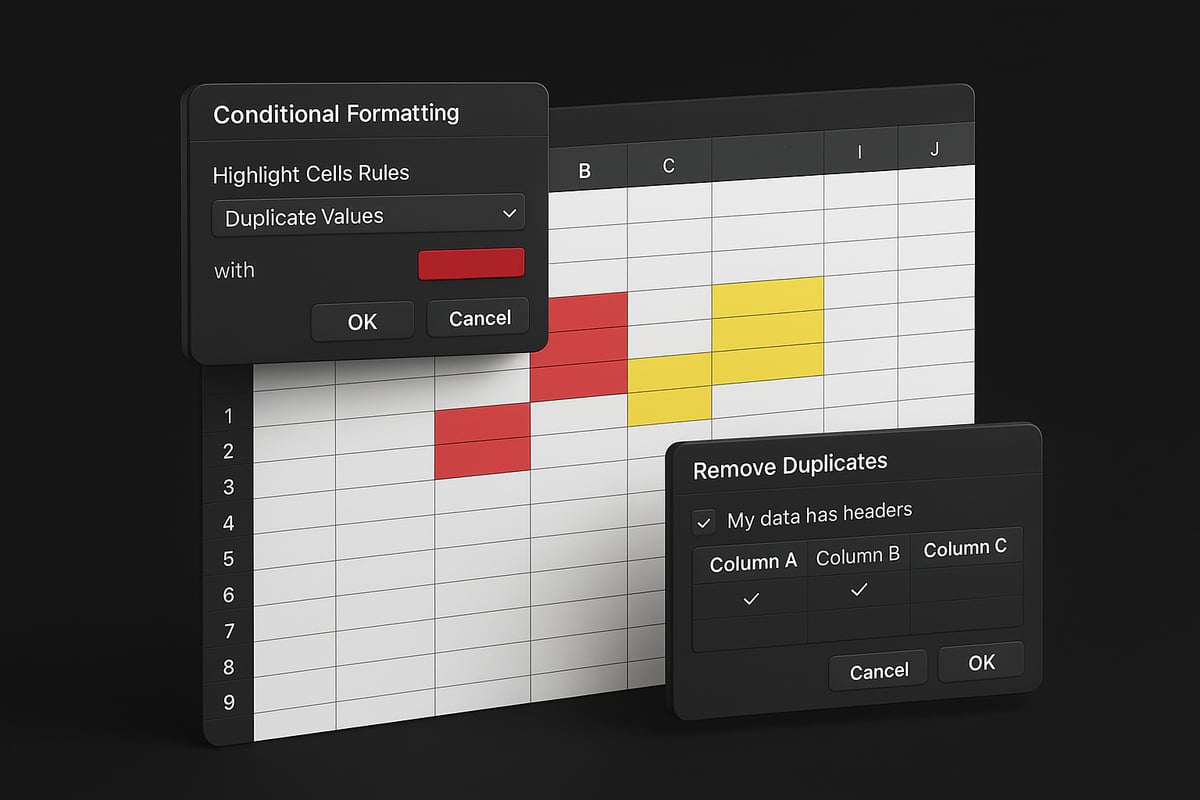
Conditional Formatting is one of the fastest ways to visually identify duplicates. To use this method for how to find duplicate cells in Excel, follow these steps:
- Select the cell range you want to check.
- Go to the Home tab, click Conditional Formatting, then choose Highlight Cells Rules and select Duplicate Values.
- Choose your preferred formatting style and color for duplicates.
- Review the highlighted cells to spot repeated values instantly.
This method is ideal for quickly flagging duplicates like invoice numbers or email addresses. However, Conditional Formatting only identifies duplicates; it does not remove them. Always double-check the highlighted results to avoid missing contextual issues or partial matches.
Removing Duplicates with Excel’s Remove Duplicates Tool
For those looking for a practical method on how to find duplicate cells in Excel and remove them in one go, Excel’s Remove Duplicates tool is invaluable.
Follow these steps:
- Click anywhere in your data range.
- Navigate to the Data tab and select Remove Duplicates.
- In the dialog, choose which columns to check for duplicates.
- Click OK to remove all but the first occurrence of each duplicate.
- Review the summary dialog to see how many duplicates were removed.
This tool is especially useful for cleaning large contact lists or transaction records. Be cautious: removing duplicates is irreversible, so always create a backup first. For more details, consult the Find and Remove Duplicates – Microsoft Support guide for step-by-step visuals and troubleshooting tips.
Using the COUNTIF and COUNTIFS Functions
Excel’s COUNTIF and COUNTIFS formulas provide a flexible approach to how to find duplicate cells in Excel, especially when you need more control or are working with complex criteria.
To flag duplicates in a column:
=COUNTIF(A:A, A2)>1
Enter this formula in a helper column and copy it down. TRUE indicates a duplicate. For multi-condition checks, use COUNTIFS to combine criteria across columns.
This method is perfect for custom scenarios, such as flagging duplicate product codes or customer IDs. It allows you to define exactly what counts as a duplicate, making your review more precise and tailored to your needs.
Filtering and Sorting for Manual Review
Sometimes, the best way for how to find duplicate cells in Excel is through manual inspection using filters and sorting. This is particularly valuable when dealing with nuanced or partial duplicates.
Here’s how:
- Sort your data by the column you want to check for duplicates.
- Use the Filter tool to group similar entries together.
- Combine with Conditional Formatting to highlight duplicates for easier review.
Manual review is preferable when duplicates are not exact matches or when you need to validate context. For example, reviewing a contact database for similar but not identical names ensures data integrity and accuracy.
Advanced Techniques for Detecting Duplicates
Keeping your data pristine often requires going beyond Excel’s basic tools. Advanced techniques can help you tackle complex scenarios, large datasets, and subtle duplicate records. Whether you are working with transaction logs, multi-sheet workbooks, or datasets riddled with near-matches, these expert methods empower you to master how to find duplicate cells in excel.

Using Formulas for Complex Duplicate Detection
For those who need more control over how to find duplicate cells in excel, advanced formulas offer robust solutions. You can use functions like MATCH, VLOOKUP, UNIQUE, and XLOOKUP to identify duplicates across columns, sheets, or even workbooks.
For example, to check for duplicates across two lists, try:
=IF(ISNUMBER(MATCH(A2, Sheet2!A:A, 0)), "Duplicate", "Unique")
This formula flags entries in Sheet1 that also appear in Sheet2. For multiple criteria, COUNTIFS lets you define conditions, such as matching both customer name and transaction date.
Case sensitivity is crucial in some cases. The EXACT function can help:
=IF(EXACT(A2, B2), "Duplicate", "Unique")
Use UNIQUE (Excel 2021/365) to extract non-duplicate values. For cross-sheet or workbook analysis, combine these formulas with references to external ranges.
When managing high-stakes data, consider referencing guides like Compare two Excel spreadsheets to ensure you apply the most effective formula-based strategies.
Leveraging Excel’s Power Query for Duplicates
Power Query is a game-changer for how to find duplicate cells in excel. It streamlines data transformation, making it ideal for large or complex datasets.
To start, import your data using Power Query (Data > Get & Transform Data). Once loaded, use the “Remove Duplicates” feature to quickly clean your tables. For deeper insights, the “Group By” tool aggregates records, helping you spot patterns or recurring entries.
Power Query excels at merging datasets from multiple sources. Suppose you have sales data from different regions; you can combine these tables, detect duplicates, and even automate the process for future updates.
Because Power Query’s steps are non-destructive, you can always revert or modify your cleaning process. This makes it safer than manual deletion, especially when handling mission-critical records.
Automating duplicate checks with Power Query not only saves time but also ensures consistency across your organization.
VBA Macros for Automated Duplicate Detection
When manual methods are not enough, VBA macros provide a powerful way to automate how to find duplicate cells in excel. Macros can scan entire workbooks, highlight duplicates, or even generate reports with a single click.
A simple macro to highlight duplicates in a selected range might look like this:
Sub HighlightDuplicates()
    Dim cell As Range
    For Each cell In Selection
        If WorksheetFunction.CountIf(Selection, cell.Value) > 1 Then
            cell.Interior.Color = RGB(255, 200, 200)
        End If
    Next cell
End Sub
You can customize macros to match your specific business rules, such as flagging duplicates only if certain fields match. For cross-sheet or multi-file comparisons, more advanced scripts can be developed.
Always enable macros securely and back up your data before running automation. Macros can save hours, but a single error could impact your dataset.
VBA is especially useful for repetitive monthly or quarterly duplicate checks in finance, HR, or operations.
Identifying Fuzzy or Near-Duplicates
Not all duplicates are exact matches. Fuzzy or near-duplicates—like “Jon Smith” vs “John Smith”—can slip through standard checks. If you are wondering how to find duplicate cells in excel that are not identical, fuzzy matching tools are essential.
Excel’s Power Query includes a Fuzzy Matching option during table merges. This feature lets you set similarity thresholds, catching minor misspellings or formatting differences. Add-ins like Fuzzy Lookup or third-party solutions can also help.
However, fuzzy matching is not always perfect. It may identify false positives or miss subtle variations, so it is best used for preliminary cleaning before manual review.
For example, cleaning a mailing list often requires catching entries like “Acme Corp.” and “Acme Corporation.” Define your matching rules carefully, and always review flagged results.
In cases where fuzzy matching is insufficient, escalate to specialized data quality tools or involve data professionals for a thorough audit.
Automating Duplicate Detection in Excel
Automation is essential for maintaining clean, reliable data in Excel. By automating how to find duplicate cells in excel, teams can reduce manual effort, minimize errors, and ensure ongoing data integrity. Let’s explore practical ways to set up automated duplicate detection, integrate powerful tools, and establish best practices for prevention.
Setting Up Automated Checks with Excel Features
Preventing duplicates at the source is a proactive step in how to find duplicate cells in excel. Use Excel’s Data Validation to restrict entries and avoid duplication as data is entered. For example, apply a custom formula in Data Validation to ensure each value is unique within a column.
To further streamline this, create templates with built-in duplicate checks. Schedule periodic reviews by setting reminders, ensuring ongoing vigilance. For more detailed guidance, see Excel data validation rules and checks.
Imagine your finance team relying on a monthly automated duplicate report—errors are caught before they escalate.
Integrating Excel with External Tools and Add-Ins
For larger datasets or advanced needs, Excel add-ins offer robust options for how to find duplicate cells in excel efficiently. Popular solutions like Ablebits and Kutools provide bulk duplicate removal, enhanced filtering, and custom duplicate rules.
Evaluate each tool’s cost, complexity, and features before integrating. Add-ins can significantly extend Excel’s built-in capabilities, especially for repetitive or large-scale tasks.
Consider using these tools when manual processes become too time-consuming. For example, marketing teams managing thousands of contacts can quickly clean their lists using bulk removal features.
Building Repeatable Workflows with Power Query and Macros
Power Query and macros are key for automating how to find duplicate cells in excel across recurring processes. Power Query allows you to create reusable scripts for data import, transformation, and duplicate checks—ideal for monthly or quarterly audits.
Share macros across teams to standardize duplicate management. Document each workflow, so colleagues can follow procedures consistently and meet compliance requirements.
Picture HR departments running a standardized duplicate check for onboarding data, ensuring new employee records are always unique and accurate.
Best Practices for Ongoing Duplicate Prevention
Automation is only part of the solution for how to find duplicate cells in excel. Regular staff training on data entry best practices is vital. Use standardized templates, unique constraints, and validation rules to minimize risk.
Schedule regular audits and maintain clear documentation of all duplicate checks. Robust data governance policies help prevent issues before they arise.
A company-wide policy for entering customer information, paired with automated checks, creates a strong defense against duplicate data.
Troubleshooting and Handling Duplicate-Related Issues
Addressing issues when learning how to find duplicate cells in excel is crucial for long-term data quality. Even the most seasoned users encounter challenges, especially as datasets grow in size and complexity. In this section, we explore the most common pitfalls, strategies for large files, safeguarding your information, and when it is time to seek professional advice.
Common Challenges and Mistakes
When managing how to find duplicate cells in excel, several mistakes can easily occur. Over-deleting is a frequent problem, where necessary data is lost due to aggressive duplicate removal. Users sometimes overlook hidden or filtered duplicates, especially if filters are applied during cleaning.
Another challenge is confusing similar entries with true duplicates. For example, "J. Smith" and "John Smith" might not be actual duplicates but could get flagged by mistake. Formatting and case differences can also cause errors, as "ABC123" and "abc123" may be treated differently.
To minimize these issues, consider reviewing Reduce spreadsheet errors in Excel for practical error prevention strategies. Taking a cautious, step-by-step approach helps protect valuable data.
Dealing with Large and Complex Datasets
Handling large datasets is a core part of how to find duplicate cells in excel. When files exceed tens of thousands of rows, Excel’s performance may slow, and standard tools can become less reliable.
To manage this, break your data into smaller chunks before running duplicate checks. Use Power Query for more scalable and efficient processing, as it can handle vast datasets with less strain on your system. Cloud-based solutions, such as Microsoft 365, offer improved memory management and collaboration for large files.
For example, cleaning a 100,000-row sales ledger with Power Query is faster and safer than manual methods. Always test your process on a small subset before scaling up.
Ensuring Data Integrity and Backup
Maintaining data integrity is vital when you learn how to find duplicate cells in excel. Before any duplicate removal, create a backup. Save a copy of your file or use version control tools to track changes over time.
Excel’s Track Changes and Undo features provide some protection, but these are not foolproof. Store backups securely, preferably on cloud storage or an external drive. This way, if you accidentally delete critical data, recovery is straightforward.
A real-world scenario: If you remove duplicates from an inventory and notice missing items, you can quickly restore the original file thanks to a backup.
Auditing and Documenting Data Cleaning Processes
Documentation is a best practice for anyone mastering how to find duplicate cells in excel. Keep a log of every significant change, especially when duplicates are removed. This is essential for compliance and for maintaining accountability within teams.
Create audit trails using Excel’s built-in tools or by maintaining a manual change log. This documentation supports collaboration and makes it easier to hand off tasks or revisit decisions. In regulated industries like finance or healthcare, audit logs are not just helpful—they are often required by law.
A well-documented process saves time and reduces the risk of repeated errors.
When to Seek Expert Help
There are situations where your efforts with how to find duplicate cells in excel may not be enough. If you face complex business rules, need to compare data across multiple systems, or must meet strict regulatory requirements, expert support becomes invaluable.
Consulting with a data specialist ensures accuracy, efficiency, and compliance, especially for large-scale migrations or integrations. Professionals bring advanced tools and custom solutions tailored to your needs.
Knowing when to escalate a problem can save your organization time, money, and reputation in the long run.
Expert Tips and Best Practices for Duplicate Management
Maintaining clean, reliable data in Excel is an ongoing process. By implementing expert strategies for how to find duplicate cells in excel, you can ensure your spreadsheets remain accurate, efficient, and ready for confident decision-making.
Proactive Data Entry Strategies
The best defense against duplicate data is prevention. Design your Excel templates with data validation in mind. Use drop-down lists, unique constraints, and clear input forms to minimize errors.
Train users to follow consistent entry practices. For example, assigning a unique customer ID in every row helps ensure data uniqueness. By focusing on how to find duplicate cells in excel at the point of entry, you reduce future cleanup tasks.
- Use data validation rules to prevent duplicates.
- Implement drop-down menus for standardized entries.
- Assign responsibility for maintaining unique identifiers.
Consistency today means fewer issues tomorrow.
Customizing Duplicate Criteria for Business Needs
Not every duplicate is the same. Define what constitutes a duplicate for your organization before starting any cleanup. Will you match on full rows, specific columns, or allow for case differences?
Document your rules for how to find duplicate cells in excel and share them with your team. For instance, consider if invoices with different dates but the same number should be flagged. Adjust Excel’s built-in tools or formulas to reflect these criteria.
- Clarify if case sensitivity matters.
- Decide on partial versus exact matches.
- Communicate criteria to all stakeholders.
Tailored rules ensure relevant, accurate results.
Regular Maintenance and Review Schedules
Routine audits prevent duplicate buildup. Set a schedule for regular reviews, whether weekly, monthly, or quarterly. Use checklists and automate reminders so that how to find duplicate cells in excel becomes a habit, not an afterthought.
Assign a dedicated team member to oversee data hygiene. Document each review and log changes for accountability. This systematic approach keeps your data trustworthy and audit-ready.
- Establish a review calendar.
- Use checklists for each audit.
- Assign roles for ongoing maintenance.
Consistent reviews safeguard data quality.
Leveraging Excel Training and Support Resources
Investing in Excel training pays long-term dividends. Well-trained teams are faster and more accurate at how to find duplicate cells in excel. Explore online courses, forums, and guides to stay current with Excel’s evolving features and best practices.
Consider using specialized tools for complex tasks. For example, research like Streamlining Data Quality with Excel-Based Tool demonstrates how targeted Excel add-ins enhance duplicate removal and boost data quality.
- Enroll in workshops or certification programs.
- Participate in Excel-focused communities.
- Keep reference materials accessible.
Continuous learning leads to fewer errors and greater efficiency.
Expert Excel Help from The Analytics Doctor
Sometimes, even with best practices, persistent duplicate issues require professional help. The Analytics Doctor offers expert support for how to find duplicate cells in excel, from custom training to automation solutions.

Their team provides diagnostics, workflow optimization, and personalized coaching. Businesses see real benefits: fewer errors, saved time, and higher data quality. If your data challenges exceed internal resources, consider reaching out for a consultation or explore their free resources.
- Get tailored advice for complex Excel issues.
- Access custom automation and troubleshooting.
- Improve data integrity with expert guidance.
Expert support turns data headaches into streamlined solutions.