Are you frustrated by messy spreadsheets and recurring duplicate values in Excel? You are not alone, as many professionals struggle with data accuracy and consistency. Learning how to find a duplicate value in excel is essential for anyone who works with data, from beginners to advanced users.
Excel provides several powerful tools and techniques to help you quickly identify, highlight, and manage duplicates. By mastering these methods, you will save time, ensure your reports are accurate, and make better business decisions.
This 2026 guide covers everything you need to know about how to find a duplicate value in excel. You will discover best practices, step-by-step instructions, and expert tips for handling duplicates using the latest Excel features.
Whether you are cleaning up financial records, consolidating lists, or preparing for an audit, this guide will help you streamline your workflow and avoid costly mistakes. Get ready to transform the way you handle Excel data.
Understanding Duplicate Values in Excel
Duplicate values can quietly undermine your data analysis in Excel if not properly managed. Knowing how to find a duplicate value in excel is the first step toward cleaner, more reliable spreadsheets. Let’s break down what duplicates are, why they matter, where they show up, and the key concepts you need to manage them.
What Are Duplicate Values?
In Excel, duplicate values are records that appear more than once within a specific range, column, or set of columns. Common examples include repeated invoice numbers, customer IDs, or identical email addresses in a contact list.
Duplicates can be found in a single column or across multiple columns, such as when both name and date match in two different rows. Understanding how to find a duplicate value in excel starts with recognizing that duplicates differ from unique values, which only occur once.
Most duplicates arise from data entry errors, importing data from various sources, or accidental copy-paste actions. For a comprehensive overview, see this Find duplicates in Excel guide.
Why Duplicates Matter in Excel
Duplicate values can have a significant impact on your data’s accuracy and reliability. If you don’t know how to find a duplicate value in excel, you risk double-counting figures, causing financial discrepancies, or skewing your reports.
For businesses, duplicates in billing, inventory, or CRM systems can lead to costly mistakes. Imagine a scenario where duplicate invoices inflate revenue numbers, resulting in misleading financial statements. Regularly checking for duplicates is essential for sound business processes and trustworthy analytics.
Scenarios Where Duplicate Detection Is Essential
There are many situations where understanding how to find a duplicate value in excel is critical. Large datasets, such as those with over 60,000 rows, often contain hidden duplicates that are hard to spot manually.
When merging data from multiple sources, duplicates can sneak in and compromise the quality of your reports. Preparing for audits or compliance checks requires thorough deduplication. Cleaning up mailing lists, financial records, or survey results also demands careful duplicate detection to ensure accuracy and professionalism.
Key Excel Concepts for Duplicate Management
To effectively manage duplicates, you need to be familiar with several core Excel concepts. Data ranges and tables help organize information, while structured references simplify formulas.
Be aware of case sensitivity and formatting issues—Excel might treat “ABC” and “abc” as different unless standardized. Also, Excel’s built-in duplicate detection tools have limitations, especially with complex or multi-key duplicates.
Excel 2026 introduces updates that enhance how to find a duplicate value in excel, but it’s important to check which features are available in your version for best results.
Methods to Find Duplicate Values Using Built-in Excel Tools
Working with large or complex spreadsheets often raises the question of how to find a duplicate value in Excel efficiently. Fortunately, Excel provides several intuitive built-in tools for detecting, highlighting, and managing duplicates. These methods cater to users with varying skill levels and can be applied to everything from invoice lists to customer databases.
Below, you will find step-by-step guidance for each tool, plus tips to ensure you get accurate results without risking your data.

Using Conditional Formatting to Highlight Duplicates
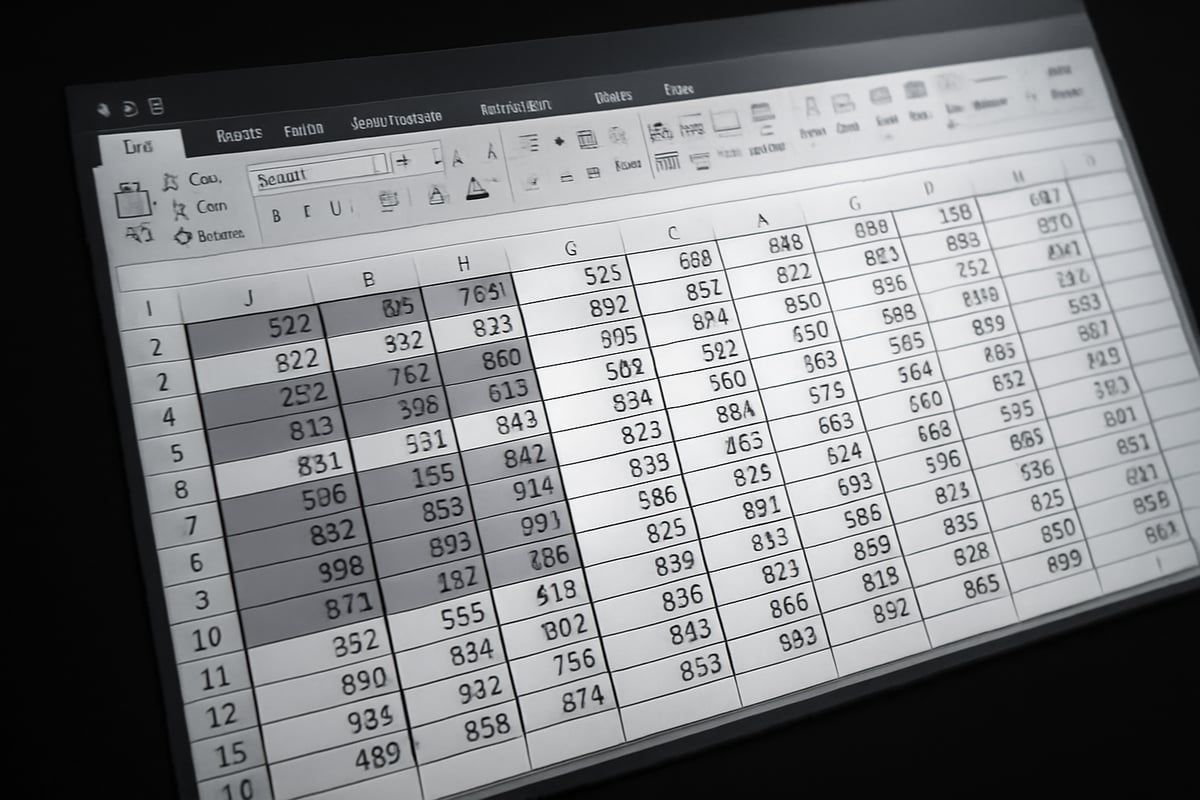
Conditional formatting is a fast, visual way to answer how to find a duplicate value in Excel. This tool helps you spot repeated items at a glance, making it ideal for quick checks or presentations.
To use conditional formatting for duplicates:
- Select the data range or column you want to check.
- Go to the Home tab, click Conditional Formatting, then choose “Highlight Cells Rules” and “Duplicate Values.”
- Pick a formatting style, such as a specific fill color, and confirm.
This method will instantly highlight every cell that contains a duplicate value. You can customize the highlight color or even set up rules to flag only specific types of duplicates.
Keep in mind, conditional formatting is visual only. It does not filter, remove, or extract duplicates. For example, in a sales sheet, duplicate invoice numbers will be highlighted, but you will still need to take further action to manage them.
If you are handling a large dataset, conditional formatting remains responsive and clear, providing an immediate overview of how to find a duplicate value in Excel without altering your data.
Applying the Remove Duplicates Feature
When you need to delete duplicates altogether, Excel’s Remove Duplicates tool is the most direct approach. This feature is especially useful for cleaning up contact lists or product inventories.
To use it, select your data, go to the Data tab, and click “Remove Duplicates.” Choose the columns you want Excel to check. You can target a single column or multiple columns for more complex scenarios. Be aware that this action is permanent, so always create a backup before proceeding.
For a detailed walkthrough, see Remove duplicate records in Excel, which covers each step and offers additional safety tips.
This tool simplifies how to find a duplicate value in Excel and ensures that only unique entries remain. In practice, you might use it to clean up a customer list, ensuring each contact appears only once.
Using the Filter Feature to Display Duplicates
Sometimes, you need to view only the duplicate values without deleting them. The Filter feature is ideal for this scenario, allowing you to isolate duplicates for further review or export.
Start by selecting your data and applying a filter from the Data tab. To filter for duplicates, you can add a helper column with a formula like =COUNTIF(A:A, A2)>1 to flag duplicates, then filter on this column.
Combining filters with conditional formatting provides a powerful way to visualize and work with duplicates. You can even export the filtered results to a new sheet for analysis.
A common use case is isolating duplicate product codes from a long inventory list. This approach to how to find a duplicate value in Excel is both flexible and non-destructive, making it popular for audit preparation or quality checks.
Excel Table Tools for Managing Duplicates
Converting your data range to an Excel Table unlocks advanced features for managing duplicates, especially when working with thousands of rows.
To create a table, select your range and press Ctrl+T. Tables allow for structured references, easy sorting, and filtering, which are all helpful in duplicate detection.
With tables, you can quickly sort data to group duplicates together, apply filters, or use built-in summary functions. Tables also handle large datasets more efficiently and help you keep formatting consistent.
For instance, tracking duplicate transactions in a financial sheet becomes more manageable with table tools, as you can use filters and summary rows to spot issues. This method is an essential part of how to find a duplicate value in Excel when you need both power and flexibility.
Limitations and Best Practices for Built-in Tools
While built-in tools offer accessible solutions for how to find a duplicate value in Excel, they have limitations. Complex scenarios, like multi-key duplicates or case-sensitive matches, may require advanced techniques.
Risks include accidental data loss, especially when using Remove Duplicates. Always back up your spreadsheet before making changes. Remember, Excel’s built-in features may not catch all duplicates if there are hidden rows, formatting inconsistencies, or data in different cases.
Combining multiple methods, like using conditional formatting alongside filters, provides more thorough results. Be aware of differences between Excel versions: Excel 2026 introduces performance improvements and refined duplicate detection, but always check feature availability in your version.
Following best practices—creating backups, double-checking filtered results, and documenting your steps—ensures your data remains accurate and audit-ready. If built-in tools are insufficient, consider moving to formula-based or automated solutions for deeper control.
Advanced Techniques: Formulas and Functions for Duplicate Detection
Excel’s built-in tools work well for many scenarios, but advanced users often need deeper control. If you want to master how to find a duplicate value in excel, formulas and functions offer powerful, flexible options. These techniques help you flag, extract, and manage duplicates with precision, especially in complex or evolving datasets.
Using COUNTIF and COUNTIFS to Find Duplicates
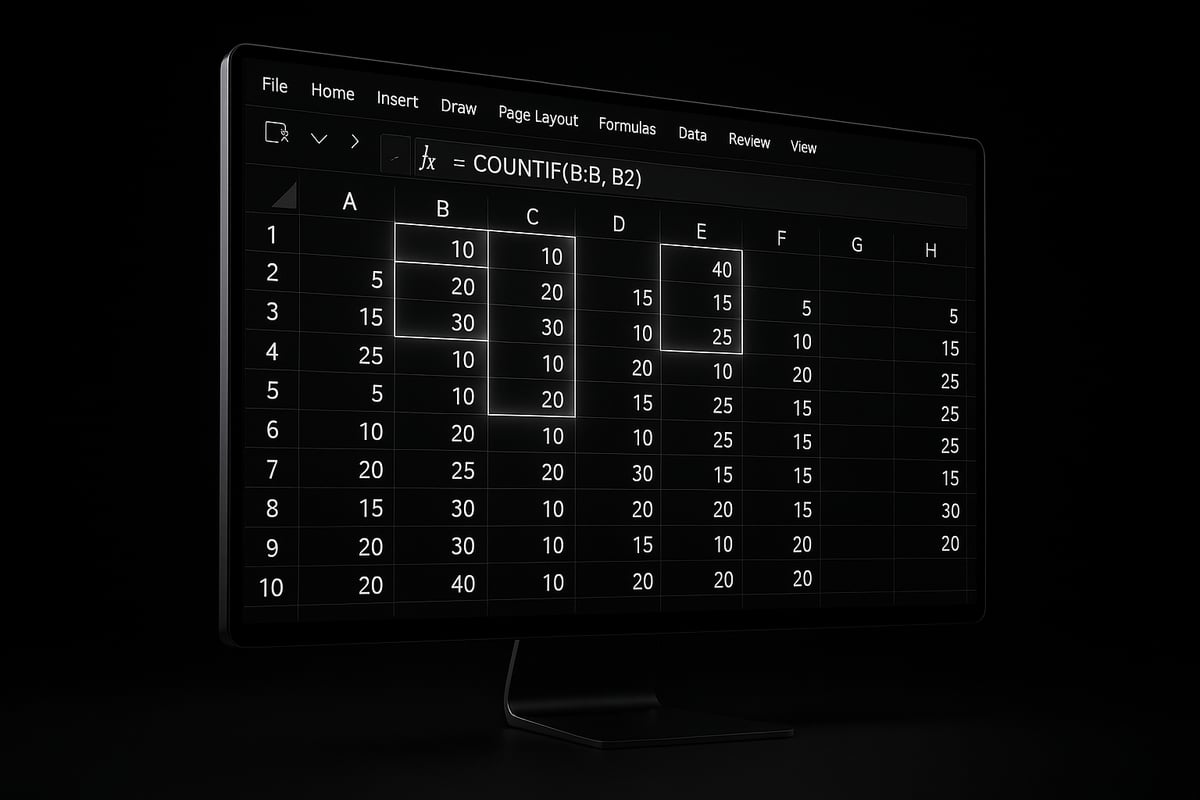
COUNTIF and COUNTIFS are essential when learning how to find a duplicate value in excel using formulas. COUNTIF checks for repeats in one column, while COUNTIFS can handle multiple columns or specific criteria.
For example, flag duplicate emails with:
=IF(COUNTIF(A:A, A2) > 1, "Duplicate", "Unique")
This formula marks rows as "Duplicate" if the value in column A repeats.
COUNTIFS extends this logic for multi-column checks:
=IF(COUNTIFS(A:A, A2, B:B, B2) > 1, "Duplicate", "Unique")
This flags rows where both column A and B values match another row.
Want more approaches? Explore Excel formulas for checking duplicates for a comprehensive list of formula-based methods.
These formulas can be paired with conditional formatting to automatically highlight duplicates. Mastering these techniques is a game-changer if you regularly need how to find a duplicate value in excel across large or complex datasets.
Leveraging UNIQUE and SORT Functions (Excel 365/2026)
Modern Excel versions (365 and 2026) introduce dynamic array functions like UNIQUE and SORT, which streamline how to find a duplicate value in excel. The UNIQUE function extracts all distinct values from a range, instantly showing what’s unique.
For instance:
=UNIQUE(A2:A100)
This lists unique entries from A2 to A100.
Combine with SORT for an ordered list:
=SORT(UNIQUE(A2:A100))
To spot duplicates, compare the original list to the unique list. Any value missing from the unique list but present in the original occurs more than once.
These tools simplify deduplication, especially for ongoing data management. If you rely on how to find a duplicate value in excel frequently, adopting these functions boosts efficiency and accuracy.
Creating Helper Columns for Duplicate Flags
Helper columns are an effective method for tracking how to find a duplicate value in excel without altering your main data. Add a new column with a formula to label each row as "Duplicate" or "Unique," making it easy to filter or sort.
Example:
=IF(COUNTIF($A$2:$A$100, A2) > 1, "Duplicate", "Unique")
This formula checks if the value in A2 appears elsewhere in the specified range.
Helper columns are especially useful for ongoing data entry. As new data is added, the formula automatically updates, keeping your duplicate tracking always current.
By leveraging helper columns, you gain visibility into duplicate trends and can quickly filter your list to focus on problem areas. This approach is key for anyone focused on how to find a duplicate value in excel as part of a regular workflow.
Extracting Only Duplicate Rows to a New Sheet
Sometimes, your goal with how to find a duplicate value in excel is to isolate and review only the duplicate entries. You can achieve this by using formula-based filters or advanced filter tools.
First, add a helper column to flag duplicates. Then, filter your sheet to display only rows marked "Duplicate." Select and copy these rows, then paste them into a new worksheet.
Alternatively, use an advanced filter:
- Select your data range.
- Go to Data > Advanced.
- Set criteria to only show duplicates.
- Choose “Copy to another location” and select your destination.
For large or recurring tasks, consider automating extraction with a macro. This makes how to find a duplicate value in excel both efficient and repeatable—ideal for audit or cleanup projects.
Handling Case Sensitivity and Data Formatting Issues
Accurate duplicate detection depends on more than just values—it also requires consistent formatting. For example, "ABC123" and "abc123" are different unless you standardize them. To address this in how to find a duplicate value in excel, use UPPER or LOWER functions to normalize case:
=UPPER(A2)
or
=LOWER(A2)
You can also use the TRIM function to remove extra spaces:
=TRIM(A2)
By cleaning your data before running duplicate checks, you prevent false positives or missed duplicates. Always standardize formatting as part of your process for how to find a duplicate value in excel. This ensures that your results are reliable and actionable every time.
Automating Duplicate Detection: Power Query, VBA, and Beyond
Modern Excel users often need to automate duplicate detection to handle growing datasets and evolving business needs. By leveraging advanced tools like Power Query, VBA, and scripting, you can streamline how to find a duplicate value in excel while minimizing manual effort and errors.
Using Power Query to Identify and Manage Duplicates
Power Query is an advanced data transformation tool built into Excel 365 and Excel 2026. It allows you to automate how to find a duplicate value in excel across large and complex datasets. Start by loading your data into Power Query Editor. Use the “Group By” feature or the “Remove Duplicates” function to organize and filter records.
Steps include:
- Importing your worksheet or table into Power Query.
- Applying transformations like grouping, filtering, and sorting.
- Using “Keep Duplicates” to isolate repeating records.
- Removing duplicates or exporting them to a new sheet.
For a detailed walkthrough, refer to the Find and remove duplicates – Microsoft Support guide, which covers Power Query and other built-in options. Power Query automates monthly checks and supports dynamic refreshes, making it ideal for recurring business processes.
Writing VBA Macros for Custom Duplicate Detection
When built-in tools are not enough, VBA macros offer custom solutions for how to find a duplicate value in excel, especially if you face repetitive or complex tasks. With VBA, you can write scripts to scan entire workbooks, highlight duplicates, or extract only specific records.
Typical VBA macro steps:
- Open the Visual Basic for Applications editor.
- Insert a new module and paste your code.
- Run the macro to process your dataset.
Sample code to highlight duplicate values in Column A:
Sub HighlightDuplicates()
    Dim rng As Range
    Set rng = Range("A2:A1000")
    rng.FormatConditions.AddUniqueValues
    rng.FormatConditions(rng.FormatConditions.Count).SetFirstPriority
    rng.FormatConditions(1).DupeUnique = xlDuplicate
    rng.FormatConditions(1).Interior.Color = RGB(255, 200, 200)
End Sub
VBA automates tasks, reduces manual errors, and is perfect for large workbooks that require advanced logic.
Leveraging LINQ and Advanced Scripting (for Power Users)
For users familiar with .NET and advanced scripting, LINQ enables high-performance queries across Excel data. This approach is highly effective for how to find a duplicate value in excel, especially with datasets exceeding 60,000 rows.
Benefits include:
- Fast querying and filtering of large tables.
- Ability to define complex duplicate criteria using multiple columns.
- Integration with external databases or automation tools.
Example LINQ query (conceptual):
var duplicates = from row in dataTable.AsEnumerable()
                 group row by row["Email"] into grp
                 where grp.Count() > 1
                 select grp;
Advanced scripting unlocks batch processing and seamless integration with enterprise workflows.
Scheduling Automated Duplicate Checks
To ensure your data remains clean, schedule automated duplicate checks using Power Query refreshes, VBA macros, or third-party add-ins. This guarantees that how to find a duplicate value in excel becomes a routine, not a one-time task.
Automation steps:
- Schedule VBA macros with Windows Task Scheduler.
- Set Power Query to refresh data on open or at timed intervals.
- Use add-ins to handle duplicate detection in the background.
Automated checks are essential for inventory logs, financial records, and any business process requiring up-to-date data integrity.
When to Choose Manual vs. Automated Approaches
Deciding between manual and automated methods depends on your dataset size, frequency of duplicate issues, and technical skill. For small or infrequent tasks, manual tools may suffice. However, automation is best for how to find a duplicate value in excel when dealing with large, complex, or regularly updated datasets.
Consider:
- Manual: Simple, quick, less technical, best for small files.
- Automated: Scalable, consistent, ideal for recurring or high-volume data.
Choose the method that aligns with your workflow and business needs, ensuring efficient and reliable duplicate management.
Expert Tips, Troubleshooting, and Best Practices
Messy data and duplicate values can create headaches for even the most experienced Excel users. Mastering how to find a duplicate value in excel means knowing not just what tools to use, but how to avoid common mistakes and optimize your workflow for accuracy and speed.
Common Pitfalls and How to Avoid Them
When learning how to find a duplicate value in excel, users often fall into a few traps. Accidentally deleting original data is a top concern. Always create a backup copy before running any deduplication process.
Hidden or filtered rows can escape detection. Make sure all rows are visible and filters are cleared before checking for duplicates. Formatting inconsistencies, such as extra spaces or mismatched cases, can cause Excel to miss true duplicates. Preprocess your data with the TRIM and UPPER functions to standardize entries.
Lastly, remember to rerun duplicate checks after any data updates. Overlooking this step may lead to incomplete results.
Optimizing Performance for Large Datasets
Handling large files is a critical part of how to find a duplicate value in excel, especially with datasets exceeding 60,000 rows. Built-in tools like Remove Duplicates are fast but can strain system resources.
For smoother performance, break data into smaller chunks or use Excel Tables, which handle large sets more efficiently. Scripts and Power Query offer even better scalability for massive files.
| Method | Speed | Best For |
|---|---|---|
| Remove Duplicates | Fast | Small/medium datasets |
| Power Query | Faster | Large dynamic data |
| VBA/Macros | Varies | Custom tasks |
Close unnecessary applications to free up memory, and consider working on a copy of your file to minimize risk.
Ensuring Data Integrity and Auditability
Protecting your data is crucial when you learn how to find a duplicate value in excel. Always save an original version before removing duplicates.
Log every step you take, especially if you are preparing data for an audit or compliance review. Document the methods used and any changes made. For financial or regulatory records, maintaining an audit trail is essential.
A simple audit log table can help:
| Step | Date | Action | User |
|---|---|---|---|
| Backup file | 2026-04-01 | Created copy before edit | Analyst A |
| Remove Dups | 2026-04-02 | Used Remove Duplicates | Analyst B |
For guidance on comparing datasets for discrepancies, see Compare two Excel spreadsheets.
Customizing Duplicate Detection for Business Needs
Every organization has unique requirements for how to find a duplicate value in excel. For example, finance teams may need to check for duplicates based on both transaction ID and date, while sales teams focus on unique email addresses.
Adapt your approach by combining multiple columns as keys or using advanced formulas. Integrate Excel with other business tools, such as databases or cloud platforms, for broader data cleaning.
Reusable templates and macros can save time on recurring tasks. If your workflow involves comparing multiple files, explore advanced techniques like Power Query merges or custom VBA scripts.
Get Expert Excel Help from The Analytics Doctor
If your team struggles with how to find a duplicate value in excel for complex or large-scale datasets, expert help can make a difference. The Analytics Doctor provides tailored consulting, training, and automation services for businesses and professionals.

You can access one-on-one coaching, custom programming, and ongoing support. Services include hands-on workshops and advanced troubleshooting for Excel challenges.
Free resources and templates are available to help you master duplicate management. Whether you are in finance, operations, or another field, partnering with an expert ensures your Excel processes are efficient and reliable.
Frequently Asked Questions About Finding Duplicates in Excel
If you are seeking practical answers on how to find a duplicate value in Excel, this FAQ section is designed for you. Here, we address the most common challenges users face, especially with large or complex datasets. Explore these concise, expert-backed answers to improve your duplicate detection process.
What’s the fastest way to find duplicates in a large Excel file?
When working with large files, such as those with 60,000 rows, how to find a duplicate value in Excel efficiently is crucial. Built-in tools like Conditional Formatting and Remove Duplicates are quick for smaller sets. For speed with big data, Power Query or VBA macros are recommended. These methods process data faster, reduce manual effort, and are less likely to crash with heavy workloads.
Can I find duplicates across multiple columns or sheets?
Yes, you can detect duplicates spanning several columns or even different sheets. Use the COUNTIFS function for multi-column checks, or Power Query for cross-sheet comparisons. This approach is effective for complex scenarios, like matching customer names and order dates across merged datasets. Always double-check your criteria to ensure you capture all relevant duplicates.
How do I extract only the duplicate values, not the first instance?
To extract only the duplicate values while preserving the original, how to find a duplicate value in Excel involves using formula-based solutions. For example, you can use a helper column with a COUNTIF formula to flag duplicates, then filter out the first occurrence. Power Query also allows you to isolate and export just the repeated values, streamlining your workflow.
What should I do if Excel’s built-in tools miss some duplicates?
Sometimes, built-in tools overlook duplicates due to formatting, hidden rows, or case sensitivity. If you encounter this, how to find a duplicate value in Excel may require cleaning your data with functions like TRIM or UPPER. For advanced needs, explore techniques in Duplicate Record Detection: A Survey to understand algorithms and strategies that go beyond Excel’s native features.
Are there risks in removing duplicates, and how can I protect my data?
Yes, removing duplicates can lead to accidental data loss if not managed properly. Before using how to find a duplicate value in Excel and deleting records, always create a backup. Maintain an audit trail by documenting steps, and consider keeping a copy of your original data on a separate sheet. This ensures you can recover information if needed.
What’s new in Excel 2026 for duplicate management?
Excel 2026 introduces enhanced features that make how to find a duplicate value in Excel more efficient. Look for improved dynamic array functions, more intuitive duplicate detection, and better automation options in Power Query. These updates simplify the process, save time, and increase accuracy for users managing large or complex datasets.