Struggling with endless data entry mistakes or inconsistent records in Excel? You are not alone. As spreadsheets grow more complex in 2026, efficient data entry is crucial for accuracy and speed.
Enter drop lists, also known as data validation lists. These expert tools transform chaotic typing into streamlined, error-free selections. If you have ever wondered how to make drop list in Excel, this guide will walk you through every step using the latest features.
Get ready to master the essentials, discover advanced tips, troubleshoot common issues, and boost your productivity. Let’s take your Excel skills to a new level.
Understanding Drop Lists in Excel: Fundamentals and Benefits
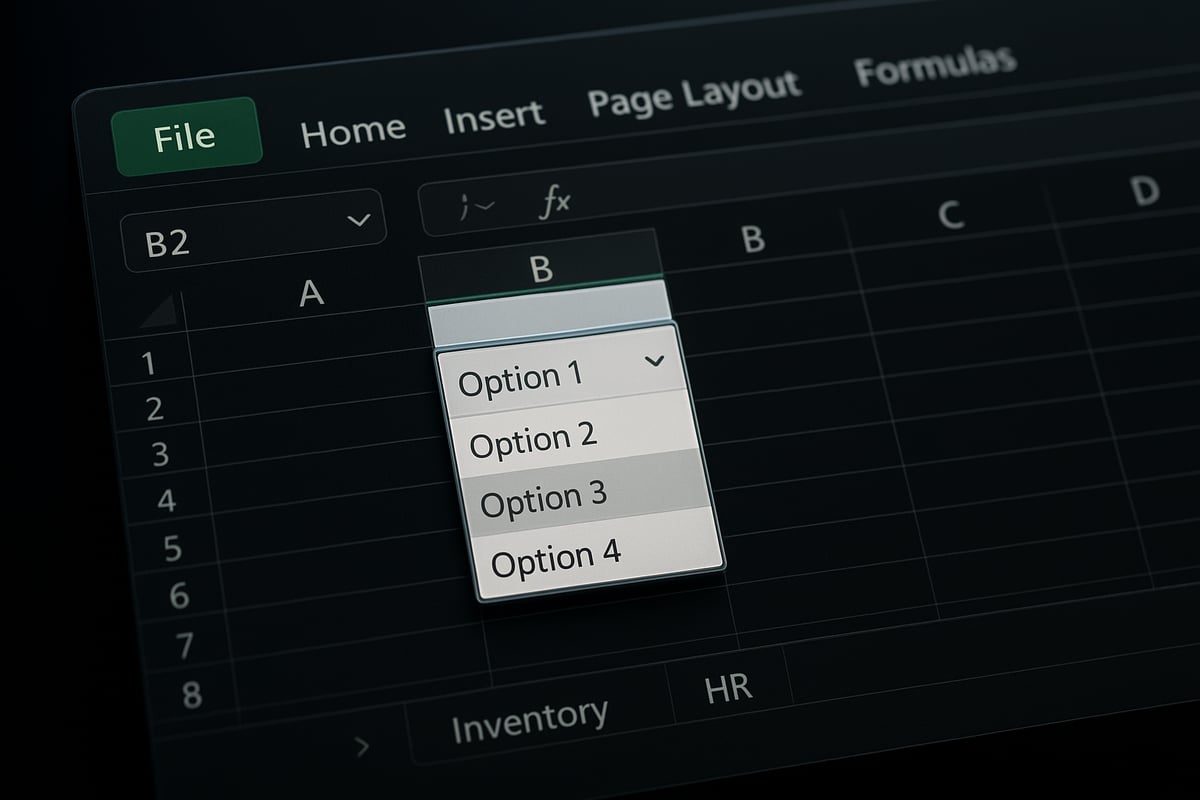
Drop lists, also known as data validation lists, are a foundational tool for anyone who wants to master how to make drop list in excel. At their core, drop lists let you provide a predefined set of choices in a cell, so users pick from a dropdown menu instead of typing freeform responses. This simple feature can dramatically boost the quality, speed, and reliability of your data entry.
What Is a Drop List in Excel?
A drop list in Excel is a type of data validation that restricts cell entries to a specific set of values. When learning how to make drop list in excel, you essentially create a dropdown menu that appears whenever someone selects the cell. This makes data entry more controlled and less prone to typos or inconsistent values.
The key benefit here is that users no longer have to guess what to enter. They simply choose from a list, which means your data stays clean and uniform.
Where Drop Lists Excel: Use Cases and Comparisons
Drop lists shine in a variety of business scenarios. You will find them in forms, reports, dashboards, inventory trackers, HR onboarding sheets, and project management tools. Whether you are tracking employee departments or standardizing status updates, knowing how to make drop list in excel streamlines the process.
How do drop lists stack up against other input methods? Here is a quick comparison:
| Input Method | Pros | Cons |
|---|---|---|
| Drop List | Fast, consistent, error-resistant | Limited to set options |
| Manual Entry | Flexible | Prone to errors, slow |
| Checkboxes | Simple yes/no | Not suitable for many options |
Drop lists offer a balance of flexibility and control, making them more versatile than checkboxes and far more reliable than manual typing.
Excel 2026 Updates: New Features and Enhanced Control
Excel 2026 brings exciting improvements for anyone exploring how to make drop list in excel. The interface for creating and editing drop lists is now more intuitive, with enhanced visual cues and smarter list management. AI-powered suggestions can even recommend list items based on your data patterns, reducing setup time.
According to recent surveys, organizations using data validation reduce input errors by up to 70 percent. This statistic highlights why drop lists are essential in modern spreadsheet workflows.
To learn more about the step-by-step process, see Create a drop-down list in Excel for a detailed walkthrough.
Real-World Examples and Clearing Common Misconceptions
Drop lists are used in real business settings every day. For example, an inventory manager can quickly update stock status from a dropdown, while HR teams use them to select employee departments without risk of inconsistent spelling. Project leads rely on drop lists to track task status and ensure everyone uses the same categories.
A common misconception is that you need to be an advanced user to understand how to make drop list in excel. In reality, this feature is accessible to all skill levels. With just a few clicks, even beginners can create, customize, and deploy drop lists to streamline their workflow.
Step-by-Step Guide: How to Make a Drop List in Excel 2026
Efficient data entry in Excel starts with mastering drop lists, also known as data validation lists. In this section, you will discover how to make drop list in excel using the latest 2026 tools and features. By following this expert guide, you'll reduce errors and streamline your workflow, no matter your skill level.
Preparing Your Data for a Drop List
Before you learn how to make drop list in excel, it's vital to organize your source data. Clean, structured data ensures your drop lists function smoothly and remain easy to update.
Start by listing your options in a single column, ideally on a separate worksheet labeled "Lists" or "Data." This keeps your main sheet uncluttered and makes maintenance easier. Use named ranges to reference your list, which helps when updating or expanding your selections.
For example, imagine you're creating an employee form and need a list of departments. Create a column with all department names, making sure there are no blanks or duplicates. Sort the list alphabetically for user convenience.
To keep your drop list dynamic, convert your list to an Excel Table using Ctrl+T. Tables automatically expand as you add new items, so your drop list updates without extra steps. Always check for and remove any accidental spaces or empty rows, as these can cause issues later.
By following these steps, you set a strong foundation for how to make drop list in excel that is reliable and scalable.
Creating a Basic Drop List Using Data Validation
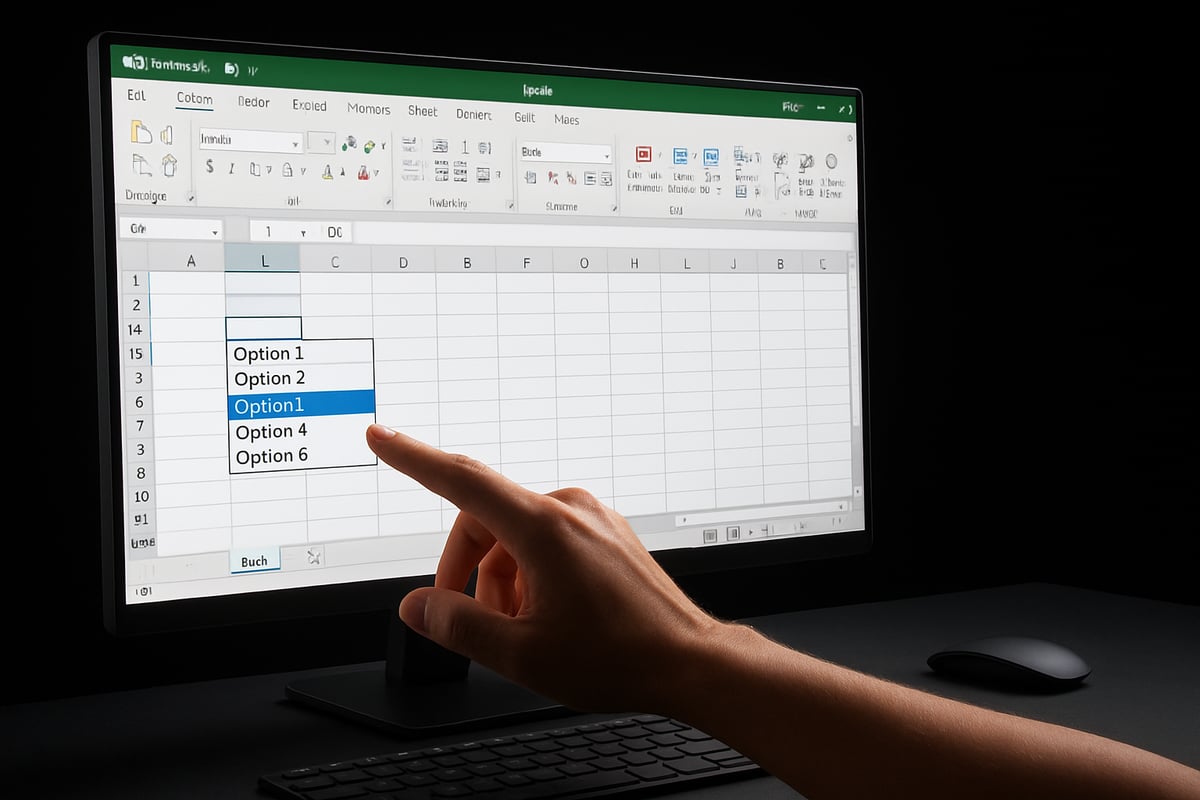
Once your data is prepared, you can start the process of how to make drop list in excel using Data Validation. Begin by selecting the cell or range where you want the drop list. On the Data tab, click "Data Validation." In the dialog, choose "List" as your validation criteria.
You can enter your options directly, separated by commas, or reference your named range or table. For instance, to create a project status drop list, type: Not Started, In Progress, Complete. If referencing a range, use =Departments or the table column name.
After clicking OK, a drop-down arrow appears in the selected cells. Users can now select from your list, improving accuracy and speeding up data entry. For a visual walkthrough and troubleshooting tips, refer to Add drop-down list in Excel.
Remember, the key to how to make drop list in excel effectively is consistency. Test your drop list to ensure it displays correctly and prevents invalid inputs. Adjust your source data as needed to refine the user experience.
Advanced Drop List Techniques: Dynamic & Dependent Lists
To elevate your skills in how to make drop list in excel, explore dynamic and dependent lists. Dynamic lists automatically update when you add or remove items, using formulas like =UNIQUE(DataRange) or Excel Tables. This is especially helpful for growing datasets.
Dependent drop lists change based on previous selections. For example, selecting a country in one list filters available cities in the next. To create this, name your ranges for each category, then use the INDIRECT function in your Data Validation source: =INDIRECT(A2) where A2 is the first drop list.
Suppose you have a product category list and want to show only relevant products. Set up separate lists for each category and use dependent validation. If you encounter errors like #REF!, check your named ranges and ensure all data is spelled correctly.
Advanced techniques are essential for anyone looking to fully master how to make drop list in excel, especially in complex forms or dashboards where efficiency and accuracy are critical.
Customizing Drop Lists for Better Usability
Customization transforms a basic drop list into a powerful tool. Start by adding input messages that guide users on what to select. In the Data Validation dialog, use the "Input Message" tab to display helpful instructions when a cell is selected.
Set up error alerts to inform users if they enter invalid data. Craft clear, concise messages that explain required actions, such as "Please select a valid department from the list." Format drop list cells with bold borders or background colors to make them stand out.
Consider whether to allow blank entries. Sometimes, you may want to force a selection for data integrity. Adjust this in the Data Validation settings under "Ignore blank."
For accessibility, use larger font sizes and high-contrast formatting. This ensures everyone can easily interact with your drop lists. With thoughtful customization, you can make how to make drop list in excel more user-friendly for every team member.
Advanced Drop List Features and Automation
Mastering how to make drop list in excel means unlocking the full potential of advanced features and automation tools. This section guides you through formulas, macros, integrations, and collaboration strategies that elevate your data validation workflows.

Using Formulas and Functions to Enhance Drop Lists
Formulas are essential for anyone aiming to learn how to make drop list in excel at an expert level. Modern Excel functions can transform static lists into dynamic, intelligent selections.
For example, using the UNIQUE function lets you auto-remove duplicates from a source range, ensuring your drop list always contains distinct options. Pairing SORT with UNIQUE keeps your list organized and up to date.
=SORT(UNIQUE(A2:A50))
This formula, entered on a separate sheet, delivers a clean, alphabetized list for your data validation source.
Conditional formatting is another expert strategy. Combine drop lists with rules that highlight selections or flag invalid entries. This visual feedback supports users and reduces mistakes.
For large datasets, dynamic formulas ensure your drop lists grow with your data. Excel Tables auto-expand, so your validation lists always reflect the latest entries. These formula-driven methods are vital when considering how to make drop list in excel for scalable, enterprise-grade solutions.
Automating Drop Lists with VBA and Macros
When manual updates become tedious, automation is the answer for those learning how to make drop list in excel efficiently. VBA (Visual Basic for Applications) scripts can create, update, or even deploy drop lists across multiple sheets in seconds.
Consider this sample macro, which applies a drop list to every worksheet in a workbook:
Sub AddDropListAllSheets()
    Dim ws As Worksheet
    For Each ws In ThisWorkbook.Worksheets
        ws.Range("B2:B100").Validation.Add Type:=xlValidateList, _
        AlertStyle:=xlValidAlertStop, _
        Formula1:="=Departments"
    Next ws
End Sub
Pros of using macros include speed and consistency, especially for large or complex workbooks. On the other hand, macros can pose security risks or compatibility issues. Always save macro-enabled files with the .xlsm extension and inform collaborators about macro content.
Automation is particularly powerful for dependent drop lists, where one selection filters the next. For a full walkthrough, see this guide on how to build a dependent drop-down list, which covers both formulas and automation.
Remember, while macros streamline how to make drop list in excel, they require careful management and security awareness.
Integrating Drop Lists with Other Excel Features
Drop lists become even more powerful when integrated with Excel's analytics and reporting features. Linking your drop lists to PivotTables enables real-time filtering and summary views based on user selections. This is especially useful for dashboards that must adapt instantly to different scenarios.
For example, connect a drop list to a chart filter, so users can choose a category and see updated visuals. Surveys and forms also benefit by using drop lists for standardized responses, making data easier to analyze.
Data validation can extend beyond static lists. With Power Query, you can pull live data from external sources, ensuring your drop lists always reflect the latest information. Integrating these tools is top-tier for anyone serious about how to make drop list in excel and leverage data-driven decisions.
Managing Drop Lists in Shared and Collaborative Workbooks
Collaboration is central to modern workflows, and shared workbooks introduce new challenges for those who want to know how to make drop list in excel for teams. When using cloud platforms like OneDrive or SharePoint, keep your drop lists on protected sheets and use named ranges to avoid conflicts.
Best practices include:
- Locking drop list cells to prevent accidental changes
- Regularly auditing list sources for accuracy
- Communicating updates to all collaborators
For example, a shared inventory sheet can use a dynamic drop list so everyone enters standardized product names. This approach ensures consistency, even with multiple editors. With these strategies, managing drop lists in collaborative environments becomes seamless and secure.
Troubleshooting Drop List Issues in Excel
Troubleshooting drop lists is crucial for anyone learning how to make drop list in excel, regardless of experience level. Even seasoned users encounter unexpected problems that can disrupt workflows and slow down data entry. By mastering troubleshooting skills, you ensure your drop lists remain reliable, accurate, and user-friendly in any scenario.
Common Drop List Problems and How to Fix Them
When learning how to make drop list in excel, users often face issues such as the drop list not appearing, broken source references, or unwanted blanks and duplicates. These common problems can undermine data accuracy if not addressed promptly.
Typical Issues and Solutions:
- Drop List Not Appearing:
- Ensure data validation is applied to the correct cells.
- Check for merged cells, which can block drop list functionality.
- Source Range Errors:
- If the source range is deleted, moved, or contains errors, the drop list may display the message “The Source currently evaluates to an error.” Double-check your data range and update references as needed.
- Blank or Duplicate Entries:
- Clean your source list to remove blanks and use the
UNIQUEfunction to eliminate duplicates.
- Clean your source list to remove blanks and use the
- Troubleshooting Example:
- If a dependent drop list returns a #REF! error, verify the referenced range exists and matches your data structure.
For a comprehensive checklist to audit and bulletproof your data validation, the Excel data validation rules and checks guide is invaluable.
By proactively addressing these challenges, you can maintain the integrity of your drop lists and improve your mastery of how to make drop list in excel.
Compatibility and Version-Specific Challenges
Excel drop lists work differently across versions, so understanding compatibility is essential for anyone focused on how to make drop list in excel for various environments. Excel 2026 introduces new UI elements and enhanced list management, but users of Excel 365 or older versions may encounter limitations.
Key Compatibility Considerations:
- Excel Online and Mobile: Some features, like complex dependent lists or advanced data validation, may not function fully in web or mobile apps.
- File Sharing: When sharing files with colleagues using different versions, test drop lists to ensure consistent behavior.
- Version-Specific Functions: Features like dynamic arrays (
UNIQUE,SORT) are only available in the latest versions.
By planning for these differences, you can avoid frustration and ensure your drop lists work seamlessly across all platforms.
Security and Data Protection for Drop Lists
Protecting your drop lists is vital when you learn how to make drop list in excel, especially when dealing with sensitive or shared data. Unauthorized changes to source lists can compromise data quality and introduce errors.
Best Practices for Security:
- Lock Cells and Protect Sheets: Limit editing rights to source lists and cells containing drop lists. Use Excel’s sheet protection features to prevent accidental or intentional modifications.
- Preventing Unauthorized Changes: Hide source data on separate sheets or use password protection for critical areas.
- Balancing Usability and Protection: While security is important, ensure that authorized users can still update lists as needed.
For example, when designing a shared HR form, lock the drop list cells and protect the worksheet, so only administrators can modify the department options. This careful approach ensures your knowledge of how to make drop list in excel translates into secure, reliable spreadsheets.
Expert Tips to Maximize Productivity with Drop Lists
Efficient use of drop lists can transform how teams handle data in Excel. Mastering how to make drop list in excel gives organizations a strategic advantage, especially when it comes to scaling data entry and ensuring accuracy. Let's explore expert techniques for maximizing productivity and maintaining top-notch data quality.
Streamlining Data Entry for Large Teams
When managing large teams, how to make drop list in excel becomes a cornerstone for process efficiency. Drop lists help standardize data collection across departments, ensuring everyone follows the same rules.
Benefits of Drop Lists for Teams:
| Benefit | Description |
|---|---|
| Consistency | All users select from approved options |
| Fewer Errors | Reduces manual entry mistakes |
| Faster Onboarding | New employees learn forms more quickly |
| Compliance | Supports audit trails and regulatory needs |
Templates with built-in drop lists make it simple to roll out standardized forms such as company-wide expense reports. For example, an expense form can include drop lists for categories, departments, and approval status. This approach reduces training time for new hires and creates a single source of truth for reporting.
To further enhance efficiency, consider features like AutoComplete for dropdown lists, which speeds up data entry and minimizes user errors. For practical best practices, review Excel Data Validation Best Practices to ensure your team’s data remains consistent and compliant.
Combining Drop Lists with Conditional Formatting and Data Validation
Pairing drop lists with conditional formatting enables instant visual feedback for users. This is especially useful when you want to flag critical entries or highlight invalid selections.
For example:
- Highlight tasks marked as "High Priority" in red.
- Shade cells yellow if a selection is missing.
- Display a warning if an out-of-scope value is chosen.
Here’s how to make drop list in excel stand out visually:
- Select the drop list cells.
- Apply conditional formatting rules based on cell value.
- Combine with custom error messages in data validation settings.
By using these techniques, you guide users toward accurate entries and streamline review processes. For more on boosting data entry speed, explore AutoComplete for dropdown lists in Excel, which further enhances the drop list experience.
Maintaining and Updating Drop Lists Efficiently
Keeping drop lists current is vital as your organization grows. The key to how to make drop list in excel sustainable is to use dynamic named ranges or Excel Tables. This way, when you add or remove items, your drop list updates automatically.
Here’s a quick tip:
=Table1[Product]
This formula references a column from an Excel Table. As you add new products, the drop list reflects changes instantly.
Always avoid breaking validation by editing source lists carefully. Place your source lists on a dedicated sheet, and regularly review them for duplicates or outdated entries. This proactive approach ensures your drop lists remain accurate and functional as your needs evolve.
Excel Help and Training from The Analytics Doctor
If you want to deepen your knowledge of how to make drop list in excel, The Analytics Doctor offers specialized Excel training and hands-on support. Whether you are a beginner or an advanced user, expert guidance can help you master drop lists and leverage advanced Excel features with confidence.

Their services include:
- Custom Excel training tailored to your team’s needs
- Spreadsheet optimization for maximum efficiency
- Ongoing support for troubleshooting and advanced problem-solving
With professional help, you can ensure your drop lists are both robust and user-friendly, boosting your productivity and data accuracy across all your Excel projects.
Future Trends: Drop Lists and Data Validation in Excel Beyond 2026
As Excel continues to evolve, mastering how to make drop list in excel will remain a vital skill for professionals in every industry. The landscape of data validation is shifting rapidly, with automation and smarter features leading the way.
One of the most significant trends is the integration of AI-powered suggestions for data validation and list management. Excel is increasingly able to predict, recommend, and even automate drop list creation based on user patterns and dataset analysis. For a closer look at how these innovations are already shaping Excel, explore the New Excel AI Features in 2025 for real-world examples.
Cloud integration is another game-changer. As organizations move data to platforms like OneDrive and SharePoint, drop lists are being linked directly to live external databases. This means updates to inventory, HR, or project data are instantly reflected in your Excel drop lists, eliminating the need for manual updates.
Data governance and compliance are taking center stage, especially as business data grows more complex. In future Excel releases, expect enhanced tools for audit trails, permission control, and validation rules that help ensure accuracy and regulatory compliance. For those learning how to make drop list in excel, these additions will be crucial for maintaining data integrity across teams.
Collaboration is also being revolutionized. Imagine multiple team members editing a shared workbook, with dynamic drop lists updating in real time. This scenario is becoming the norm, enabling faster decision-making and reducing version conflicts. Here’s a quick comparison of current versus predicted future features:
| Feature | Excel 2026 | Beyond 2026 |
|---|---|---|
| Drop List Creation | Manual & semi-automated | Fully AI-driven, predictive |
| Data Source Integration | Limited (internal) | Full cloud & database connectivity |
| Compliance & Audit | Basic | Advanced, automated tracking |
| Real-Time Collaboration | Available | Enhanced, instant sync for drop lists |
Automation will further streamline how to make drop list in excel. Users can anticipate workflows where Excel not only suggests drop list options but also integrates with business platforms to keep those lists up to date, all without manual intervention.
To stay ahead, professionals should focus on building strong foundations in data validation techniques and regularly update their skills. Following official resources like Apply Data Validation to Cells is recommended for both beginners and advanced users.
Continuous learning is key. Subscribe to Excel blogs, attend webinars, and participate in online communities to keep pace with evolving features. Those who invest in mastering how to make drop list in excel today will be prepared to leverage automation, AI, and cloud integration in tomorrow’s workspaces.
Looking ahead, drop lists will play a pivotal role in digital transformation and business automation. As Excel becomes more intelligent and interconnected, the ability to create, manage, and troubleshoot advanced drop lists will be a distinguishing factor for data-driven professionals.