Struggling to figure out how to minus Excel values or data? You are not alone. Many users find subtraction confusing when they first open a spreadsheet, which can slow down their workflow.
This essential guide for 2026 is here to help you master every aspect of how to minus excel. Whether you are a beginner or aiming to fine-tune advanced skills, you will find clear, actionable steps.
We will explain subtraction basics, show step-by-step methods for numbers, ranges, dates, and percentages, and offer troubleshooting advice for common errors. Looking to boost productivity? Our tips and best practices will help you subtract smarter and work faster.
Ready to take control of your spreadsheets? Follow this comprehensive guide and start subtracting with confidence.
Understanding Subtraction in Excel: The Basics
Mastering how to minus excel is fundamental for anyone looking to analyze, budget, or report data efficiently. Subtraction in Excel is more than just basic math — it’s a versatile tool for business, finance, and everyday calculations. Whether you’re balancing budgets or tracking inventory, understanding the principles behind subtraction in Excel will help prevent errors and build confidence.
What Does "Minus" Mean in Excel?
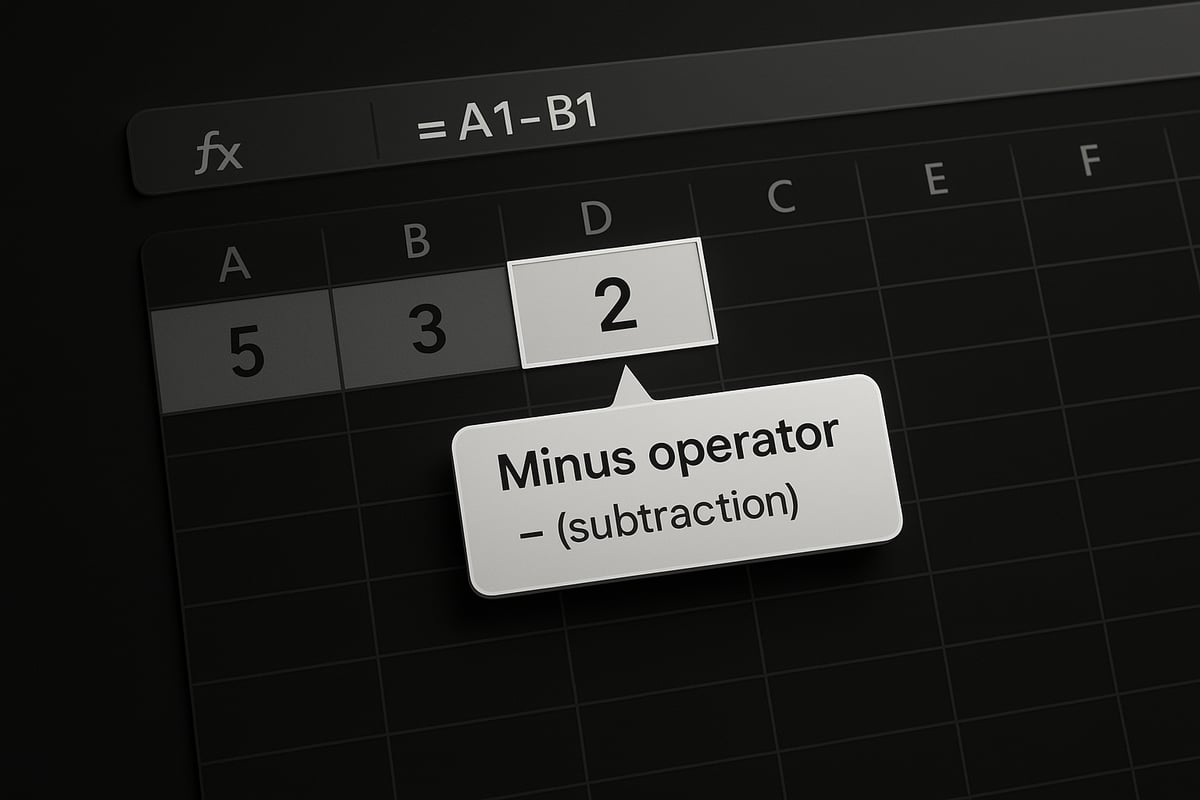
In Excel, "minus" refers to the subtraction operation, letting you find the difference between numbers, dates, or values. When you need to calculate profit, reduce inventory, or analyze changes, subtraction is your go-to method. Excel handles negative results by displaying them with a minus sign, so you can instantly see when outcomes drop below zero. Knowing how to minus excel ensures your calculations are accurate and meaningful.
Subtraction Operators and Syntax
Excel uses the minus sign ( - ) as its subtraction operator. To subtract, start every formula with an equals sign, like =A1-B1. This tells Excel to compute the difference between the two referenced cells. Remember, Excel follows order of operations (PEMDAS/BODMAS), so parentheses matter in complex equations. For more syntax details and examples, check out the Subtract numbers in Excel guide.
Where Subtraction is Used Most in Excel
You’ll encounter subtraction everywhere in Excel, from financial statements to sales tracking and analytics. For example, calculating net profit involves subtracting expenses from revenue. In sales analysis, subtracting returns from total sales shows your net sales volume. Mastering how to minus excel in these scenarios helps you make informed decisions and streamline workflows.
Subtraction vs. SUM and Other Functions
Unlike SUM, which adds values by default, subtraction requires explicit use of the minus operator. While =A1-B1 directly subtracts two cells, =SUM(A1,-B1) achieves the same result by adding a negative value. Choose simple subtraction for clarity, but use functions when you need to aggregate or conditionally subtract across ranges. Understanding these differences is key to efficient spreadsheet design.
Data Types You Can Subtract
Excel allows subtraction with numbers, dates, times, and percentages. For example, subtracting one date from another yields the number of days between them. However, trying to subtract text values will result in errors. As you learn how to minus excel, keep in mind which data types are compatible to avoid calculation problems.
| Data Type | Subtractable? | Notes |
|---|---|---|
| Numbers | Yes | Most common scenario |
| Dates | Yes | Returns days difference |
| Times | Yes | Returns time difference |
| Percentages | Yes | Useful for discounts |
| Text | No | Causes #VALUE! error |
Common Mistakes Beginners Make
Many beginners make avoidable mistakes when learning how to minus excel. Common issues include:
- Forgetting the equals sign at the start of formulas
- Mixing up cell references, leading to incorrect results
- Attempting to subtract incompatible data types, like text and numbers
Taking time to double-check your formulas and data types will help ensure reliable results and minimize frustration.
Step-by-Step Guide: How to Minus in Excel
Learning how to minus excel values efficiently is crucial, whether you are managing budgets, tracking inventory, or analyzing data. This section breaks down the subtraction process into clear, actionable steps. Each method is tailored for real-world scenarios, helping you master every aspect of subtraction in Excel.
Subtracting Two Numbers or Cells
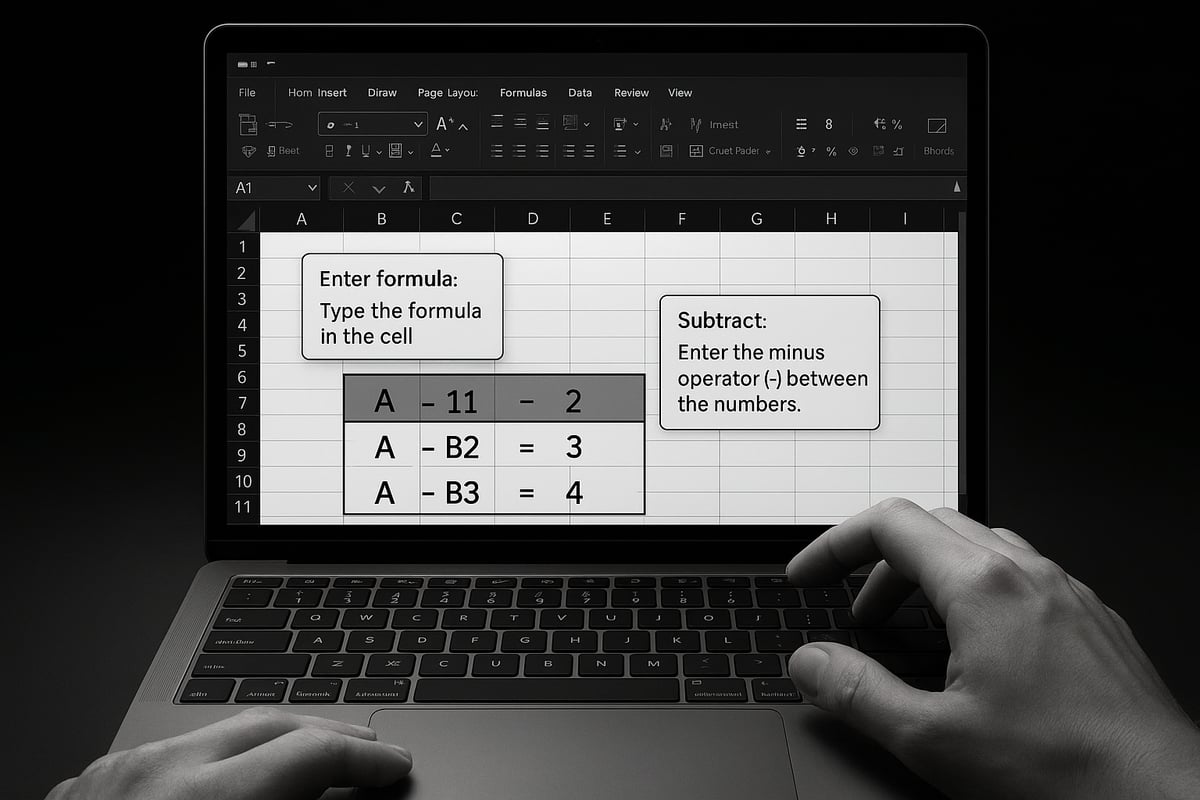
The simplest way to learn how to minus excel values is by subtracting one cell or number from another. Start by typing an equals sign in a cell, then enter the subtraction formula. For example:
=A1-B1
This formula subtracts the value in cell B1 from A1. You can also enter numbers directly, like =10-5, which gives 5. This method is perfect for quick calculations, such as finding the difference between sales and expenses. For a more visual walkthrough, explore this How to Subtract in Excel: Using Cells, Columns, and Rows resource.
Subtracting a Value from a Range
If you need to subtract a constant value from several cells, knowing how to minus excel ranges is essential. Use absolute references to keep your value fixed. For instance:
=A1-$B$1
Here, $B$1 stays constant as you copy the formula down a column. This is ideal for subtracting a fixed tax or discount from a list of prices. Select the cell with your formula, drag the fill handle down, and Excel will apply the subtraction across the range. This approach helps standardize calculations and prevents errors.
Subtracting Multiple Cells or Ranges
Sometimes, you must subtract several values in sequence. Chaining subtraction is a core part of how to minus excel efficiently. For example:
=A1-B1-C1
This formula subtracts both B1 and C1 from A1. For larger ranges, use an array formula such as =SUM(A1:A5)-SUM(B1:B5), which calculates the net change between two lists. This method is useful for tracking net profits over multiple periods or comparing inventory changes. Array formulas can handle complex calculations with ease.
Subtracting Dates and Times
Subtracting dates and times is a unique aspect of how to minus excel data. Excel stores dates as serial numbers, so you can subtract one date from another to find the number of days between them:
=B1-A1
For time, subtract start and end times to get hours or minutes. For example, =C2-B2 finds the difference between two timestamps. Remember to format your results as dates or times for clarity. This is especially helpful when calculating project durations or employee hours.
Subtracting Percentages
To subtract a percentage, you need to multiply the value by the percentage and then subtract it. This is a common use case in how to minus excel for discounts or markups. Use the formula:
=A1-(A1*B1)
Here, A1 is your original value, and B1 is the percentage (e.g., 0.15 for 15%). This subtracts 15% from the value in A1. Format the result as a percentage if needed. This method ensures your calculations are precise, especially in financial models and sales reports.
Using Paste Special for Quick Subtraction
Paste Special is a powerful way to minus excel values without writing formulas. Copy the value you want to subtract, select your target range, then use Paste Special > Subtract. Excel will instantly adjust the values in your selected range. This method is ideal for bulk data changes or when you want quick adjustments without editing formulas. It saves time and reduces the risk of mistakes, especially in large datasets.
Keyboard Shortcuts and Efficiency Tips
Mastering shortcuts is key in how to minus excel quickly. Use Ctrl+C and Ctrl+V to copy and paste formulas, and the fill handle to drag formulas down columns. Press F2 to edit formulas directly in a cell. To quickly enter the same formula across multiple cells, select the range, type your formula, and press Ctrl+Enter. These tips help speed up your workflow and maintain accuracy, especially when working with repetitive subtraction tasks.
Advanced Subtraction Techniques for Power Users
Are you ready to elevate your skills and truly master how to minus excel in complex scenarios? Power users often face challenges that go beyond basic subtraction. This section explores advanced strategies, formulas, and tools to handle large datasets, cross-sheet operations, automation, and efficient troubleshooting. Whether you manage financial models or automate workflows, these techniques will unlock Excel’s full potential for subtraction.
Subtracting with Functions: SUM, SUMPRODUCT, and More
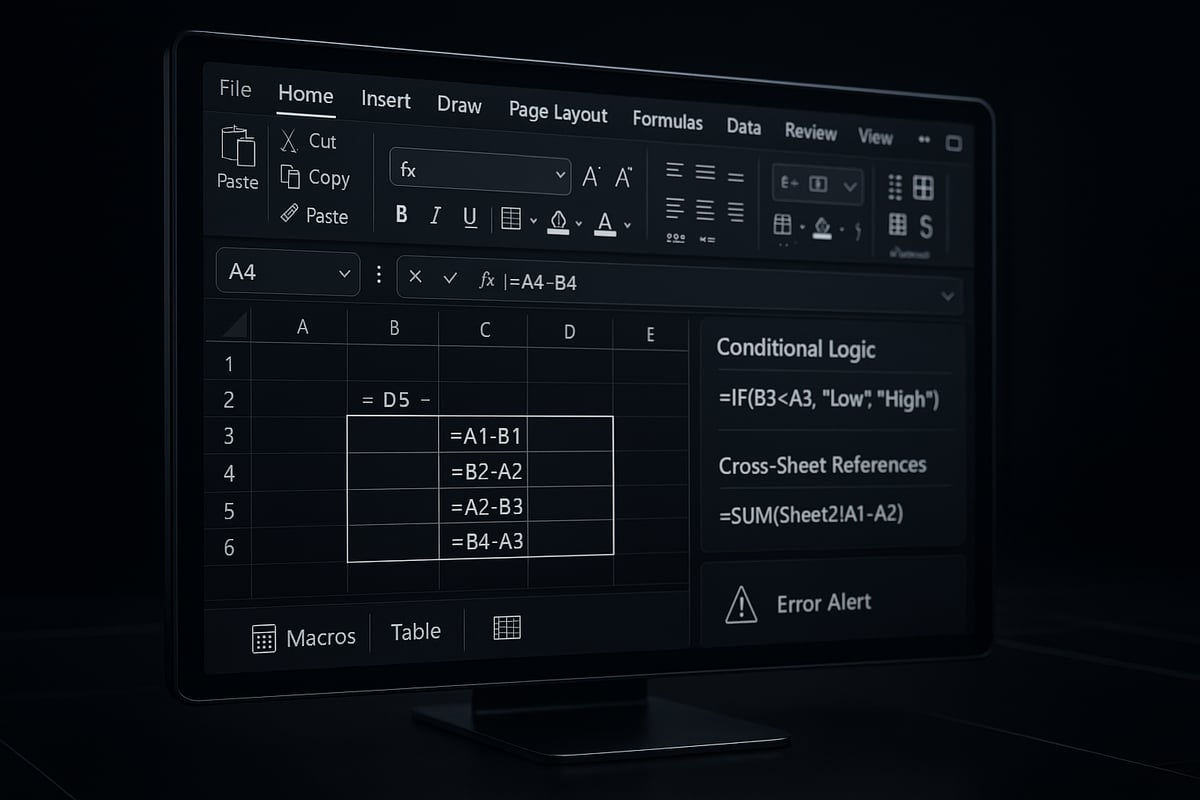
For advanced users, learning how to minus excel using built-in functions is essential. Instead of chaining simple formulas, leverage functions like SUM and SUMPRODUCT for efficient calculations.
For example, to subtract total expenses (B1:B10) from total revenue (A1:A10):
=SUM(A1:A10)-SUM(B1:B10)
This approach is cleaner and scales better with large datasets. For conditional subtraction, SUMPRODUCT is invaluable. Suppose you want to subtract only sales from a specific region:
=SUMPRODUCT((RegionRange="West")*(SalesRange))
This formula sums only the values meeting your criteria, streamlining how to minus excel in filtered datasets. When working with thousands of rows, these functions offer both speed and clarity.
Conditional Subtraction with IF and Other Logic Functions
Often, you need to subtract values only when certain conditions are met. In how to minus excel scenarios, the IF function enables logic-based subtraction.
For instance, to subtract late fees only if payment is overdue:
=IF(DueDate<TODAY(), Amount-LateFee, Amount)
This checks if the due date has passed and subtracts the fee if true. You can nest multiple conditions or use IFS for more complex logic.
Common applications include:
- Deducting discounts only for qualifying purchases
- Subtracting penalties based on performance metrics
- Adjusting calculations for special cases
Mastering logic functions lets you automate decision-making and reduce manual intervention in your how to minus excel workflows.
Subtracting Across Sheets and Workbooks
Professionals often need to subtract values located on different sheets or even in separate workbooks. In how to minus excel, cross-sheet referencing is a core skill.
To subtract a value from Sheet1 cell B1 from Sheet2 cell A1:
=Sheet2!A1-Sheet1!B1
For external workbooks, reference the file path:
='[Financials2026.xlsx]Q1'!A1-'[Financials2026.xlsx]Q2'!B1
Tips for reliable cross-sheet subtraction:
- Keep workbook links updated
- Avoid moving or renaming source files
- Use defined names for clarity
With these techniques, you can seamlessly connect and subtract data across your entire how to minus excel environment.
Handling Subtraction with Tables and Structured References
Excel tables offer dynamic, structured references that simplify how to minus excel in growing datasets. When you convert a range to a table, subtraction formulas update automatically as new rows are added.
Suppose you have a table named SalesData with columns Revenue and Cost. To find net profit:
=[@Revenue]-[@Cost]
Benefits of tables and structured references:
- Auto-expanding formulas
- Improved readability
- Easier integration with charts and summaries
Tables are especially useful for reports, dashboards, and any scenario where data size may change. They make how to minus excel more flexible and robust.
Automating Subtraction with VBA and Macros
Repetitive subtraction tasks can be automated using VBA macros, saving time and reducing errors in how to minus excel operations. With a simple macro, you can process entire columns or complex rules instantly.
Basic VBA example to subtract column B from column A:
Sub SubtractColumns()
    Dim i As Long
    For i = 2 To 100
        Cells(i, 3).Value = Cells(i, 1).Value - Cells(i, 2).Value
    Next i
End Sub
When to use macros:
- Large-scale data adjustments
- Custom subtraction logic
- Routine monthly or weekly calculations
Always test macros in a copy of your file and review security settings before enabling them in your how to minus excel workflow.
Error Handling and Troubleshooting Advanced Subtraction
Advanced subtraction can lead to errors like #VALUE!, #REF!, or unexpected results. Knowing how to quickly diagnose and fix these issues is critical for anyone mastering how to minus excel.
Common troubleshooting steps:
- Check for mismatched data types
- Use Formula Auditing tools to trace errors
- Review cell references for deleted or moved data
If you encounter persistent problems, the Excel Troubleshooting Guide provides comprehensive solutions for subtraction-related errors and more.
Proactive error handling ensures your how to minus excel calculations remain accurate and reliable, even as complexity grows.
Common Errors and How to Fix Them
Troubleshooting errors is a vital part of mastering how to minus excel. Even experienced users can encounter confusing results or error messages. Understanding why these issues occur and how to resolve them will save time and help ensure your calculations are accurate.
#VALUE! and #REF! Errors in Subtraction
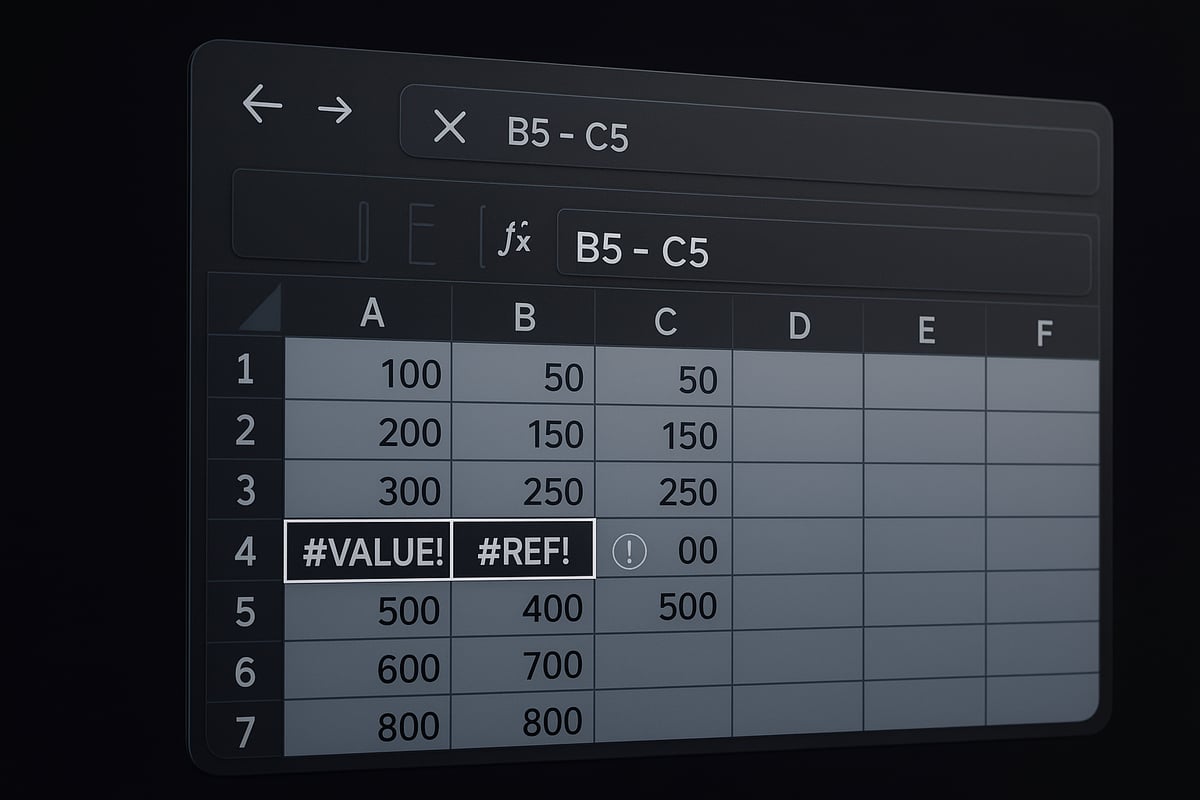
When learning how to minus excel, two of the most common error messages are #VALUE! and #REF!. These errors typically appear when a formula tries to subtract incompatible data types or references a cell that no longer exists.
Here’s how to troubleshoot:
- #VALUE! Error: This occurs if you try to subtract text from a number or if a cell contains a space instead of a number.
- #REF! Error: This appears if a referenced cell or range has been deleted.
To fix these errors:
- Double-check your cell references.
- Ensure all data being subtracted are numbers or valid dates.
- Use the
ISNUMBER()function to verify cell contents. - Restore deleted cells or update your formula references.
Careful attention to cell types and references is key to error-free subtraction.
Dealing with Negative Results and Unexpected Outputs
Negative numbers in your subtraction formulas can be intentional or a sign of an issue when figuring out how to minus excel. For example, subtracting a larger value from a smaller one will yield a negative result.
To address unexpected negatives:
- Review which value should be subtracted from which.
- Use the
ABS()function to display absolute values if negatives are not desired. - Check for reversed cell references in your formulas.
If you consistently see negative results, adjust your formula logic or add conditional formatting to highlight unexpected outputs.
Subtracting Text or Mixed Data Types
Trying to subtract cells with text or mixed data types is a frequent pitfall in how to minus excel. Excel cannot perform arithmetic on text, so formulas like =A1-B1 will return #VALUE! if either cell contains text.
To prevent this:
- Use data validation to restrict cells to numeric entries.
- Clean your data by removing stray text or using
Text to Columns. - Refer to Excel Data Validation Rules for step-by-step guidance on setting up robust checks.
Ensuring data consistency before performing subtraction will minimize errors and improve reliability.
Formula Not Updating or Showing as Text
Sometimes, subtraction formulas in how to minus excel do not recalculate, or they display as plain text. This often happens if the formula is missing the equals sign or the cell is formatted as text.
To resolve:
- Confirm the formula starts with
=. - Change the cell format to General or Number.
- Press
F9or useCtrl + Alt + F9to force recalculation. - Double-click the cell and press Enter to refresh the formula.
These quick checks will get your formulas working as expected.
Preventing and Auditing Subtraction Errors
To consistently avoid errors in how to minus excel, adopt preventive measures and auditing tools. Use Excel’s Formula Auditing features to trace precedents and dependents, spot inconsistencies, and evaluate formulas step by step.
Best practices include:
- Building error checks with
IFERROR()orISNUMBER(). - Regularly reviewing your formulas for accuracy.
- Utilizing templates and checklists to standardize processes.
For advanced tips, explore Reduce Spreadsheet Errors in Excel for a comprehensive workflow to prevent mistakes.
By staying vigilant and using the right tools, you’ll maintain reliable subtraction results across all your projects.
Time-Saving Tips, Tricks, and Best Practices
Mastering how to minus excel efficiently can transform the way you work with data. These best practices will help you save time, reduce errors, and streamline your workflow, whether you work with small tables or massive spreadsheets.
Using Named Ranges for Easier Subtraction
Named ranges are a powerful feature when learning how to minus excel. Instead of referencing cell addresses like A1 or B2, you can assign names such as Revenue or Expenses to your data. This makes formulas like =Revenue-Expenses much more readable and easier to update.
To create a named range, select your cell or range, then use the Name Box or Formulas tab. Named ranges also simplify updating your spreadsheet, since you only need to change the underlying data, not every formula.
This approach improves clarity, especially in complex workbooks. It also reduces the risk of errors that come from misreferencing cells, streamlining your subtraction tasks.
Leveraging Excel Templates for Frequent Subtraction Tasks
If you regularly perform similar subtraction calculations, Excel templates can save significant time. Templates for budgets, invoices, and inventory management often include built-in subtraction formulas, so you do not have to reinvent the wheel each time.
You can find professional templates in Excel’s start screen or from reputable sources online. Customize these templates to fit your unique needs, adding your data and adjusting formulas as required.
Templates are especially useful if you want to standardize how to minus excel across your team. They ensure consistency and help prevent formula errors in recurring tasks.
Subtracting Large Datasets Efficiently
Working with thousands of rows can make subtraction tasks challenging. To efficiently handle large datasets, use Excel filters to focus on relevant data and pivot tables to summarize differences quickly.
When cleaning data before subtraction, consider using Excel’s Replace function, which can speed up the process by standardizing values. For detailed instructions, see this guide on How to Use Excel Replace Function.
Mastering efficient workflows is essential for anyone wanting to scale how to minus excel to enterprise-level datasets. These strategies keep your calculations accurate and manageable.
Integrating Subtraction with Other Excel Functions
Combining subtraction with other functions unlocks deeper insights. Use SUMIF to subtract totals based on criteria, or COUNTIF to find the number of negative results. For example, =SUMIF(A:A, "<0") helps analyze losses in sales or expenses.
Pairing subtraction with AVERAGE, MIN, or MAX provides a broader view of your data. This integration is central to advanced analysis and reporting.
Understanding how to minus excel together with other functions ensures you can answer complex business questions efficiently and accurately.
Keyboard Shortcuts and Productivity Tools
Keyboard shortcuts can dramatically speed up your workflow. Use Ctrl + Enter to fill formulas, Ctrl + D to copy down, and F2 to edit cells. The fill handle is ideal for applying subtraction formulas to entire columns with minimal effort.
Explore Excel add-ins and productivity tools that automate repetitive subtraction tasks. Many professionals rely on these to boost efficiency and maintain accuracy.
Incorporating shortcuts is a practical way to optimize how to minus excel, especially under tight deadlines or with large datasets.
Staying Up-to-Date with Excel 2026 Features
Excel 2026 introduces new features designed to make subtraction and related tasks even more efficient. Stay informed about updates, such as improved formula suggestions or automation tools, to maintain your competitive edge.
To explore the latest additions relevant to subtraction and data analysis, visit New Features for Excel March 2025. Continuous learning ensures you are leveraging every tool available in how to minus excel.
Always check for updates and utilize training resources to keep your skills sharp and your workbooks cutting-edge.