Are you frustrated by manual data entry errors or inconsistent information in your spreadsheets? If you want to make your Excel files more accurate and user-friendly, you are not alone. Learning how to add a drop down in excel can quickly transform your workflow, ensuring consistent entries and reducing mistakes.
This step-by-step guide is designed for users at every skill level. You will discover what drop-down lists are, why they matter, and exactly how to implement them in Excel 2025. Follow along to streamline your data entry, minimize errors, and elevate your spreadsheet expertise.
Understanding Drop-Down Lists in Excel 2025
Struggling with inconsistent spreadsheet data or searching for ways to make entries easier? Before you learn how to add a drop down in excel, it is essential to understand what these lists are and why they matter. Drop-down lists are a cornerstone of efficient data management in Excel 2025, offering both beginners and advanced users a smarter way to control information.

What is a Drop-Down List?
A drop-down list in Excel is a user-friendly menu that appears inside a cell, allowing you to choose a value from a predefined set of options. When you click the cell, an arrow appears, revealing a menu where you select your entry. This not only saves time but also ensures consistency.
Common examples include selecting job titles from a list, choosing product SKUs, or picking categories for expenses. By using drop-downs, you eliminate the guesswork and prevent accidental typing mistakes. Imagine filling out HR forms or inventory sheets—drop-downs make these tasks faster and more reliable.
Drop-down lists are built using Excel’s data validation feature. In Excel 2025, the interface for creating these lists is more intuitive, with clearer icons and streamlined menus. The process of how to add a drop down in excel is now easier to find, and the in-cell arrow is more visually distinct, making selections obvious to users.
Unlike manual data entry, which invites errors and inconsistencies, drop-downs enforce a set of standards. They are especially useful in reporting scenarios, where uniform data is crucial for accurate analysis. For further reading on the rules and best practices behind this feature, see Excel data validation rules.
By leveraging drop-down lists, you can transform repetitive tasks into streamlined, consistent workflows, setting the stage for more advanced Excel techniques.
Why Use Drop-Down Lists?
Why should you care about how to add a drop down in excel? The answer is simple: drop-down lists dramatically reduce typing errors and standardize entries across your spreadsheets. Data validation, the engine behind drop-downs, can cut entry mistakes by up to 70 percent, according to competitor insights.
Drop-downs speed up repetitive tasks, such as filling out surveys or managing inventory. Instead of retyping product names or categories, users select from a vetted list. This not only saves time but also ensures that everyone uses the same terminology, critical for teams working on shared files.
Consider an HR department that needs to record employee roles. By implementing drop-down lists, HR staff can select titles from an approved set, avoiding discrepancies like “Mgr” versus “Manager.” This standardization directly improves data integrity.
Drop-downs also integrate seamlessly with other Excel features. You can reference selected values in formulas, create dynamic charts, and even use them in pivot tables. This flexibility means that once you master how to add a drop down in excel, you unlock new possibilities for automation and analysis.
In summary, drop-down lists are essential for anyone seeking accuracy, speed, and consistency in Excel 2025. They bridge the gap between data entry and data integrity, making your spreadsheets smarter and easier to use.
Preparing Your Data for a Drop-Down List
Before you learn how to add a drop down in excel, it’s essential to prepare your source data with care. Well-organized data ensures your drop-down lists work seamlessly, remain easy to update, and minimize the risk of errors. Let’s explore how to set up your list for maximum clarity and flexibility.
Organizing Your Source List
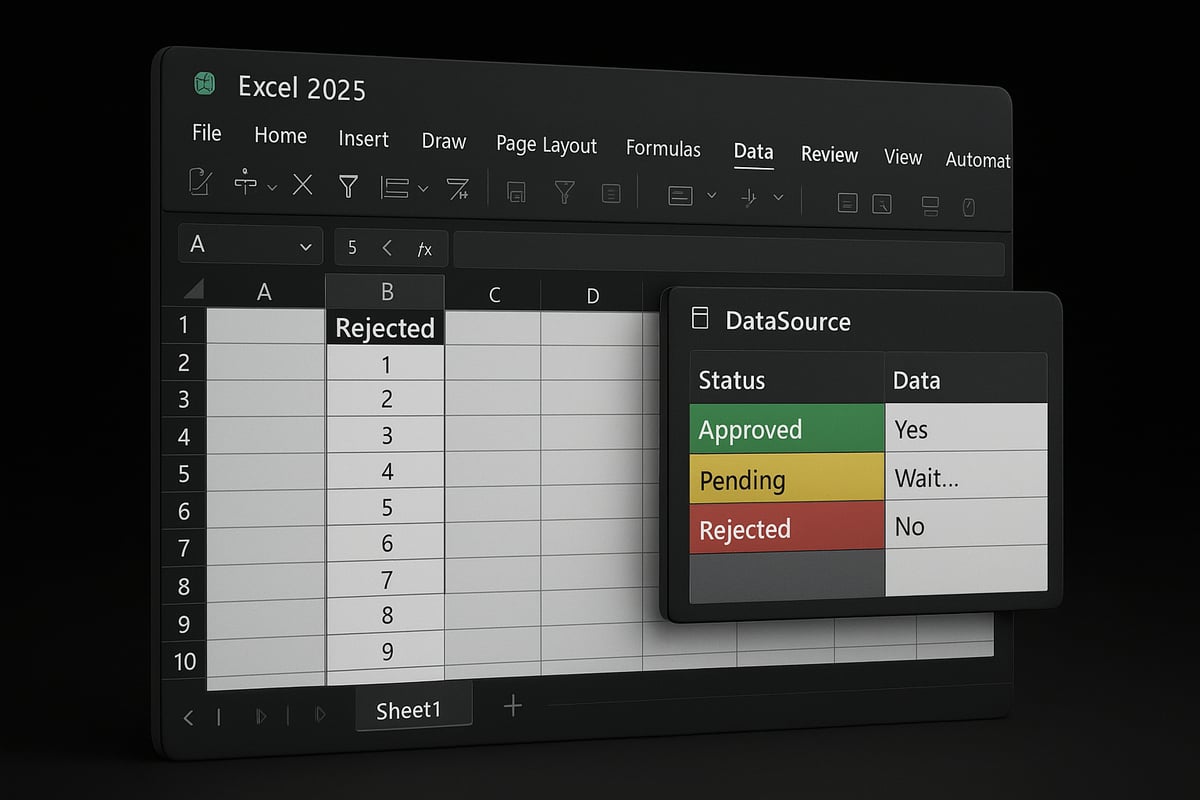
A clean source list is the foundation for any successful drop-down. When considering how to add a drop down in excel, start by deciding where your list will live. For small lists, placing them on the same sheet is fine, but for larger or shared lists, use a dedicated sheet to keep things tidy.
Naming your range makes referencing easier. Select your data, then use the Name Box (above column A) to assign a clear name, such as JobList. For example, you might use Sheet2, cells A1 to A7, for job titles. This approach helps keep your drop-down references straightforward.
To future-proof your drop-downs, leave extra blank rows below your list for additions. Better yet, convert your list into an Excel Table. Tables automatically expand as you add new items, making maintenance effortless. For a step-by-step guide, see Using Excel tables for lists.
Be vigilant about data consistency. Remove duplicates, fix typos, and avoid hidden formatting or blank cells that may cause issues. These steps are vital when you want to know how to add a drop down in excel efficiently. Clean, well-structured lists save time and reduce errors down the line.
Best Practices for Data Setup
When you plan how to add a drop down in excel, choose between a static (typed directly) list or a dynamic (range-based) list. Static lists are quick for a handful of items, but dynamic lists adapt as your source data grows. Use named ranges for flexibility, especially if your list will expand or move.
If you need hierarchical selections, such as categories and subcategories, organize your source data accordingly. For dependent drop-downs, set up clear columns for each level, and name each range based on its main category. This structure supports two-level drop-downs, like “Department” and “Role.”
For larger lists, tables or named ranges simplify management. Small lists may only need direct references. Color-code or format your source lists for visual clarity, making updates easier for you or your team. Always back up your source data before applying validation. This extra step protects your work if adjustments are needed later.
Consistent practices help anyone learning how to add a drop down in excel to build robust, professional spreadsheets. A careful setup now means fewer headaches and more reliable results when your drop-downs go live.
Step-by-Step: How To Add a Basic Drop-Down in Excel 2025
Adding a drop-down list can transform your spreadsheet’s accuracy and efficiency. If you have ever wondered how to add a drop down in excel for seamless data entry, this guide walks you through every essential step in Excel 2025. Follow these instructions to ensure your lists are set up correctly, whether for HR forms, inventory, or any business workflow.
Step 1: Select Your Target Cell(s)
Begin by deciding where you want your drop-down to appear. Click the cell or cells you wish to apply the list to. For example, if you are managing employee job titles, select all the cells in column B where titles will be entered.
To select multiple cells, click and drag, or use Ctrl to pick non-adjacent cells. Shift lets you select entire ranges quickly. Mastering this selection process is crucial when learning how to add a drop down in excel for various columns or rows.
Pro tip: Always double-check your selection before proceeding, especially if you're setting up lists for large datasets.
Step 2: Open the Data Validation Menu
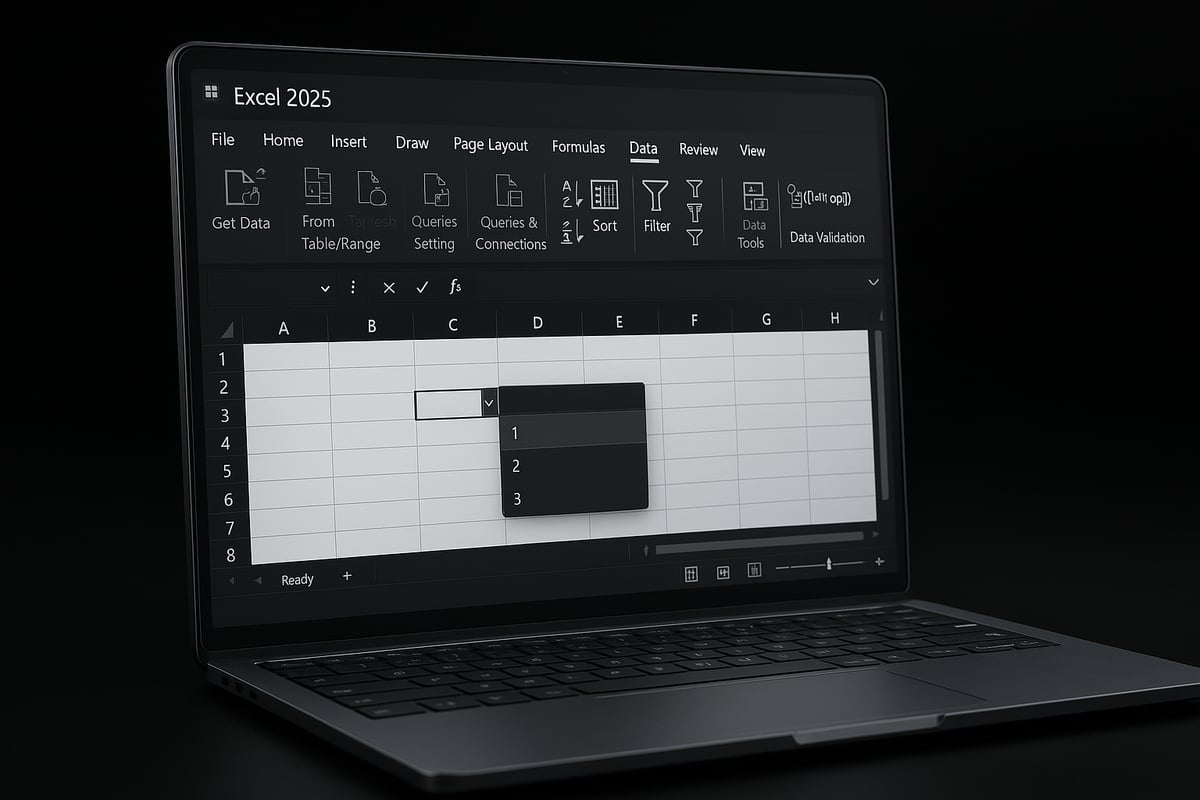
Navigate to the Data tab in Excel 2025’s ribbon. Under the Data Tools group, find the Data Validation option. The interface in Excel 2025 comes with updated icons, making these tools easier to spot.
Click Data Validation to open the configuration dialog. If you are unsure about the new layout, look for the checkmark icon with a list, which is the latest visual cue in Excel 2025.
If you need further detailed visuals for this process, you can reference the Create a drop-down list in Excel guide from Microsoft for step-by-step screenshots and explanations.
Step 3: Set Up Validation Criteria
In the Data Validation dialog, select “List” from the Allow dropdown. Now, you need to specify your source for the list.
For a simple, static list, you can type your options directly, separated by commas:Manager, Analyst, Developer, Designer
For a dynamic or larger list, use a range reference or a named range. For example:=JobList
or=Sheet2!A1:A7
Make sure to check the In-cell dropdown option so users see the arrow, and “Ignore blank” if empty entries are allowed. This is a pivotal step in how to add a drop down in excel, ensuring your list functions as intended.
Quick tip: For short lists, direct typing is fastest. For lists that may change, use a named range for easier updates.
Step 4: Confirm and Test Your Drop-Down
Click OK to apply your settings. Now, click on the target cell—an arrow will appear on the right. Click the arrow to see your drop-down menu in action.
Test by selecting different options and trying to enter something outside your defined list. If the drop-down does not appear, revisit your Data Validation settings or check for merged cells, as these can cause issues.
A successful drop-down will only allow the values you specified, helping you understand how to add a drop down in excel for controlled, error-free entries.
Example: Enter "Manager" or select it from the menu. Try typing "CEO" if it is not in the list—Excel will prevent this entry.
Step 5: Editing or Removing Drop-Down Lists
To update your drop-down, return to Data Validation and adjust the source list or criteria as needed. You can add new values to your named range or table, and the drop-down will reflect these changes.
To remove a drop-down, open Data Validation and click Clear All. Existing cell values remain unless you overwrite them. This flexibility is important when you revisit how to add a drop down in excel for evolving projects.
Example: If you add "Team Lead" to your JobList range, it will immediately appear as a selectable option.
Always test your changes to confirm the drop-down behaves as expected and update any documentation if your list structure changes.
Advanced Drop-Down Techniques: Dynamic & Dependent Lists
Unlocking the full potential of how to add a drop down in excel means going beyond basic lists. For those managing growing datasets or complex choices, advanced techniques like dynamic and dependent drop-downs are essential. These methods increase accuracy, save time, and keep your Excel sheets both scalable and user-friendly.

Creating Dynamic Drop-Down Lists
Dynamic drop-down lists are a game-changer for anyone learning how to add a drop down in excel. Instead of static choices, these lists automatically reflect changes to the source data. This is perfect for growing lists, such as employee roles or product SKUs.
To create a dynamic list, first convert your source range into an Excel Table. Select your list, then press Ctrl + T. This table will expand as you add new entries, making your drop-down flexible.
Next, use the table name in your data validation. For example, if your table is called JobTable and your column is Title, enter:
=JobTable[Title]
in the Source field of Data Validation. Now, whenever you add a new item to the table, the drop-down updates instantly.
Benefits of dynamic drop-downs:
- Save time on maintenance.
- Reduce the risk of missing new options.
- Simplify updates for multiple users.
Limitations: Dynamic lists work best with contiguous data. Avoid blank rows or hidden formatting, as these can cause issues. For very large datasets, performance may vary.
A quick comparison:
| Feature | Static List | Dynamic List |
|---|---|---|
| Updates Automatically | No | Yes |
| Easy to Expand | No | Yes |
| Maintenance Required | Manual | Minimal |
By mastering dynamic lists, you elevate how to add a drop down in excel to a more professional and future-proof level.
Building Dependent Drop-Down Lists
Dependent drop-down lists take how to add a drop down in excel to the next level. Here, the options in one drop-down depend on the selection in another. This is ideal for scenarios like Category and Subcategory, where users should only see relevant choices.
Start by organizing your data. Place your main categories in one column, and create separate lists for each subcategory. Name each subcategory range exactly as the main category it represents.
For the first drop-down (main category), use a standard list or named range. For the second (dependent), use the INDIRECT function:
=INDIRECT(A2)
This formula tells Excel to look up the named range that matches the user's selection in A2.
Step-by-step process:
- Create your main category list.
- Name each subcategory range.
- Apply data validation to the main cell.
- In the dependent cell, set the Source to
=INDIRECT(reference cell).
If you want a full walkthrough, check out this detailed guide to Build dependent drop-down lists.
Common pitfalls:
- Ensure no spaces or typos in range names.
- Use consistent naming to avoid errors.
- Test each combination to confirm correct behavior.
With dependent lists, how to add a drop down in excel becomes a powerful tool for structured data entry and error prevention.
Multi-Select Drop-Downs and Limitations
By default, Excel does not support selecting multiple options from a drop-down. If you require this feature as part of how to add a drop down in excel, you will need to use workarounds.
Popular approaches:
- Write a simple VBA macro to allow multiple selections in one cell.
- Use checkboxes alongside your drop-down for multi-select functionality.
- Consider third-party add-ins designed for complex selection needs.
Here’s a basic VBA example to enable multi-select:
Private Sub Worksheet_Change(ByVal Target As Range)
    If Not Intersect(Target, Range("B2")) Is Nothing Then
        If Target.Validation.Type = 3 Then
            If InStr(Target.Value, ",") = 0 Then
                Target.Value = Target.Value
            Else
                Target.Value = Target.Value & ", " & Target.Value
            End If
        End If
    End If
End Sub
Pros and cons table:
| Method | Pros | Cons |
|---|---|---|
| VBA | Flexible, customizable | Requires macros, not always secure |
| Checkboxes | User-friendly | More setup, less compact |
| Add-ins | Advanced features | May cost money, compatibility issues |
Always consider security and compatibility before enabling macros or add-ins. For most users, a single-selection drop-down will suffice, but these options let you tailor how to add a drop down in excel for specialized workflows.
Customizing Drop-Down Lists: Input and Error Messages
Customizing your drop-down lists is essential for guiding users and maintaining data quality. When you learn how to add a drop down in excel, input and error messages help users make the right choices and avoid mistakes. Excel 2025 offers intuitive options for both, making your spreadsheets more interactive and user-friendly.
Adding Input Messages
Input messages are a valuable feature when considering how to add a drop down in excel. They display a helpful pop-up when a user selects a cell containing a drop-down, providing guidance before any entry is made.
To set up an input message, select your drop-down cell, go to Data Validation, then click the Input Message tab. Here, you can enter a title and a custom message, such as "Please select a category from the drop-down list." This message appears automatically whenever the cell is selected, offering context or instructions to users.
Why use input messages? They are especially useful for onboarding new team members, training users, or ensuring compliance with data entry standards. For example, in an HR spreadsheet, an input message might remind users to pick only official job titles. This reduces confusion and keeps your data consistent.
You can use input messages for a variety of scenarios:
- Explaining the purpose of a field
- Providing data entry instructions
- Reminding users of required formats
Visual feedback is immediate, as the message pops up above the cell. This proactive approach supports users right at the moment of entry. When you focus on how to add a drop down in excel, input messages act as a first line of defense against errors and misunderstandings.
Creating Error Messages
Error messages take your data validation a step further. When someone tries to enter a value not allowed by your drop-down, Excel shows an alert. This makes learning how to add a drop down in excel even more powerful by preventing incorrect entries and maintaining data integrity.
To create an error message, select your drop-down cell, open Data Validation, and navigate to the Error Alert tab. Here, you can choose the alert style:
- Stop: Blocks invalid entries completely
- Warning: Allows the entry, but warns the user
- Information: Notifies the user but still accepts the entry
Here's a quick table summarizing the options:
| Alert Type | User Can Proceed? | Visual Cue |
|---|---|---|
| Stop | No | Red X |
| Warning | Yes | Yellow ! |
| Information | Yes | Blue i |
Customize your message, for example: "Please select a valid category from the drop-down list." This clarity helps users correct their input on the spot.
When choosing an alert style, consider your needs. If accuracy is crucial, use Stop. For less critical fields, Warning or Information may be appropriate. To prevent users from bypassing your validation, always test your settings after setup.
For more in-depth strategies on preventing errors and ensuring data quality, you may find Excel Data Validation Techniques: Prevent Errors Before They Happen 2025 helpful as you master how to add a drop down in excel.
Customizing both input and error messages ensures your drop-down lists are not only functional but also user-centric. This attention to detail supports consistent, reliable data entry every time.
Troubleshooting and Best Practices for Drop-Down Lists
Successfully learning how to add a drop down in excel is only the first step. Mastering troubleshooting and best practices ensures your drop-down lists remain robust, user-friendly, and error-free, even as your spreadsheets evolve. Whether you are managing a single worksheet or collaborating across teams, the tips below will help you maintain consistency and data integrity.
Common Problems and Solutions
Even after you learn how to add a drop down in excel, issues can arise. Here are some frequent challenges and how to address them:
- Drop-down arrow not appearing: This often happens if the cell is not selected or if the data validation settings are incorrect. Double-check that "In-cell dropdown" is checked in the Data Validation dialog.
- Source range problems: Blank cells, hidden formatting, or incorrect references can cause your list to malfunction. Always verify your source range and avoid including extra spaces or blanks.
- Drop-down not updating: If you modify your source list but the options do not refresh, ensure you are using dynamic ranges or tables. Static references require manual updates.
- Error messages not showing: Make sure your error alert settings are enabled and correctly configured under Data Validation.
- Compatibility issues: Features in Excel 2025 may not always work in older versions. Test your spreadsheet in the environment your team uses.
For step-by-step troubleshooting, you might find Excel troubleshooting tips especially helpful.
Maintaining and Updating Drop-Down Lists
A key part of knowing how to add a drop down in excel is keeping your lists updated as your data grows. Here are best practices for maintenance:
- Expand or contract your source lists using Excel Tables for dynamic, auto-updating ranges.
- When managing lists across multiple sheets or workbooks, use named ranges for clarity and easier reference.
- Regularly review and update named ranges to ensure they reflect new or removed options.
- Leverage dynamic arrays in Excel 2025 to create lists that automatically populate based on criteria or linked data.
- Always back up your source data before making major changes.
| Maintenance Task | Excel 2025 Solution |
|---|---|
| Expand source list | Convert to Table (Ctrl + T) |
| Cross-sheet management | Use Named Ranges |
| Dynamic updates | Use Dynamic Arrays |
| Backup before changes | Save a Version or Duplicate Sheet |
Best Practices for Professional Spreadsheets
If you want your approach to how to add a drop down in excel to stand out, adopt these best practices:
- Standardize drop-down lists across your organization for consistency.
- Document your validation rules and source lists with clear labels or a dedicated tab.
- Secure critical cells by locking them and protecting the worksheet to prevent accidental edits.
- Collaborate by using cloud-based Excel and shared workbooks, ensuring all users have access to the latest drop-down options.
- Template use: Create company-wide templates with pre-built drop-downs for repeated processes.
For deeper insights and recommendations, the Excel Drop Down List: Setup, Tips, and Troubleshooting guide offers comprehensive coverage.
FAQ: Drop-Down List Issues
How do I remove a drop-down without losing existing cell data?
Go to Data Validation and select "Clear All." Your current cell values remain, but the drop-down will be removed.
Why are some options missing from my drop-down?
Check your source range for hidden rows, blanks, or typos. This is a common issue for those learning how to add a drop down in excel.
Can I copy and paste drop-down lists to other cells?
Yes, use Copy and Paste Special > Validation to transfer the drop-down settings without overwriting the cell contents.
How do I restrict users to only the drop-down options?
Set your error alert to "Stop" in Data Validation. This prevents entries not listed in the drop-down.
Mastering these troubleshooting steps and best practices will help ensure your knowledge of how to add a drop down in excel translates to reliable, efficient spreadsheets every time.
Real-World Use Cases and Advanced Tips
Making the most of how to add a drop down in excel means understanding where drop-down lists can be transformative in daily workflows. Both business users and individuals can leverage this tool to bring order and consistency to data entry, streamline processes, and reduce costly mistakes.
Practical Applications in Business and Personal Projects
Drop-down lists are essential for a variety of real-world tasks. In HR, you can standardize job titles, departments, or employee statuses, ensuring everyone uses the same terms. Sales teams benefit by using drop-downs for product selection, order forms, and inventory tracking, which helps avoid manual entry errors.
Finance departments use drop-downs to categorize expenses and assign budget codes quickly. In education, teachers can use drop-downs for grading rubrics or attendance sheets, making record-keeping more efficient. Surveys and forms also rely on drop-down lists to guarantee valid, consistent responses.
Here are some quick examples:
- HR: Job title, department, employment status
- Sales: Product SKU, order status, region
- Finance: Expense type, approval status, project code
- Education: Grade, attendance, assignment type
Learning how to add a drop down in excel for these scenarios can make your spreadsheets more reliable and user-friendly.
Advanced Tips for Power Users
Power users often look for ways to automate and enhance drop-down functionality. One advanced strategy is using formulas to update drop-down lists automatically, so your options always reflect the latest data. Conditional formatting can be integrated with drop-downs to highlight selections, making trends and issues visible at a glance.
You can also use drop-downs in dashboards or forms to let users filter results dynamically. Exporting and importing drop-down lists between workbooks saves setup time for recurring projects. For those who want to push boundaries, combining drop-downs with macros can automate repetitive tasks or enforce data rules.
If you want a deeper step-by-step walk-through of how to add a drop down in excel, including dynamic lists and validation, check out this How to Create Drop Down List in Excel (2025) guide by Kevin Stratvert.
Staying Updated with Excel 2025 Features
With Excel 2025, Microsoft has introduced several improvements for data validation and drop-down lists. The interface is more intuitive, making it faster to access validation tools and customize lists. Dynamic arrays and tables now offer expanded support, so drop-downs can update automatically as your data grows or changes.
It is important to stay current with new features to get the most out of how to add a drop down in excel. Anticipated updates may include even more robust dynamic list capabilities and enhanced integration with cloud-based Excel.
For more resources, explore Microsoft support, official documentation, and expert blogs. Staying informed will help you master how to add a drop down in excel and adapt to future updates.