Skip to content

Excel is the backbone of modern business, but many beginners find themselves overwhelmed by its vast features. If you’re new to spreadsheets, you’re not alone.
In 2025, the ability to train excel skills is more essential than ever. Whether you want to organize data, automate boring tasks, or make smarter decisions, mastering the basics is your first step.
This guide will walk you through everything you need to know, from essential formulas to data visualization and automation. With clear examples, up-to-date advice, and practical tips, you’ll gain the confidence to handle any spreadsheet challenge ahead.
Getting Started with Excel: Interface and Navigation
Starting your journey to train excel skills begins with understanding the workspace. Whether you’re new to spreadsheets or brushing up for 2025, mastering the basics of navigation sets a strong foundation. Let’s break down the essentials so you can move confidently through any Excel version.
Understanding the Excel Workspace
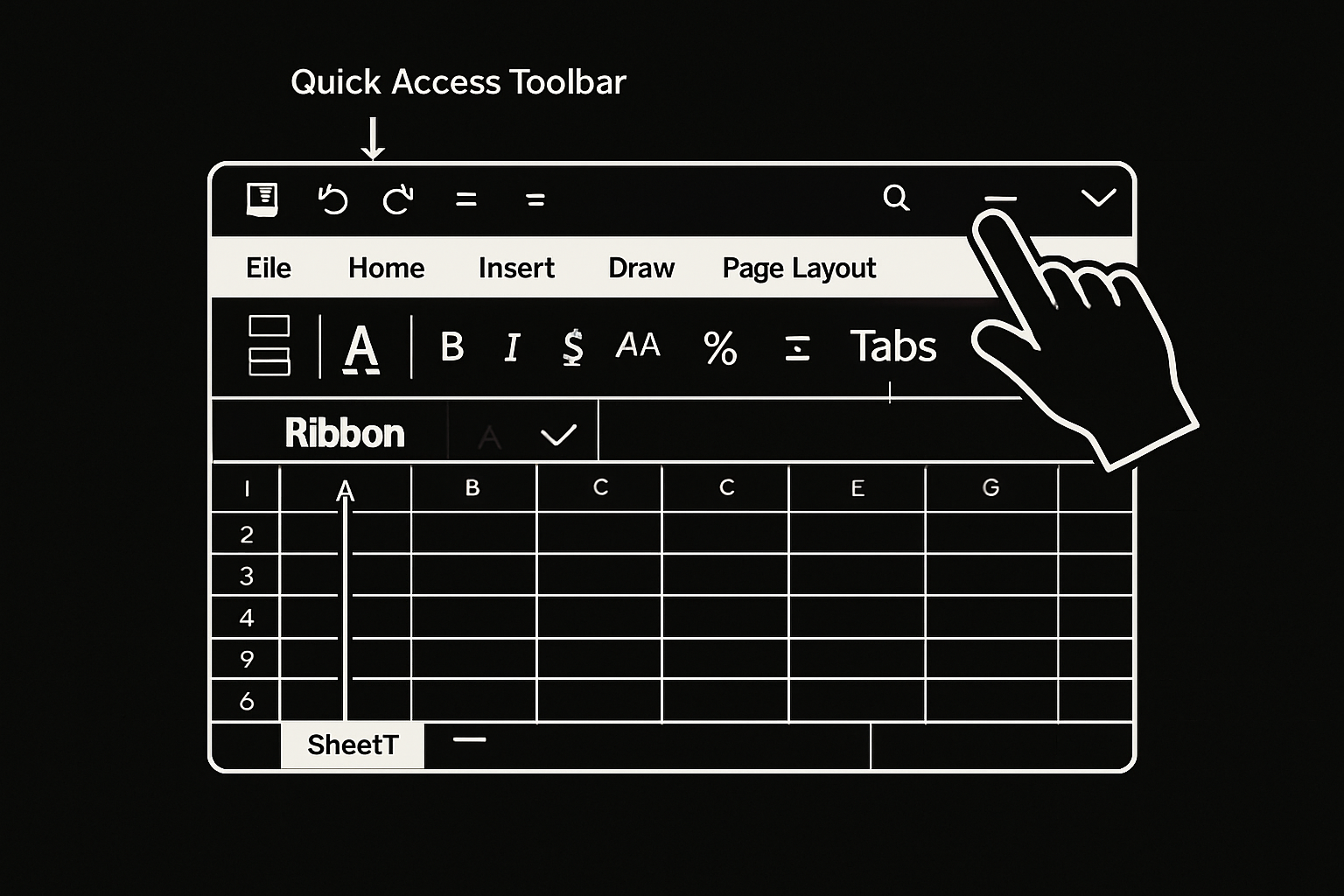
When you first open Excel, the Ribbon stretches across the top, organizing commands into Tabs like Home, Insert, and Data. The Quick Access Toolbar sits above or below the Ribbon, letting you pin your favorite actions—think of it as your personal shortcut bar.
Navigating between worksheets (the tabs at the bottom) and workbooks (entire Excel files) is crucial. Excel 2021, 365, and the web version look similar, but newer versions offer features like real-time collaboration and cloud autosave.
To train excel efficiency, customize your workspace: right-click the Quick Access Toolbar to add tools you use most, like Save or Format Painter. For step-by-step guidance, the Microsoft Excel Help Center offers clear tutorials on workspace features.
Basic Spreadsheet Operations
To train excel basics, start by creating a new workbook or opening an existing file. Enter data by clicking a cell and typing, then press Enter or Tab to move. Editing is as simple as double-clicking a cell.
Selecting data is easy: click and drag for a range, or use Shift+Arrow keys. Copy (Ctrl+C), cut (Ctrl+X), and paste (Ctrl+V) to move information. Undo mistakes with Ctrl+Z, and redo with Ctrl+Y—these shortcuts are lifesavers.
Here’s a quick table of essential shortcuts:
| Action | Shortcut |
|---|---|
| Undo | Ctrl+Z |
| Redo | Ctrl+Y |
| Copy | Ctrl+C |
| Paste | Ctrl+V |
Practicing these steps daily will help you train excel skills for speed and accuracy.
Key Excel Terminology for Beginners
To train excel effectively, you need to know foundational terms:
| Term | Definition |
|---|---|
| Workbook | An entire Excel file containing one or more worksheets |
| Worksheet | A single tab within a workbook, made up of rows and columns |
| Cell | The intersection of a row and column (e.g., A1) |
| Range | A group of selected cells (e.g., A1:B10) |
| Formula | An equation entered into a cell to perform calculations (e.g., =A1+B1) |
| Function | A predefined formula (e.g., =SUM(A1:A10)) |
Relative references (A1) change when you copy formulas, while absolute references ($A$1) stay fixed. For example:
=SUM(A1:B1)      // Relative
=SUM($A$1:$B$1)  // Absolute
Knowing these differences will help you train excel accuracy as you grow.
Navigational Shortcuts and Tips
Efficient navigation is essential as you train excel skills. Keyboard shortcuts let you zip around large datasets without a mouse. Press Ctrl+Arrow keys to jump to the last filled cell in any direction—perfect for big spreadsheets.
Other handy tips:
- Ctrl+Home: Go to cell A1 instantly.
- Ctrl+End: Jump to the last used cell.
- F5 or Ctrl+G: Open the “Go To” box for quick navigation.
Use these tools to move through data like a pro. As you train excel navigation, you’ll find managing even massive workbooks becomes second nature.
Essential Excel Formulas and Functions for Beginners
Learning to train excel skills begins with mastering formulas and functions. These tools transform raw data into actionable insights, helping you automate calculations and make smarter decisions. If you’re new to Excel, don’t worry—understanding how formulas work is easier than you might think. Let’s break down the essentials.

Introduction to Formulas and Functions
At its core, Excel uses formulas and functions to perform calculations and analyze data. A formula is any equation you type into a cell, starting with an equals sign (=). Functions are built-in formulas that save you time and reduce errors.
For example, typing =SUM(A1:A10) in a cell adds up all values from A1 to A10. To train excel effectively, get comfortable entering and editing formulas. Click a cell, type =, enter your formula, and press Enter. You can always double-click a cell to edit the formula.
Understanding the structure of formulas is essential. The order matters: always start with =, then specify the function or calculation. Use parentheses for function arguments, like =AVERAGE(B2:B10). Practice entering and tweaking formulas to build confidence as you train excel skills.
Top 10 Must-Know Functions for Beginners
If you want to train excel efficiently, focus on these 10 essential functions:
- SUM: Adds numbers (
=SUM(A1:A10)) - AVERAGE: Finds the mean (
=AVERAGE(B1:B10)) - COUNT: Counts cells with numbers (
=COUNT(C1:C10)) - MIN/MAX: Finds smallest/largest values (
=MIN(D1:D10),=MAX(D1:D10)) - IF: Conditional logic (
=IF(E1>50,"Pass","Fail")) - VLOOKUP: Looks up data vertically (
=VLOOKUP(F2,G1:H10,2,FALSE)) - INDEX/MATCH: Advanced lookups (
=INDEX(H1:H10,MATCH("Apple",G1:G10,0))) - CONCATENATE: Joins text (
=CONCATENATE(I1," ",J1)) - TODAY: Returns today’s date (
=TODAY())
These functions help with tasks like sales tracking or attendance logs. For comprehensive step-by-step learning, check out the Excel Skills for Business Specialization, which covers these and more for anyone looking to train excel from scratch.
Troubleshooting Common Formula Errors
As you train excel, you’ll encounter errors. Here are the most common ones:
- #VALUE!: Wrong data type (try using numbers, not text).
- #REF!: Invalid cell reference (often from deleted cells).
- #DIV/0!: Dividing by zero.
- #NAME?: Misspelled function or range.
Use the Formula Auditing tools (on the Formulas tab) to trace errors. Click “Trace Error” to see which cells are causing issues. Double-check your formula structure and references. With practice, troubleshooting becomes a routine part of how you train excel.
Best Practices for Writing Formulas
To train excel like a pro, keep formulas simple and readable. Avoid hardcoding numbers directly into formulas; reference cells instead. For example, use =B2*D2 instead of =10*20, so your calculations update automatically.
For dynamic models, try using cell references and ranges. In budgeting, you could set up your expenses in one column and use a formula like =SUM(B2:B20) to get a real-time total. This approach makes your spreadsheets flexible and easy to update—key skills as you train excel.
Formula Efficiency and Performance
When you train excel on large datasets, efficiency matters. Avoid volatile functions like =NOW() or =OFFSET() in big workbooks, as they can slow things down.
Use named ranges for clarity. Instead of =SUM(A1:A1000), define a range called “Sales” and use =SUM(Sales). This makes formulas easier to read and manage, especially as your workbooks grow. Speeding up calculations means you can train excel on larger projects without frustration.
Data Management: Sorting, Filtering, and Cleaning
Mastering data management is a crucial step as you train excel skills for 2025. The ability to organize, clean, and secure your data will set you apart from other beginners. Let’s break down the essential techniques you need for confident spreadsheet handling.
Sorting and Filtering Data
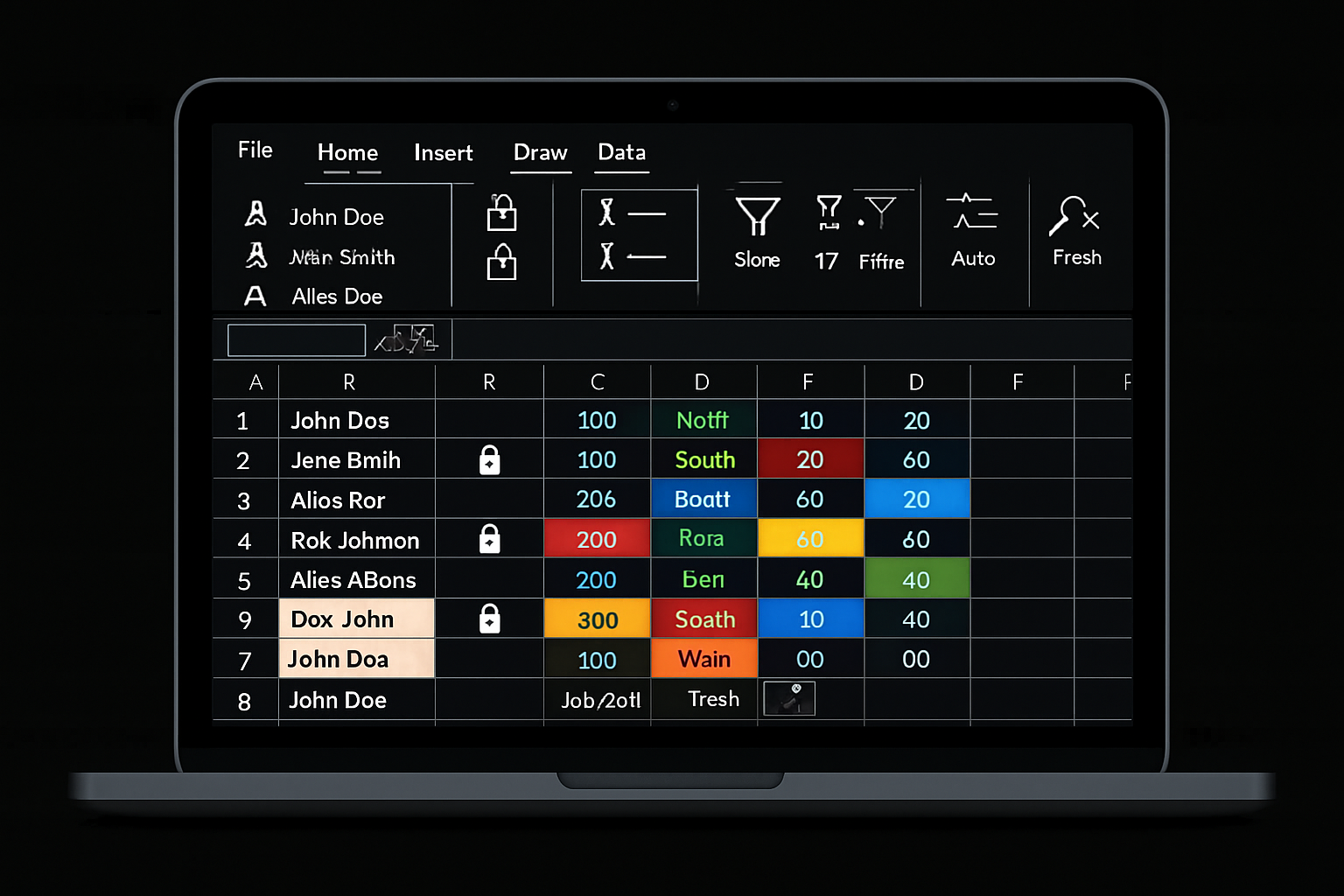
Sorting and filtering are foundational skills as you train excel for business or personal use. Sorting lets you quickly reorganize data by columns—alphabetically, numerically, or by custom order. For example, to sort sales data by amount, select the column, go to the Data tab, and choose Sort A-Z or Z-A.
Filters narrow down your view to only the rows you need. Use AutoFilter by selecting your data range and clicking the Filter button. You can now display only relevant records, such as transactions from a specific month.
Tip: Combine sorting and filtering to find top sales or overdue items in seconds. These basic techniques create a clean foundation for deeper analysis as you continue to train excel.
Data Cleaning Techniques for Beginners
Cleaning data is essential for accuracy and efficiency. Start by removing duplicates: select your data, click Data > Remove Duplicates, and confirm the columns to check. Trimming spaces is easy with the =TRIM(A1) formula, which removes unwanted spaces from text entries.
Correct inconsistent text case by using =UPPER(), =LOWER(), or =PROPER(). Batch edits are fast with Find & Replace (Ctrl+H). For example, replace all “Inc.” with “Incorporated” in one step.
If you want a deeper understanding of spreadsheet competency and cleaning strategies, the Edu-Edition Spreadsheet Competency Framework offers an excellent foundation for anyone looking to train excel skills early on.
Introduction to Data Validation
Data validation helps you train excel to prevent entry errors and maintain clean data. You can set rules such as allowing only dates, numbers within a range, or specific text formats.
To create a drop-down list, select your cells, go to Data > Data Validation, and choose “List” with your allowed values. For number limits, set a minimum and maximum value. To restrict input to valid email addresses, use custom formulas.
- Drop-down menus for consistent categories
- Number limits for age or price fields
- Custom rules for formats (like email)
These checks help everyone train excel to collect reliable data from the start.
Using Flash Fill and Text-to-Columns
Flash Fill and Text-to-Columns are powerful tools for formatting and splitting data. Flash Fill recognizes patterns—simply start typing a desired result next to your data, press Ctrl+E, and Excel fills the rest.
Text-to-Columns divides data in one cell into multiple columns. Select the column, go to Data > Text to Columns, and choose the delimiter (comma, space, etc.). This is perfect for splitting full names or separating addresses.
When you train excel with these tools, you save hours on repetitive tasks and ensure your data is ready for analysis.
Protecting and Securing Your Data
Protecting your data is a vital step as you train excel for professional projects. To lock cells, select the range, right-click, and choose Format Cells > Protection > Locked. Then, protect the sheet via the Review tab to prevent unwanted changes.
Set passwords for sensitive workbooks by going to File > Info > Protect Workbook > Encrypt with Password. Share reports with limited editing rights using Excel’s sharing options, especially in cloud environments.
These features help you train excel to safeguard your work, maintain integrity, and collaborate securely with others.
Visualizing Data: Charts, Conditional Formatting, and PivotTables
Visualizing data transforms raw numbers into meaningful insights. As you train excel skills, mastering charts, conditional formatting, and PivotTables will help you spot trends, communicate results, and make smarter decisions. Let’s explore how you can bring your data to life and avoid common mistakes.
Creating Basic Charts in Excel
Charts are essential for turning data into visuals that tell a story. With just a few clicks, you can create column, line, pie, or bar charts to highlight patterns in your spreadsheets. To train excel for business, start by selecting your data and choosing “Insert” from the Ribbon, then pick the recommended chart type.
Popular chart types include:
- Column and Bar Charts: Compare values across categories.
- Line Charts: Show trends over time.
- Pie Charts: Display proportions of a whole.
Customize your charts by adding titles, legends, and data labels. For more on visualization trends and advanced tools, see Master These Essential Excel Skills to Stay Ahead in 2025. As you train excel for real-world analysis, practice building charts that are clear and focused.
Using Conditional Formatting for Insights
Conditional formatting instantly highlights key data points, making it easier to spot outliers and trends as you train excel. You can apply color scales to show progress, data bars for quick comparisons, or icon sets for flags and warnings.
Examples of conditional formatting:
- Color Scales: Visualize ranges, like test scores or sales growth.
- Data Bars: Compare values within a column.
- Icon Sets: Flag items above or below targets.
To apply, select your data, go to “Home,” and choose “Conditional Formatting.” Experiment with different rules to uncover hidden patterns. As you train excel, use these tools to make your spreadsheets more interactive and informative.
Introduction to PivotTables
PivotTables are powerful for summarizing and analyzing large datasets. When you train excel skills, learning PivotTables will let you quickly reorganize data, filter information, and generate summary reports with just a few clicks.
To build a PivotTable:
- Select your data range.
- Click “Insert” > “PivotTable.”
- Drag fields into Rows, Columns, and Values.
PivotTables help you answer questions like “Which product sold the most?” or “What’s the total sales by region?” As you train excel, practice creating PivotTables for different scenarios to boost your confidence in handling complex data.
Customizing and Formatting Visualizations
A clear, well-designed visual makes your data stand out. As you train excel, take time to format your charts and PivotTables for maximum impact. Edit chart elements, such as titles, axis labels, and legends, to ensure clarity.
Tips for presentation-ready visuals:
- Use bold, readable fonts.
- Choose colors that enhance, not distract.
- Adjust gridlines and backgrounds for clarity.
Formatting options are found under “Chart Tools” and “Design.” When you train excel, experiment with these settings to create visuals that impress in business meetings or reports.
Common Visualization Mistakes to Avoid
Even as you train excel, it’s easy to make visualization errors. Avoid overloading charts with too much information, which can confuse your audience. Stick to one main message per chart.
Common mistakes include:
- Using the wrong chart type for your data.
- Ignoring axis scales, leading to misinterpretation.
- Adding excessive colors or 3D effects.
Keep visuals simple and focused. As you continue to train excel, always review your charts for accuracy and clarity before sharing them.
Automating Tasks and Boosting Productivity in Excel
Automation is a game-changer for anyone looking to train excel skills efficiently. With automation, repetitive tasks become quick and error-free, freeing up your time for more important work. Beginners often find automation intimidating, but starting simple makes a big difference.
By focusing on automation early, you’ll learn how to streamline processes, reduce manual effort, and make your workflow smoother. Let’s explore the essential automation tools that help you train excel like a pro.
Introduction to Excel Automation
To train excel effectively, understanding automation basics is vital. Automation in Excel means using built-in features to perform tasks automatically, minimizing errors and saving time.
For beginners, automation is not just about advanced programming. Simple tools like Autofill, Flash Fill, and templates can have a big impact. Automation helps you focus on analysis instead of manual entry.
Benefits include:
- Time savings: Perform tasks faster.
- Consistency: Reduce the chance of mistakes.
- Scalability: Easily handle larger datasets.
If you’re eager to train excel skills, start with these automation basics before moving to more advanced features.
Using Autofill and Flash Fill
Autofill and Flash Fill are essential tools when you train excel for productivity. Autofill lets you extend patterns, such as dates or numbers, by dragging the fill handle. It’s perfect for quickly creating series without manual typing.
Flash Fill automates formatting based on patterns you set. For example, if you have a list of full names and want to extract first names, start typing the first result, and Flash Fill predicts the rest.
Examples of use:
- Autofill weekdays in a schedule.
- Flash Fill to split “John Doe” into “John” and “Doe”.
When you train excel, mastering these features saves hours on routine data entry.
Introduction to Macros
Macros are the next step when you train excel to automate repetitive tasks. A macro records your actions and plays them back, so you don’t have to repeat the same steps each time.
To record a macro:
- Go to the “View” tab.
- Click “Record Macro”.
- Perform your task (e.g., format a table).
- Stop recording.
Example macro code:
Sub FormatTable()
    Range("A1:D10").Font.Bold = True
End Sub
Macros are essential as you train excel for more complex automation, helping you standardize tasks and boost efficiency.
Leveraging Templates for Efficiency
Templates are a hidden gem when you train excel for both business and personal use. Excel offers built-in templates for budgeting, invoicing, project planning, and more. These templates save you from reinventing the wheel for every new task.
Benefits of using templates:
- Quick start: Jump into your project with ready-made layouts.
- Customization: Adapt templates to fit your specific needs.
- Professional look: Present your data neatly.
To access templates, open Excel and search in the “New” tab. Training with templates helps you train excel skills faster while keeping your files organized.
Collaboration and Sharing Features
Collaboration is essential as you train excel in a modern work environment. Excel 365 offers real-time co-authoring, letting multiple users edit the same file simultaneously. Comments and notes help teams communicate directly in the workbook.
Sharing files is easy with cloud integration. You can set permissions, locking sensitive data and allowing only certain users to edit.
Tips for collaboration:
- Use comments to clarify changes.
- Share links instead of attachments.
- Protect sheets to prevent unwanted edits.
When you train excel with collaboration tools, you become more efficient and connected with your team.
Resources for Continued Excel Learning in 2025
Staying ahead with Excel means you need to access the right resources and communities. Whether you want to train excel skills from scratch or level up, 2025 brings more opportunities than ever. Here’s your roadmap for continuous growth.
Recommended Online Courses and Tutorials
Learning platforms have made it easier than ever to train excel skills at your own pace. Explore both free and paid options to find what suits your learning style:
- Coursera: Offers beginner to advanced Excel courses, often with certificates.
- LinkedIn Learning: Step-by-step video tutorials for all Excel features.
- Microsoft Learn: Official guides with hands-on labs and up-to-date content.
- YouTube: Channels like ExcelIsFun and Leila Gharani provide practical, visual lessons.
Mix different resources to reinforce your understanding and keep your study routine interesting.
Community Forums and Support
When you encounter challenges as you train excel abilities, online communities are invaluable. Join these forums to get answers, share tips, and stay motivated:
- Reddit (r/excel): Active discussions and quick responses.
- Microsoft Community: Official support from users and Excel experts.
- Stack Overflow: Ideal for technical questions and formula troubleshooting.
Don’t hesitate to post your questions or help others—it’s a great way to deepen your knowledge.
Keeping Up with New Features in Excel 2025
Excel evolves rapidly, so staying current helps you train excel for tomorrow’s demands. Here’s how to keep up:
- Microsoft Blog: Get updates on new releases, AI-powered features, and tips.
- Excel newsletters: Subscribe for curated news and tutorials.
- Social media: Follow #Excel and official Microsoft accounts for quick tips.
For example, recent updates include new data types and enhanced automation tools. Regularly reviewing these sources ensures you never miss a powerful new feature.
Practice Projects and Real-World Challenges
Putting theory into action is the best way to train excel skills. Try these ideas to sharpen your abilities:
- Personal budgeting: Track expenses and income with formulas and charts.
- Inventory tracking: Manage product lists and stock levels.
- Attendance logs: Use functions to automate calculations.
Download sample datasets from sites like Kaggle or Microsoft’s template gallery. Each project builds confidence and prepares you for real business scenarios.
Expert Help and Personalized Training
Sometimes, personalized guidance is the fastest way to train excel efficiently. If you’re facing complex problems or want to accelerate your progress, consider:
- Booking a one-on-one session with an Excel expert.
- Joining local workshops or live webinars.
- Hiring a coach for tailored lessons.
Personalized support can clarify tricky concepts and help you apply solutions directly to your work.
Get Expert Excel Help and Training from The Analytics Doctor
Want to train excel with step-by-step help? The Analytics Doctor specializes in guiding beginners through every challenge, from formula errors to advanced automation. You’ll benefit from:

- Personalized training tailored to your needs.
- Fast troubleshooting for data cleaning and reporting.
- Real-world examples that make learning practical.
With The Analytics Doctor, you save time, avoid frustration, and build confidence. Ready to unlock your full potential? Book a session and experience hands-on support designed for all skill levels.