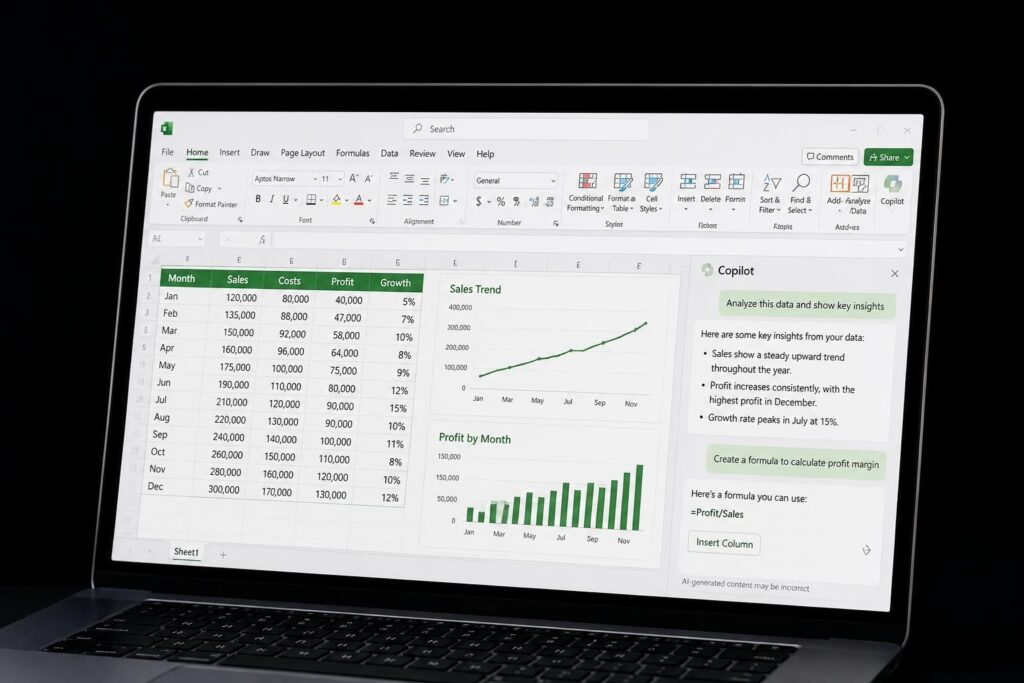
Microsoft's integration of artificial intelligence into Excel marks a significant shift in how we interact with spreadsheets. This microsoft copilot for excel tutorial will walk you through everything you need to know about leveraging AI to enhance your productivity, from basic commands to advanced data analysis techniques. Whether you're struggling with complex formulas or looking to streamline repetitive tasks, understanding Copilot's capabilities can transform your Excel experience and save valuable time.
Understanding Microsoft Copilot in Excel
Microsoft Copilot represents the company's commitment to integrating AI assistance directly into workplace tools. Built on advanced language models, Copilot functions as an intelligent assistant that understands natural language requests and translates them into Excel actions.
The technology works by analyzing your spreadsheet data, understanding context, and generating appropriate responses. When you ask Copilot to perform a task, it processes your request through its AI engine and produces formulas, insights, or data transformations based on your specific needs.
System Requirements and Access
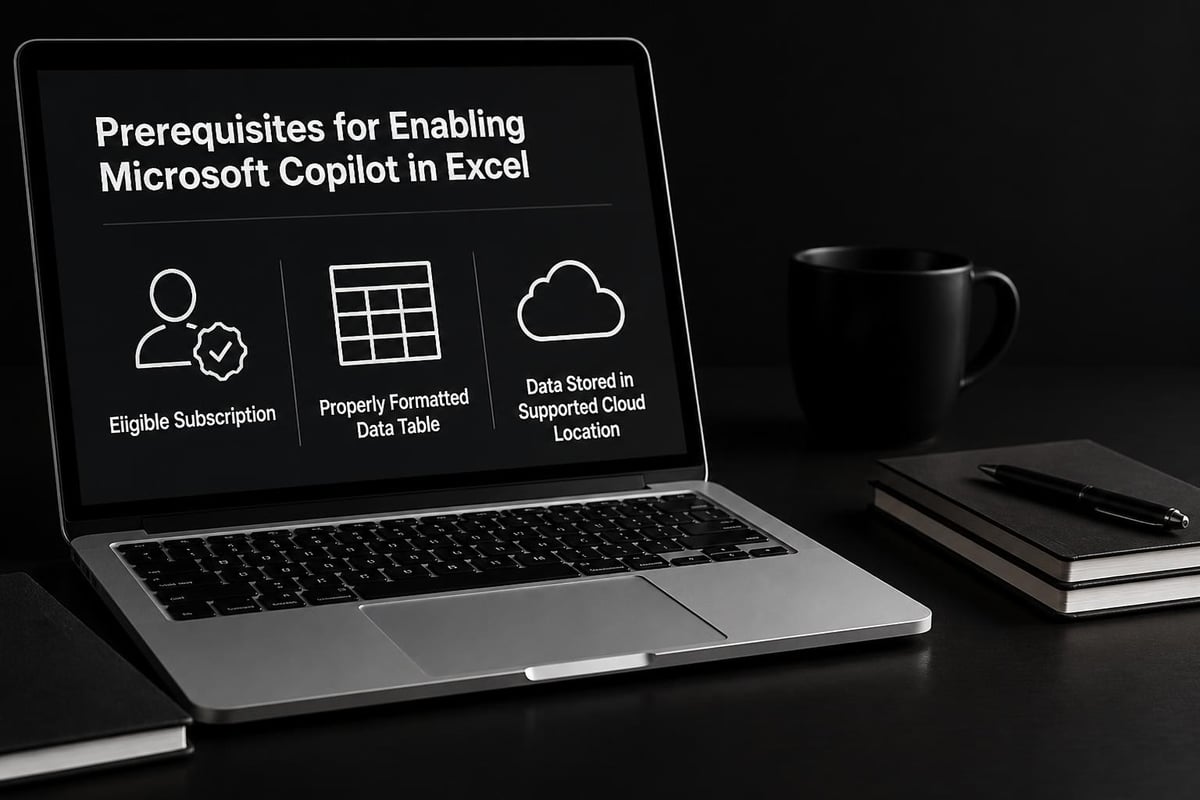
Before diving into this microsoft copilot for excel tutorial, you'll need to verify your access. Copilot is currently available to Microsoft 365 subscribers with specific license tiers, primarily Enterprise and Business Premium plans.
Key Requirements:
- Microsoft 365 subscription with Copilot access
- Excel desktop application or Excel for web
- Data stored in Excel tables (formatted as tables, not just ranges)
- Internet connection for AI processing
Your spreadsheet must be stored in OneDrive or SharePoint to enable Copilot functionality. This cloud-based requirement ensures the AI can access and process your data securely while maintaining version control.
Getting Started with Copilot Commands
The Copilot interface appears as a sidebar panel in Excel, accessible through the ribbon menu. Once activated, you can type natural language questions or commands directly into the chat interface.
Basic Command Structure
Effective prompts follow a clear pattern that helps Copilot understand your intent. Start with action verbs like "calculate," "analyze," "show," or "create," followed by specific details about what you want to accomplish.
| Command Type | Example Prompt | Expected Result |
|---|---|---|
| Formula Creation | "Calculate the percentage change between columns C and D" | Generates percentage formula |
| Data Analysis | "Show me the top 5 products by revenue" | Highlights or filters top performers |
| Insights | "What trends exist in this sales data?" | Provides analytical summary |
| Formatting | "Highlight all values above the average" | Applies conditional formatting |
The more specific your request, the better Copilot performs. Instead of asking "analyze this data," try "compare quarterly sales trends for each product category and identify which category grew fastest."
Natural Language Formula Generation
One of Copilot's strongest features is translating plain English into complex formulas. This capability proves especially valuable when you know what result you need but struggle with Excel's syntax.
For instance, requesting "sum all sales where the region is East and the date is in 2026" prompts Copilot to generate a SUMIFS formula with appropriate criteria. The AI understands column references, date logic, and multiple conditions without requiring you to remember exact function names.
Advanced Data Analysis Capabilities
Moving beyond basic commands, this microsoft copilot for excel tutorial explores how Copilot handles sophisticated analytical tasks that typically require deep Excel expertise.
Pattern Recognition and Insights
Copilot can scan your data to identify patterns, outliers, and correlations that might not be immediately obvious. When you ask for insights, the AI examines relationships between columns, seasonal trends, and statistical anomalies.
The analysis feature works best with clean, well-structured data. Before requesting insights, ensure your data is properly formatted in Excel tables to help Copilot understand the relationships between different data points.
Recommended Analysis Prompts:
- "Identify any unusual patterns in monthly expenses"
- "Compare performance metrics across departments"
- "Find correlations between marketing spend and revenue"
- "Highlight seasonal trends in customer purchases"
- "Show which factors most impact profitability"
Data Transformation and Cleaning
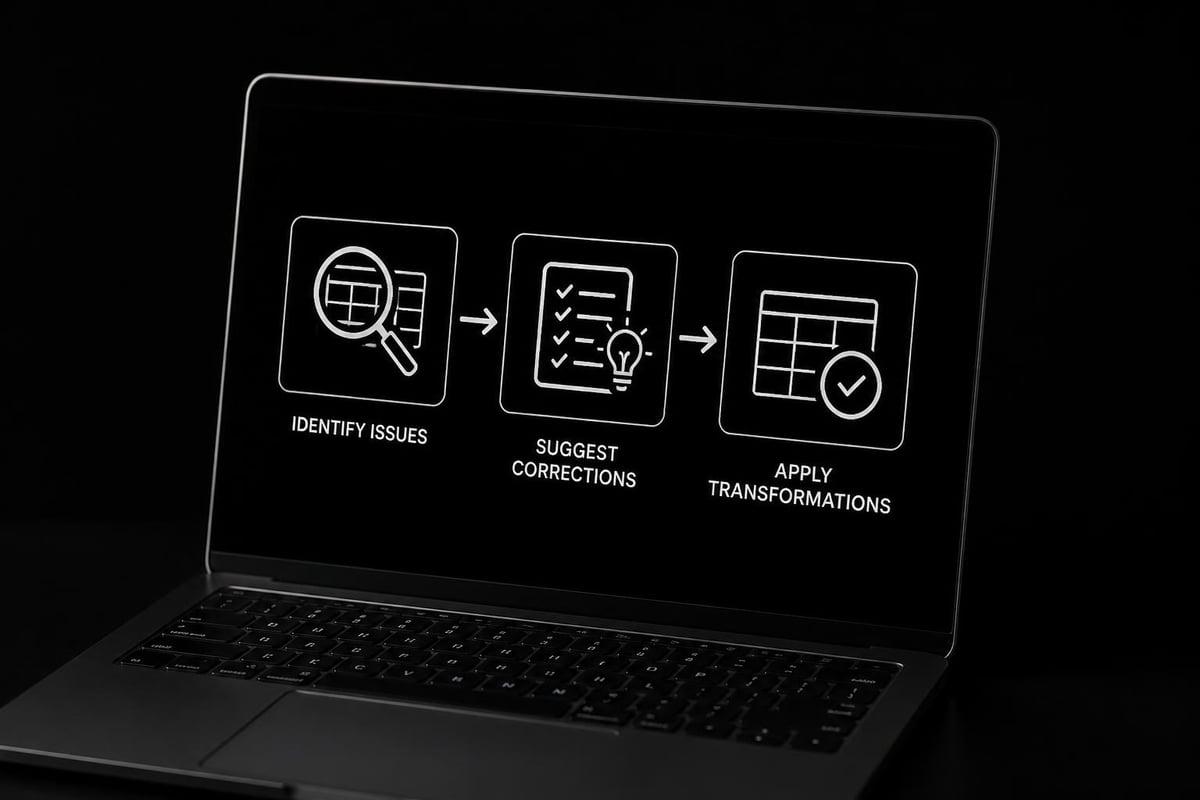
Spreadsheet problems often stem from messy or inconsistent data. Copilot assists with cleaning tasks by understanding context and applying transformations across entire columns.
You can request operations like "remove duplicates from the customer list," "standardize all date formats to MM/DD/YYYY," or "split the full name column into first and last names." These commands save hours of manual editing and reduce errors that creep in during repetitive tasks.
Working with Copilot Functions
Microsoft introduced a dedicated COPILOT function that brings AI capabilities directly into cell formulas. This function differs from the chat interface by embedding AI logic within your spreadsheet calculations.
Formula Syntax and Structure
The COPILOT function accepts natural language instructions as arguments, allowing you to describe what you want rather than building complex nested formulas. The basic syntax follows this pattern:
=COPILOT("instruction", reference_range, [additional_parameters])
However, as noted in Microsoft’s accuracy advisories, this function may produce variable results between calculations, making it unsuitable for financial reporting or compliance scenarios.
Practical Applications and Limitations
Understanding where Copilot excels versus where traditional formulas remain superior is crucial for effective use. The function works well for exploratory analysis, brainstorming scenarios, and generating draft calculations that you'll refine manually.
Best Use Cases:
- Drafting initial formulas for complex calculations
- Exploring different analytical approaches
- Generating sample data for testing
- Creating prototype dashboards
Avoid for:
- Financial statements requiring audit trails
- Regulatory compliance reporting
- Mission-critical calculations
- Any scenario requiring exact reproducibility
For users comparing AI options, our guide on Claude vs Copilot for Excel explores alternative AI tools and their respective strengths in spreadsheet tasks.
Practical Workflow Integration
This microsoft copilot for excel tutorial wouldn't be complete without addressing how to incorporate Copilot into your daily Excel routines effectively.
Building Efficient Prompting Habits
Developing a systematic approach to interacting with Copilot improves results and reduces frustration. Think of each prompt as a mini-specification that clearly defines your desired outcome.
Start broad to explore possibilities, then refine based on Copilot's initial response. For example, begin with "analyze sales trends" to see what Copilot suggests, then follow up with more specific requests like "now break that down by product category and show monthly growth rates."
| Workflow Stage | Copilot Application | Traditional Excel Approach |
|---|---|---|
| Initial Setup | "Create a table structure for tracking project budgets" | Manual column creation and formatting |
| Data Entry | "Generate sample data for testing" | Manual typing or imports |
| Analysis | "Calculate variance between budget and actual" | Writing VARIANCE formulas |
| Visualization | "Suggest chart types for this data" | Trial and error chart creation |
| Reporting | "Summarize key findings" | Manual summary writing |
Combining AI with Traditional Excel Skills
Copilot enhances but doesn't replace fundamental Excel knowledge. The most effective users blend AI assistance with solid spreadsheet fundamentals to create robust, maintainable workbooks.
Use Copilot to accelerate formula creation, but understand the formulas it generates. Review the logic, verify results with test cases, and ensure you can explain how calculations work to stakeholders who may question your analysis.
Troubleshooting Common Issues
Even with AI assistance, Excel challenges persist. Recognizing when Copilot can help versus when you need different approaches prevents wasted time and frustration.
When Copilot Doesn't Understand
If Copilot produces unexpected results or claims it cannot help, the issue usually relates to how your data is structured or how you've phrased your request. According to Microsoft’s official guidance, your data must be in a properly formatted Excel table.
Common Problems and Solutions:
- Vague prompts: Add specificity about columns, timeframes, and desired outputs
- Unstructured data: Convert ranges to tables using Ctrl+T
- Missing context: Include information about what the data represents
- Complex multi-step requests: Break into sequential, simpler prompts
Data Security and Privacy Considerations
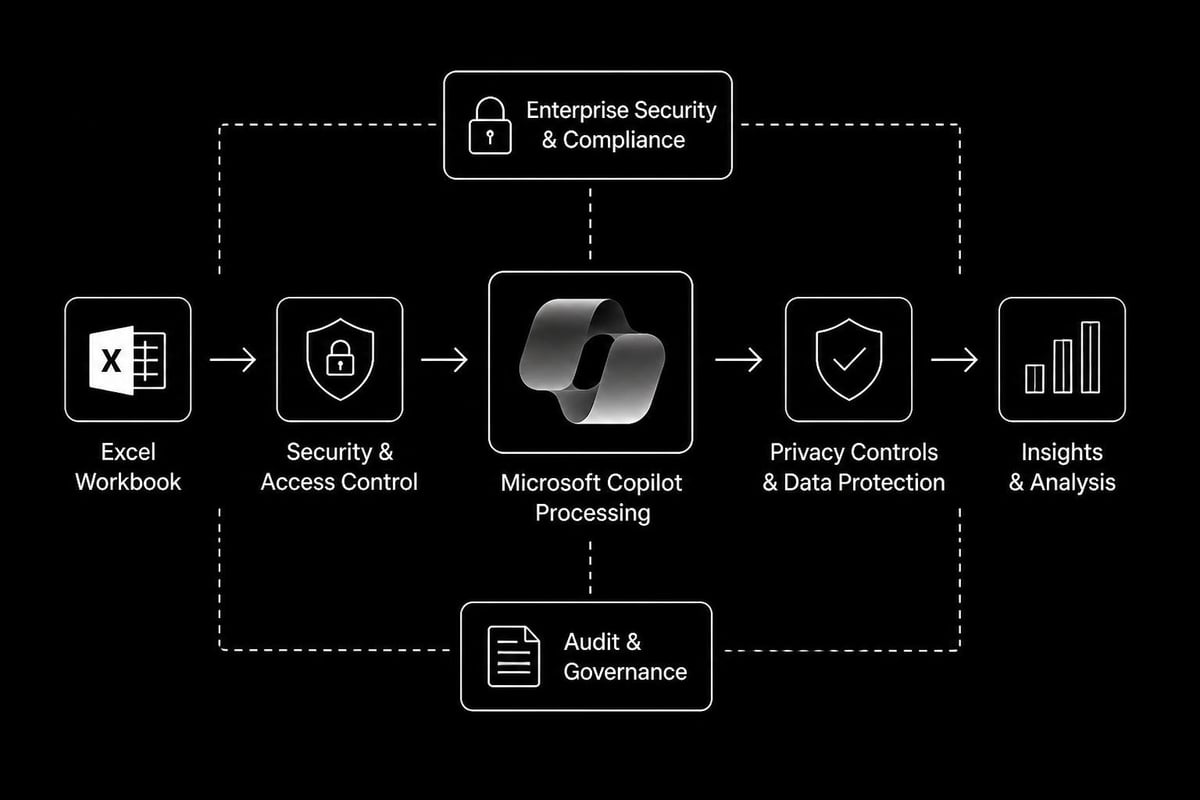
When working with sensitive information, understand how Copilot processes your data. Microsoft states that Copilot follows your organization's security policies and doesn't use your data to train public models, but you should verify your company's AI usage guidelines before proceeding.
For confidential financial data or personally identifiable information, consider whether AI assistance is appropriate or if traditional methods provide better control and auditability.
Maximizing Productivity with Keyboard Shortcuts
Efficiency gains multiply when you combine Copilot's AI capabilities with Excel's keyboard shortcuts. Recent updates have introduced dedicated Copilot shortcuts that streamline access to AI features.
Essential Shortcut Combinations
Learning key combinations reduces the friction of switching between mouse and keyboard, keeping you in flow state longer. The primary Copilot activation shortcut varies by Excel version, but typically involves Alt combinations.
Productivity Shortcuts:
- Alt + H: Open Copilot chat panel
- Ctrl + Shift + ;: Insert current date in selected cell
- F2: Edit the active cell (useful when reviewing Copilot formulas)
- Ctrl + `: Toggle formula display to inspect Copilot-generated functions
- Alt + Enter: Start new line within a Copilot prompt
Combining these with traditional Excel automation techniques creates a powerful workflow that balances AI assistance with manual control.
Real-World Application Scenarios
Understanding how to apply this microsoft copilot for excel tutorial in actual business contexts helps bridge the gap between feature knowledge and practical value.
Financial Analysis and Forecasting
Finance teams can leverage Copilot to accelerate variance analysis, trend identification, and scenario modeling. Rather than manually calculating dozens of ratios, you can request "calculate all standard financial ratios for this income statement" and let Copilot generate the formulas.
For forecasting, prompts like "project next quarter's revenue based on historical growth patterns" initiate predictive calculations, though you should validate these against your business knowledge and market conditions.
Sales and Marketing Analytics
Marketing professionals benefit from Copilot's ability to quickly segment data and identify high-performing campaigns. Requests such as "compare conversion rates across all marketing channels" or "identify customer segments with highest lifetime value" produce immediate insights.
Those working with marketing data can explore advanced analytics consulting approaches that complement AI-assisted analysis with strategic interpretation.
Operational Reporting
Operations teams managing inventory, logistics, or project schedules use Copilot to automate repetitive reporting tasks. Creating weekly status summaries becomes as simple as asking "generate a summary showing completed tasks, overdue items, and upcoming deadlines."
The AI handles data aggregation and formatting, freeing you to focus on decision-making rather than report assembly.
Learning Resources and Continued Development
Mastering Copilot requires ongoing learning as Microsoft continuously adds features and refines capabilities. Microsoft’s official tutorials provide the most current guidance directly from the source.
Building Your Copilot Expertise
Effective learning involves experimentation with sample datasets before applying techniques to critical business data. Create practice workbooks where you test different prompt styles and observe how Copilot responds.
Document successful prompts for common tasks in your organization. Building a prompt library accelerates future work and helps colleagues who are also learning to use Copilot effectively.
Learning Path Recommendations:
- Start with simple formula generation requests
- Progress to data analysis and insight extraction
- Experiment with the COPILOT function in non-critical scenarios
- Practice combining AI suggestions with manual refinements
- Share knowledge with team members to build collective expertise
Staying Current with AI Updates
Microsoft regularly enhances Copilot's capabilities based on user feedback and AI advancements. Following reputable technology news sources helps you stay informed about new features and best practices as they emerge.
Subscribe to Microsoft's official blogs and participate in user communities where practitioners share real-world experiences and creative applications of Copilot functionality.
Balancing AI Assistance with Manual Control
While this microsoft copilot for excel tutorial emphasizes what Copilot can do, knowing when to use traditional methods remains equally important. AI excels at speed and suggestion but cannot replace human judgment about data quality, business context, or strategic implications.
Critical Thinking in the AI Era
Every Copilot-generated formula or insight deserves verification. Check calculations against known results, ensure logic aligns with business rules, and confirm that automated analysis hasn't missed important nuances only human experts would catch.
Use Copilot as a starting point or accelerator, not as a final authority. The combination of AI efficiency and human expertise produces superior outcomes compared to either approach alone.
For complex spreadsheet challenges that require deep expertise, specialized consulting services provide the strategic guidance AI cannot yet replicate.
This comprehensive microsoft copilot for excel tutorial has equipped you with the knowledge to start leveraging AI in your daily spreadsheet work, from basic commands through advanced analytical applications. The key to success lies in thoughtful integration of Copilot's capabilities with solid Excel fundamentals and critical thinking about your specific business needs. If you're facing persistent spreadsheet challenges or want to accelerate your Excel mastery beyond what AI can teach, The Analytics Doctor offers personalized training and expert support tailored to your unique situation, helping you build solutions that truly work for your data.