
Google's Gemini AI has emerged as a powerful companion for Excel users seeking to streamline their spreadsheet workflows, debug complex formulas, and extract meaningful insights from their data. Whether you're wrestling with VLOOKUP errors, trying to automate repetitive tasks, or searching for patterns in massive datasets, the right prompts can transform Gemini from a simple chatbot into your personal spreadsheet consultant. Understanding how to communicate effectively with AI using structured, specific prompts makes the difference between generic suggestions and actionable solutions that solve real Excel problems. This guide explores the best gemini prompts for excel users, providing practical examples that address common challenges and unlock advanced capabilities you might not have known existed.
Formula Generation and Debugging Prompts
Crafting formulas from scratch can consume hours of your workday, especially when dealing with nested functions or complex conditional logic. Gemini excels at generating Excel formulas when you provide clear context about your data structure and desired outcome.
Building Complex Formulas from Natural Language
Instead of struggling to remember syntax, describe what you want to accomplish. For example: "Create an Excel formula that looks up an employee name in column A, finds their department in Sheet2 column B, and returns their salary from Sheet2 column C, showing 'Not Found' if the employee doesn't exist." Gemini will generate a complete formula using INDEX-MATCH or XLOOKUP functions with proper error handling.
The key to getting precise formulas lies in specifying your column references, sheet names, and edge cases. When working with date calculations, try: "Write a formula that calculates the number of business days between the date in cell B2 and today's date, excluding weekends and the holidays listed in range F2:F15."
Best practices for formula generation prompts:
- Always mention specific cell references and ranges
- Describe what should happen when errors occur
- Specify if you need array formulas or traditional formulas
- Include information about your Excel version (Microsoft 365, 2021, etc.)
- Mention if your data contains blanks or special characters
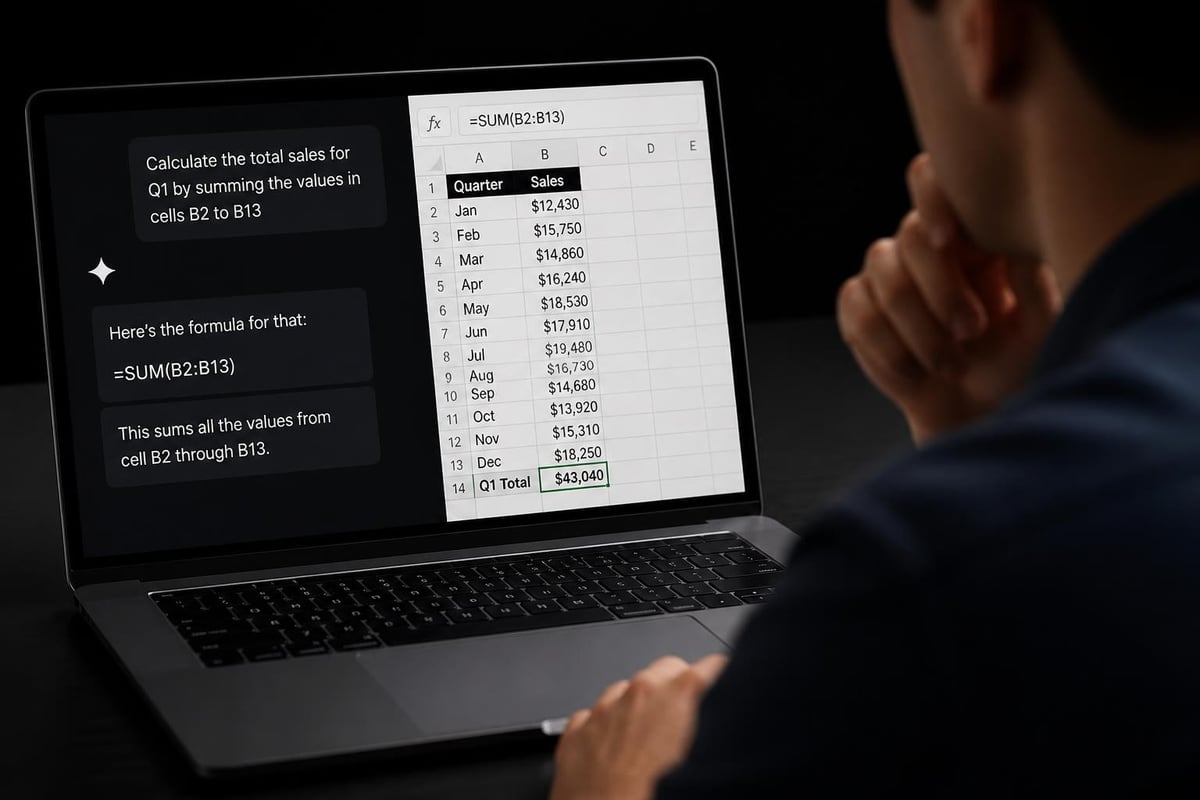
Debugging Existing Formulas
When your formulas return errors or unexpected results, Gemini can diagnose the problem. The integration of Gemini into Google Sheets demonstrates how AI can explain formula failures in plain English, and the same principles apply to Excel troubleshooting.
Copy your broken formula and ask: "This formula =SUMIFS(D:D,A:A,G2,B:B,">="&H2,B:B,"<="&I2) is returning zero when I know there should be results. My data in column D contains numbers formatted as text. How do I fix this?" Gemini will identify the text-number mismatch and suggest wrapping column D in VALUE() function or using alternative approaches.
For more complex debugging, provide sample data: "I'm using this array formula {=SUM(IF(A2:A100="North",B2:B100*C2:C100,0))} but it's only calculating the first row. What's wrong?" This level of detail helps Gemini pinpoint whether you need Ctrl+Shift+Enter, different array syntax, or a completely different approach.
Data Analysis and Pattern Recognition Prompts
Excel users frequently need to extract insights from raw data, identify trends, or prepare information for decision-making. The best gemini prompts for excel users in this category combine analytical thinking with specific output requirements.
Statistical Analysis Prompts
When you need to understand your data's characteristics, be specific about the metrics you want: "Analyze my sales data in range A2:E500. Calculate the mean, median, mode, and standard deviation for each product category in column B. Also identify any outliers that fall more than 2 standard deviations from the mean."
For correlation analysis, try: "I have monthly revenue in column C and marketing spend in column D for the past 36 months. Create a formula to calculate the Pearson correlation coefficient and explain what the result means for my business."
| Analysis Type | Prompt Structure | Key Elements to Include |
|---|---|---|
| Trend Analysis | "Identify trends in [range] over [time period]" | Time column, metric column, desired trend type |
| Comparative Analysis | "Compare [metric] between [groups]" | Grouping column, values to compare, statistical test needed |
| Distribution Analysis | "Show distribution of [data] using [method]" | Data range, bins/intervals, chart type |
Data Cleaning and Transformation
Messy data causes countless spreadsheet headaches. Use prompts like: "I have a column of phone numbers in various formats: (555) 123-4567, 555-123-4567, and 5551234567. Write a formula to standardize all of them to (555) 123-4567 format."
For text manipulation: "Column A contains full names like 'Smith, John David' and 'Johnson, Mary'. Create formulas to extract first name, middle name (if present), and last name into separate columns, handling cases where there's no middle name."
When dealing with duplicate data, ask: "Create a formula that identifies duplicate entries in column A but keeps the row with the most recent date from column B, marking all others for deletion."
Automation and Macro Development Prompts
While Gemini can't directly execute VBA code in Excel, it excels at generating macro code you can implement. Understanding how to integrate Gemini into Excel workflows opens possibilities for custom automation solutions.
VBA Code Generation
Start with clear automation goals: "Write VBA code that loops through all worksheets in my workbook, finds cells containing 'PENDING' in column E, highlights those entire rows in yellow, and sends me an email summary of how many pending items exist in each sheet."
For report automation: "Create a macro that copies data from Sheet1 where column C equals 'Completed' to a new workbook, formats it as a table, adds a date stamp in cell A1, and saves it to my Desktop folder with the filename 'Weekly Report [current date].xlsx'."
Essential elements for VBA prompts:
- Describe the trigger (button click, worksheet change, time-based)
- Specify exact conditions and criteria
- Detail the desired actions step-by-step
- Mention error handling preferences
- Include file paths and naming conventions
Task Automation Without Code
Not every automation requires VBA. Ask: "How can I set up data validation and conditional formatting to create a dynamic task tracker where cells automatically change color based on due dates: green for more than 7 days away, yellow for 3-7 days, red for less than 3 days, and gray for completed tasks?"
For workflow optimization: "Design a system using Excel formulas and features only (no VBA) that automatically categorizes expenses from column B into budget categories, calculates running totals, and flags when any category exceeds 90% of its allocated budget from my reference table."
Advanced Excel Feature Prompts
Power users can leverage Gemini to master Excel's more sophisticated capabilities, from Power Query to advanced charting techniques.
Power Query and Data Modeling
When working with multiple data sources: "Explain how to use Power Query to merge three CSV files with similar structures but different column names, standardize the column headers, remove duplicates based on an ID column, and load the result into Excel's Data Model for pivot table analysis."
For transformation logic: "Write M code for Power Query that takes a single column containing comma-separated values and expands it into multiple rows, preserving the connection to the original row's other columns."
If you're comparing AI tools for Excel work, you might find it valuable to explore Claude vs Copilot for Excel to understand which assistant best fits your specific needs.
Dynamic Array Functions and Spill Ranges
Microsoft 365 users have access to powerful array functions. Try: "Create a formula using FILTER and SORT that displays all sales records from Table1 where the region matches the dropdown selection in cell B1, sorted by date in descending order, and shows 'No matching records' if the filter returns empty."
For complex transformations: "Write a LAMBDA function that takes a range of dates and returns a summary showing the count of entries for each unique month-year combination, formatted as 'Jan 2026: 15 entries'."
Reporting and Visualization Prompts
Creating compelling reports requires both technical skill and design sense. Gemini can guide you through both aspects with the right prompts.
Dashboard Creation Guidance
Start with your objectives: "I need to create an executive dashboard that shows monthly sales trends, top 5 performing products, regional performance comparison, and year-over-year growth. Recommend the best chart types for each metric, optimal dashboard layout, and which Excel features to use for interactivity."
For specific chart requests: "Design a combination chart that shows monthly revenue as columns and profit margin percentage as a line on the secondary axis, with data labels only on the line, custom colors matching our brand guide (blue #0066CC for columns, orange #FF6600 for line), and a dynamic title that updates based on the selected year."
The effective prompting techniques used by AI professionals can significantly improve the quality of visualization recommendations you receive from Gemini.
Conditional Formatting for Insights
Make data visual with prompts like: "Set up conditional formatting rules for my project timeline in columns B through M (representing months) that colors cells green when tasks are completed early, white when on schedule, yellow when at risk (within 3 days of deadline), and red when overdue, based on comparing actual completion dates in column N with planned dates in column O."
For financial dashboards: "Create a heat map using conditional formatting for my quarterly sales data (4 regions by 12 products) where the highest values appear in dark green, lowest in dark red, and middle values in graduated shades, with exact thresholds based on standard deviation from the mean."
Troubleshooting and Error Resolution Prompts
Excel errors frustrate users at all skill levels. The best gemini prompts for excel users experiencing errors provide complete context about the problem.
Common Error Messages
When facing #REF! errors: "My formula =VLOOKUP(A2,Products!B:E,3,FALSE) worked yesterday but now shows #REF! error. I deleted column C from the Products sheet this morning. How do I fix all affected formulas without manually updating each one?"
For #VALUE! errors: "I'm getting #VALUE! error from =SUMPRODUCT((A2:A100="West")*(B2:B100)). Column A contains region names, column B should contain numbers but some cells have text like 'Pending'. How can I modify the formula to ignore text values?"
Troubleshooting prompt framework:
- State the error message exactly as shown
- Provide the complete formula
- Describe the data types in each referenced range
- Mention any recent changes to the workbook
- Specify your Excel version
Performance Optimization
When spreadsheets slow down: "My workbook with 50,000 rows takes 5 minutes to calculate. I'm using 15 columns of VLOOKUP formulas referencing another sheet. What's the most efficient way to improve calculation speed without losing functionality?"
For file size issues: "My Excel file is 45MB and takes forever to save. It contains 10 worksheets with various formulas, pivot tables, and about 20,000 rows of data. What steps can I take to reduce file size while maintaining all functionality?"

Industry-Specific Excel Prompts
Different industries have unique Excel requirements. Tailoring prompts to your field produces more relevant solutions.
Financial Analysis and Accounting
For financial modeling: "Create formulas for a 5-year revenue projection model with inputs for starting revenue, annual growth rate (which declines 2% each year), seasonality factors by quarter, and one-time adjustments. Include sensitivity analysis showing outcomes at growth rates ±3%."
Accounting-focused prompts: "Design a formula system for expense tracking that categorizes transactions based on keywords in the description column, applies the correct GL code from a lookup table, flags any amounts exceeding approval thresholds by category, and calculates running monthly totals by department."
Organizations seeking comprehensive support often benefit from business intelligence consulting services that combine AI capabilities with expert human guidance.
Project Management and Scheduling
For timeline creation: "Build a Gantt chart system using conditional formatting where I input task names, start dates, and duration in days, and the chart automatically highlights the appropriate cells across a 12-month calendar view, shows task dependencies with different colors, and calculates the critical path."
Resource allocation prompts: "Create formulas that track employee assignments across multiple projects, calculate total hours allocated per person per week, identify over-allocation (more than 40 hours), and suggest rebalancing options based on task priorities in column G."
Sales and Marketing Analytics
For campaign tracking: "Design a dashboard system that takes raw campaign data (impressions, clicks, conversions, cost) and calculates CTR, conversion rate, CPA, and ROAS, compares performance against target KPIs in a reference table, and highlights underperforming campaigns using icon sets."
Lead scoring prompts: "Build a weighted scoring model that assigns points to leads based on company size (column C), industry match (column D), engagement level (column E), and budget indicator (column F), using weights I'll define in a separate parameters table, and categorizes leads as Hot/Warm/Cold based on total score thresholds."
Data Import and Export Prompts
Moving data between systems efficiently prevents manual data entry errors and saves significant time.
Structured Data Extraction
When working with external data: "I receive weekly sales reports as PDFs. Explain how to convert this data into Excel, clean up formatting inconsistencies, map the fields to my standard template columns, and append new data to my master tracking sheet without creating duplicates."
For API integration: "I need to pull data from our CRM system's API into Excel. The API returns JSON format. Walk me through the process of using Power Query to connect to the API, authenticate, parse the JSON response, and refresh the data automatically when I open the workbook."
The ability to generate Google Docs, PDF, and Word files demonstrates how AI tools are expanding their file format capabilities, which complements Excel data export workflows.
Cross-Platform Data Management
For multi-system workflows: "I maintain the same dataset in both Excel and Google Sheets for different team members. Create a process for keeping them synchronized, including formulas that translate Excel-specific functions to Sheets equivalents, and vice versa."
Template standardization: "Design an Excel template for expense reports that validates all required fields, uses data validation for categories and payment methods, includes automatic calculation of totals and tax, and can export clean CSV data formatted for import into our accounting software."
Learning Advanced Techniques Through Prompts
Using Gemini as a learning tool accelerates your Excel skill development beyond immediate problem-solving.
Understanding Complex Functions
Rather than just getting solutions, ask for explanations: "Explain how the SUMPRODUCT function works using a simple example with 3 rows of data showing quantities and prices. Then show me a more advanced example using it for conditional counting with multiple criteria."
For function mastery: "Break down this formula step-by-step: =IFERROR(INDEX(Employees!$B$2:$B$100,MATCH(1,(Employees!$A$2:$A$100=A2)*(Employees!$C$2:$C$100=B2),0)),'Not Found') explaining what each part does and why it's necessary."
Those exploring how to use Claude with Excel will find that different AI assistants offer varying strengths for different types of Excel challenges, making it valuable to understand multiple platforms.
Building Best Practices
System design prompts: "What's the best way to structure a workbook that tracks inventory across 50 locations, with inputs from multiple users, maintains historical data, generates automated reorder alerts, and produces monthly summary reports? Include recommendations for data validation, protection, and audit trails."
For scalability planning: "My expense tracking spreadsheet works well with 1,000 rows but will grow to 50,000+ rows over the next year. What structural changes should I make now to prevent performance problems later? Consider formulas, formatting, pivot tables, and data storage approaches."
| Prompt Category | Beginner Focus | Advanced Focus | Expert Focus |
|---|---|---|---|
| Formula Creation | Basic functions, single criteria | Nested functions, multiple criteria | Array formulas, custom functions |
| Data Analysis | Simple calculations, basic charts | Statistical analysis, trend identification | Predictive modeling, complex visualizations |
| Automation | Recording macros, simple formatting | Conditional logic, loops, error handling | API integration, custom add-ins |
| Problem Solving | Error message explanations | Performance optimization | System architecture design |
Crafting Effective Prompts: Meta Strategies
The quality of your results depends heavily on how you structure your questions. Learning meta prompting techniques from AI engineers can elevate your prompt effectiveness.
Context-Rich Prompting
Always provide complete context: "I'm analyzing customer purchase data for an e-commerce business. My dataset has 25,000 rows with columns for customer ID, order date, product category, quantity, and revenue. I need to identify customers who purchased from at least 3 different categories in the last 6 months and calculate their average order value. What's the most efficient approach?"
Compare this to a vague prompt: "How do I find repeat customers?" The first version gives Gemini everything needed to provide a targeted, actionable solution.
Iterative Refinement
Start broad, then narrow: Begin with "What are the different ways to calculate year-over-year growth in Excel?" Review the options, then follow up with "I want to use the INDEX-MATCH approach you mentioned. Show me the exact formula for my data where 2026 values are in column C and 2025 values are in column D, with months in column A."
This iterative approach often yields better results than trying to pack everything into a single mega-prompt.
Requesting Alternatives
Don't settle for the first solution. Ask: "You suggested using a complex nested IF formula. What are three alternative approaches to solve this problem, including pros and cons of each method considering calculation speed, ease of maintenance, and compatibility with Excel 2019?"
Exploring effective prompt writing strategies provides templates you can adapt for Excel-specific challenges.
Security and Collaboration Prompts
Modern Excel work often involves sharing workbooks and protecting sensitive data.
Workbook Protection
For security setup: "I need to share my budget workbook with my team where they can edit only their department's tab, view (but not edit) the summary dashboard, and cannot see the salary reference table at all. Walk me through the protection settings, including password options and permission levels."
Understanding how to password protect Excel workbooks provides foundational knowledge that complements AI-generated security solutions.
Shared Workbook Best Practices
For collaboration: "Design a system for 5 team members to update a shared Excel file stored on OneDrive without overwriting each other's changes, including data validation to prevent errors, clear ownership indicators for each row, and automatic timestamping of edits."
Version control prompts: "Create a method for tracking changes in a shared budget spreadsheet where each modification logs the date, user, cell changed, old value, and new value in a separate audit trail sheet, without requiring VBA if possible."
Mastering the best gemini prompts for excel users transforms AI from a novelty into a genuine productivity multiplier that saves hours of spreadsheet work each week. Whether you're generating complex formulas, debugging errors, automating repetitive tasks, or building sophisticated dashboards, structured prompts unlock Gemini's full potential for Excel challenges. When you encounter spreadsheet problems that stump even the best AI prompts, The Analytics Doctor offers personalized Excel training and expert troubleshooting to untangle your most complex workbooks and build solutions tailored to your specific business needs.


